Manage Workspaces
After saving one or more workspaces for a report, you can manage them by renaming or deleting them, and you can also export and share them.
To reach the Manage Workspaces window, click the "File" tab on the main ribbon of the report preview window, then on the "Workspaces" tab click "Manage Workspaces"; the following window opens:
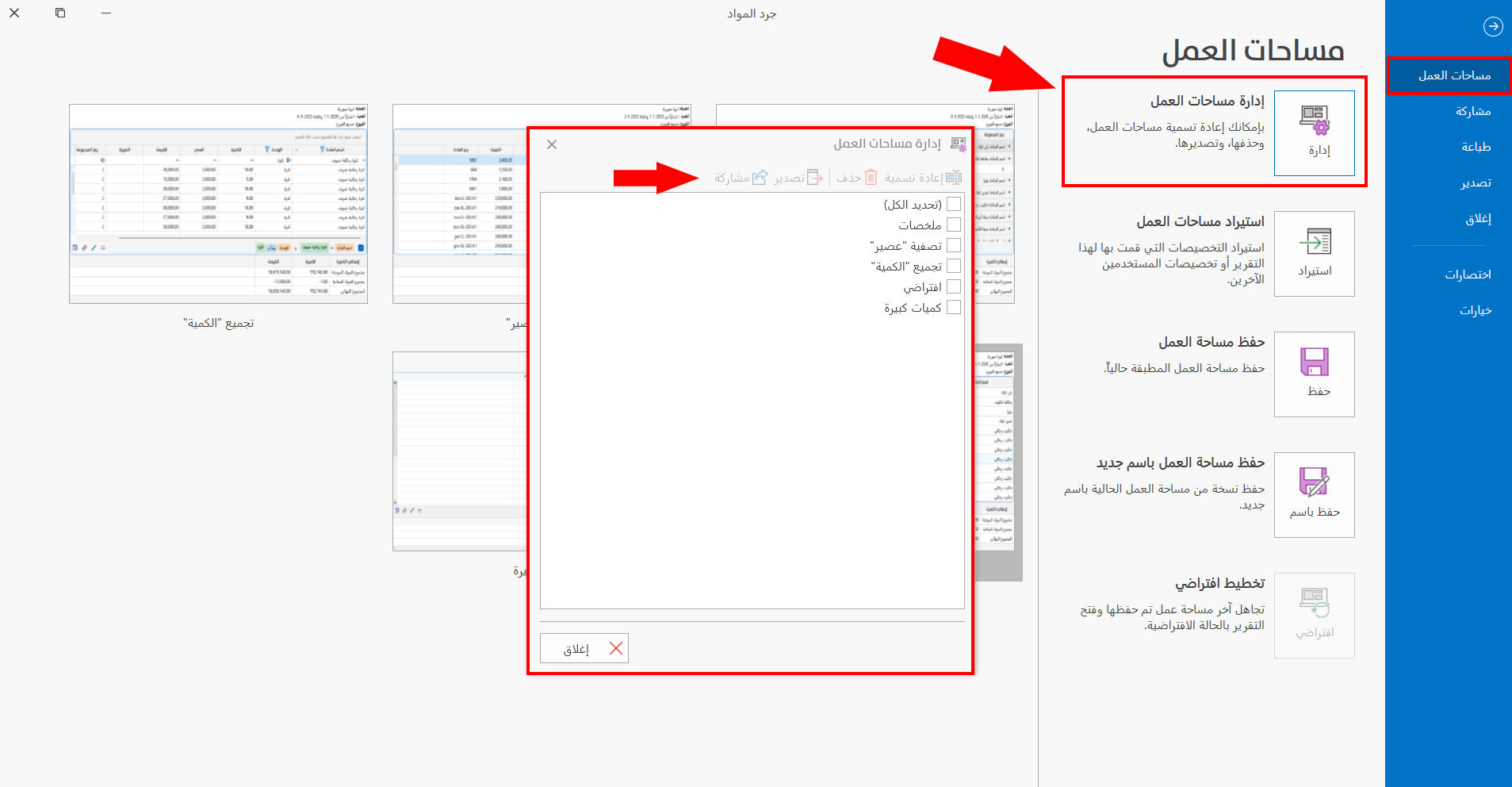
The window contains a list of the saved workspaces, and the tools you can use to manage them.
The tools of the Manage Workspaces window become active after you select a workspace in the list.
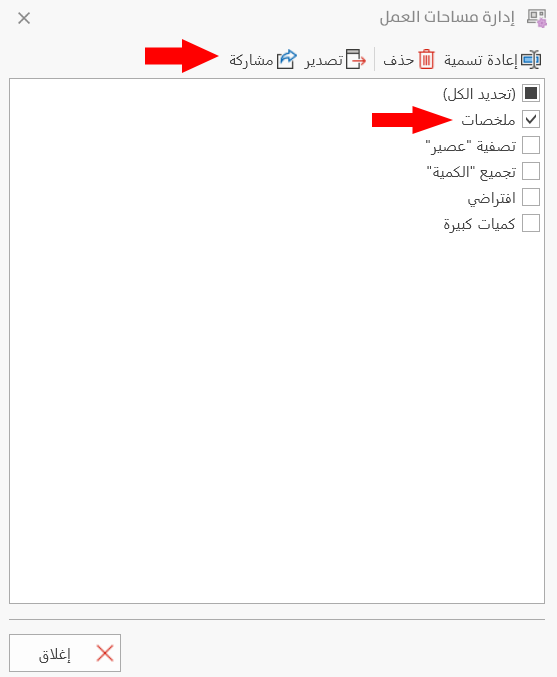
After the tools become active, you can control the workspaces as follows:
Renaming a Workspace
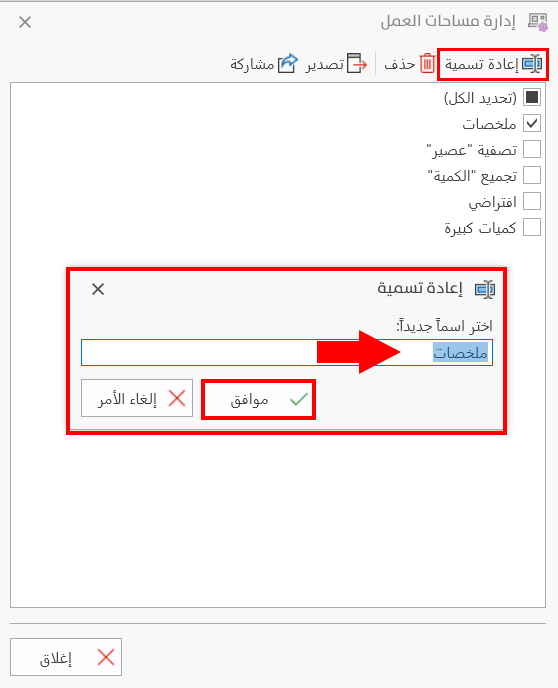
To change the name of a workspace, click "Rename": a window opens where you can edit the new name of the workspace, then click the "Ok" button to change it directly.
Deleting a Workspace
To delete a workspace saved earlier, select the workspace you want to delete, then click the "Delete" button: a warning window opens to make sure you want to delete the workspace.
Click the "Delete" button in the window to finish the operation, or "Cancel" to undo the deletion.
Exporting a Workspace
You can export the workspace to the computer with the "Export" button: a window opens that lets you choose the place to export to.
Choose the place you need, then click the "Save" button in the window.
Sharing a Workspace
The program provides more than one way to share a workspace: after selecting the workspace you want to share, click the "Share" button to set the method and the recipient in the following window:
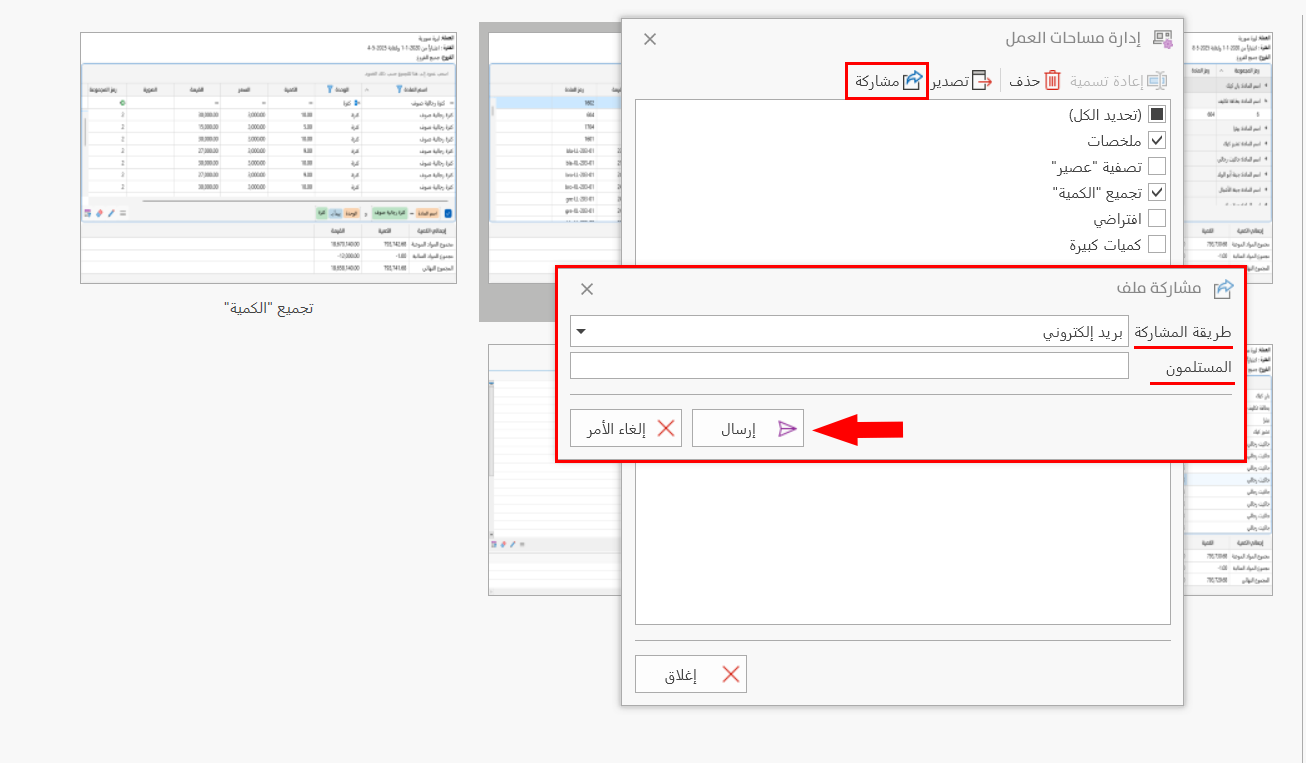
You can share workspaces in the following ways:
-
Email
-
SMS
-
WhatsApp
After setting the method, enter the recipient in the "Recipients" field.
Enter the email of the recipient if the sharing method is "Email".
Enter the number of the recipient if the sharing method is "SMS, or WhatsApp".
Click the "Send" button in the window to finish sharing the workspace, or the "Cancel" button to undo sending.
To link the email or number to the program, go to the program options window - Link tab - Share Settings.
Note
You can delete or rename a workspace by right-clicking it and choosing the action you need from the menu (Rename, Save).