Report Options
You can set the default options of many details in the reports of the program, such as the layout and appearance of the report, and control some operations in the report preview interface, such as grouping, searching, and summaries.
This is done with the tabs of the report options window
Reaching the Report Options Window
You can reach the window in two different ways:
First: from the main ribbon of the program
Click the File tab on the main ribbon of the program; the program moves to the following interface:
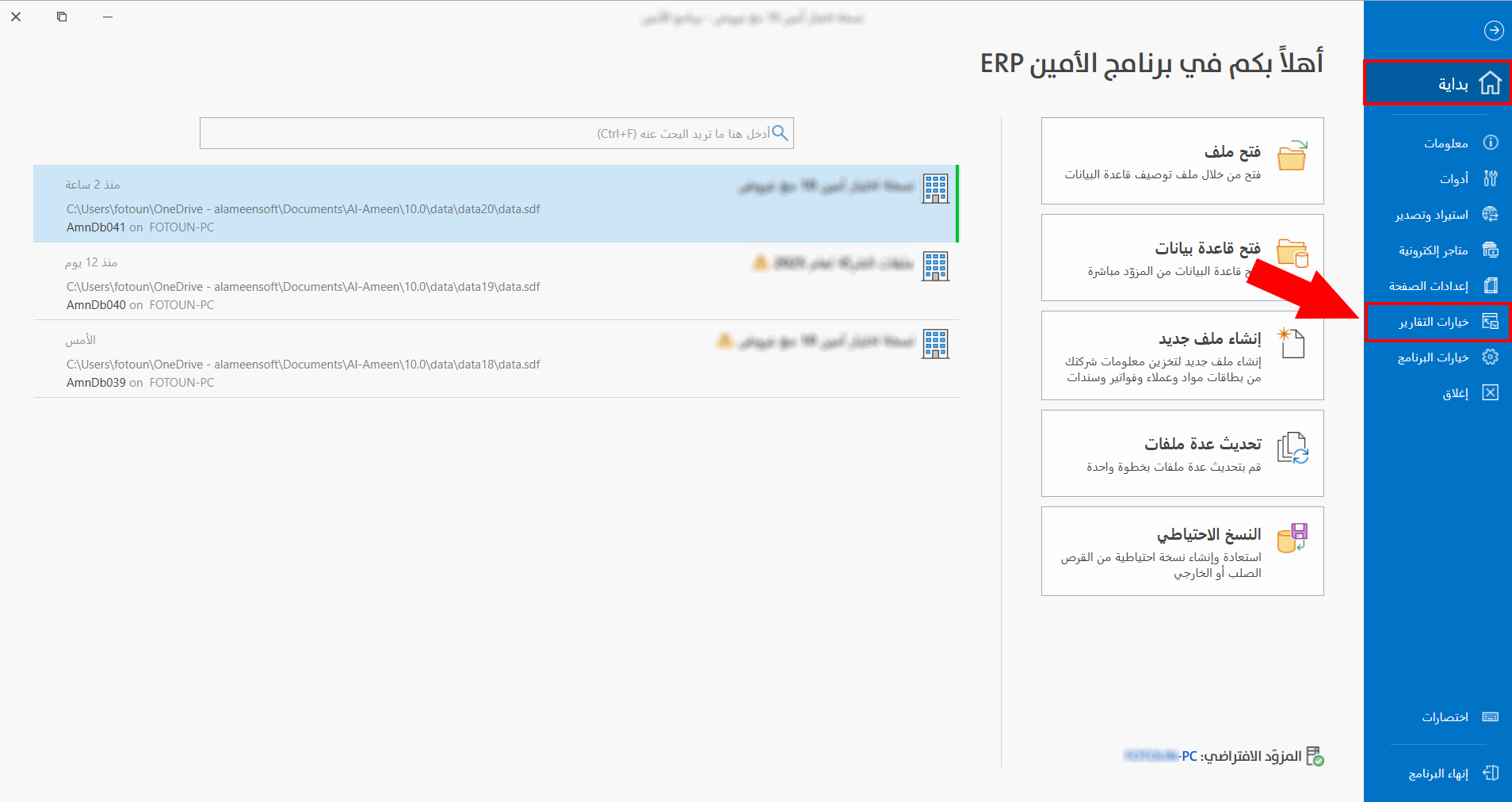
From the list under "Home", click "Report Options".
Second: from the report preview interface
After you request a report, the options window (the report request window) opens; click the "Preview" button in the window.
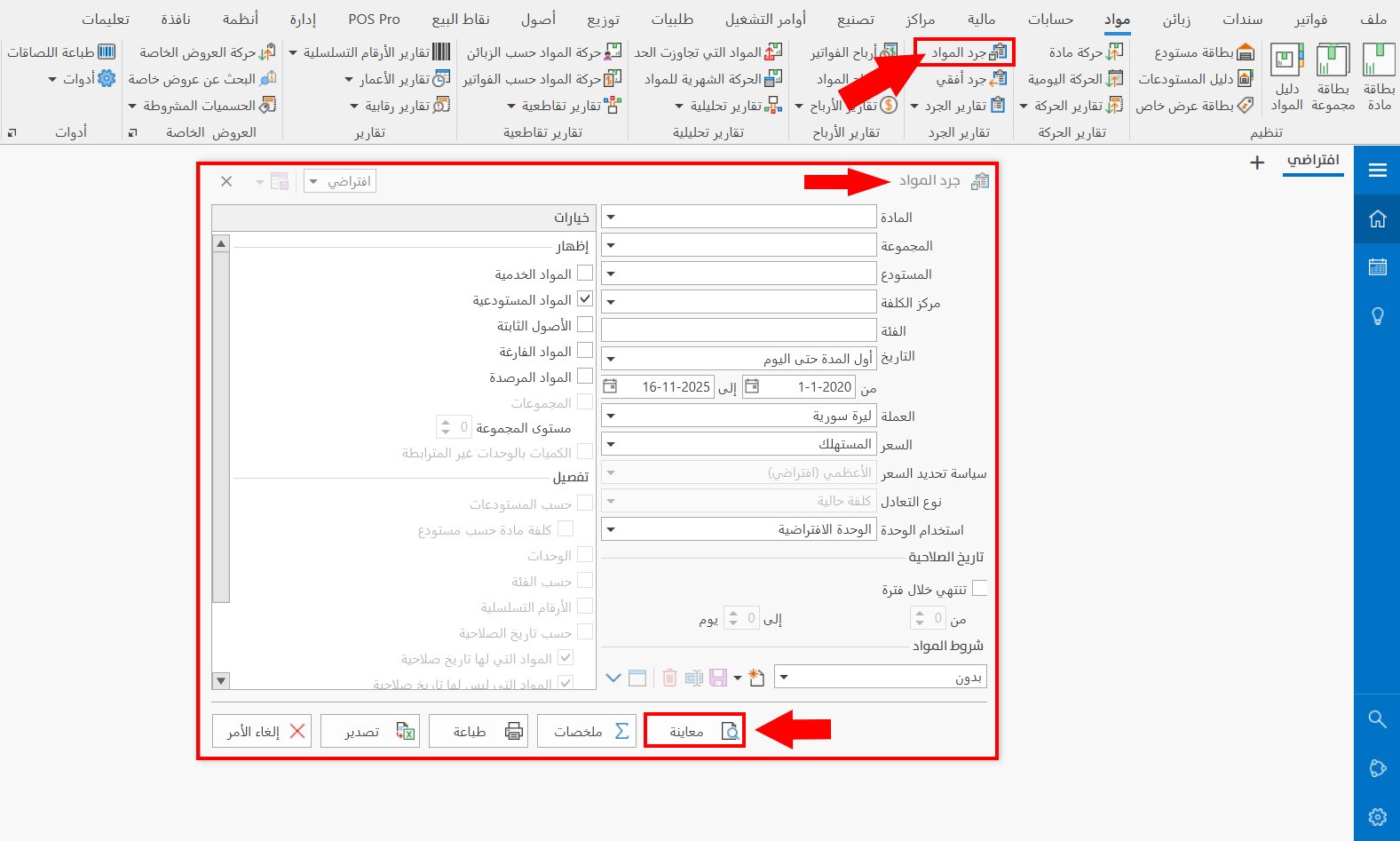
The program moves to the preview interface.
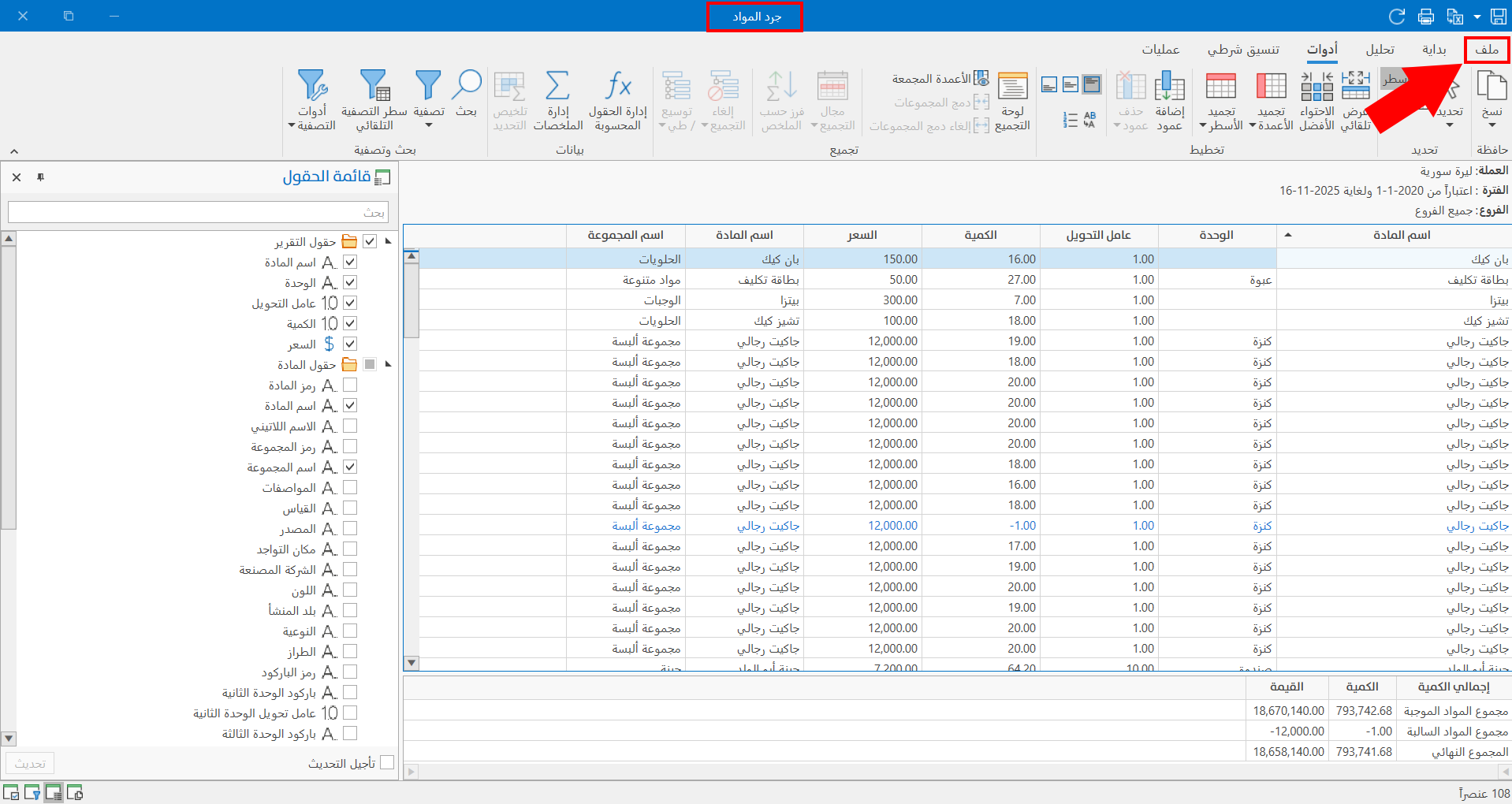
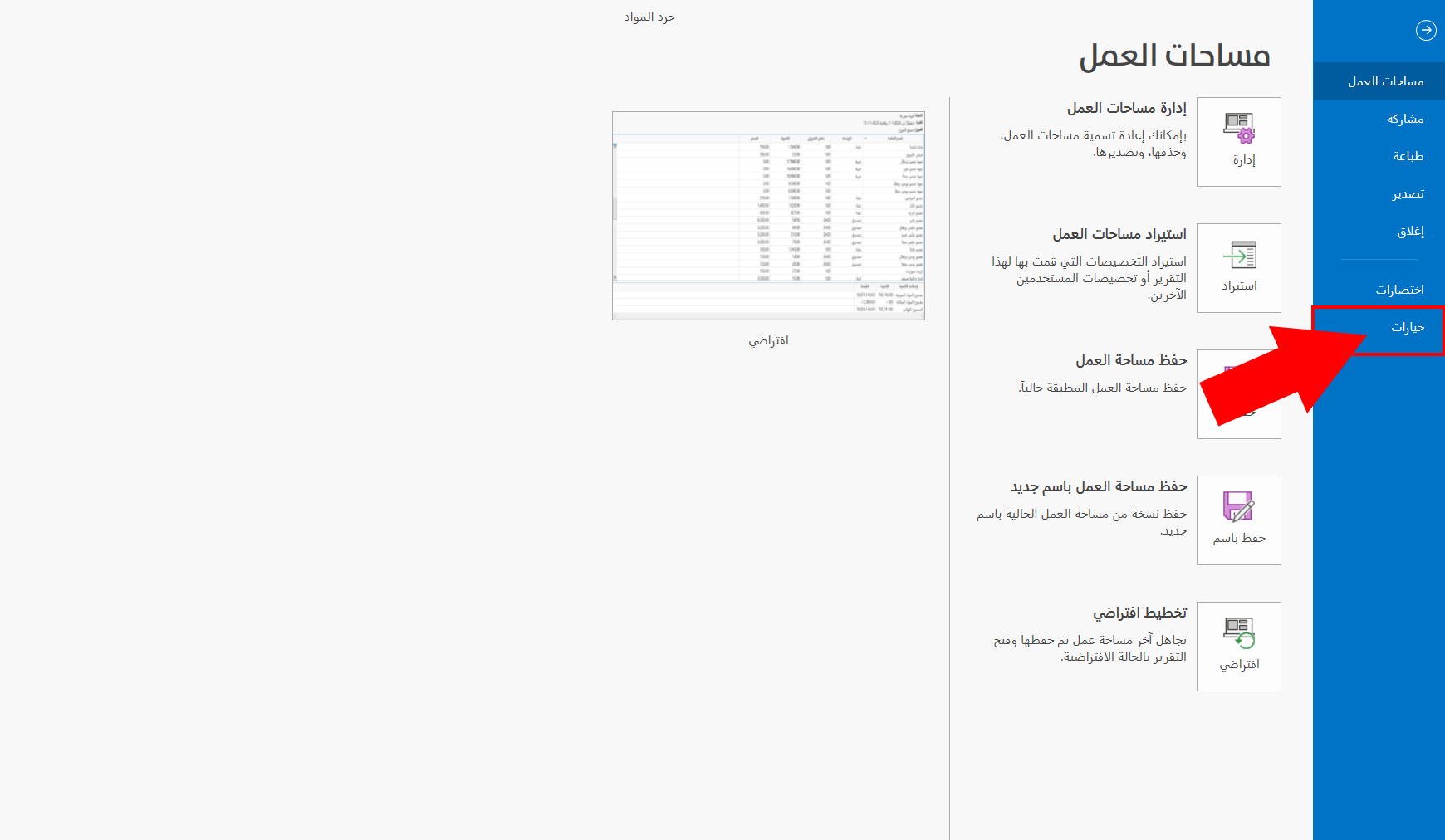
Click the "File" tab on the main ribbon of the interface shown in the previous picture.
The interface appears with a set of operations you can perform, including "Options".
Report Options Window
The report options window opens after you use either of the two ways above, and looks as follows:
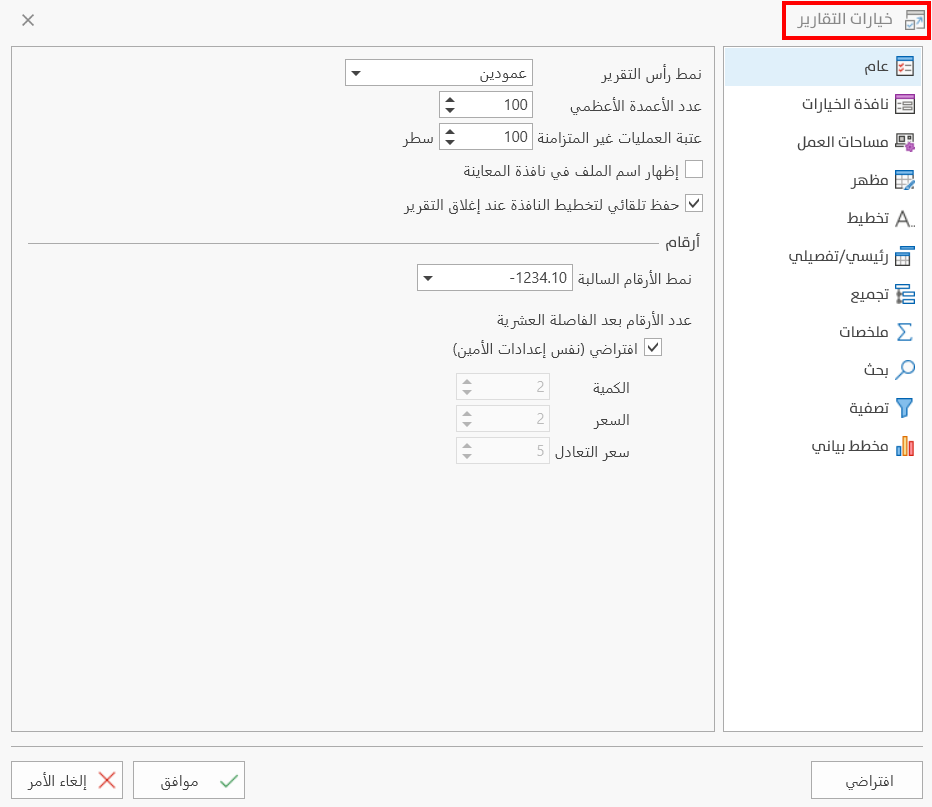
Tabs of the Report Options Window
The window contains a set of tabs you can use to set the default options of reports:
General
Used to set the default options of the report header style and the number of columns, and to set the negative number style and the number of digits after the decimal point.
Options Dialog
Used to set the default layout of the report options window (the report request window) and the style of the date and report sources controls; you can also control whether the invoice type and the group name appear in the window.
Workspaces
You can choose the default animation for moving between the pages and states of the report workspaces, and set the thumbnail source, width, and height.
Appearance
Used to set the font and size of the report, and to customize a style for each line in the report, such as grid lines, selected rows, and the focused row.
You can also choose a ready-made style for the report table, or create a new custom style to apply to the report table and use when printing.
Layout
You can set the default state of the tools in the "Layout" group of the report preview interface, such as auto column width and text wrapping, and set the select tool.
Master/Detail
Includes a set of options that help you set the default state of reports that include detail tables.
Grouping
Used to set the default options of the tools for grouping the report data, which are the same tools available in the "Grouping" group of the report preview interface.
Summaries
You can set the terms you want to use in the summaries of the report (totals, groups), and set the position of the summary and the size of its font.
Search
You can control the default search options in reports, such as the search scope and the items of the recent searches list.
Filter
Used to set the default state of showing the auto filter row and the filter list style of date columns, and to control the sort mode of the filter list.
Chart
You can set the default chart type in reports (column, pie, point...), and the color palette and style (flat, transparent, 3D...) with which the chart is added.