Workspaces
Workspaces are for saving more than one shape of the data in the report preview window, so you can return to them later.
How to Create a Workspace
Request the preview window of a report, then use the tools on the main ribbon of the window (adding a column, the group panel, filtering...), and go to the "File" tab on the main ribbon: the program moves to the following interface:
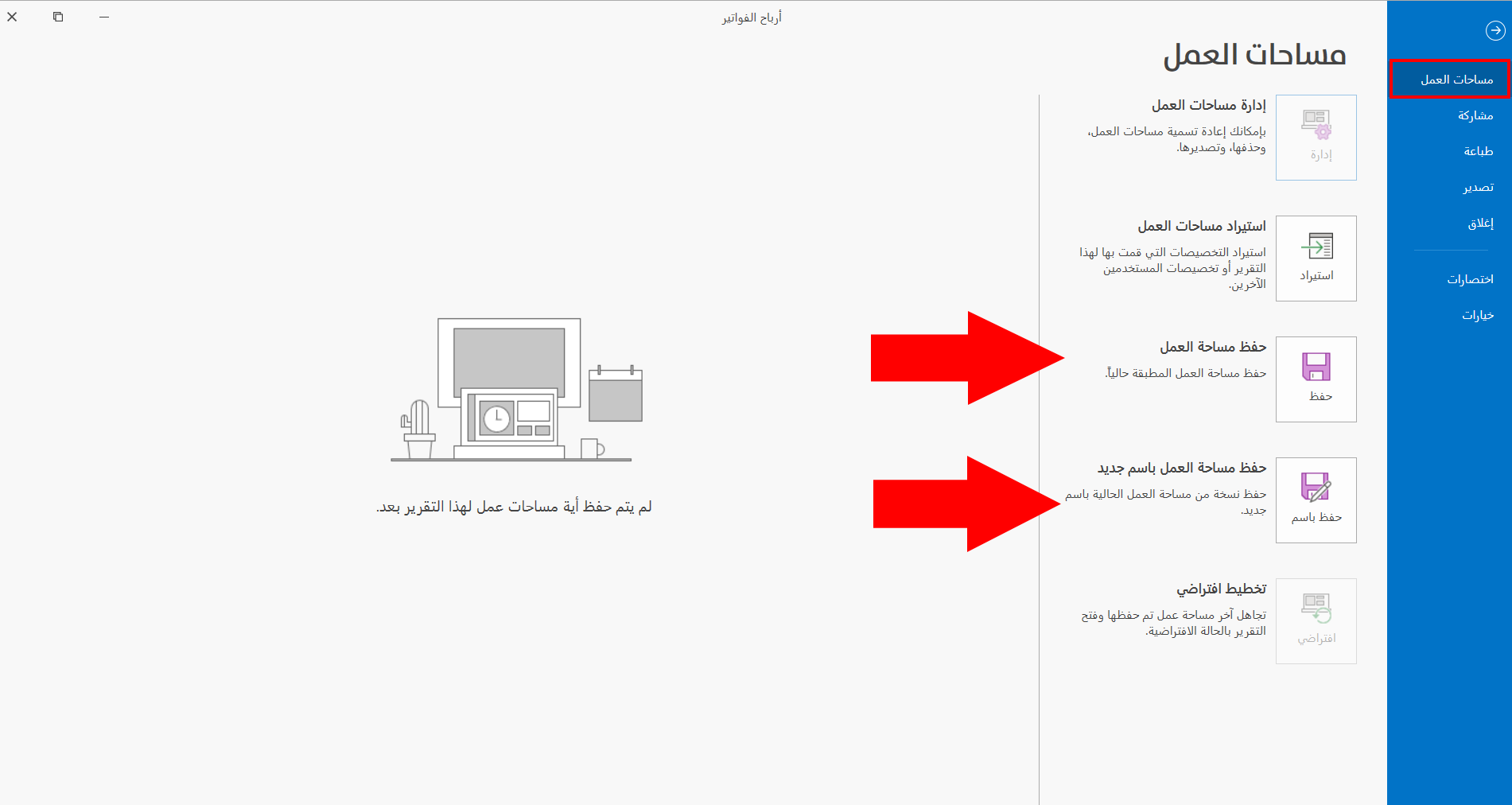
To save the report as "Default", click Save Current Workspace.
To save the shape of the report (the workspace) under a name you set yourself, click Save New Copy.
Returning to a Workspace
After you save workspaces, you can restore them in two ways:
Workspaces in the Report Options Window
You can open the report with any workspace you saved earlier by choosing it from the list in the options window of the report itself; this list is placed in the window as follows:
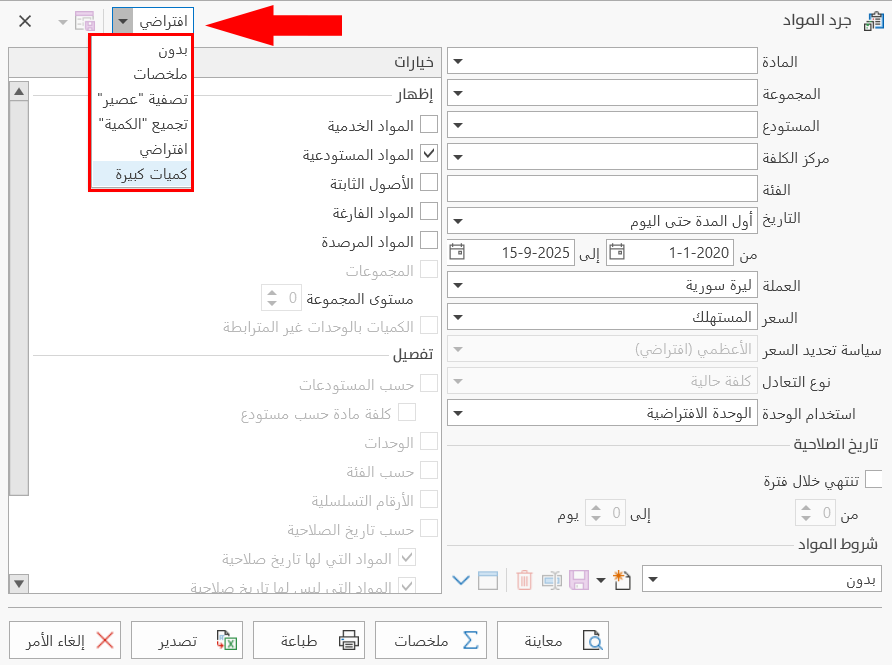
Where:
None: the shape of the report before any operation on the data.
Default: the shape of the report you saved by clicking "Save Current Workspace".
The list shows all the workspaces you saved with "Save New Copy".
For example, in the following report (Materials Stock-take), the report data was "filtered" (quantity greater than 100) and the workspace was saved under the name "Large quantities"; then the report was reopened with "None" and a different operation was made, say (grouping the data by the unit column), and the workspace was saved under the name "Material units".
The report now has three shapes: None, Large quantities, Material units.
In this case, you can view the report with the workspace you need by choosing it from the list in the options window.
Workspaces in the Report Preview Window
You can also reach the workspaces from the report preview window, without closing the preview and requesting the report again with a new workspace from the options window.
After you request the preview window of the report, go to the "File" tab on the main ribbon of the window.
The program moves to the interface that shows all the saved workspaces, and you can move to any workspace by clicking it with the left mouse button.
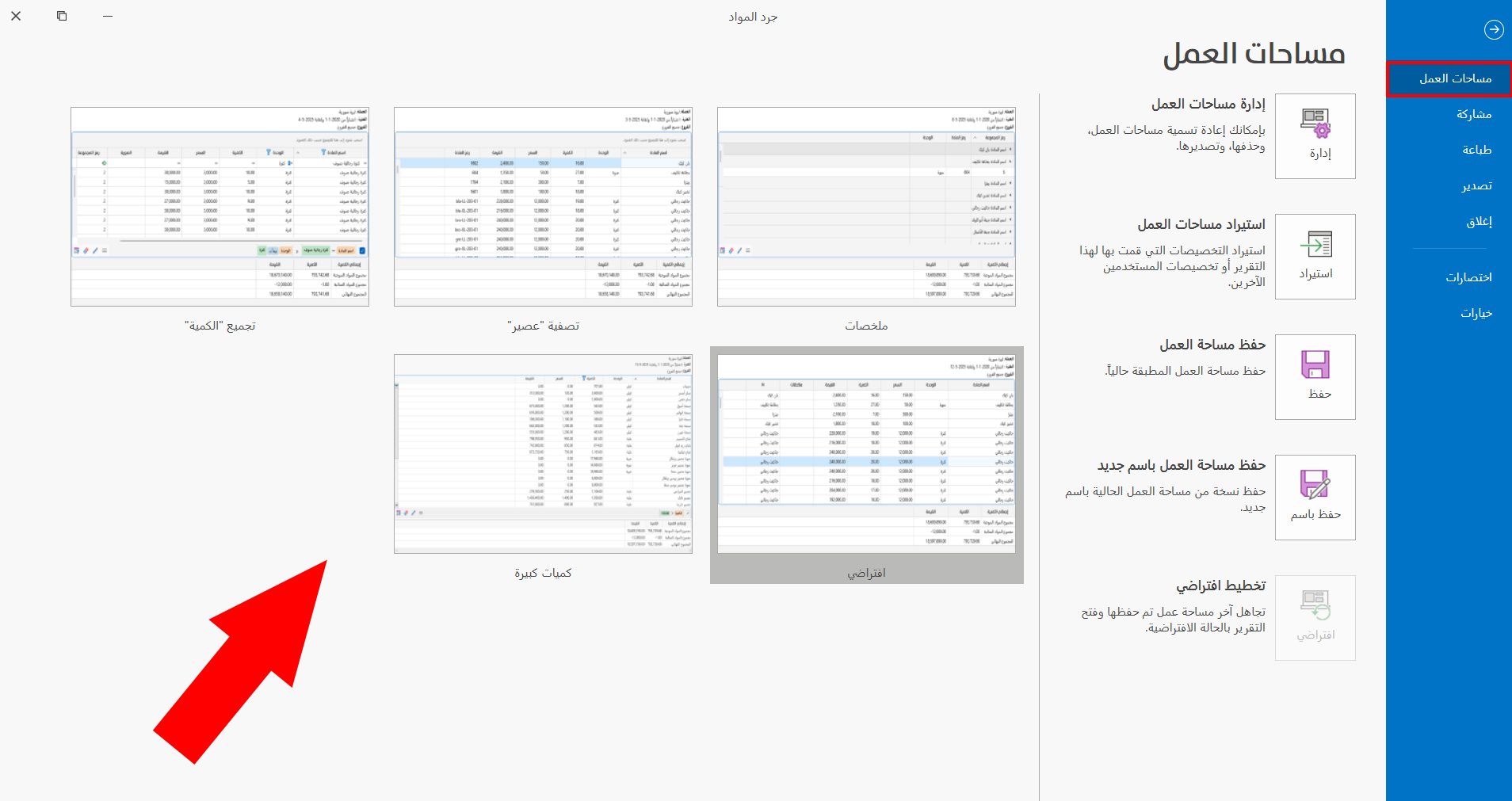
You can control the workspaces with the operations available in this interface:
-
Manage Workspaces
-
Import Workspaces
-
Save Current Workspace
-
Save New Copy
-
Default Layout