Print Labels
The tool is used to print labels for a particular material, a group of materials, or the materials of an invoice.
It is also used to design the label itself (the texts, drawings, and fields you want to print on the label) with the "Label" button in the window.
And to design the paper and set the measurements of the label with the "Paper" button in the window.
You can reach the Print Labels tool from the Materials tab on the main ribbon - Tools group.
After you request the tool, the window opens as follows:
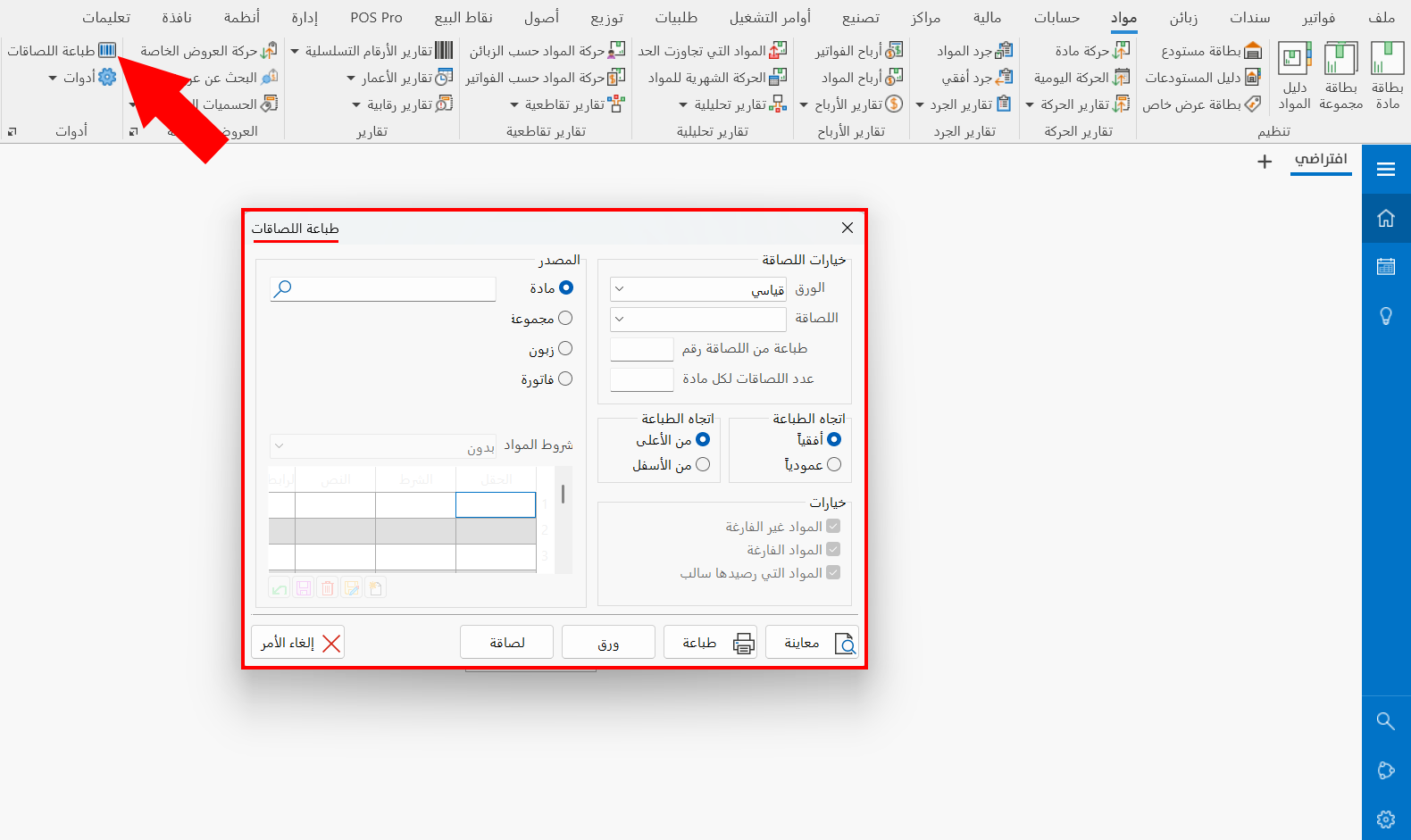
The Label Printing window consists of the following:
Label Options
Set the label options by filling in the following fields:
Paper
Choose the suitable paper design for printing the label: the arrow in the field drops down a list of all the paper designs you saved in the window that opens from the "Paper" button in the window. (A mandatory field)
Label
Choose the label design you need for printing the label: the arrow in the field drops down a list of all the label designs you saved in the window that opens from the "Label" button in the window. (A mandatory field)
Print from Label Number
With this option you can skip a number of labels and start printing from a particular label.
If you were printing labels and printing stopped for some reason, you can avoid printing all the labels again by setting the number of the label from which you want to continue printing.
For example, if printing stopped at label number 25 and you want to continue printing from the next label, write the number 26 in the "Print from Label Number" field.
Label Count for each Material
Enter the number of labels to print for each material. (A mandatory field)
Print Direction
You must set one option from each of the following two groups:
Horizontal/Vertical
Horizontal: the labels are printed by moving from the current label to the label next to it, continuing horizontally along the same row of labels until it ends, then moving to the next row of labels, according to the selected option (From Top/From Bottom).
Vertical: the labels are printed by moving from the current label to the label below or above it, according to the selected option (From Top/From Bottom), continuing vertically along the same column of labels until it ends, then moving to the next column of labels.
From Top/From Bottom
From Top: the labels are printed by moving from the current row to the row after it (below it), whether horizontally or vertically.
From Bottom: the labels are printed by moving from the current row to the row before it (above it), whether horizontally or vertically.
Label Printing Options
All the label printing options appear enabled by default; you can disable the option you need by clicking the check box next to it.
These options are available only when you choose to print labels for a group or an invoice (in the Origin section of the Label Printing window).
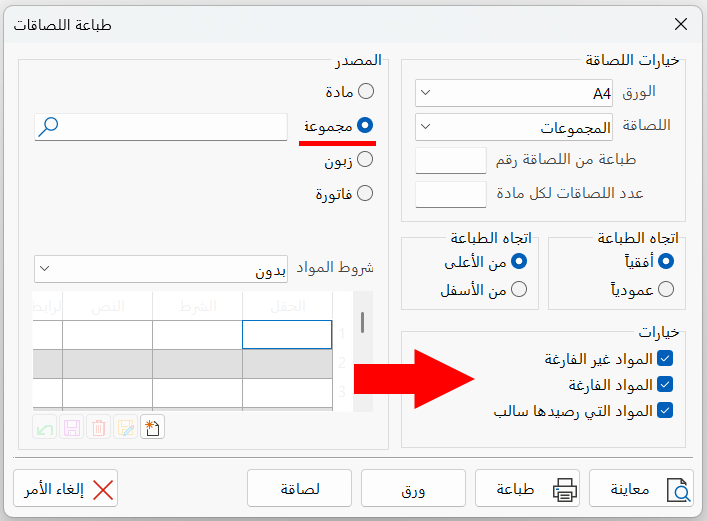
The options are used as follows:
Unempty Materials
To print labels for the materials that have a balance in the warehouses; when you clear it, labels are not printed for these materials.
Empty Materials
To print labels for the materials not currently available in your warehouses (whose balance equals zero).
Negative Balance Materials
To print labels for the materials whose balance is below zero (with negative output).
Origin
Set what you want to print labels for (a set material, all the materials of a group, all the items of an invoice, the data of a customer or of a group of customers linked to one account); some contents of the window change when you set one of the options:
Material
The origin "Material" is enabled by default; it is used to print labels for one of the materials.
An empty field appears next to "Material" for entering the name or code of the material you need; you can also find it by clicking the search symbol in the field.
A number of labels is printed for this material, matching the number you set in the "Label Count for each Material" field of the label options.
Group
Click the check box next to the origin "Group" to print the materials of one of the material groups.
An empty field appears next to "Group" for entering the name or code of the group you need; you can also find it by clicking the search symbol in the field.
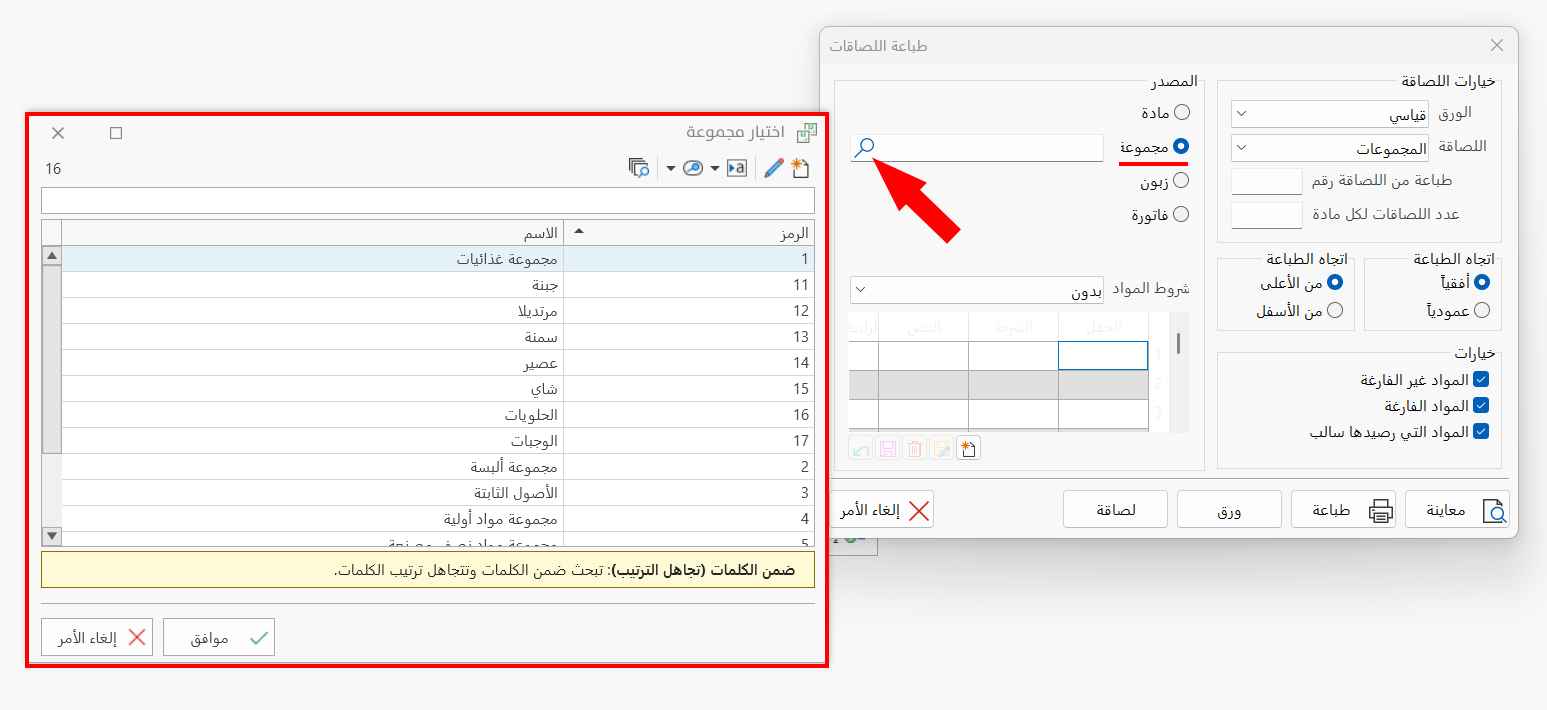
A number of labels is printed for the materials of this group, matching the number you set in the "Label Count for each Material" field of the label options, and the materials condition you set in the "Material Terms" table.
Labels are printed for the materials directly under the set group, as well as the materials in its sub groups.
Customer
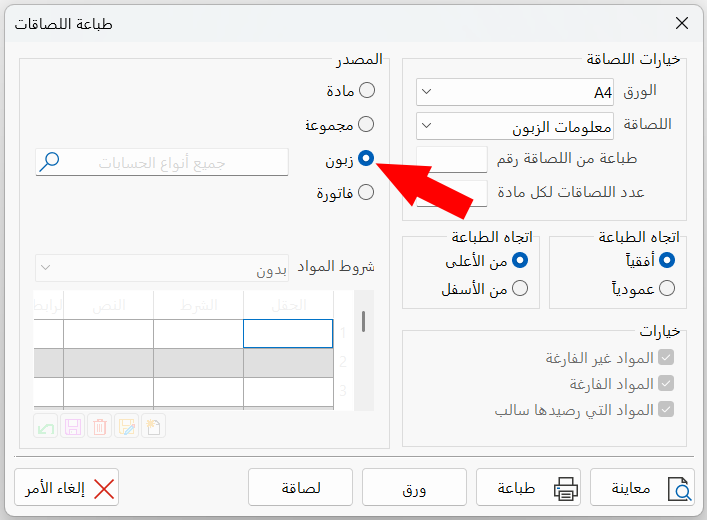
Click the check box next to the origin "Customer" to set the account of the customer whose name or barcode you want to print on labels.
An empty field appears next to "Customer" for entering the name or code of the customer's account, or the code of an account linked to more than one customer; you can also find it by clicking the search symbol in the field.
Bill
Click the check box next to the origin "Bill" to set the invoice whose materials you want to print labels for.
After you set the origin "Bill", a set of fields appears in the window that help you reach the invoice you need:
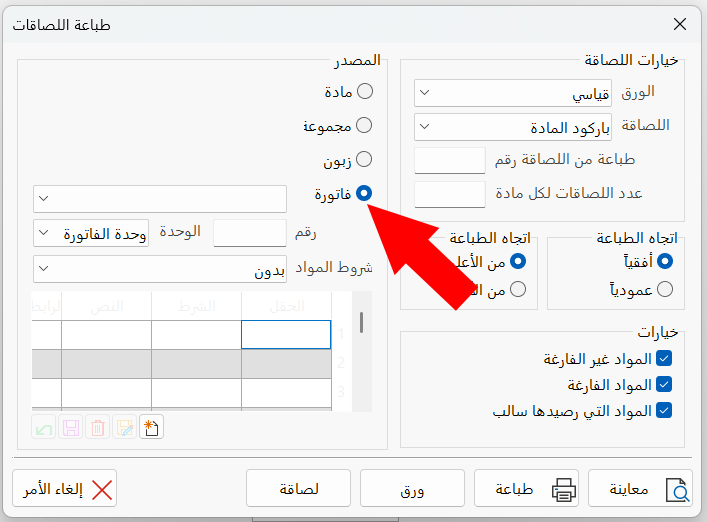
Invoice Form
Choose the form of the invoice you need by clicking the arrow in the field, which drops down a list of all the invoices forms entered with the forms management window.
Invoice Number
After setting the invoice form, enter its number in the field.
Unit
Choose the unit by which you want to print the labels: the arrow in the field drops down a list of the available units, including:
Invoice unit (set in the field by default), that is, the unit you set in the material row of the invoice table.
Default unit (the unit next to which the Default option is set in the material card).
When a material has two units, the first a piece and the second a box = 12 pieces, and the invoice includes 25 pieces of this material, choosing the first unit prints 25 labels, while choosing the second unit prints only two labels (for two boxes), with a warning that the units of the material in the invoice are fewer than can be converted to the second unit.
Converting from the unit of the material in the invoice to the other unit results in fractions (in our example, converting to the second unit gives two boxes and one piece, so two labels are printed for the two boxes, and no label is printed for the piece).
A number of labels is printed for the materials of this invoice, matching the number you set in the "Label Count for each Material" field of the label options, and the materials condition you set in the "Material Terms" table.
Material Terms
You can add materials terms when you choose Group or Bill in the Origin section: the materials terms fields are available only when one of them is chosen.
The arrow in the field drops down all the materials terms you saved earlier; you can choose one of them.
You can add a new condition with the window that opens when you click the New symbol under the table.
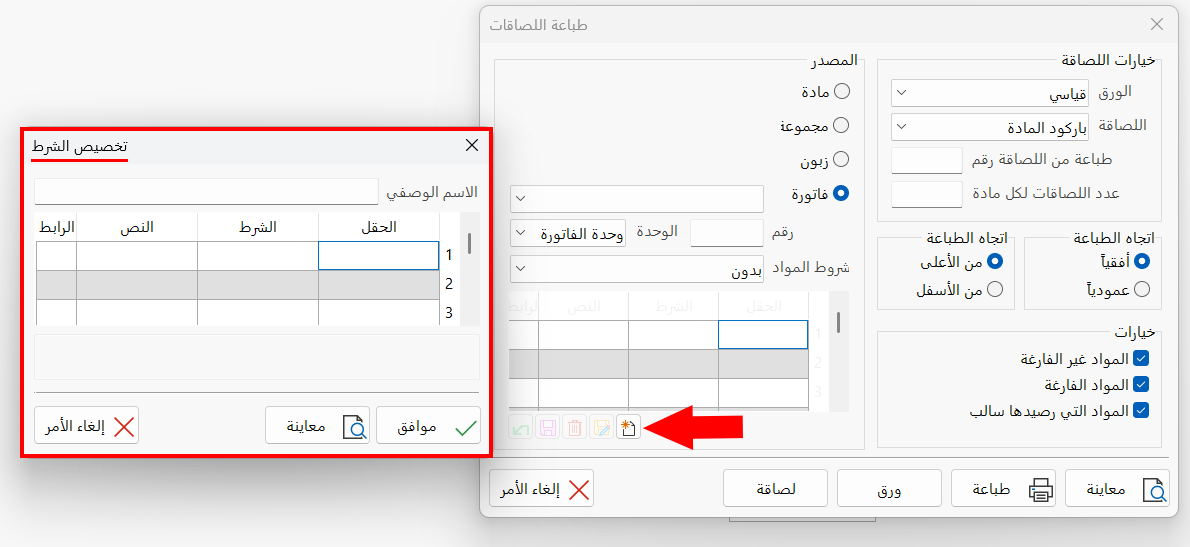
After adding the new condition, or choosing one of the saved conditions, the elements of the condition are listed in the table, as follows:
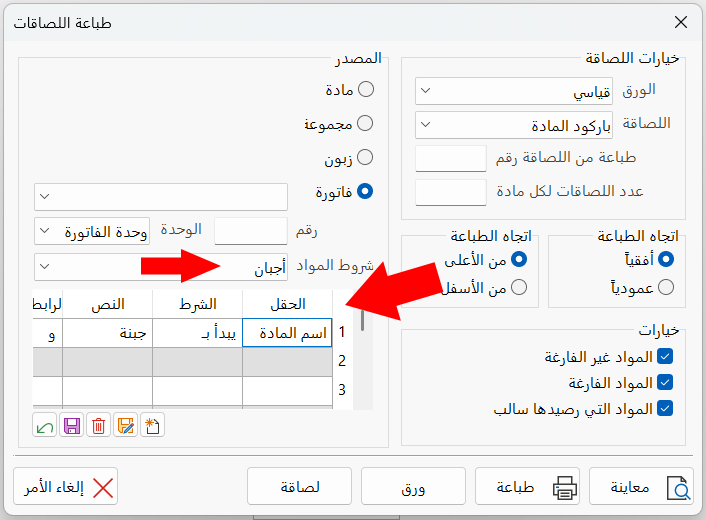
After the condition appears in the table, you can change or delete it with the toolbar under the table.
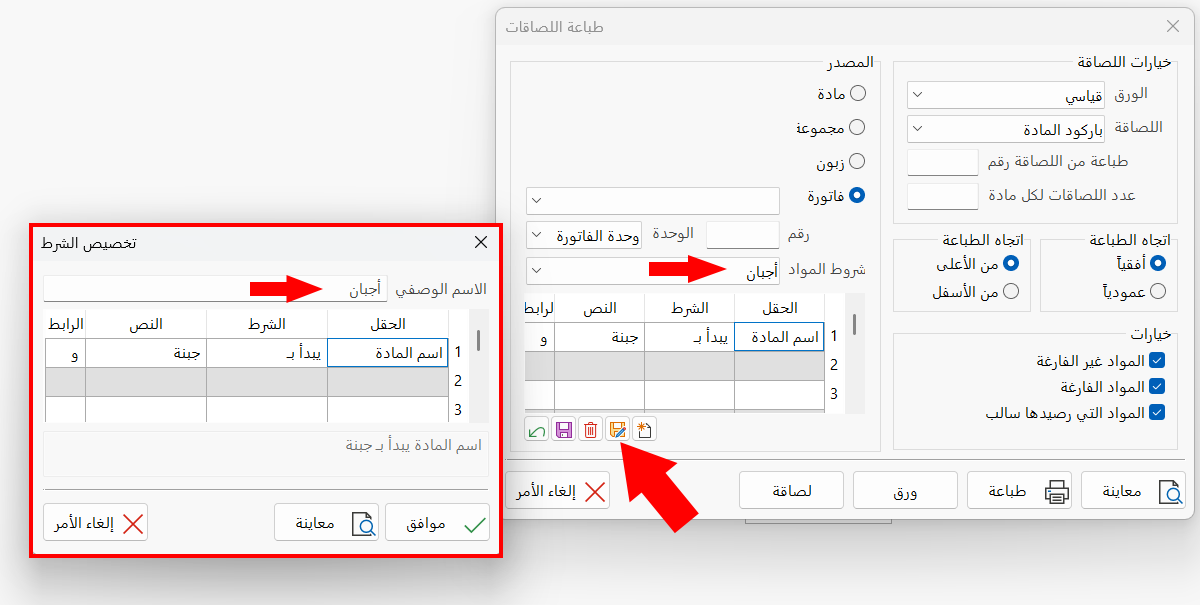
Preview
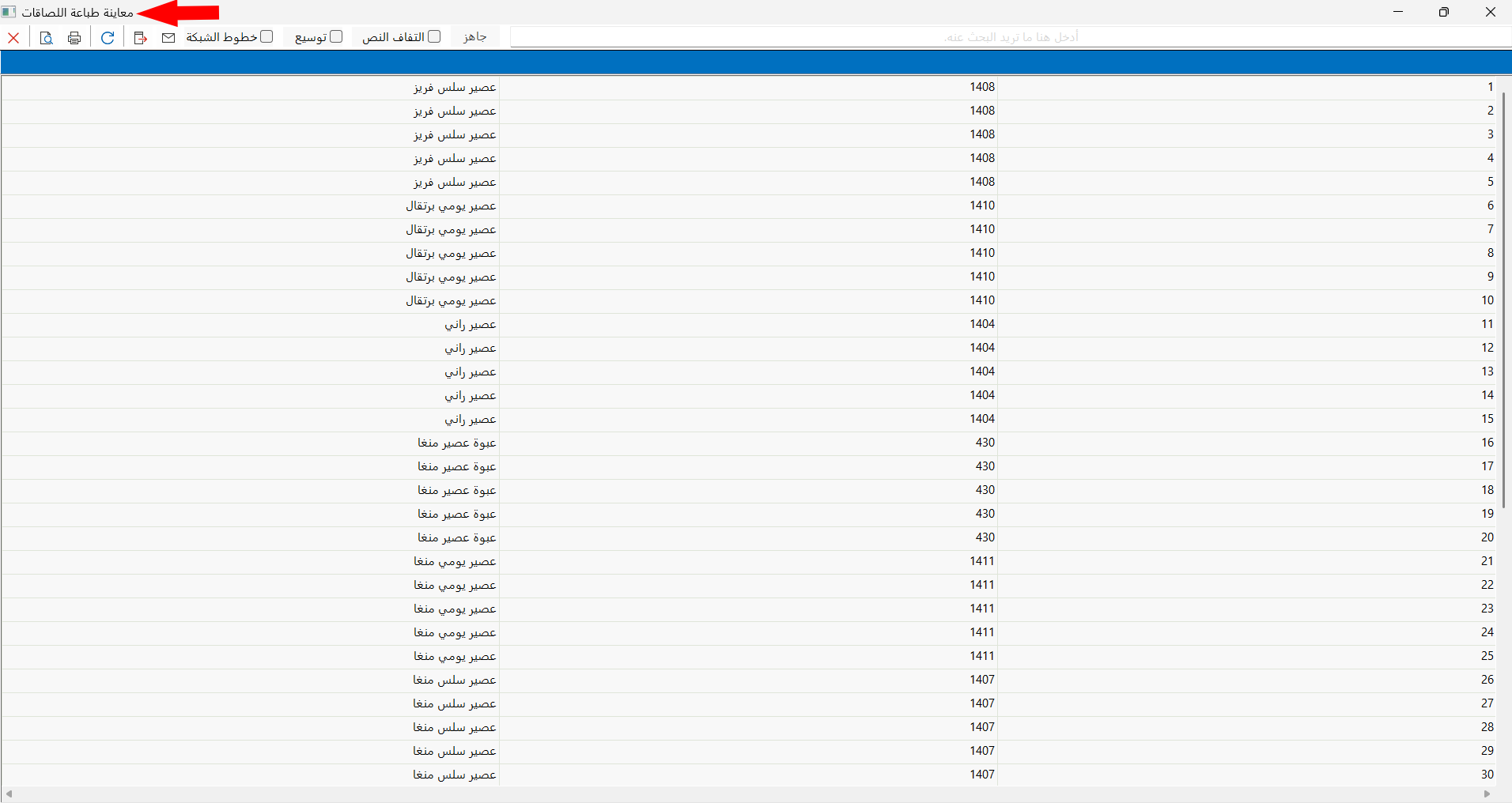
Used to preview the customers or materials that will be printed: after filling in the label options and setting the origin, click the "Preview" button; the program moves to the preview interface as follows:
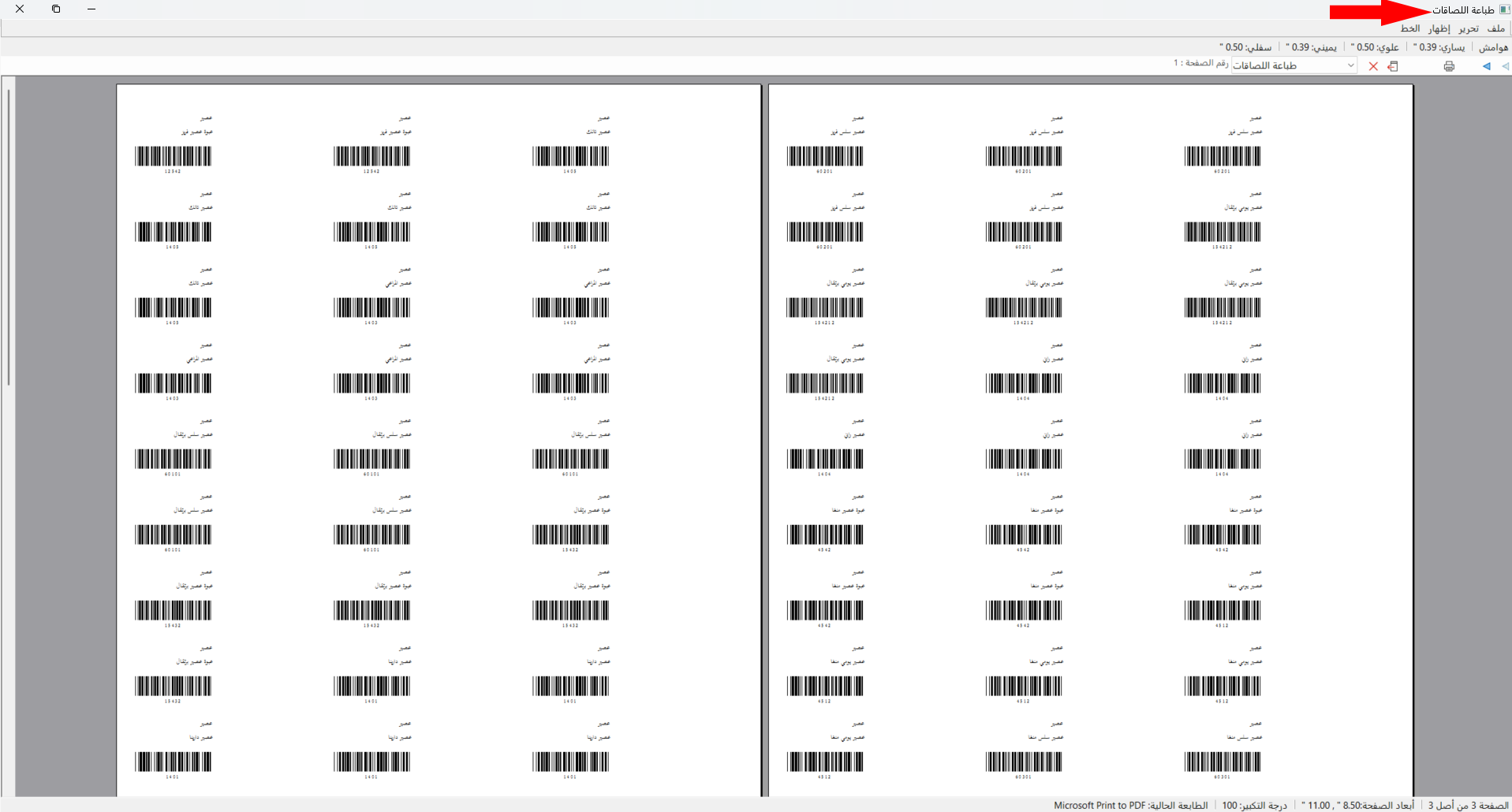
When you click the "Preview" button while pressing the Shift key, the program moves to an interface for previewing the print layout.
Print
Used to start printing the labels: after filling in the label options and setting the origin, click the "Print" button; a window opens for setting the printer you want to use: choose the printer, then click the "Print" button.
When you try to print the materials of an invoice and choose a unit different from the unit of the materials in the invoice, a warning message appears if converting from the invoice unit to the set unit will produce fractional quantities.
Paper
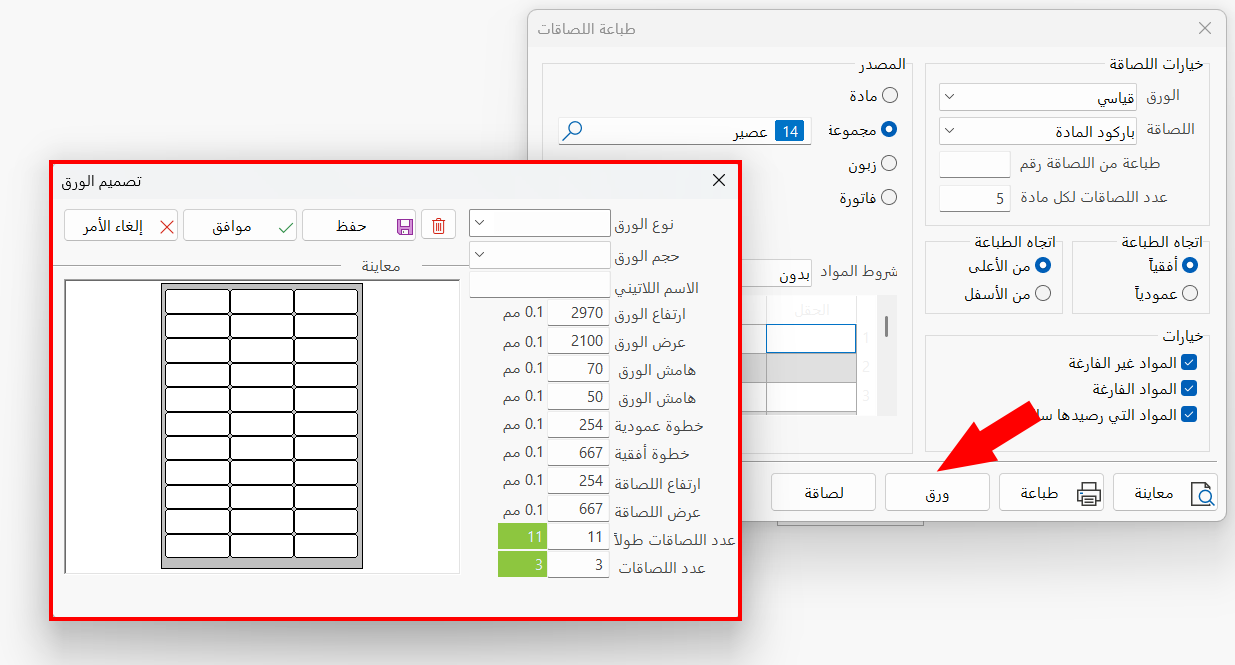
Used to design the paper you want to use in printing (the paper designs appear in the drop-down list of the "Paper" field in the label options of the window).
To add a new paper design, click the "Paper" button and set the type, size, and measurements of the paper in the window that opens.
Label
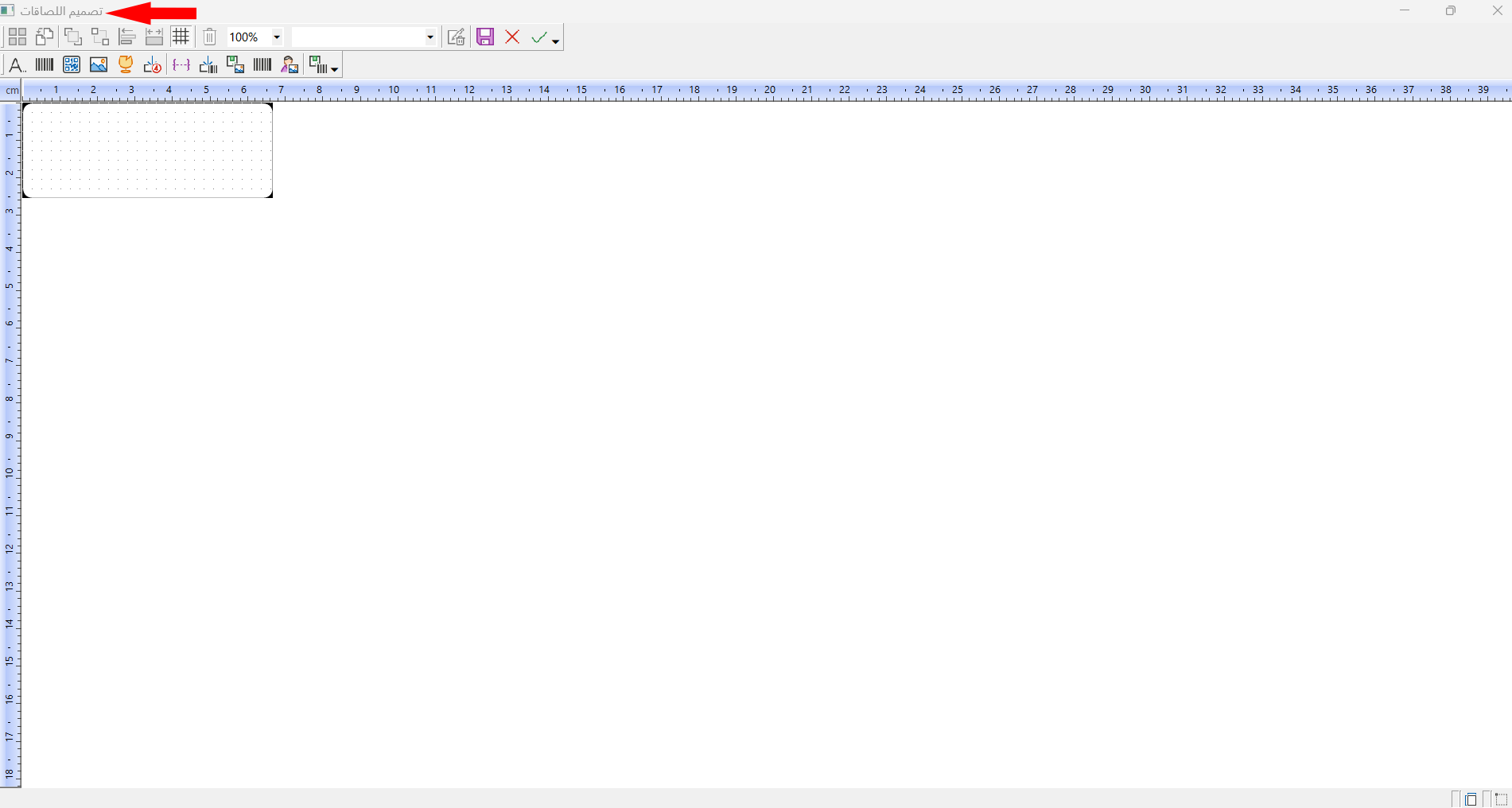
Used to design the labels you want to use in printing (the label designs appear in the drop-down list of the "Label" field in the label options of the window).
To add a new label design, click the "Label" button and set the contents of the label in the interface the program moves to.
Cancel
Used to undo printing the labels and clear the options entered in the window.