Modify Serial Number
Used to change the serial numbers you entered in the purchase or sales invoices of a material.
You can reach the "Modify Serial Number" tool from the Materials tab on the main ribbon - Tools group - the drop-down list of the "Tools" button.
After you request the tool, the following window opens:
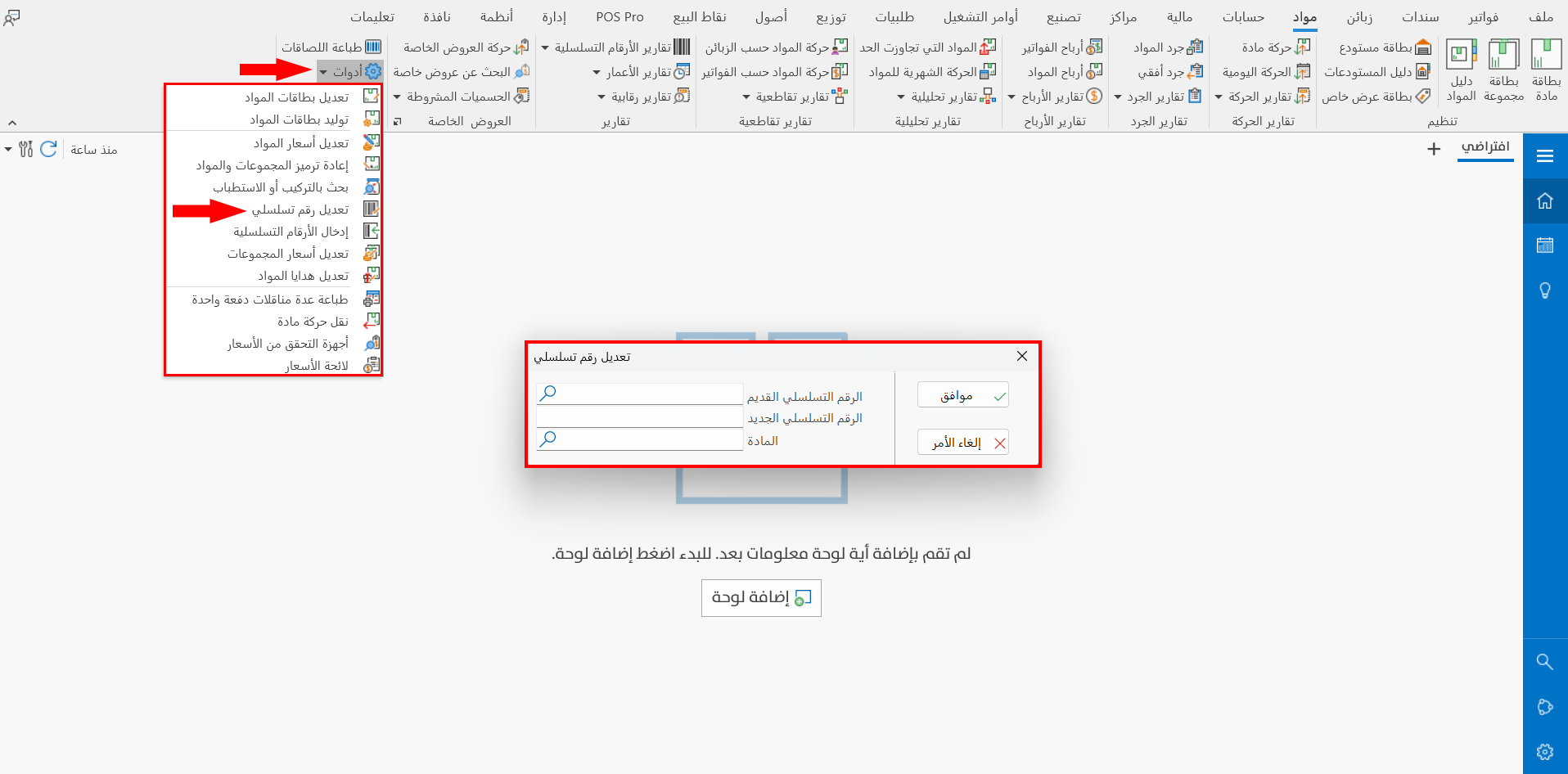
The window of the tool consists of the following fields:
Old Serial Number
Enter the old serial number of the material that you want to change, or find it with the search symbol in the field. (A mandatory field)
After you click the search symbol, the "Serial Number" window opens and shows all the serial numbers added for all the materials; when you choose the number you need, the material name is filled in automatically in the "Material" field.
If the material was set first in the field below, the "Serial Number" window shows only the serial numbers added for this material.
New Serial Number
Enter the new serial number of the material. (A mandatory field)
Material
Set the material whose serial number you want to change, or find it with the search symbol in the field.
If you enter the old serial number first, the material name is filled in the field immediately.
This box is useful when the serial number is repeated for more than one material: you choose the material whose serial number you will change.
If you do not set the material, the program changes all the serial numbers that match the number you entered in the Old Serial Number box.
Click the "Ok" button to save the changes; to undo changing the serial number, click the "Cancel" button.