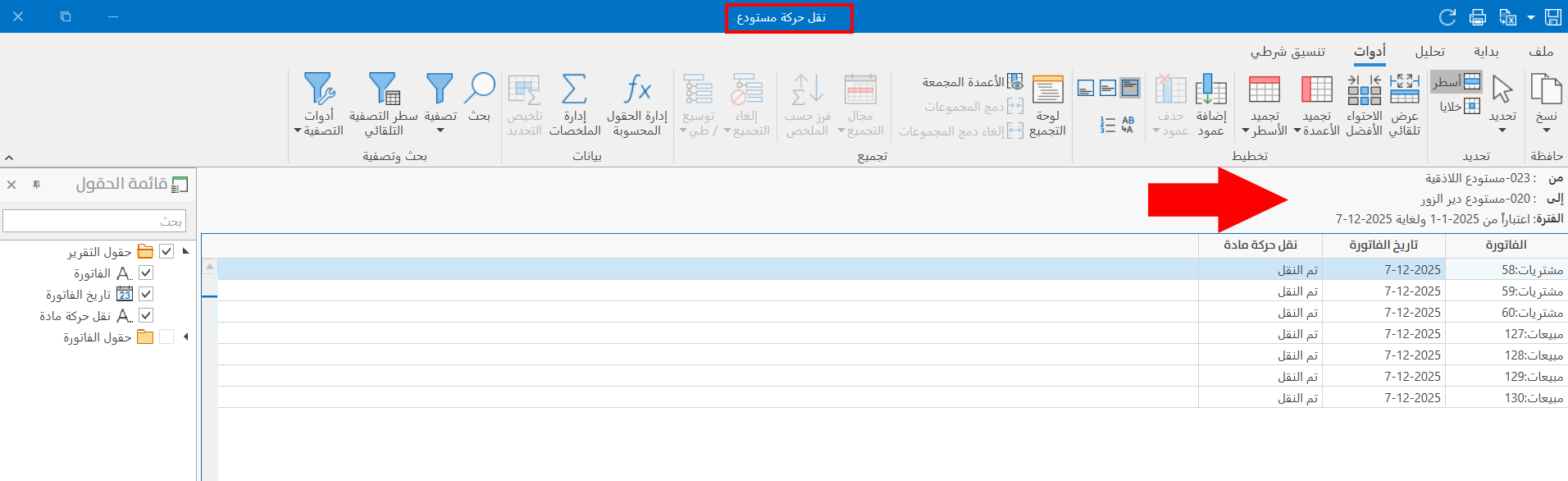
Transfer Warehouse Movement
Used to move the movement of a warehouse to another warehouse: all the invoices added in the first warehouse move to the second warehouse, according to the options and conditions you set.
This changes the warehouse in some invoices added earlier.
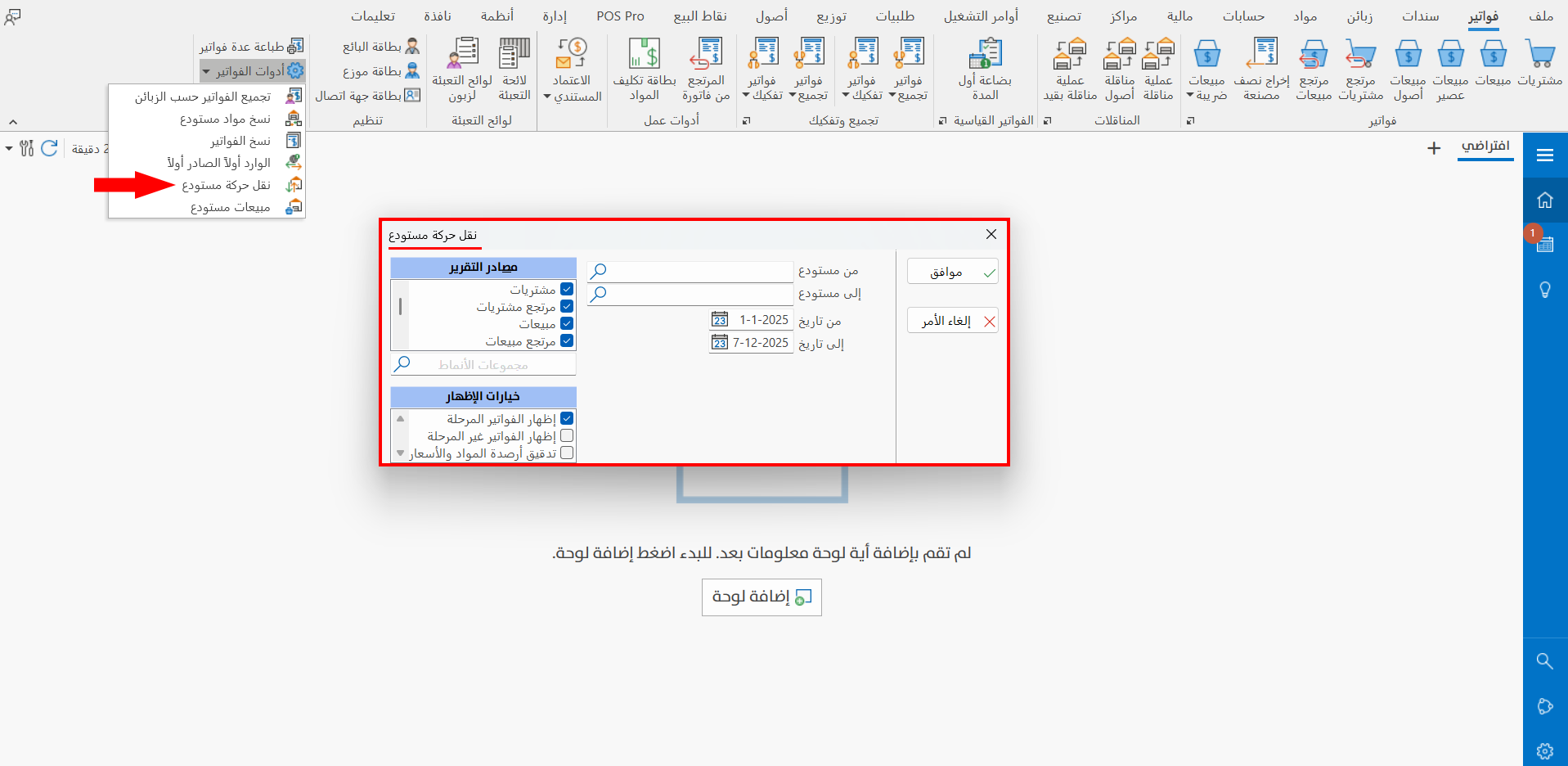
You can reach the "Transfer Warehouse Movement" tool from the Invoices tab on the main ribbon - Tools group - invoices tools list.

After you click the tool button, it opens as follows:
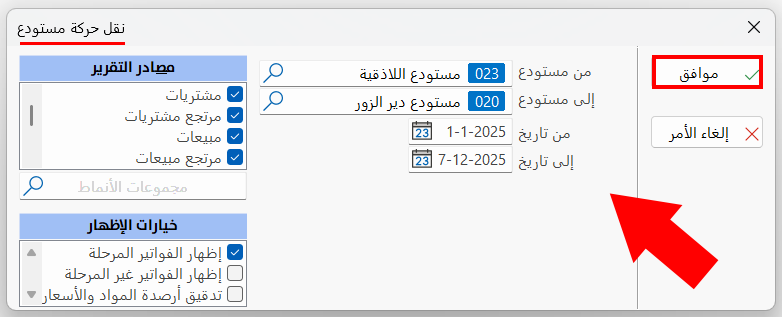
The "Transfer Warehouse Movement" window consists of the following:
From Warehouse
Enter the name/code of the warehouse whose movements you want to move, or click the search symbol in the field: the warehouse selection window opens and shows all the warehouses defined with the warehouse card.
To Warehouse
Enter the name/code of the warehouse to which you want to move the movements of the first warehouse, or click the search symbol in the field: the warehouse selection window opens and shows all the warehouses defined with the warehouse card.
From
Set the start of the period of the invoices whose movement you want to move, by entering the date yourself or with the date symbol in the field.
To
Set the end of the period of the invoices whose movement you want to move, by entering the date yourself or with the date symbol in the field.
Report Sources
Set the invoices forms whose movement you want to move from the first warehouse to the second: the report sources list contains all the basic invoices forms and the forms you added with the "Invoices Forms" window.
By default, the program selects all the forms; to clear a form, click the check box next to it to remove the blue √ mark from the box.
Display Options
Set the display options available in the list that you want to see in the "Transfer Warehouse Movement" report.
By default, the program selects the option "Show Posted Bills"; you can select additional options by clicking the check box next to each option.
Standard Commands
Please see Standard Commands.
Applying Transfer Warehouse Movement
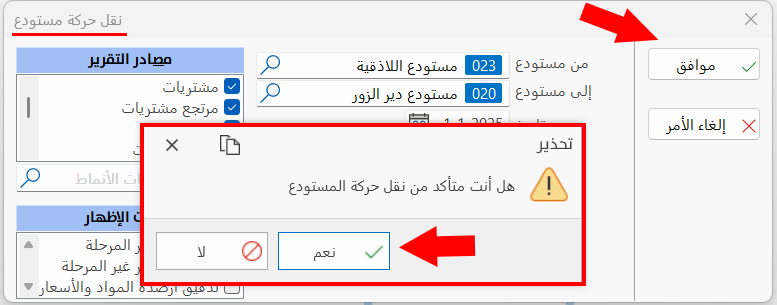
After requesting the tool window, the warehouse whose movement will be moved to the second warehouse was entered, and the report sources and display options were set, as follows:
When you click the "Ok" button in the window, a warning message appears to confirm moving the warehouse movement.
When you click the "Yes" button in the warning message, the program moves to the "Transfer Warehouse Movement" report interface, as in the picture: