Print Several Bills
The "Print Several Bills" tool is used to print a group of invoices of the same type for a client (customer/supplier), a warehouse, or a cost center: you can print the invoices that belong to a period, or to a range of numbers you set yourself.
You can use the tool in more than one case. For example, when you deal with a customer who orders goods daily but pays for them all at the end of the week, with the Print Several Bills tool you can request the customer's sales invoices within the date range you need and print them with the suitable print form.
You can reach the "Print Several Bills" tool from the main ribbon - Invoices tab - Tools group.
Once requested, the tool window appears as follows:
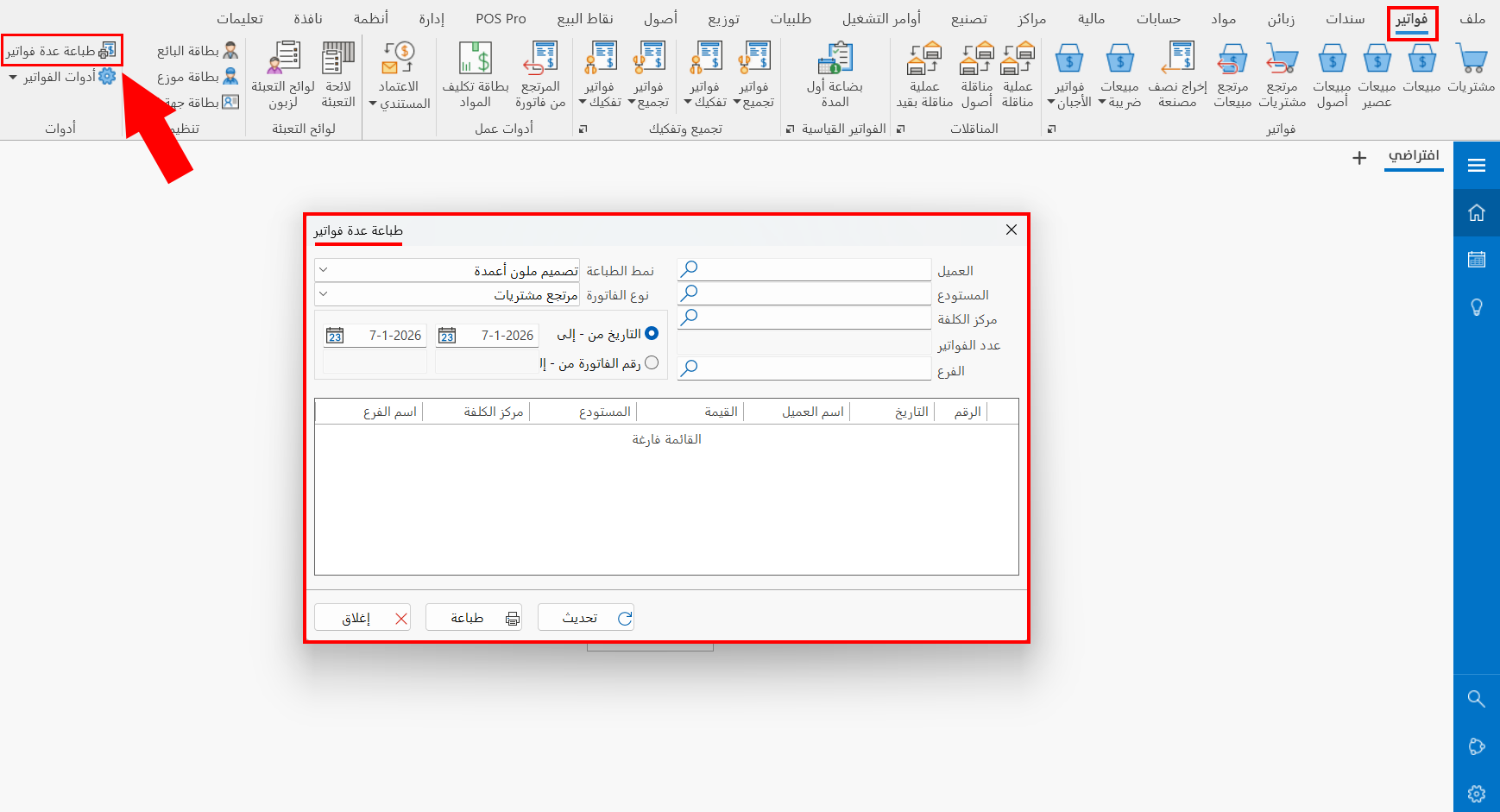
Contents of the Print Several Bills Window
The window contains a set of fields that help you print the invoices you need:
Client
Enter the name of the customer/supplier whose invoices you want to print, or click the search symbol in the field and set the customer/supplier you need in the "Select Customer" window that opens.
Warehouse
You can set the warehouse in which the client's invoices you want to print were issued, or print the invoices of the warehouse only without setting the client in the previous field.
Enter the name/code of the warehouse, or click the search symbol in the field to set it in the "Select Warehouse" window that opens.
Cost Center
Enter the name/code of the cost center whose invoices you want to print, or click the search symbol in the field and set it in the "Select Cost Center" window that opens.
Set what you need in at least one of the fields (Client, Warehouse, Cost Center) to get results in the invoices table.
Invoices Count
The field shows the total number of invoices that result from the data set in the main fields of the window, which are the invoices listed in the invoices table after you click the "Refresh" button.
Branch
Choose the branch whose issued invoices you want to reach and print, by entering its name or code, or by using the search symbol in the field and choosing it from the "Select Branch" window that opens.
Printing Form
The window lets you choose a custom form for printing the invoices: the field drops down a list of all the print forms defined in the program; click the suitable form to print the invoices with it.
Invoice Type
Set the type of invoice (sales, purchases...) you want to reach and print: the field drops down a list of all the invoices forms defined with the forms management window.
Date
The window lets you set the invoices to print as those you defined within a particular date, so the Date option appears enabled by default.
To limit the date range of the invoices to print, set the following:
From: the date at which the range of the invoices you need starts.
To: the date at which the range of the invoices you need ends.
Enter the date manually, or use the date icon in the fields.
Invoice No.
You can set the invoices to print as those given numbers within a particular range.
Select the check box next to it to enable the following fields:
From: the number at which the range of invoices starts.
To: the number at which the range of invoices ends.
You can choose between "Date From - To" and "Invoice Number From - To"; enabling one makes the other unavailable.
Refresh Button
Click the button after filling in the previous fields with the data you need, to show the invoices that match the data of the fields.
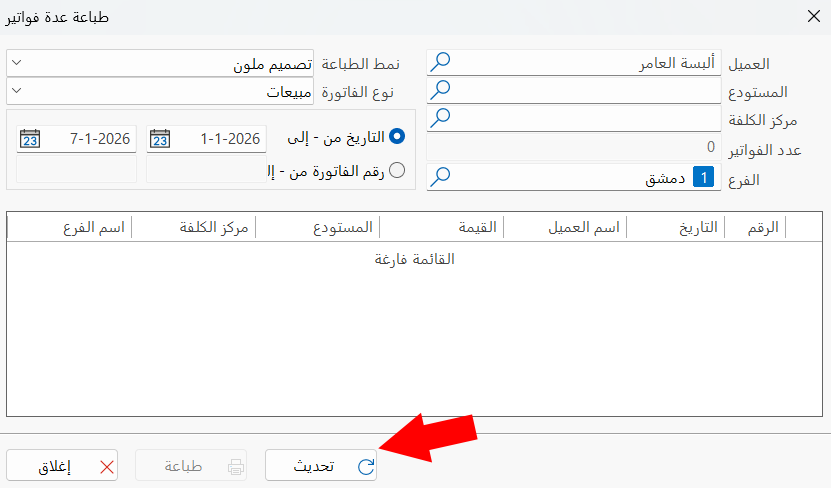
Click the "Refresh" button again after any change to the fields or options of the "Print Several Bills" window.
Invoices Table
The table lists all the invoices that result from the data you entered in the main fields of the window.
After you set the client, warehouse, or cost center you need, choose the print form and the invoice type, set the date range or invoice number, and click the "Refresh" button, the invoices appear in the table so you can select the invoice you want to print.
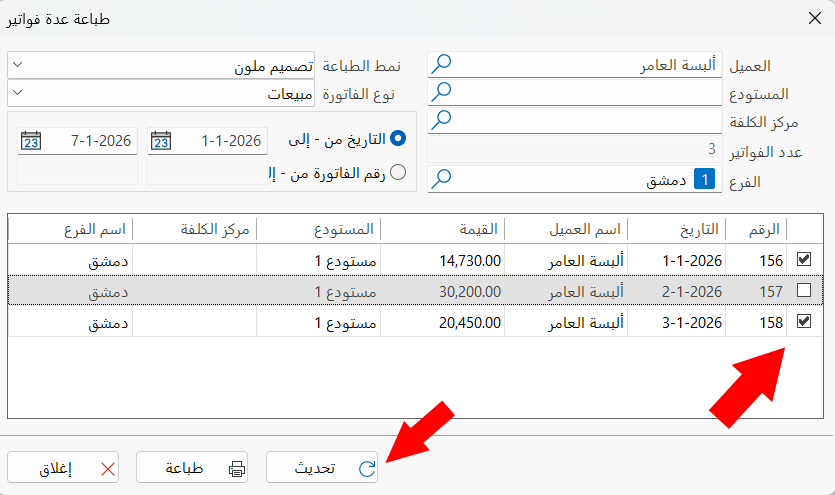
Print
Click the "Print" button after making sure you selected the invoices you want to print in the table and set the print form you need.
After you click the button, a window opens for choosing the printer to use for printing the selected invoices.
Applying Print Several Bills
After requesting the "Print Several Bills" window, filling in the fields with the data needed, and clicking the "Refresh" button, the invoices appeared in the table as follows:
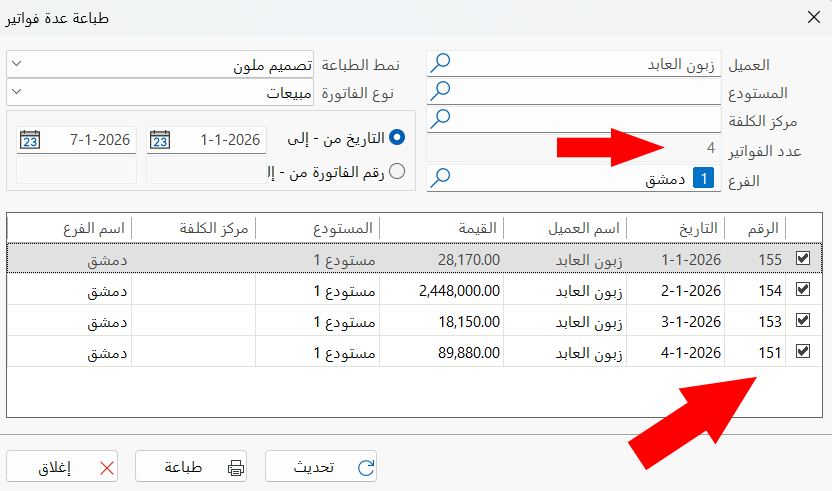
The number of invoices in the table appeared in the "Invoices Count" field.
By default, the program selected all the invoices in the table (you can clear the selection of an invoice you do not want to print).
After checking the print form you need, you can start printing the invoices by clicking the "Print" button, then choosing the suitable printer in the window that opens and confirming the printing.
A window appears that confirms printing the invoices has started, as follows:
