Merge Bills by Customer
The "Merge Bills by Customer" tool is used to merge several invoices of a customer into one invoice: one invoice is generated that includes all the items of the merged invoices, and you can customize the options each time you merge invoices.
The merge bills tool is useful when you deal with a customer who buys materials in separate batches without paying for them, then pays for all the materials at once after buying.
You can reach the "Merge Bills by Customer" tool from the Invoices tab on the main ribbon of the program - Tools group - invoices tools list.
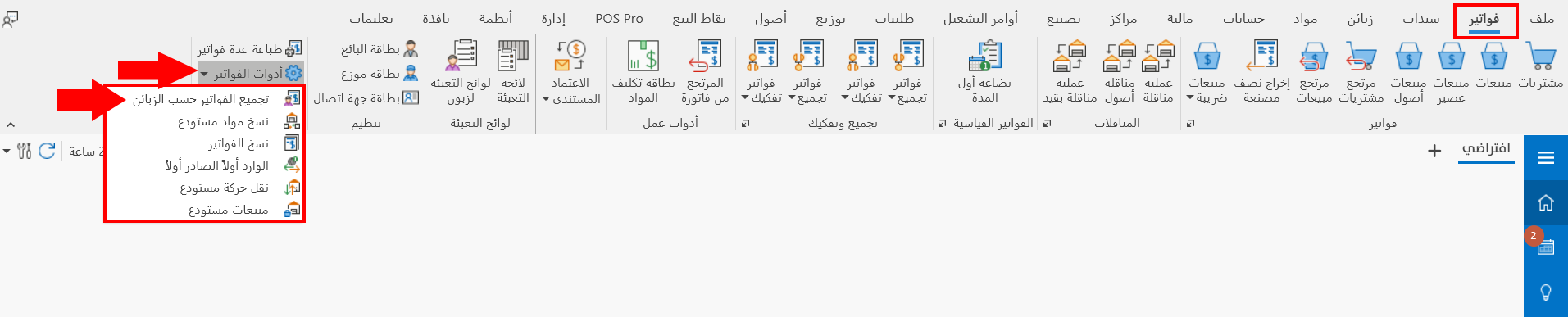
After you request the tool, the following window opens:
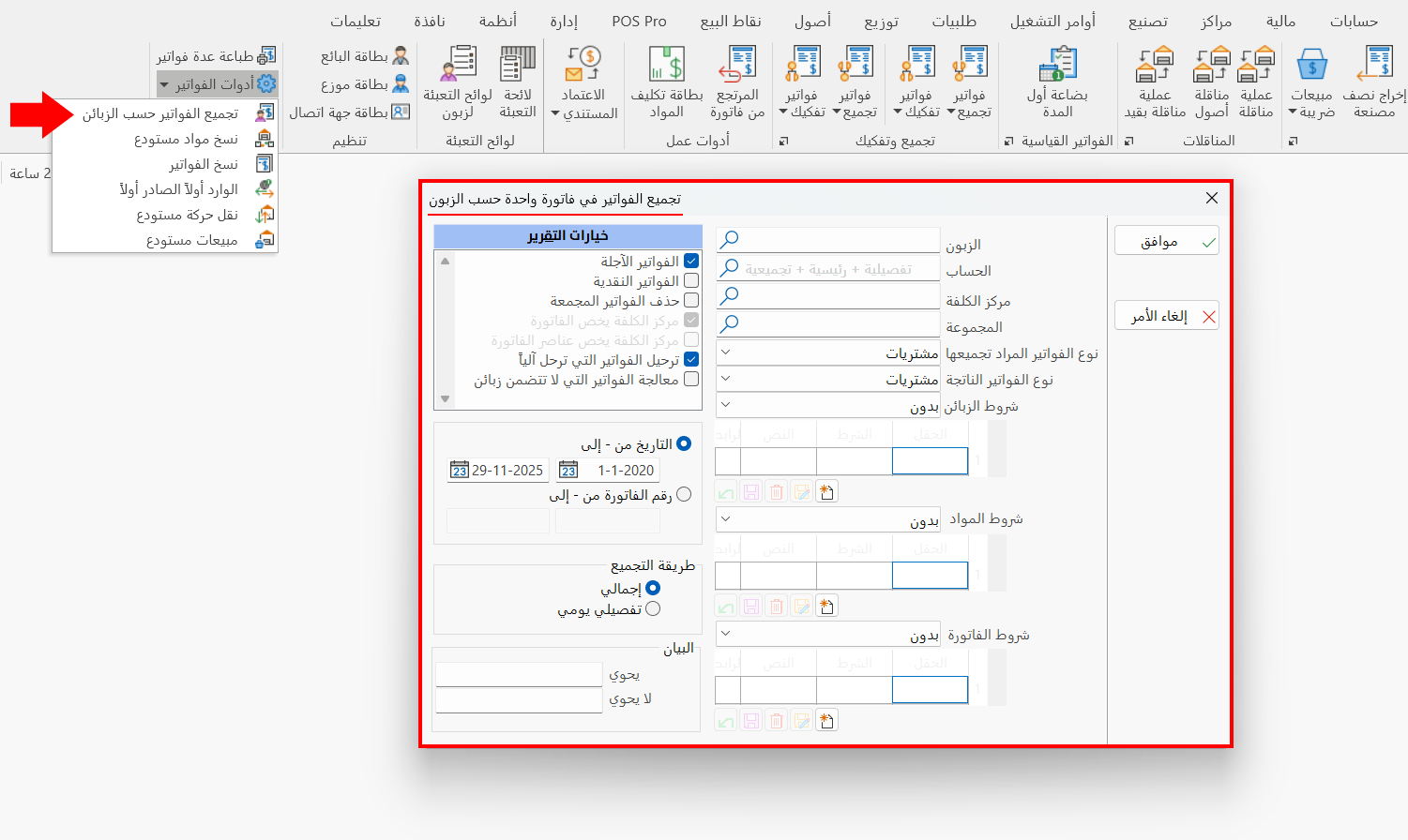
The tool window consists of the following:
Customer
Enter the name of the customer whose invoices you want to merge, or find it with the search symbol in the field: the customer selection window opens and shows all the customers defined with the customer/supplier card.
If you set the customer in this field, the "Account" field becomes unavailable.
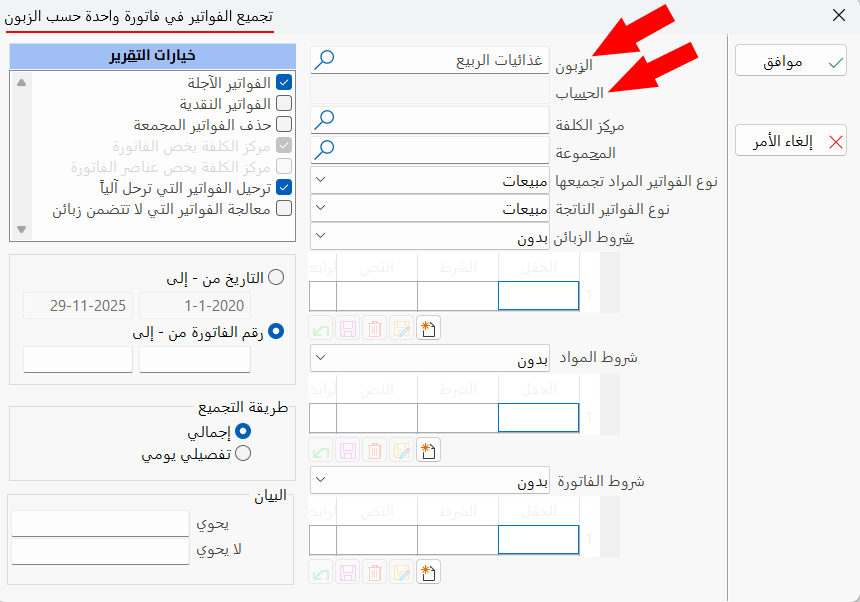
Account
You can enter the name or code of the customer's account instead of entering the name in the previous "Customer" field.
If you set the account in this field, the previous "Customer" field becomes unavailable.
Cost Center
Enter the cost center to which you want to charge the materials of the merged invoice.
Group
Enter the name/code of the group whose materials are in the invoices you want to merge, or click the search symbol in the field: the "Select Group" window opens and shows all the groups defined with the group card.
Bills to be Merged
Set the type of the invoices (purchases, sales...) you want to merge by clicking the arrow in the field: a list drops down with all the invoices forms defined with the "Invoices Forms" window.
Resulting Bills
Set the type of the invoice that results from merging the invoices, by clicking the arrow in the field and choosing the form you need from the drop-down list of invoices forms.
Terms
The program lets you set a condition for each of:
-
Customers
-
Materials
-
Invoice
These conditions are useful when you set an account or a cost center in the previous fields of the window.
By default, the program sets "None" for all the conditions (customers, materials, invoice); you can change it and choose one of the conditions you created earlier, which drop down when you click the arrow in the field.
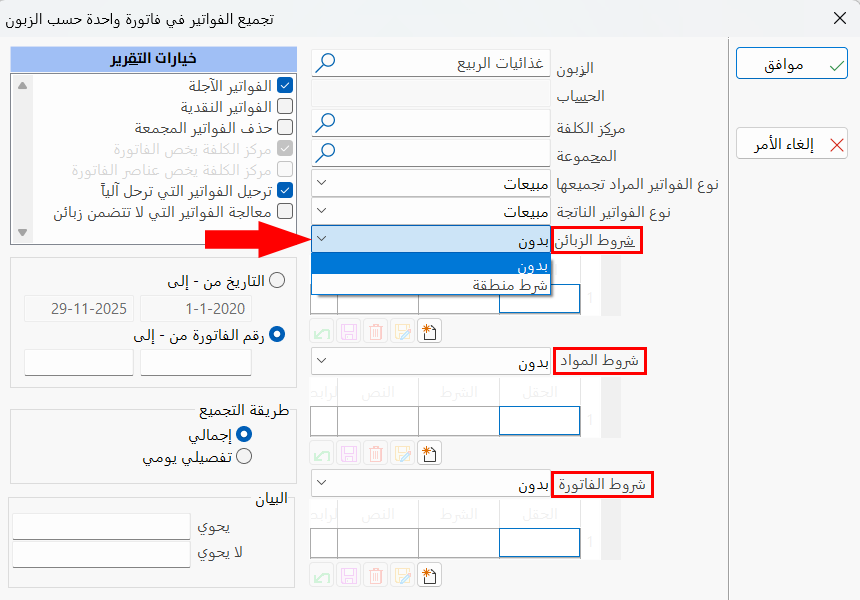
You can also create a new condition and use it in merging.
Customize Conditions
You can create a new condition by clicking the "New" symbol under the condition table, as follows:
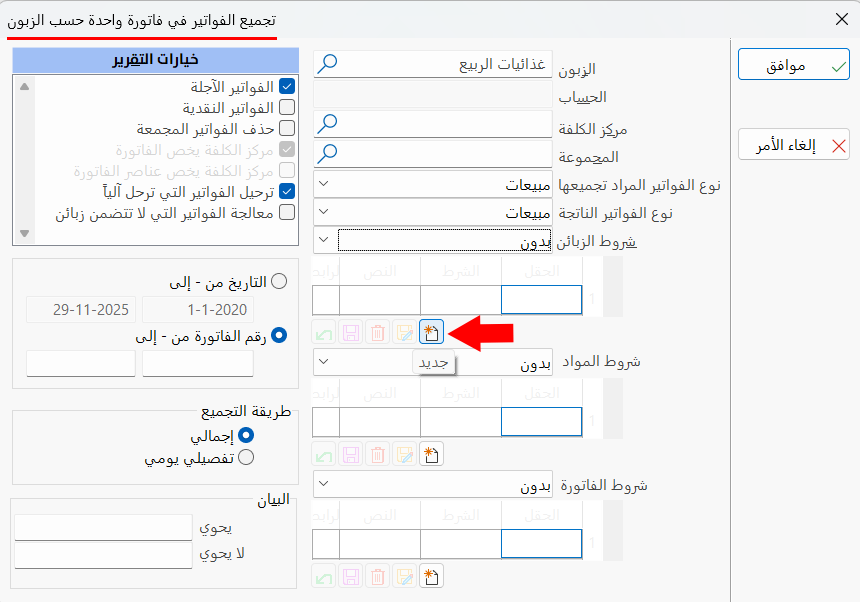
The "Customize Conditions" window opens as follows:
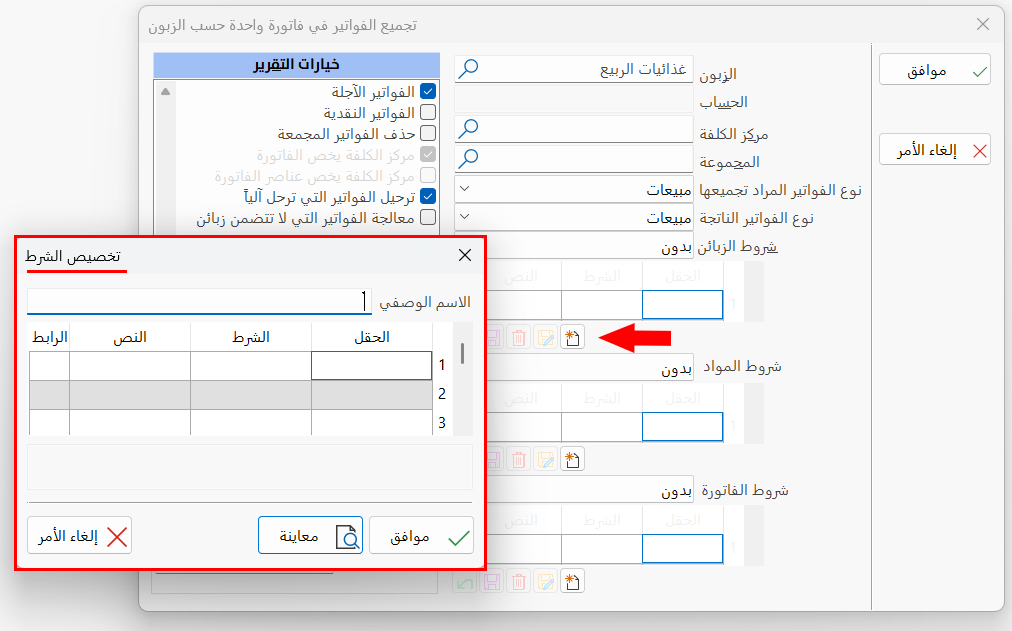
Description
Enter a name for the new condition; it is a mandatory field.
Condition Table
The table contains a set of fields that help you customize the condition:
- Field
Choose the field to which you want to apply the condition by double-clicking with the left mouse button and choosing it from the drop-down list of fields.
- Condition
Set the condition you want to apply to the field you chose in "Field", by double-clicking with the left mouse button and choosing it from the drop-down list of conditions.
- Text
Enter the condition you want to apply to the results of the field you chose in "Field", by typing the text in the box.
- Link
You can set more than one condition and link them together: after setting the first condition, set the link between it and the next condition by double-clicking in the field and choosing "And" or "Or".
For example, the first condition was created as follows:
Field: Region, Condition: Equal, Text: Al-Salihiyah, Link: And.
The second condition:
Field: Region, Condition: Equal, Text: Al-Mazraa.
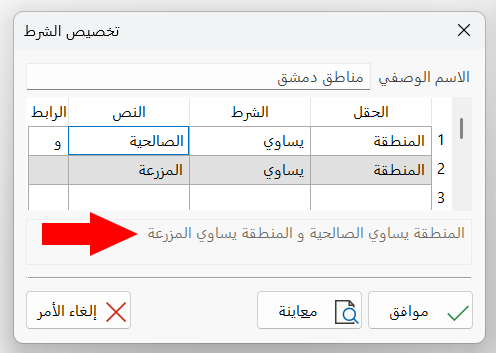
As a result, the two conditions are applied together with the link "And", that is, the condition is applied to the invoices of the customers in the Al-Salihiyah region and the Al-Mazraa region.
Date
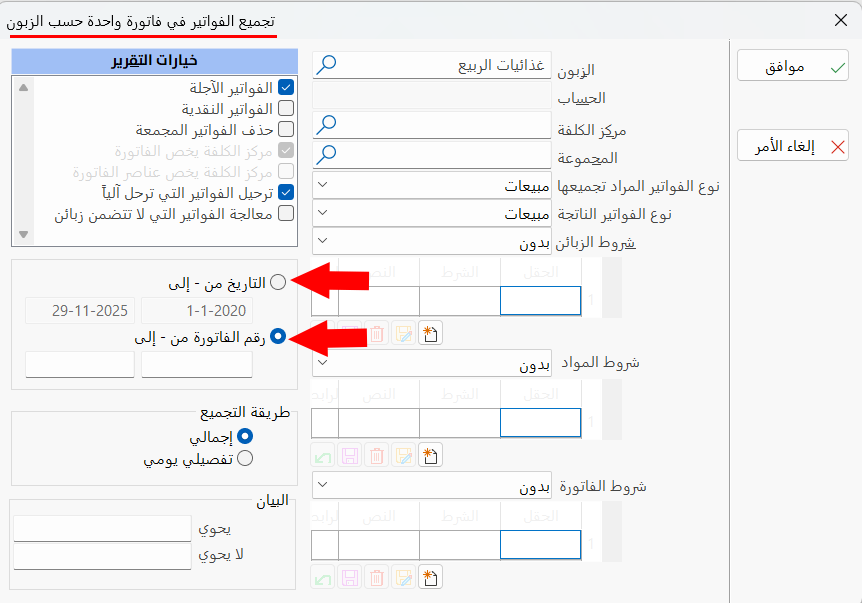
The program lets you set the invoices to merge as those you defined within a particular date, so the Date option appears enabled by default.
To limit the date range of the invoices to merge, set the following:
From: the date at which the range of the invoices you need starts (by default, the beginning-of-period date).
To: the date at which the range of the invoices you need ends (by default, today's date).
Enter the date manually, or use the date icon in the fields.
Press F2 in date fields to enter today's date.
Bill Number
The program lets you set the invoices to merge as those given numbers within a particular range.
Select the check box next to it to enable the following fields:
From: the number at which the range of invoices starts.
To: the number at which the range of invoices ends.
You can choose between "Date From - To" and "Invoice Number From - To"; enabling one makes the other unavailable.
Assembling Method
You can choose the merging method by clicking in the check box next to it. The program provides the following:
- Total
The set invoices are merged without the daily details of each invoice.
- Detailed
The set invoices are merged with the daily details of each invoice.
Notes
Invoices contain the "Notes" field, with which you can enter additional data about the invoice; with the "Notes" field here in the merge bills window, you can enter the notes shared by the invoices you want to merge.
Report Options
The list contains a set of options for controlling the merge tool: you can enable the option that suits the way you work. The options are:
Credit Bills
The option is enabled by default, to support the main purpose of the merge bills tool: the invoices whose payment type is On Credit are merged.
Cash Bills
The option is disabled by default, but you can enable it to merge invoices whose payment type is Cash.
Delete Merged Bills
The option is disabled by default, so the program keeps the invoices you merged: it does not delete the original invoices you merged, and generates a new invoice that merges the other invoices.
When this option is enabled, the program deletes all the merged invoices and keeps only the invoice that resulted from the merge.
Cost Center Belongs to Bill
The option is enabled by default: the cost center set in the invoices is linked.
Cost Center Belongs to Bill Items
The option is disabled by default; when it is enabled, the cost center (if one is set in the invoice) is linked to the materials in the invoice.
Post Bills that Automatically "Post to Warehouses"
The option is enabled by default: the values of the invoices are posted to the accounts in them automatically.
Process Bills with No Customers
By default, the program merges only the invoices that contain customers; you can enable the option so the invoices without customers are merged too.
After filling in the fields needed to merge the invoices, click the "Ok" button.
Bills to be Merged
The "Bills to be Merged" window opens after you click the "Ok" button in the "Merge Bills by Customer" window.
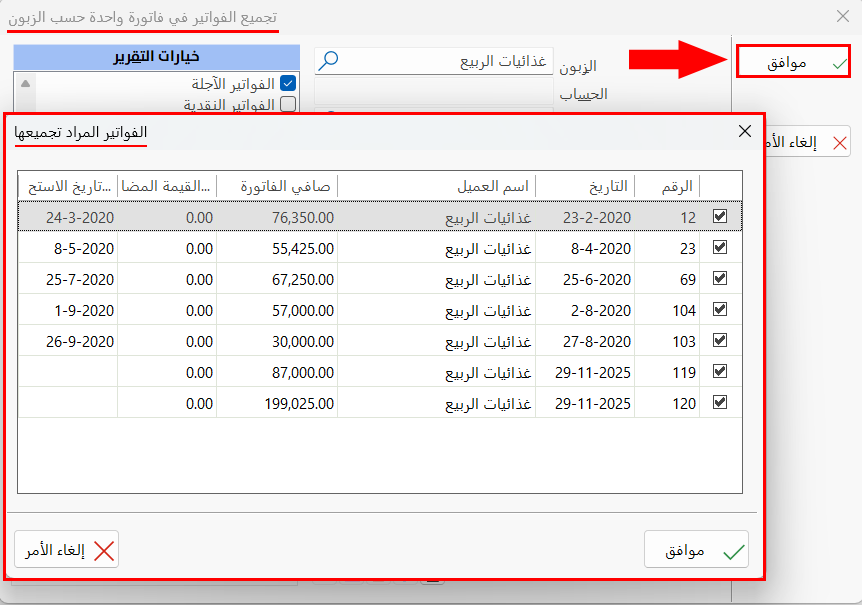
The "Bills to be Merged" window contains the invoices that resulted from the data you entered in the fields of the "Merge Bills by Customer" window.
By default, the program selects all the invoices in the window; if you want to exclude an invoice, click the check box next to it so the √ mark disappears from the box, and the invoice is no longer selected.
Click the "Ok" button to start merging the invoices.
Result of Merging Bills by Customer
After you enter the data of the invoices or the conditions in the "Merge Bills by Customer" window and click the "Ok" button, then set the invoices you need in the "Bills to be Merged" window and click the "Ok" button in this window too, the program moves to the "Group Materials By Customer" report, as follows:
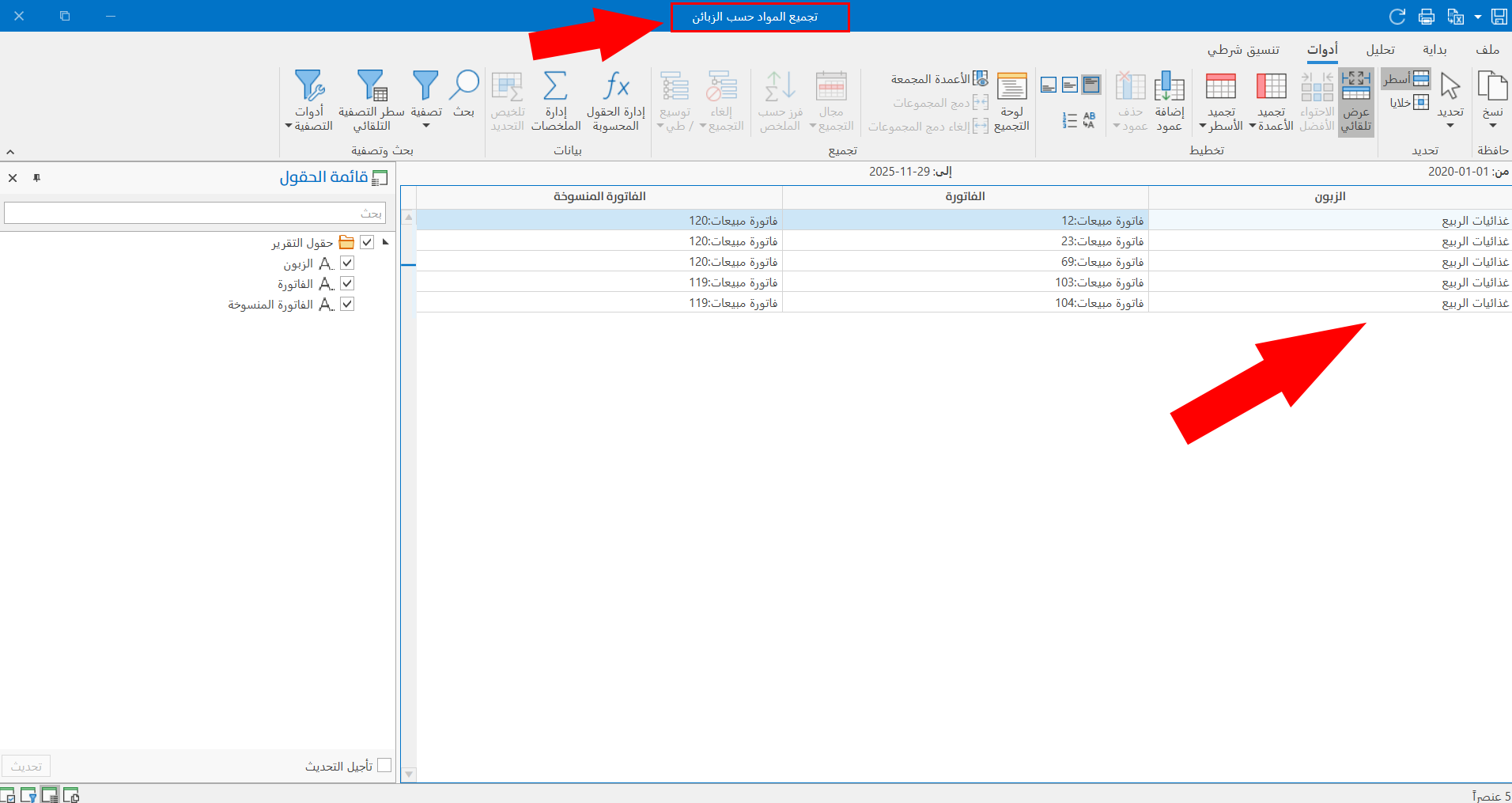
The results appear in a report that shows detailed information about the invoices to be merged.
This tool gathers the data of a number of invoices, with set conditions and options, into a report called "Group Materials By Customer", which you can print, export, or share with customers or program users.