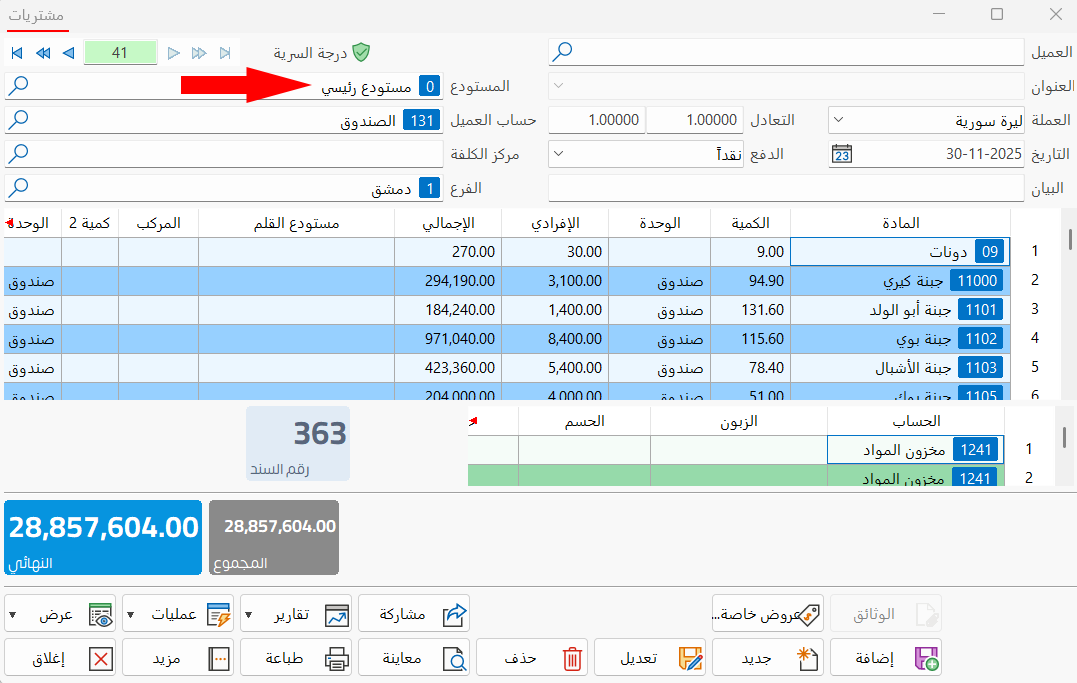
Copy Warehouse Materials
Used to generate an invoice with the quantities of the materials available in a warehouse, and you can set the materials of a particular group in this warehouse and generate an invoice with them.
You can reach "Copy Warehouse Materials" from the Invoices tab on the main ribbon of the program - Tools group - invoices tools list.
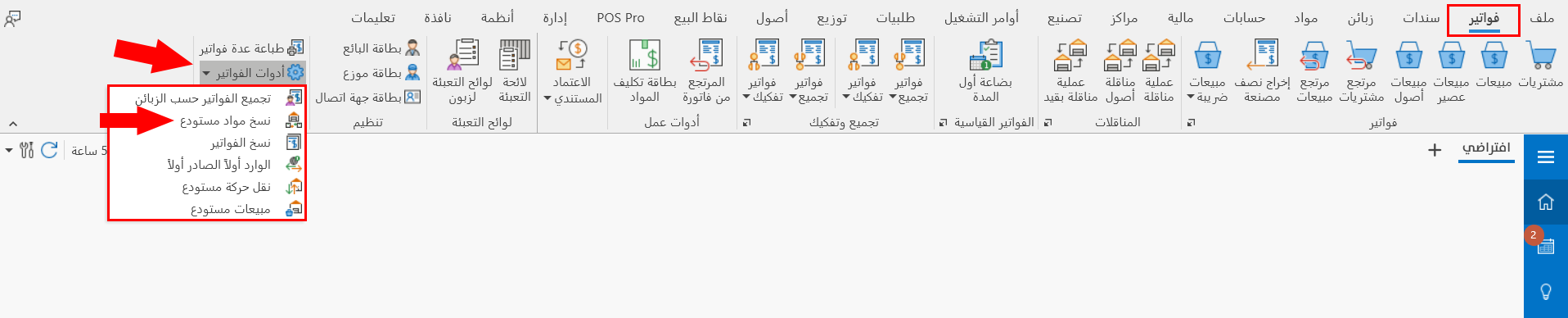
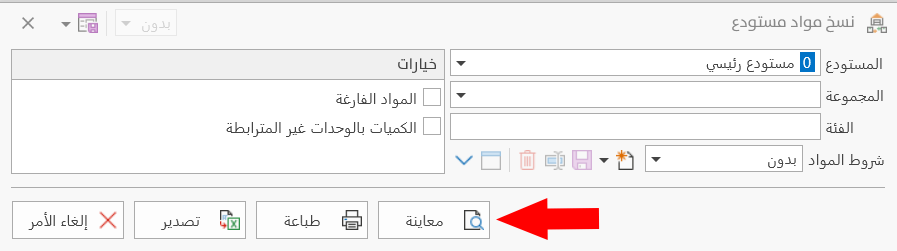
After you request the tool, the window appears as follows:
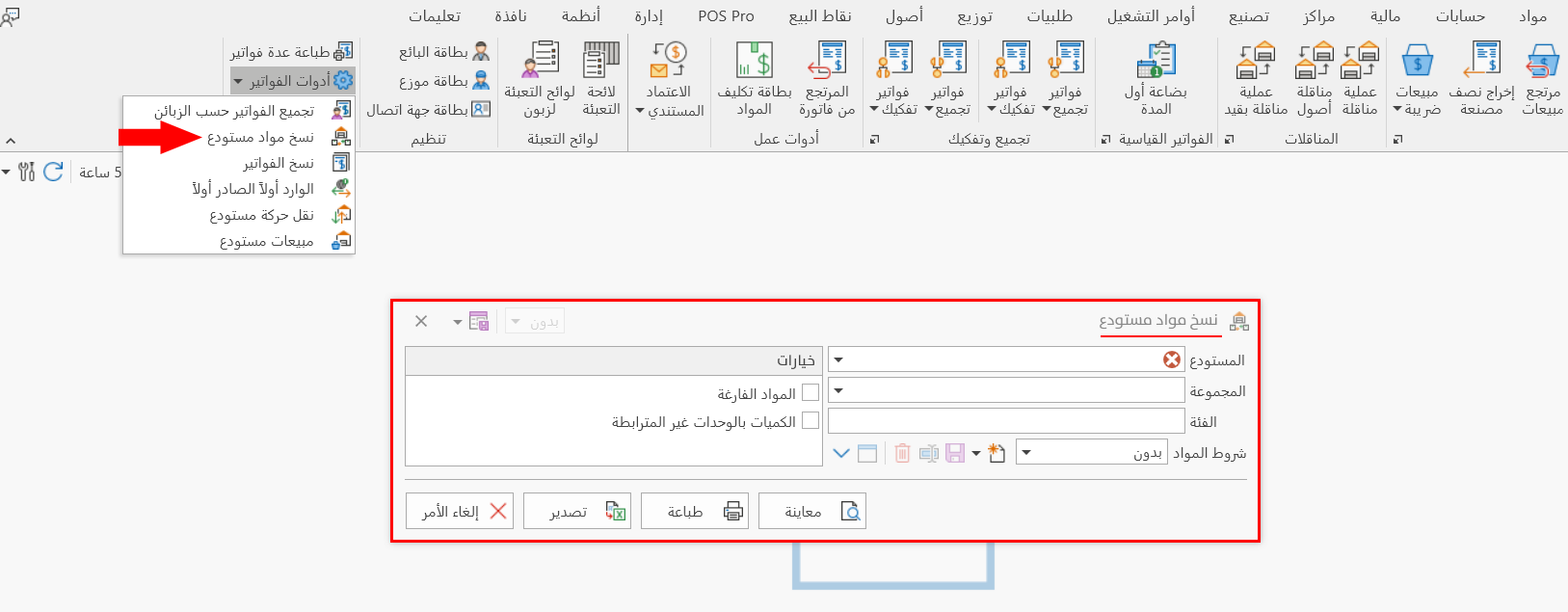
The tool window consists of the following:
Warehouse
Set the warehouse whose materials you want to copy, by adding the name/code of the warehouse, or by clicking the arrow in the field and choosing it from the drop-down list of all the warehouses defined with the warehouse card; it is a mandatory field.
Group
You can set a particular group of materials, to copy its materials available in the warehouse set in the previous field.
Enter the name/code of the group, or click the arrow in the field to choose it from the drop-down list of all the groups defined with the group card.
Category
Invoices contain, in the materials table, the Category field, which is used to add information related to the materials and set them apart by this category.
With the Category field here in the "Copy Warehouse Materials" tool, you can request the warehouse materials that
match the content of "Category" in the materials table of the invoices.
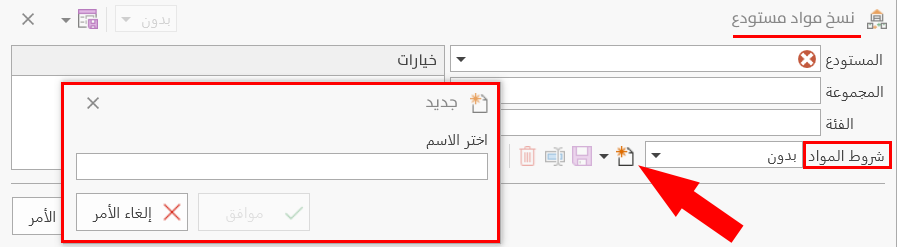
Materials Terms
You can choose conditions for the materials you want to copy from the list of conditions that drops down from the arrow, and you can also create a new condition with the "New" symbol next to the field.
Options
The "Copy Warehouse Materials" window contains the following two options:
Empty Materials
By default, the program does not show empty materials, which are the materials whose quantity in the warehouse is zero; to show empty materials, enable the option by clicking the check box next to it.
Quantities in Unrelated Units
Unrelated units are units linked to the first basic unit, but without a fixed factor (a fixed number) for converting between the two units. For example, a material may have the kilogram as its basic unit and the box as its second unit, and the weight may differ from one box to another from the default value (the conversion factor).
To show the quantities of materials that have unrelated units, enable the option by clicking the check box next to it.
Report Window Operations
You can perform many operations on the report data, such as previewing and exporting.
For more details, go to Report Window Operations.
Generating an Invoice with Warehouse Materials
After filling in the fields of the "Copy Warehouse Materials" window, click the "Preview" button.
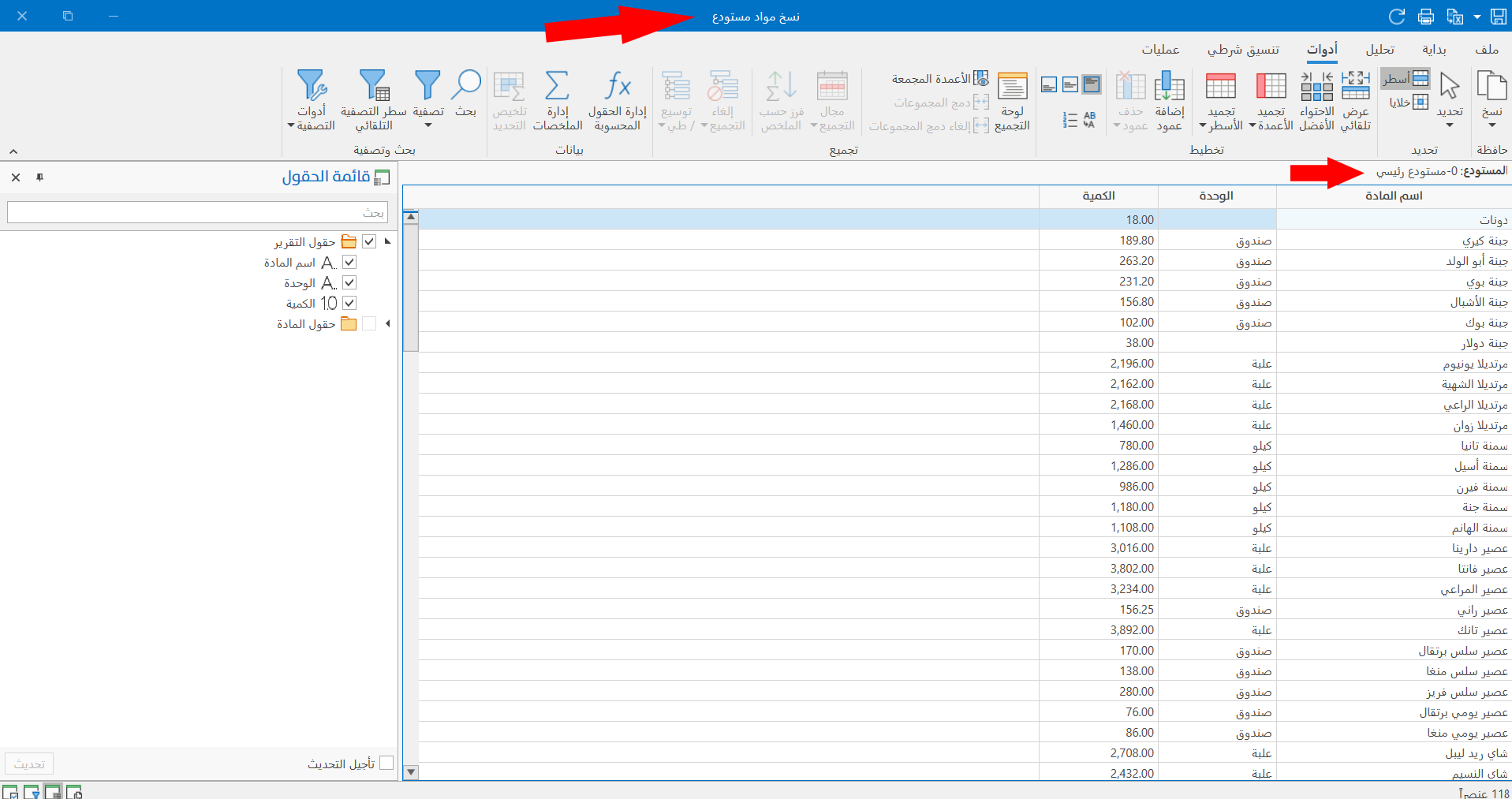
The program moves to the preview interface, which contains the materials of the warehouse set in the window, as follows:
Go to the "Operations" tab on the main ribbon of the report preview interface.
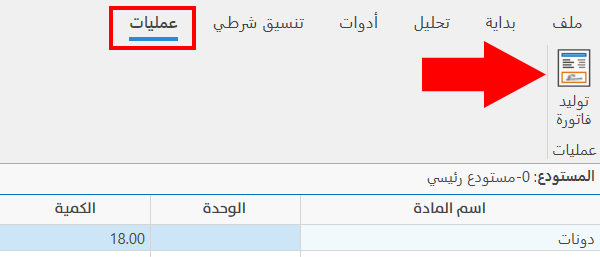
Click the "Generate Bill" button: the "Generate Bill" window opens, as follows:
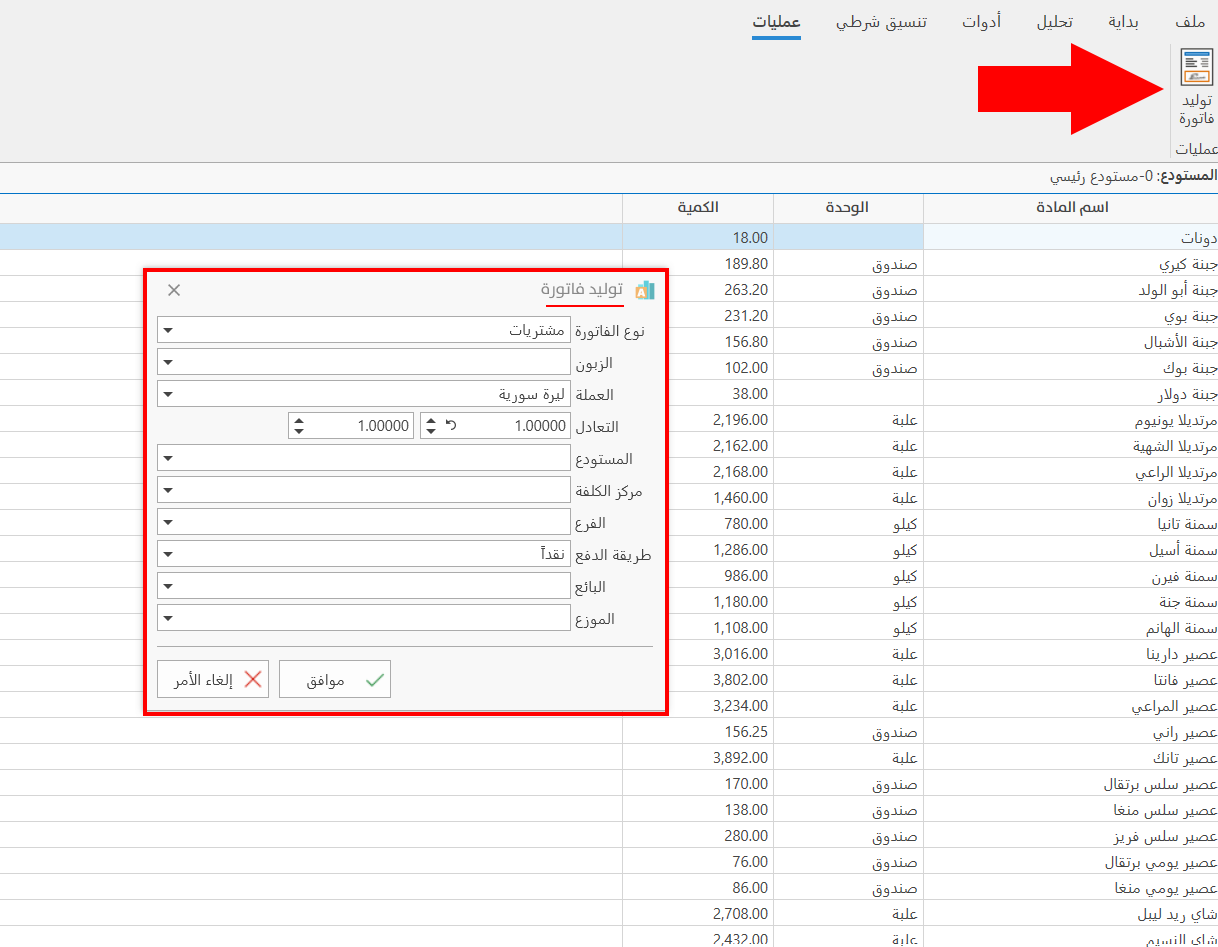
The program requires you to enter the warehouse and the branch to generate an invoice.
Choose the invoice type and the payment type, and whatever you want from the fields of the window, then click the "Ok" button.
The "Serial Numbers" window opens so you can enter the missing numbers, if you enabled the serial number forcing option in the material card.
After you click the "Ok" button in the "Generate Bill" window, or after entering the serial numbers if any, a message appears to confirm that the invoice was generated.
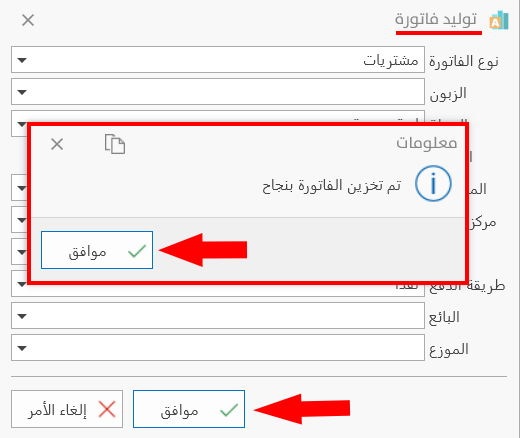
Click the Ok button in the message: the program shows the invoice that was generated.