Merge Address Card
The "Merge Address Card" tool is used to change the addresses in customer cards at once, by moving the customers linked to one address to another address and merging the two addresses into one card, with the option to delete the address card the customers were moved from.
Example: You may have defined the address of the same country in two different forms, such as (Syria) and (Syrie), and used each form in different customer cards. In this case, you can unify the address in all the customer cards so it becomes (Syria) only, with the "Merge Address Card" tool.
The program provides three cards for customer addresses: the country card, the city card, and the region card. After these cards are defined, you can set the address of the customer on the Address tab of the customer/supplier card.
You can reach the "Merge Address Card" tool from the Customers tab on the main ribbon - Tools tab.
After you request the tool, the following window opens:
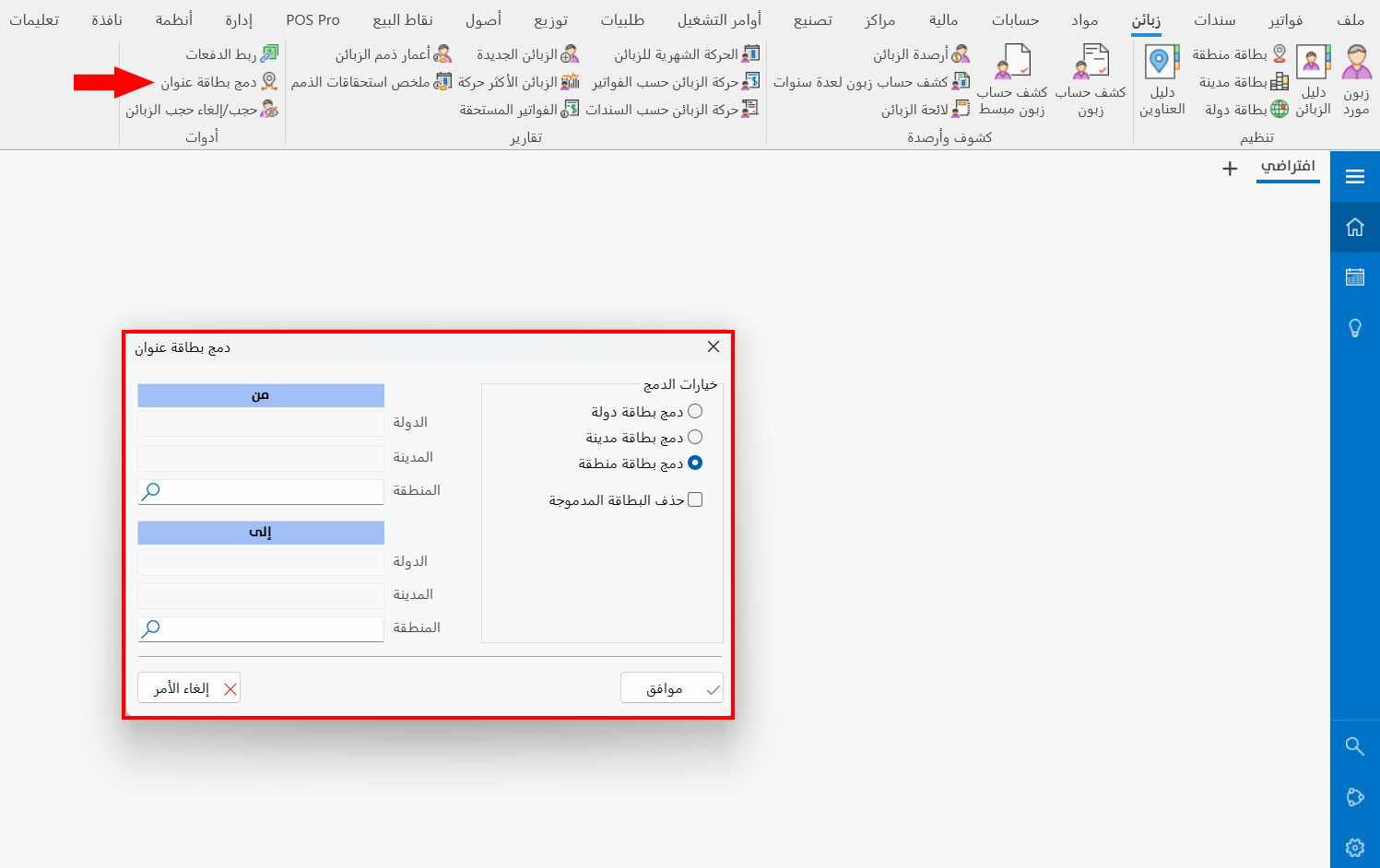
The window of the tool consists of the following fields:
Merge Options
Used to choose the kind of cards you want to merge: you can enable only one of the following options:
Merge Country Card
Select this option to merge a country card into another country: after you select it, the country fields "From" and "To" are enabled on the other side.
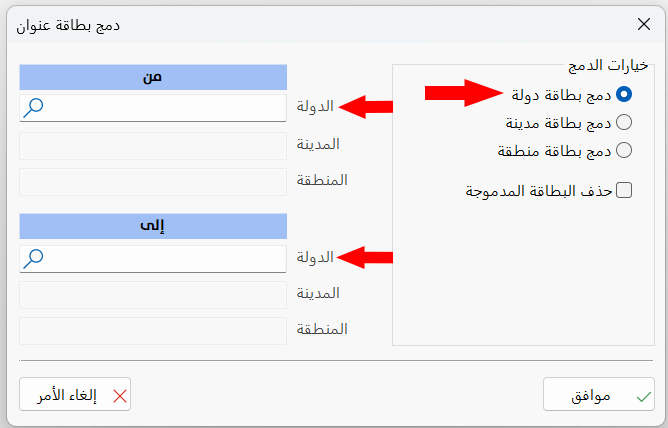
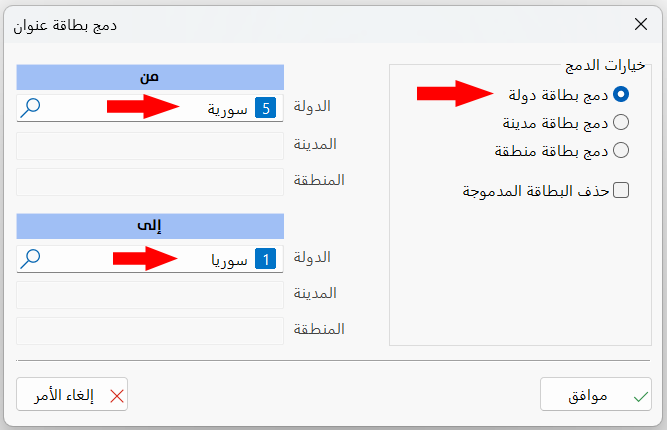
In the "From" country field, enter the name of the country you want to change (merge), and in the "To" country field, enter the name of the country that will take the place of the country in the "To" field.
Applying the previous example, the address of the customers in the country "Syrie" changes to "Syria", so the country in the address of all the customer cards is unified as "Syria".
Merge City Card
Select this option to merge a city card into another city: after you select it, the city fields "From" and "To" are enabled on the other side.
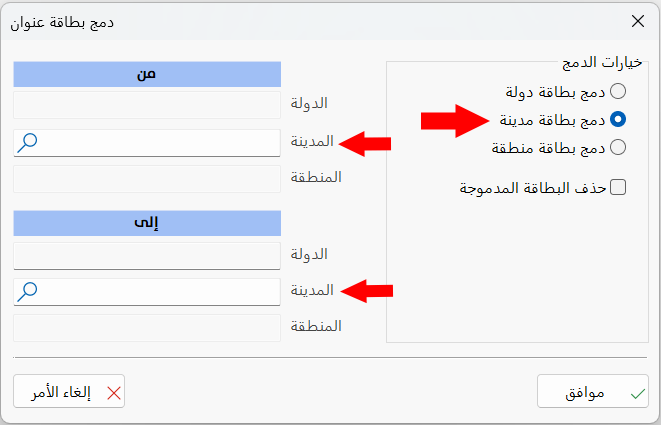
In the "From" city field, enter the name of the city you want to change (merge), and in the "To" city field, enter the name of the city that will take the place of the city in the "To" field.
Merge Region Card
Select this option to merge a region card into another region: after you select it, the region fields "From" and "To" are enabled on the other side.
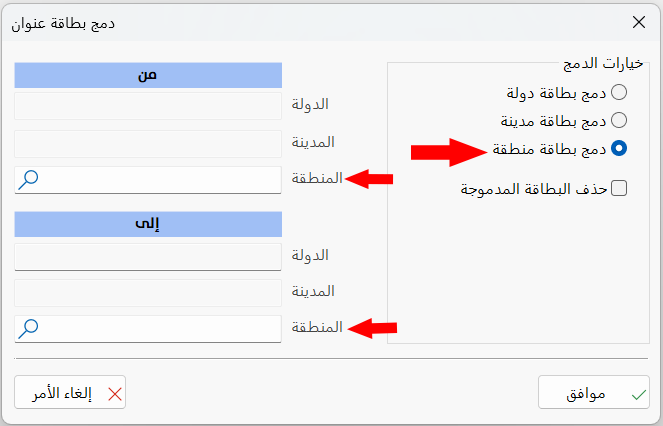
In the "From" region field, enter the name of the region you want to change (merge), and in the "To" region field, enter the name of the region that will take the place of the region in the "To" field.
Delete merged card
You can delete the merged card after merging it into the second card, by enabling the option after filling in the fields of the window.
Applying the previous example: "Merge Country Card" from "Syrie" to "Syria", with the option "Delete merged card" enabled.
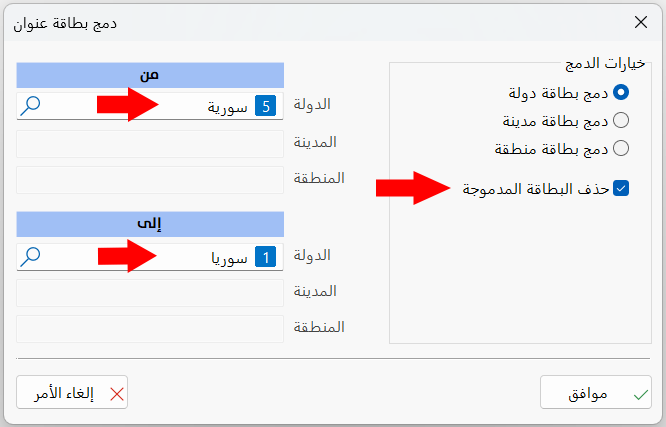
The address of the customers moves from "Syrie" to "Syria", and the country card "Syrie" is deleted.