Block/Unblock Customers
The tool is used to block or unblock the customers of a particular account: when an account is linked to more than one customer and you want to block the customers of the account at once, use this tool instead of blocking the customers one by one.
The tool is similar in result to the "Hide in Search Window" option in the customer/supplier card, but the difference is that with the tool you can block or unblock a group of customers at once.
You can reach the tool from the Customers tab on the main ribbon - Tools group; after you request it, it opens as follows:
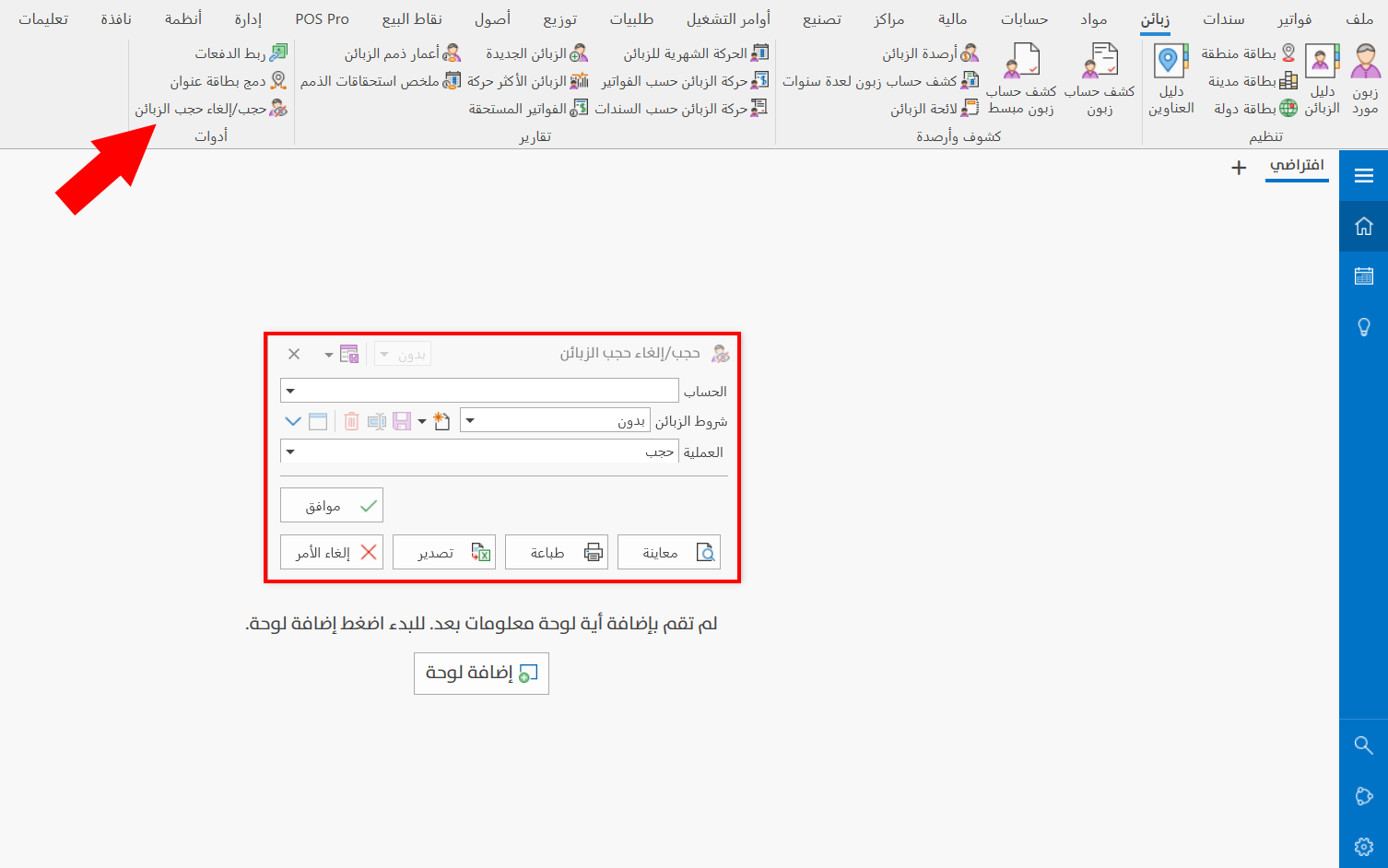
The tool window looks like a report window, because you can preview the customers of the account before blocking or unblocking them.
Window Fields
Account
Enter the name/code of the account of the customer you want to block, or the account whose linked customers you all want to block, or click the arrow in the field to choose the account you need from the drop-down list.
Customers Terms
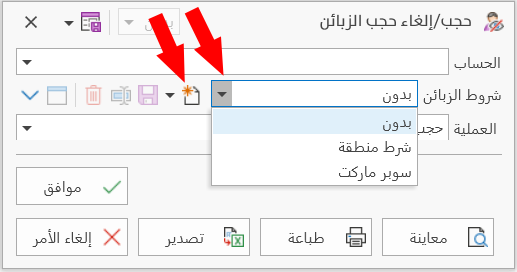
You can set one or more conditions to control which customers you want to block or unblock, when the account set in the Account field is linked to a large number of customers.
You can also block or unblock customers by the customers terms only, without setting a particular account.
The arrow in the field drops down all the customers terms you saved earlier; choose one of them, or create a new condition by clicking the "New" symbol next to the Customers Terms field.
Operation
The tool can block customers or unblock them: choose the operation you need from the drop-down list after clicking the arrow in the field. It contains:
Block
The "Block" option appears in the field by default; it is used to block the customers of the account you set in the "Account" field of the tool window.
Unblock
Used to unblock the customers of the account you set in the "Account" field of the tool window.
Ok Button
Click the "Ok" button to apply the "Block/Unblock" operation to the customers of the account you entered in the "Account" field of the window.
Report Window Operations
You can perform many operations on the report data, such as previewing and exporting.
For more details, go to Report Window Operations.
Result of Blocking/Unblocking Customers
Blocking a customer stops them from appearing in the search window (the customer selection window that opens when you click the search symbol in the Customer field or the Client field), so you cannot add them as a client in invoices, or view their movement or statement in reports.
When you unblock a customer you blocked earlier, they become available in the search window, so you can add them to invoices again and request reports on their movement.