Report Window Operations
You can run many operations with the buttons in the report window:
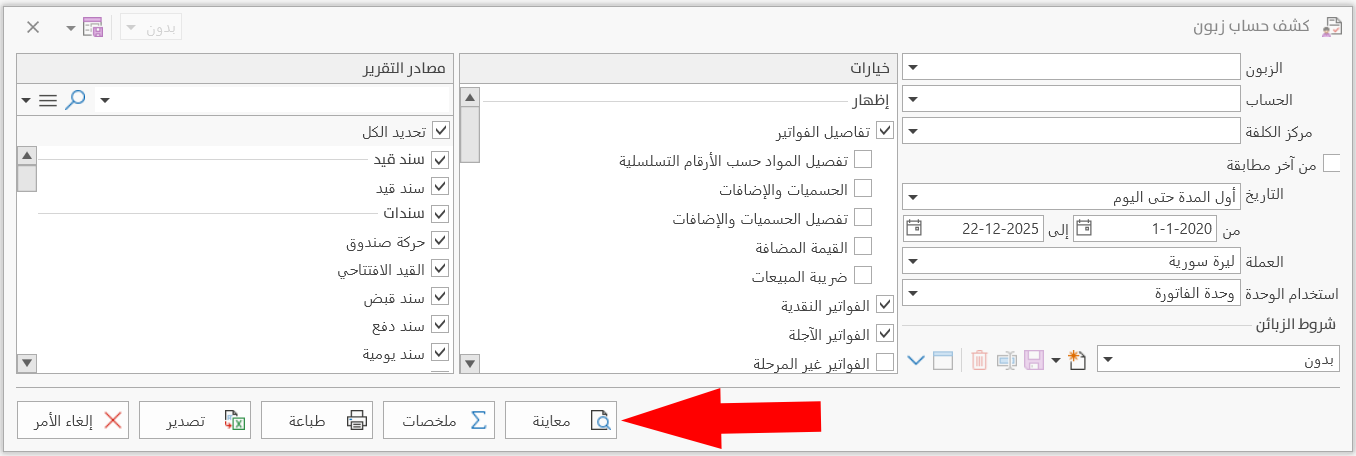
Preview
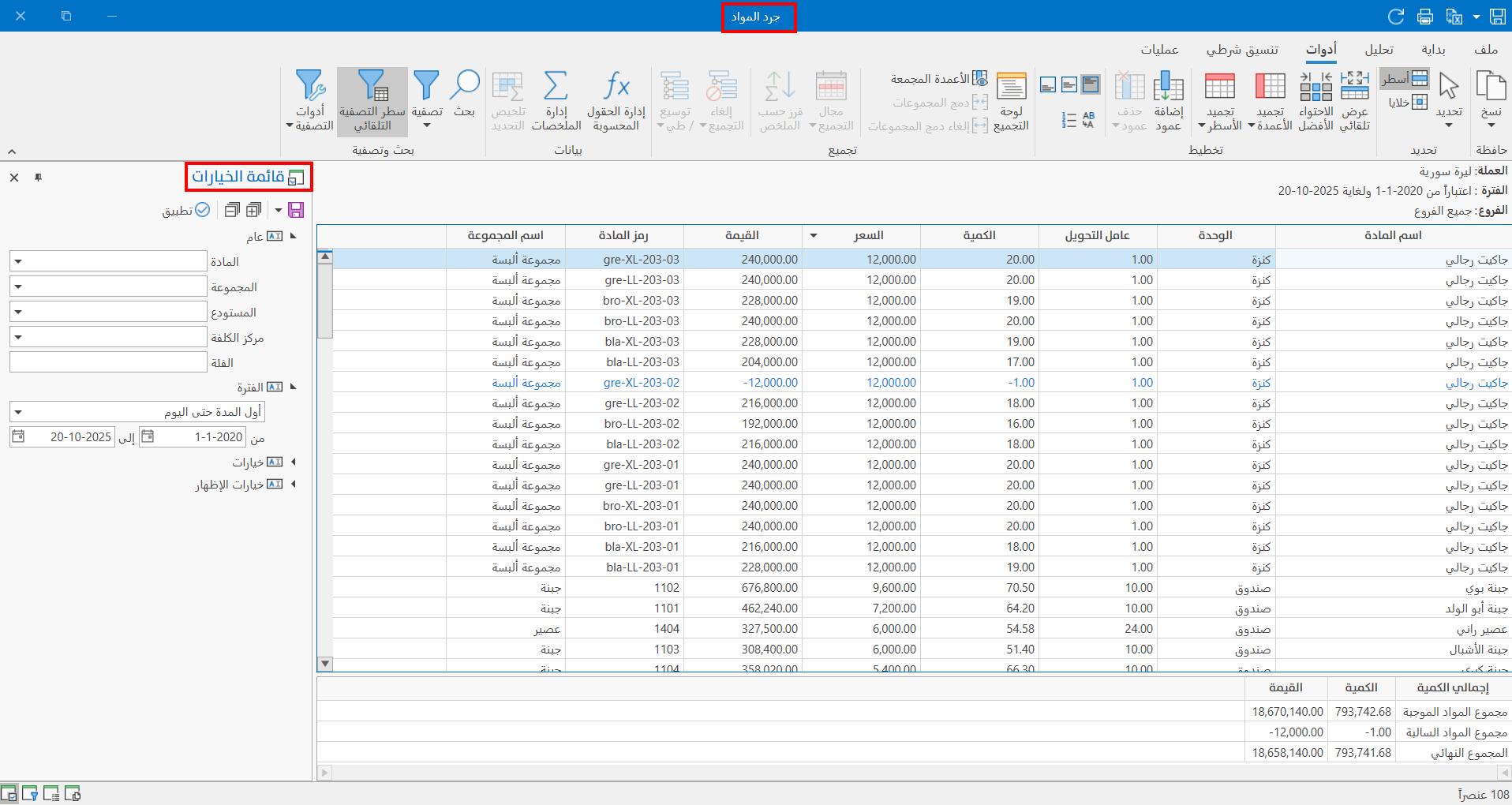
When you finish setting the options by which you want to view the report, click the "Preview" button: the program moves to the preview interface, which contains the set report data.
You can also control how the information appears in the preview interface, and reset the options with the tools and operations the program provides in the interface.
Summaries
You can request the summaries of the report without previewing the report and setting the summaries, by clicking the "Summaries" button in the report window.
After you click the button, the program moves to the report summaries interface. For example, when you request the summaries of the Customer Statement report, an interface appears with a number of boxes that contain the summaries: previous balance, debit, credit, uncollected commercial papers balance, current balance, brought forward and uncollected commercial papers balance.
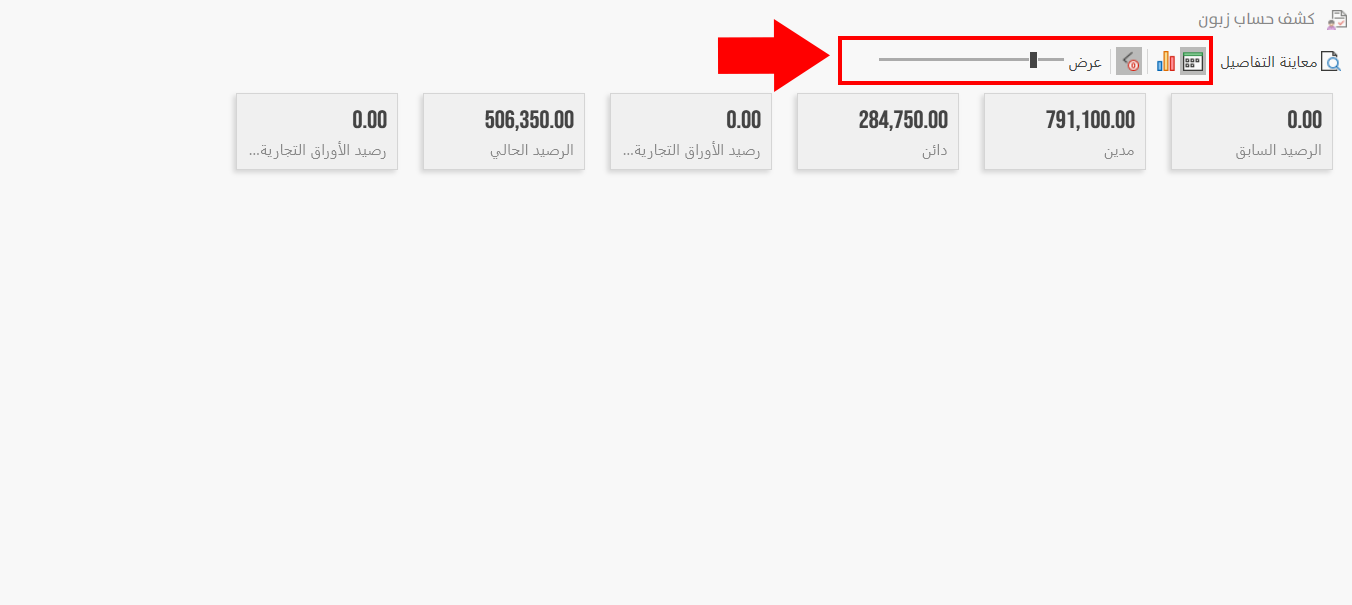
You can also control how the summaries are viewed with the tools on the main ribbon of the interface, such as showing the summaries as charts and highlighting negative values.
Print
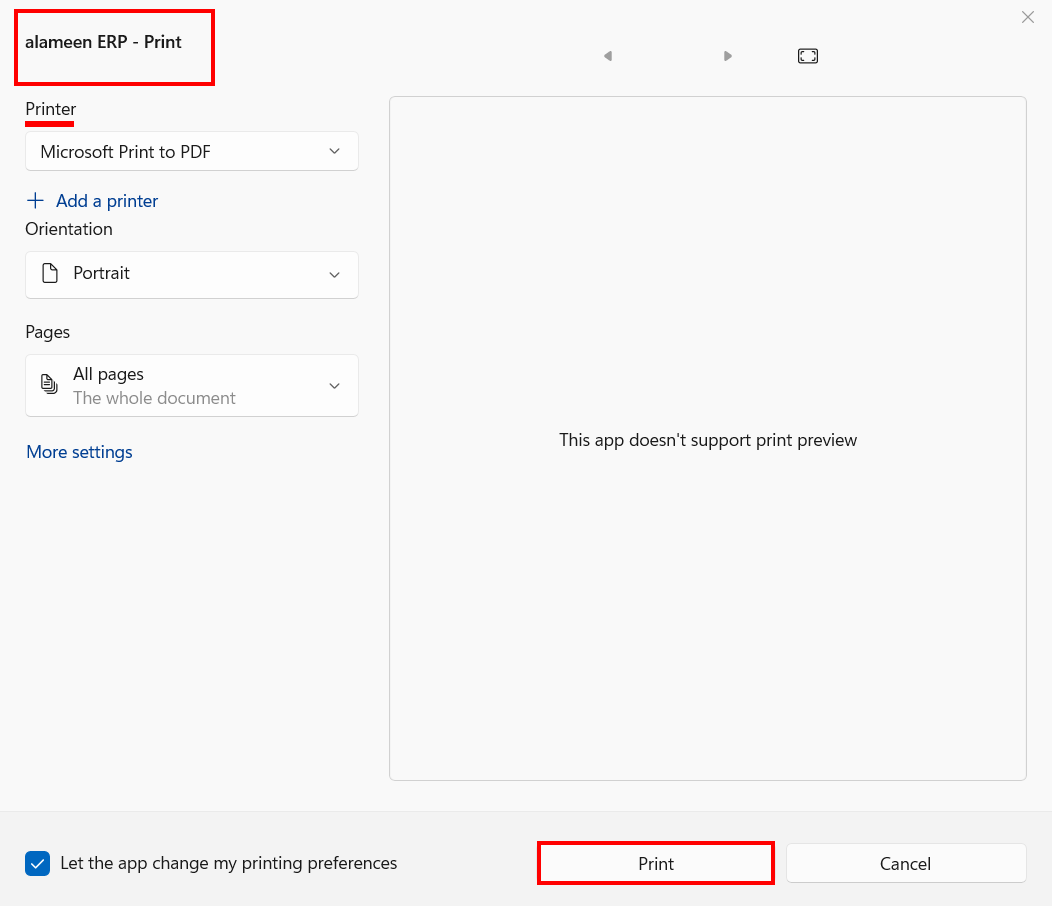
You can print the report directly without previewing it, by clicking the "Print" button: a window opens for setting the printer you need; click the Print button in the window, and printing starts immediately.
Export
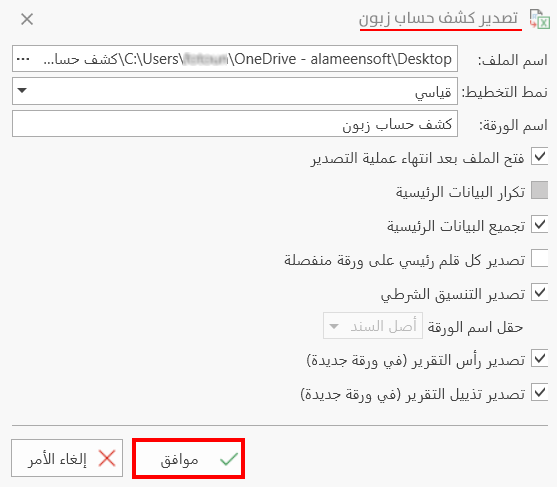
The program lets you export the report directly from the report window: after setting what you want to export from the report in the window, click the "Export" button, then set the options you need in the export window that opens, and when you finish click the "Ok" button.