Share the Report as XLSX
When you choose the report sharing method "Send as XLSX", the following window appears:
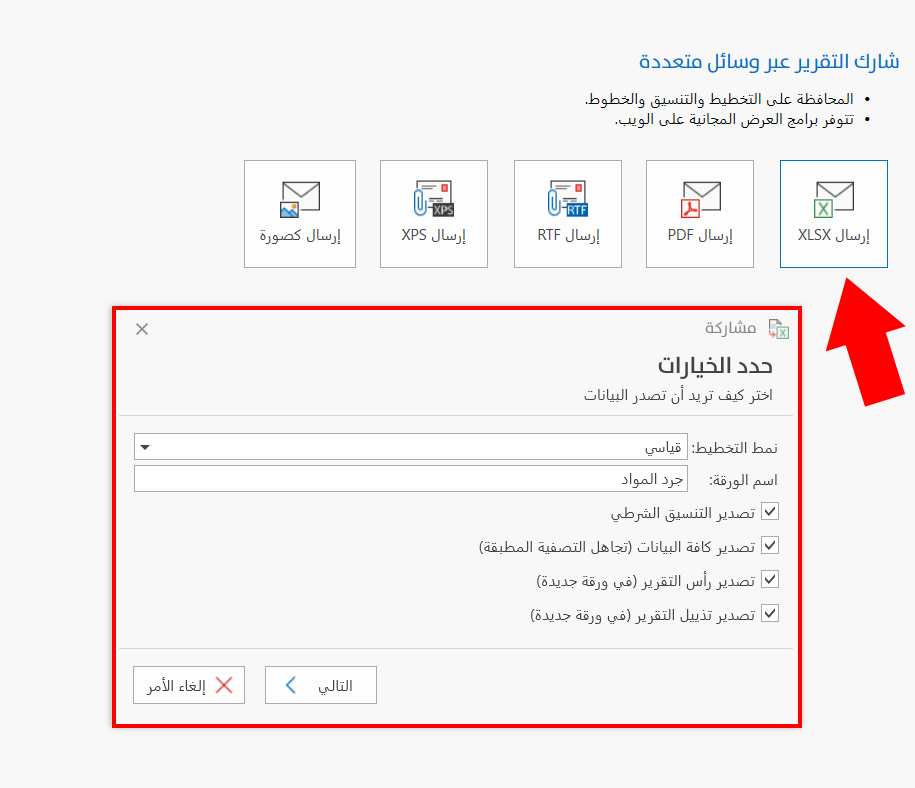
Setting the Options for Sharing the Report as XLSX
Choose how you want to share the data of the report from the options available in the window; these options may differ from one report to another. They include:
Layout mode: Standard, Table.
Sheet name: by default, the sheet is named after the report; you can change it.
Export conditional formatting.
Export all data.
Export report header (new sheet).
Export report footer (new sheet).
After setting the sharing options, click the "Next" button to continue: the list of report fields appears, so you can set the fields to share.
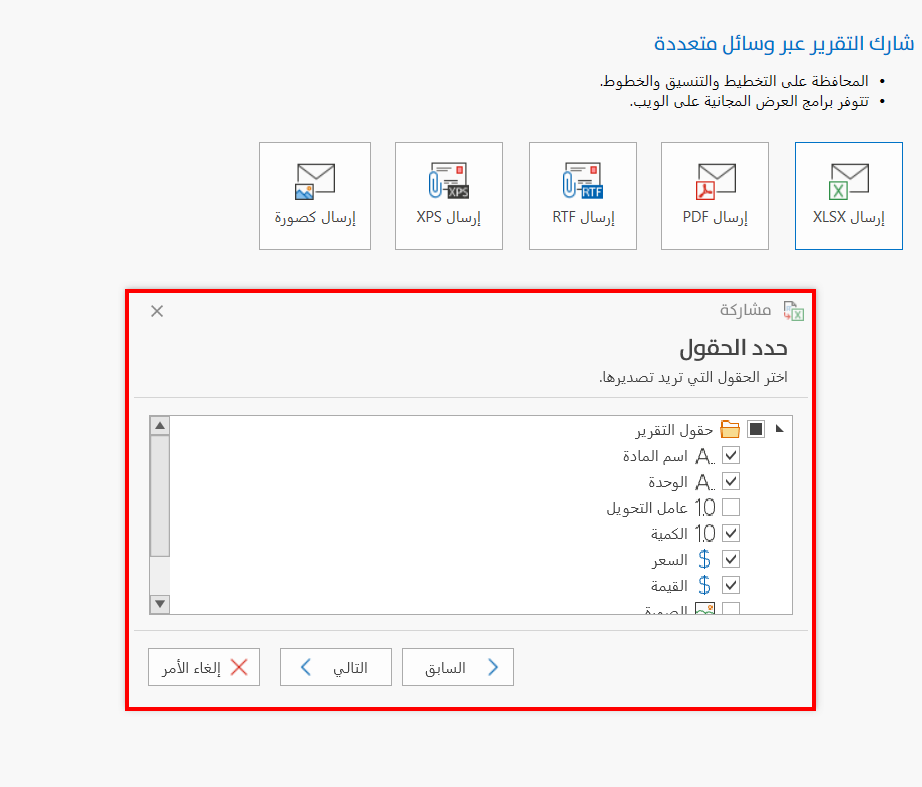
By default, the program selects all the fields selected in the "field list" of the report preview window itself, so a √ mark appears in the check box next to these fields; you can change them to choose the fields you need.
The window also shows the Compact View option, for controlling whether repeated fields are shown in cross-tab reports.
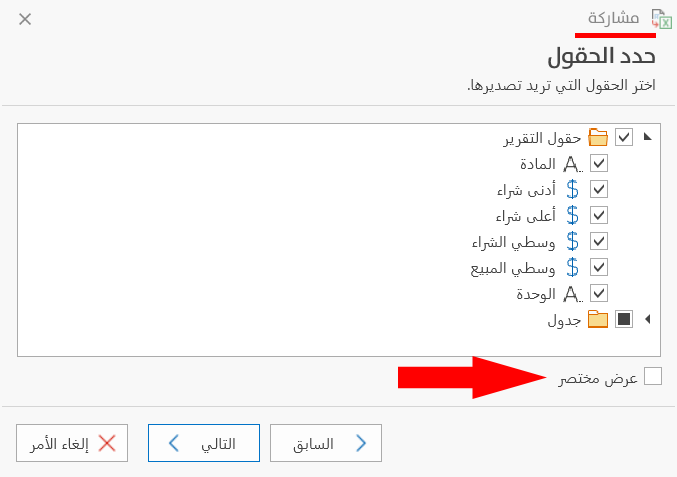
Click the "Next" button to continue sharing the report, or use the "Back" button to return to the options window.
When you click the "Next" button, the wizard moves to a window that confirms the report is ready for sharing, as in the following picture:
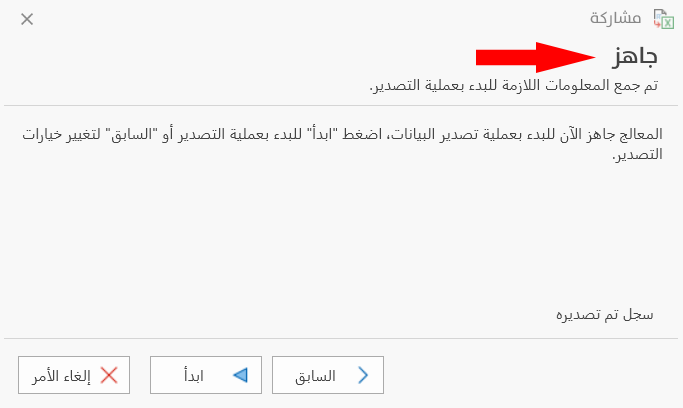
To continue, click "Start": the content of the previous window changes as follows:
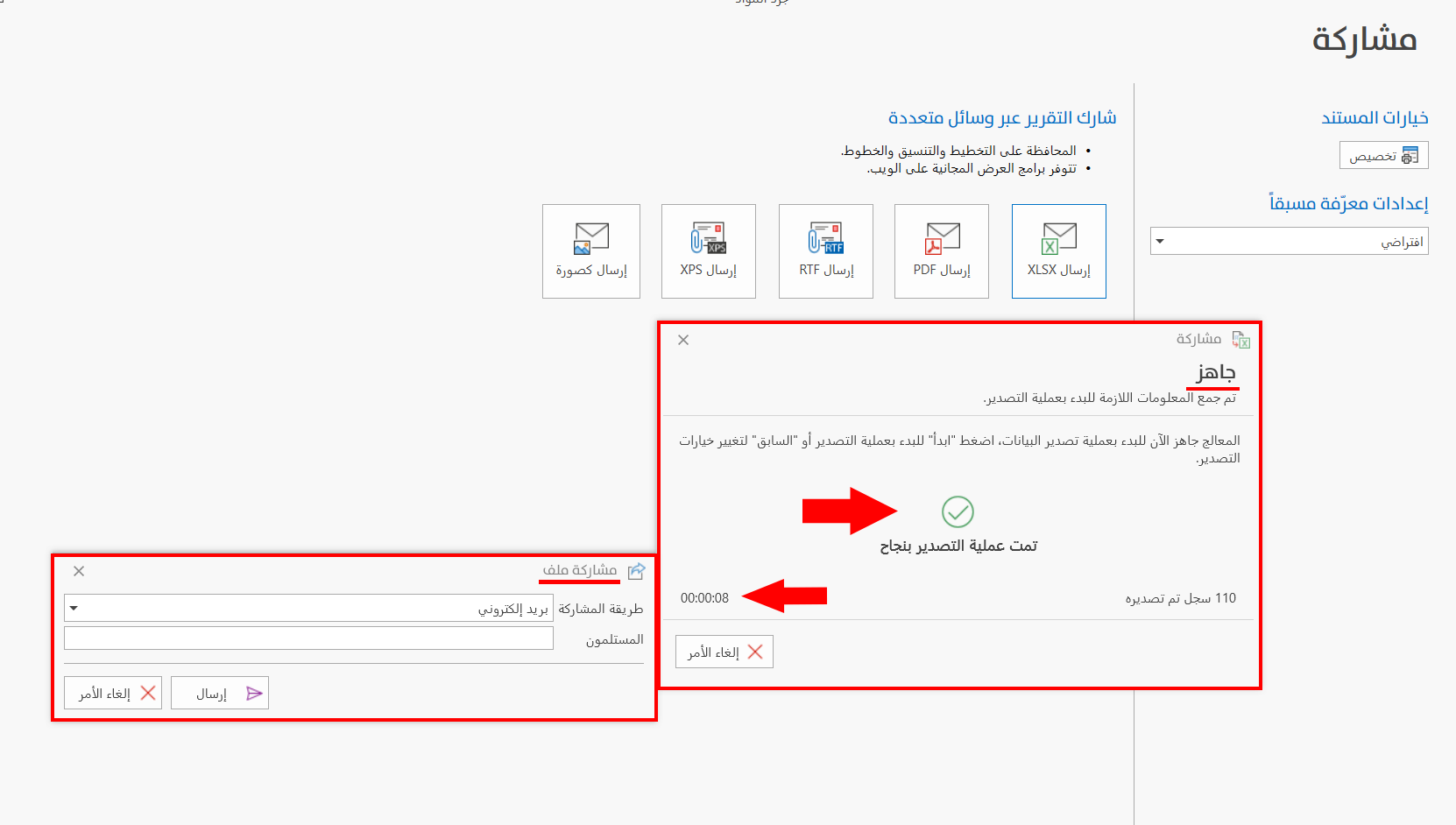
The window contains a timer that starts counting as soon as you click the "Start" button and shows the actual time the sharing takes; at the same time, the "Share File" window opens so you can set the sharing method and add the recipients.
Fill in the fields of the window with the data of the recipient, then click the "Send" button to finish sharing the report, or the "Cancel" button to undo the sharing.