Report Options - Workspaces Tab
A workspace is a saved shape of the report preview window after certain operations on the shape and data of the report in the window, such as adding a field or grouping the data.
You can save more than one workspace and return to them at any time.
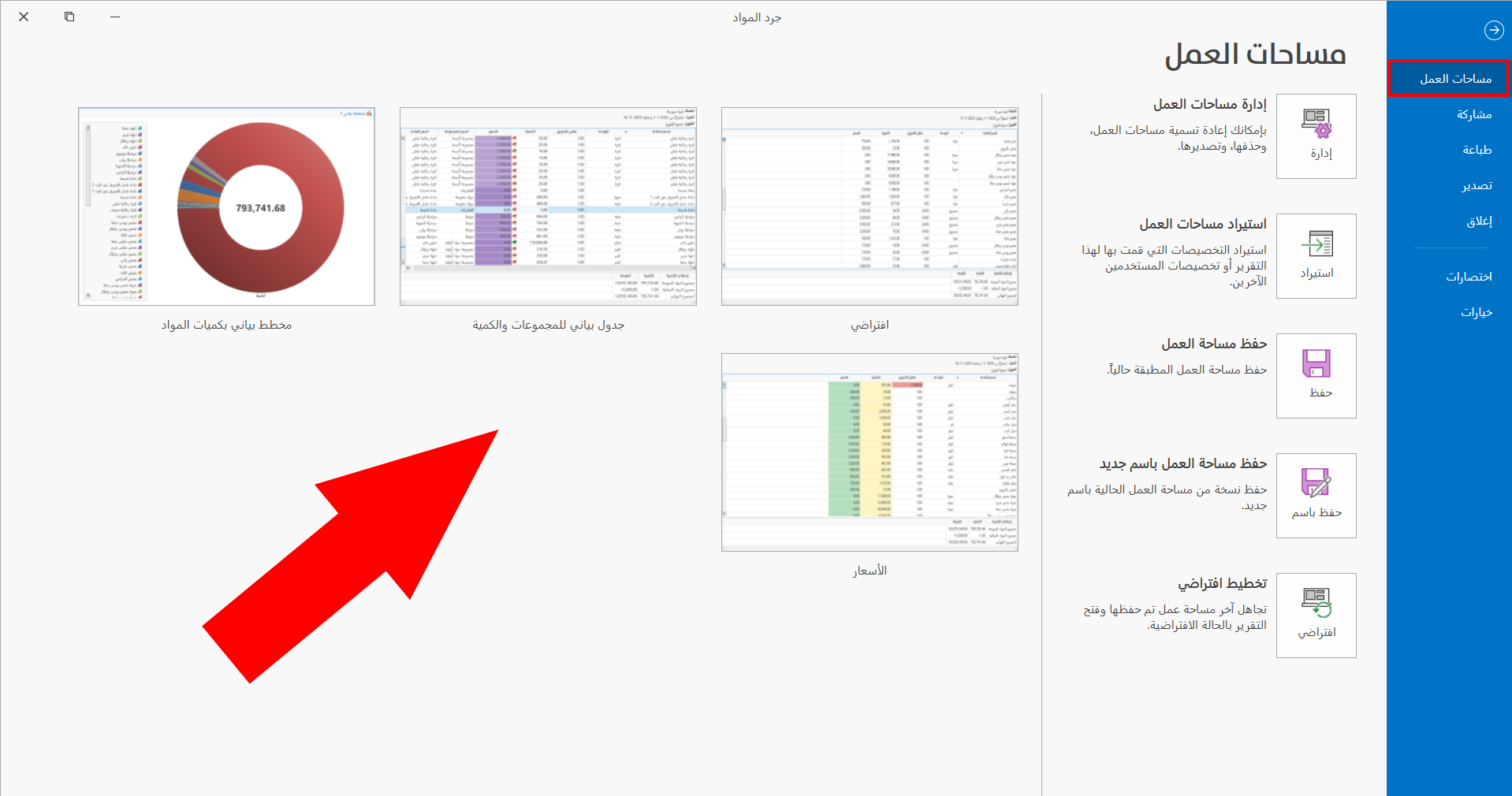
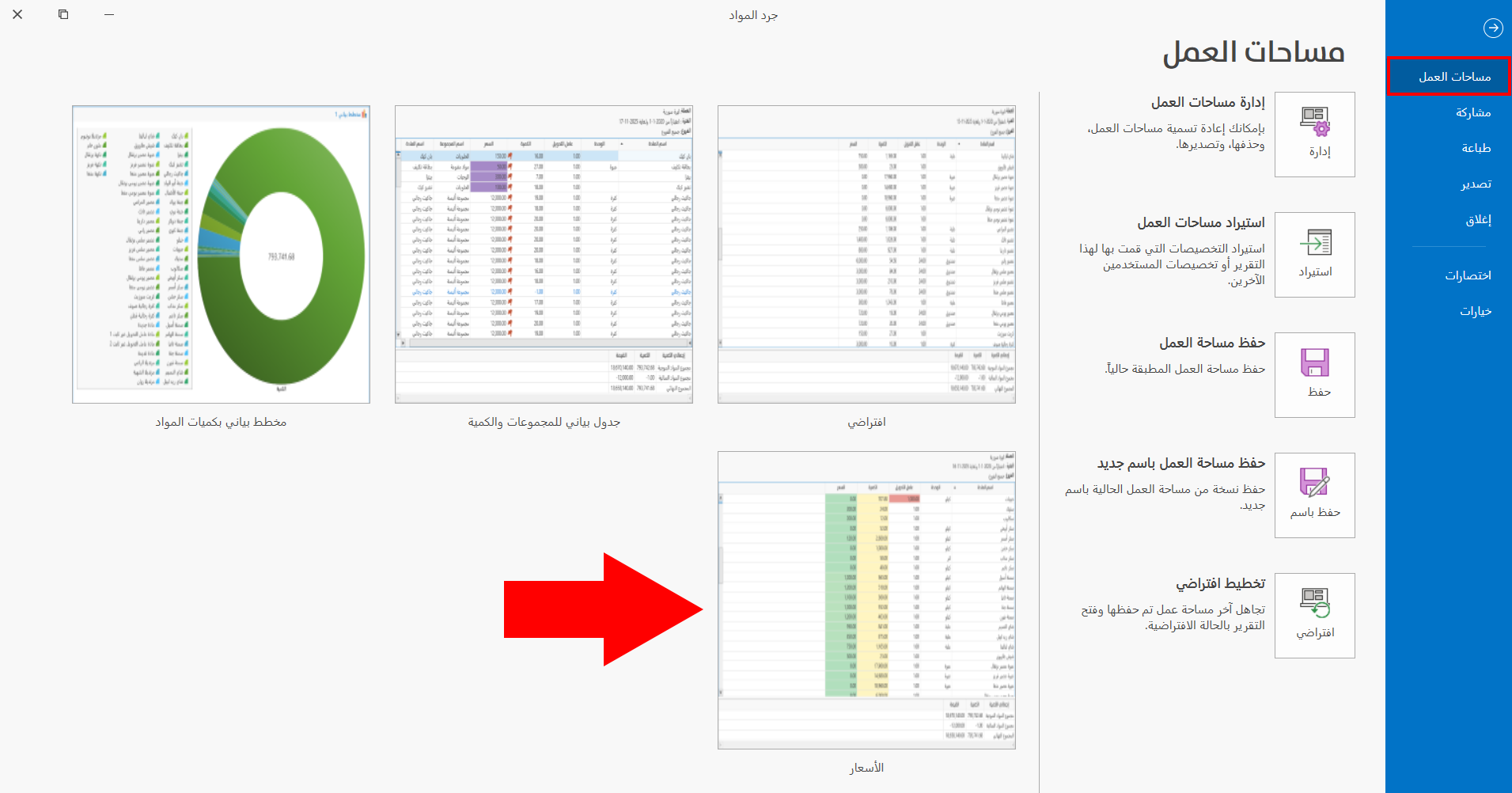
You can reach the saved workspaces from the "File" tab on the main ribbon of the report preview window.
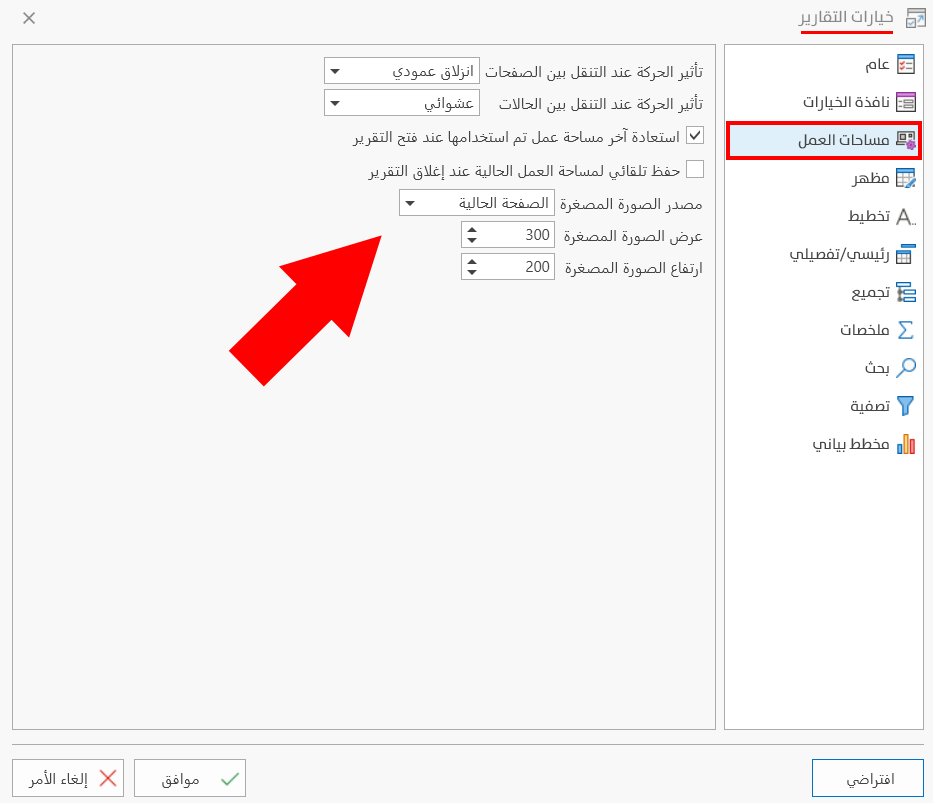
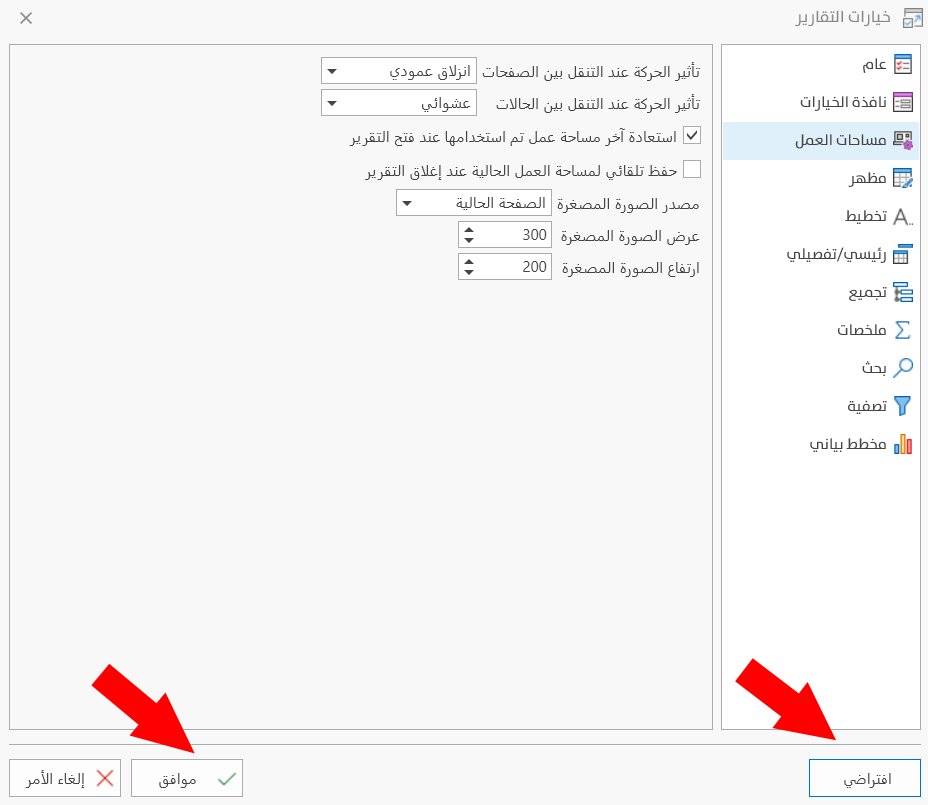
To set the default options of the workspaces of a report, such as the animation when switching between pages and states, or the thumbnail settings, you can use the Workspaces tab of the report options window.
They are as follows:
Page switch animation effect
The animation effect appears while moving between the pages of a workspace in the report preview window (if the workspace contains more than one page).
Add a new page to the report with the "Insert" group on the "Analysis" tab of the main ribbon of the report preview window.
You can insert a table, a pivot table, or a chart.
View the pages of the report by clicking the "Page List" symbol at the bottom of the preview window, in the group of report lists.
The program provides many effects, one of which you can use:
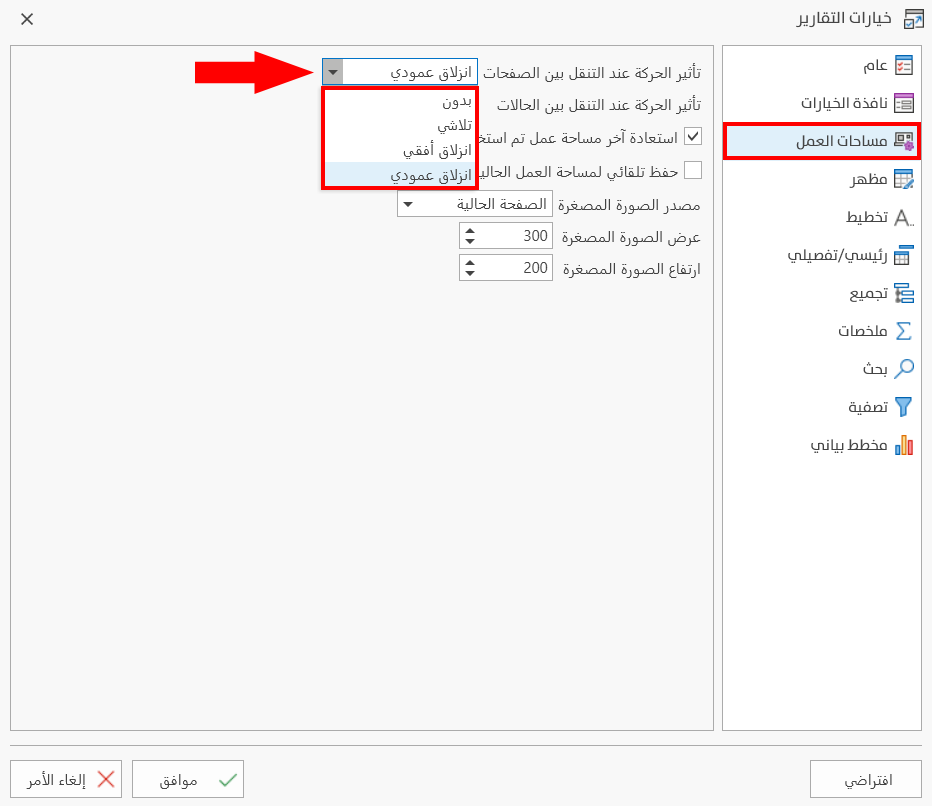
For example, when you apply the animation effect "Slide Horizontal", the movement between pages looks as follows:
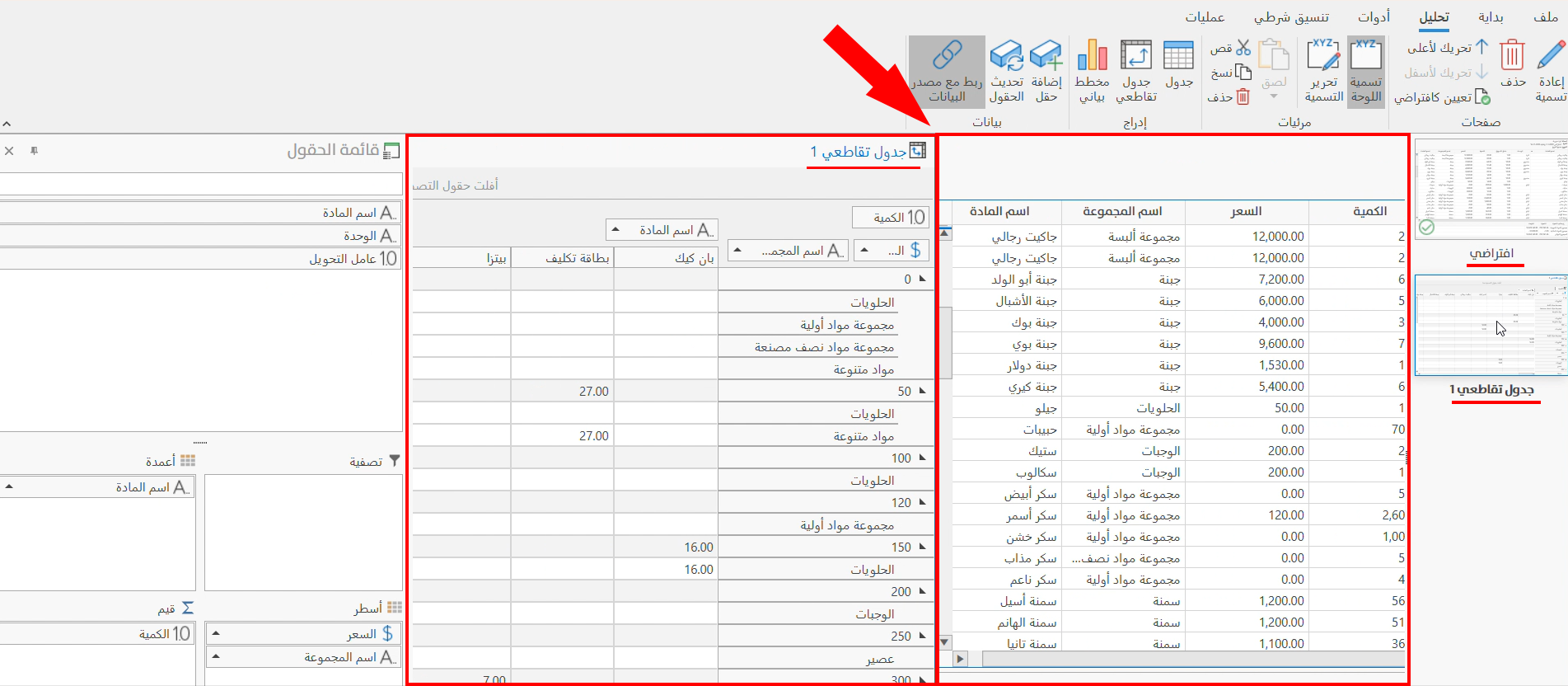
The program uses the animation effect "Slide Vertical" between pages.
State switch animation effect
The animation effect appears when you open a workspace or move between saved workspaces: the data is shown according to the animation effect you set from the following available effects:
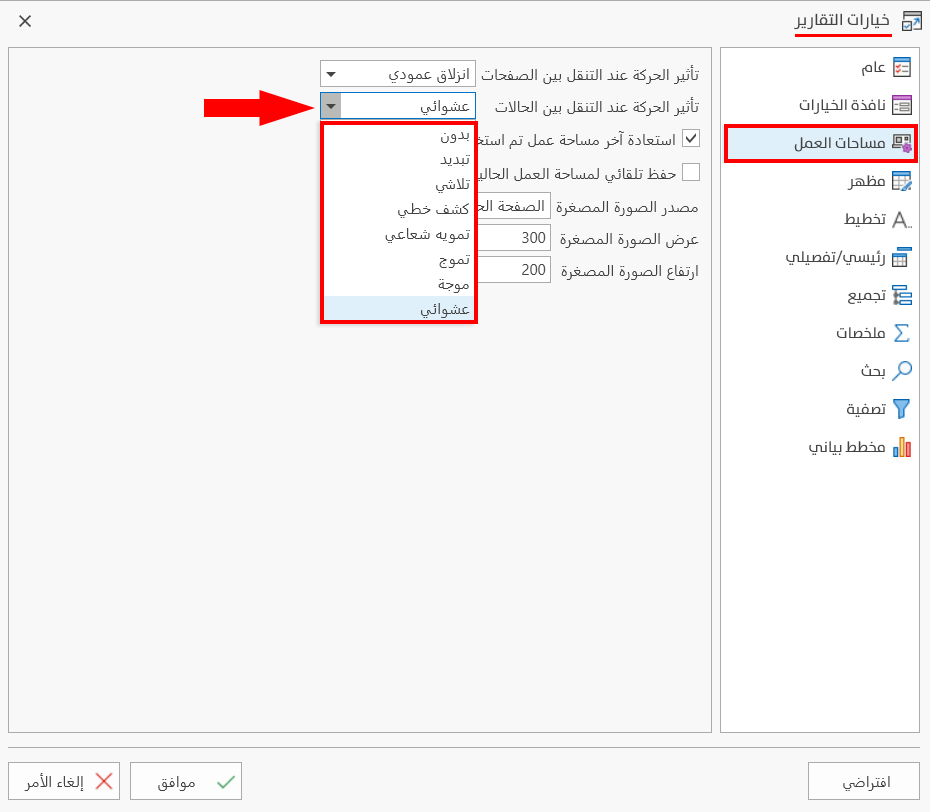
For example, when you apply the animation effect "Radial Blur", the movement between states looks as follows:
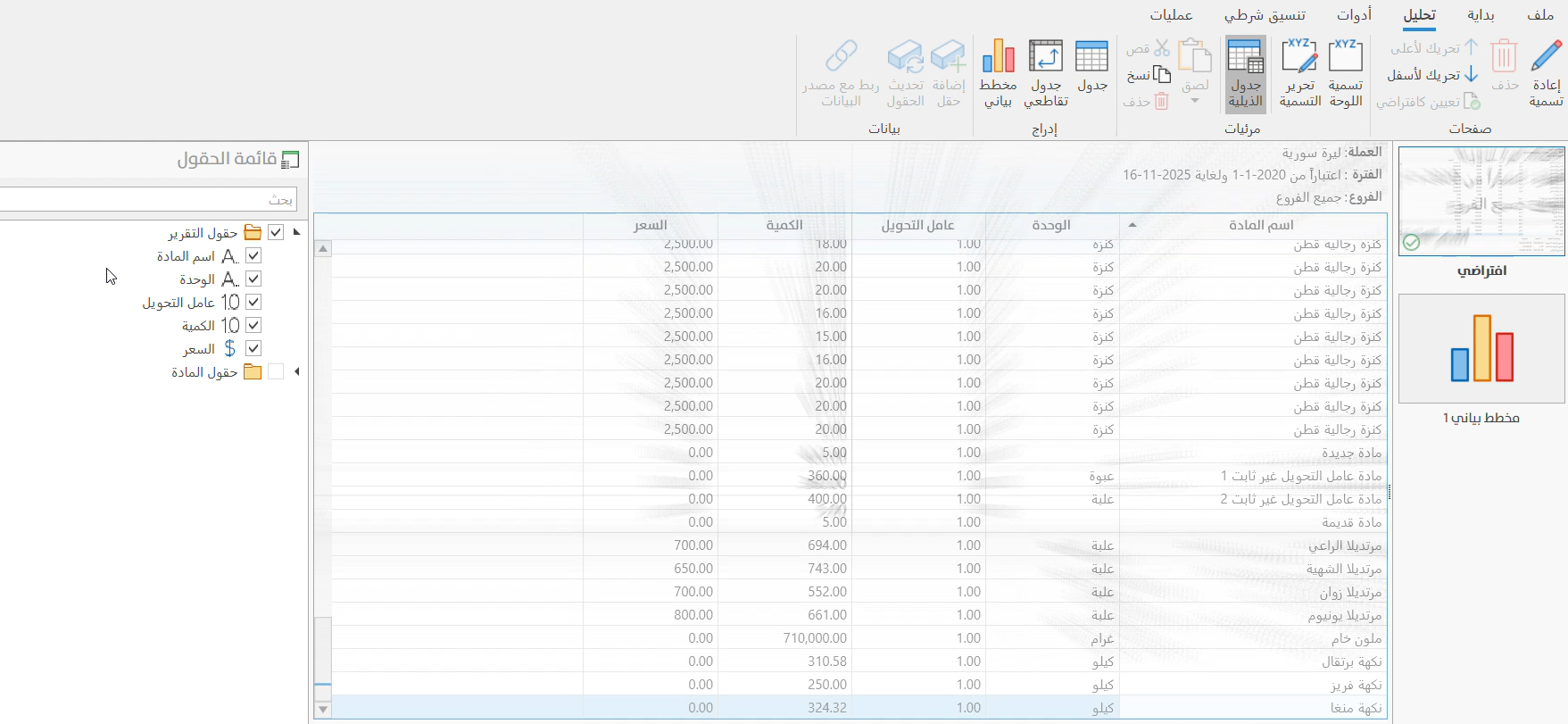
By default, the program uses the animation effect "Random" between states.
Restore last used workspace when opening report
By default, the program restores the last workspace used before the report preview window was closed, so this option appears enabled on the tab.
Sometimes you may have to close the report preview window and come back to it later: with this option, the program reopens the workspace you were using before closing the window.
Auto save current workspace when I close report
You can save the changes you make to the (current) workspace, such as adding a summary or filtering the data, automatically, without using the "Save" button every time, by enabling the option "Auto save current workspace when I close report".
When the option is enabled, the workspace is saved without a message to confirm the save when you close the preview window.
By default, the option appears disabled on the Workspaces tab.
Thumbnail source
The thumbnail is the picture of the saved workspace shown in the "Workspaces" window of the report.
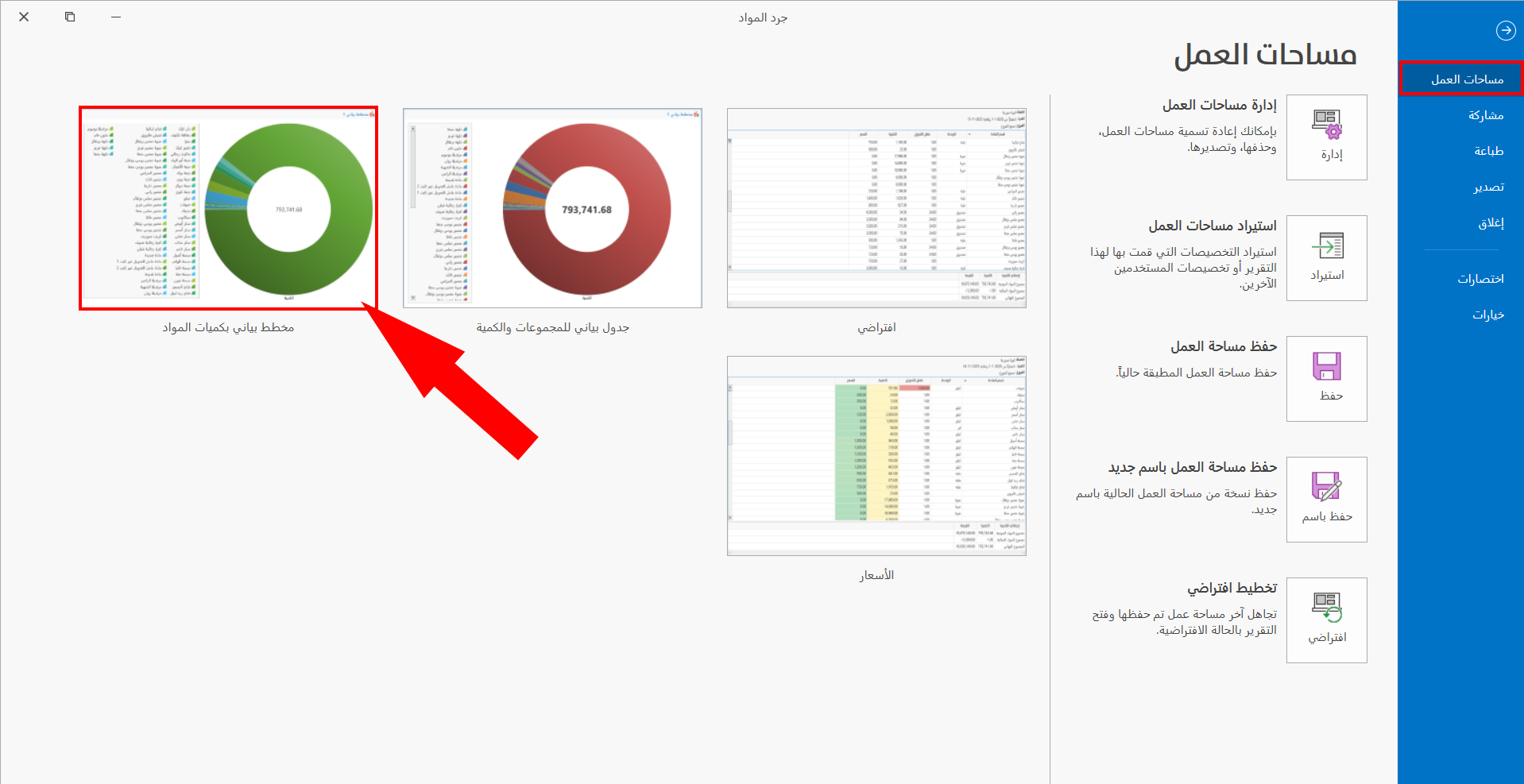
You can set the default source of the workspace picture (if it contains more than one picture) from the following options:
- Current Page
This is the default option of the program: the program shows the picture of the page at which the user saves the workspace as its thumbnail.
- Default Page
When you select this option, the program shows the default page of the workspace as its thumbnail in the workspaces window.
Thumbnail width
The thumbnail appears in the "Workspaces" interface with dimensions set to "300" by default.
You can reset it to suitable dimensions by typing them directly, or moving gradually with the arrows in the field.
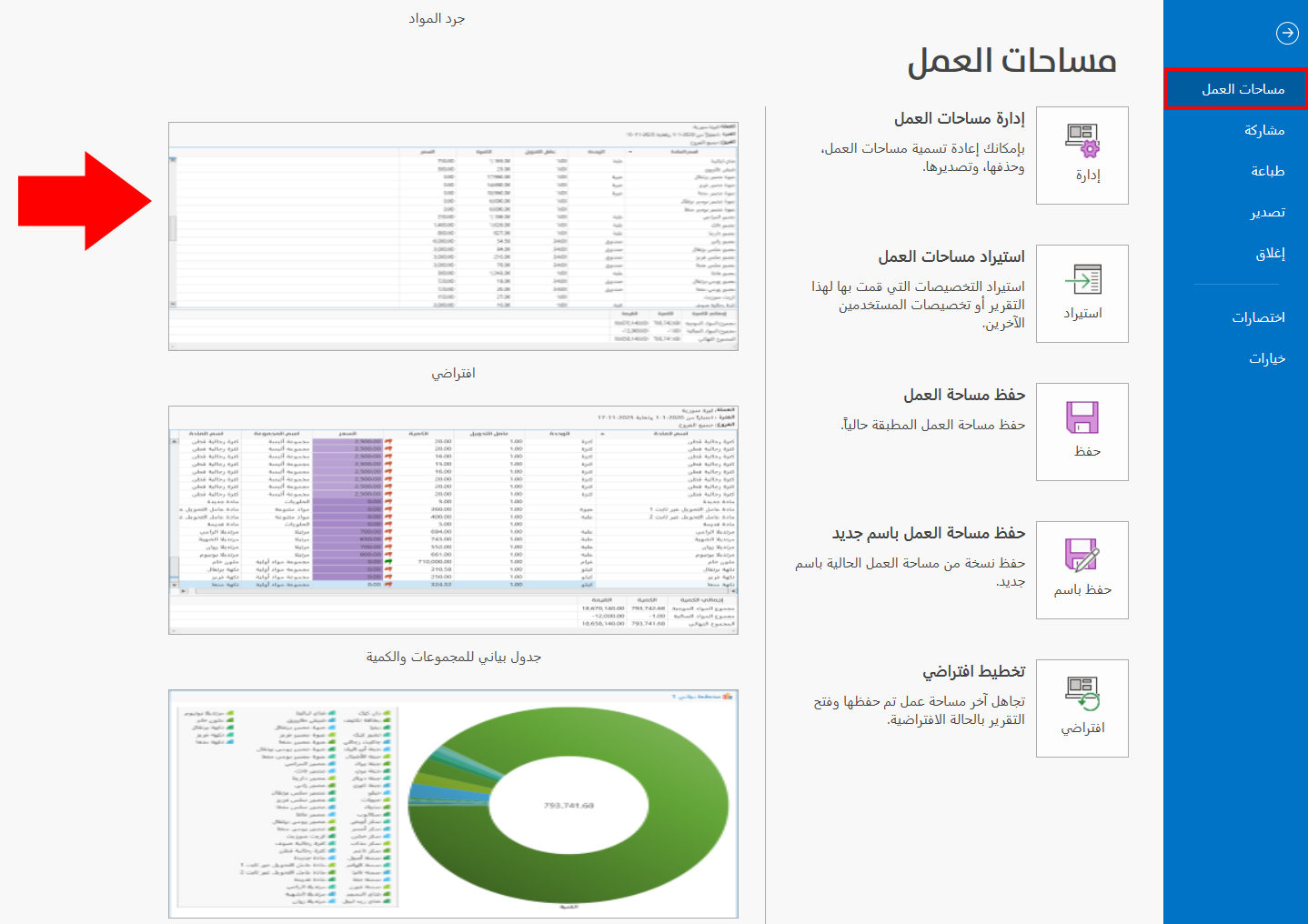
For example, when you set the thumbnail width to "500", it appears in the workspaces interface at the following size:
Thumbnail height
The thumbnail appears in the "Workspaces" interface with a height set to "200" by default.
You can reset the thumbnail height by typing it directly or moving gradually with the available arrows to reach the measurement you need.
For example: when you set the thumbnail height to "300" and keep the default width "300", the picture appears as follows:
To save any change in the Report Options window, click "OK" at the bottom of the window.
To return to the default report options and undo your changes, click "Default" at the bottom of the Report Options window, then click "OK".
To apply the changes fully, close the report preview window and request it again.