Report Options - Summaries Tab
The Summaries tab is used to set the default options of report summaries in the preview window, set the terms used and their position in the report, and set the separators between the summaries of the group row.
The contents of the Summaries tab differ according to where you stand in the table, that is, on the "Totals" tab or the "Groups" tab.
Totals Tab
When you click "Totals", the contents of the window are as follows:
Totals Table
This table includes the terms that appear in the totals row of the summary, and shows the default state of all the terms that may appear in it.
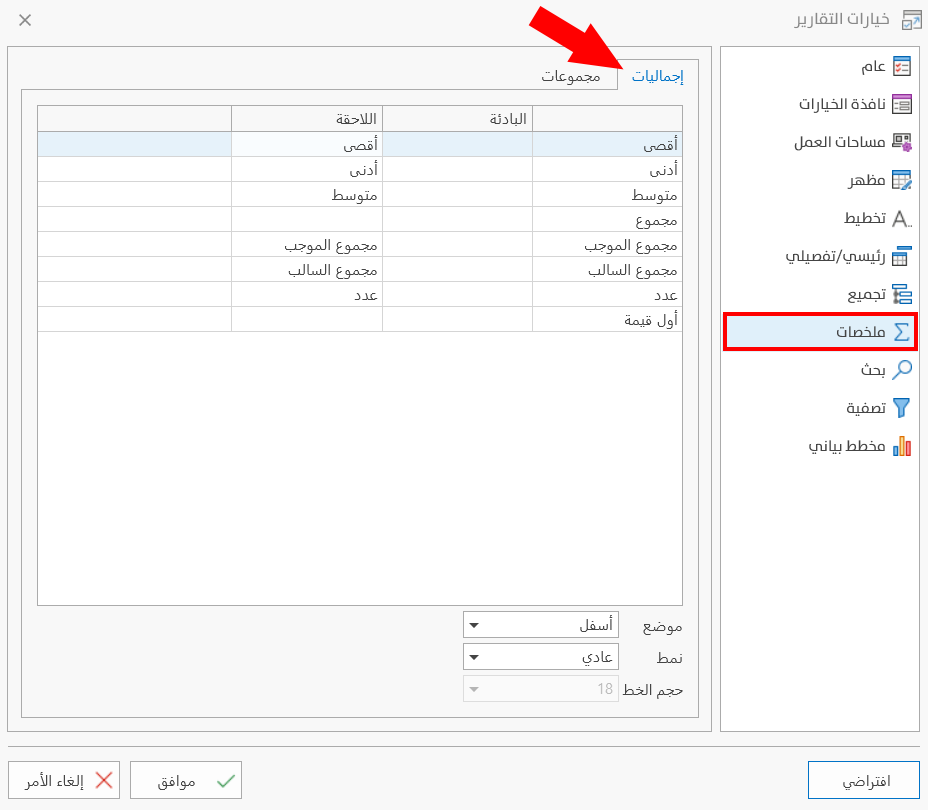
To rename the terms and edit them to suit your work, click the field of the term you want to change or add with the left mouse button, then start editing.
The Totals table consists of the following:
- First Column
It lists the default terms; it is a read-only column that cannot be edited.
- Prefix Column
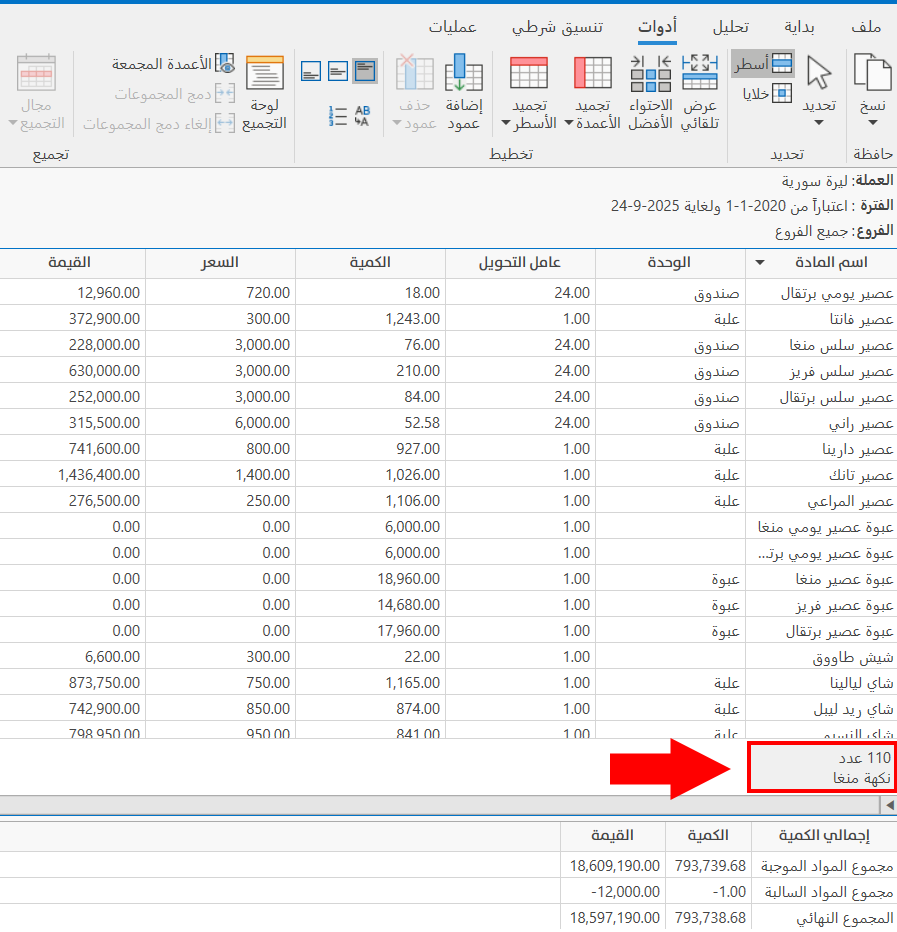
It appears empty, so you can use it to add a term that comes before the data of the summary, that is, it appears on the summary row before the result.
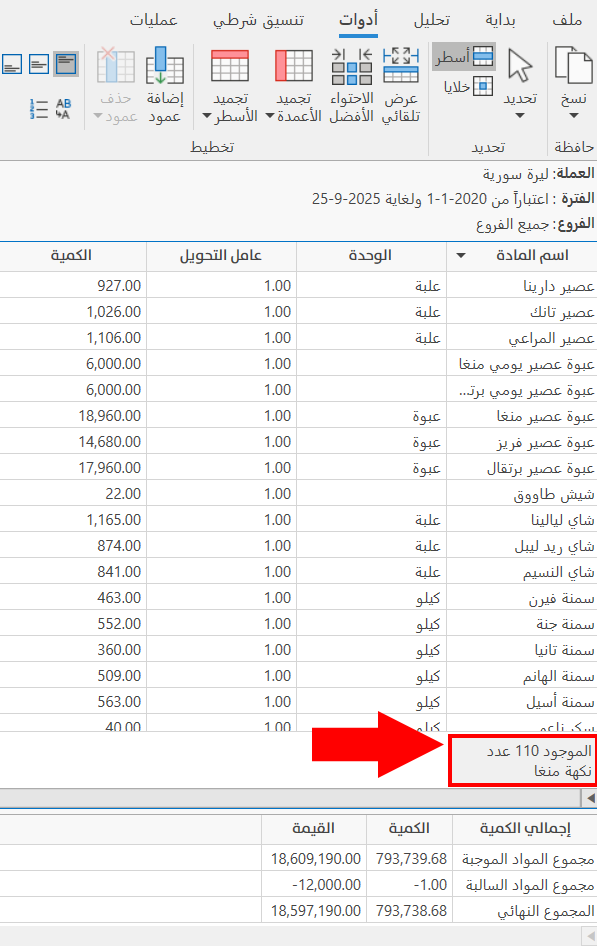
For example: when you add the word "Available" in the Prefix column on the row of the suffix "Count", the result appears in the summary as follows:
- Suffix Column
You can change the default term, which appears on the summary row after the result.
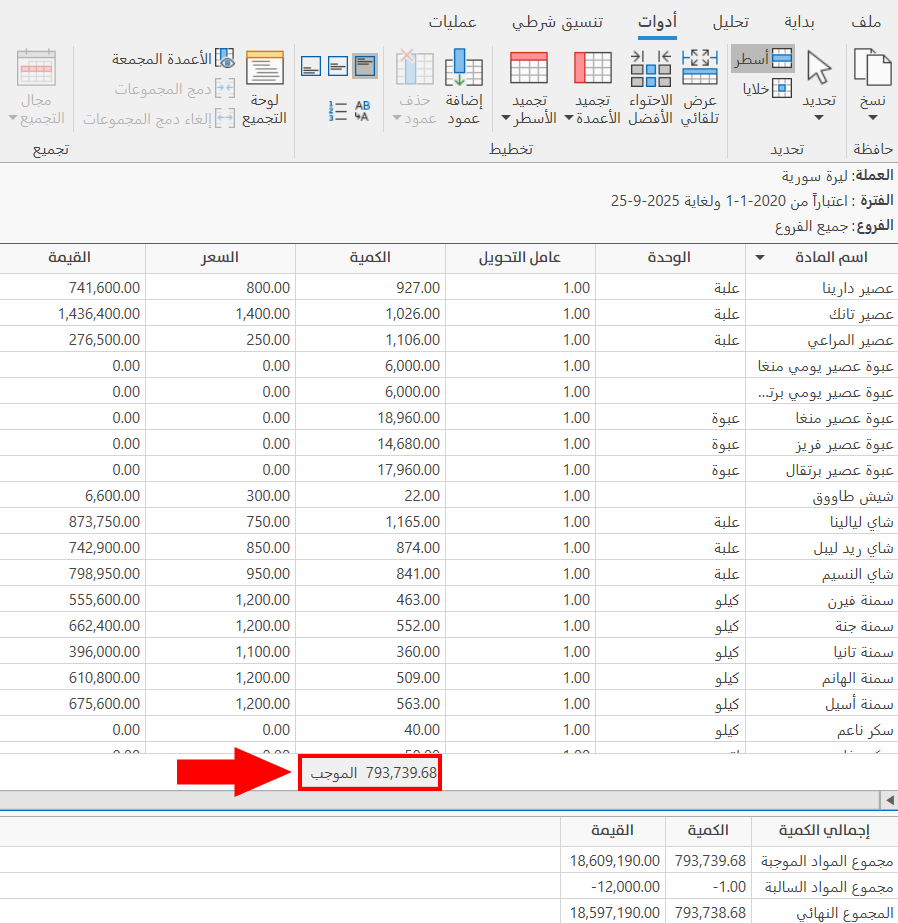
For example: when you delete the word Sum in the term "Sum Positive Values", the result appears in the summary as follows:
Position
The position is where the summary is shown in the report preview window: you can leave it in its default state (Bottom), or change it from the list that drops down from the Position field when you click the small arrow in it, which contains the following options:
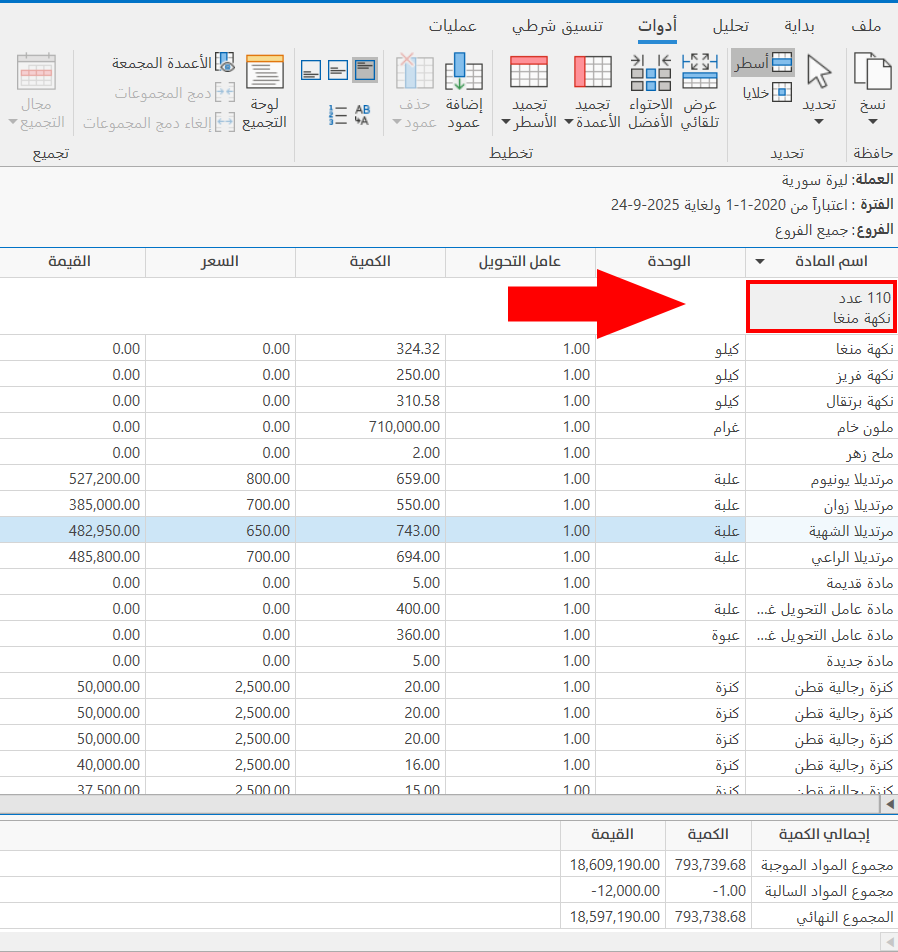
Top: show the report summary in the header.
Bottom: show the report summary in the footer.
Style
The font of the summaries appears by default in the style "Normal": the field lets you keep the style "Normal" or change it to "Custom", with the list that drops down from the arrow in the field.
When you choose the style "Custom", the "Font Size" field is enabled so you can choose the size you need.
Font Size
After setting the style "Custom" in the Style field, you can choose the font size to apply to the summaries from the drop-down list after clicking the arrow in the field.
When you click "Groups", the contents of the window are as follows:
Groups Tab
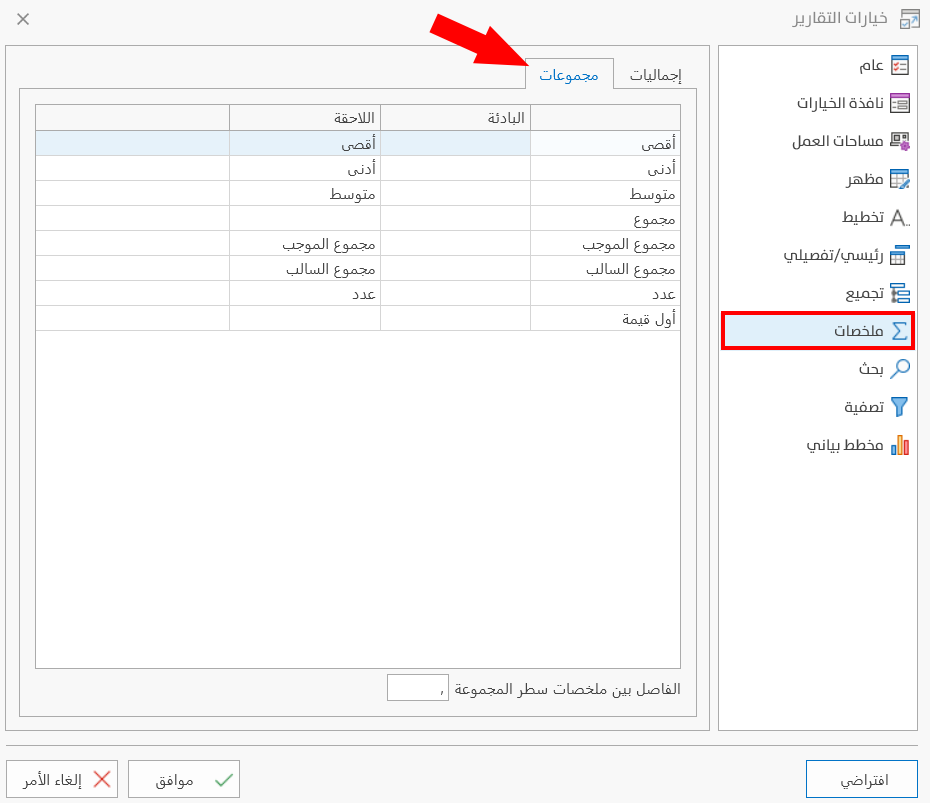
The results of the changes on this tab appear in the summaries of the group rows, so you can change the terms and the separators between the summaries of the group row.
This table is for the terms that appear in the group row: it shows the default state of all the terms that may appear in it, and lets you rename and edit them to suit your work.
To do this, click the field of the term you need with the left mouse button to change or add it.
The Groups tab includes the following options:
Groups Table
The Groups table consists of the following:
- First Column
It lists the default terms; it is a read-only column that cannot be edited.
- Prefix Column
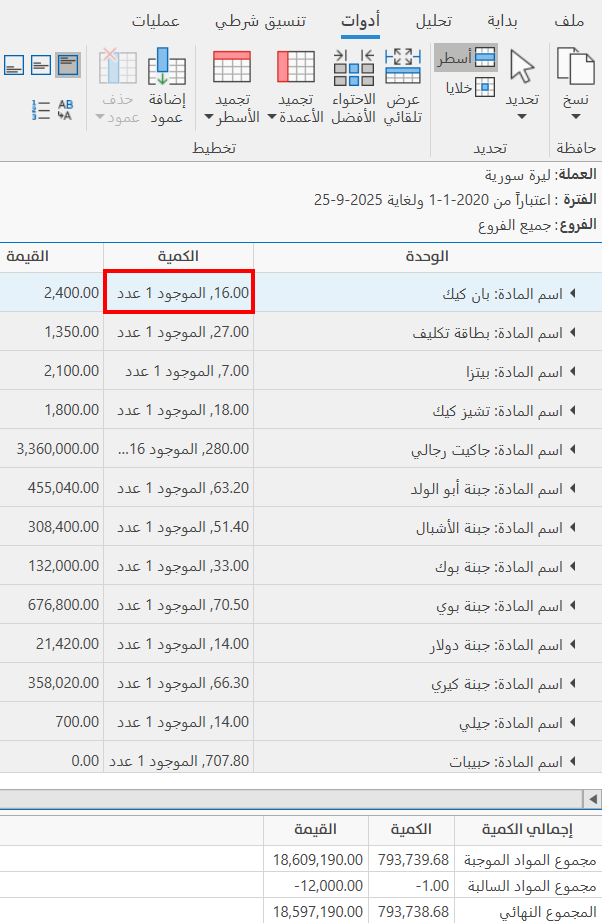
You can add a term that comes before the data of the summary, that is, it appears on the group row before the result. For example: when you add the term "Available" as the prefix of the suffix "Count", the result appears in the summary as follows:
- Suffix Column
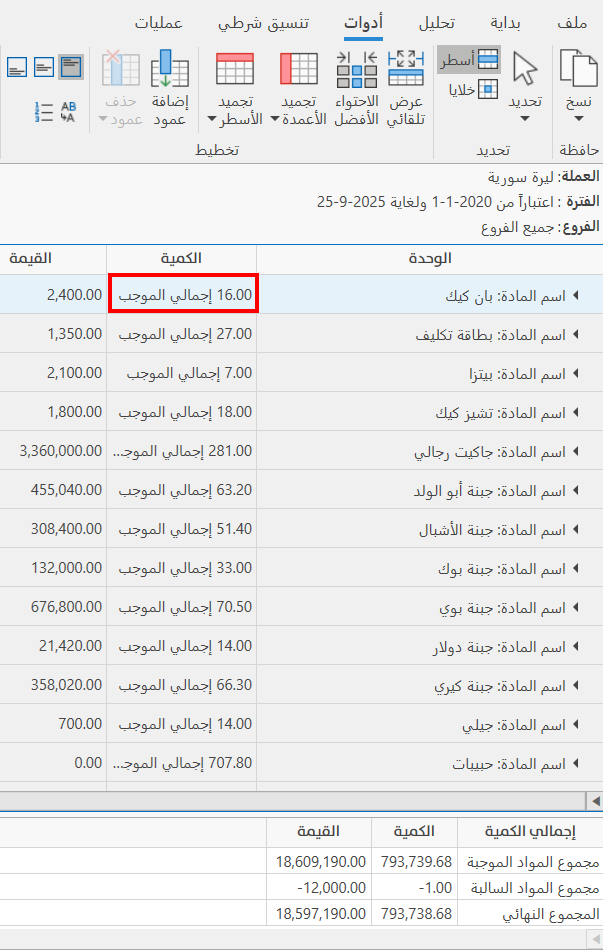
With it you change the default term, which appears on the group row after the result. For example: when you change the word Sum in the term "Sum Positive Values" and write "Total" instead, the result appears in the summary as follows:
Separator between group summary items
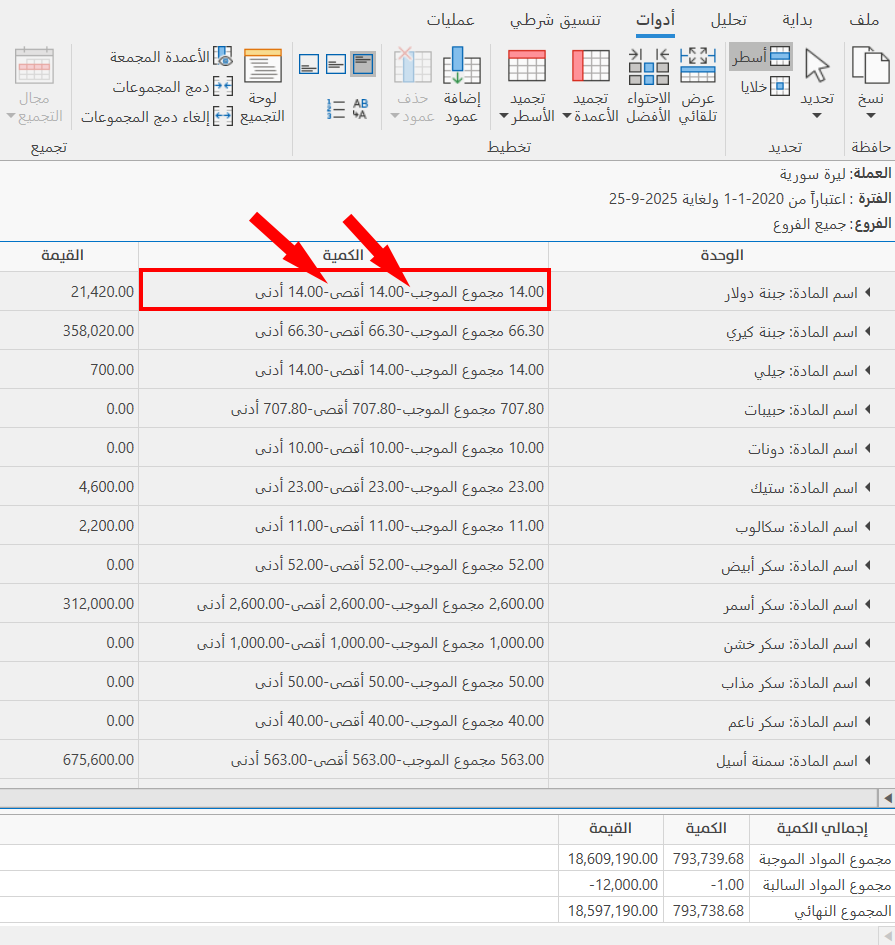
Separators appear between the summaries in the group row, because more than one summary can be added to a column.
Because the summary data of a group is on the same row, there must be distinct separators between them, so the program provides the field of the separator between summaries with a default separator, and lets you change it as you need.
To change it, click in the field, and you can easily edit the new separator.
The program sets the separator (,); when you change it to (-), the summaries of the group row look as follows:
To save any change in the Report Options window, click "OK" at the bottom of the window.
To return to the default report options and undo your changes, click "Default" at the bottom of the Report Options window, then click "OK".