Report Options - Master/Detail Tab
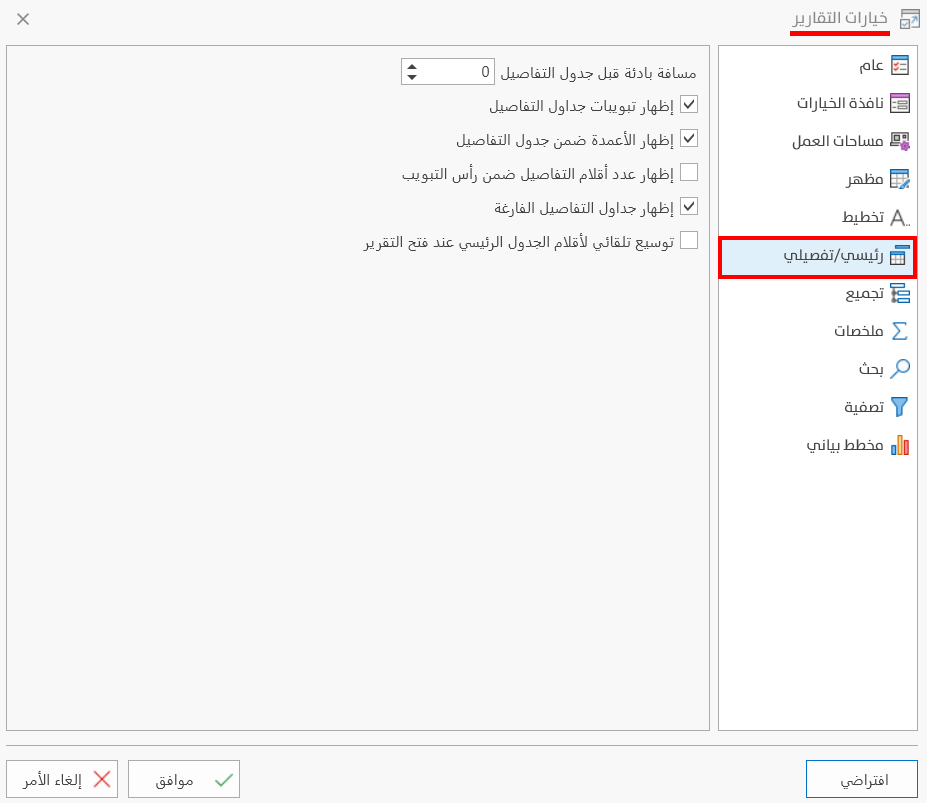
The Master/Detail tab is used to set the default options of the data of reports that contain detail tables: you can control how columns and rows appear in the preview window, with the following options:
You can set the options of each report separately with the Options button on the main toolbar of the preview window.
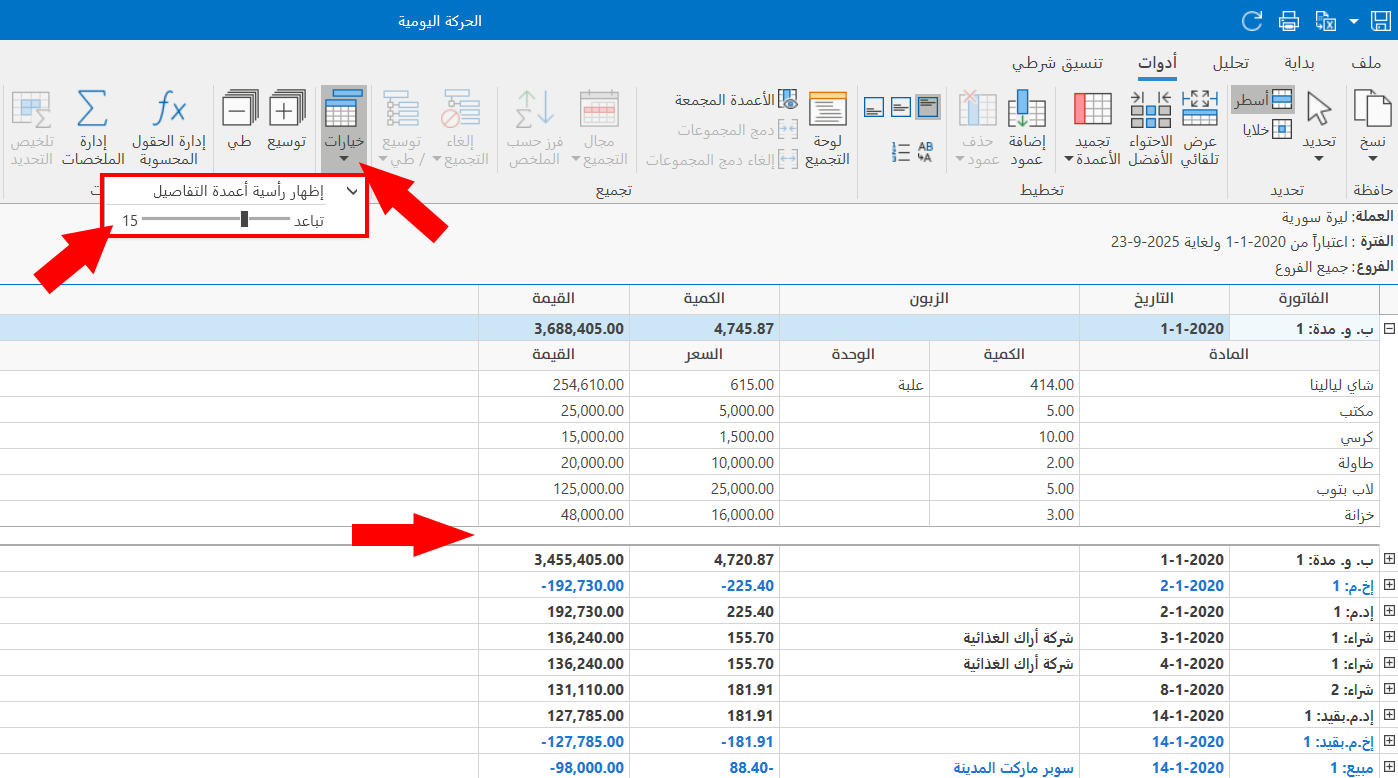
Space before detail grid
By default, the program uses the space "0", so the detail tables appear next to each other in the preview window.
To use a default indentation for the detail tables in all reports, fill in the field next to the option "Space before detail grid", by typing in the field or moving gradually with the available arrows.
This space is applied by default to all the reports (that contain detail tables, such as the Daily Movement report) in the program.
Show detail tabs
The tabs of the detail tables are inserted in reports by default, and the user can hide them by hand for the report being previewed, with the options of the "Master/Detail" group: they then disappear in that report only.
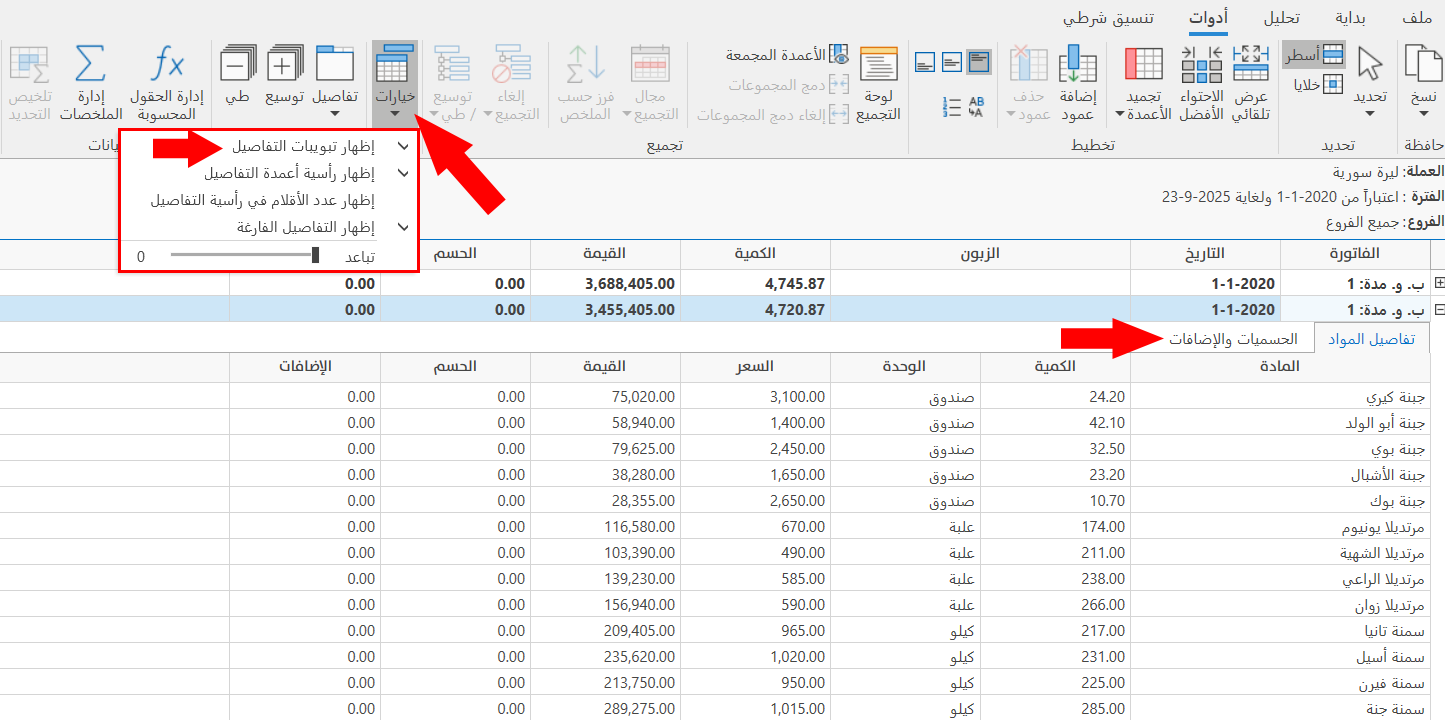
To stop them from appearing in all reports, the user must clear the option "Show detail tabs" in the "Report Options" window.
Show detail column header
By default, the program shows the header of the columns of the detail tables in reports.
You can stop it from appearing permanently in all reports by clearing the option "Show detail column header" in the report options window.
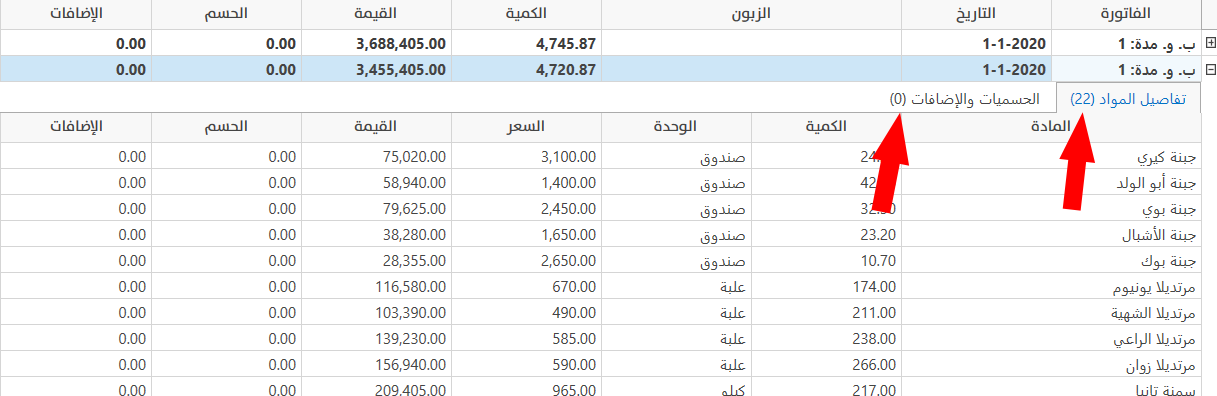
Show detail items count in header
By default, the number of rows in the detail table is not shown. To show it by default for all detail tables, select the option "Show detail items count in header" in the report options window.
The header of the tab in the detail tables then contains the number of rows by default.
Show empty detail
By default, the report shows all the details even when they are empty, so this option appears enabled here.
You can avoid showing empty tabs by default by clearing the option "Show empty detail", clicking the check box next to the option.
Automatically expand master rows
You can expand the data of all reports by default, so they always appear expanded without expanding them by hand, by enabling this option.
If it is not enabled, use the shortcut Ctrl + to expand all the lines.
To save any change in the Report Options window, click "OK" at the bottom of the window.
To return to the default report options and undo your changes, click "Default" at the bottom of the Report Options window, then click "OK".