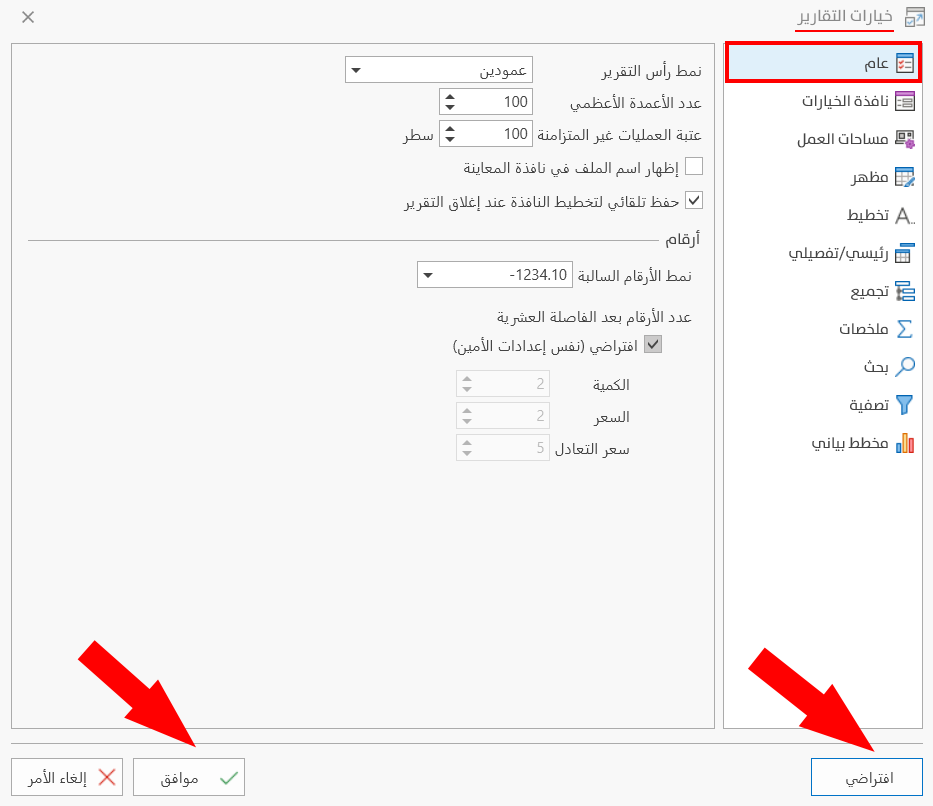
Report Options - General Tab
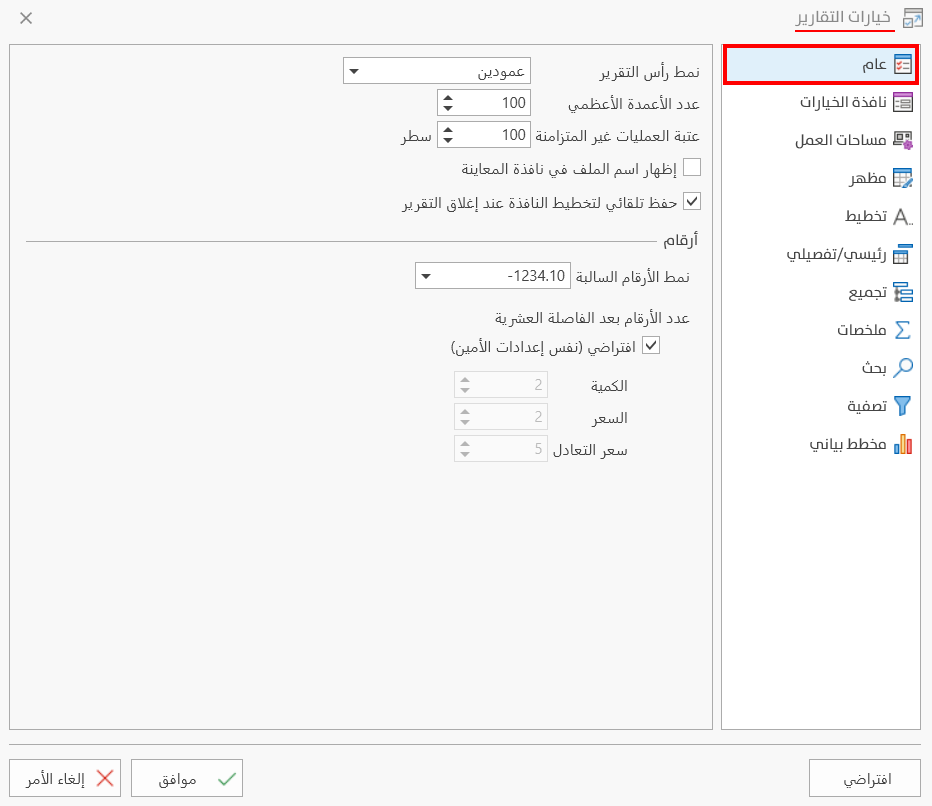
You can use the General tab to set the general default options of the report: the number of columns and the layout of the report, as well as negative numbers and the decimal point.
The options are as follows:
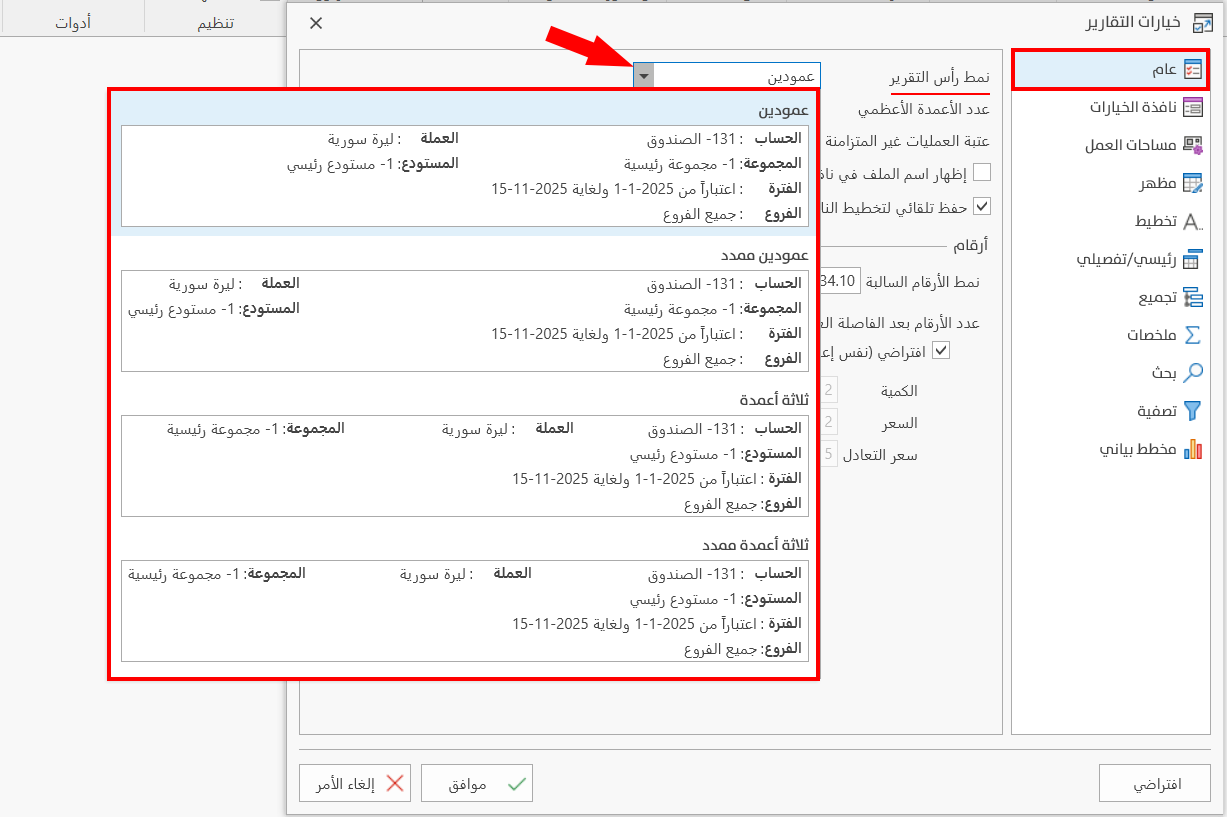
Report Header Style
Used to organize the report header: you can use the suitable style by clicking the arrow in the field, and a list drops down showing the available options with examples:
(Two Columns (the default), Stretched Two Columns, Three Columns, Stretched Three Columns).
Maximum column count
Used to set the upper limit of the columns shown in reports: when you choose a maximum for the columns you want to see, and a report has more columns than this limit, the program shows only the allowed number (the one you entered in this option), and a message appears saying the remaining columns cannot be inserted.
You may need to control the maximum column count in reports with a large number of columns, such as cross-tab reports, where the program shows the first columns up to the set maximum and hides the remaining columns of the report.
The program sets the maximum column count to 100 columns.
For example, when you choose the number "5" as the maximum for the columns and then request a report that has more columns, only the first five fields are shown, with the message shown in the picture:
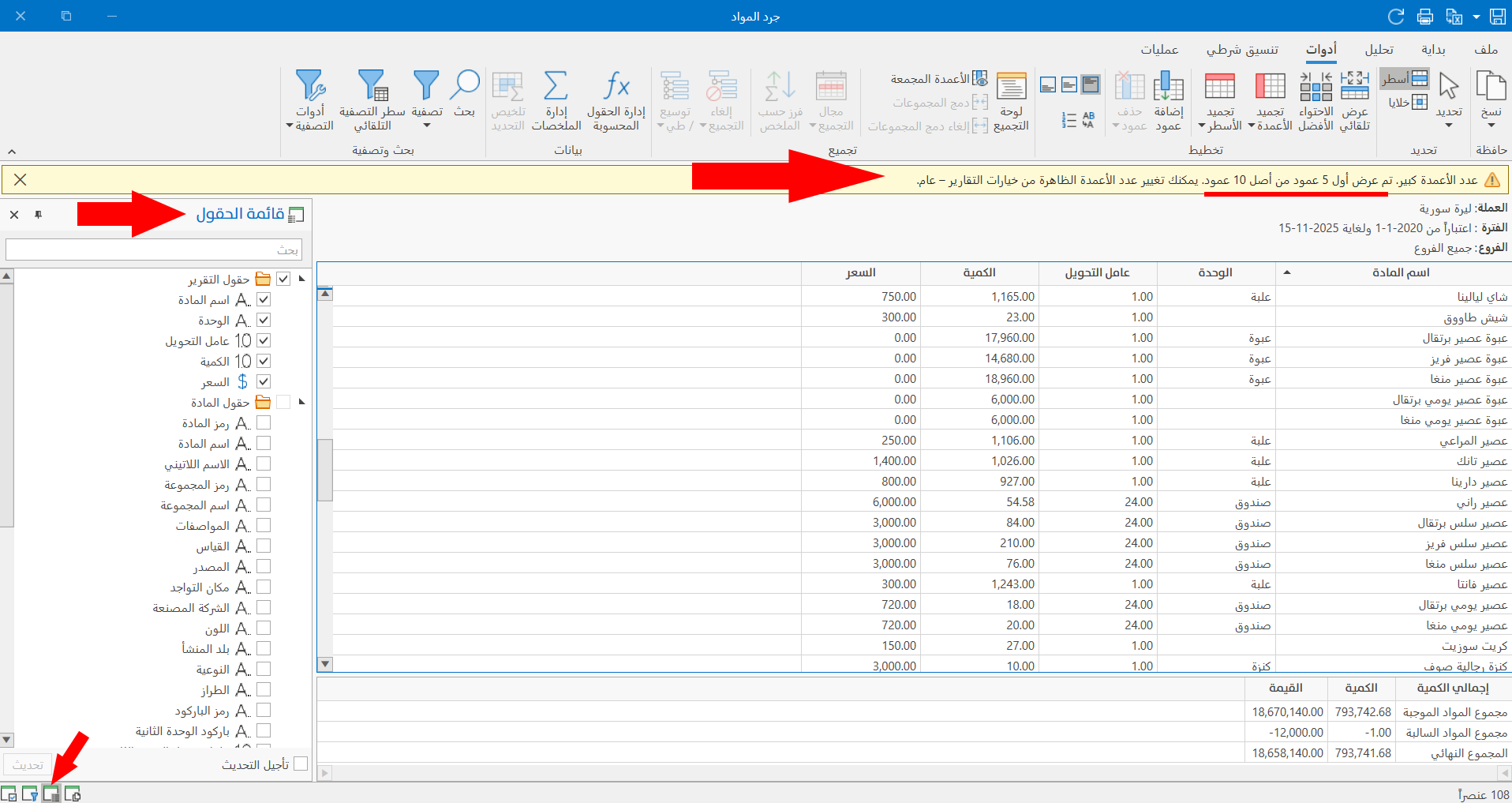
After the maximum column count is set, the program lets you add more columns yourself in the report preview interface, with the field list at the bottom of the preview interface.
Asynchronous operations threshold
Used to set the upper limit of the number of report rows expanded at once.
You can expand the report rows at once with the "Expand" tool on the main toolbar of the preview interface, or with the shortcut Ctrl + +.
You may need to set the "Asynchronous operations threshold" when the report has a very large number of rows and its data has a tree structure (parents and children), so the report is shown faster.
The program sets the asynchronous operations threshold to 100 rows.
For example, if you set the asynchronous operations threshold to /10/ rows and the report has 10 rows or fewer, the program expands the data of the report directly and at once; if the report has more than 10 rows, the program expands the data progressively and asynchronously.
That is, the rows of the report do not expand at once: the program keeps to the set threshold and expands gradually, and the following part appears at the bottom of the report, showing the progress of the expansion.
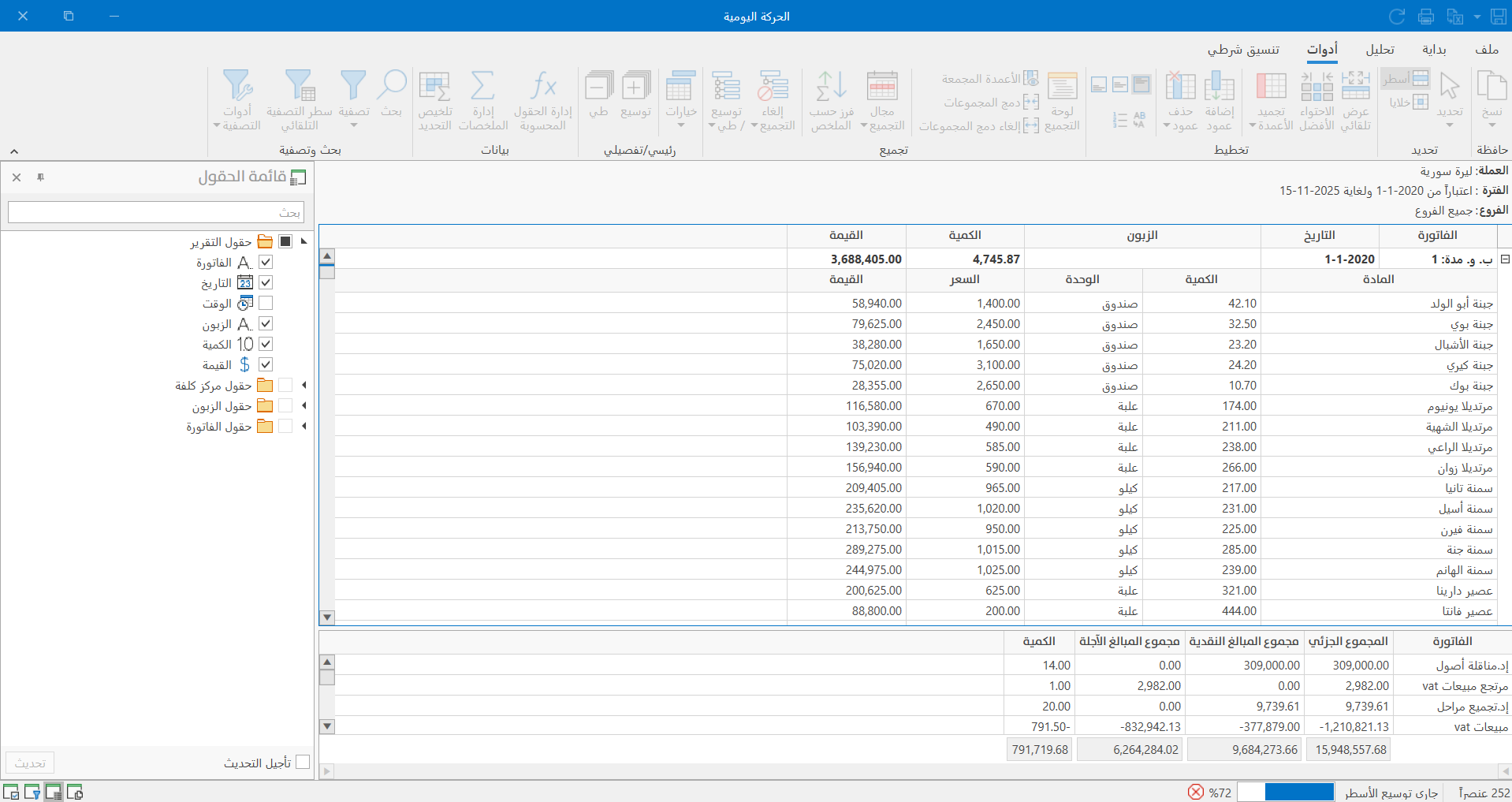
You can stop expanding the rows with the (X) sign.
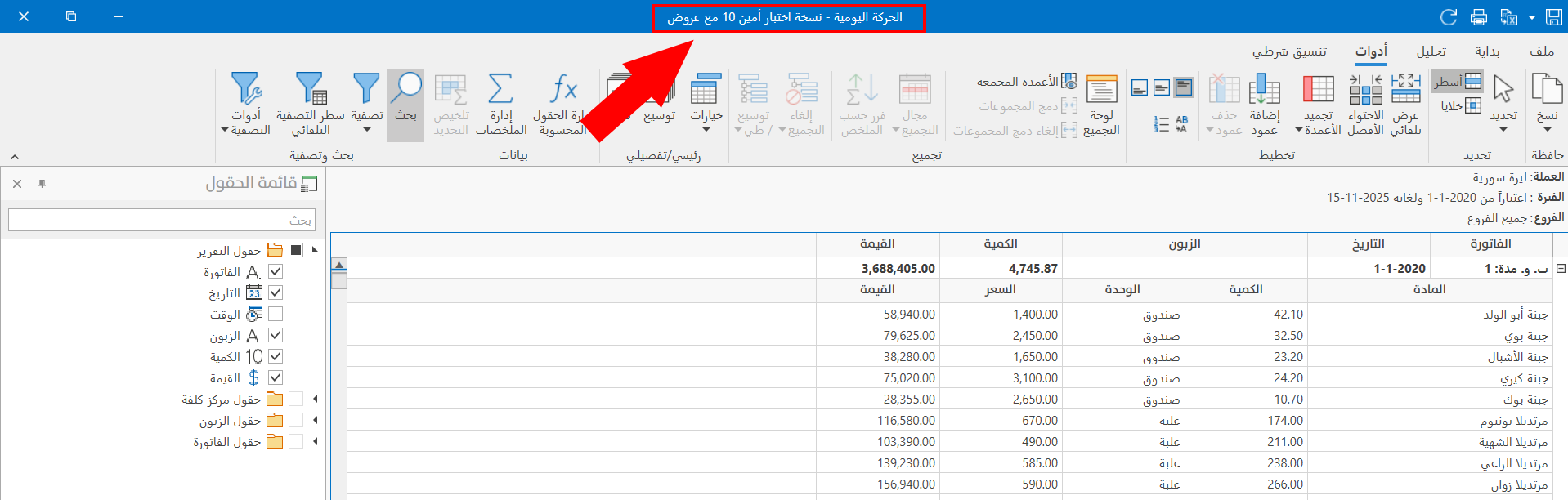
Show file name in preview window
By default, the file name does not appear in the report preview interface; you can show it next to the report name at the top of the preview interface by enabling this option.
Auto save layout when closing report
The option is enabled by default: the changes you make in the report preview interface (adding a column, setting summaries...) are saved and the shape of the interface is kept, so after you close it and open it again, it has the same layout as before closing.
Negative Number Style
You can choose one of three different styles for showing negative numbers in the report, by clicking the arrow in the field and viewing these styles, as follows:
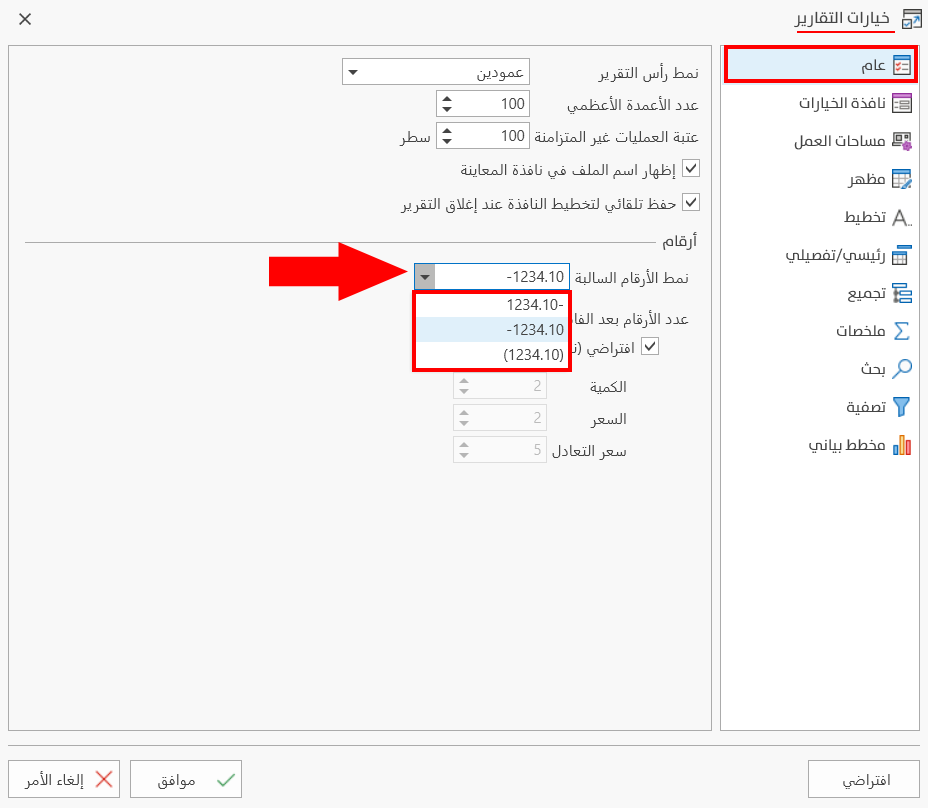
By default, the program uses the negative number style 1234.10-.
Digits after Decimal Point
You can set the number of digits after the decimal point yourself, to suit the system you usually use in calculations, with the following:
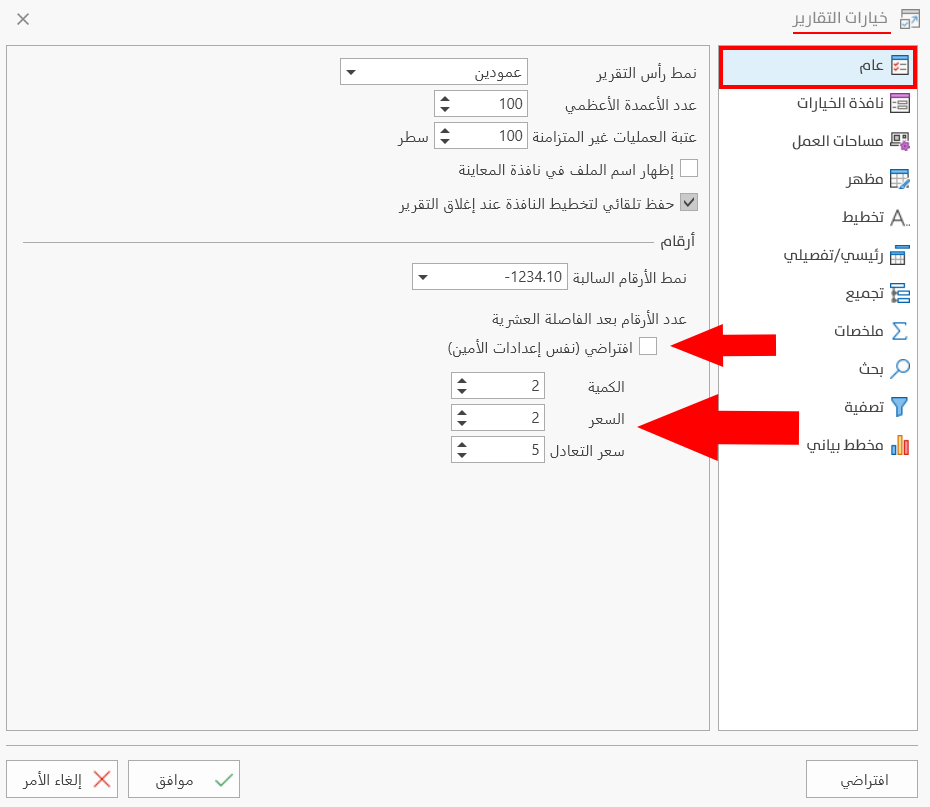
Default (Same as Al-Ameen settings)
The option "Default (Same as Al-Ameen settings)" is enabled by default, so the program keeps the setting that already exists in the file in use.
You can reach the default options from File - Program Options - Numbers, or by searching the program options window for "Digits after Decimal Point".
When you disable it, the program lets you control the following options for showing the report:
-
Quantity
-
Price
-
Exchange Rate
You can set the number of digits after the decimal point for each option separately, for the report only (the number settings in the rest of the program do not change).
To save any change in the Report Options window, click "OK" at the bottom of the window.
To return to the default report options and undo your changes, click "Default" at the bottom of the Report Options window, then click "OK".