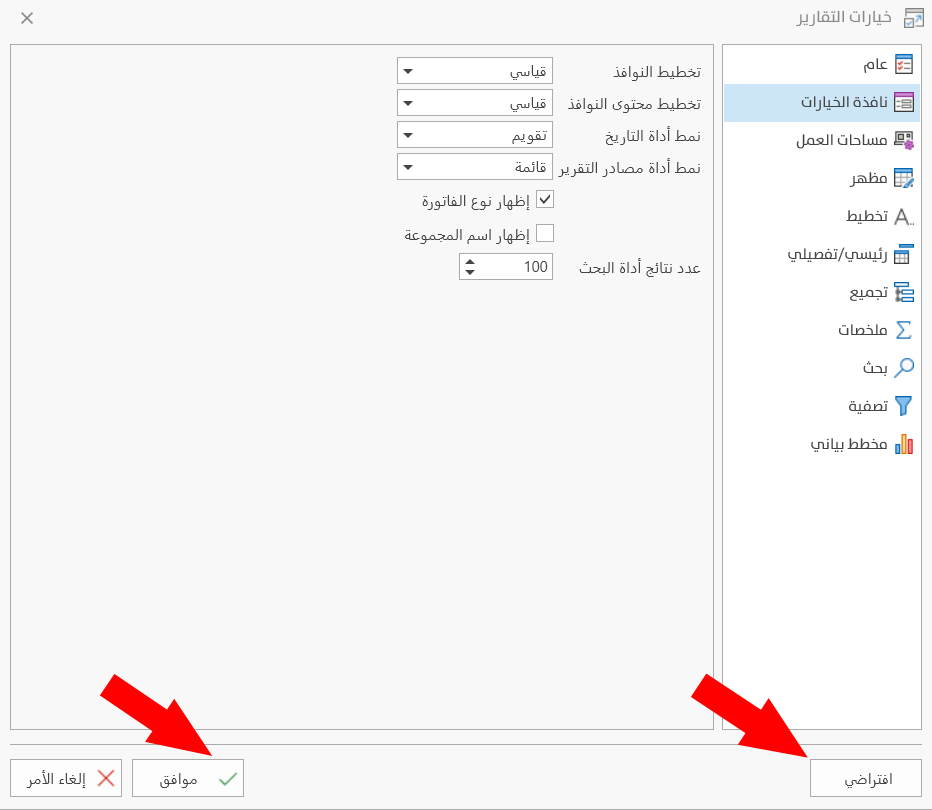
Report Options - Options Dialog Tab
The options dialog is the window that opens after you request a report; with this tab, you can change the layout of the options dialog and the styles in it.
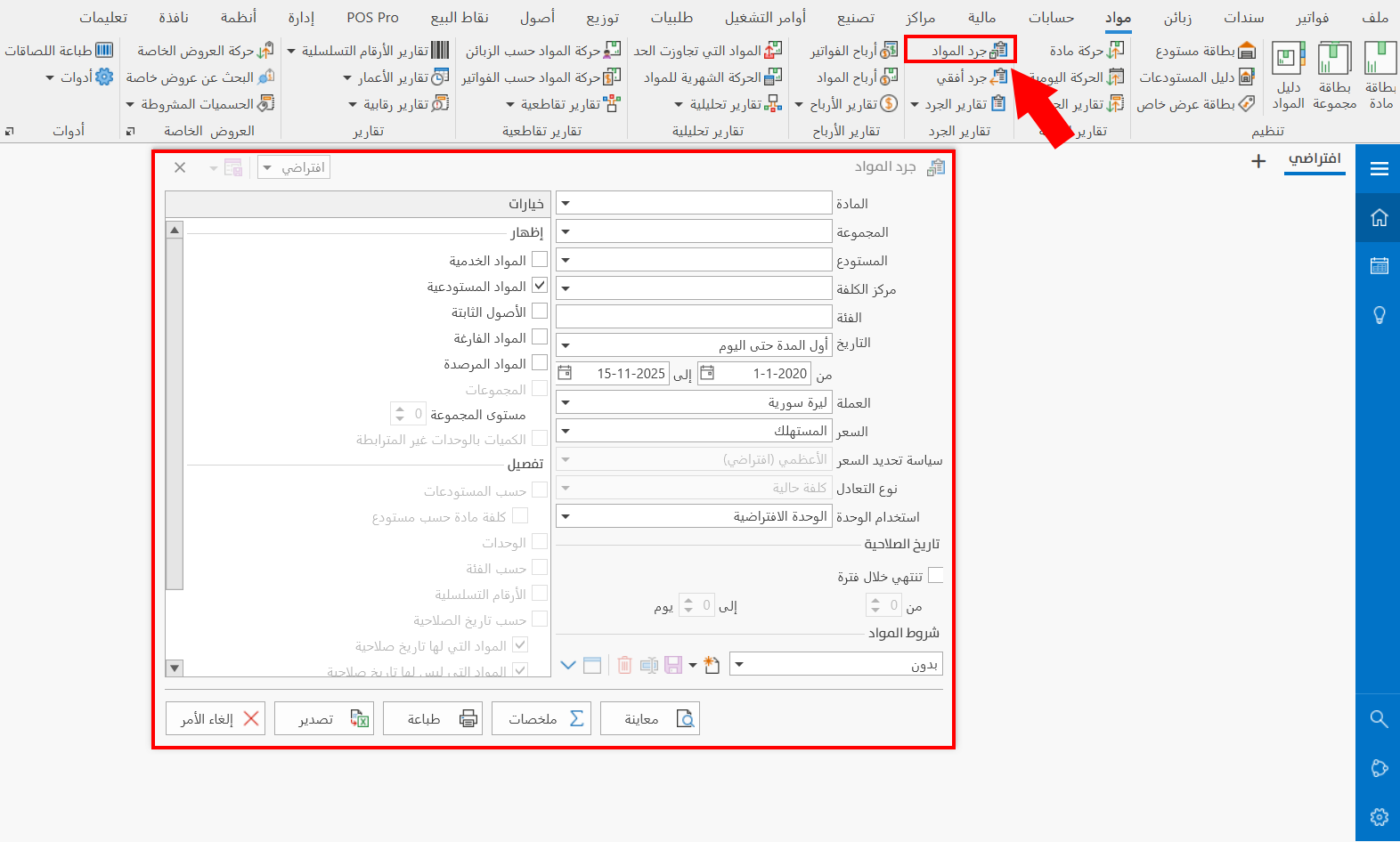
Use the options of the tab to set the settings of the report request window (the options dialog), as follows:
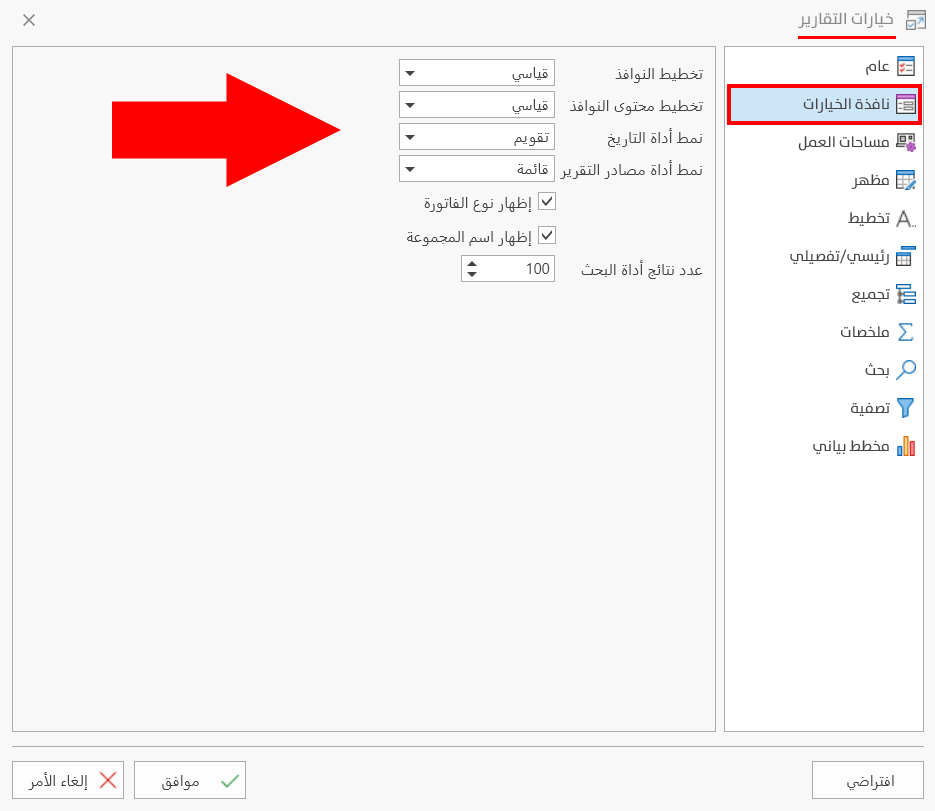
Dialogs Layout
You can choose the layout style of the report options dialog: from the drop-down list of the Dialogs Layout field, you can use the suitable style of the following two options:
Standard
This is the default layout style of the options dialogs in the reports of the program, and they look as follows:
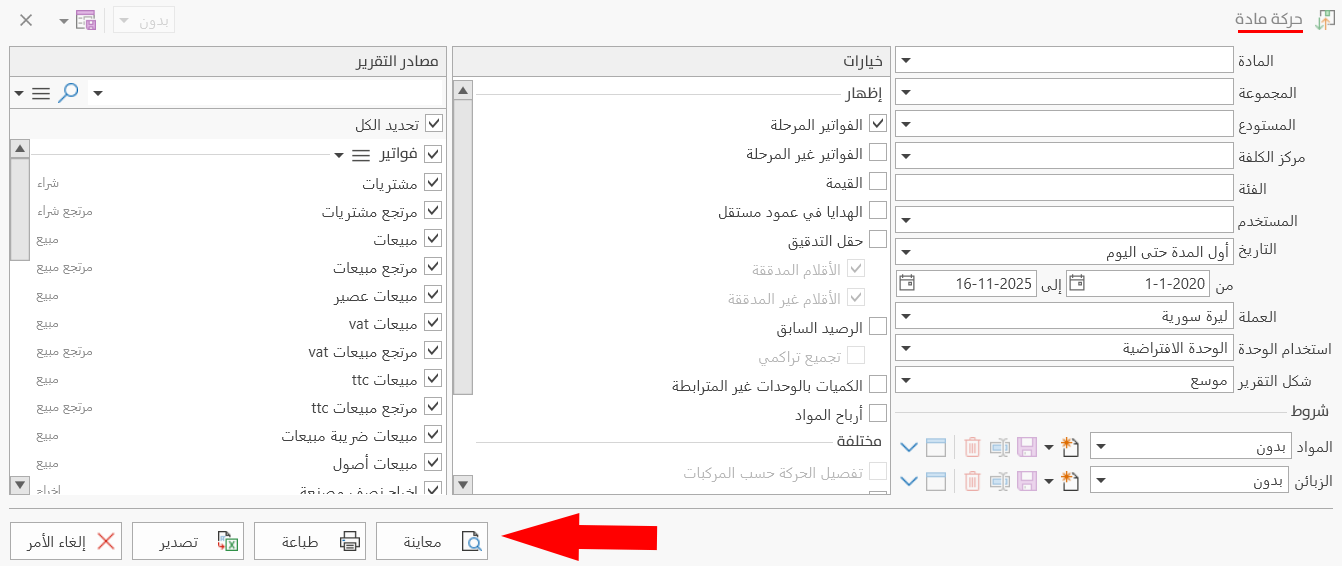
Ameen
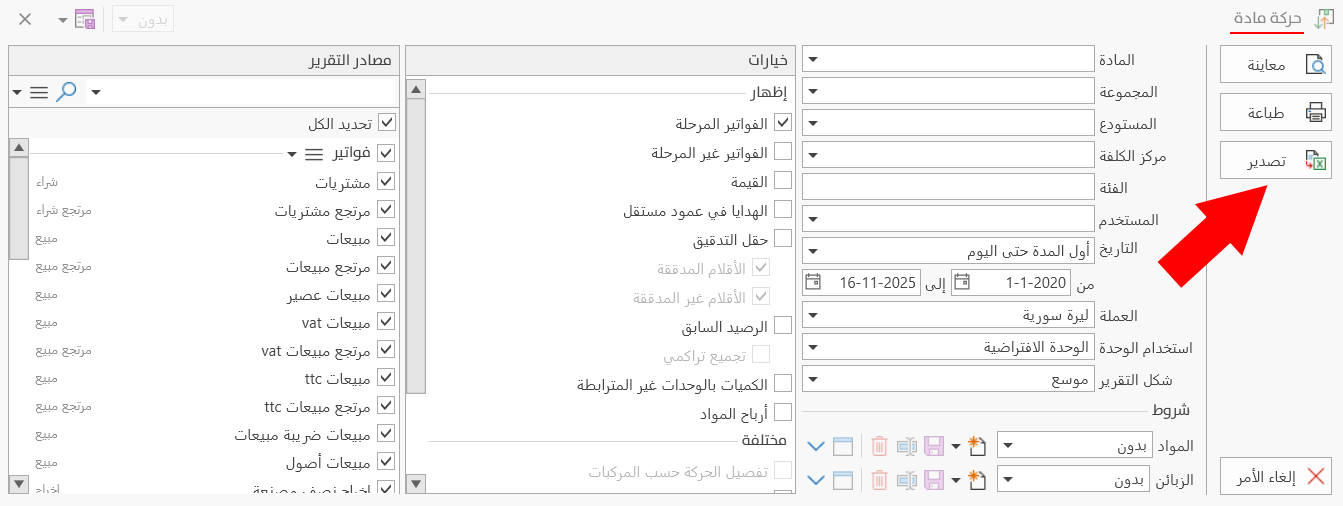
When you choose this style, the place of the window buttons changes from horizontal to vertical, which is similar to their place in the windows of alameen 9.
Dialogs Form Layout
Used to change how the tabs are divided in the report options dialog: you can put them in one interface or sort them into different interfaces, with the following options:
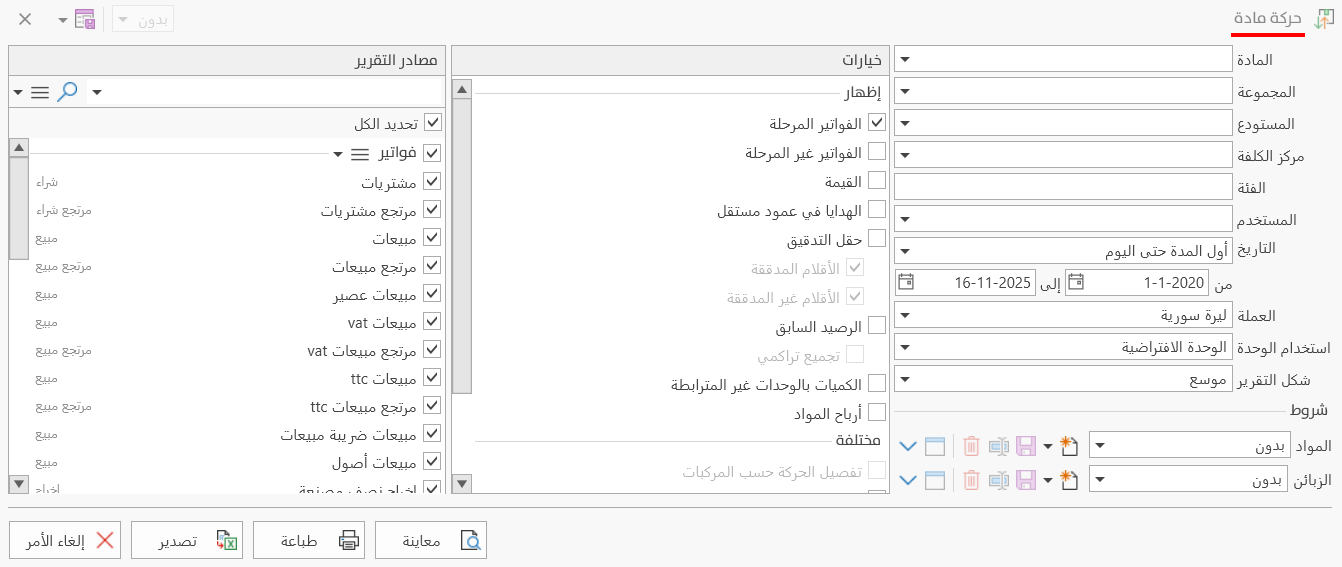
Standard
The program uses this style by default: all the tabs are placed in the same interface of the window, as in the picture.
Tabs
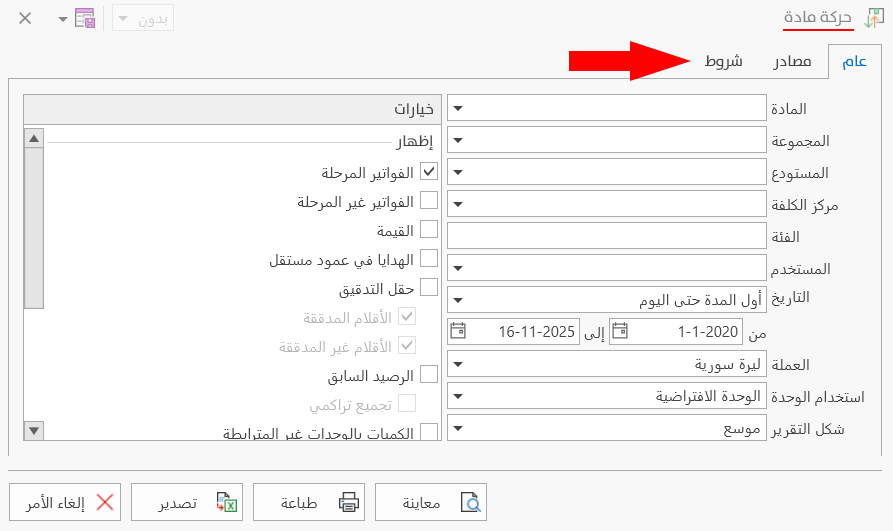
When you use this style, the parts of the window are distributed over separate tabs; the content of the windows differs according to the report you request, as follows:
Extended Tabs
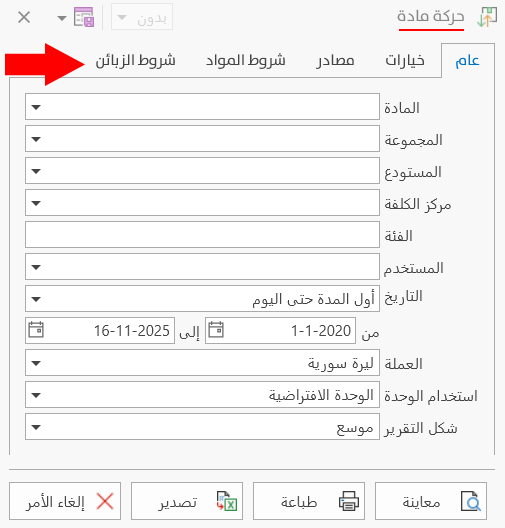
When you apply this style, the tabs are distributed over detailed interfaces, each containing its own options, as follows:
Date Control Style
You can choose the style of the date control in the options dialog from the following styles:
Calendar
The date appears in the panel with the days of each month separately, and you can move between months gradually with the arrows at the top of the panel.

Picker
In this style, the panel is divided vertically into three sections: day, month, year, so you choose from each section separately.
Click the section of the panel you need, then move through it gradually until you reach the date you need.
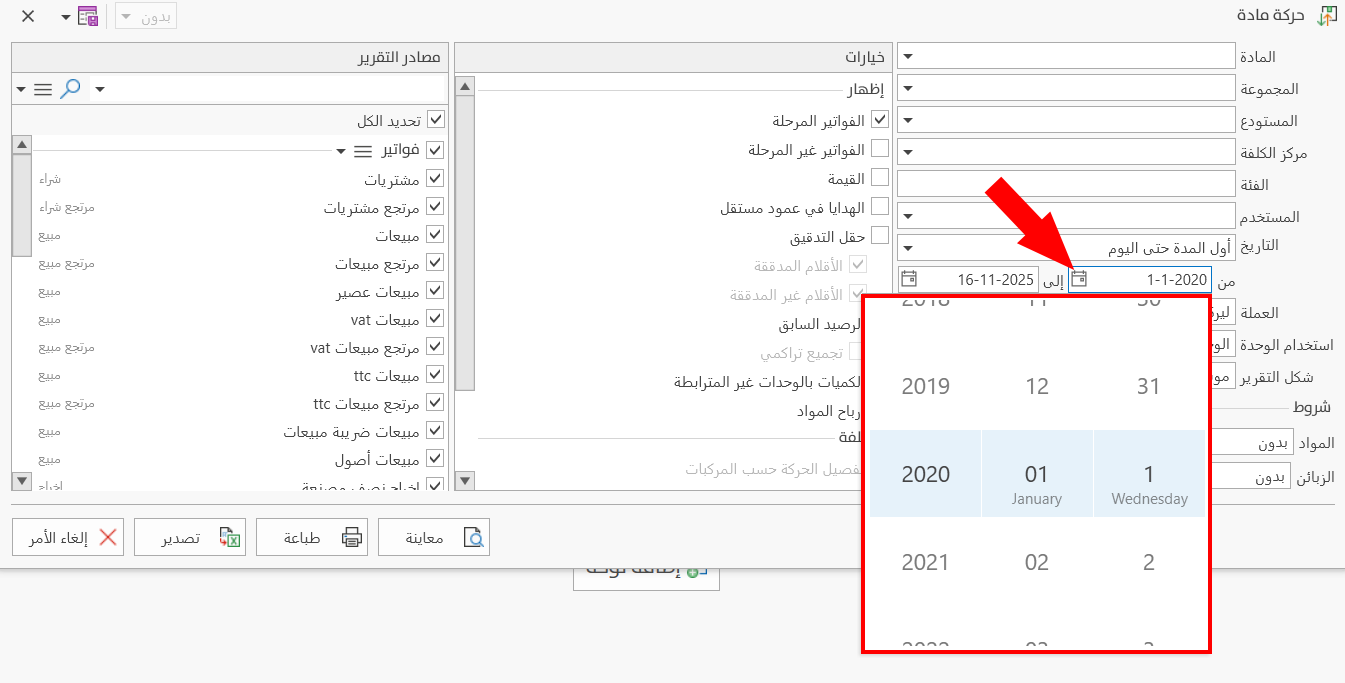
Report sources control style
The "Report Sources" tab is included in many windows: you can control its display style and how the sources are shown, so it takes a fixed default shape in all the windows where it appears.
The styles available in the field are as follows:
List
The groups and the sources under them appear in one vertical line in the window; this is the default style of the options dialogs.
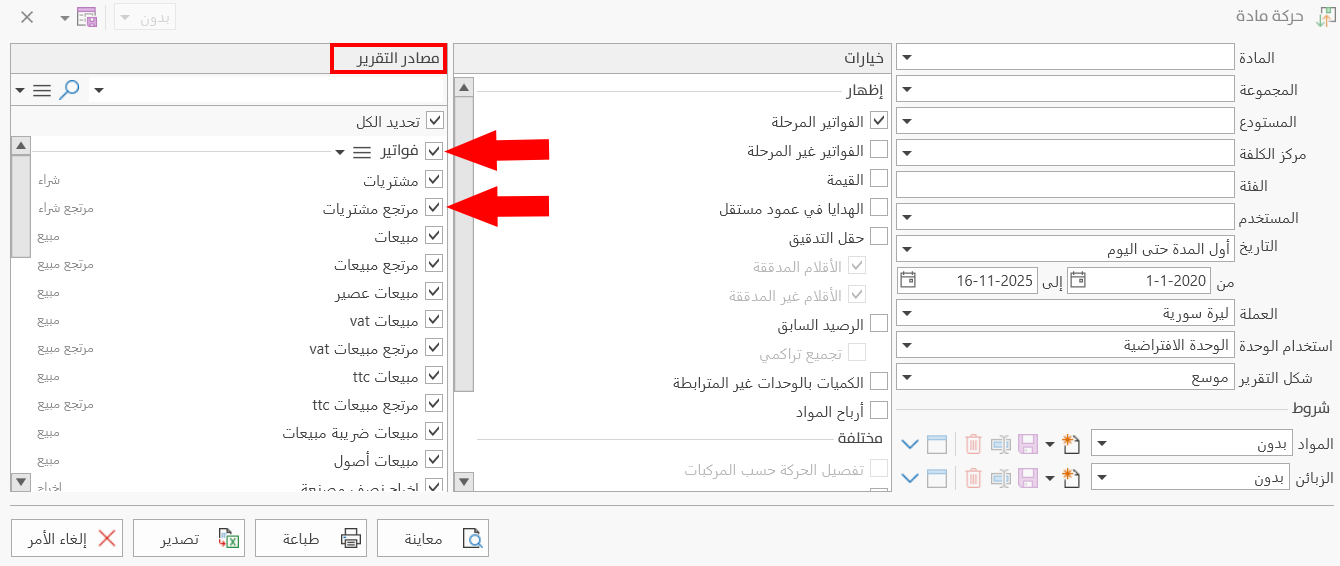
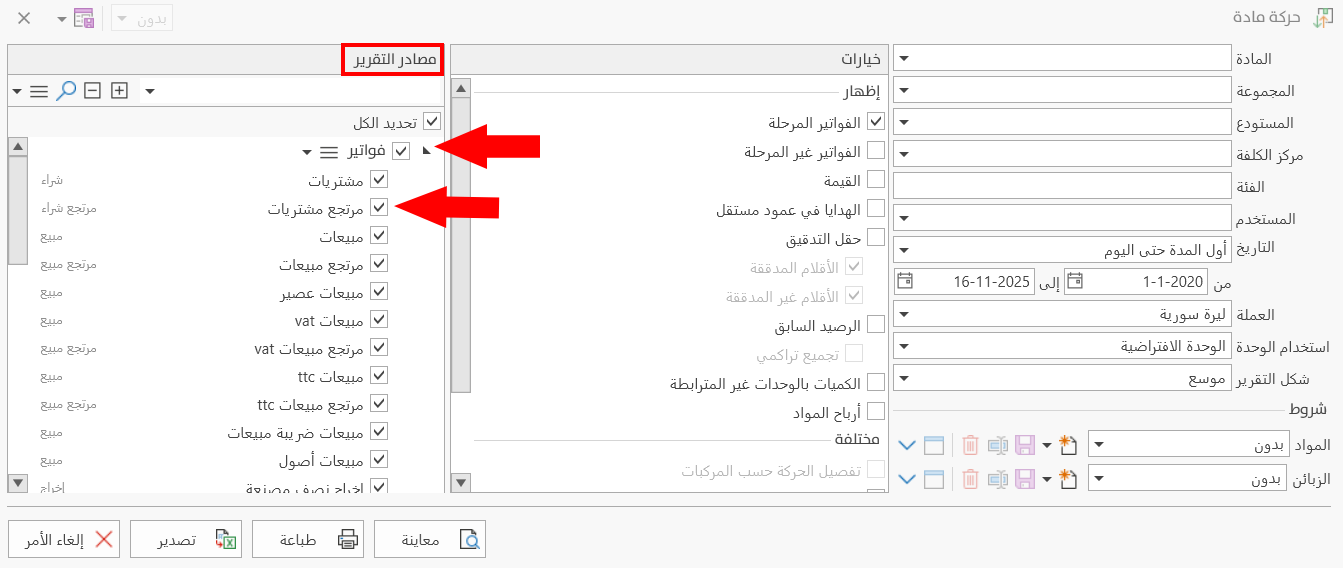
Tree
The sources appear in a "tree" style, with a larger indentation than the groups, as in the following picture:
Show bill type
By default, the program shows the invoice type in the windows.

You can stop it from appearing by disabling the option.
Show group name
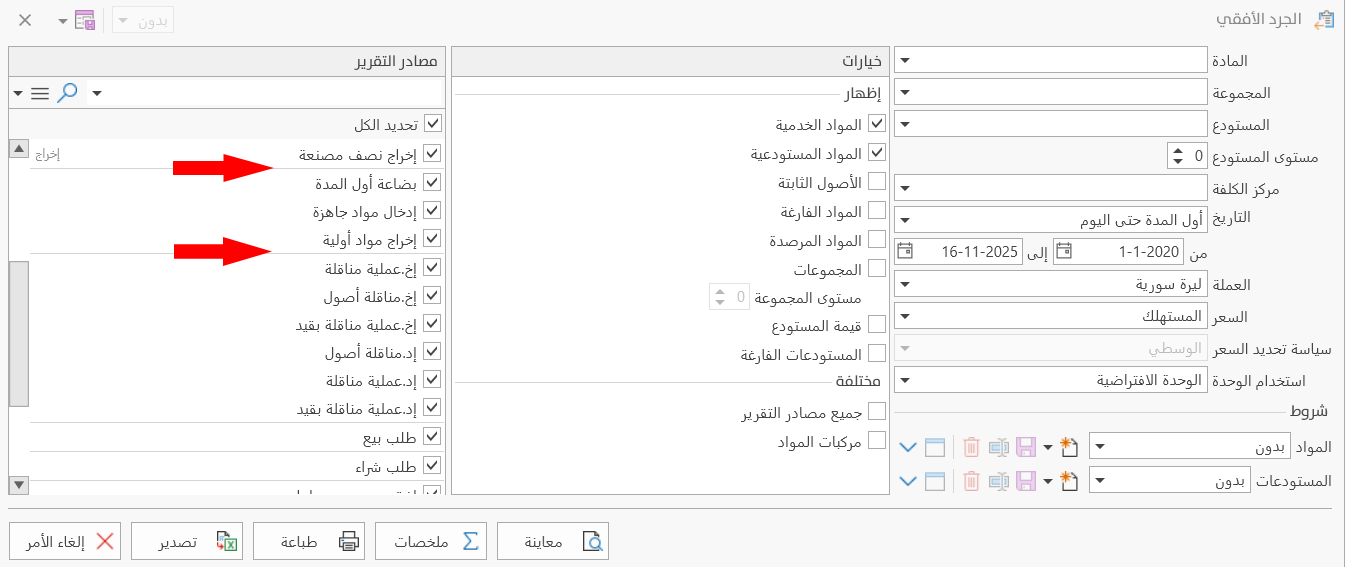
The report sources in the options dialog are sorted into defined groups: by default, the groups appear in the windows as main rows, with many sub sources of the group under them.
For example, after you request the "Material Movement" report from the Materials tab, the report options dialog opens, and the groups look as follows:
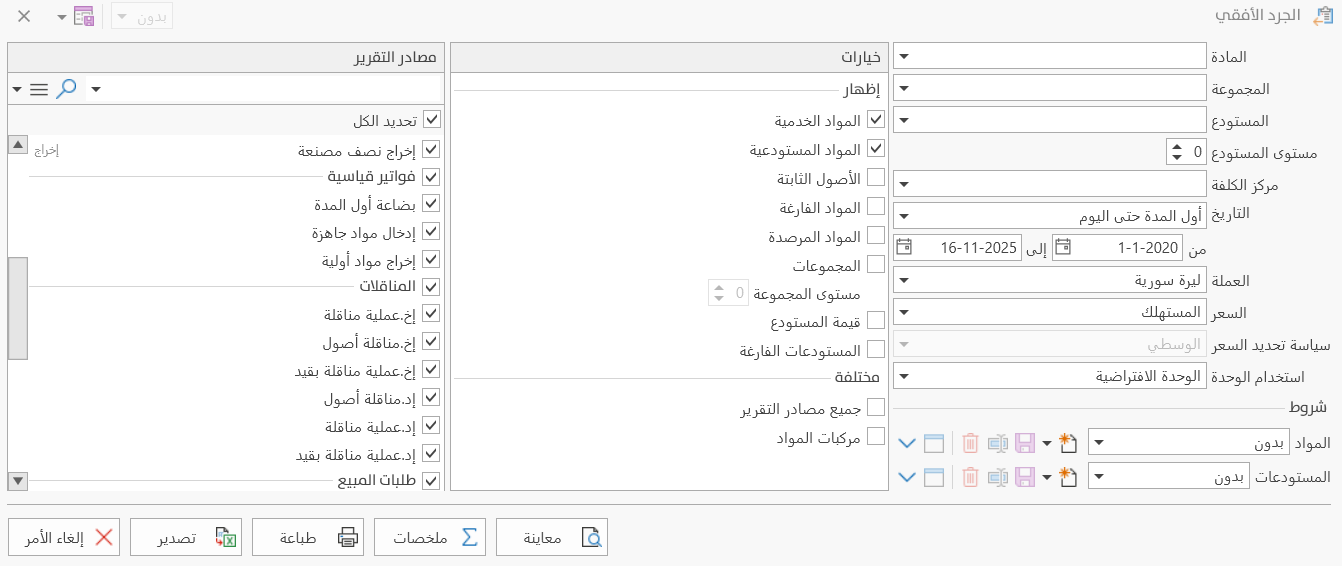
You can stop the group name from appearing by disabling the option.
Number of Search Results
You can control the number of search results that appear in the windows after you click the arrow in some fields of the program options window.
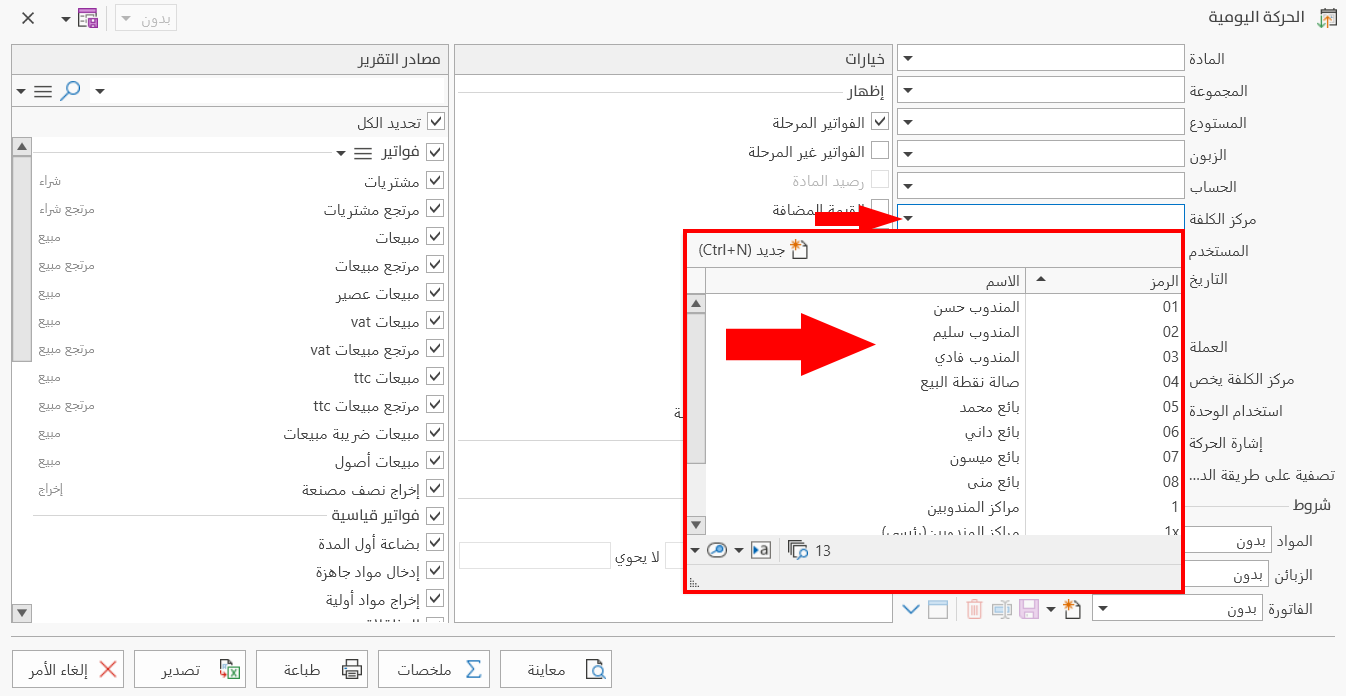
You can control the maximum number of search results by typing the number you need or moving gradually with the arrows in the field.
To save any change in the Report Options window, click "OK" at the bottom of the window.
To return to the default report options and undo your changes, click "Default" at the bottom of the Report Options window, then click "OK".