Report Options - Chart Tab
You can use the Chart tab to set the default options for the shape of the chart you add in the report preview window.
You can add a chart to the report from the "Analysis" tab on the main ribbon of the report preview window.
Use the options of the tab, as follows:
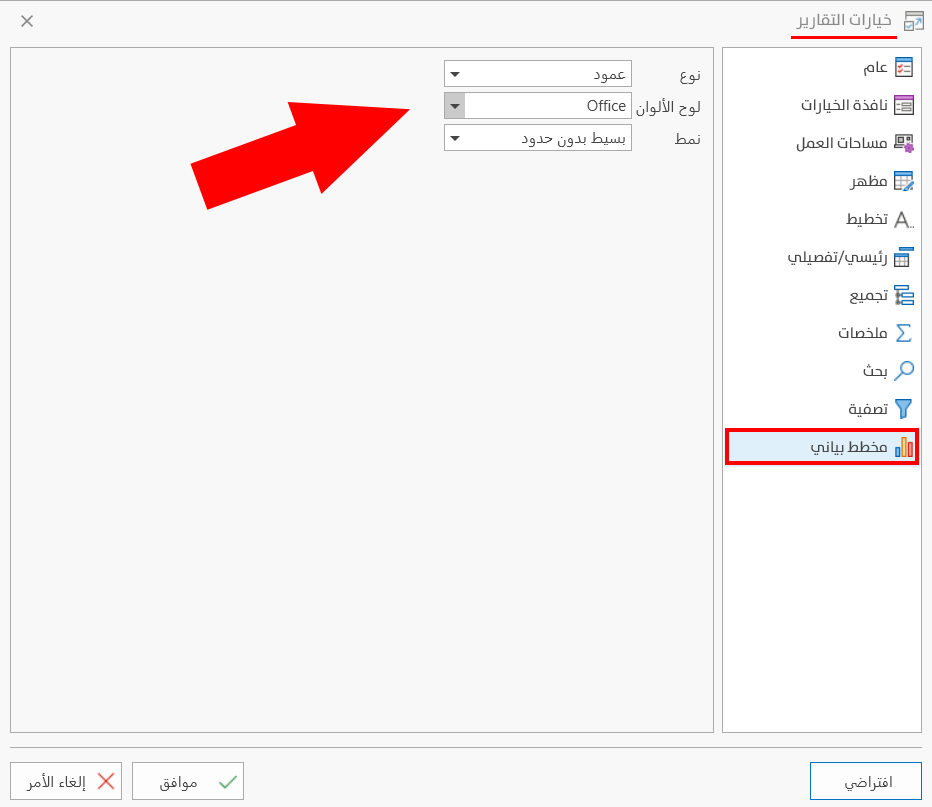
Type
The program provides a list of types you can apply to the chart by default: when you click the arrow in the field, the following list drops down:
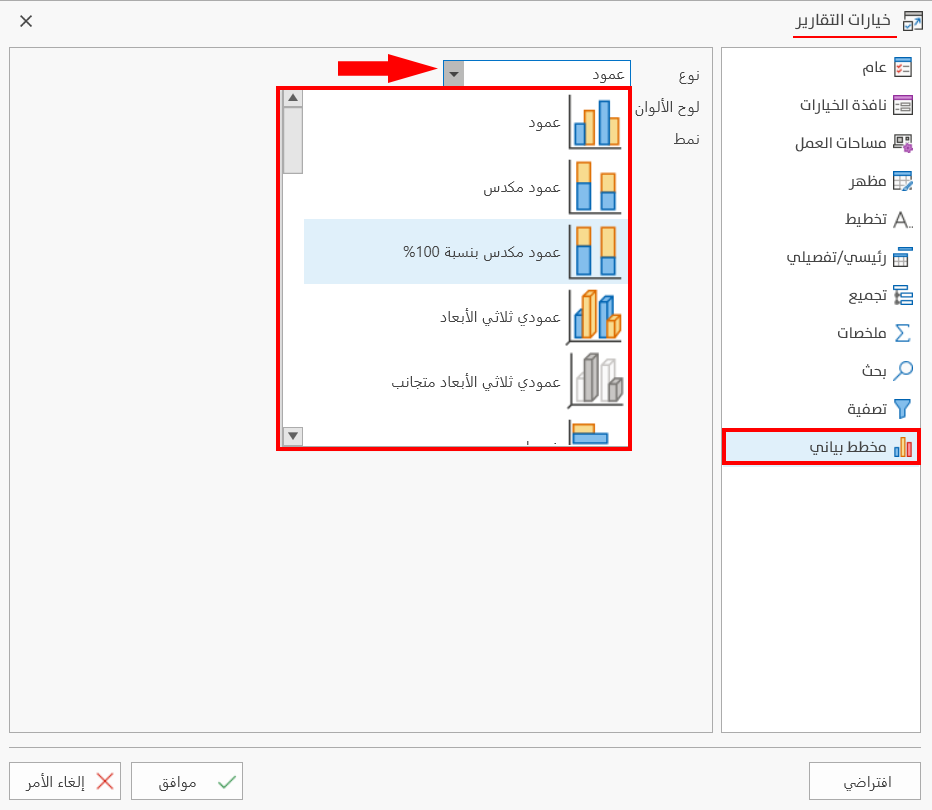
By default, the program uses the type "Column".
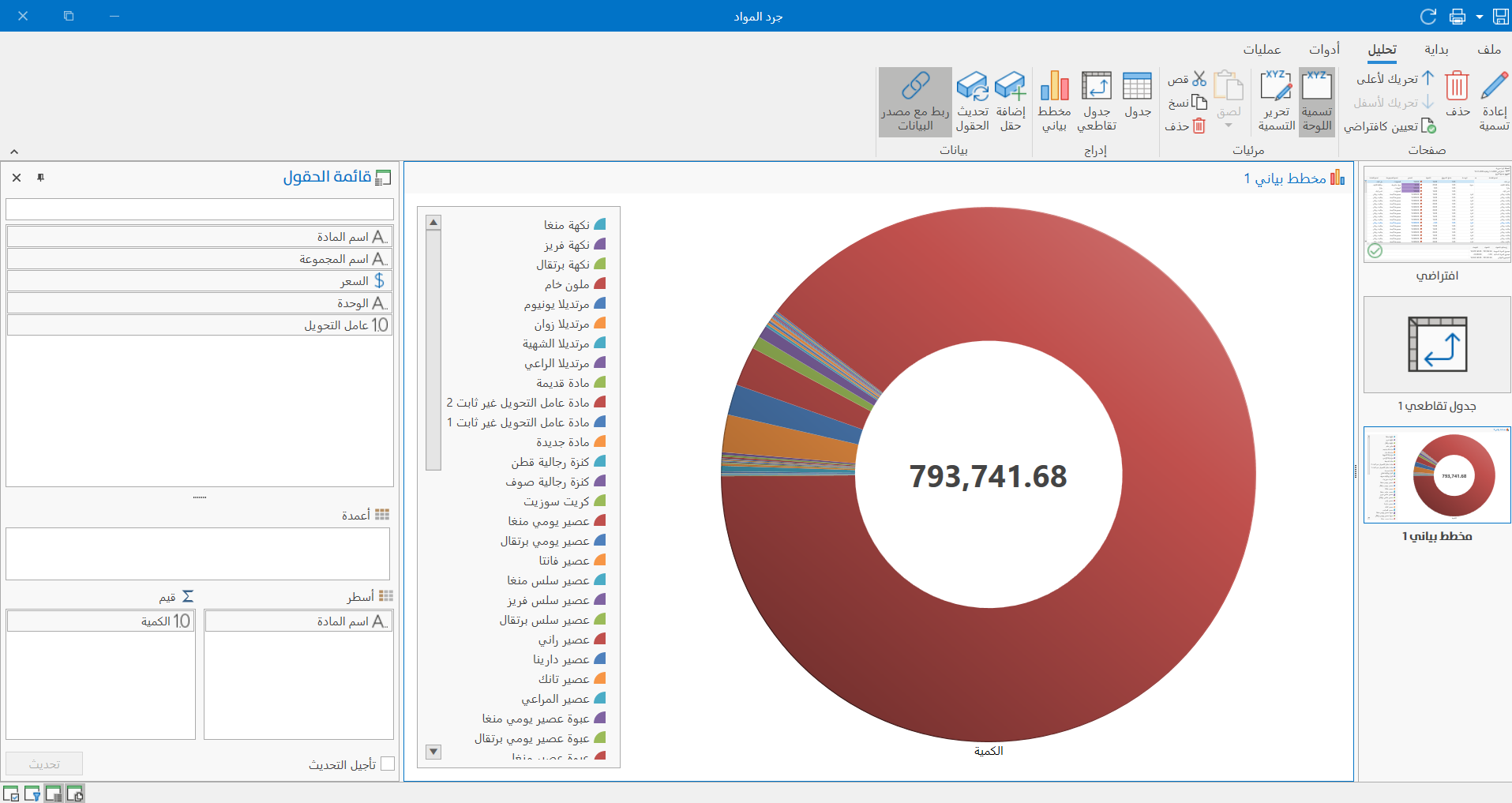
For example, when you choose the type "Doughnut" and add a chart to the "Materials Stock-take" report, it appears by default as follows:
Color Palette
By default, the program uses the color palette "office" to show the chart in the report preview window.
Choose a default color palette from the drop-down list after clicking the arrow in the "Color Palette" field.
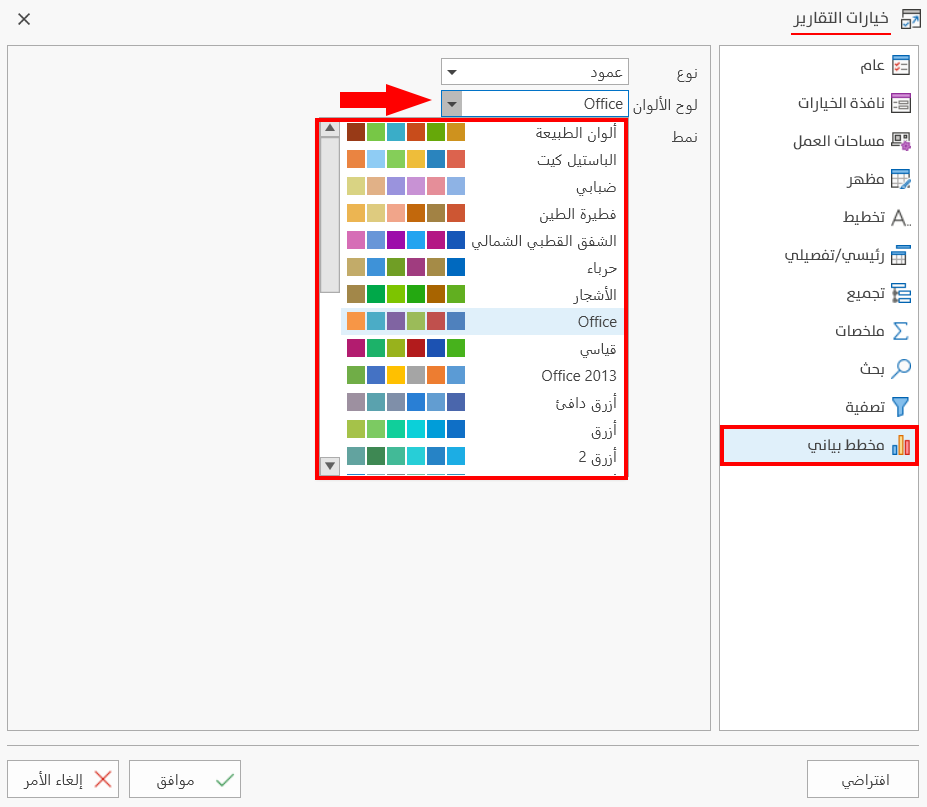
For example, when you choose the color palette "In a Fog" and then add a chart to the report, it appears by default as follows:
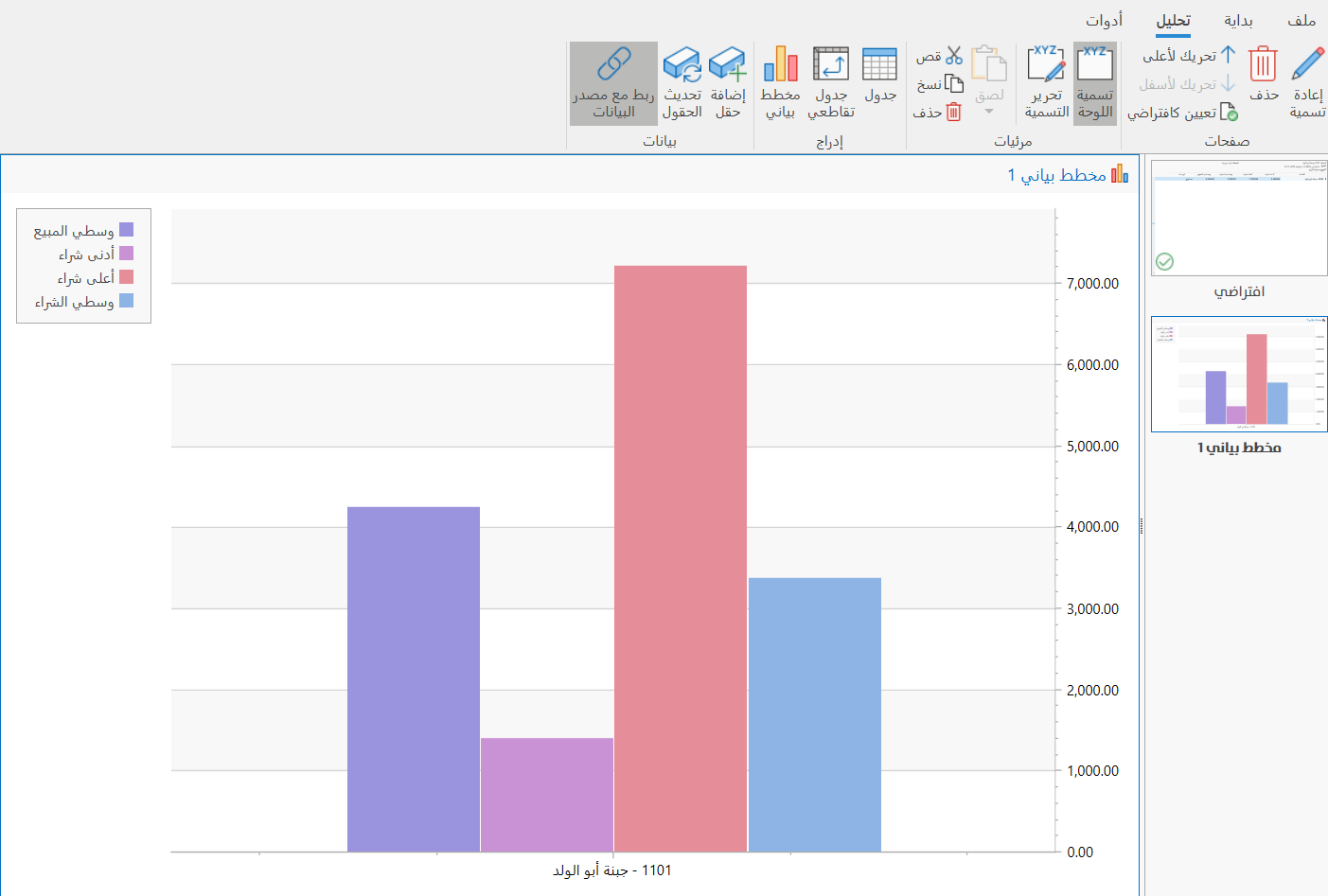
The color palette is applied to the chart whatever type is set in the previous field of the "Chart" tab in the report options window.
Style
You can change the default style of the chart from the list that drops down from the "Style" field, as follows:
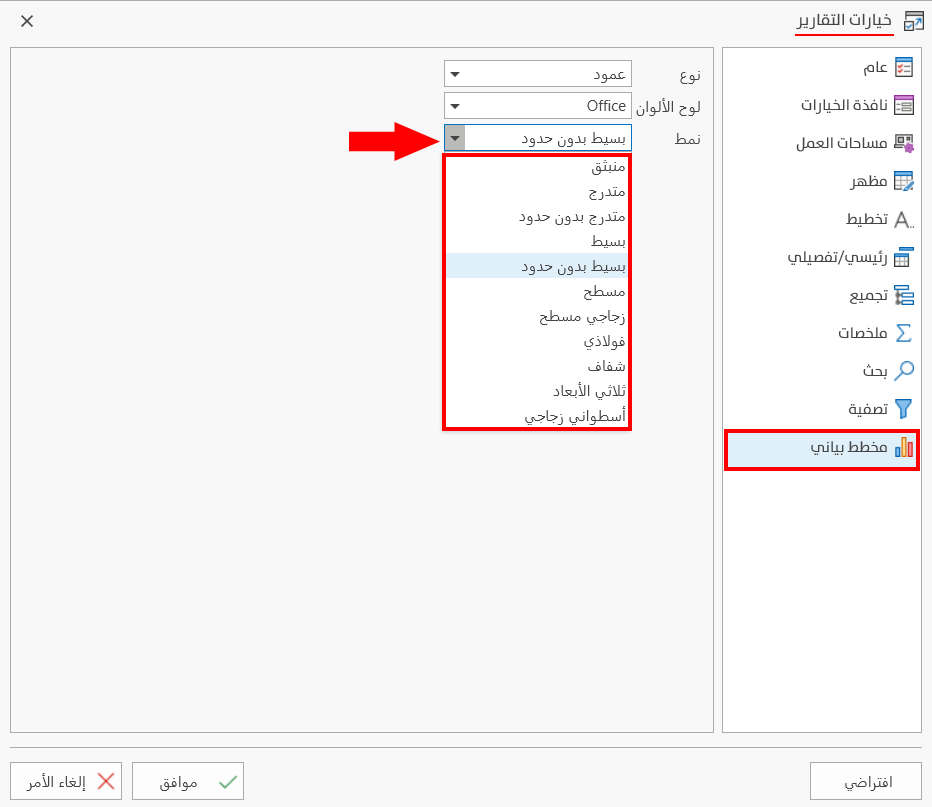
The default style set in the program is "Borderless Simple".
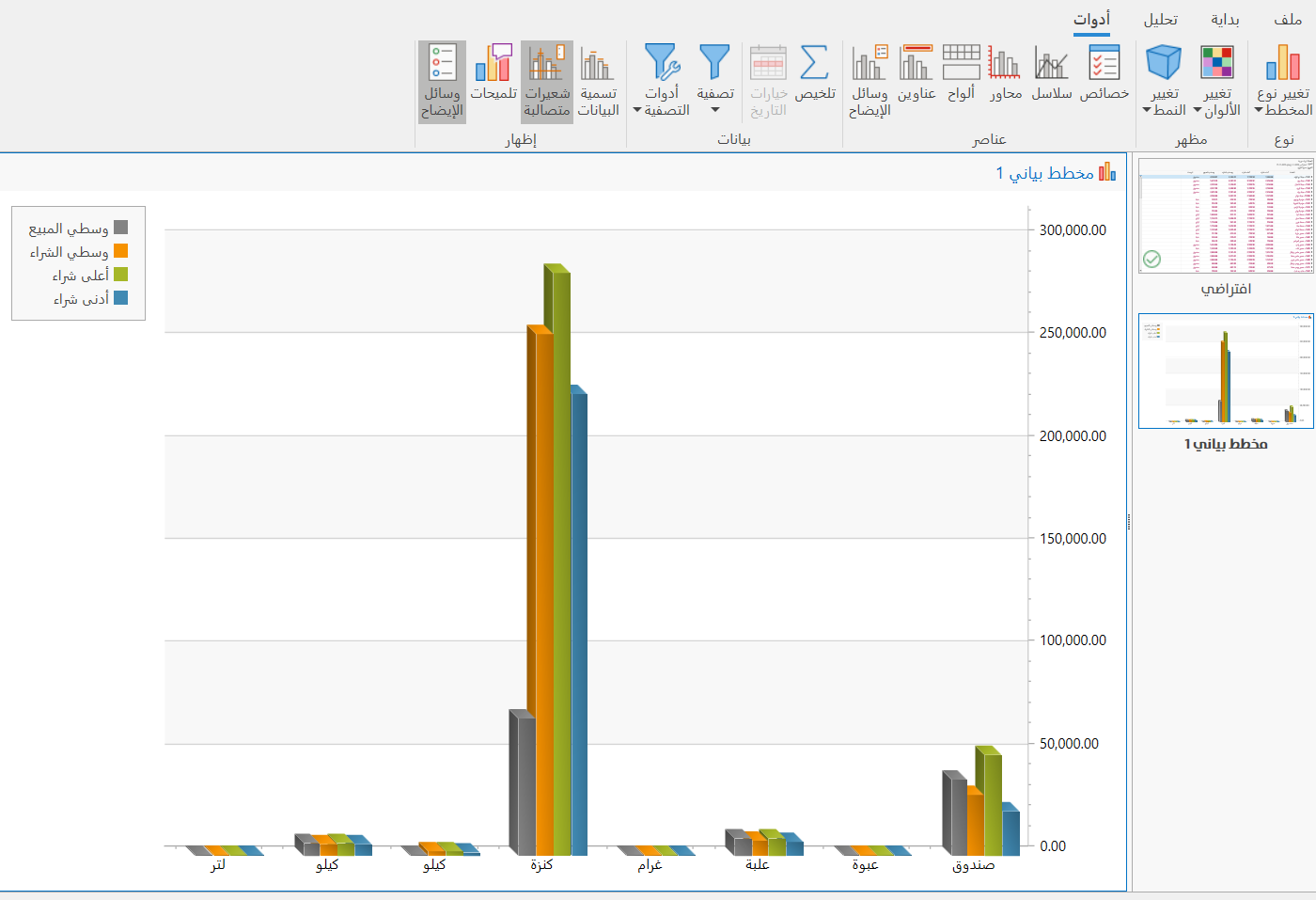
For example, when you change the style to "Quasi 3D" and then add a chart (Type: Column, Color Palette: Marquee), the chart appears as follows:
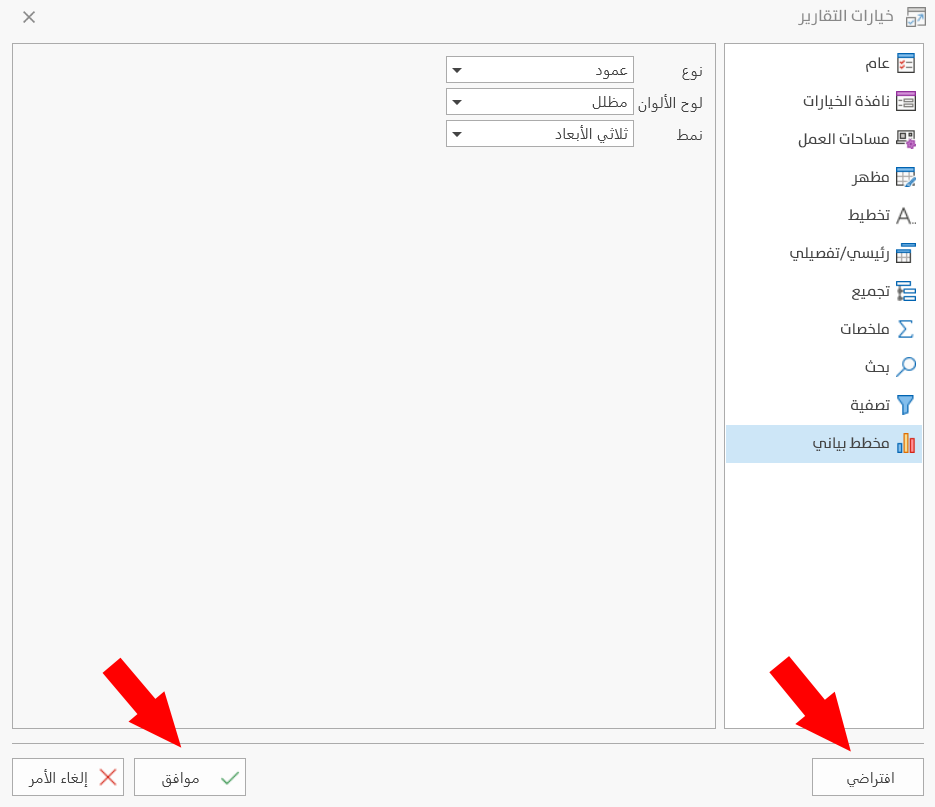
To save any change in the report options window, you must click the "Ok" button at the bottom of the report options window.
To return to the default report options and undo your changes, click "Default" at the bottom of the Report Options window, then click "OK".
To apply the changes fully, close the report preview window and request it again.