Report Options - Appearance Tab
You can use the Appearance tab to set the default options for the design of reports and change their appearance, and to choose the font and its size and the colors used in the tables of the report preview window.
The program provides a sample of report tables on the tab itself, so you can see and try the changes before you apply them in the preview window.
The options are as follows:
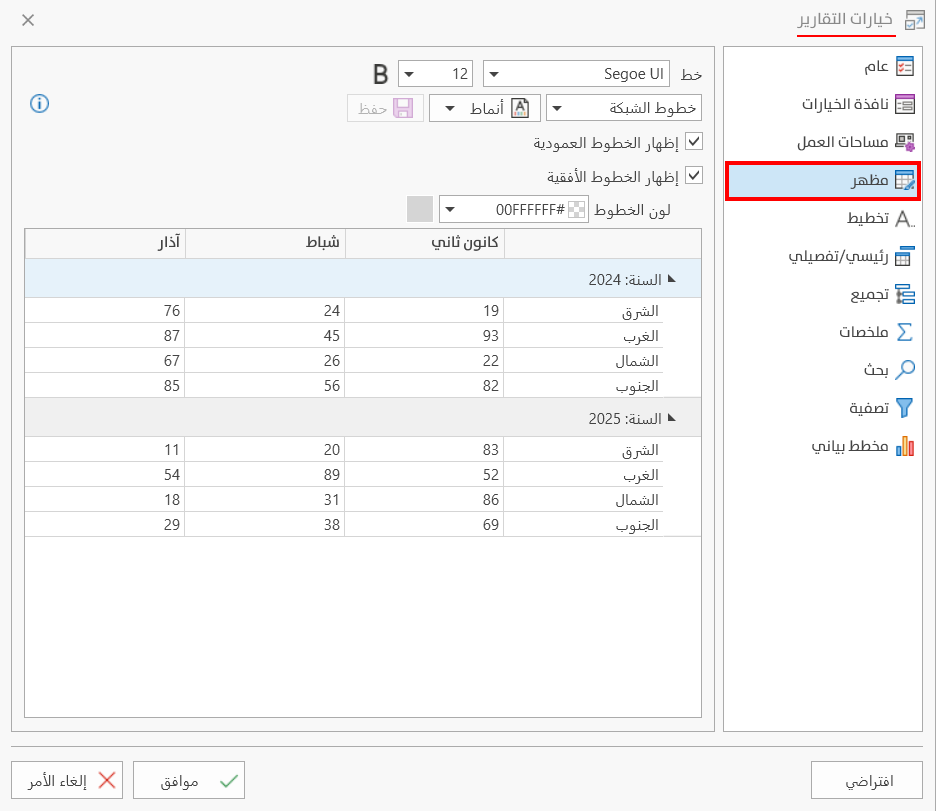
Font
Choose the default font of reports from the list of fonts, to apply it to the report data in the preview window: click the arrow in the field, then use the scroll bar to see all the fonts.
After choosing the font, click it with the left mouse button, then click the "Ok" button at the bottom of the report options window.
A
This field is used to choose the font size of the report data in the preview window.
Grid Lines
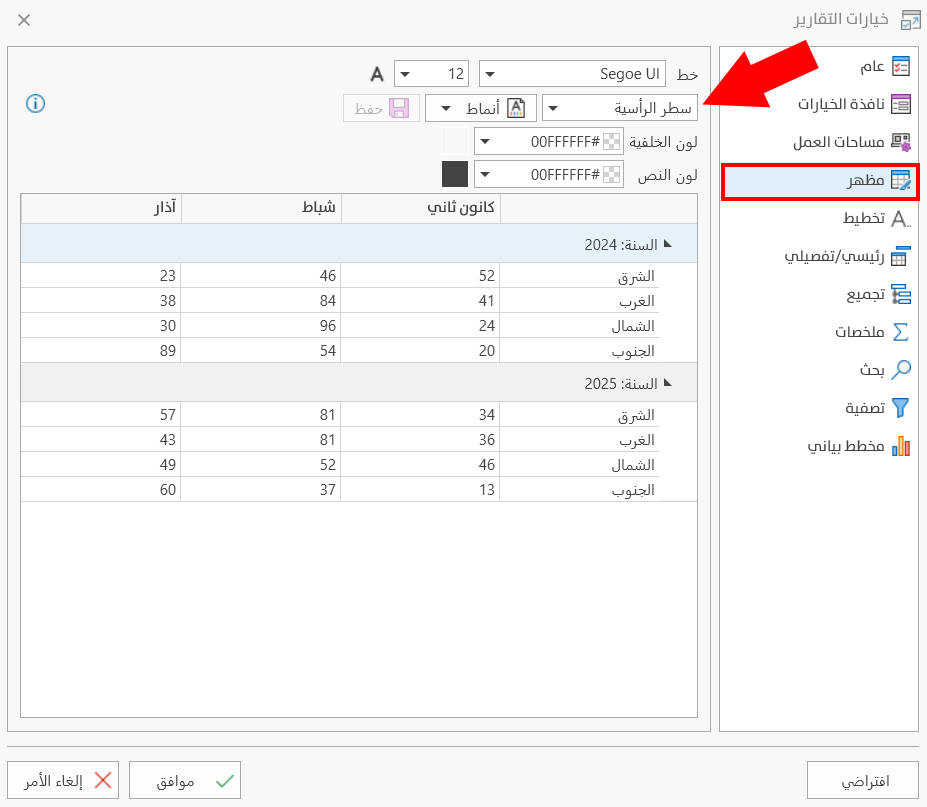
Click the drop-down list to set the part of the report whose colors you want to customize; after choosing one of the elements, you can set the colors of each detail separately, as follows:
Grid Lines
You can set the lines that separate the fields, with:
- Show vertical lines
You can disable it to stop vertical lines from appearing between the rows.
- Show horizontal lines
Disabling it stops horizontal lines from appearing between the rows.
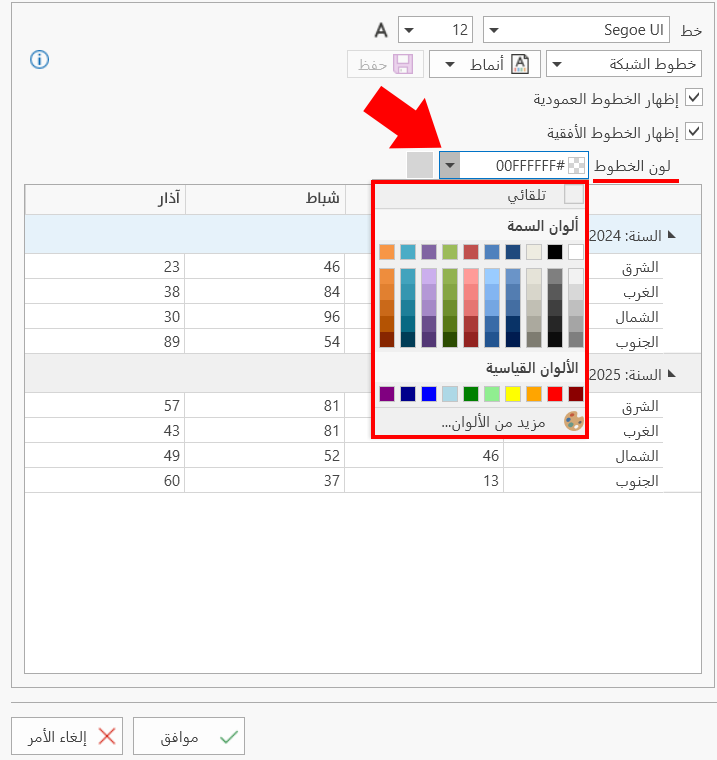
- Lines Color
You can change the default color of the lines by clicking the arrow in the field: the available color palette appears, and you can also create the color you need in the same palette, or return to the default color.
Header Row
Choose special colors for the header row of the report with the following fields:
_ Background Color: you can choose the background color of the report header from the color palette after clicking the arrow in the field.
_ Text Color: to set the text apart from the background, you can choose the suitable color from the color palette after clicking the arrow in the field.
Group Rows
These rows appear among the report fields after grouping on a column in the preview window; you can set them apart from the other rows with special colors, with:
- Background Color
You can choose a custom color for the background of the group row from the color palette after clicking the arrow in the field.
- Text Color
To set the text apart from the background, you can choose the suitable color from the color palette after clicking the arrow in the field.
Rows
To set the colors of the report rows (except the even rows when a different color is used for them in the list), from the following:
- Background Color
You can choose a new color for the background of the report rows from the color palette after clicking the arrow in the field.
Text Color
To set the text apart from the background, you can choose a new color for it from the list of available colors by clicking the arrow in the field.
Special Rows
With this option, the program provides a list of special rows, for example: credit, output, balanced, so you can give each row its suitable color separately.
The list of special rows appears when you click the "Customize" button, as in the picture:
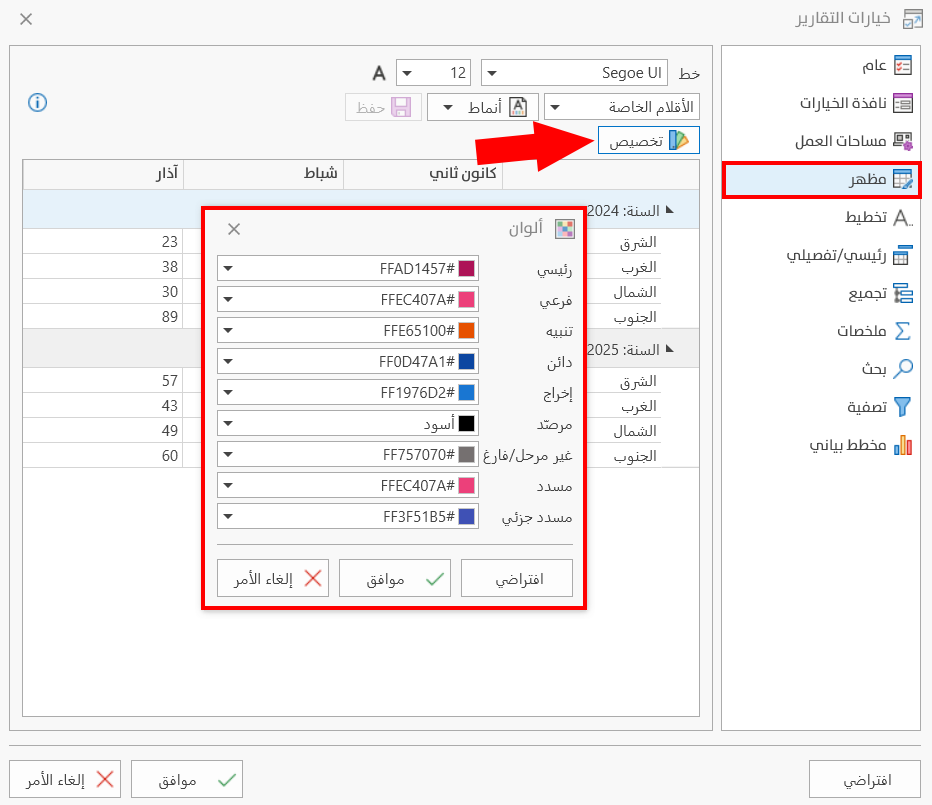
This window provides an "Ok" button to apply what you choose, and a "Default" button followed by "Ok" to return to the default options.
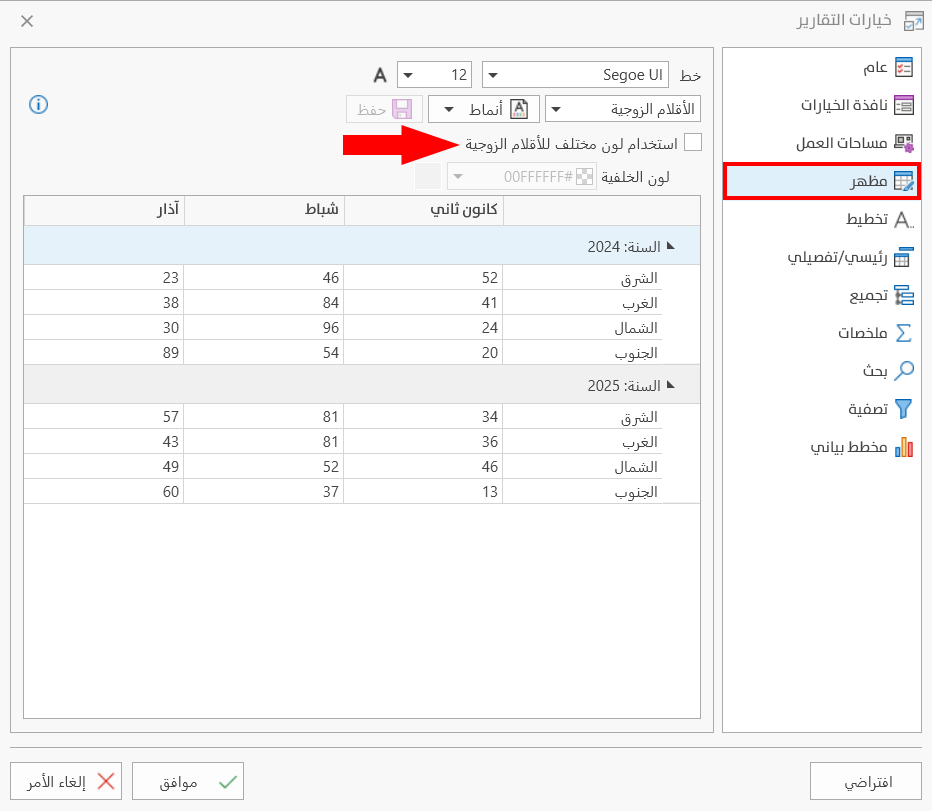
Even Rows
You can set the colors you need for the even rows of the report, that is, the rows with an even number in their order in the report, from the following:
- Use banded rows
When it is enabled, a special color is given to the even rows; when it is disabled, their settings stay like the other rows, and they cannot be given distinct colors.
- Background Color
You can choose it after enabling the previous option.
Selected rows
You can select some rows in the report preview table; after selecting them, you can give the selected rows a color as follows:
- Background Color
You can choose a unique color for the selected rows so they are clearer, after clicking the arrow in the field.
- Text Color
You can use a different color for the text so it stands out from the background, after clicking the arrow in the field.
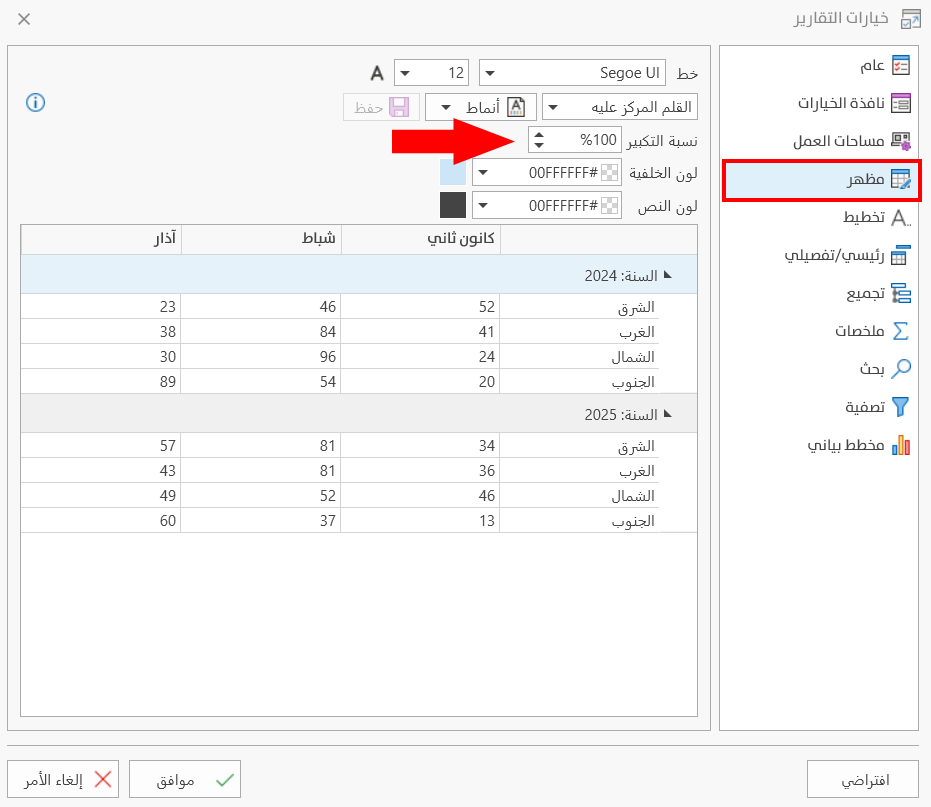
Focused Row
Used to set the row you click with the mouse apart, with a color and size different from the other rows of the report, by setting its settings as follows:
- Enlargement percent
You can increase the font size of the row by an enlargement percentage you set in the field, by typing it directly or moving with the arrows to reach the percentage you need.
- Background Color
You can give the focused field a color so it is clearer, by clicking the arrow in the field and choosing the color from the color palette.
- Text Color
Choose a different color for the text from the color palette that appears after you click the arrow in the field.
Selection Rectangle
While selecting in the report, a rectangle appears that shows the rows being selected; with this option, you can give the rectangle a special and suitable color so it is clearly visible, by choosing:
- Border Color
Set a special color for the borders of the rectangle from the color palette.
- Background Color
Choose the fill color of the rectangle from the color palette.
Styles
The field provides a large set of ready-made styles for reports that vary in the colors of the rows and lines: you can choose one of them right away or make some changes (create custom styles that suit the user's taste and work needs), instead of setting all the details of the rows and grid of the report.
Ready-made Styles (Ameen)
Set a ready-made style from the drop-down list of the Styles field, which includes a default style and a number of varied styles suitable for the reports of the program.
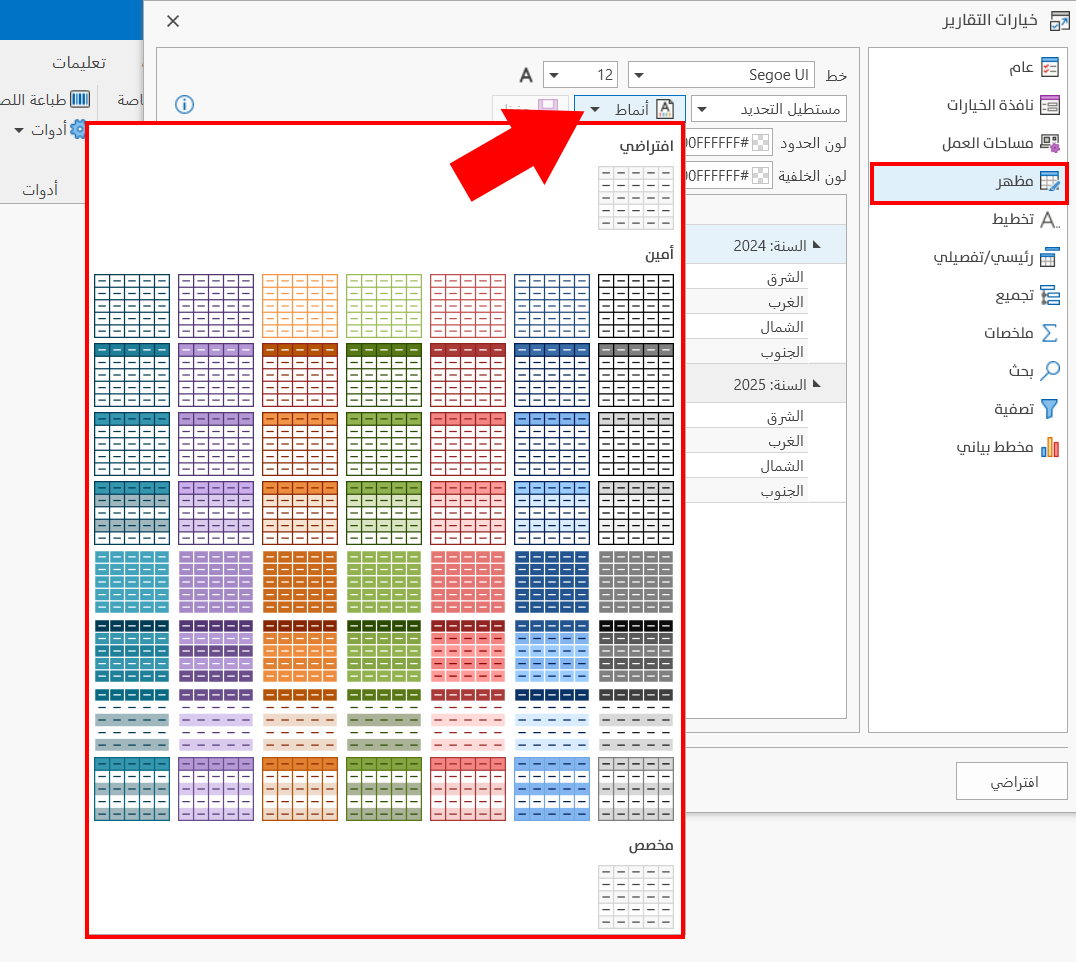
When you choose one of these styles by clicking it, the program shows its look and settings in the sample table in the window, as follows:
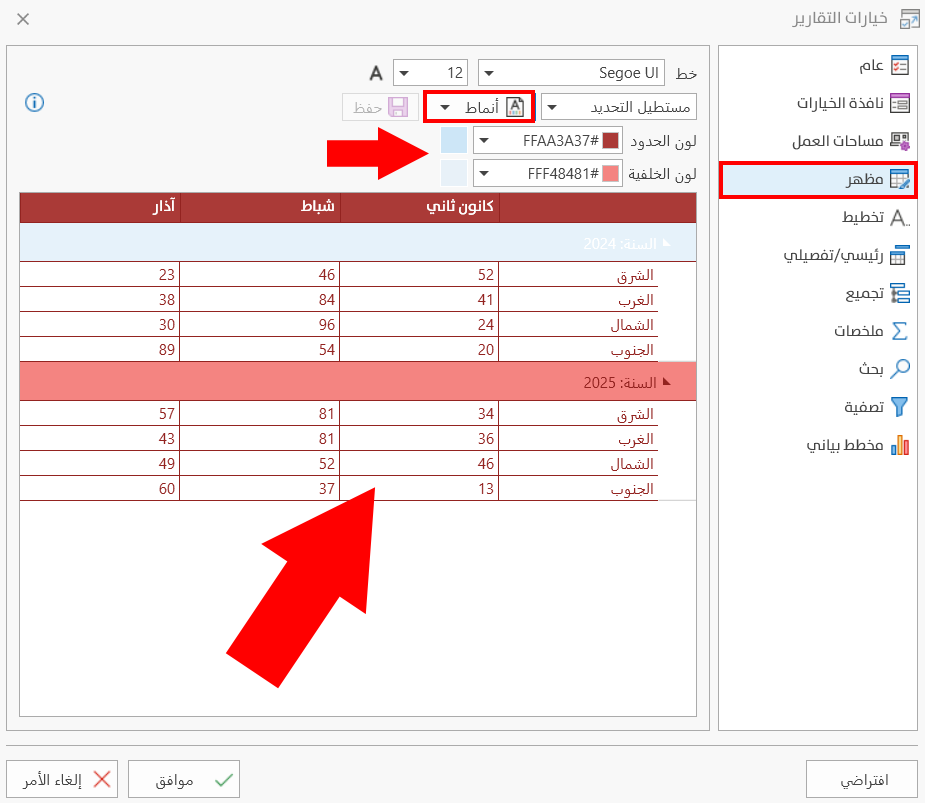
When you click the "Ok" button in the window, the chosen style becomes the one used in the reports of the program.
Note: you can make changes to the chosen style before clicking the Ok button, to apply the style with the changes.
Creating a Custom Style
Create a custom style with suitable settings by choosing a style from the list of ready-made styles, creating an exact copy of it, changing this copy, and then saving the style.
To do this, click the arrow in the Styles field, then right-click the style you want to copy; the following menu appears:
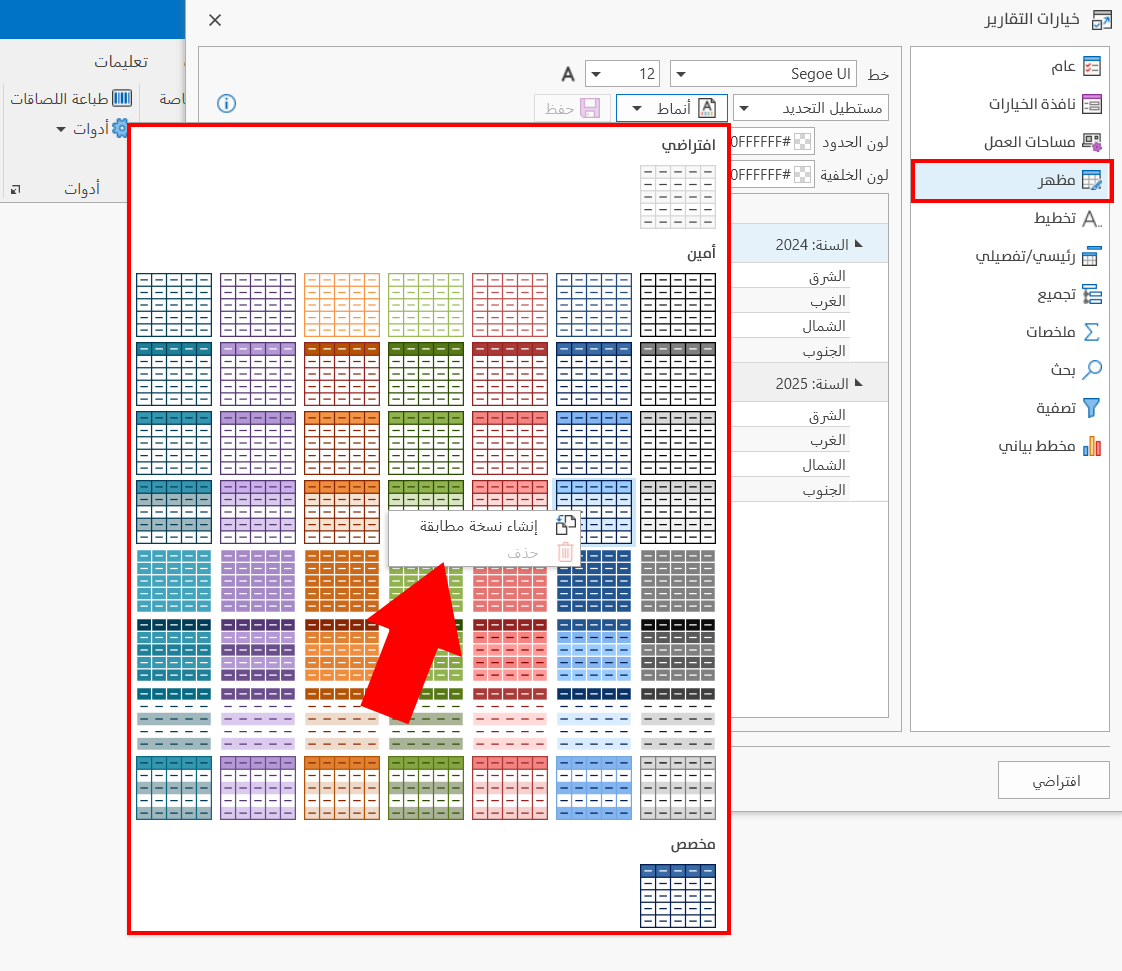
Click "Create an exact copy": the new copy is added at the bottom of the styles list, in the "Custom" group.
Change the options of the style with the fields of the tab, then click the "Save" button, which is enabled as soon as you start creating an exact copy.
The new custom style also appears in printing. To reach it after previewing a report, click the "Print" button at the top of the window, and the program moves to a new interface that contains the settings and tools of printing, including the "Format" tool for formatting the fonts and cells of the report before printing; this tool provides the same list of styles as the "Appearance" tab.
Deleting a Custom Style
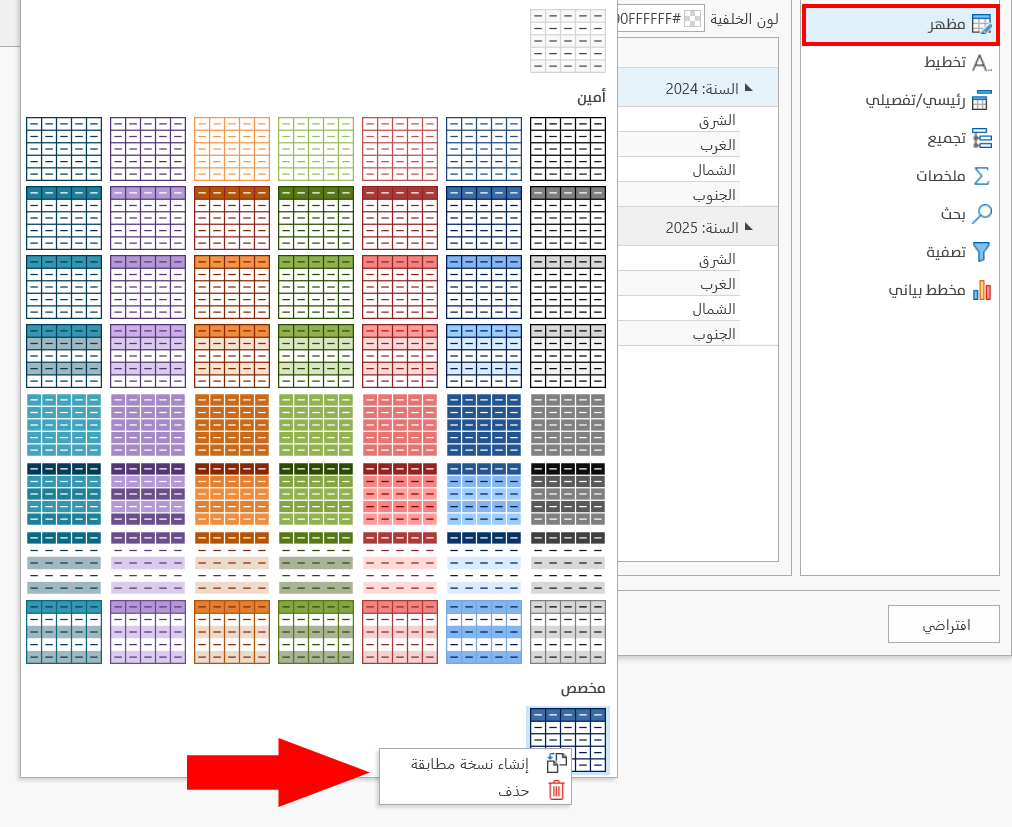
You can delete one of the styles of the "Custom" group by right-clicking the style and clicking "Delete" in the menu that opens.
To save any change in the Report Options window, click "OK" at the bottom of the window.
To return to the default report options and undo your changes, click "Default" at the bottom of the Report Options window, then click "OK".