Page Setup
alameen ERP lets you control the page settings of the report before printing it: you can choose the paper size and the margins, choose the headers and footers, and format the numbers and dates in the report, with the "Page Setup" tool in the report print interface.
Reaching the "Page Setup" Tool
You can reach the "Page Setup" tool, after requesting the report preview interface, from the File tab.

The program then moves to the following screen:
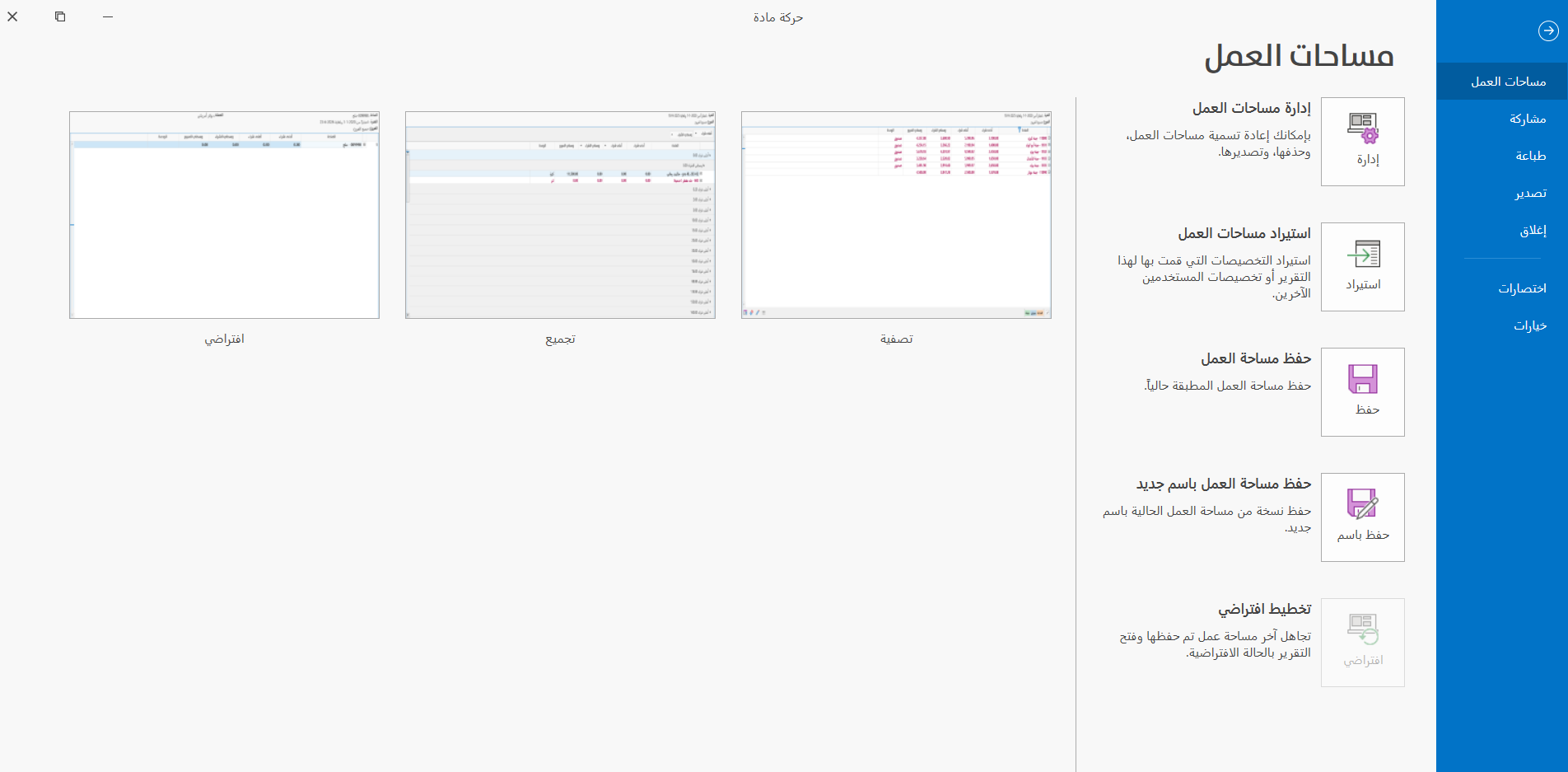
Click "Print" to switch the screen to the printing options and tools.
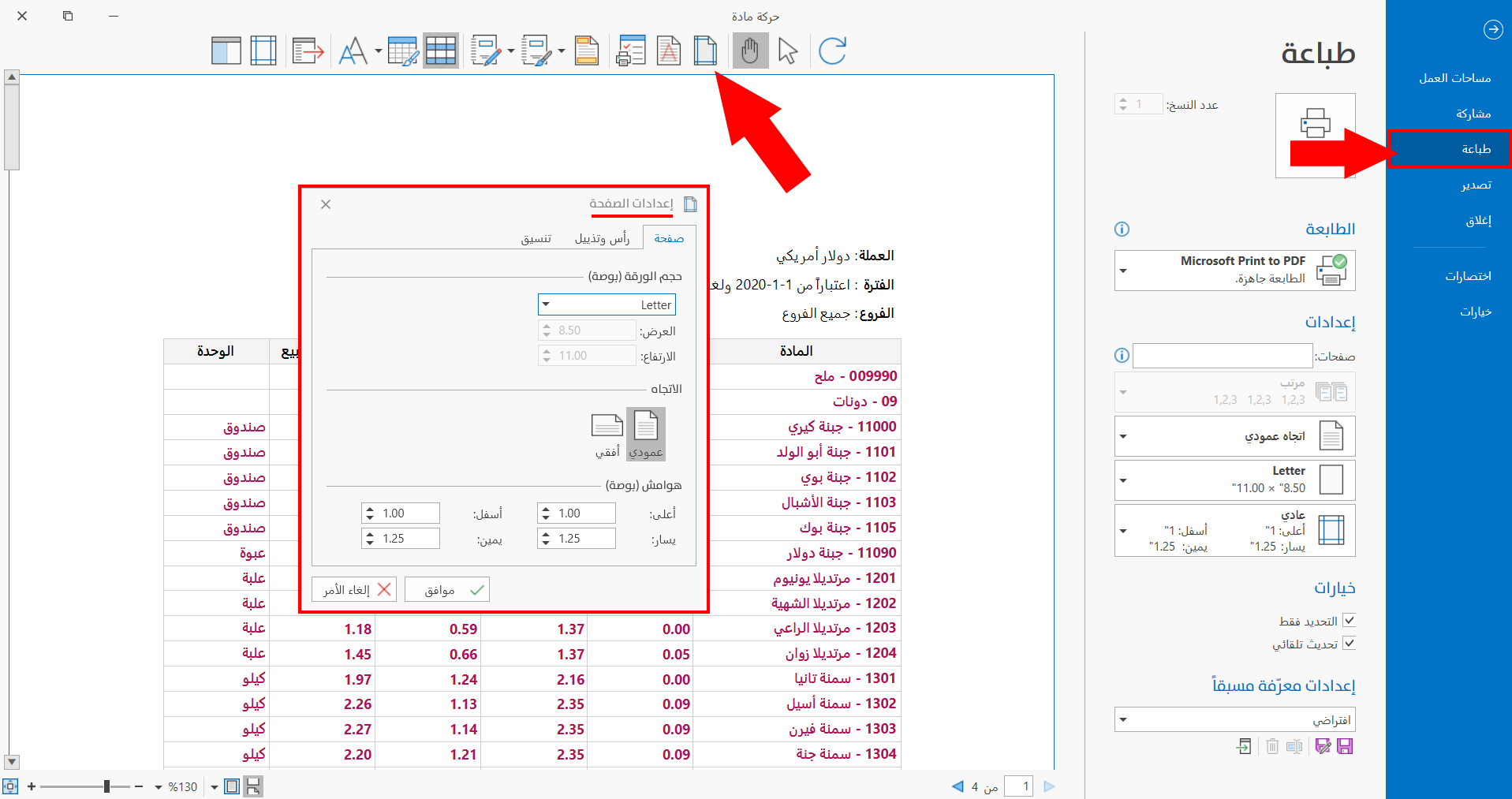
The "Page Setup" tool appears in the print toolbar; when you click it, the following window opens:
How to Use the "Page Setup" Tool
The "Page Setup" window contains a number of options distributed over the following tabs:
Page Tab
The "Page Setup" tool opens on the "Page" tab by default. The tab includes various options for setting the page and the margins:
Paper size (inch)
The tool lets you choose the paper size on which you want to print the report, and set the suitable value of the margins, with the following options:
- Size
The tool supports the standard paper sizes: when you click the arrow in the field, a list of the available sizes drops down; click the suitable size to use it.
The list also lets you choose "Custom Page Size", so you can set the width and height of the paper yourself in the fields below.
- Width
The field shows the width of the paper chosen in the "Size" field when you choose a standard paper size. When you choose "Custom Page Size", the "Width" field becomes available so you can enter the suitable width yourself, or with the navigation arrows in the field.
- Height
The field shows the height of the paper chosen in the "Size" field when you choose a standard paper size. When you choose "Custom Page Size", the "Height" field becomes available so you can enter the suitable height yourself, or with the navigation arrows in the field.
Orientation
You can choose the suitable orientation of the paper by clicking one of the following two options:
-
Portrait
-
Landscape
Margins
You can set the page margins on the four sides of the paper: the window gives a field to each side.
-
Top
-
Bottom
-
Left
-
Right
Enter the value yourself, or use the arrows in the field to reach the suitable margin space.
Header & Footer Tab
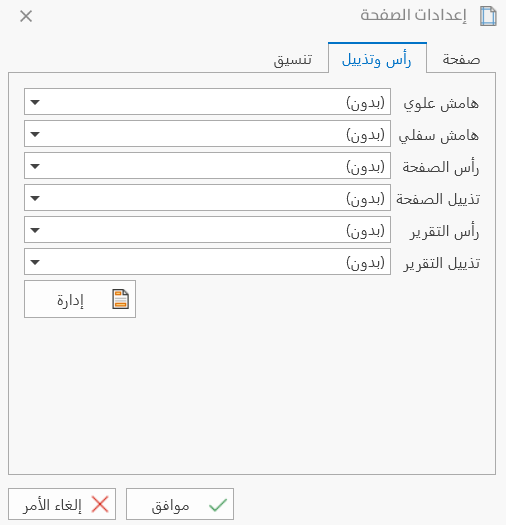
You can choose a particular design for the margins, headers, and footers, for the page or the report: after adding designs with the "Manage Headers/Footers" window, you can choose the suitable design for each of:
-
Top margin
-
Bottom margin
-
Page Header
-
Page Footer
-
Report Header
-
Report Footer
By default, the tool sets the margins, headers, and footers to "no designs", which is the default state of a report. To apply particular designs to the report before printing it, click the arrow in the field and choose the design from the drop-down list of designs.
The tab shows a "Manage" button, so you can move to the "Manage Headers/Footers" window to add new designs.
Format Tab
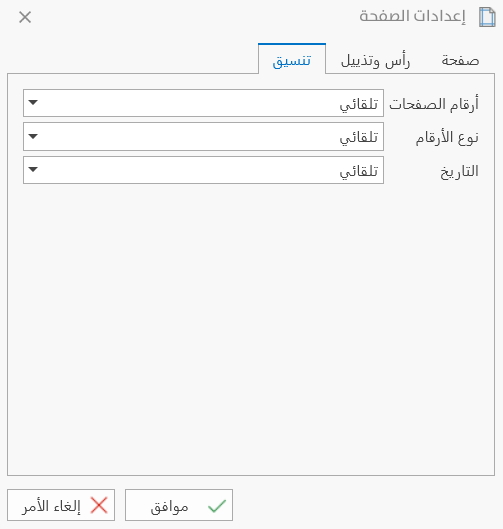
The tab is used to control the formatting options of numbers and dates in the pages of the report:
Page Numbers
You can choose the number format you want to apply to the page numbers: after choosing a page or report header or footer that contains "Page Number", you can choose the suitable format from the list of page number styles that drops down from the field.
The format means the additions that can be placed next to the page numbers, for example, [1], Page 1...
Numbers Kind
Choose the kind of numbers you want to apply to the page numbers of the report: after choosing a page or report header or footer that contains "Page Number", you can choose the suitable number kind from the list of number kinds that drops down from the field.
The number kind is not applied to the numbers of the report table, the date, or the numbers in the header and footer designs.
Date
Choose the date format you want to apply to the pages of the report: after choosing a page or report header or footer that contains "Print Date", you can choose the suitable date format from the drop-down list of the field.