Design Window
The design window is used to add new designs for the headers and footers of the printed report: you can customize a top and bottom margin, a page header and footer, and a report header and footer, before printing the report with the "Manage Headers/Footers" tool in the print toolbar of the report print interface.
You can reach the design window after clicking the "New" button in the "Manage Headers/Footers" window and choosing the design you need from the drop-down list.
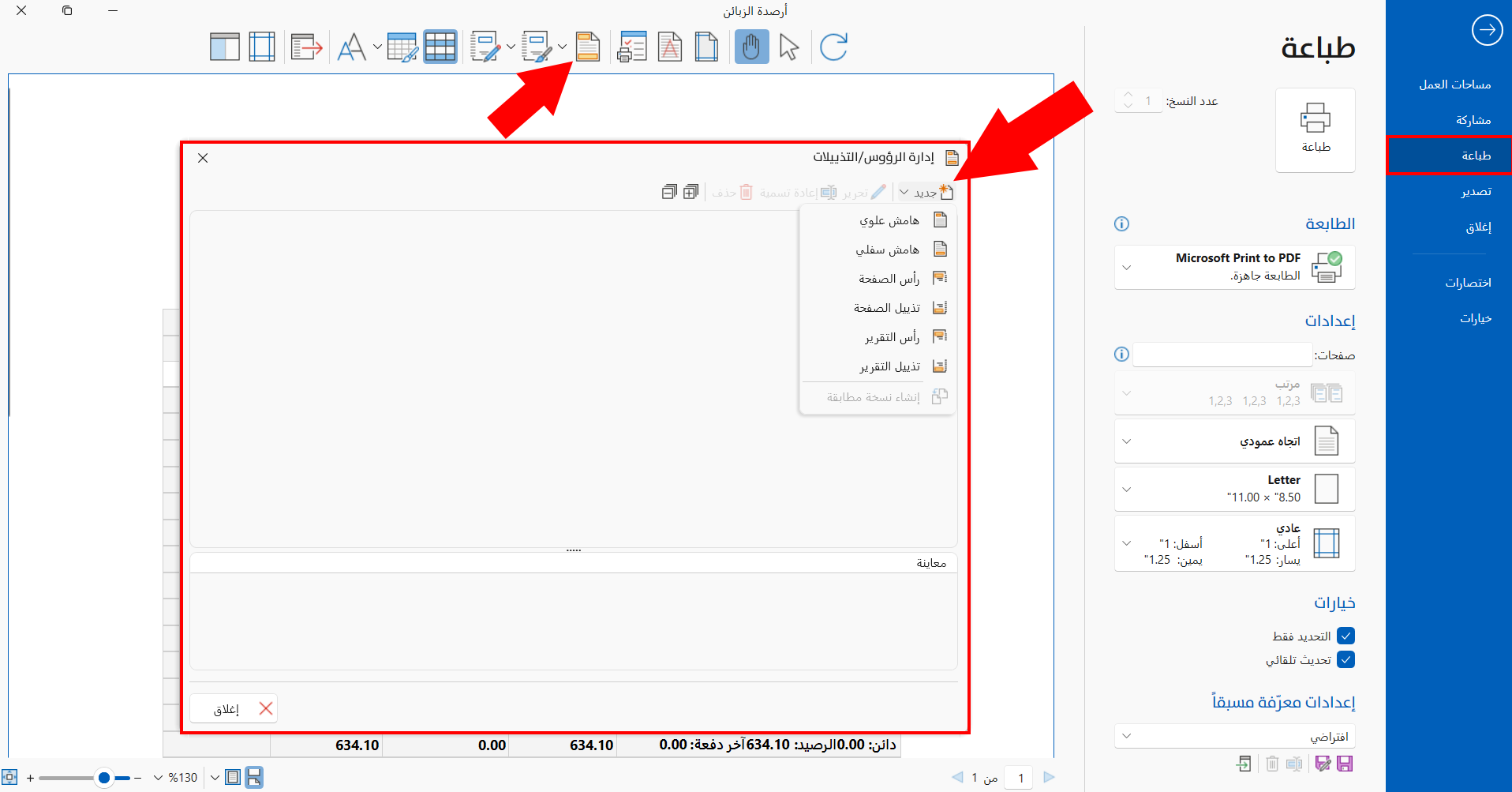
After you click the suitable design type, the window opens as follows:
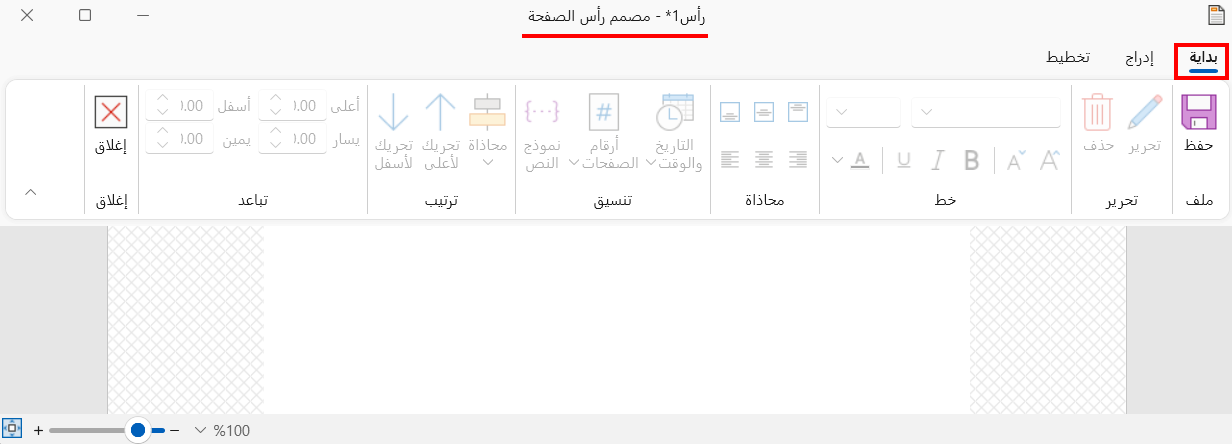
The design window contains the following tabs:
Home
The tools of this tab are used to set the text alignment, formatting, arrangement, and spacing of the elements inserted in the design; these tools are not available before any element is inserted.
Save
Used to save the new design and add it to the earlier designs: after you click the "Save" button, the "Save As" window opens so you can enter the name of the new design. Click the "Ok" button in the window to save the design, or the "Cancel" button to undo.
Edit
You can change the content of an added text box with the "Edit" tool: after you stand on the text box, the tool becomes available.
Delete
The "Delete" tool becomes available when you stand on any element inserted in the design, and you can delete the element directly by clicking the tool.
Font Group
The group includes all the font options for choosing its type, size, formatting, and color, so you can set the fonts of all the elements that contain text.
Alignment Group
The window lets you choose the position of the elements in the design: after an element is inserted, it appears automatically in the middle of the design; click it, then choose its position by clicking the suitable alignment option.
Format Group
You can control the time format (when you insert "Print Date") and the page number format (when you insert "Page Number"), and set the text pattern, where you can set a prefix and suffix for the text with the "Text Pattern" window that opens from the "Text Pattern" tool.
Arrange Group
You can move the elements in the design with the tools of the group: Align, Move Up, Move Down. Click the element whose place you want to change, then click the tool you need.
Spacing Group
You can set the spacing of the element from the margins of the design by setting the suitable value in the following fields: Top, Bottom, Left, Right.
Close
Used to close the design window without saving the changes. Note that when you click the "Yes" button in the message that opens (Do you want to save the changes?), the "Save As" window opens so you can enter a name for the design and save it.
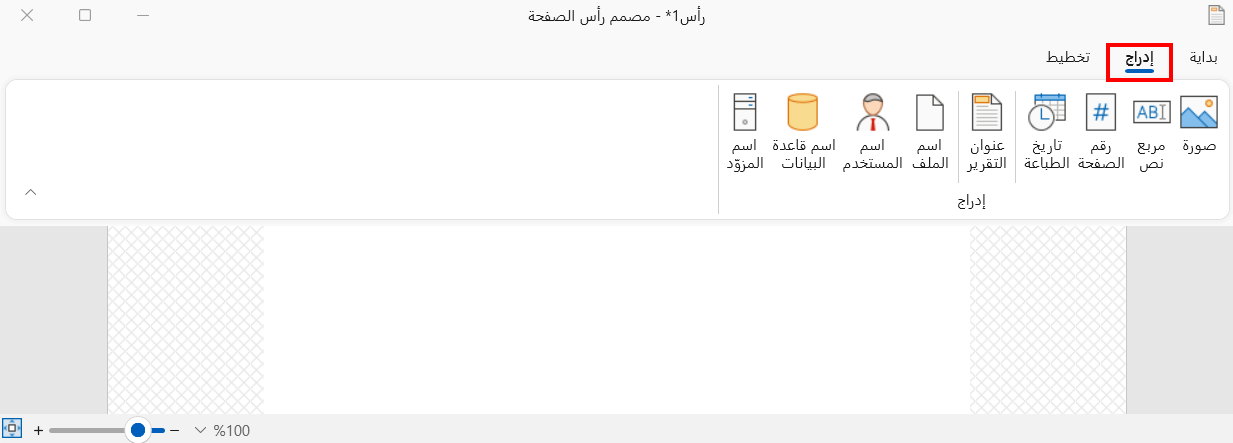
Insert
The tab includes all the elements you can add to the design: when you click the element you need, it is inserted directly into the design page. The available elements are:
-
Picture
-
Text Box
-
Page Number
-
Print Date
-
Report Title
-
File Name
-
User Name
+Database Name
- Server Name
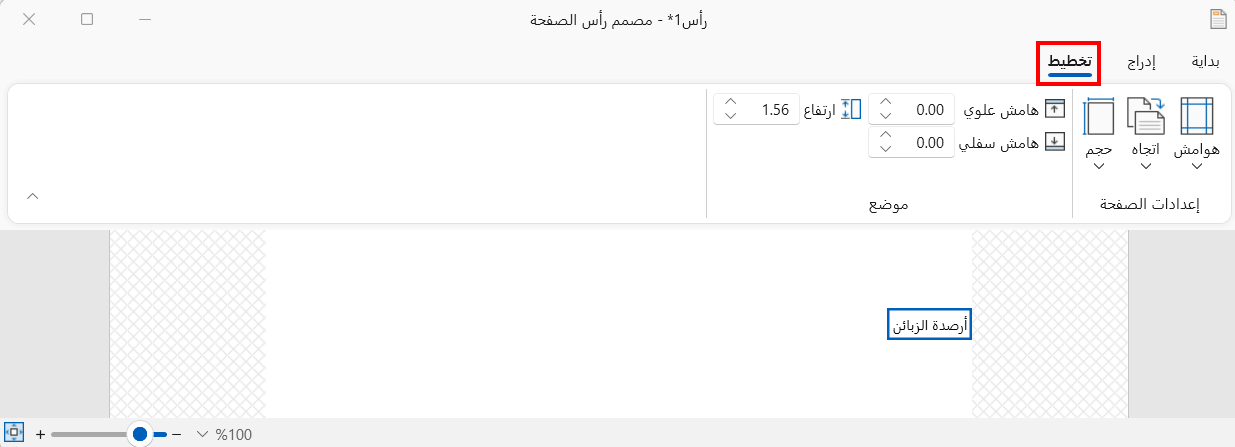
Layout
You can set the settings of the current page and the margins with the following tools of the tab:
Page Setup
The group contains ready-made options for setting the page of the design; you can choose from the following:
-
Margins
-
Orientation
-
Size
Position
You can set the page of the design yourself, to set the margins and the height to measurements other than the common ones; you can set the following:
-
Top margin
-
Bottom margin
-
Height