Manage Headers/Footers
alameen ERP lets you customize the top and bottom margins, the page header and footer, and the report header and footer, so the report is printed according to what you customize with the "Manage Headers/Footers" tool.
Reaching the "Manage Headers/Footers" Tool
You can reach the "Manage Headers/Footers" tool, after requesting the report preview interface, from the File tab.

The program then moves to the following screen:
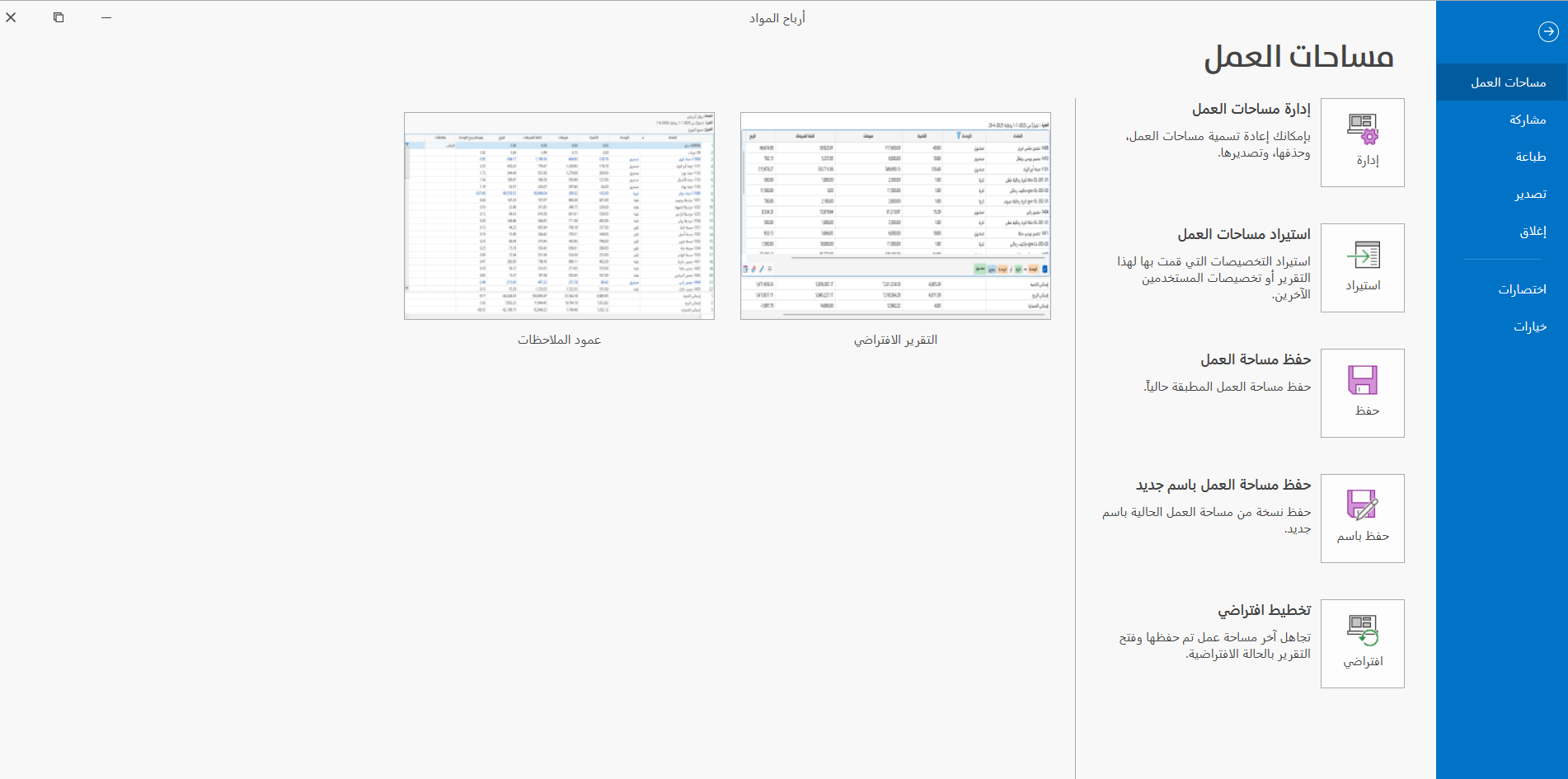
Click "Print" to switch the screen to the printing options and tools.
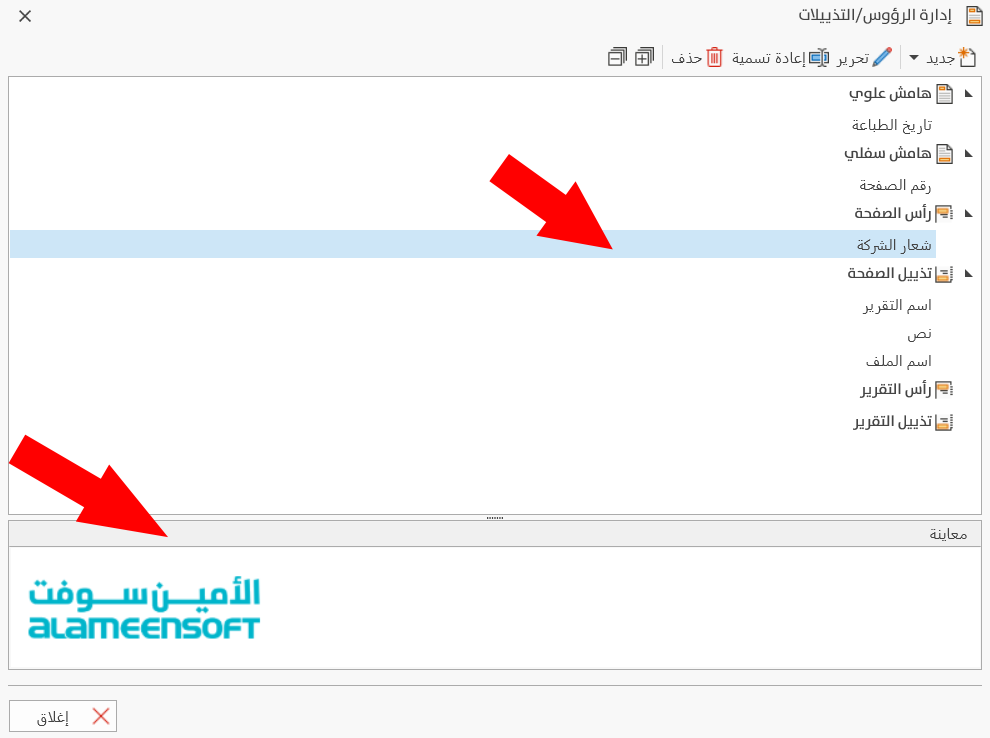
The "Manage Headers/Footers" tool appears in the print toolbar; when you click it, the following window opens:
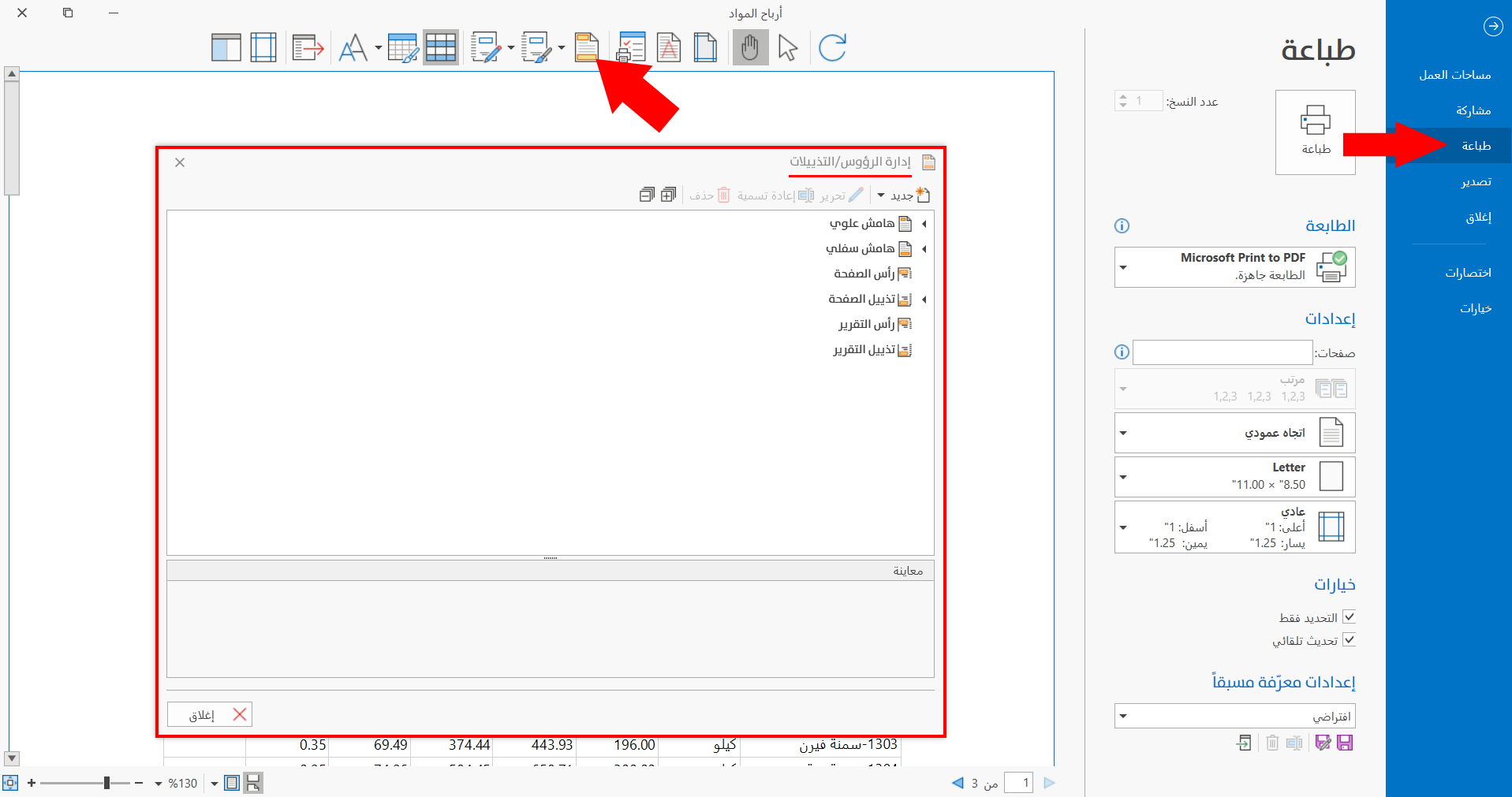
Contents of the "Manage Headers/Footers" Window
The "Manage Headers/Footers" window opens so you can start adding new designs and set the design you want to apply to the headers and footers of the report before printing it. The window contains the following:
Toolbar
The toolbar contains a set of buttons you can use to add, change, or delete header and footer designs.
By default, the following tools are available in the toolbar: New, Expand All, Collapse All. The other tools become available after you click a design in the headers and footers list.
New
The "New" button is used to add a new design: after you click the button, a list of the headers and footers drops down so you can choose the one you need.
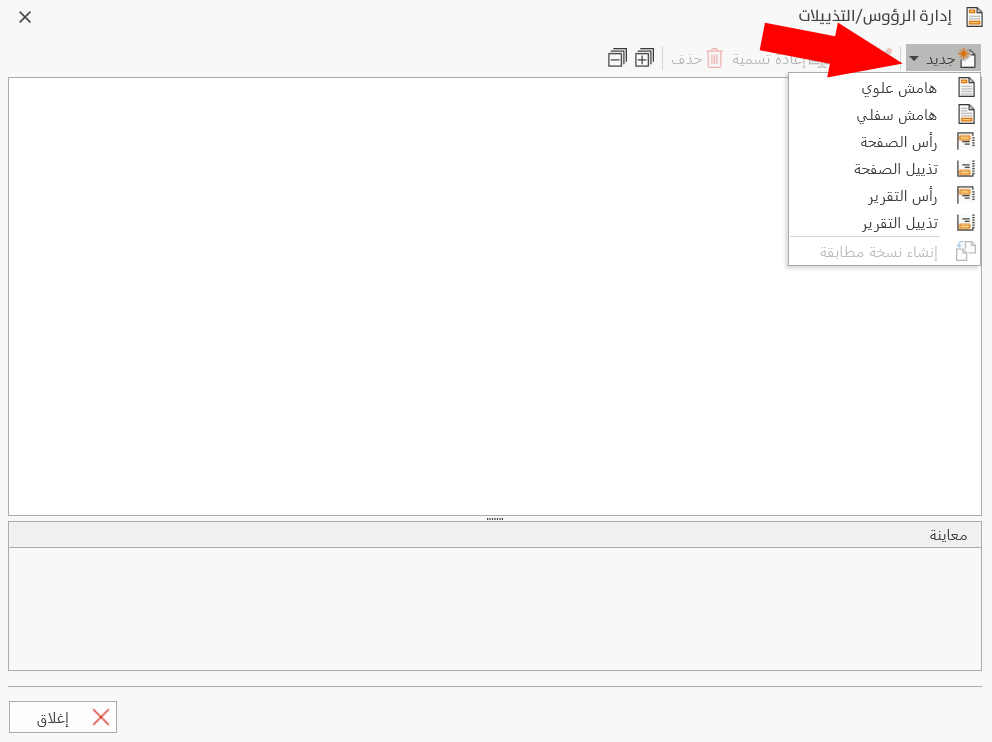
After you click the type of design you need, the design window opens as follows:
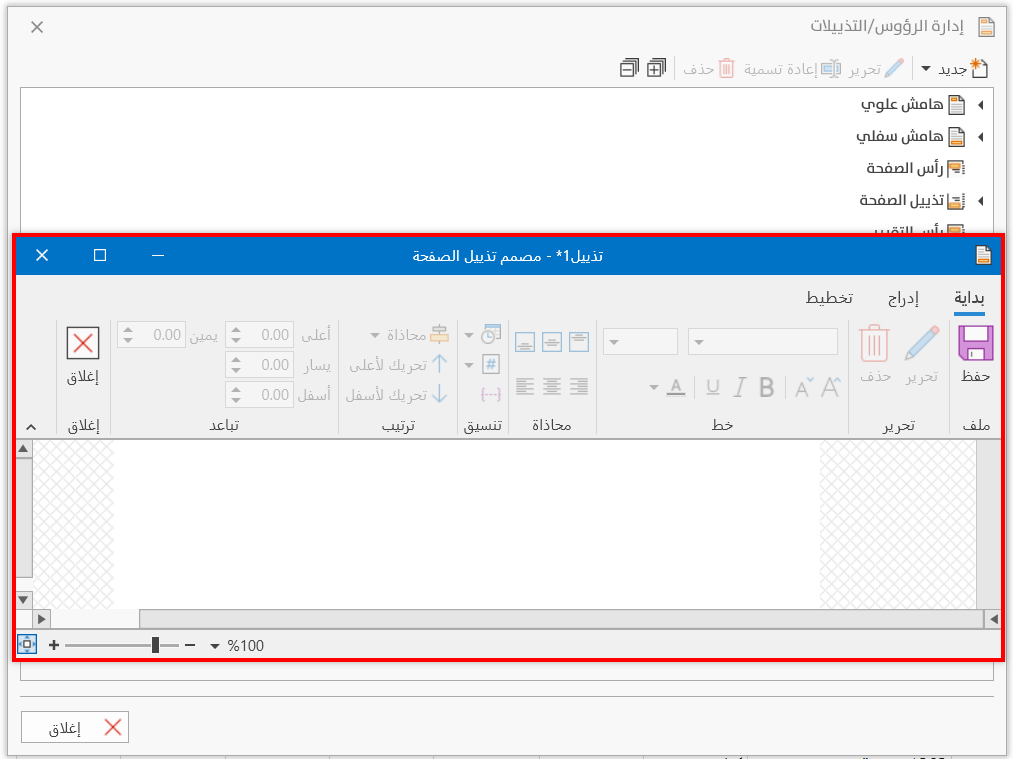
The design window appears according to the type of header or footer you need.
After the design is saved, it is added directly to the headers and footers list, to use later in the report.
You can create an exact copy of an earlier design by clicking the name of the design in the headers and footers list, then clicking the "New" button and choosing "Create an exact copy".
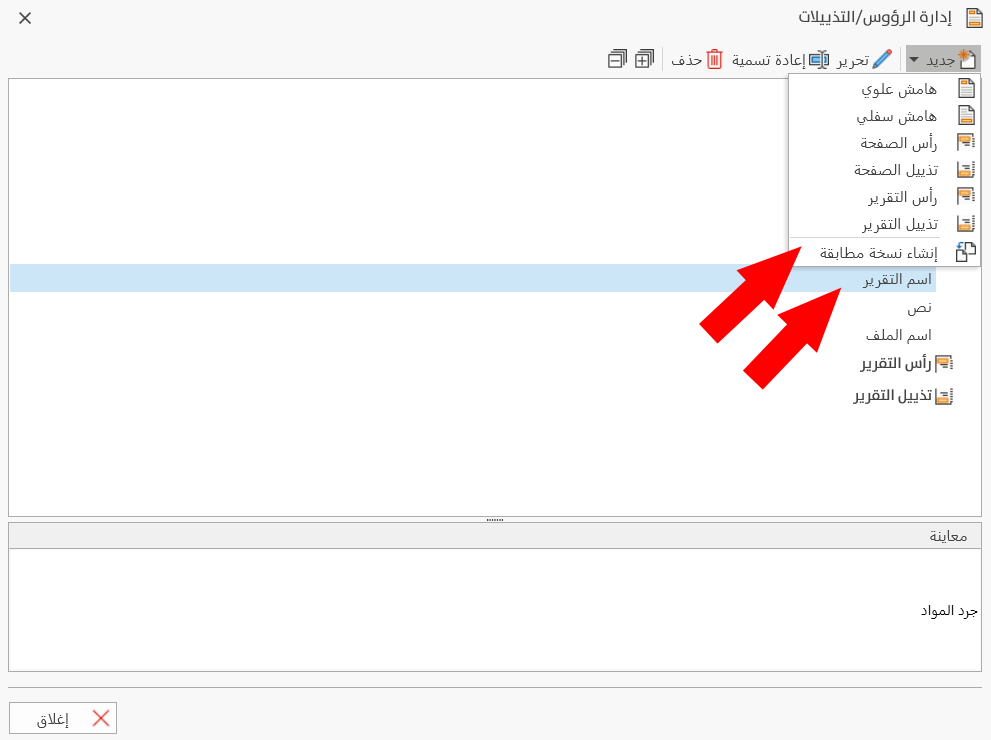
The design window opens directly so you can start changing the design as you need; when you finish, save the design under a new name.
Edit
The "Edit" tool is used to change a design added earlier: after you click the design you need in the headers and footers list, the "Edit" tool becomes available.
After you click the tool button, the design window opens so you can start changing the design.
Rename
You can rename the header and footer designs you added earlier: after clicking the name of the design in the headers and footers list, click the "Rename" tool; the following window opens:
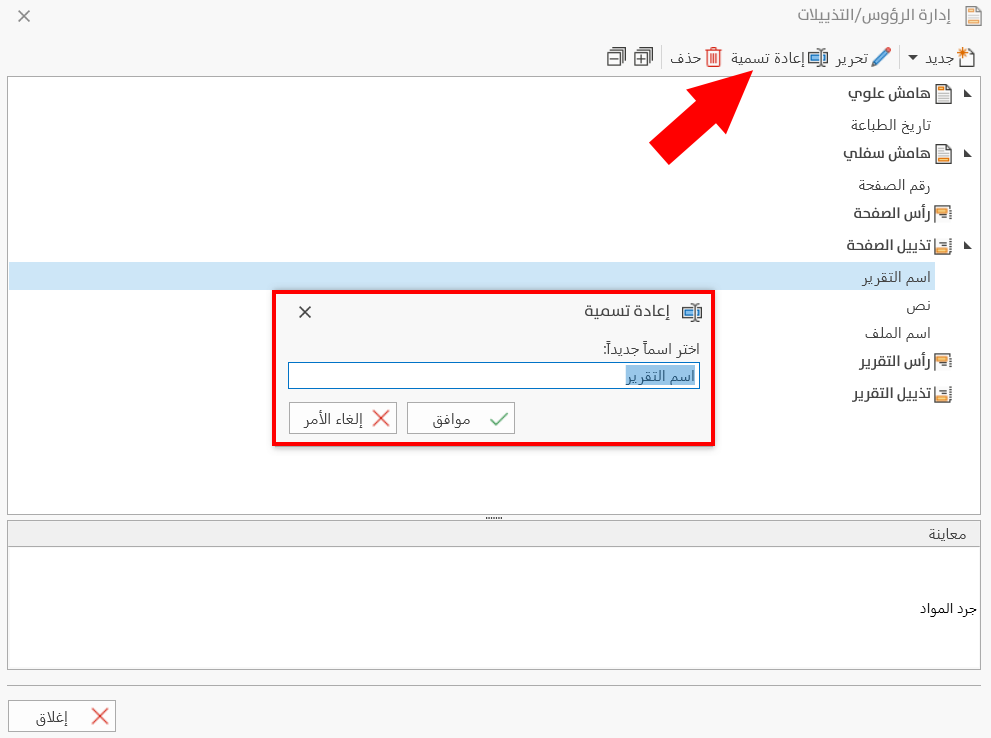
Enter the new name of the design, then click the "Ok" button to save the new name, or click the "Cancel" button to undo the changes and close the window.
Delete
You can delete the header and footer designs you added earlier: after clicking the name of the design in the headers and footers list, click the "Delete" tool; a warning message opens to confirm the deletion.
Click the "Yes" button in the message to delete the design, or the "No" button to undo the deletion.
Expand All
Used to expand the headers and footers list completely, so the names of all the designs appear clearly in the list.
Collapse All
Used to collapse the headers and footers list completely: the names of all the designs disappear and appear again after you click the arrow next to the header or footer you need.
Headers and Footers List
The list shows the page and report headers and footers you added with the "New" button. By default, the list shows the parts of the page and the report for which you can create designs, as in the picture:
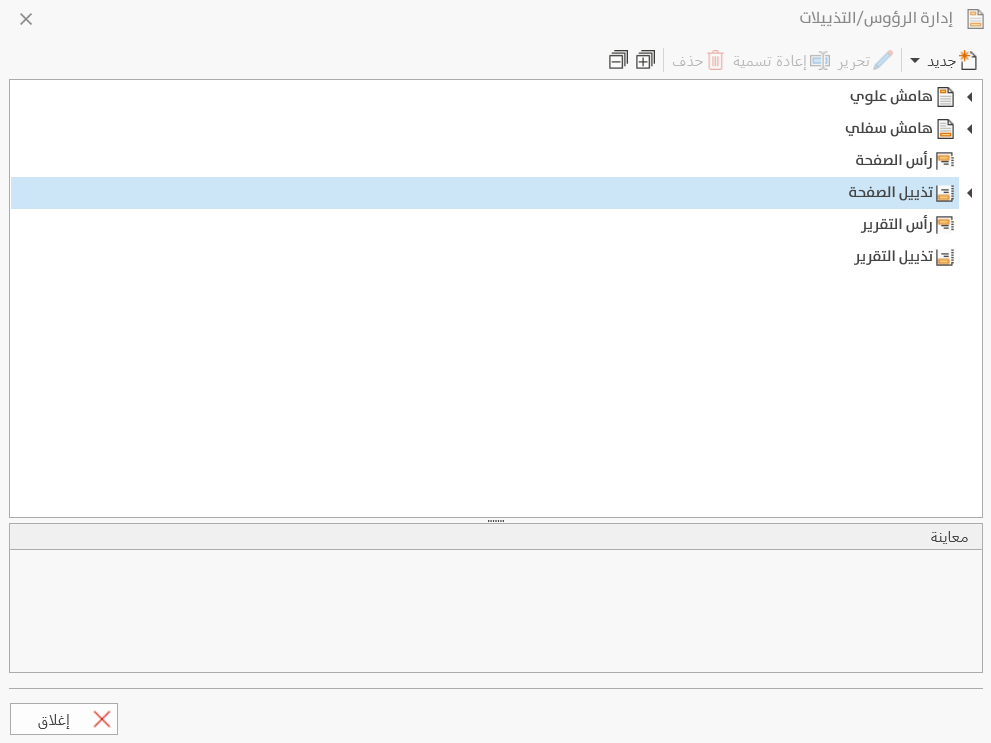
All the designs you add are listed under the part of the page or report they are linked to.
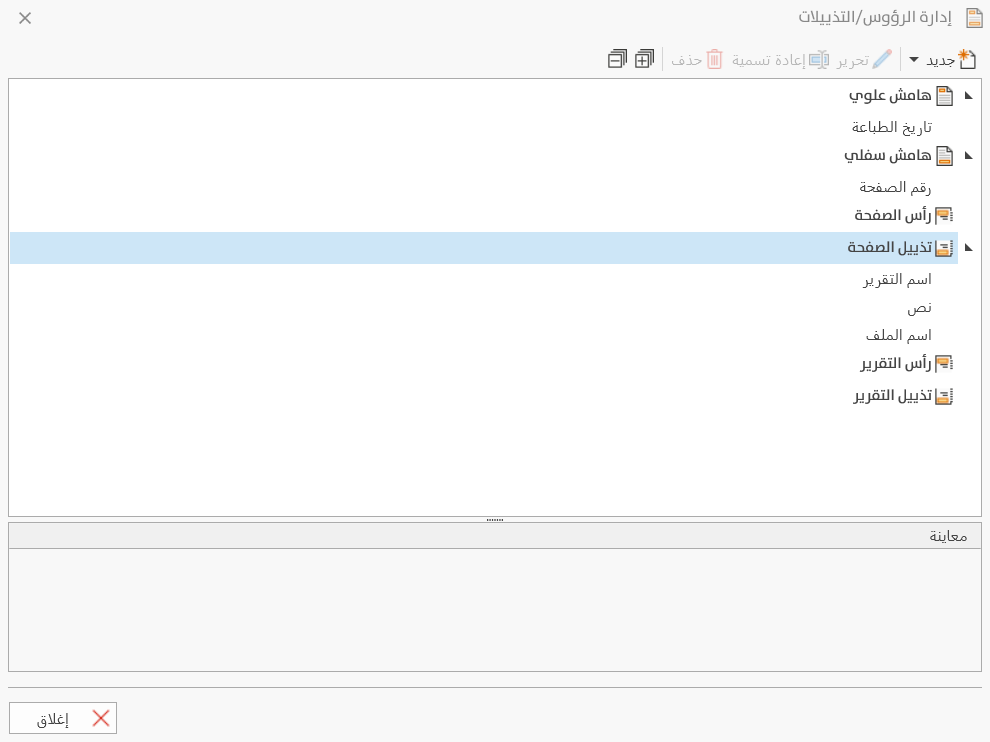
Preview
The "Manage Headers/Footers" window provides an area for viewing the result of the element you stand on in the report. For example, when you stand on a bottom margin design, the design appears in the "Preview" area.
Close Button
Used to close the "Manage Headers/Footers" window and return to the print interface.
Applying Headers and Footers to the Report
After adding headers and footers with the "New" button in the toolbar of the "Manage Headers/Footers" window, you can set them for the current report as follows:
Click the arrow next to the "Manage Headers/Footers" tool; the following list drops down:
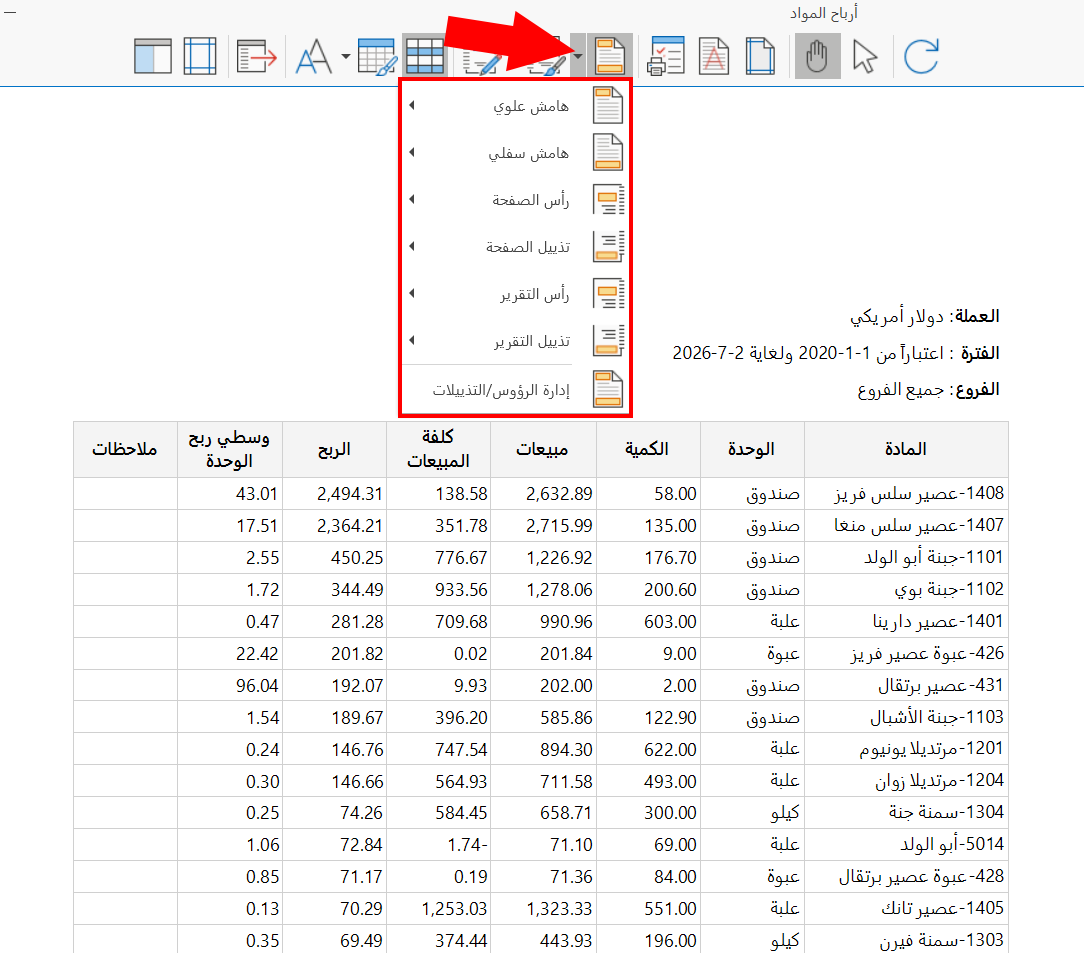
Then click the arrow next to the margin, header, or footer you need: all the designs appear so you can choose from them.
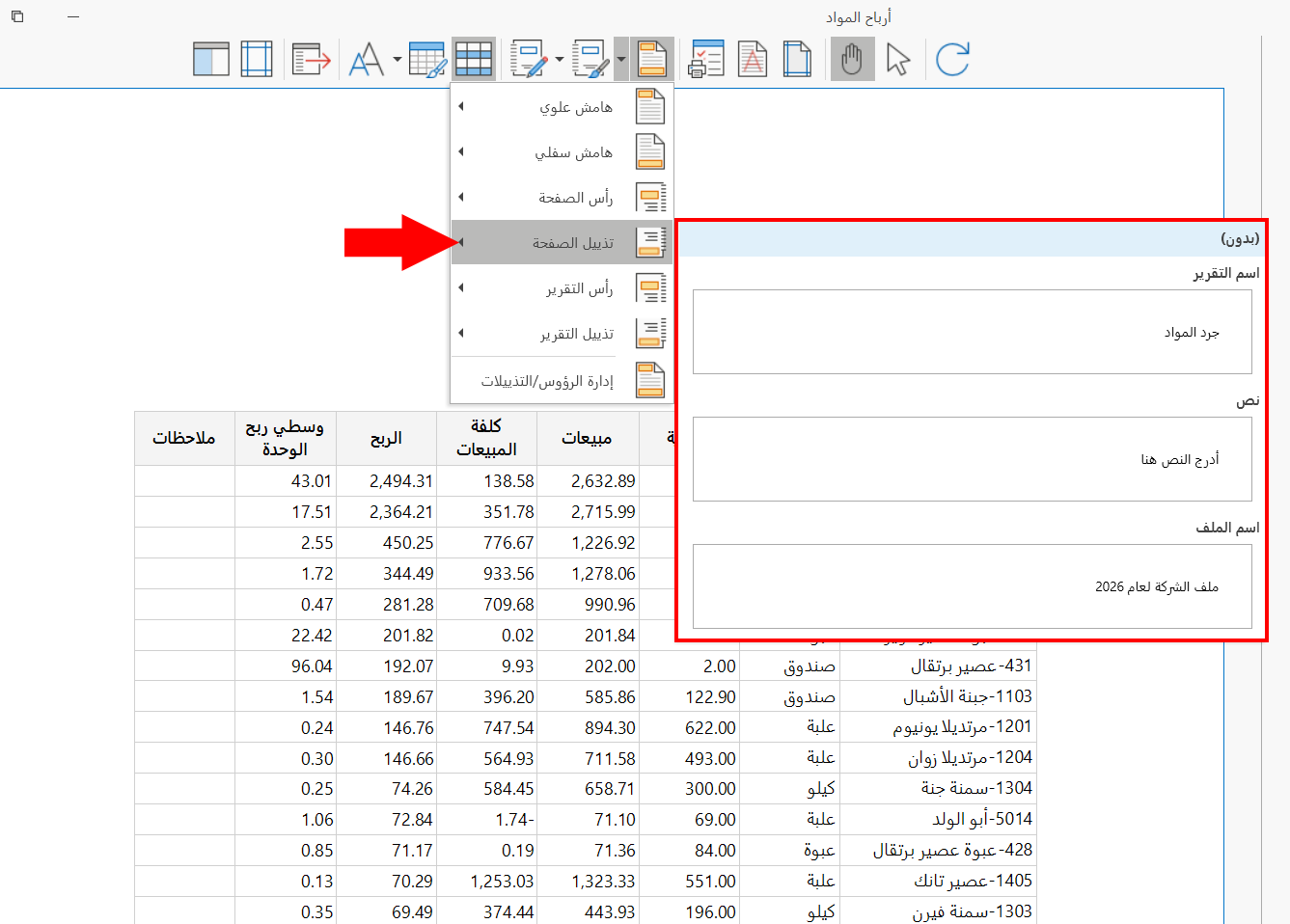
Click the suitable design to apply it directly to the report.
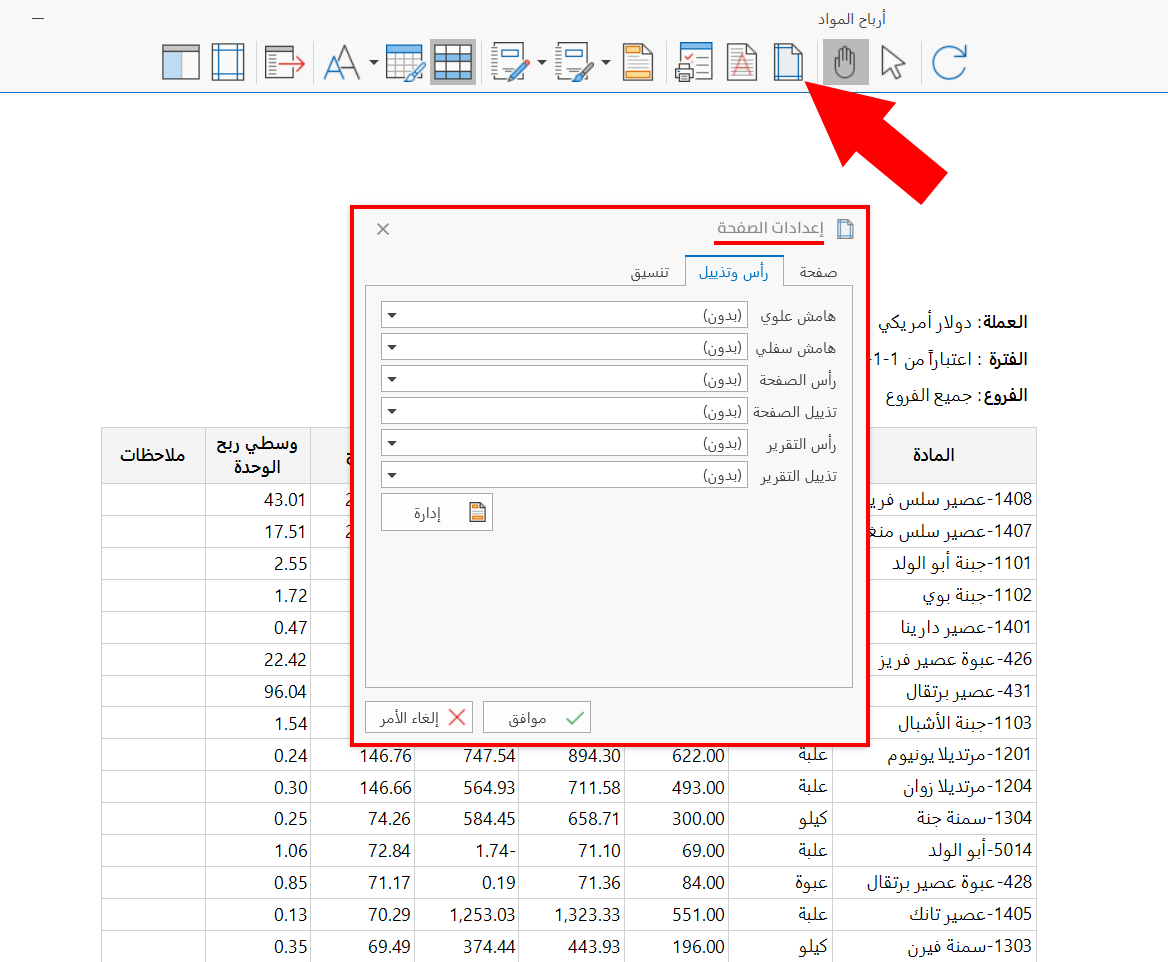
You can also set the headers and footers with the "Page Setup" tool in the toolbar of the print interface.
Terms
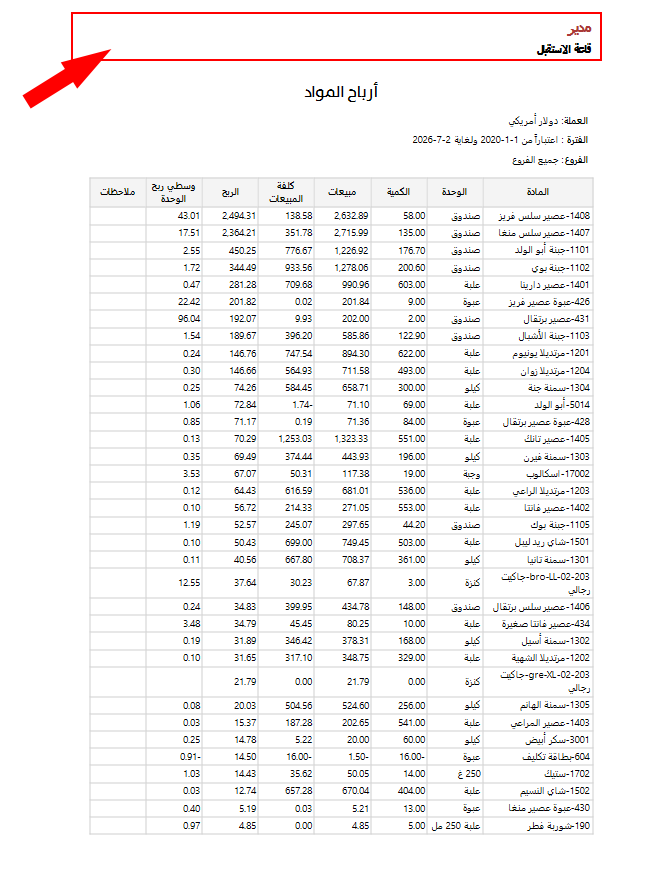
The following is a short definition of the margins, headers, and footers, with illustrations:
Top margin
The empty space between the top edge of the paper and the first line of the document (the report).
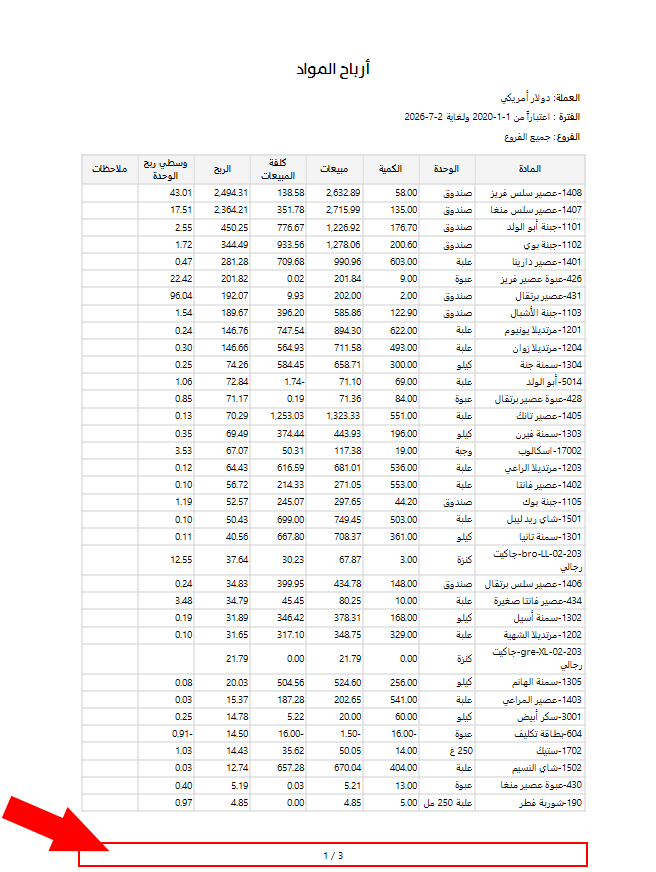
Bottom margin
The empty space between the bottom edge of the paper and the last line of the document (the report).
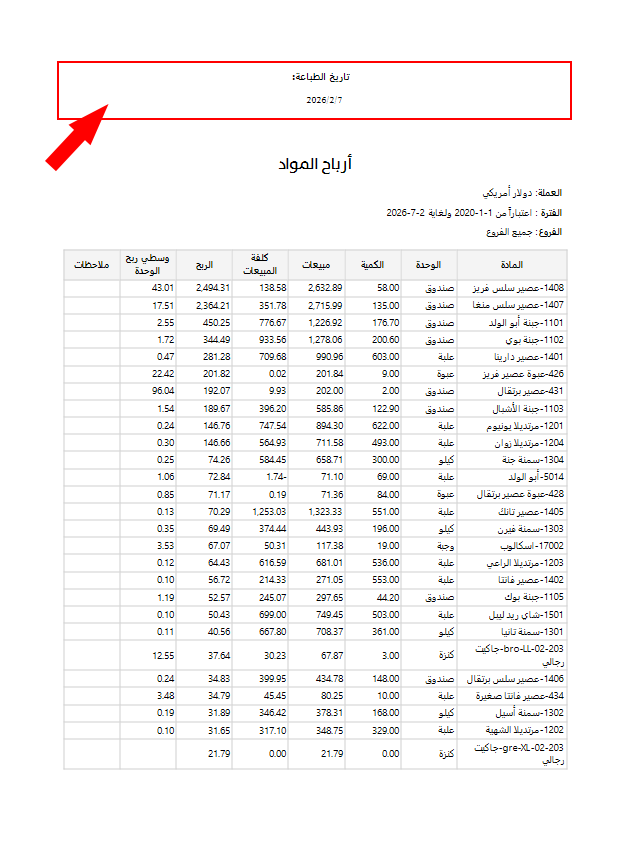
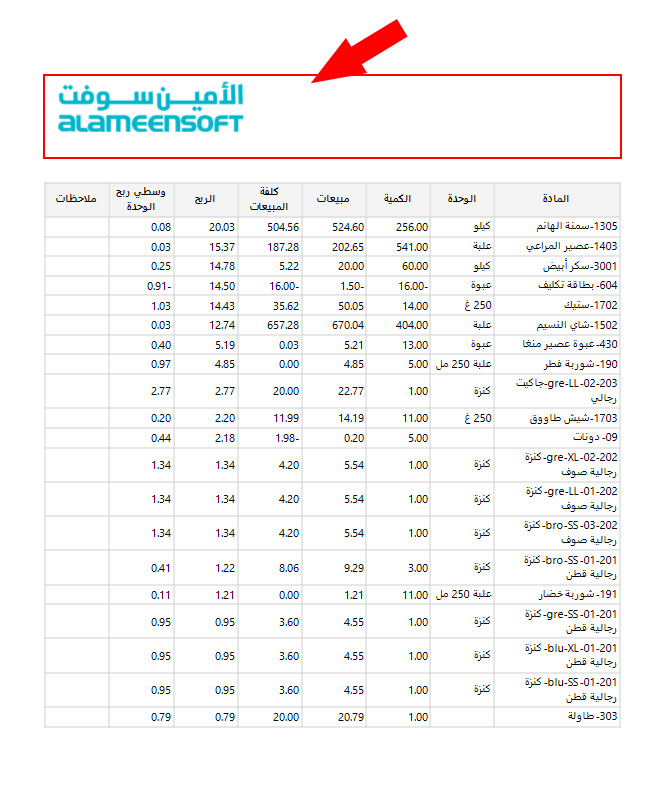
Report Header
A part set at the beginning of the report, on the first page of the report only; it does not need to be repeated on every page of the report.
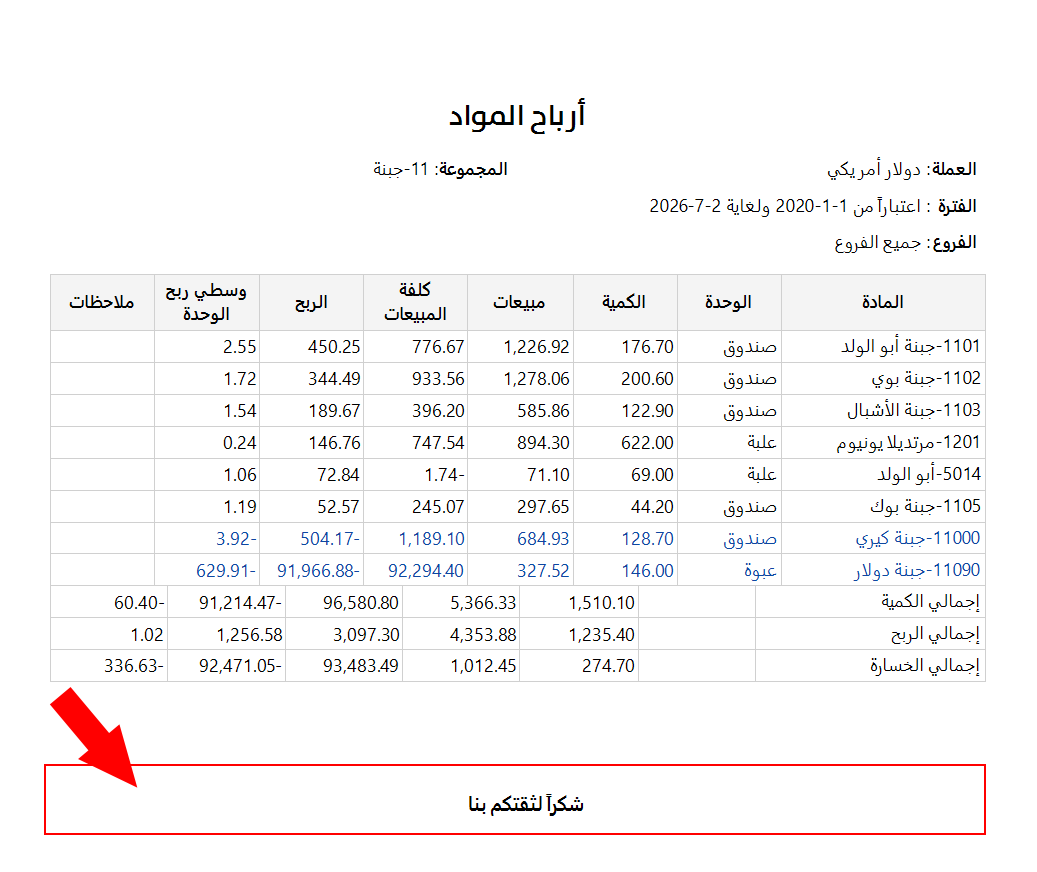
Report Footer
A part at the end of the last page of the report only: each report has one footer.
Page Header
A part linked to the report that appears above the report table from the second page on, and is repeated on every page.
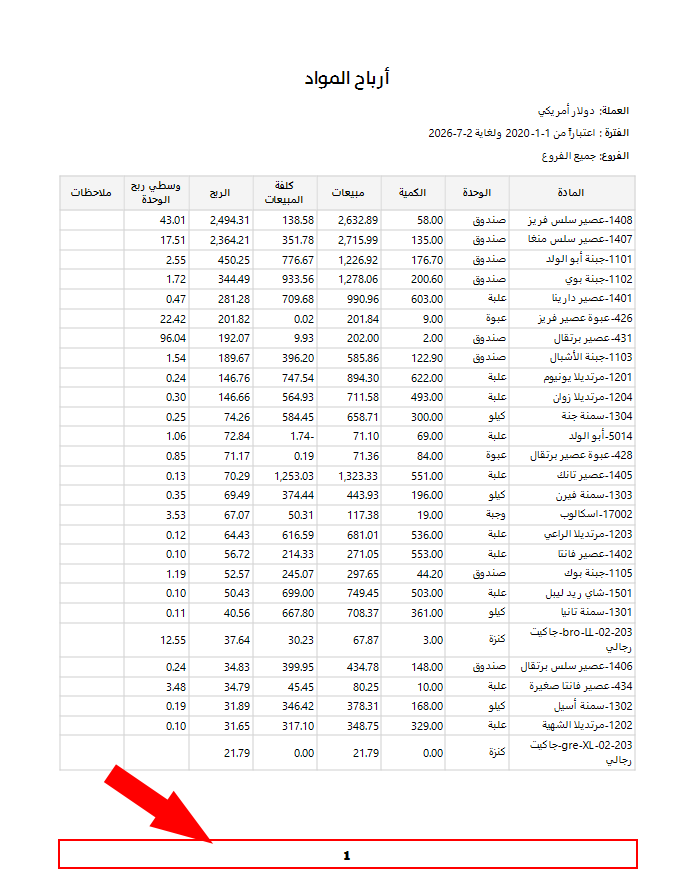
Page Footer
A part linked to the report that is placed at the bottom of the report and repeated on every page of the report, after the table.
You can use the designs of margins, headers, and footers in all the reports of the program: when you create a new design, the program keeps it for repeated use in all the reports.