Format
alameen ERP lets you choose the formatting and colors in which the report is printed, with the "Format" tool, which lets you customize the colors of fonts and backgrounds.
Reaching the "Format" Tool
You can reach the "Format" tool, after requesting the report preview interface, from the File tab.

The program then moves to the following screen:
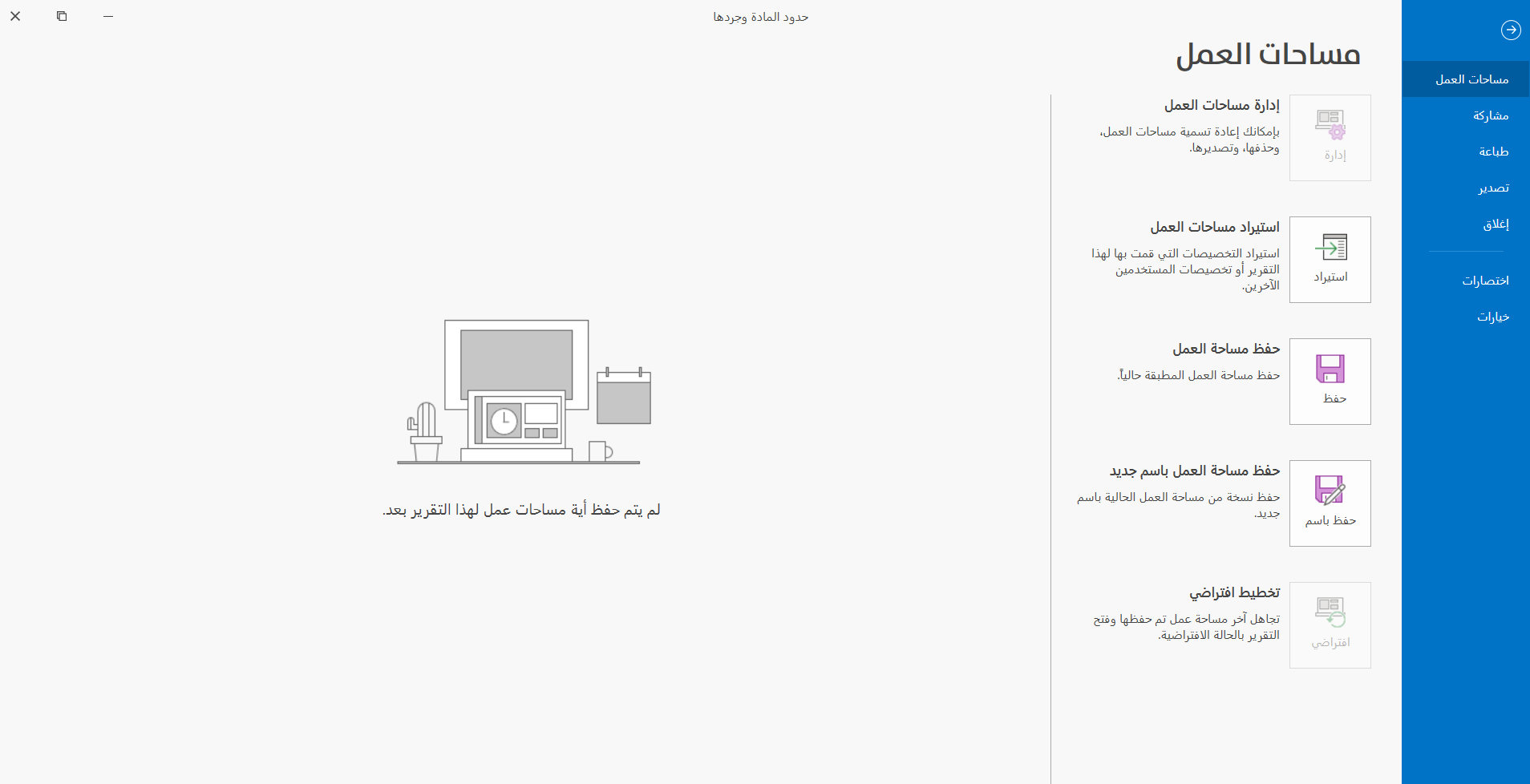
Click "Print" to switch the screen to the printing options and tools.
The "Format" tool appears in the print toolbar; when you click it, the following window opens:
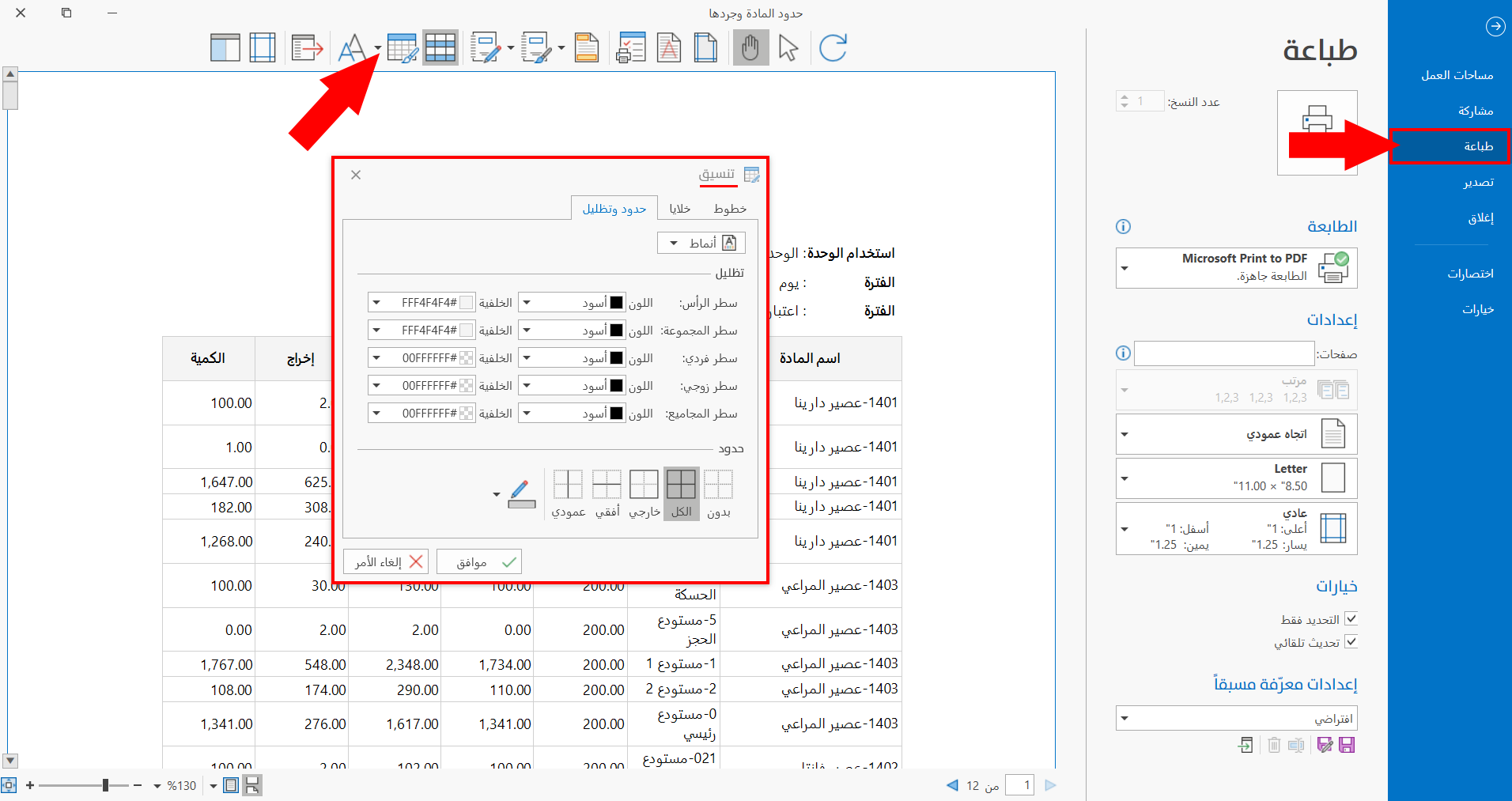
The "Format" window also opens when you click the "Fonts" tool.
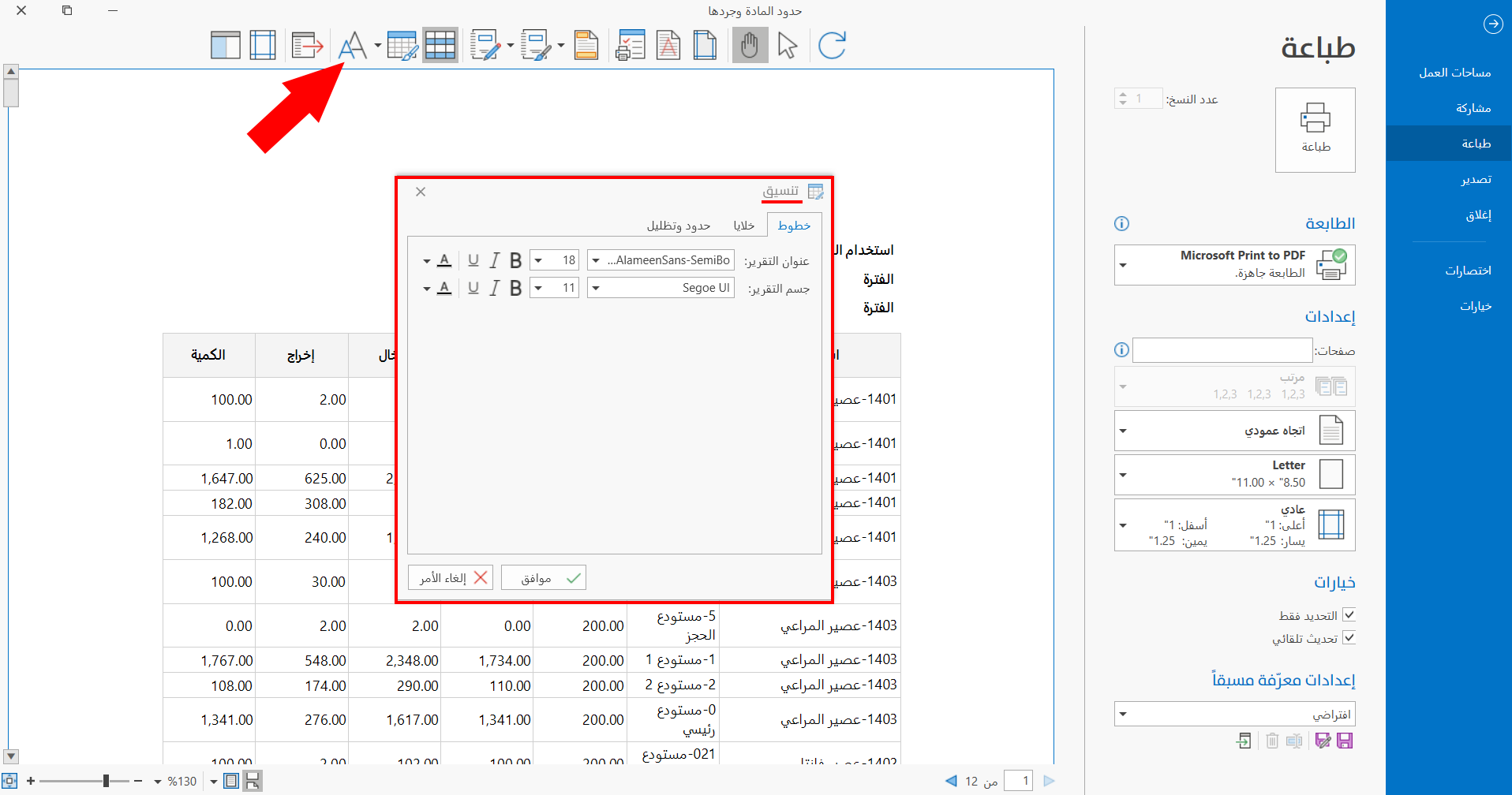
The window of the "Format" tool contains three tabs:
Fonts Tab
The tab is used to choose the type and formatting of the fonts for each of:
-
Report Title
-
Report Body
You can customize the fonts with the following options:
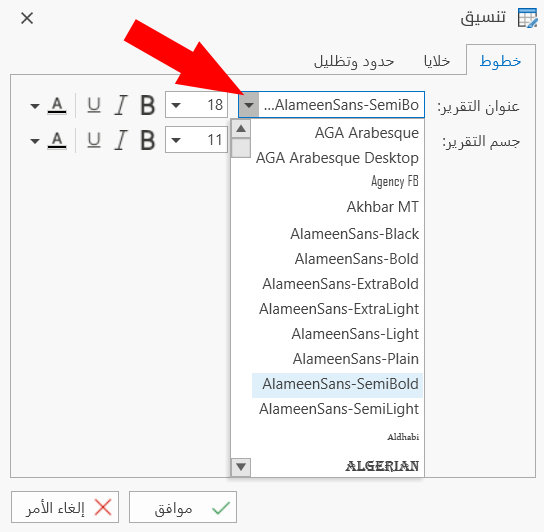
Font
Choose the font you want to apply to the title and body of the report before printing it, from the list that drops down from the field next to each of them.
Font Size
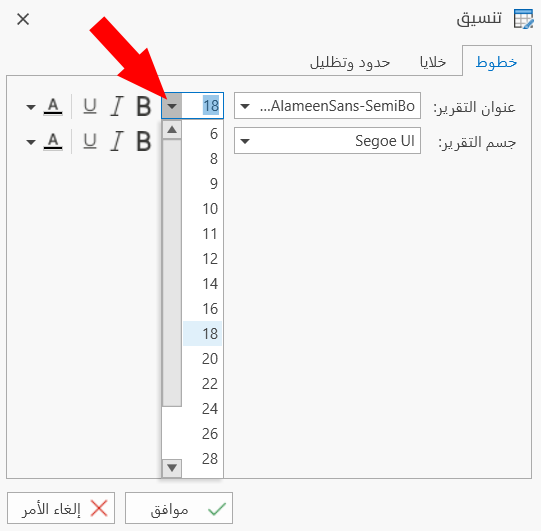
Set the font size you want for the report title, and for the report body: you can enter the number yourself or use the drop-down list of the field.
Bold
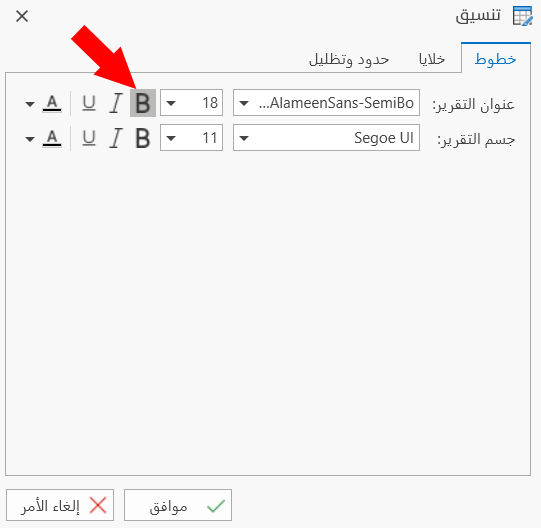
Click the letter B, which stands for Bold; when the letter is surrounded by a gray square, the font will be bold. You can apply it to the title and body of the report separately.
Italic
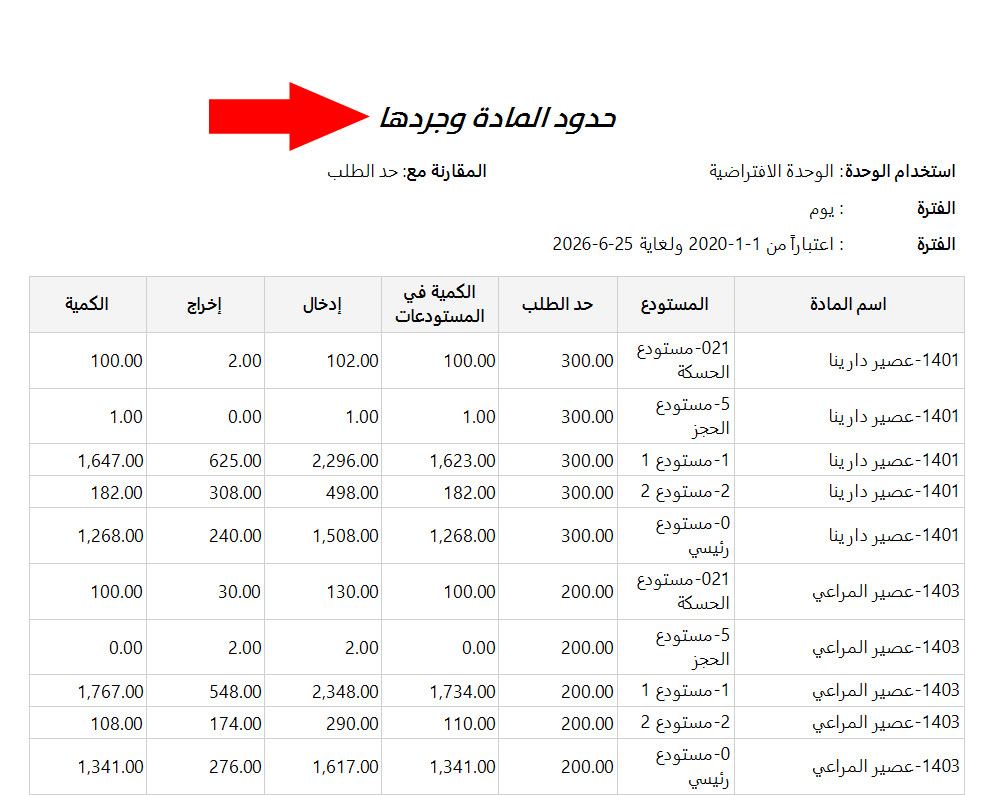
Click the letter I, which stands for Italic; when the letter is surrounded by a gray square, the font will take a different, slanted shape. You can apply it to the title and body of the report separately.
Example: when you apply "Italic" to the report title, it appears as follows:
Underline
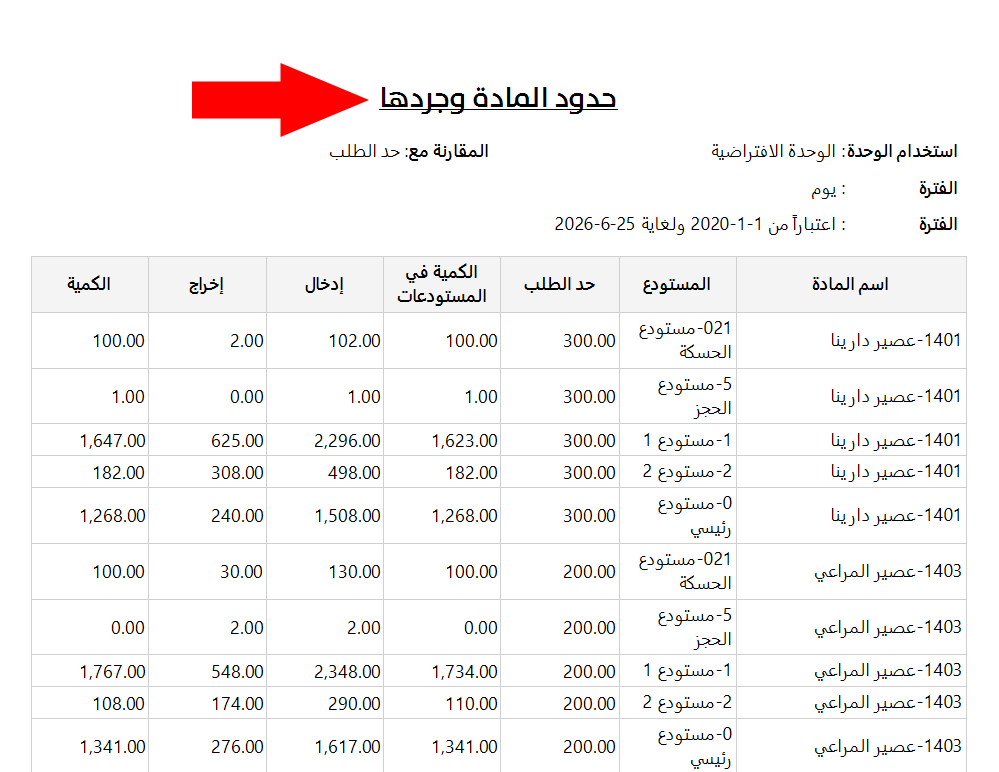
Click the letter U, which stands for Underline; when the letter is surrounded by a gray square, it is enabled and a line is added under the text. You can apply it to the title and body of the report separately.
Example: when you apply "Underline" to the report title, it appears as follows:
Font Color
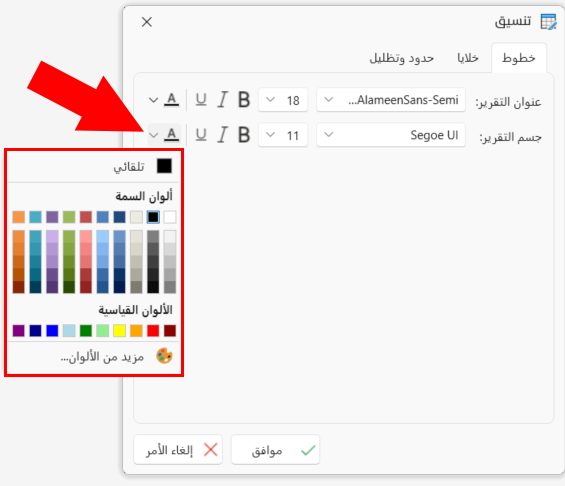
You can mark the report title, and the report body, with a particular color, with the color palette that drops down from the arrow next to the A symbol.
Cells Tab
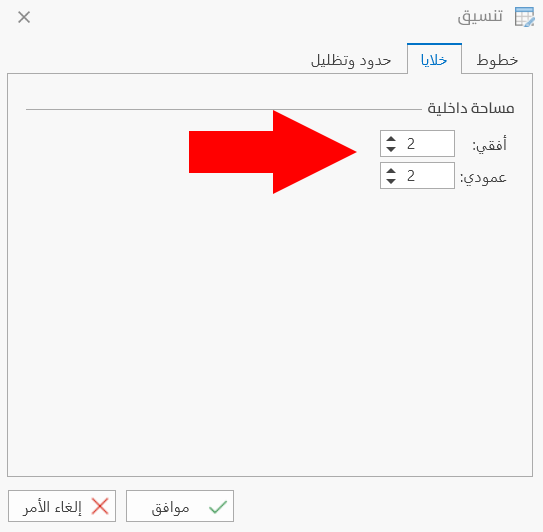
You can set the inner space of the report cells horizontally and vertically with the fields on the tab.
Enter the size you need yourself, or use the navigation arrows in the field to reach the suitable size.
Borders & Shading Tab
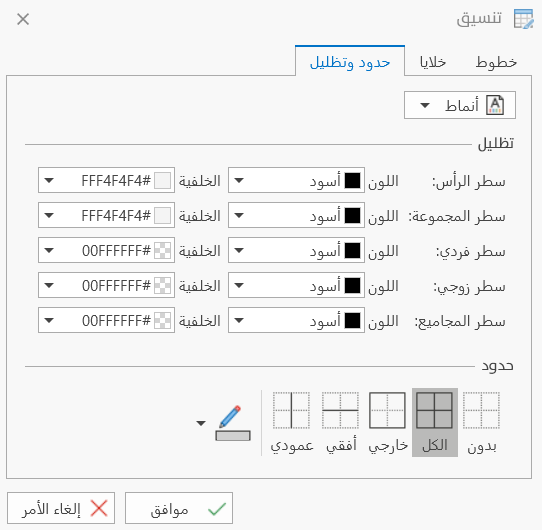
This is the default tab the program shows when you click the "Format" button. It is used to customize the colors of the report, or to choose a ready-made format to apply directly to the report.
Ready-made Formatting Styles
Click the "Styles" button to choose a ready-made format from the drop-down list; the format is applied directly to the report.
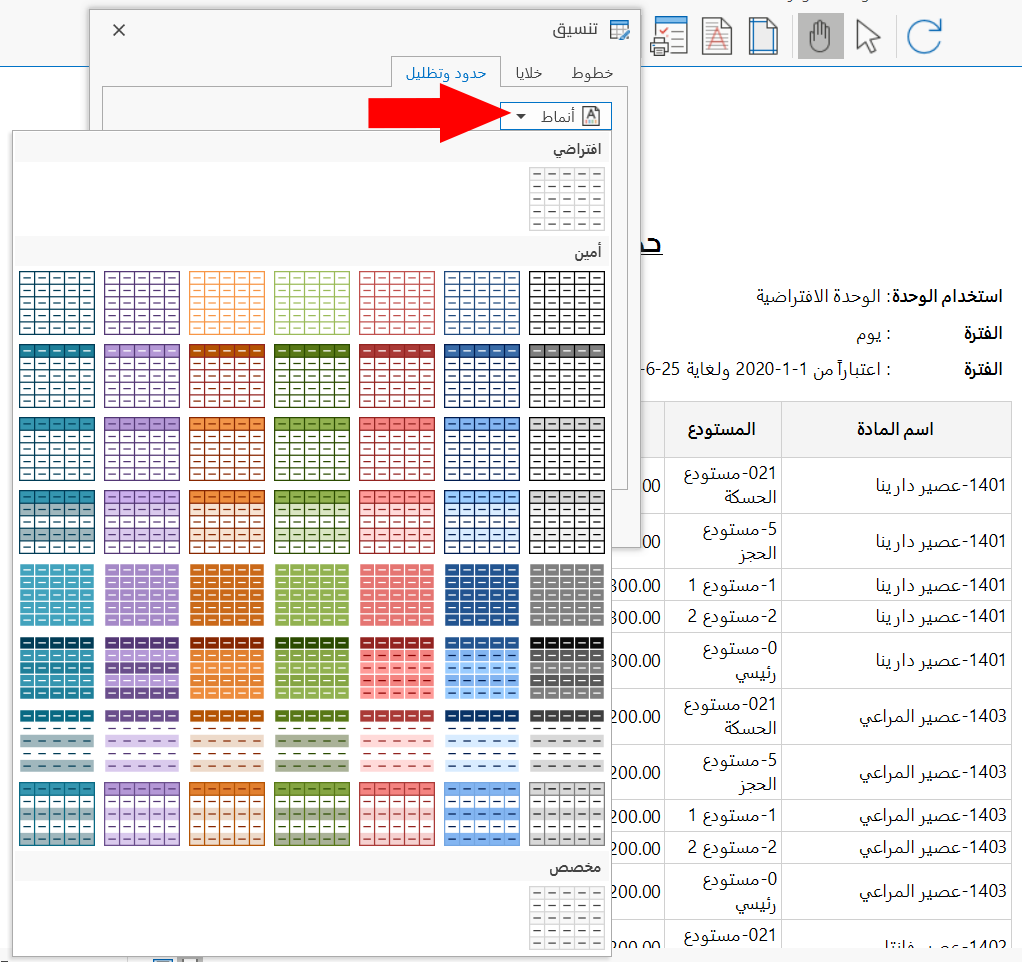
To make sure the colors of the ready-made style are applied correctly, make sure the "Color Mode" option is "Colorful". You can reach "Color Mode" from the "Options" window, which opens from the "Options" tool in the print toolbar.
Shading
The window lets you set a color and background for the text of each of:
-
Header row
-
Group row
-
Odd row
-
Even row
-
Total row
Click the arrow in the color and background fields, and choose the color from the color palette that drops down.
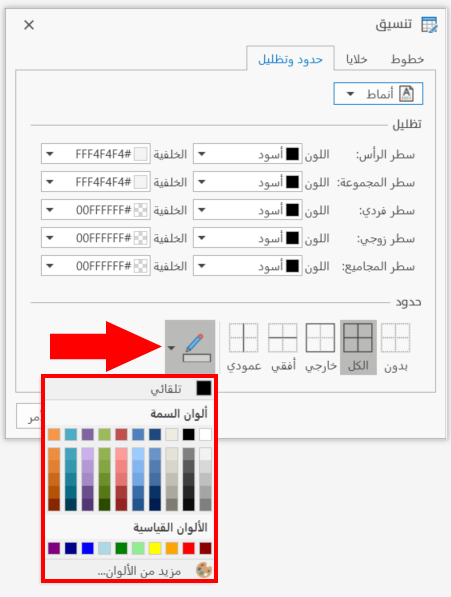
Borders
You can choose the format you want to apply to the borders of the report, by clicking the format you need from the following:
-
None
-
All
-
Outside
-
Horizontal
-
Vertical
You can choose the color of the borders by clicking the pen symbol in the window and choosing the color from the color palette that drops down.
Click the "Ok" button to apply the new format to the report before printing.
Click the "Cancel" button to undo the changes and return to the print interface.