Export Document
alameen ERP version 10 lets you export the print design of the report to the current computer in many available formats: after applying a custom format and making your changes, you can export the design directly to the computer with the "Export" tool among the report print tools.
Reaching the "Export" Tool
You can reach the "Export" tool, after requesting the report preview interface, from the File tab.

The program then moves to the following screen:
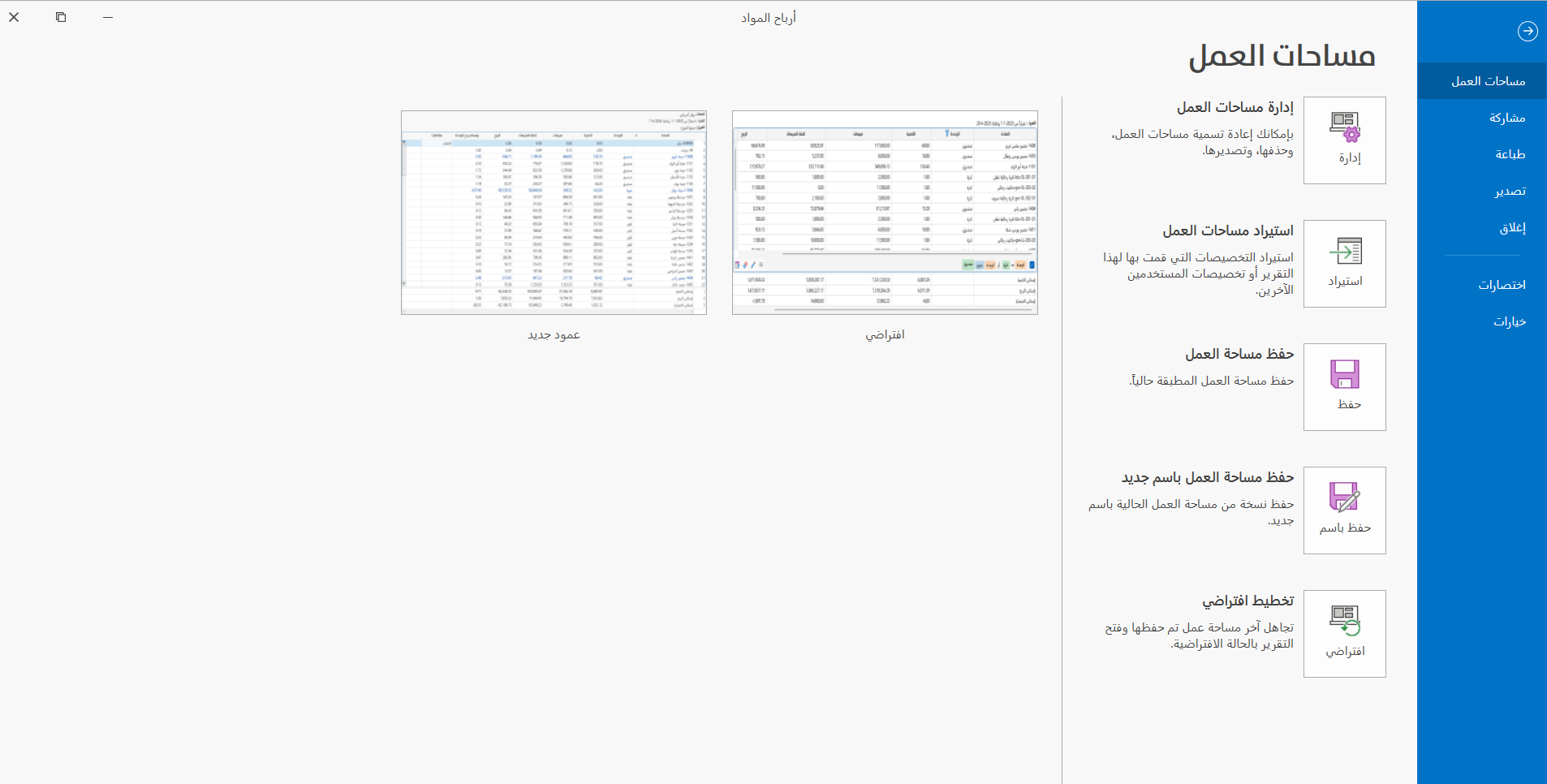
Click "Print" to switch the screen to the printing options and tools.
The "Format" tool appears in the print toolbar; when you click it, the following window opens:
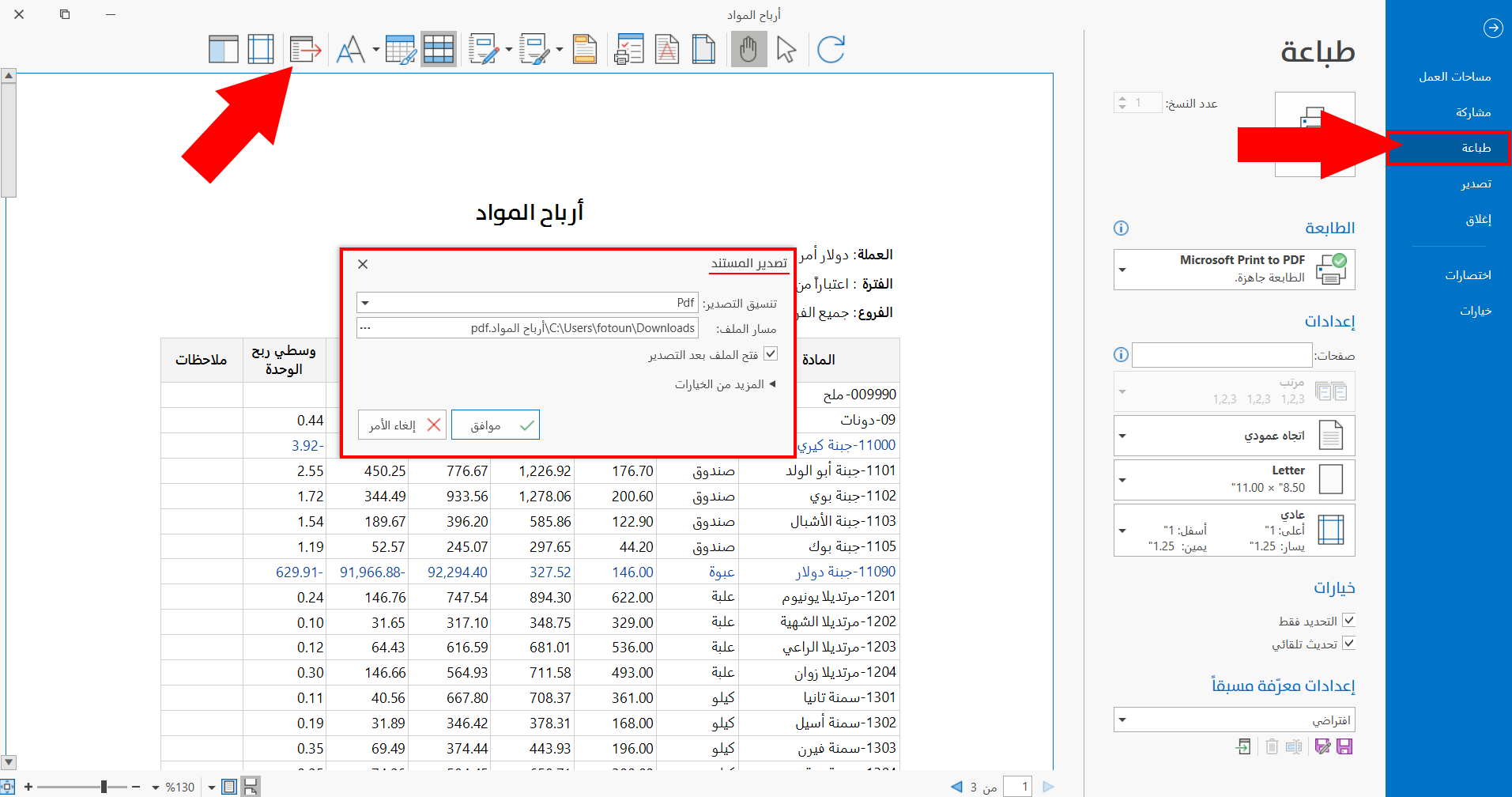
Export format
The "Export" tool provides a list of the file formats you can export the report to. The list drops down from the arrow in the field and contains the following formats:
-
Pdf
-
Htm
-
Mht
-
Rtf
-
Docx
-
Xls
-
Xslx
-
Csv
-
Txt
-
Image
Choose the suitable format by clicking it; it is filled in directly in the "Export format" field.
File path
The path of the file (the report) appears in the field by default: it is the place on the computer to which the file will be exported. You can change the file path by clicking the three dots in the field and setting the path in the window that opens.
Open file after exporting
By default, the program opens the file directly after the export succeeds. You can disable the option to stop the program from opening the file on the computer, and open it later from the path set in the "File path" field.
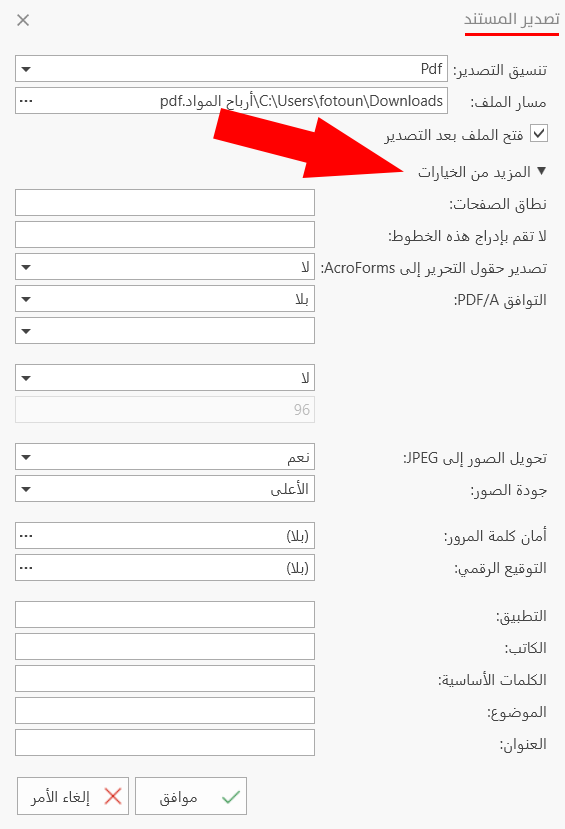
More Options
The "Export Document" window provides many additional options that help you control exporting the file to the computer. You can set the options after clicking the arrow next to "More Options":
Page range
Set the range of report pages you want to export: enter the number of the page at which the range starts and the number of the page at which it ends.
For example, if the report has "20" pages and you want to export the first "10" pages, set the range as follows: 1-10.
Don't embed these fonts
Enter the font in which you want to show the data of the file (the report). For example, when you enter the font "Segoe UI" in the field and then export a report whose title or body uses the font "Segoe UI", the data formatted with this font does not appear.
To avoid problems showing the data, check the font used in the report title and the report body in the "Format" window.
Export editing fields to AcroForms
You can turn the fillable fields (text boxes, check boxes, and drop-down lists) in the document into interactive fields inside the PDF file, by choosing "Yes" from the list that drops down from the arrow in the field.
PDF/A compatibility
You can export the file as a PDF version prepared for archiving, which keeps the document stable and readable in the future exactly as it is: it appears with the same fonts and formatting after 10 years, even if systems or programs change.
Choose the suitable format from the list that drops down from the arrow in the field, or choose "None" to ignore PDF/A compatibility.
Convert images to JPEG
The Export window lets you change the format of the images in the report (material pictures, client pictures) to JPEG.
Images quality
You can choose the quality of the images of the report you want to export from the list that drops down from the arrow in the field; by default the field uses the "Highest" image quality. Choose the quality level that suits the way you work.
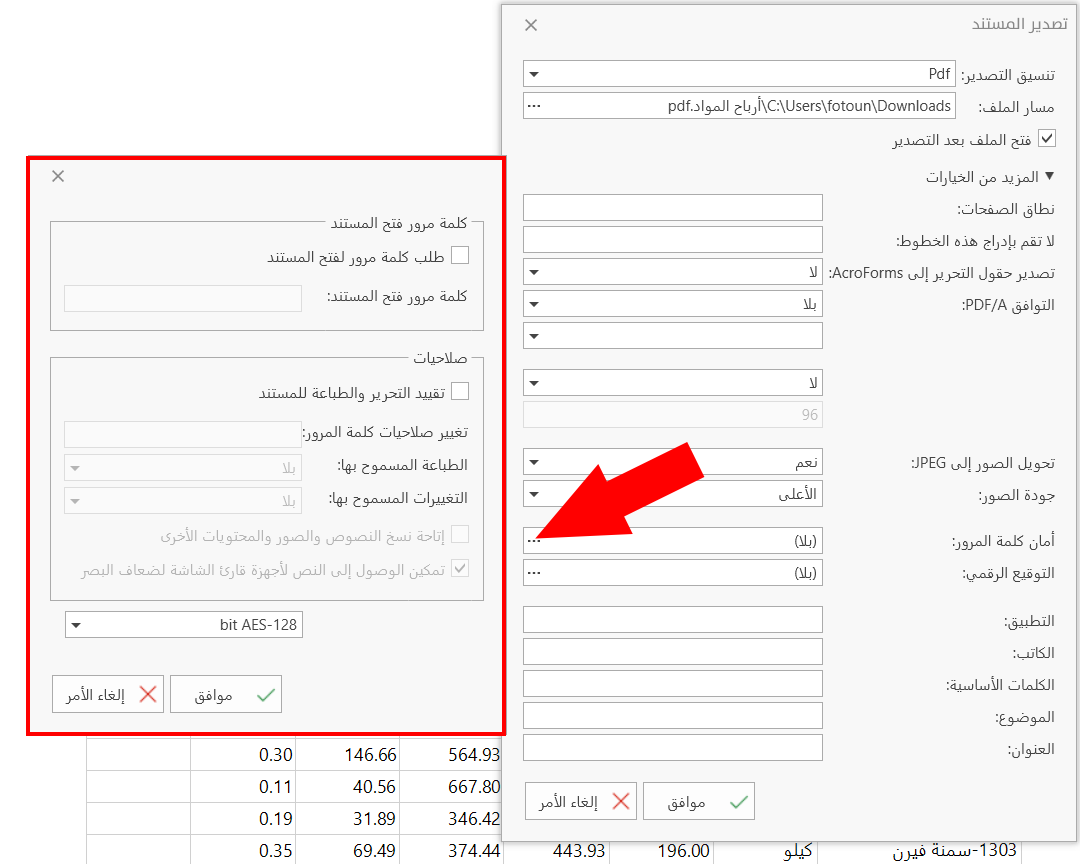
Password security
You can set a password for the report you want to export; by default, the password security is "None".
Click the dots in the field: a window opens for setting a password for opening the document, with a list of permission options.
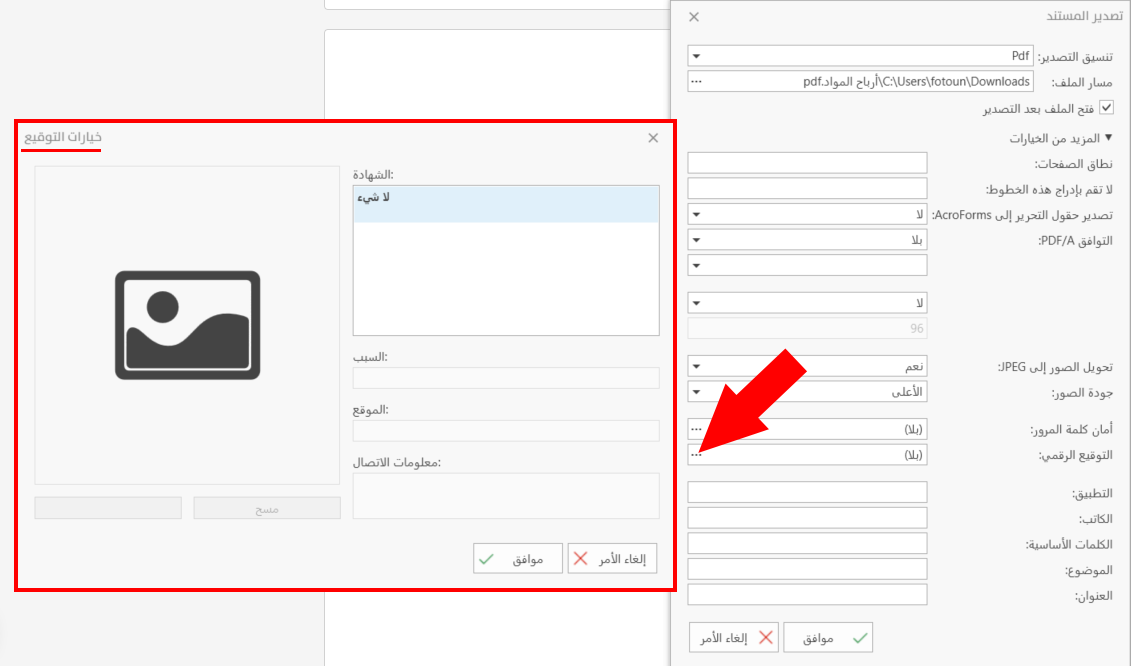
Digital signature
You can set a digital signature for the report you want to export; by default, the digital signature is "None".
Click the dots in the field: the "Signature Options" window opens, where you add the data needed in the fields.
The "Export" window provides more fields for entering additional data about the print design, as follows:
-
Application
-
Author
-
Keywords
-
Subject
-
Title
Ok Button
Click the "Ok" button after filling in the fields of the window, to start exporting the print design of the report.
Cancel Button
Use the "Cancel" button to undo exporting the print design of the report and close the window.