Edit Report Header
alameen ERP lets you control the report header before printing, with the "Edit Report Header" tool among the print tools.
Reaching the "Edit Report Header" Tool
You can reach the "Edit Report Header" tool, after requesting the report preview interface, from the File tab.

The program then moves to the following screen:
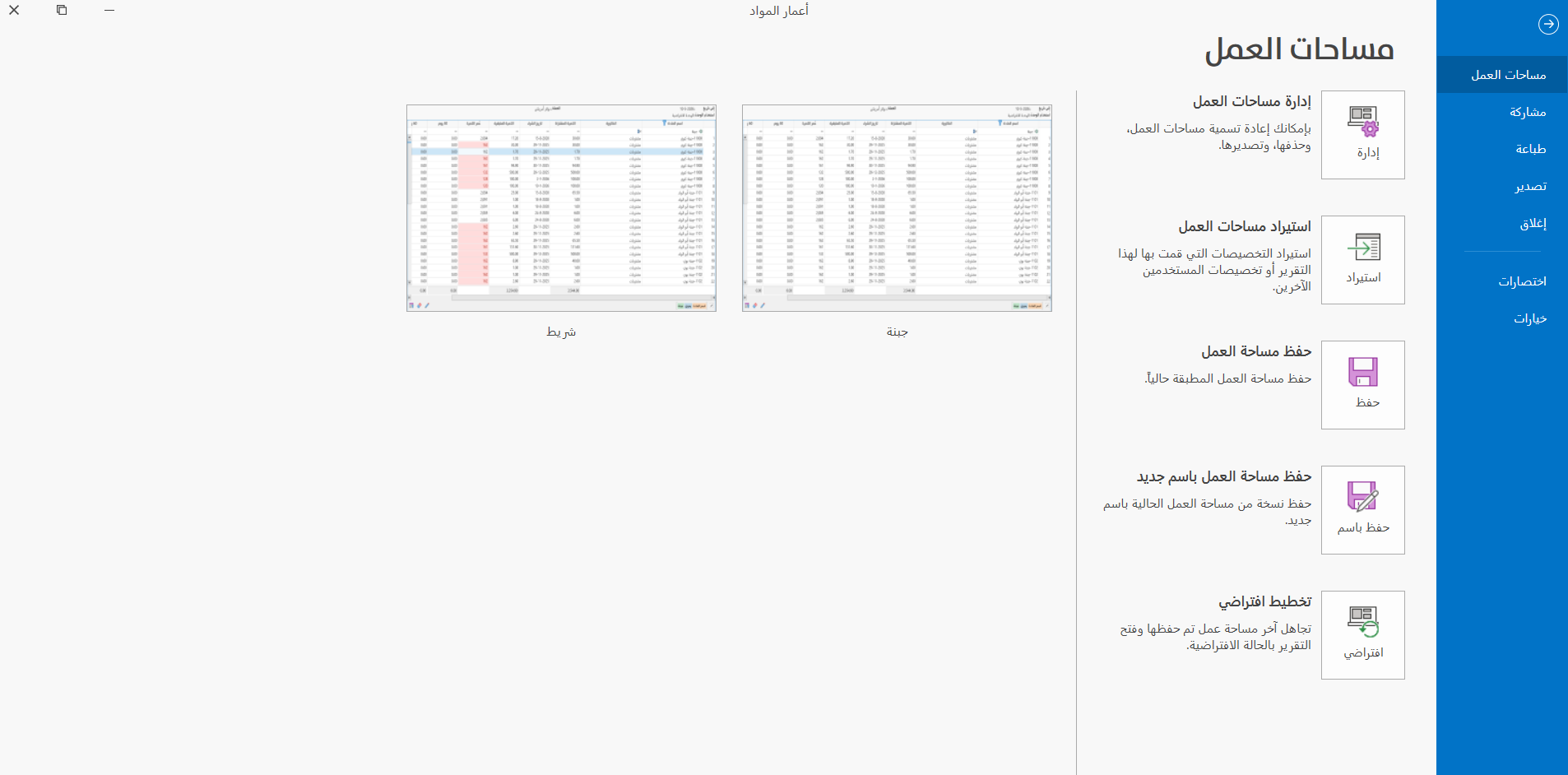
Click "Print" to switch the screen to the printing options and tools.
The "Edit Report Header" tool appears in the print toolbar; when you click it, the following window opens:
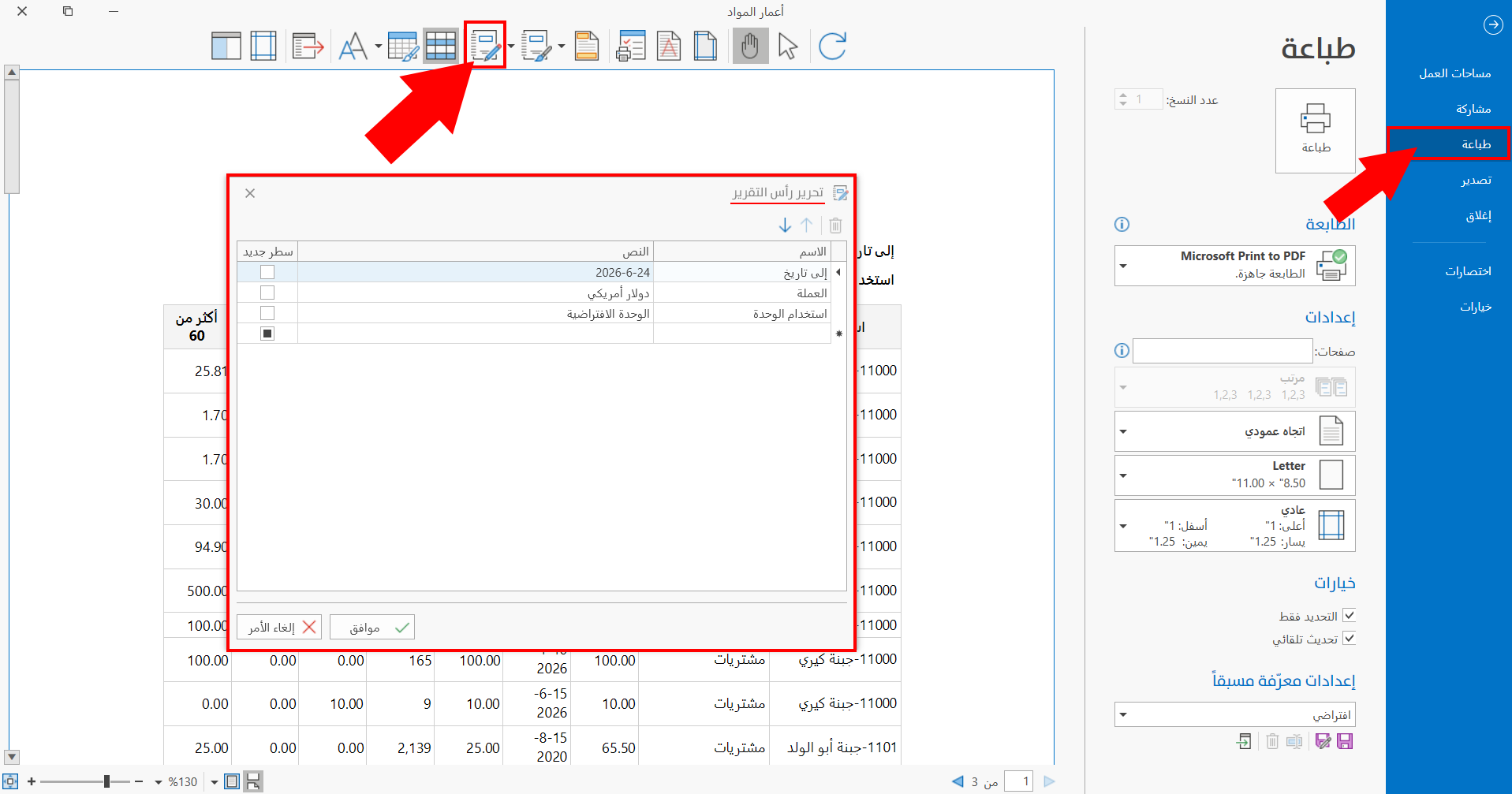
The window contains the table of the fields that appear in the report header, and tools for controlling how the fields appear in the report header.
Adding a New Field to the Report Header
You can add a new field to the header by clicking the "*" symbol that appears in the last row of the table.
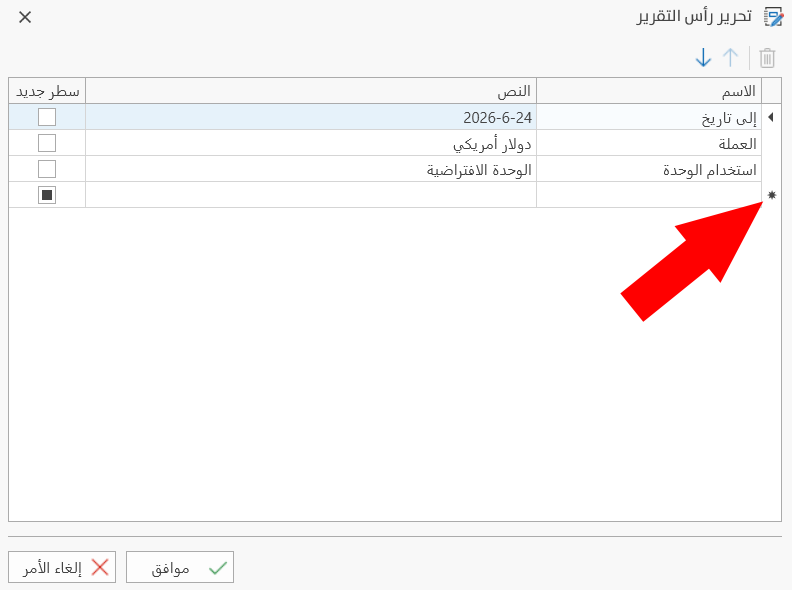
After clicking the "*" symbol, you can start editing the new field with the following steps:
-
Enter the name of the field in the "Name" column.
-
Enter the data you need in the "Text" column.
-
Click an empty place in the table to save the new field.
You can change the "Name" and "Text" of the new field by clicking it: the "Edit" symbol appears as a pen, which means you can change the data.
Ordering the Fields in the Report Header
The "Edit Report Header" window lets you reorder the fields in the report header with the arrows in the toolbar.
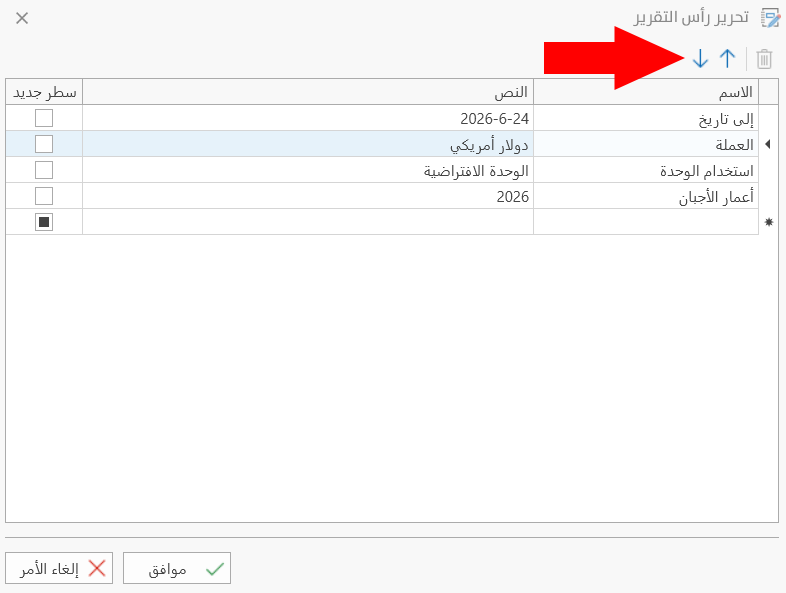
Click the row of the field you need, then use the up arrow to move the field up the header, or the down arrow to move the field down the header.
Putting a Field on Its Own Line
You can give one of the fields in the table its own line in the report header, whether it is a default field or one you added yourself.
Click the check box in the "New Line" column next to the name of the field you need, so a √ mark appears in the box, then click the "Ok" button in the window.
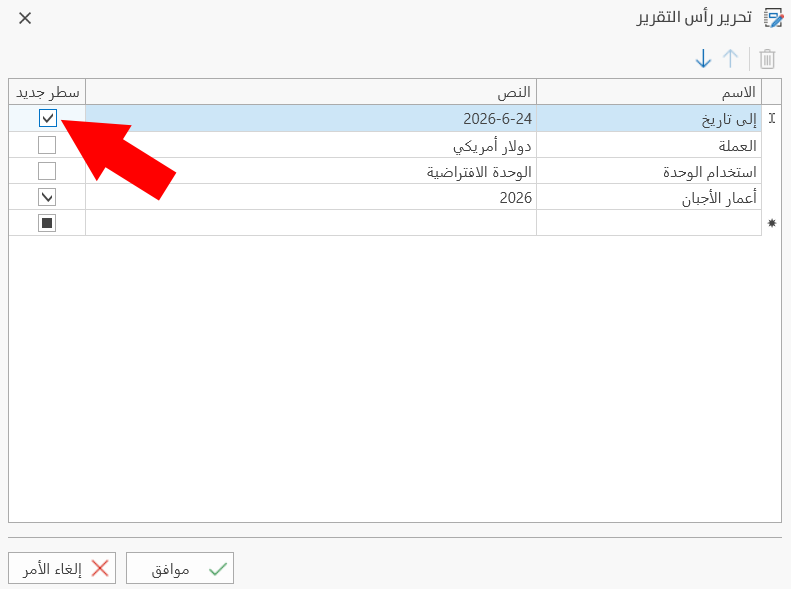
The fields for which you did not select the "New Line" box appear at the top of the report header automatically.
Deleting Fields from the Report Header
You can delete only the fields added by hand: after you click the name of the field you need, the "Delete" symbol becomes available in the toolbar of the "Edit Report Header" window.
To delete a field from the report header, follow these steps:
-
Click the row of the field you want to delete.
-
Click the "Delete" symbol in the toolbar.
-
Click the "Ok" button in the "Edit Report Header" window.
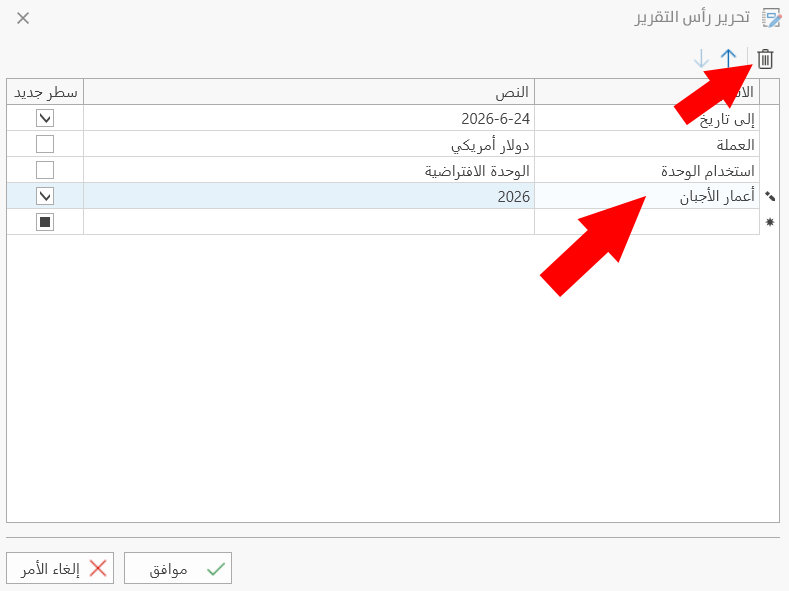
You cannot change or delete the default fields of the report header, but you can reorder them or put them on their own (new) line.