Print Tools
alameen ERP provides a list of ready-made designs with which you can print reports, and a set of tools you can use to design a custom style for printing the report.
Reaching the Report Print Tools
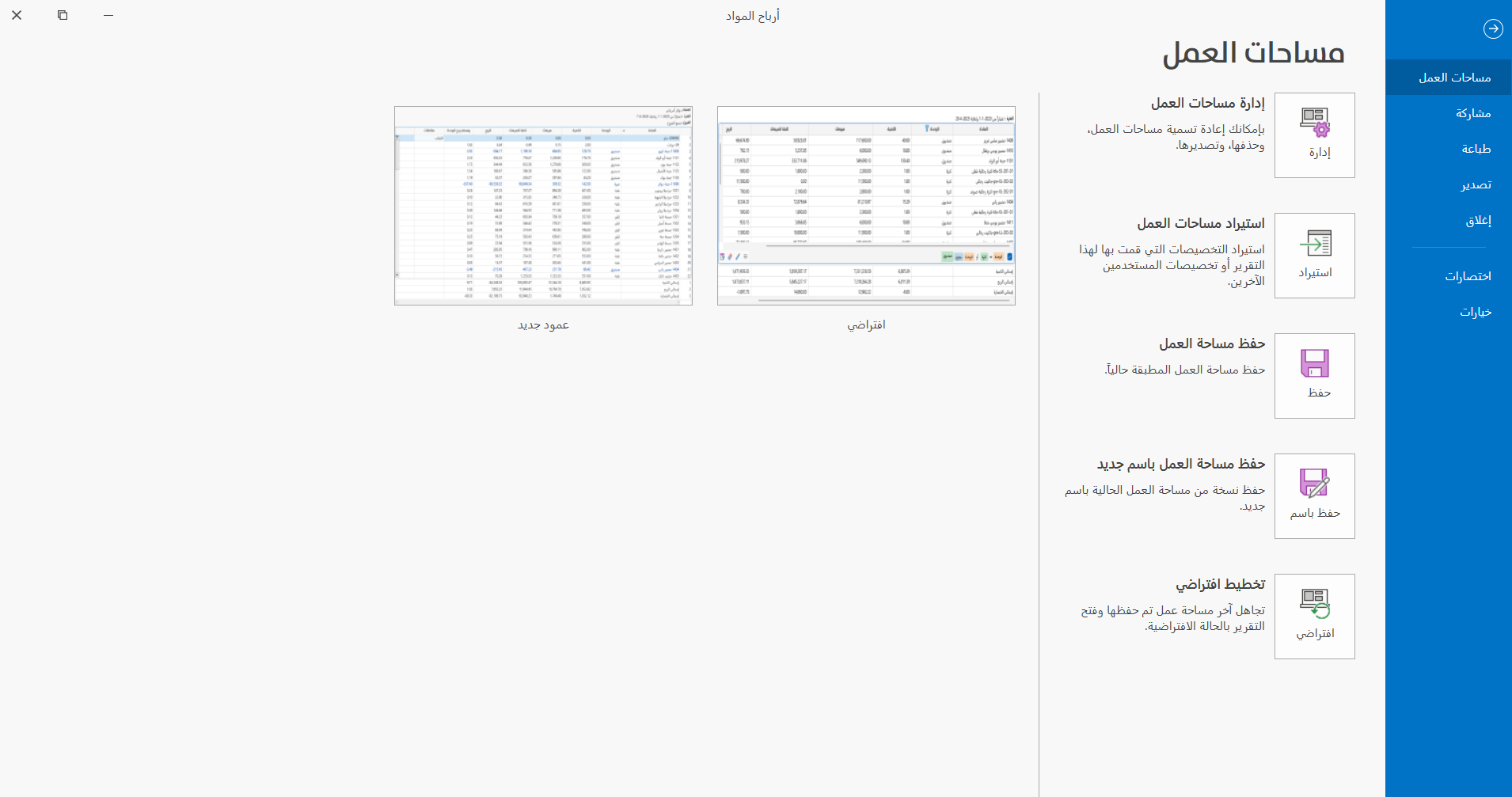
You can reach the report print tools, after requesting the report preview interface, from the File tab.

The program then moves to the following screen:
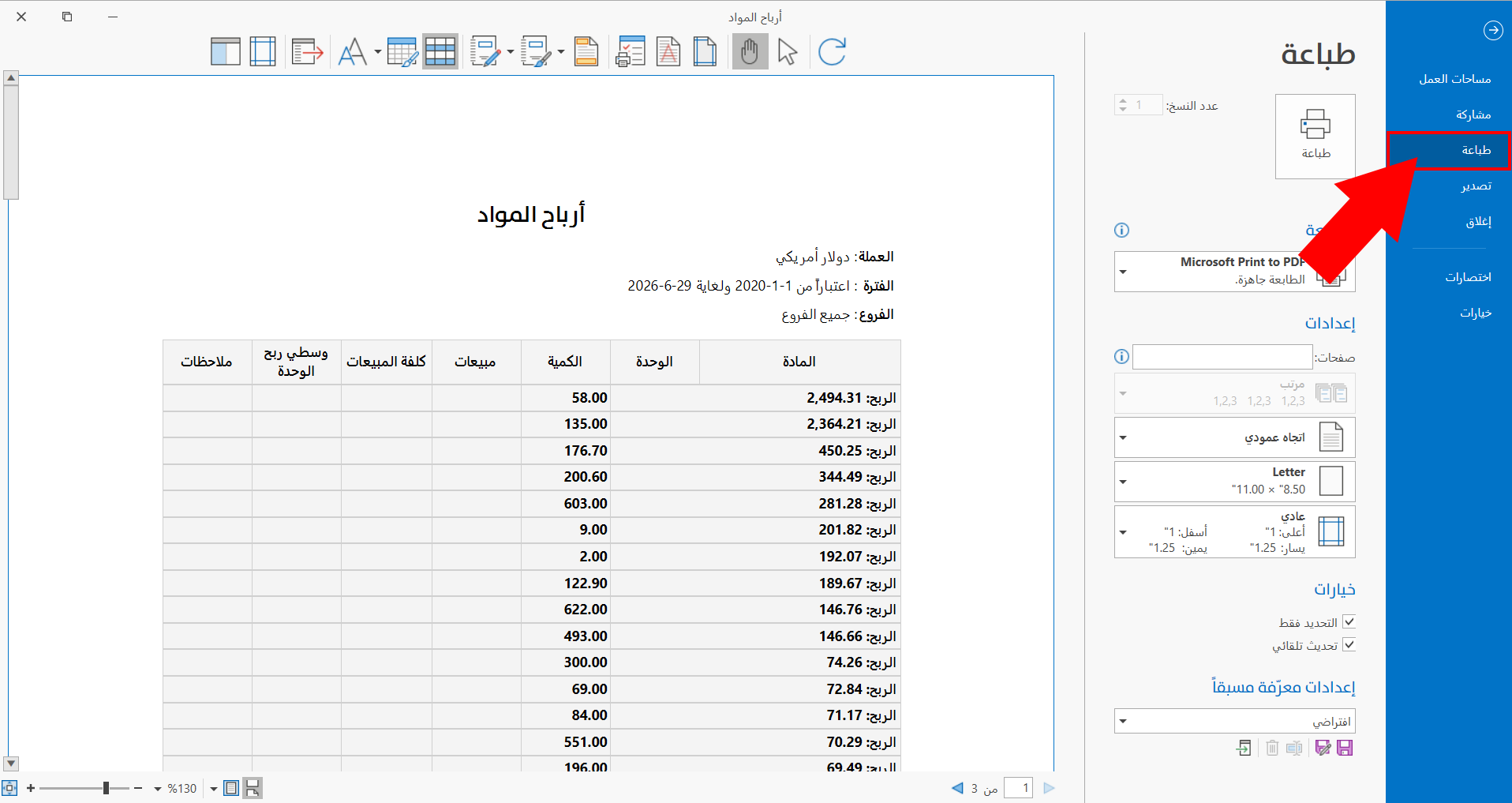
Click "Print" to switch the screen to the printing options and tools.
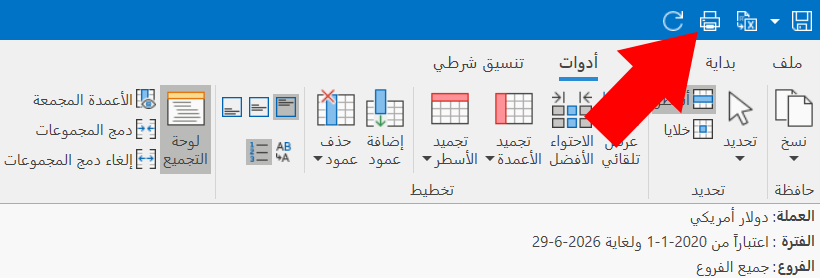
You can reach the print tools by clicking the print button in the report preview window.
Report Print Tools
The print tools appear in the bar shown in the picture:
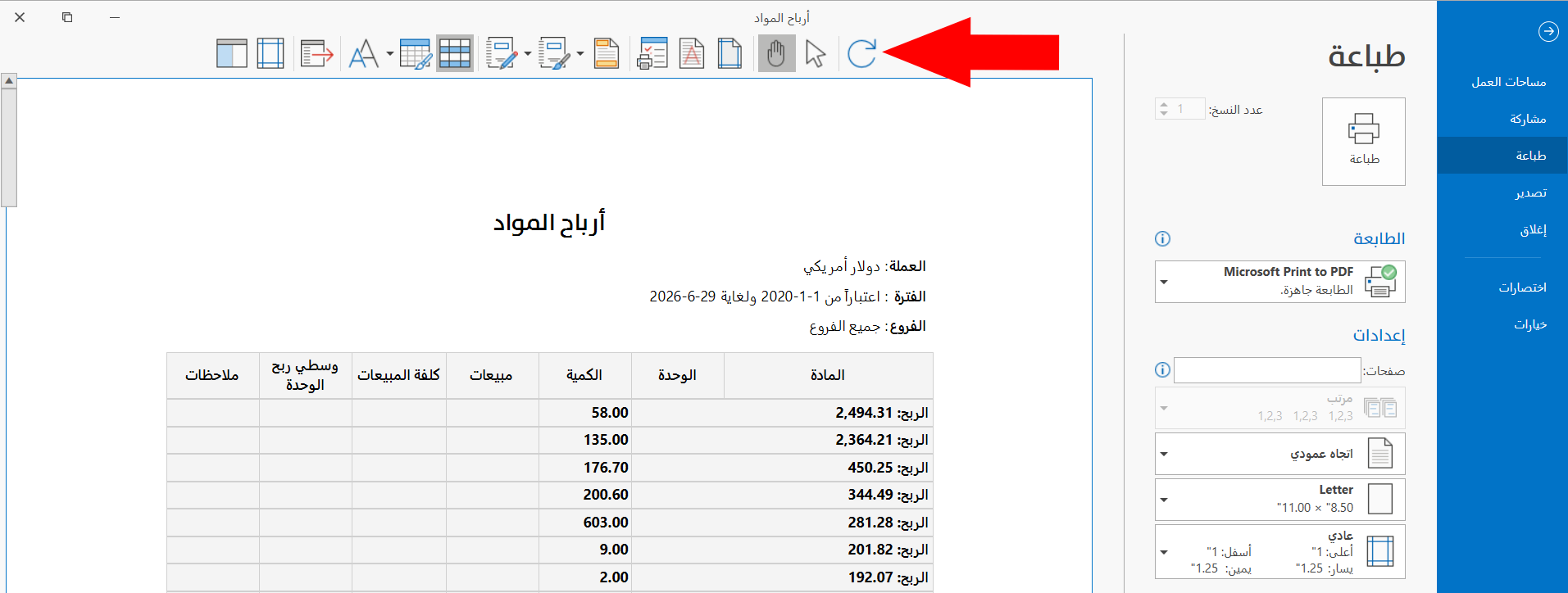
Each of these tools has different uses that help you get the best formatting and design for the report. They are used as follows:
Refresh
Used to refresh the preview of the report in the print interface after applying many changes to the design of the report.
Select Tool
The tool is used to select the data of the report and copy it for use in other places and programs, such as Excel, by clicking the "Select" tool in the toolbar, then using the mouse to select the data you need.
You can reach the select tool by right-clicking in the report and choosing it from the menu.
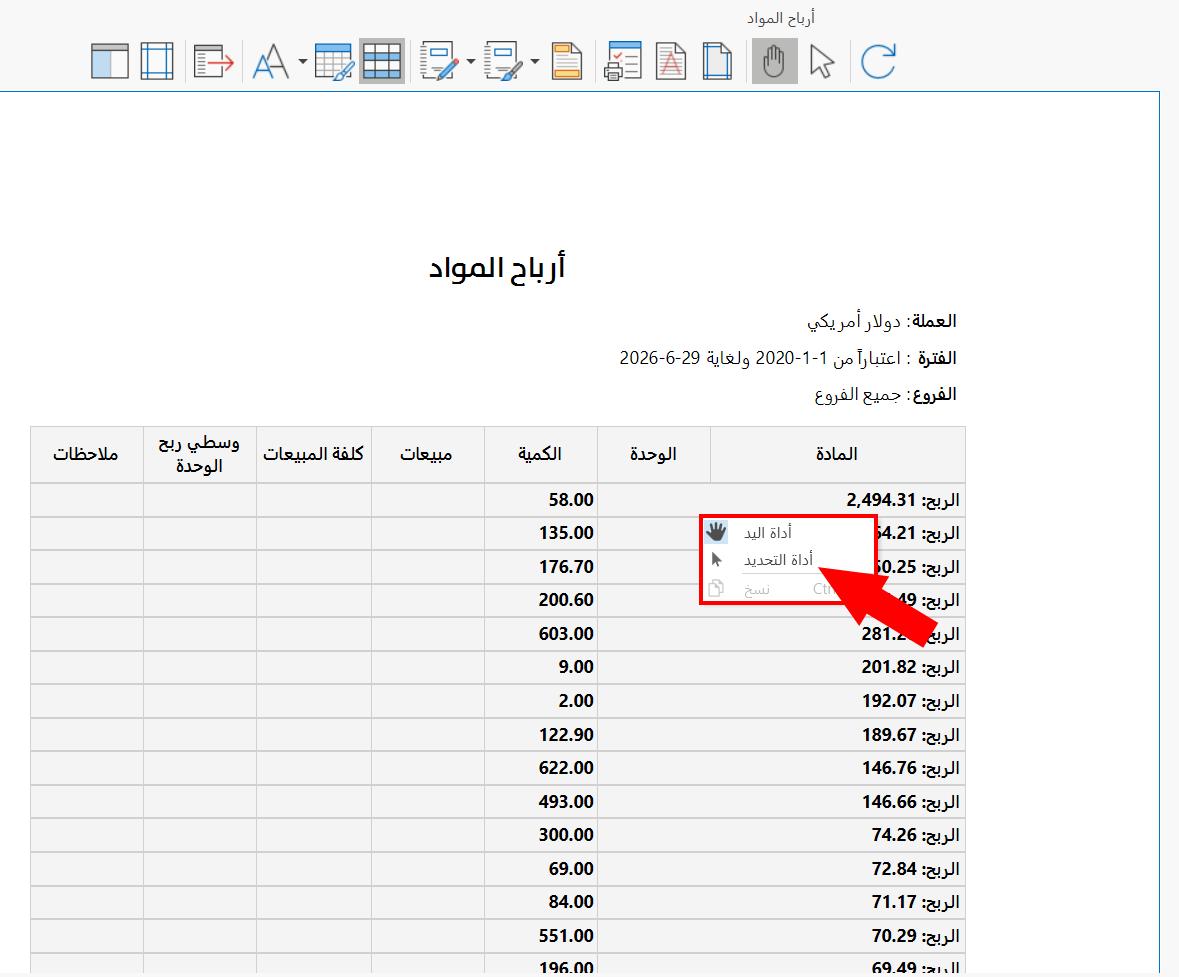
Hand Tool
The hand tool is enabled by default in the print window, and the toolbar has a button for enabling or disabling it in the window. It is used to move between the pages of the report.
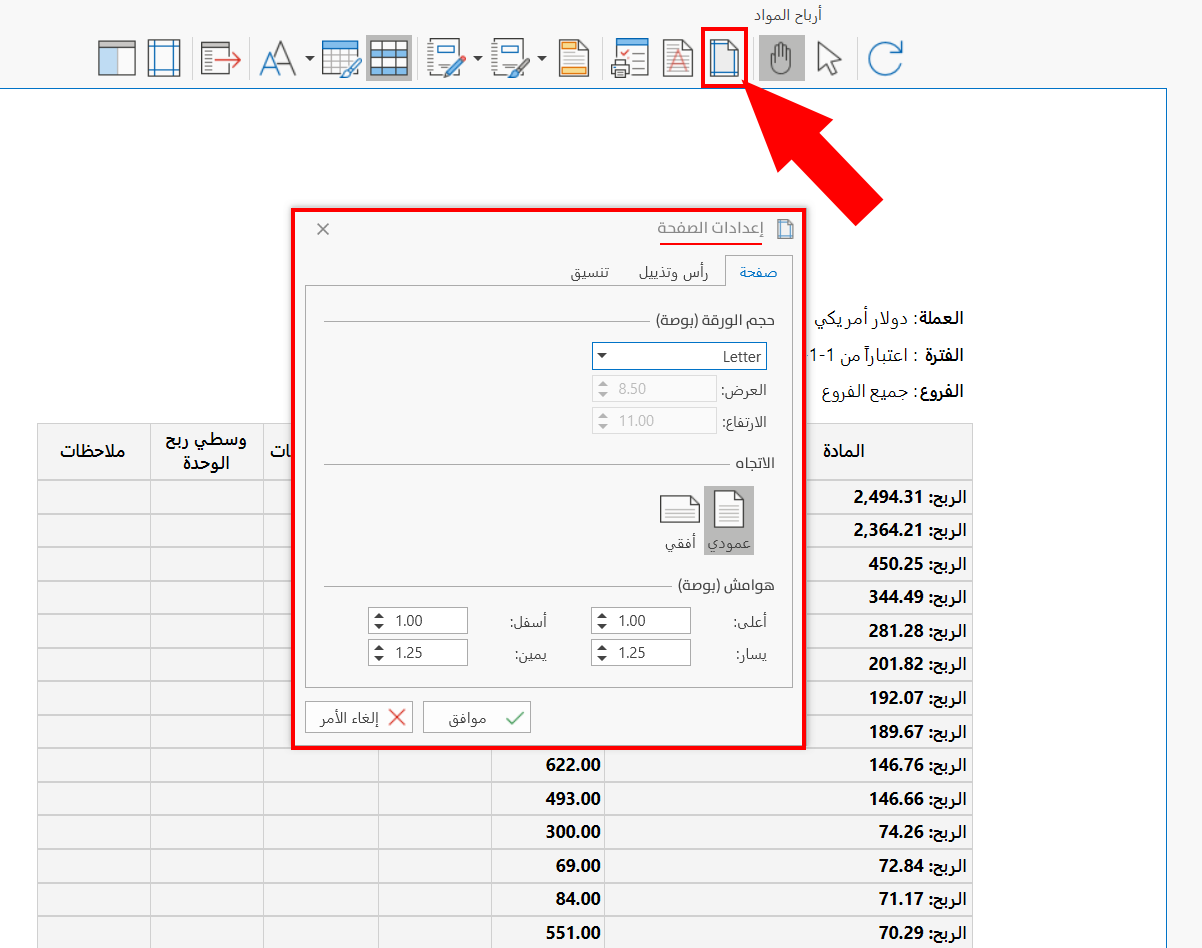
Page Setup
The tool "Page Setup" is used to control the parts of the report pages, such as the paper size, orientation, and margins, the page header and footer, and the number kind and date in the report.
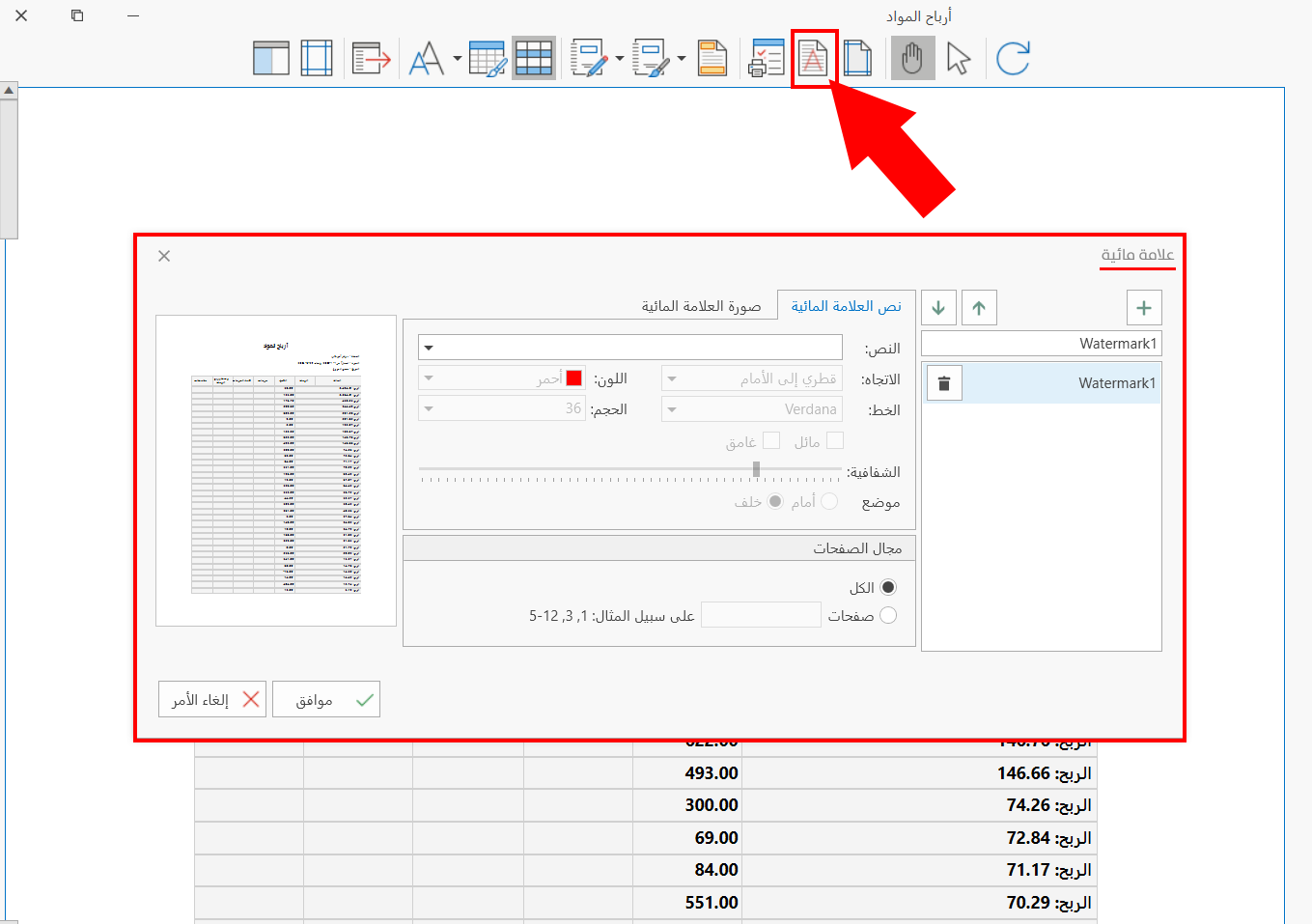
Watermark
The program lets you insert more than one watermark on the pages of the same report, and save many watermarks to use later.
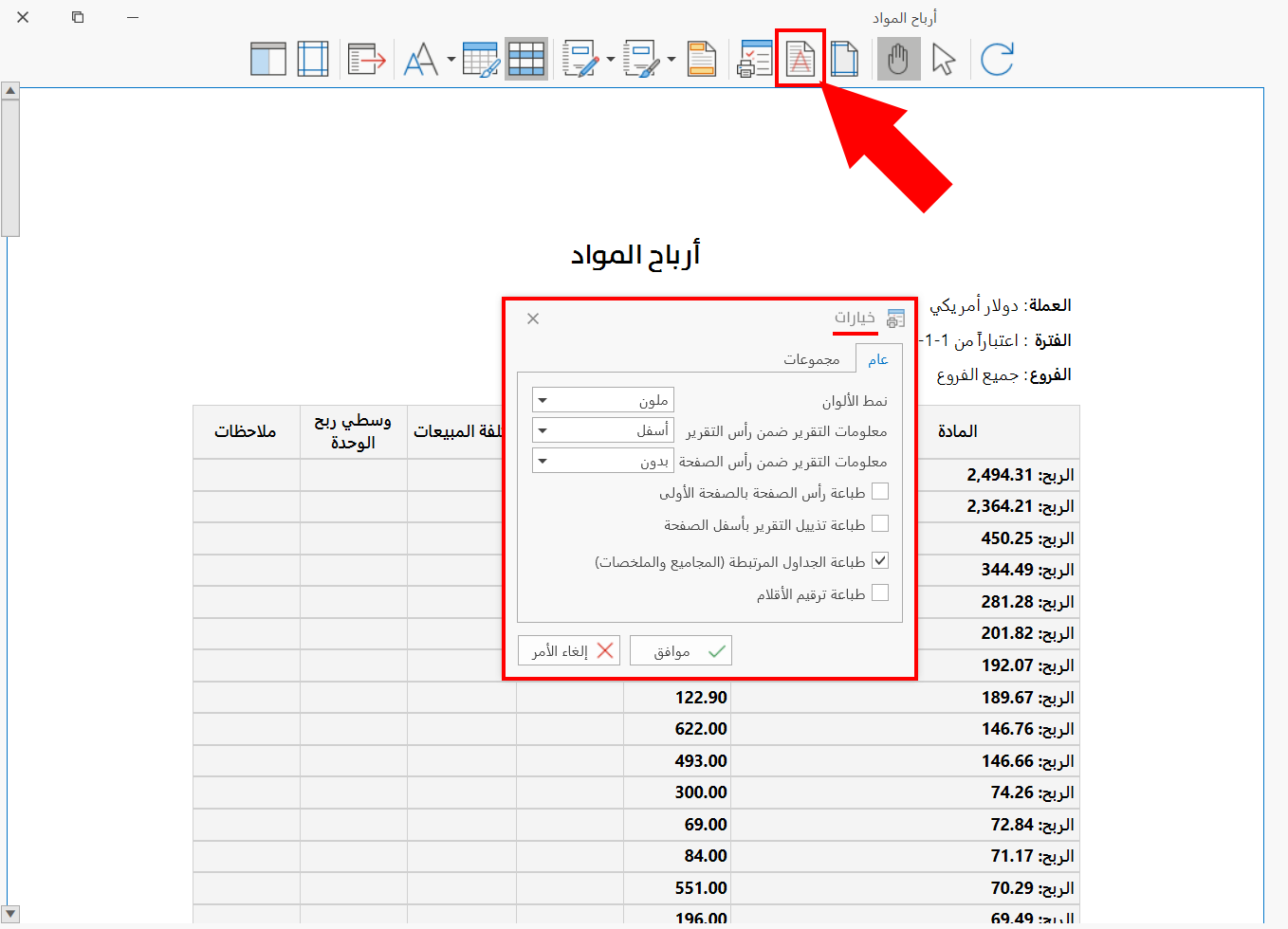
Options
The tool "Options" is used to set the color mode and the print options, as well as the options you can use when you want to print a grouped report.
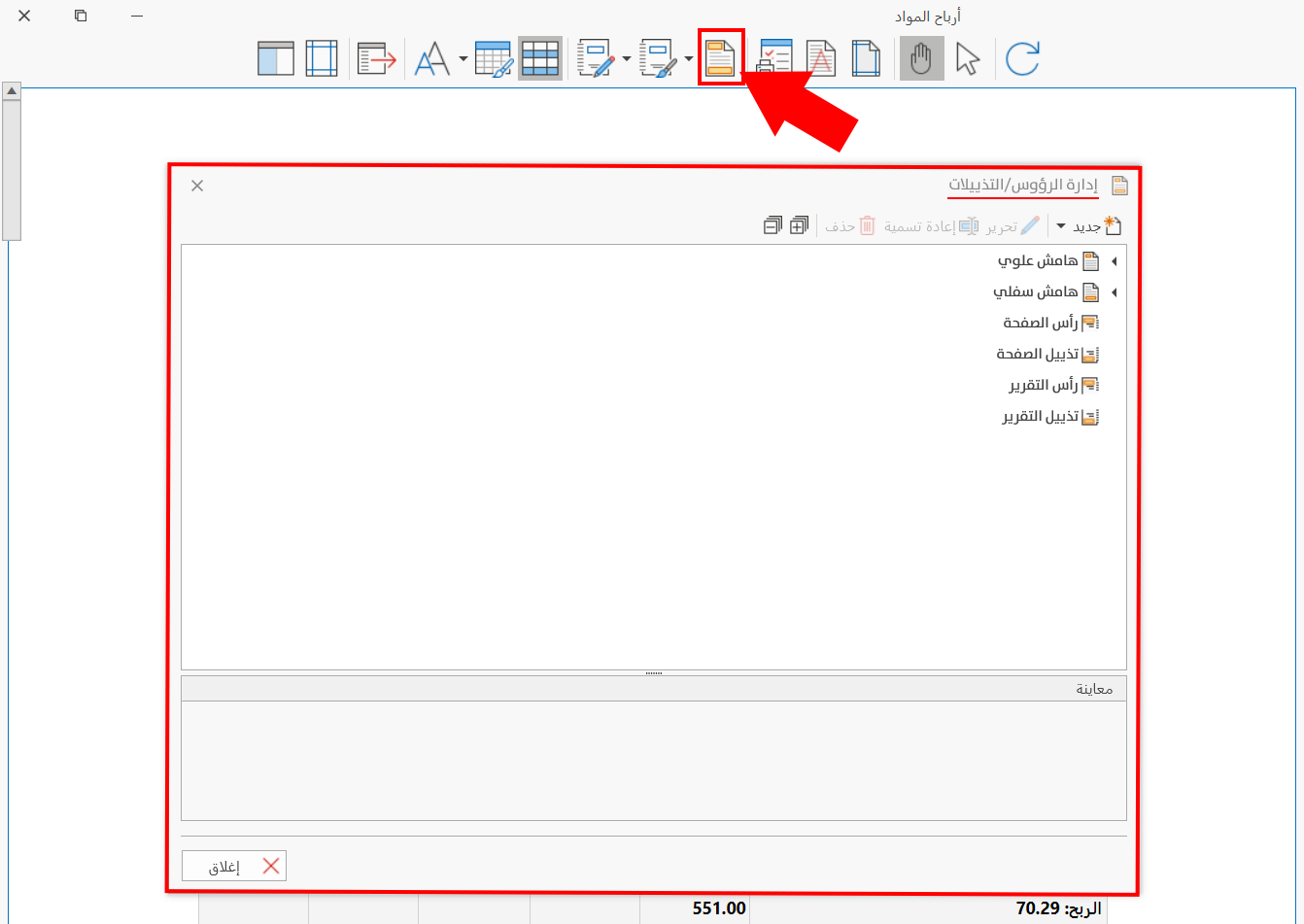
Manage Headers/Footers
The tool "Manage Headers/Footers" is used to set the margins of the page header and footer, control the report header and footer, and create new designs to use when printing reports.
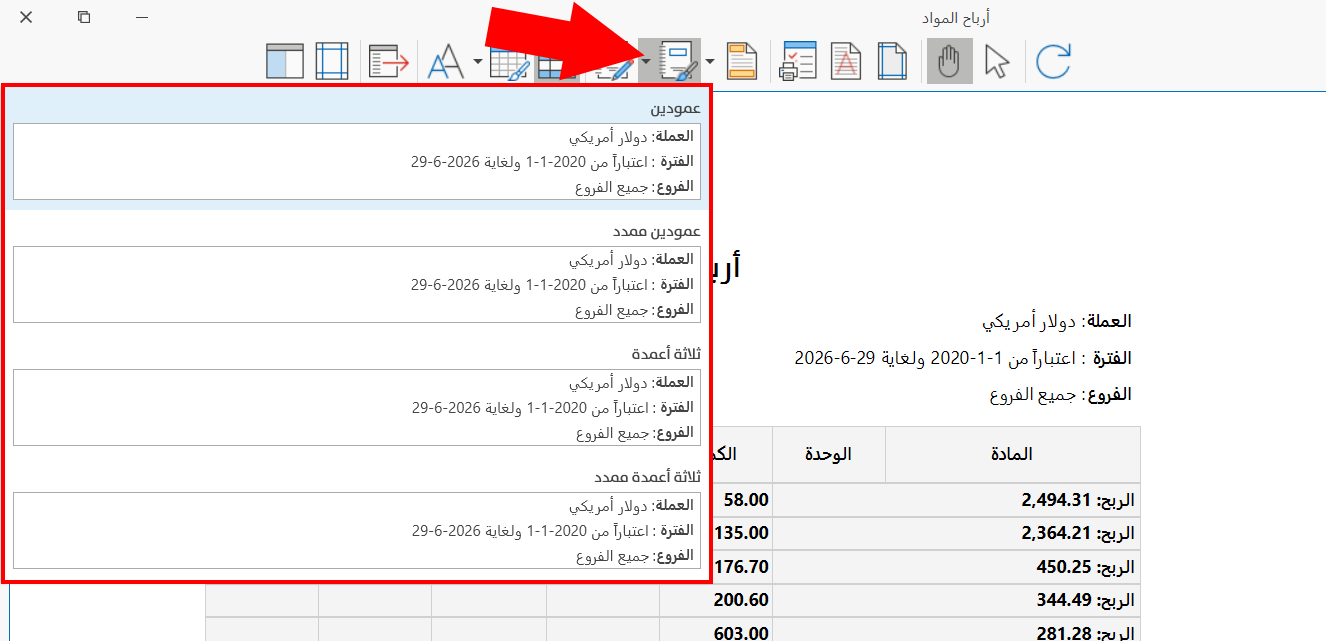
Report Header Style
The tool provides a list of ready-made styles you can apply to the report header: choose the most suitable style to use when printing from the list that drops down when you click the arrow next to the Report Header Style tool.
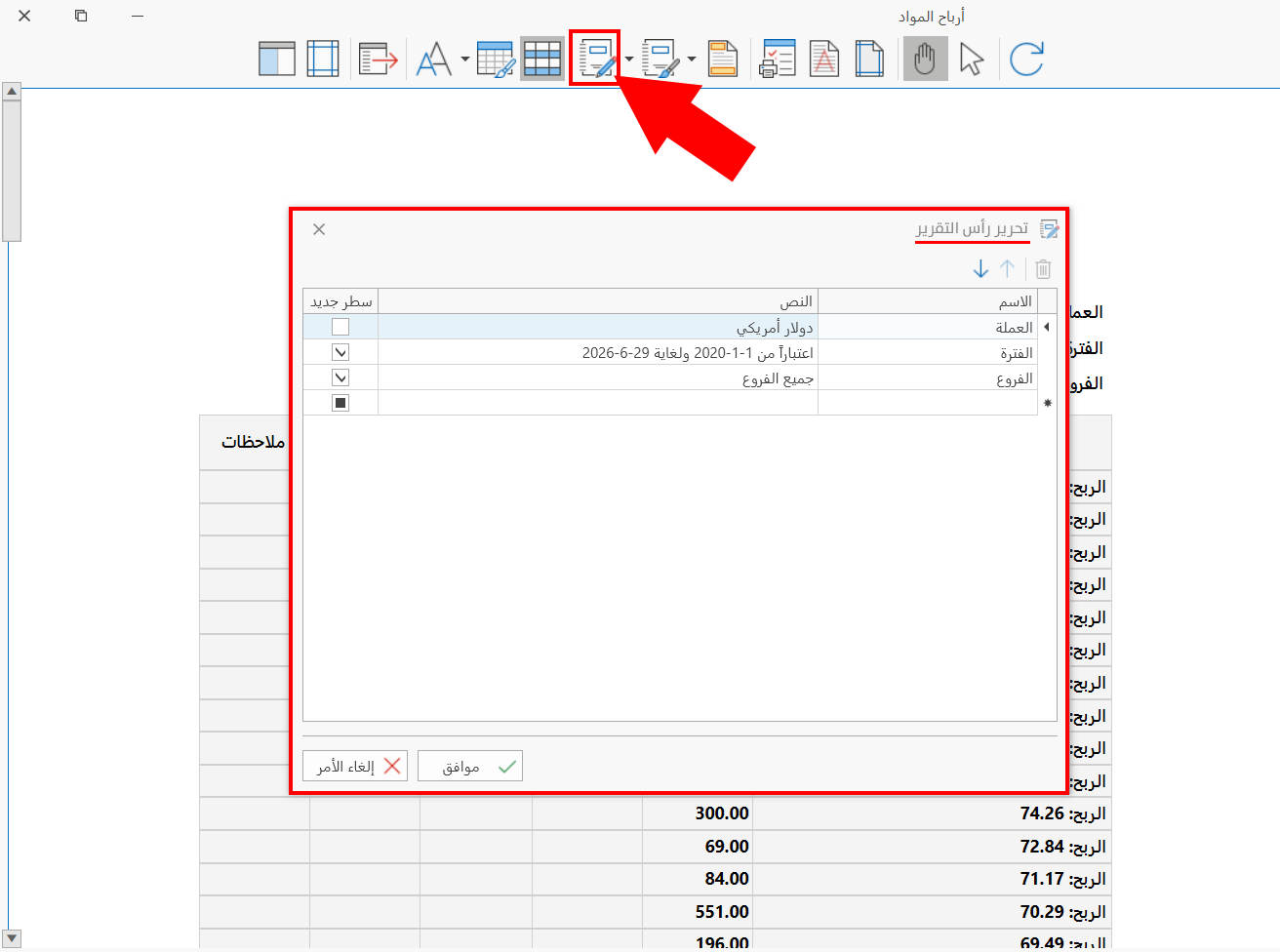
Edit Report Header
You can edit the report header and control it by adding new fields and reordering the header as suits you before printing the report.
Banded Rows
The tool is used to tell the even and odd rows of the report apart by alternating them, which organizes the content and makes the data easier to read.
Showing banded rows depends on the formatting style applied to the report: when you choose a format that uses one color for the even rows and another for the odd rows, the "Banded Rows" tool must be active; if it is not active, the format is not applied correctly.
Format
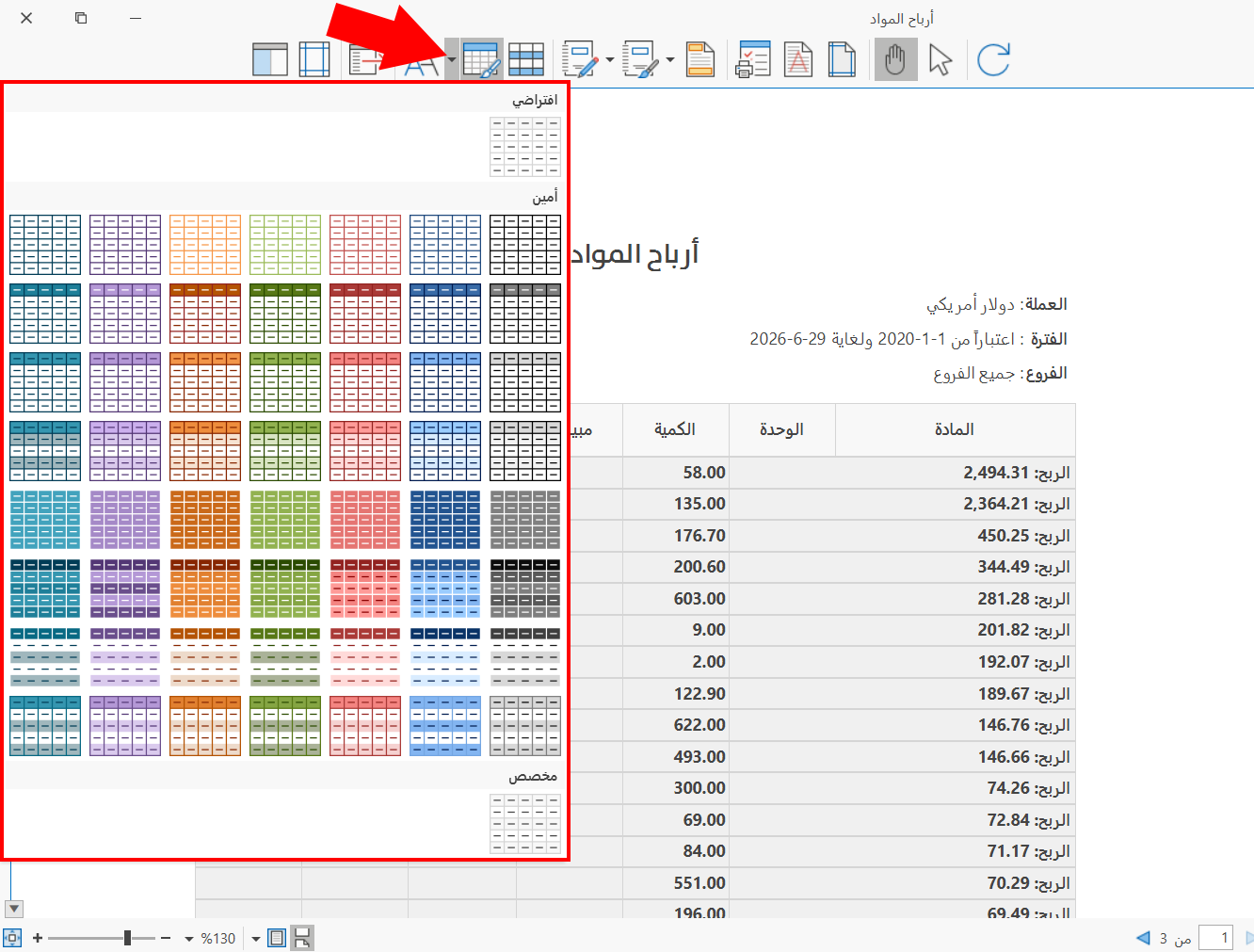
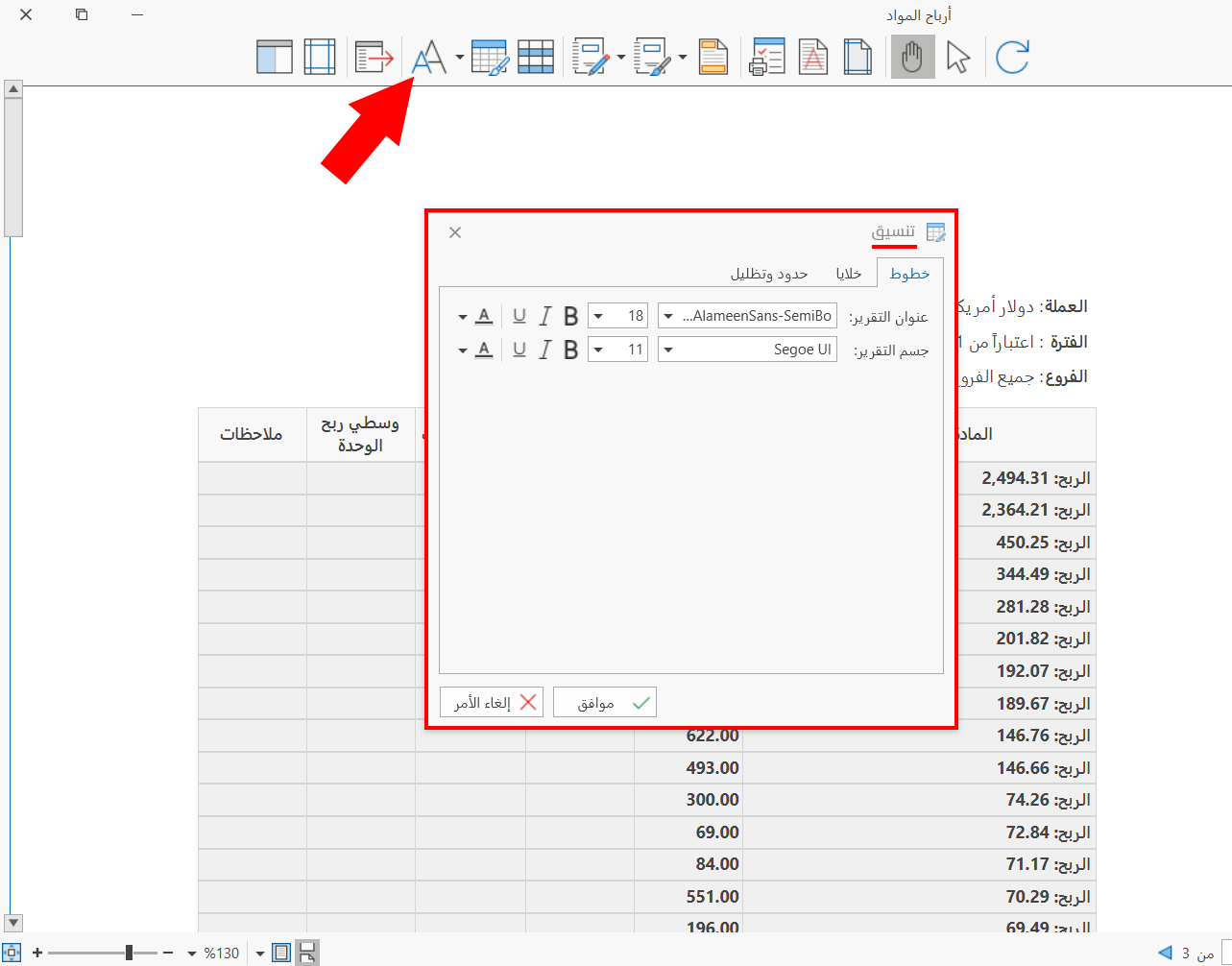
The tool "Format" lets you customize the colors of the fonts and backgrounds of the report separately, set the borders and space of the cells, and set the fonts of the report title and body.
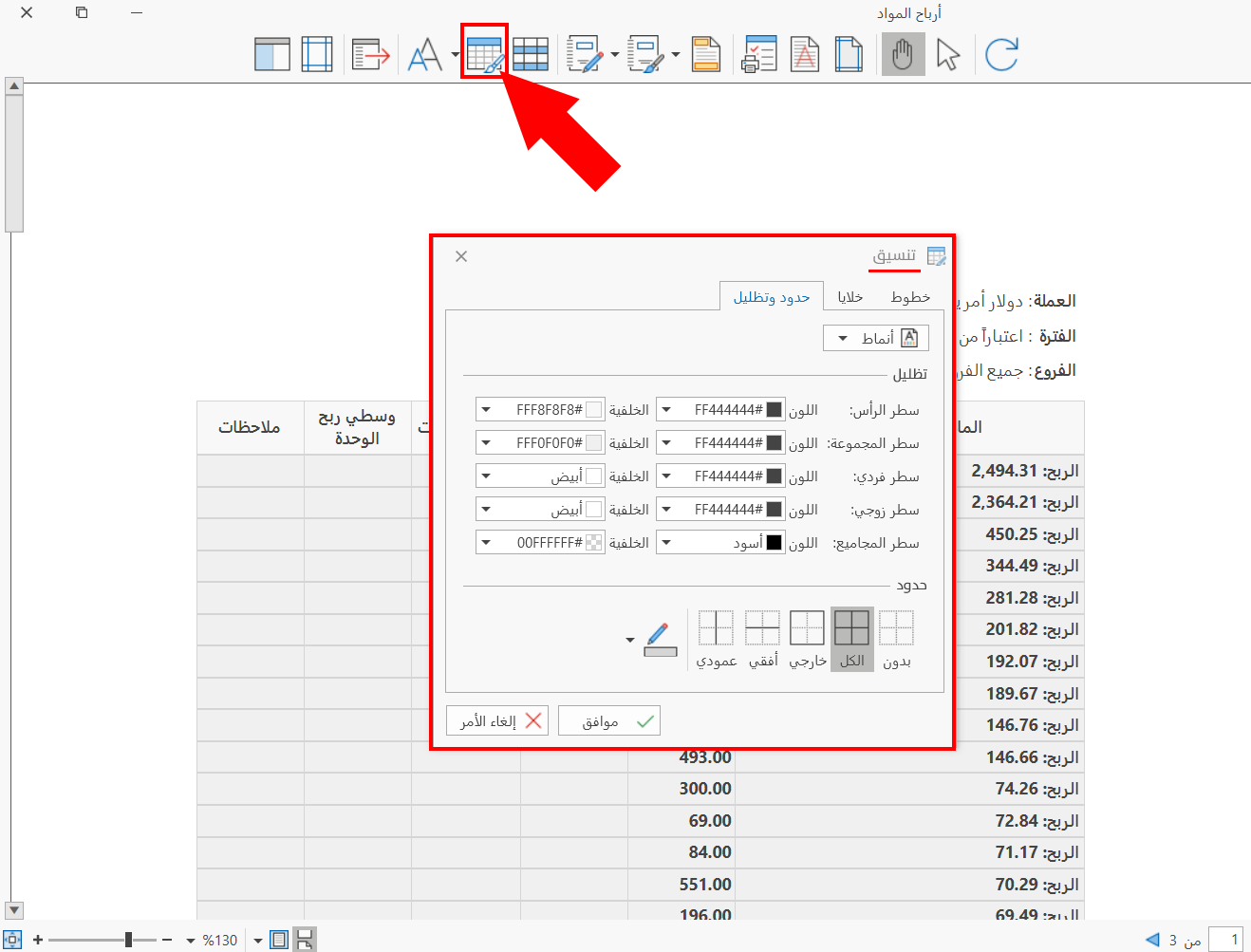
The arrow next to the tool also drops down a list of ready-made formats you can apply directly to the report.
Fonts
You can customize the fonts of the report title and body: the tool lets you choose the font, its size and color, and the font formatting (bold, italic).
Export
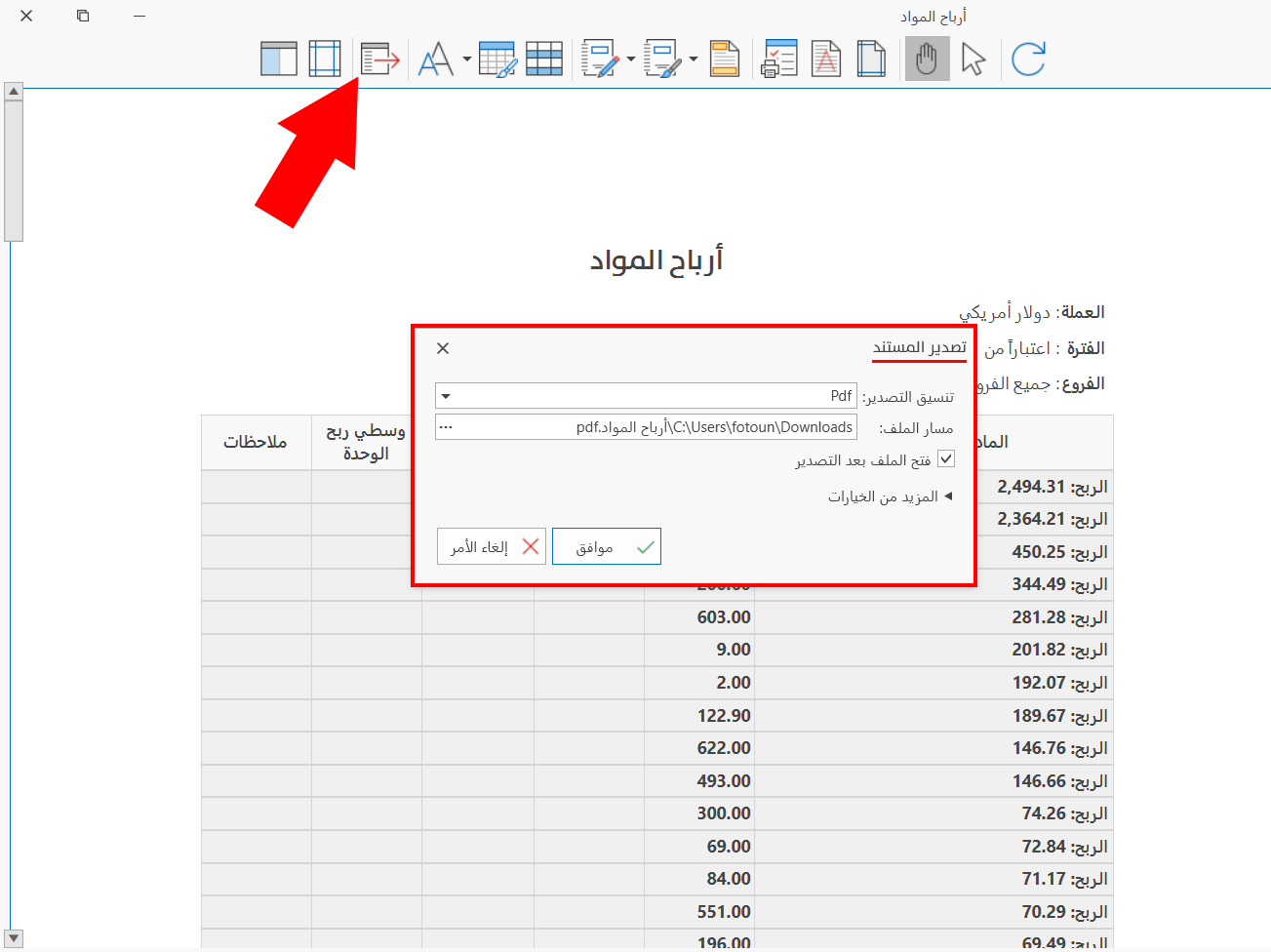
The tool "Export" is used to share the current print design and export it to the computer, to use at any time and for more than one report.
Margins
The page margins are set and become visible after you click the "Margins" tool: with the mouse pointer you can move the margin lines and drag them to the measurement you choose.
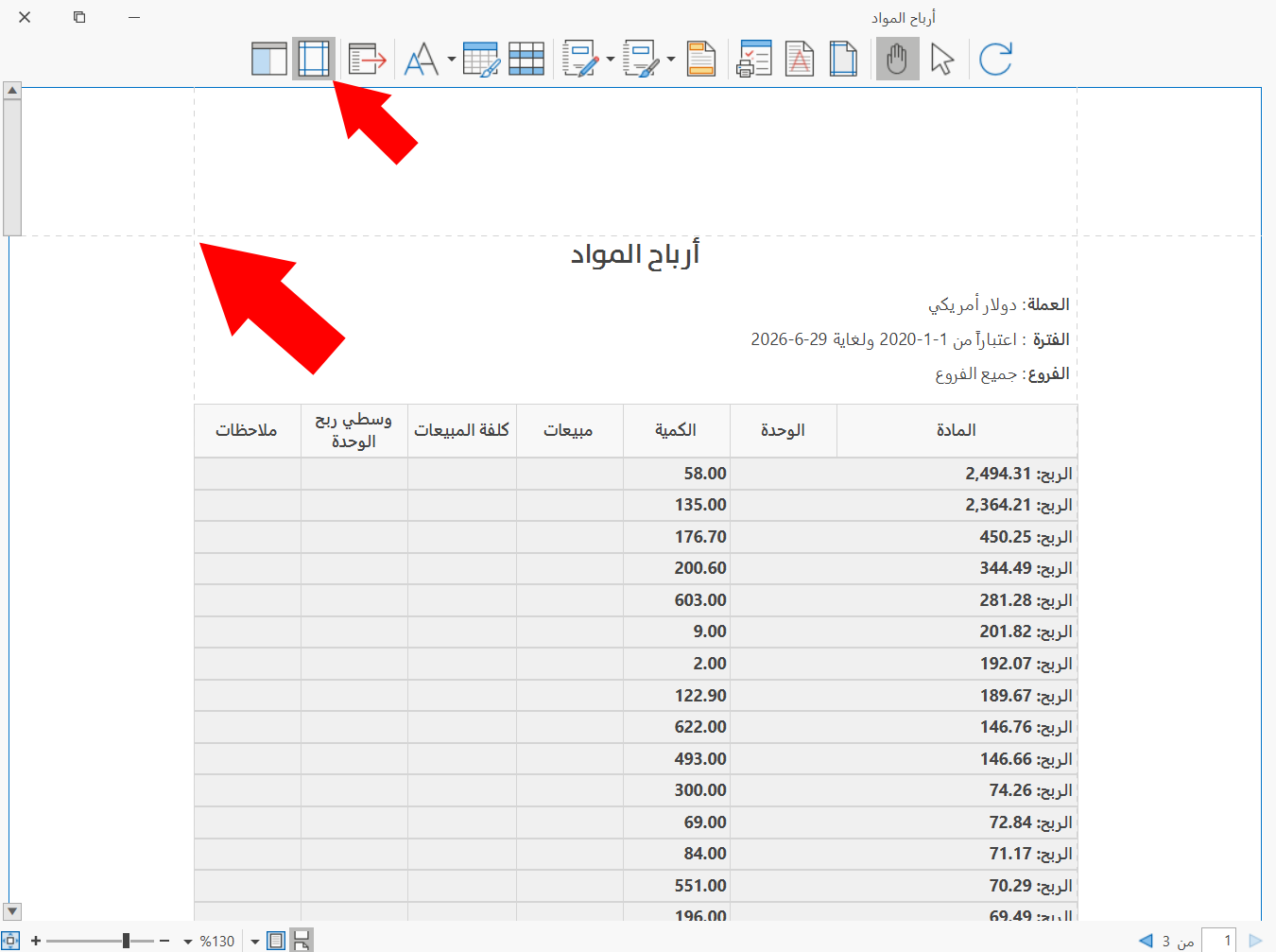
The margin lines disappear as soon as you disable the tool.
Show Navigation Pane
You can insert the navigation pane of the report by clicking the "Show Navigation Pane" tool: the pane appears and helps you view the pages of the report before printing, move between its pages faster, and search within the pages of the report.
After you click the "Show Navigation Pane" button, the pane is inserted in the print interface as follows:
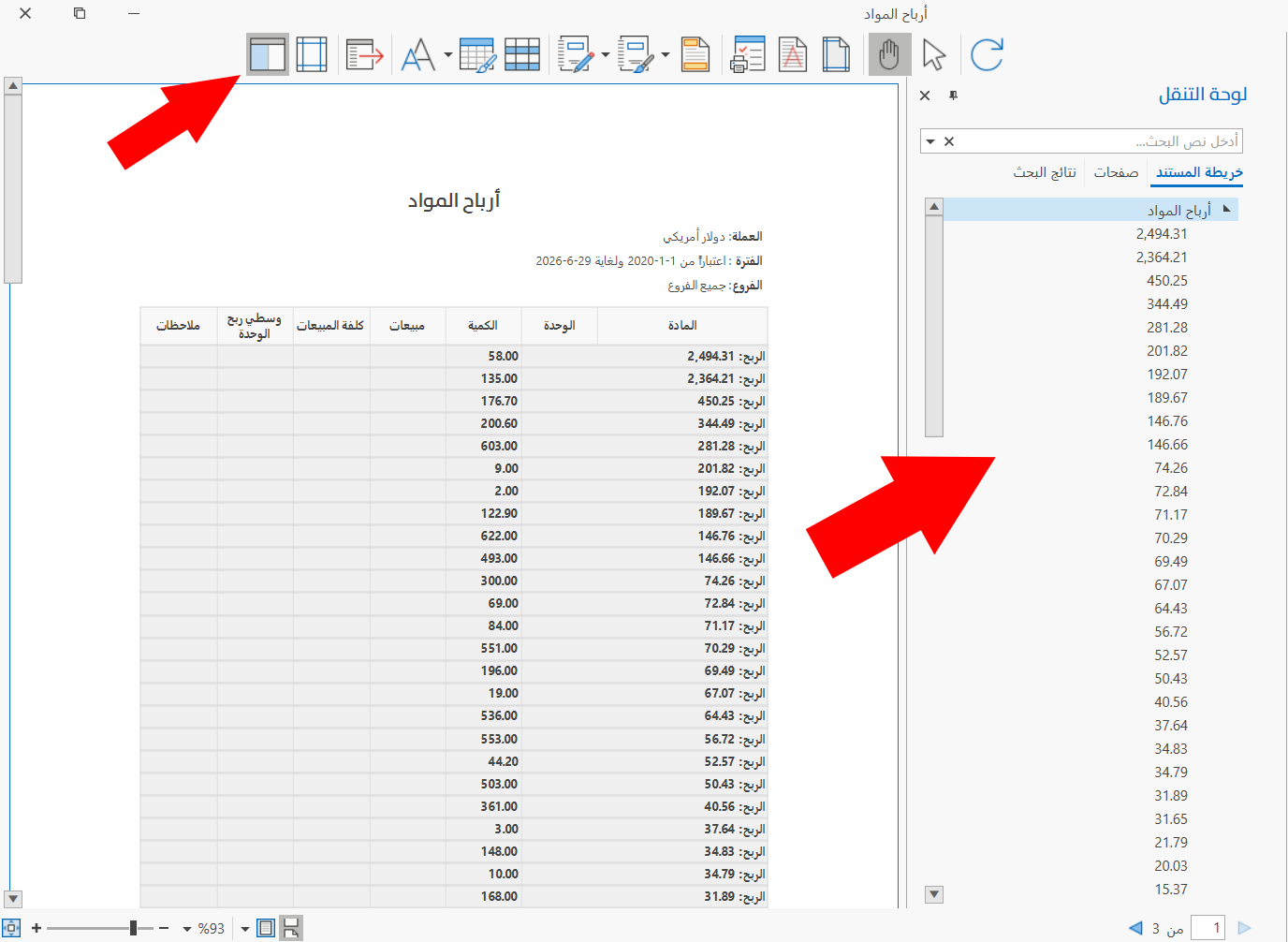
The navigation pane contains the following tabs:
- Document Map
The group rows of a grouped report appear in the document map, so you can move between the groups and reach the data of the group you need by clicking it on the Document Map tab of the navigation pane.
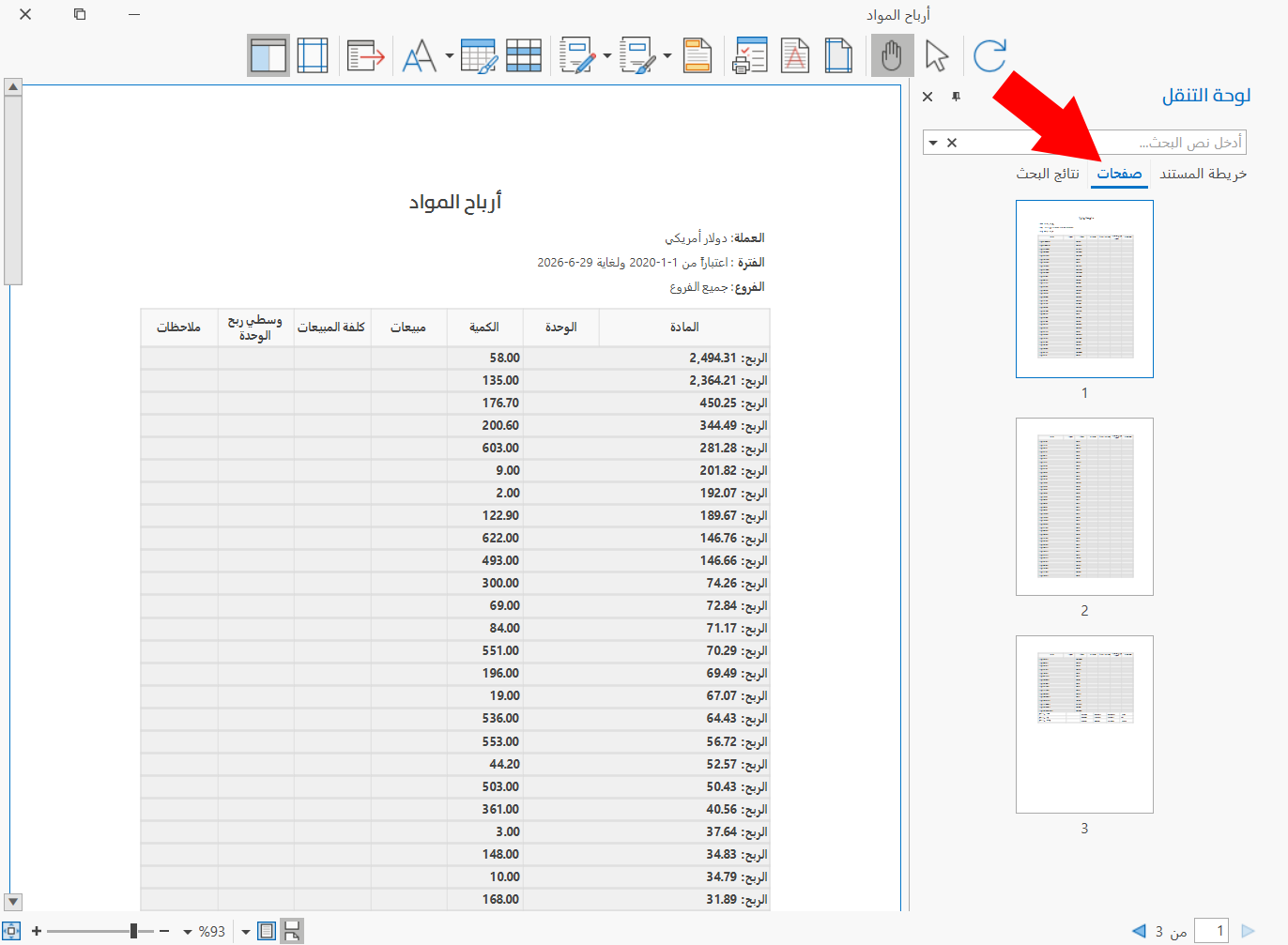
- Pages
The pages of the report are shown in the navigation pane, so the user can reach the page they need directly with the quick scroll bar.
- Search
The program lets you search within the pages of the report in the print interface, with the Search tab of the navigation pane.
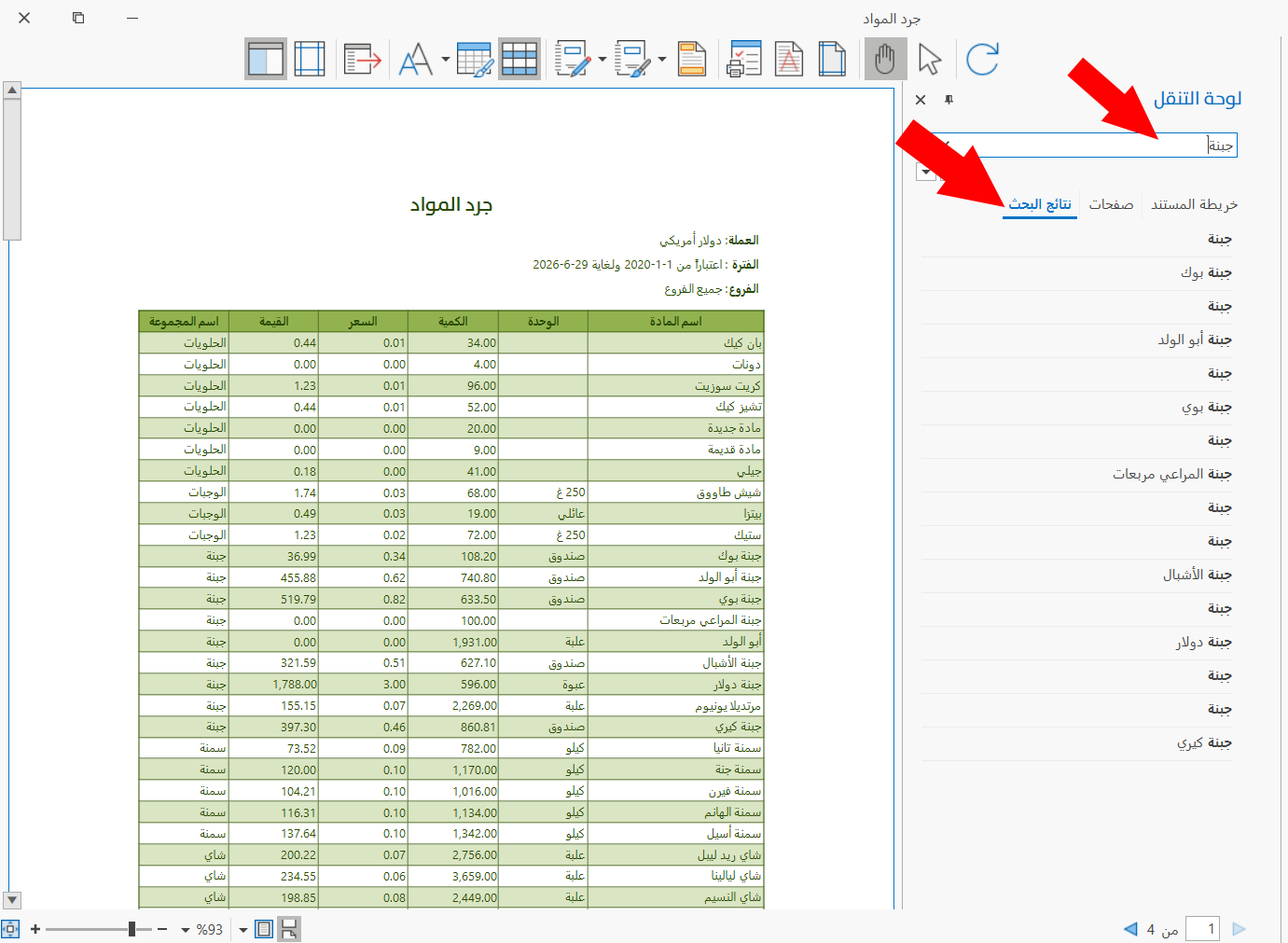
Enter the text you want to search for in the search box: the results appear immediately, with all the elements of the report that contain the text you are searching for.