Document Options
alameen ERP lets you set the general options of the report, and of grouped and detailed reports, without affecting the real shape of the report in the preview interface, with the "Document Options" window.
The "Document Options" window is used to set the report options before the following operations:
-
Share the report
-
Print the report
-
Export the report
Reaching the Document Options
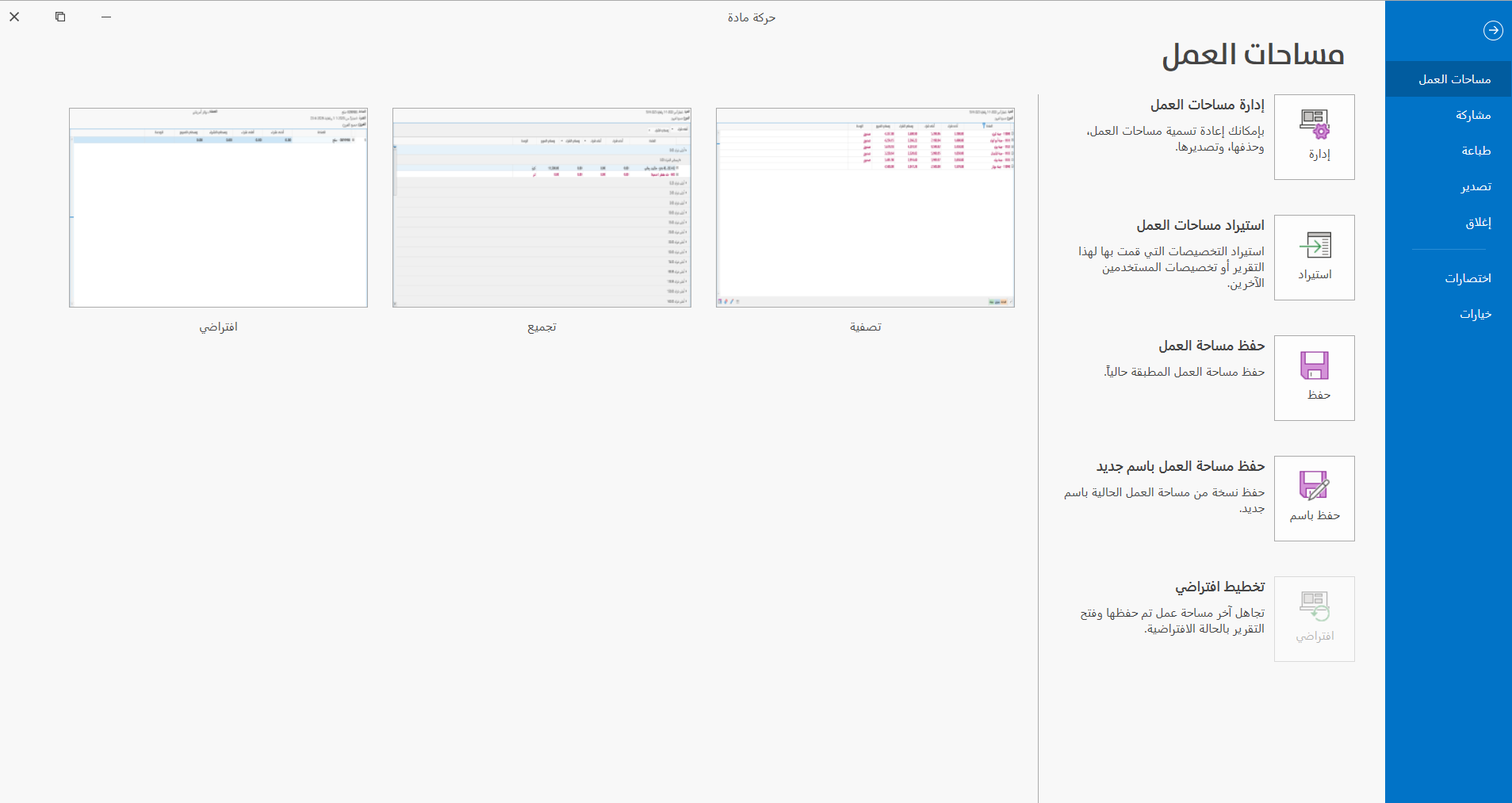
You can reach the "Document Options", after requesting the report preview interface, from the File tab.

The program then moves to the following screen:
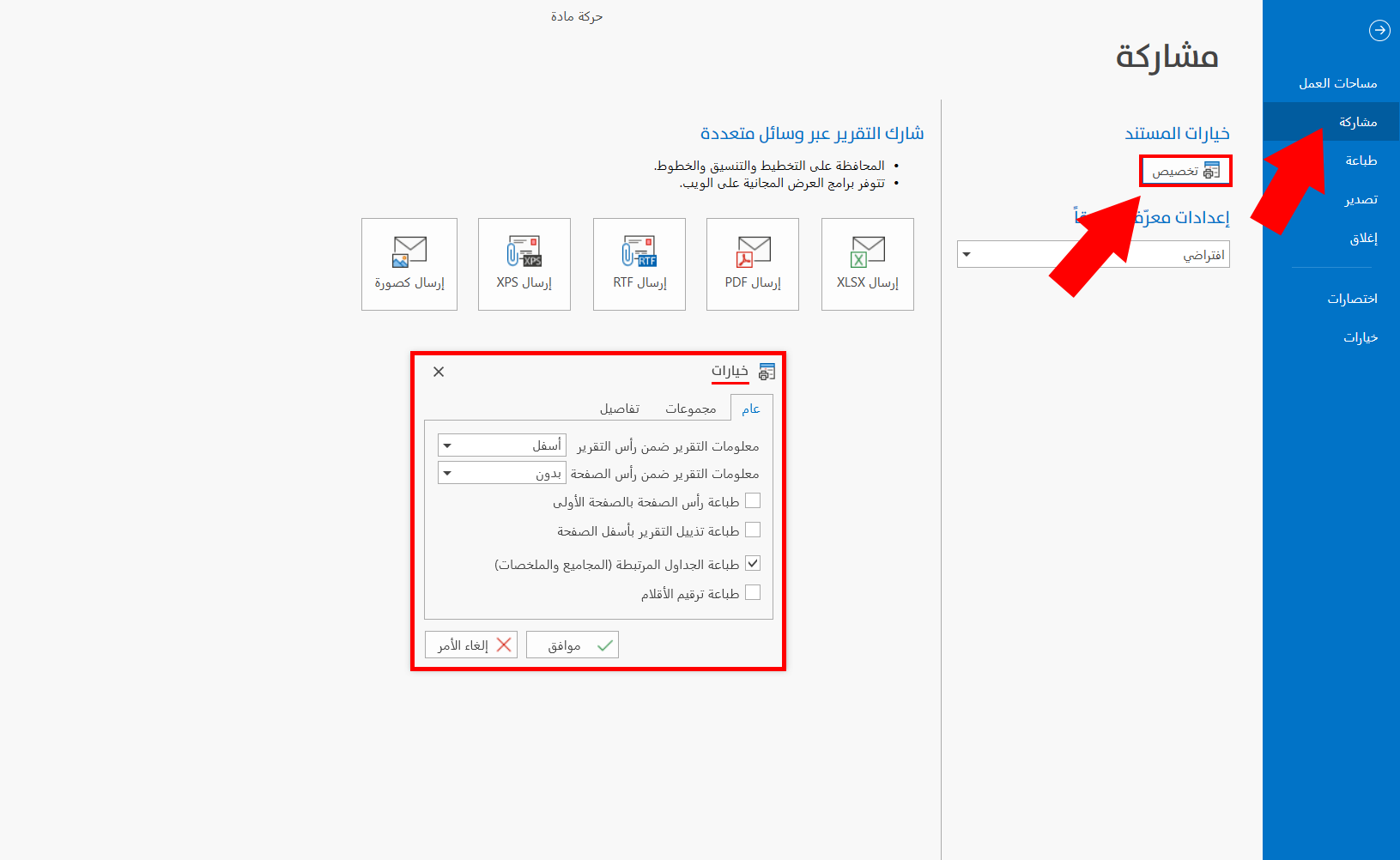
To set the sharing options, click the "Share" tab in the interface, then click the "Customize" button.
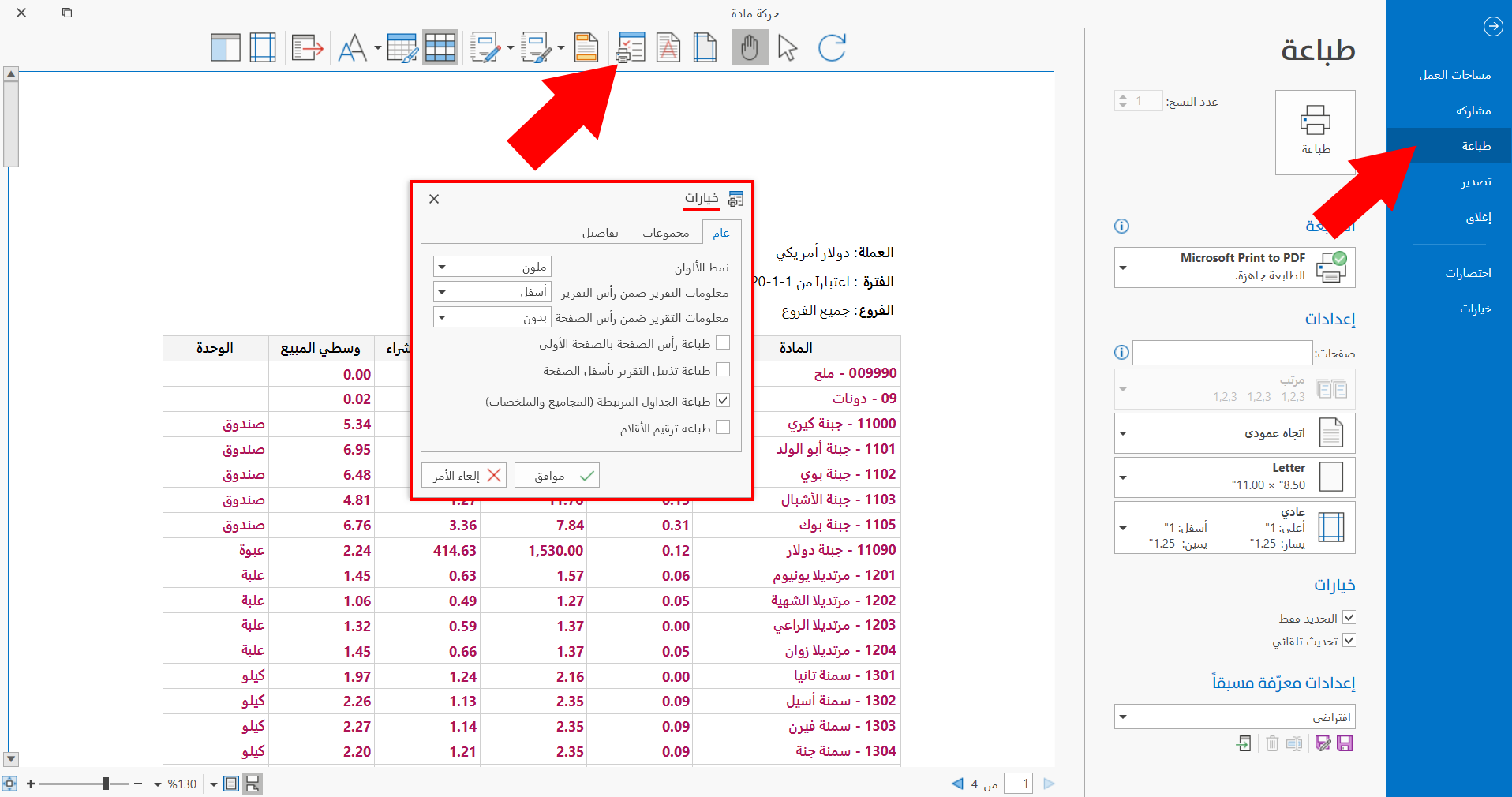
To set the printing options, click the "Print" tab in the interface, then click the "Options" tool.
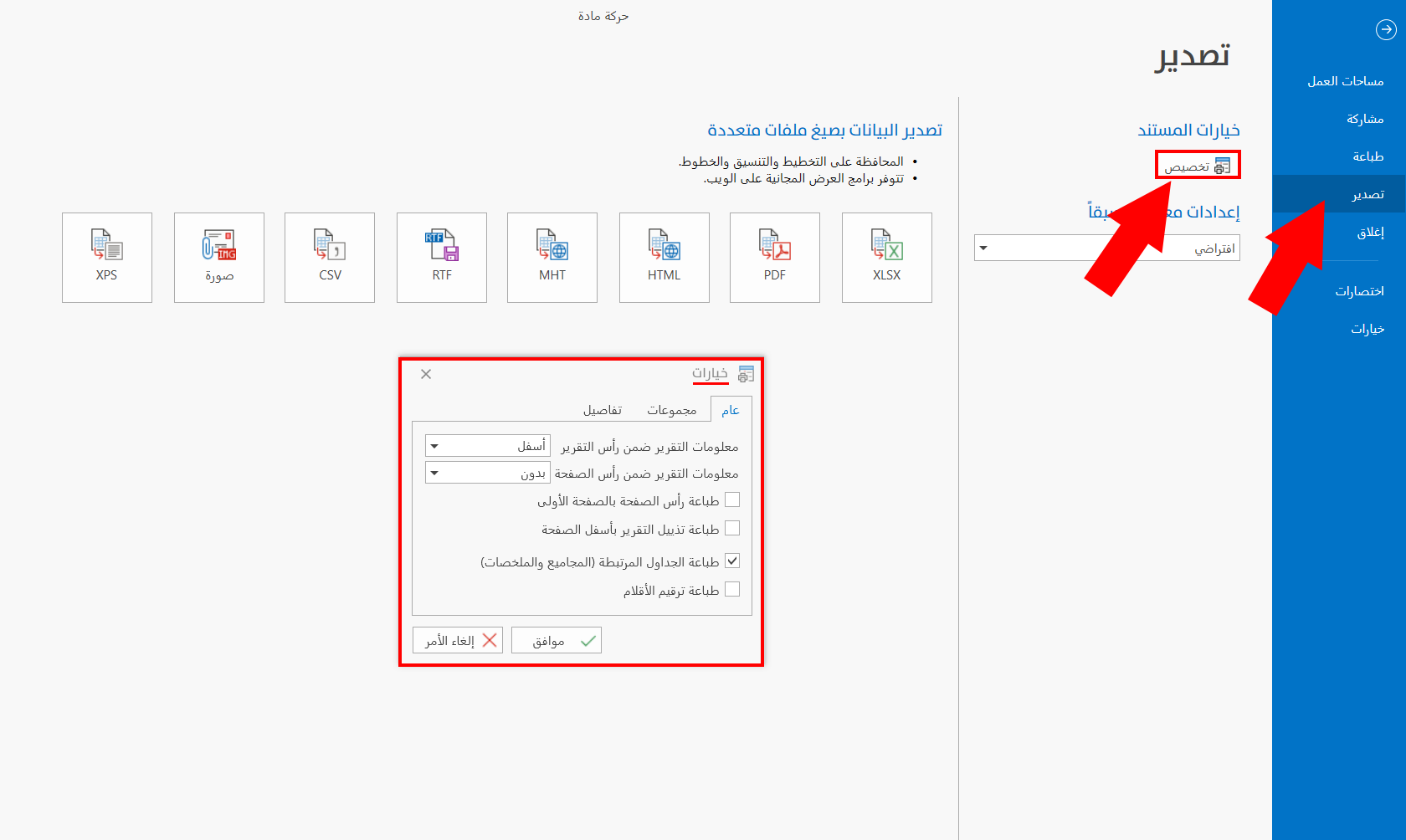
To set the export options, click the "Export" tab in the interface, then click the "Customize" button.
The contents of the window differ according to the type of the report: in detailed reports, an additional tab named "Details" appears for controlling the options of the report details.
Contents of the Document Options
The options in the window are distributed by use over the following tabs:
General
The tab includes the general options needed before sharing, printing, or exporting the document (the report), used as follows:
- Color Mode
Choose the color mode you want to apply to the report from the following options:
Colorful, Grayscale, Monochrome.
Your choice of mode affects the formatting you choose for the report: if the color mode is not "Colorful", colored formatting is not applied to the report, and it appears in gray only.
- Report info is located in report header
The report info is the report name, the currency, the period, and the branch (when the branches system is enabled), as well as the fields you add yourself with the tool "Edit Report Header".
Choose the place of the report info from the list that drops down from the arrow in the field, which contains the following options:
None, Top, Bottom.
- Report info is located in page header
Choose the position of the report info in the page header from the list that drops down from the arrow in the field, which contains the following options:
None, Top, Bottom.
- Print Page Header on First Page
By default, the window leaves out the first page when a header is added to the pages of the report: after you set the page header with the tool "Manage Headers/Footers" the page header appears from the second page.
Enable the option to include the page header on the first page too
- Print Report Footer at Bottom
Enable the option to allow printing the report footer applied with the "Manage Headers/Footers" tool.
- Print Related Tables (Totals and Summaries)
Totals and summaries appear by default when you print, share, or export the report; you can disable the option to hide them.
- Print rows ordinal
The row numbers of the report do not appear in print; enable the option to include the row numbers in the printed report.
Groups
The options of this tab control how the data of a grouped report is shown, and are used as follows:

- Expand all groups
When you print, share, or export a grouped report, its data appears with the group name row only, that is, with the groups collapsed. If you want to show the details of the groups, enable the "Expand all groups" option by clicking the check box next to it; when a √ mark appears in the box, the groups are expanded.
- Print every group on new page
Enable the option to give each group its own page, which helps you show the details of the groups in a clearer and more organized way.
- Indentation
Set the space you want to leave at the start of the report rows that belong to groups. This space appears when the groups are expanded, because it is for the rows under the group name.
Enter the value of the space yourself, or use the navigation arrows to reach the suitable space. Note that the default indentation in the program equals "20" pixels.
Details
The "Details" tab appears when the current report is a detailed report, such as the Material Movement report, and contains the following options:
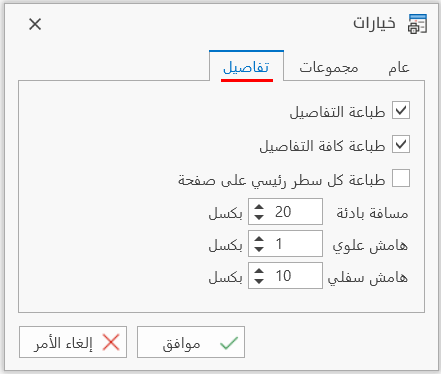
- Print Details
The "Print Details" option is enabled by default, so you can enable the "Print All Details" option; when you disable it, the "Print All Details" option becomes unavailable.
- Print All Details
Enable the option to print the detail data of the report; if it is not enabled, only the group rows, that is, the master rows, are printed.
- Print every master row on new page
You can give each detail row its own page by enabling this option, which becomes available after you enable the "Print All Details" option.
- Indentation
Set the space you want to leave at the start of the detail rows of the report that belong to the master rows. This space appears when you expand the master rows in the detailed report.
Enter the value of the space yourself, or use the navigation arrows to reach the suitable space. Note that the default indentation in the program equals "20" pixels.
- Top margin
The top margin is the space between the master row and the first detail row; the window lets you set this space before printing the report.
Enter the value of the space yourself, or use the navigation arrows to reach the suitable space. Note that the default value in the program equals "1" pixel.
- Bottom margin
The bottom margin is the space between the last detail row and the next master row; the window lets you set this space before printing the report.
Enter the value of the space yourself, or use the navigation arrows to reach the suitable space. Note that the default value in the program equals "10" pixels.
Click the "Ok" button in the "Options" window to save the options and apply them to the report.
Click the "Cancel" button to undo the changes and close the window.