Orders Movement
alameen ERP provides a set of reports you can use to follow the movement and orders in the POS/restaurant, including the "Orders Movement" report.
Report Purpose
The "Orders Movement" report gives the details of the movement of orders in the POS/restaurant over a set period: with the report, you can reach the orders added by a particular user of the POS/restaurant, which helps you see the performance of the user (employee) between two dates you set yourself.
The report also shows the movement of the orders placed by a particular customer, or the orders added in a branch (if you use the branches system), and it can group the orders by month, day, hour, or peak hours (for restaurants).
Reaching the Report
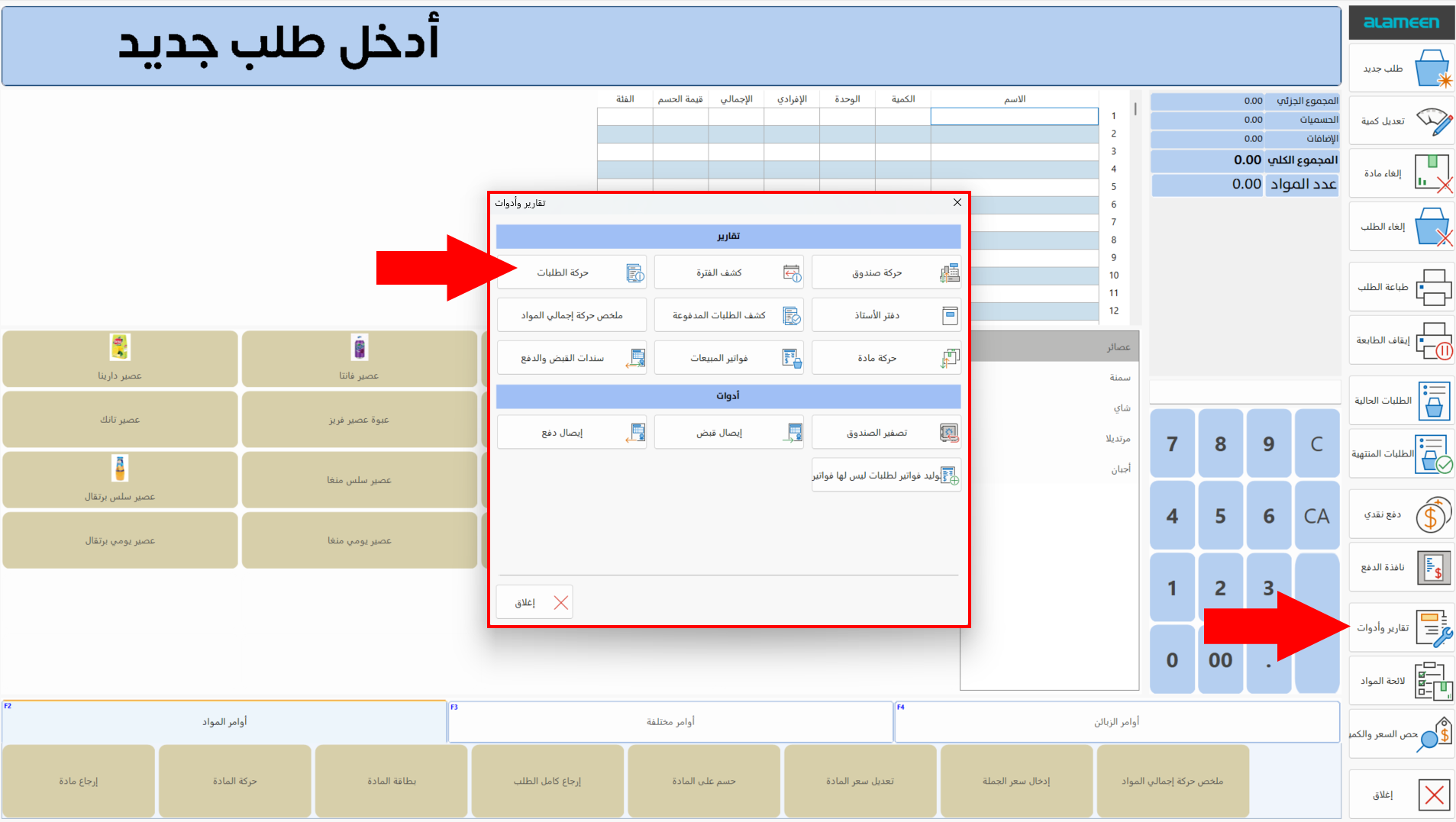
You can reach the "Orders Movement" report in the POS/restaurants interface after clicking the "Reports and Tools" button; the following window opens:
After you click the "Orders Movement" button, the report window opens as follows:
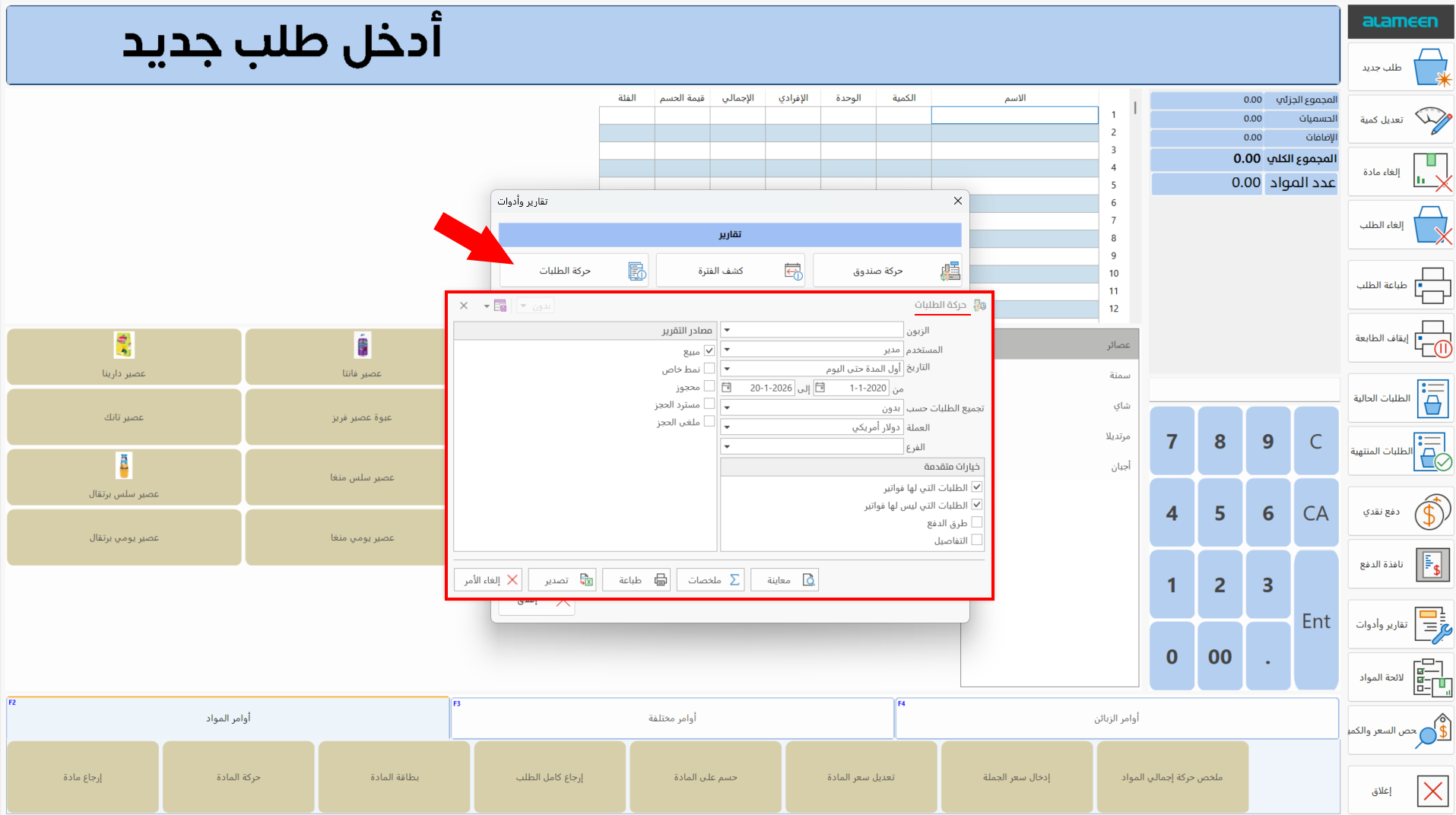
The report window contains various fields and options that help you view the details of the orders movement in the POS/restaurant.
If you are a user with the permissions, you can reach the report from the main ribbon of the program - POS tab - POS Reports group / Restaurants Reports group.
Report Window
The window lets you set the criteria and data you want the report to show. It includes several sections, such as the User and Customer fields, the advanced options that help you show the payment types and the details of the orders movement, and the sources the report is drawn from.
For more details, go to Report Window.
Report Window Operations
You can perform many operations on the report data, such as previewing and exporting.
For more details, go to Operations in Reports.