Serial Numbers Inventory Comparison
alameen ERP contains reports for following the movement of serial numbers and their profits, including the "Serial Numbers Inventory Comparison" report.
Report Purpose
The "Serial Numbers Inventory Comparison" report compares the book inventory of the serial numbers of the materials (the inventory alameen ERP gives) with the actual inventory (the stock-take you carry out yourself on the serial numbers of the materials in the warehouse), and lets you make a stock-take adjustment, by shortage or increase, to cover the differences.
The report window provides a set of buttons for importing the manual stock-take or entering it by hand. After comparing and entering the manual stock-take, you can make an "Increase Adjustment" when the actual inventory is greater than the book inventory, and a "Shortage Adjustment" when the actual inventory is less than the book inventory. The window also lets you make a stock-take adjustment when there are several differences (increase or shortage), so the increase and shortage are adjusted automatically together and adjustment invoices are generated.
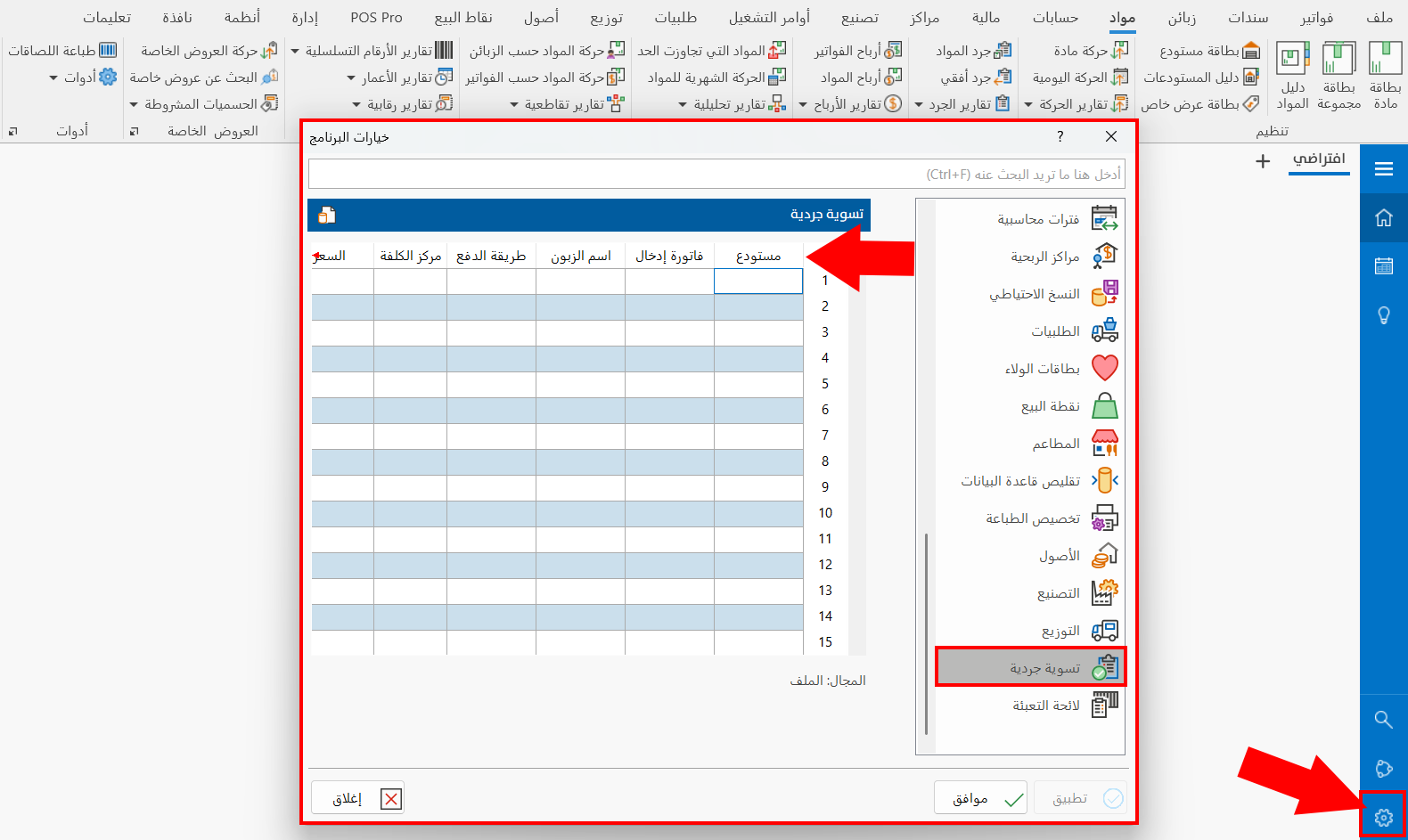
Set the invoices forms for each of the warehouses in which you want to compare the inventory, with the program options window - Stock-take Adjustment tab: the tab lets you add a form for the input invoice and the output invoice, and choose the payment type, the cost center, and the other available options.
Reaching the Report
You can reach the Serial Numbers Inventory Comparison report from the main ribbon - Materials tab - Reports group - the drop-down list of the Serial Number Reports button.
Once requested, the report window appears as follows:
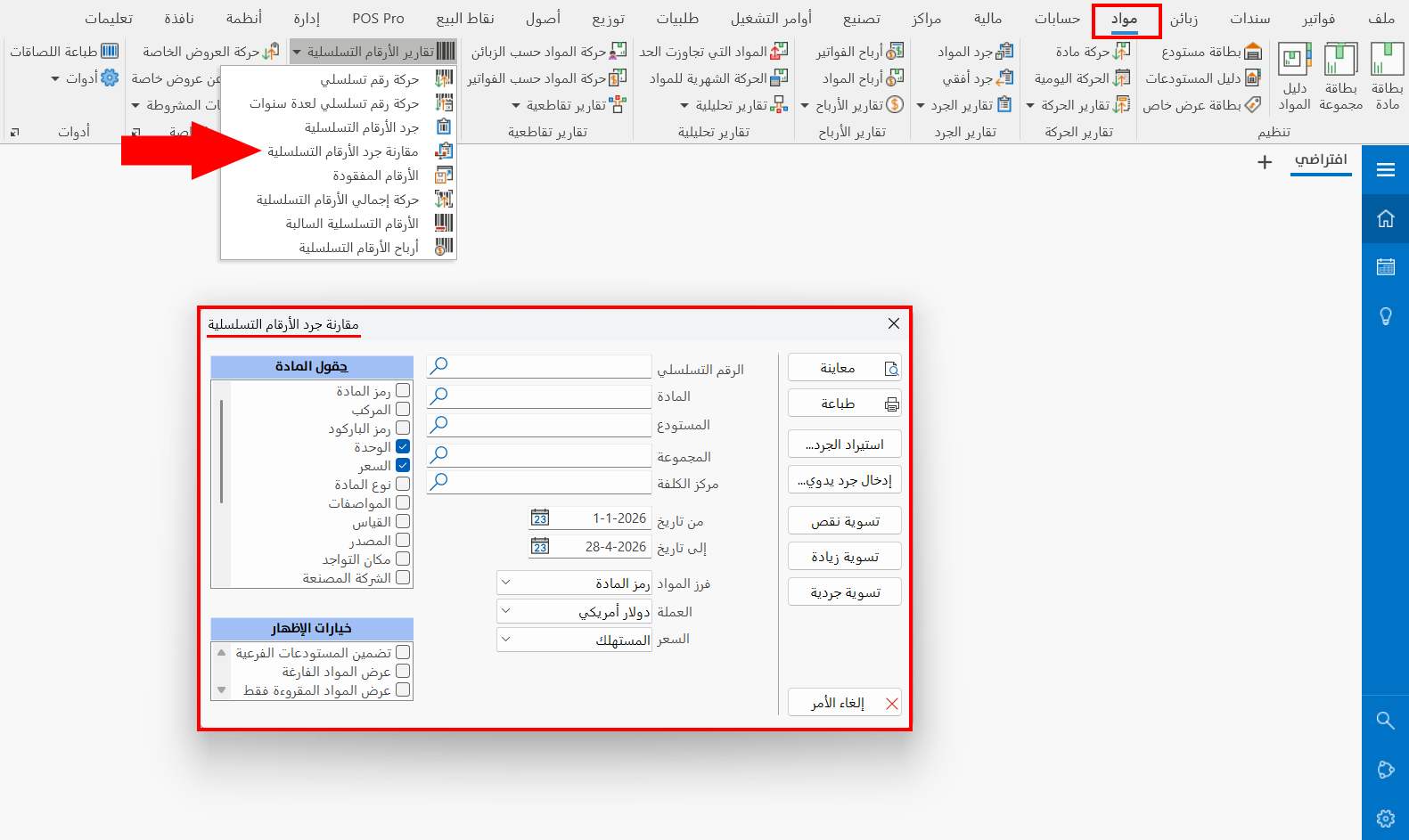
The report window contains various fields and options that help you view the details you need.
Report Window
The window lets you set the criteria and data you want the report to show. It includes several main sections, such as the filter fields, the sorting of materials, the material fields, and the display options.
For more details, go to Report Window.
Report Window Operations
The report window shows a set of buttons that help you apply the inventory and show the report, including:
Import Inventory
You can import the manual stock-take of the materials by clicking the "Import Inventory" button; the following window opens:
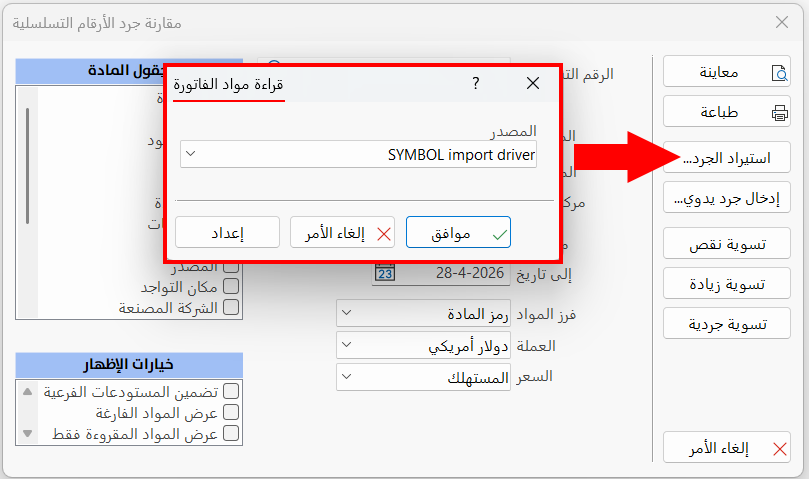
Click the arrow in the Source field to drop down a list of several types for choosing the suitable materials reader, such as a text file or a (Symbol) reader. After setting the suitable type, click the "Ok" button to continue, or the "Cancel" button to undo importing the inventory.
You can adjust the import settings by clicking the "Setup" button in the "Reading bill items" window.
Manual Inventory
You can enter the actual inventory of the serial numbers of the materials directly after clicking the "Manual Inventory" button; the following window opens:
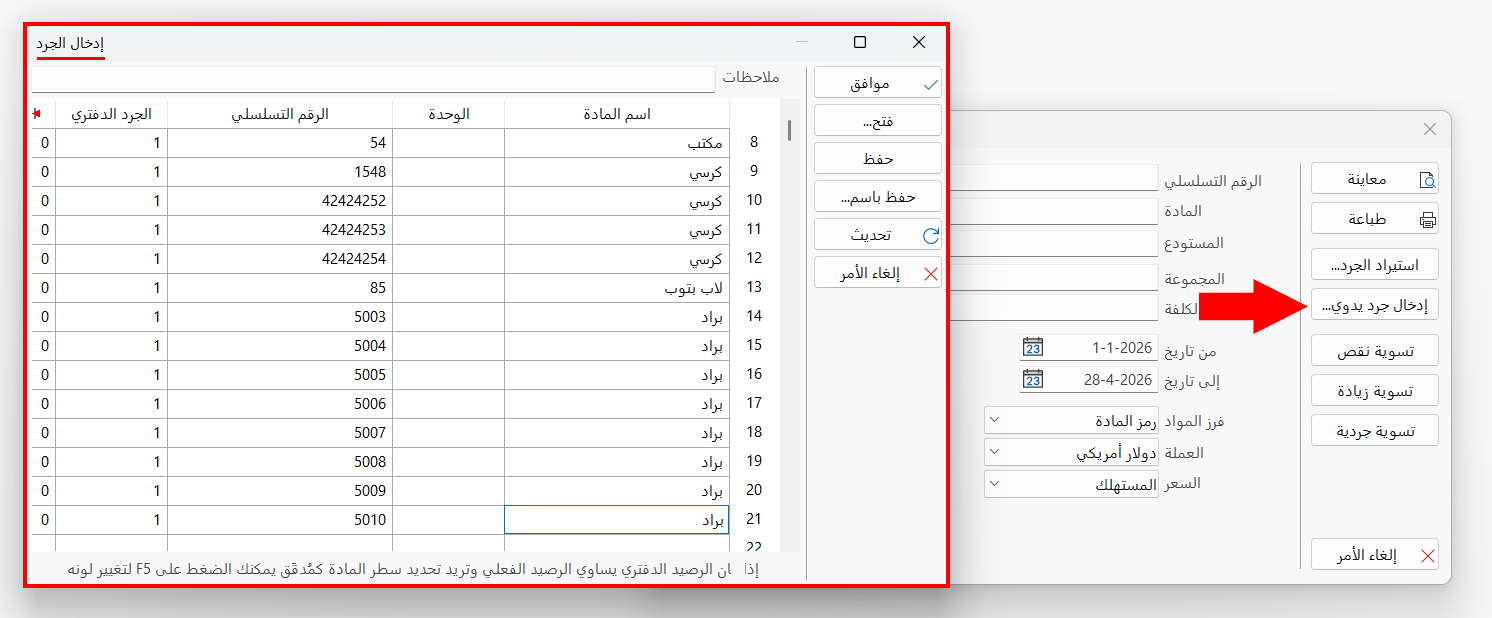
The window shows the names of the materials, the units of the materials, the serial number, a column for the book inventory (the quantities of the serial numbers in the warehouses according to alameen ERP), and a column in which you enter the actual inventory of the serial numbers when it differs from the book inventory.
You can change the color of a checked row by standing on it and pressing F5 on the keyboard. Note that the color of the row changes as soon as you enter a number that differs from the number in the "Actual Inventory" column, that is, when the actual inventory is greater or less than the book inventory; the aim is to mark the materials that need adjustment.
You can use the display options list to show the empty materials and the read materials, and to include the sub warehouses.
Shortage Adjustment
Use the "Shortage Adjustment" button to settle the stock-take differences and generate an invoice that covers the shortage; it is used when the actual inventory is less than the book inventory. After you click the button, a window opens for setting the invoice settings yourself, as follows:
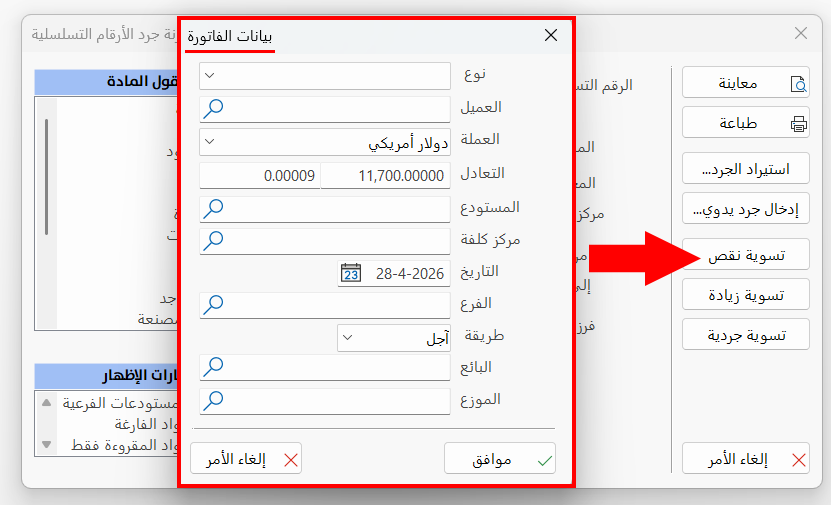
Choose the invoice type (sales, purchase return...), the client (if the payment type is on credit), the currency of the invoice and its parity, the warehouse, the cost center, the date, and the payment type, as well as the salesman or distributor, then click the "Ok" button to post the invoice, or the "Cancel" button to undo the shortage adjustment.
Increase Adjustment
Use the "Increase Adjustment" button to settle the stock-take differences and generate an invoice that covers the increase; it is used when the actual inventory is greater than the book inventory. After you click the button, a window opens for setting the invoice settings yourself, as follows:
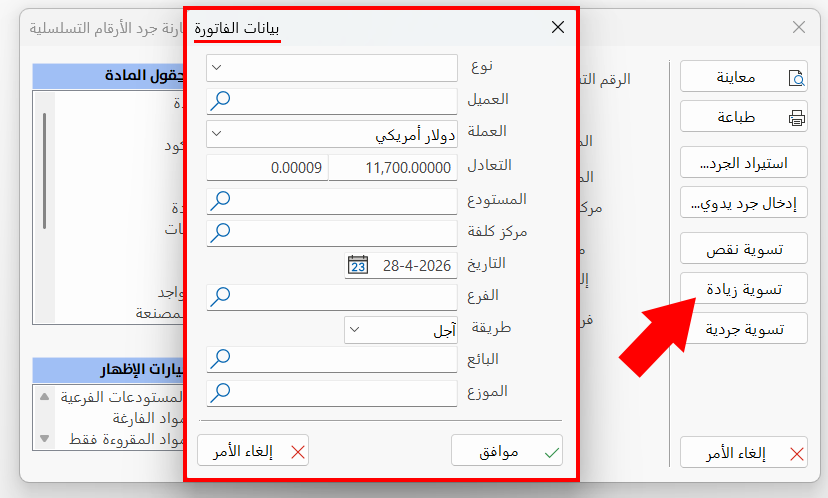
Choose the invoice type (purchases, sales return...), the client (if the payment type is on credit), the currency of the invoice and its parity, the warehouse, the cost center, the date, and the payment type, as well as the salesman or distributor, then click the "Ok" button to post the invoice, or the "Cancel" button to undo the increase adjustment.
Stock-take Adjustment
You can use the "Stock-take Adjustment" button to make the adjustment automatically, so the shortage and increase are settled at once; but you must make sure you have set the warehouses and the invoices forms the program relies on to generate the invoices that settle the stock-take differences.
After you click the "Stock-take Adjustment" button, the following window opens:
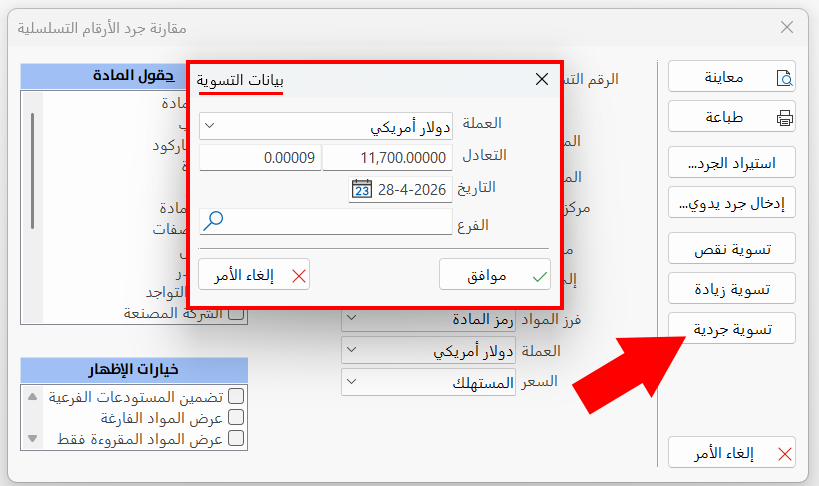
Set the currency of the invoice and its parity, its date, and the branch (when you use the branches system), then click the "Ok" button to start applying the adjustment.
After the stock-take adjustment, the window of the invoice generated by the adjustment opens directly.
You can perform many operations on the report data, such as previewing and exporting.
Please see Report Window Operations.