Sales Analysis
alameen ERP includes a set of analytical materials reports that show the data in different charts, including the "Sales Analysis" report.
Report Purpose
The "Sales Analysis" report shows the sales of materials or groups in a dashboard that contains several charts, so you can follow the sales visually.
The report window lets you set the analysis target, choosing between Groups and Materials, to show the sales according to the target. When you choose Materials, you can request the report for the materials of a group you set in the "Group" field; when you choose Groups, the report shows the sales of all the defined groups.
You can set the period for which to show the sales of the materials by choosing it from the drop-down list of the "Date" field in the report window, or you can enter the period yourself in the "From" and "To" fields, and choose the currency and the unit of materials you need.
The report shows the sales analysis for all the sales and sales return invoices forms, and you can narrow the view to one form by selecting it in the report preview interface. It also shows a table of the sales by analysis target (group, materials) with a chart of the monthly trend of the sales and their percentage in each month.
The report shows a chart of the sales by date and another of the sales by payment type, as well as lists of the top customers you dealt with in sales invoices, with the total value of their invoices. The number of top customers follows the number you enter in the "Top/Bottom Count" field of the report window. For example, when you enter "5" and preview the report, a list of the top 5 customers appears.
The report preview interface is interactive: when you click the name of a material or group in the "Sales by Group" table, the names in "Top Customers" and the charts (Sales by Date, Sales by Pay Type) change to show the chart of the material/group you chose. Likewise, when you click the sales percentage of a particular month (in the Sales by Date chart), the order of the materials/groups changes to suit the month you chose.
Reaching the Report
You can reach the Sales Analysis report from the main ribbon - Materials tab - Analytical Reports group - the drop-down list of the Analytical Reports button.
Once requested, the report window appears as follows:
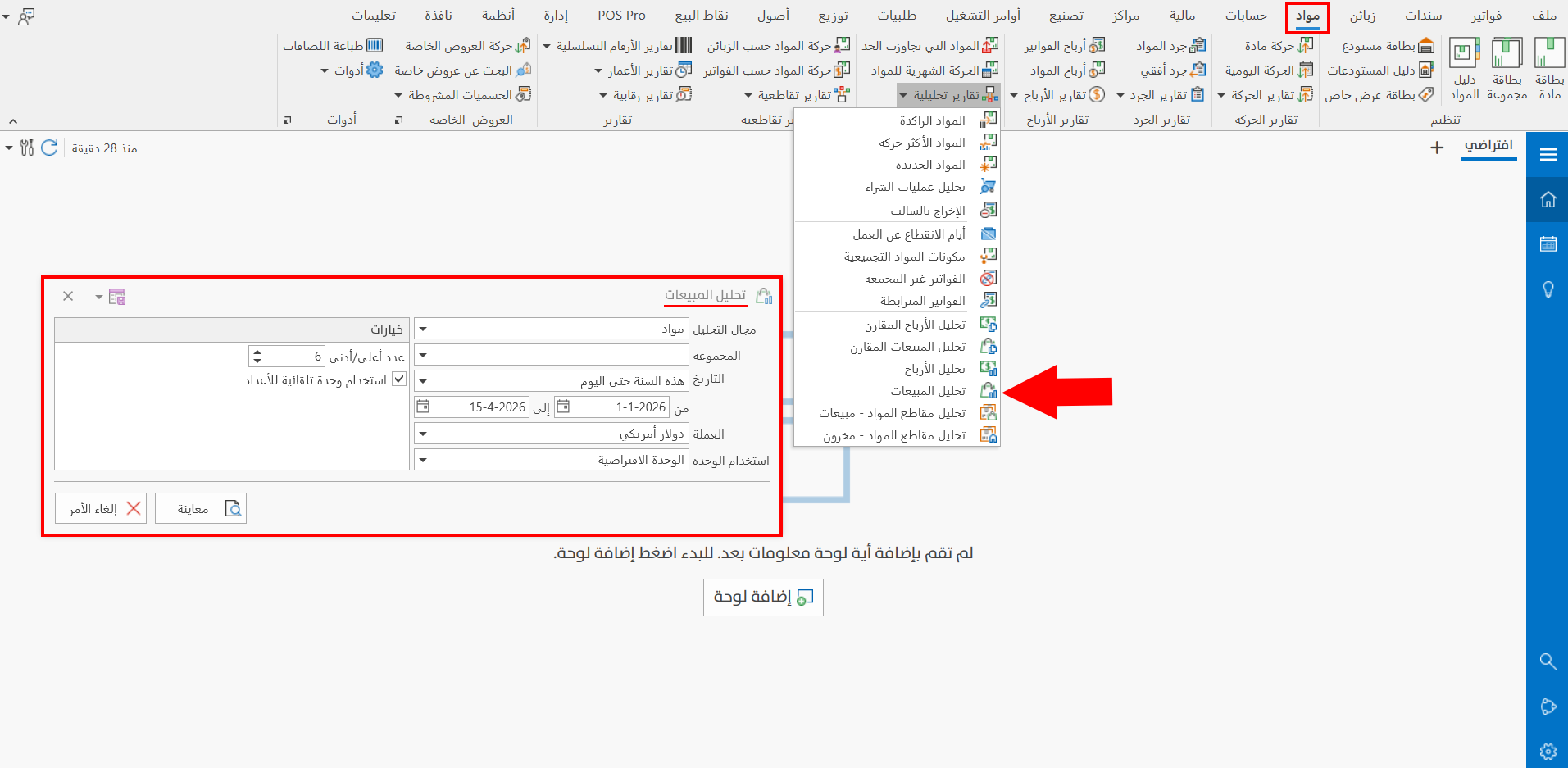
The report window contains various fields and options that help you view the details you need.
Report Window
The window lets you set the criteria and data you want the report to show. It includes several fields for setting the analysis target, the period of the profits, and the various options, including setting the top/bottom 6 customers.
For more details, go to Report Window.
Report Window Operations
You can preview the report with the "Preview" button, or close the report window with the "Cancel" button.