Negative Output
alameen ERP provides detailed reports on materials to help you follow up profits and inventory precisely, including the "Negative Output" report.
Report Purpose
The "Negative Output" report finds the materials taken out of the warehouses in sales invoices before they were entered into the warehouses in purchase invoices. When you sell a material before entering it, its quantity in the warehouse becomes negative, and the stock falls below zero.
You can request the report for a particular material, a group of materials, or the materials of a warehouse or cost center, over a period you choose from the list of periods that drops down from the date field of the report window, or by entering the period yourself in the "From" and "To" fields.
You can choose the shape in which to show the data of the report from the drop-down list of the "Report Shape" field. When you choose "Expanded", the report shows the type and date of the output invoice, the name and unit of the material, the quantity in the invoice, and the current quantity in the warehouses (always negative values). When you choose "Brief", the report shows the material name, the warehouse, the unit of the material, and the current quantity of the material in the warehouse (always negative values).
The report window provides the "Input Bill" button, which becomes available when you choose the report shape "Brief". It is used to issue an input invoice for the negative quantities: when you click it, the "Input Bill" window opens, where you choose the type (form) of the generated invoice and set additional data such as the currency, warehouse, cost center, and payment type. After filling in the fields, click the "Ok" button in the window to generate the invoice, or click the "Cancel" button to undo the generation and close the window.
You can also generate the input invoice from the report preview interface - Operations tab - "Input Bill" button.
Reaching the Report
You can reach the Negative Output report from the main ribbon - Materials tab - Analytical Reports group - the drop-down list of the Analytical Reports button.
Once requested, the report window appears as follows:
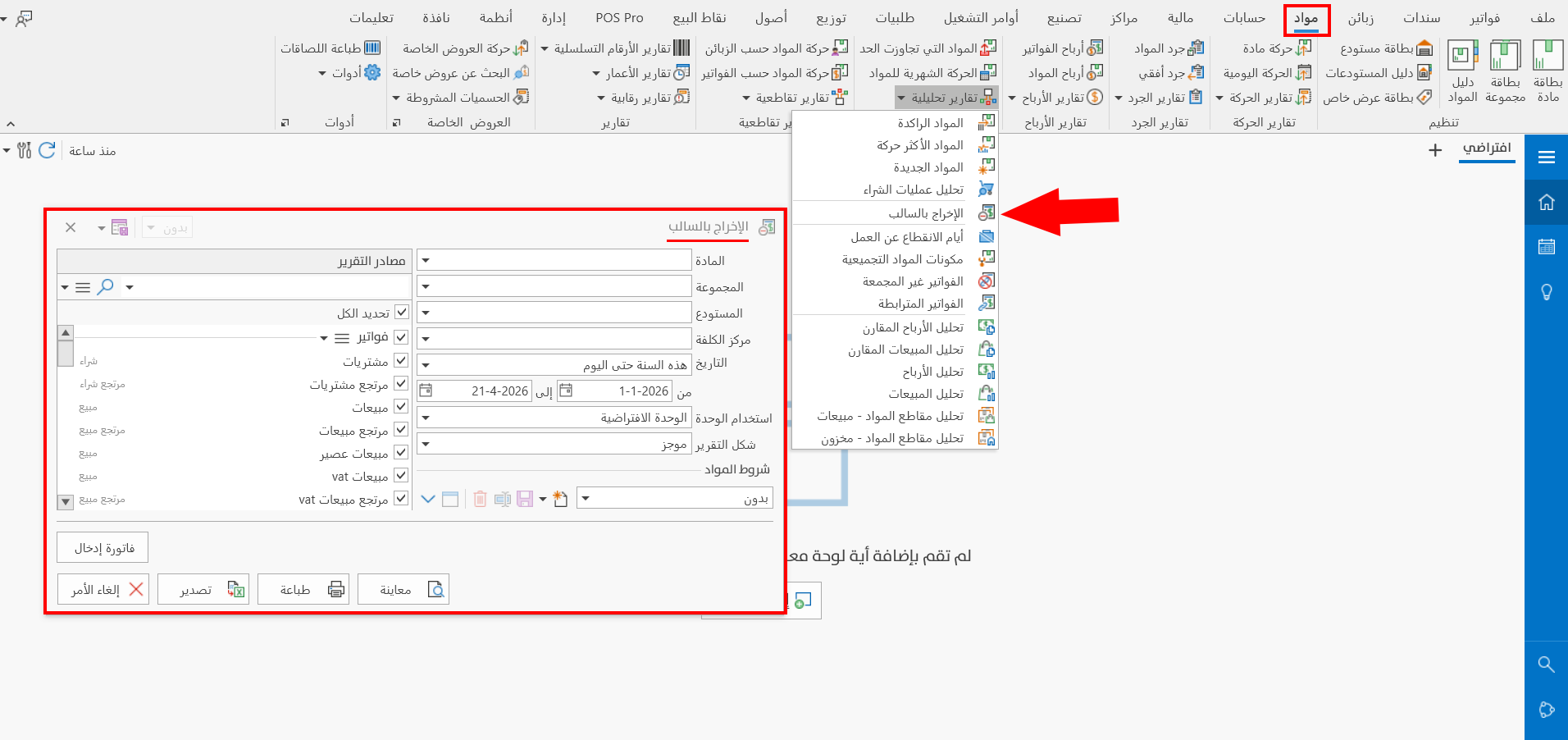
The report window contains various fields and options that help you view the details you need.
Report Window
The window lets you set the criteria and data you want the report to show. It includes several main sections, such as the filter fields, the materials terms, the various options, and the sources the report is drawn from.
For more details, go to Report Window.
Report Window Operations
You can run many operations on the data of the report, such as generating an input invoice, previewing, and exporting.
Please see Report Window Operations.