Linked Bills
alameen ERP provides a set of analytical reports that cover the movement of groups, warehouses, and accounts, including the "Linked Bills" report.
Report Purpose
The "Linked Bills" report shows the invoices of a particular form and the invoices of the different invoices forms linked to them, and you can set the number of the invoice whose linked invoices you want to see.
The report window lets you choose the invoice type (the invoice form) for which you want to show a report of the linked invoices of the same type: the field drops down a list of all the invoices forms defined in the file.
The window also provides the "Notes Contain" field to show the linked invoices according to the data you added in the Notes field of the invoice window, which makes it easier to reach the invoices you need.
You can find the invoices linked to an invoice from the invoice window itself, by clicking the "View" button in the invoice window and choosing "Linked Bills".
Reaching the Report
You can reach the Linked Bills report from the main ribbon - Materials tab - Analytical Reports group - the drop-down list of the Analytical Reports button.
Once requested, the report window appears as follows:
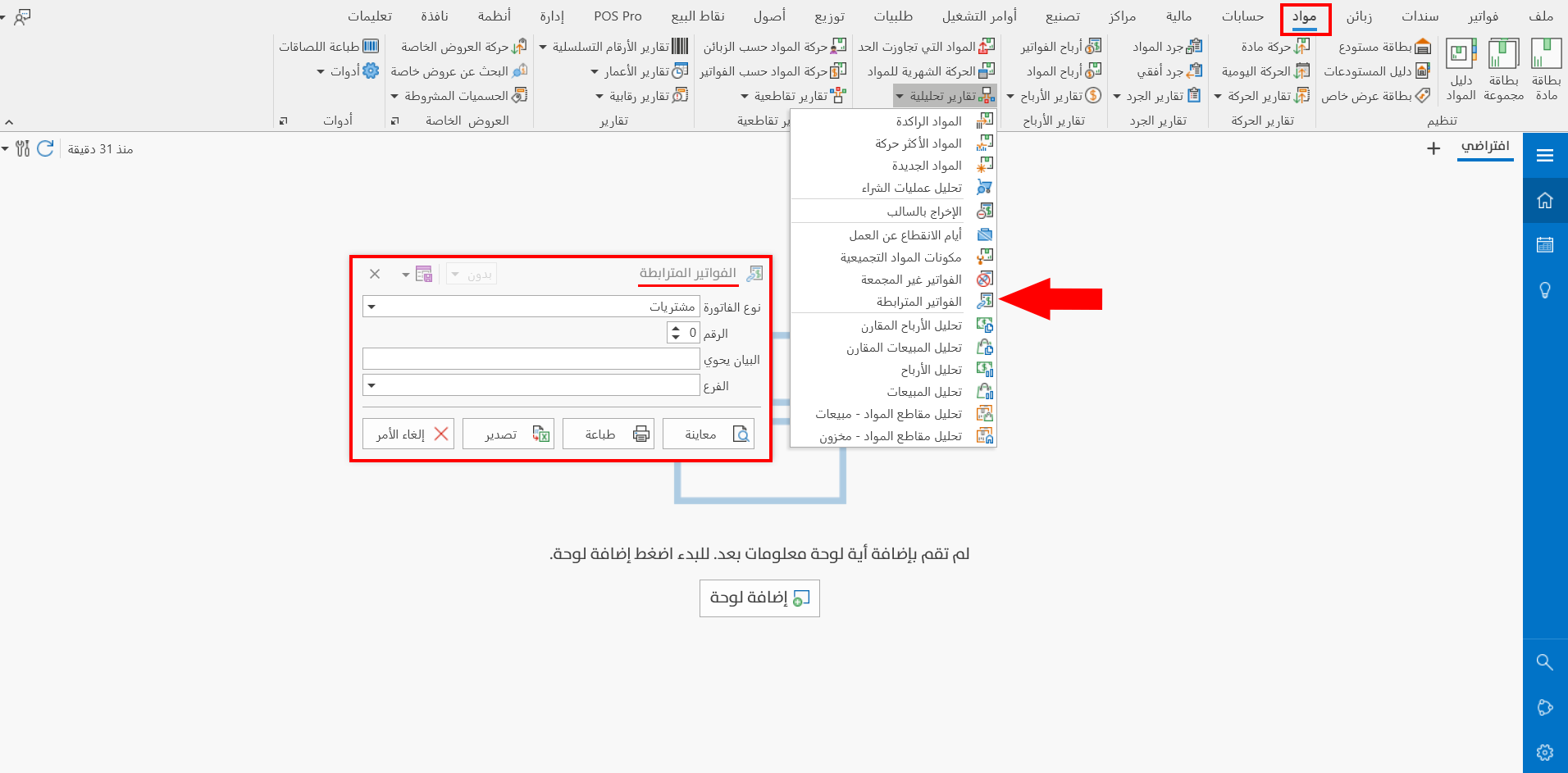
The report window contains various fields and options that help you view the details you need.
Report Window
The window lets you set the invoice type, and its number too, enter particular information in the Notes field, and set the branch in which the invoices were issued.
For more details, go to Report Window.
Report Window Operations
You can perform many operations on the report data, such as previewing and exporting.
For more details, go to Operations in Reports.