Comparative Sales Analysis
alameen ERP includes a set of analytical materials reports that show the data in different charts, including the "Comparative Sales Analysis" report.
Report Purpose
The "Comparative Sales Analysis" report shows the sales of materials or groups in a dashboard that contains several charts, so you can follow the sales visually. The report lets you compare the sales of a group with other groups, and likewise between materials: you can choose the materials whose sales you want to compare over the months in which the material moved within the period set in the report window.
The report window lets you set the analysis target, choosing between Groups and Materials, to show the sales according to the target. When you choose Materials, you can request the report for the materials of a group you set in the "Group" field; when you choose Groups, the report shows the sales of all the defined groups.
You can set the period for which to show the sales of the materials by choosing it from the drop-down list of the "Date" field in the report window, or you can enter the period yourself in the "From" and "To" fields, and choose the currency and the unit of materials you need.
The report shows two charts for all the sales and sales return invoices forms, and you can narrow the view to one or more forms by selecting the forms you need from the list in the report preview interface; the two charts respond directly to your choices.
The first chart shows the sales of the materials or groups by value, and the second chart shows the sales of the materials or groups by quantity, according to the analysis target you choose in the report window (materials or group). This chart shows the quantity and profit of each month of the period you set in the report window.
Reaching the Report
You can reach the Comparative Sales Analysis report from the main ribbon - Materials tab - Analytical Reports group - the drop-down list of the Analytical Reports button.
Once requested, the report window appears as follows:
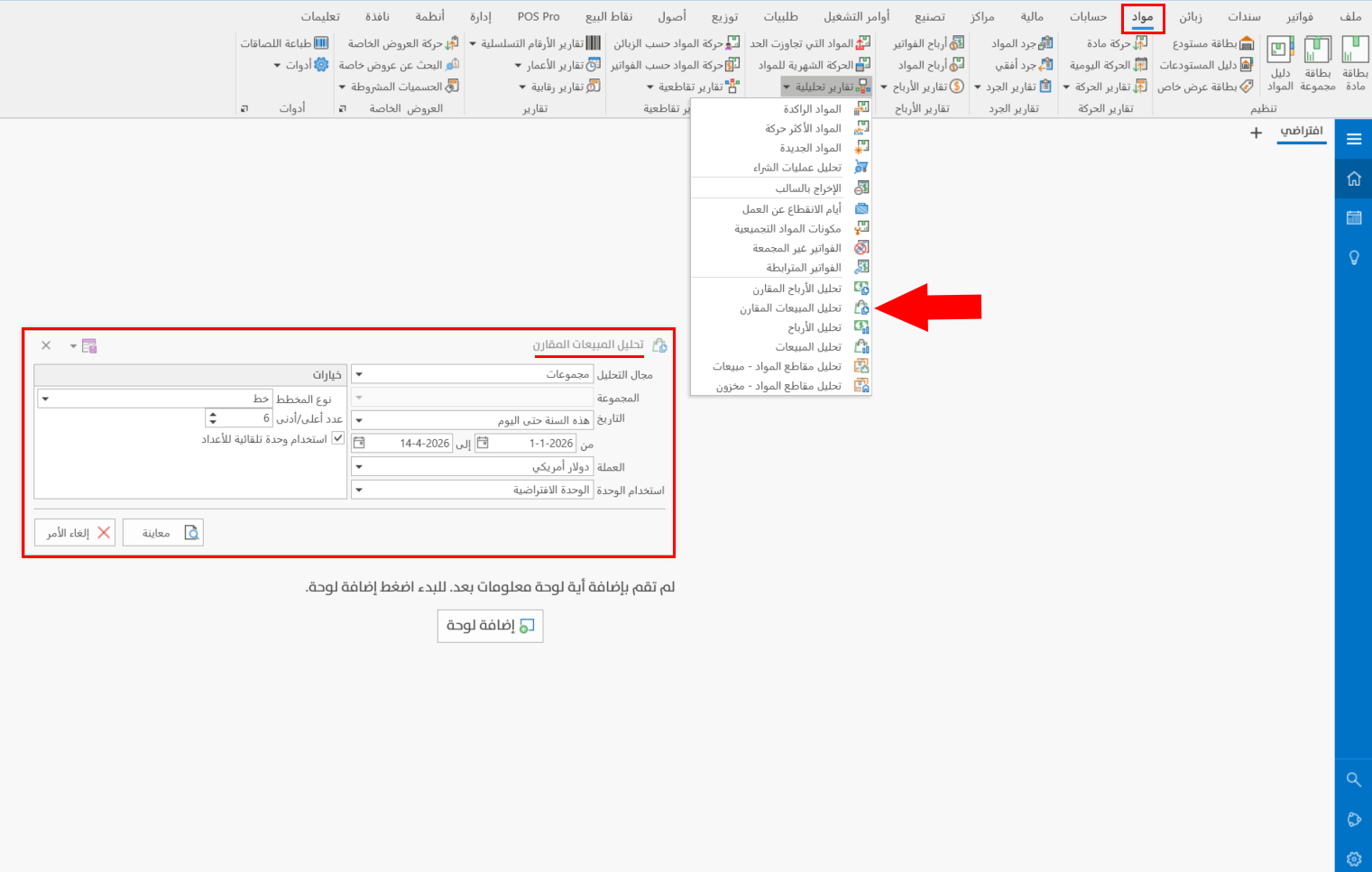
The report window contains various fields and options that help you view the details you need.
Report Window
The window lets you set the criteria and data you want the report to show. It includes several fields for setting the analysis target, the period of the profits, and the various options, including choosing the chart type you want in the report preview interface.
For more details, go to Report Window.
Report Window Operations
You can preview the report with the "Preview" button, or close the report window with the "Cancel" button.