Cash Movement by Contra Accounts
alameen ERP provides a set of financial reports for auditing accounts and finding the cash movement, including the "Cash Movement by Contra Accounts" report.
Report Purpose
The "Cash Movement by Contra Accounts" report shows the movement of the accounts according to the movement of their contra account over a period you set yourself.
You must request the Cash Movement by Contra Accounts report for a particular cash account (the "Cash Account" field is mandatory). You can also request the report for the movement of the cash account in a particular cost center, or the movement of the cash account against a set contra account, over a period you choose from the list of ready-made periods that drops down from the "Date" field of the report window, or by entering the range of the period yourself in the "From" and "To" date fields.
The report window lets you set the level of the accounts you want to show in the report with the "Level" field: enter the number yourself, or use the arrows in the field until you reach the level you need.
The report shows the opening balances of the account, the value of the cash receipts and payments, the final balance of the account, the current balance of the account, and the difference between the final and current balances. You can add more account fields to the report, such as the budget value, the account currency, and the final account, with the field list in the report preview interface.
Reaching the Report
You can reach the Cash Movement by Contra Accounts report from the main ribbon - Financial tab - Reports group.
Once requested, the report window appears as follows:
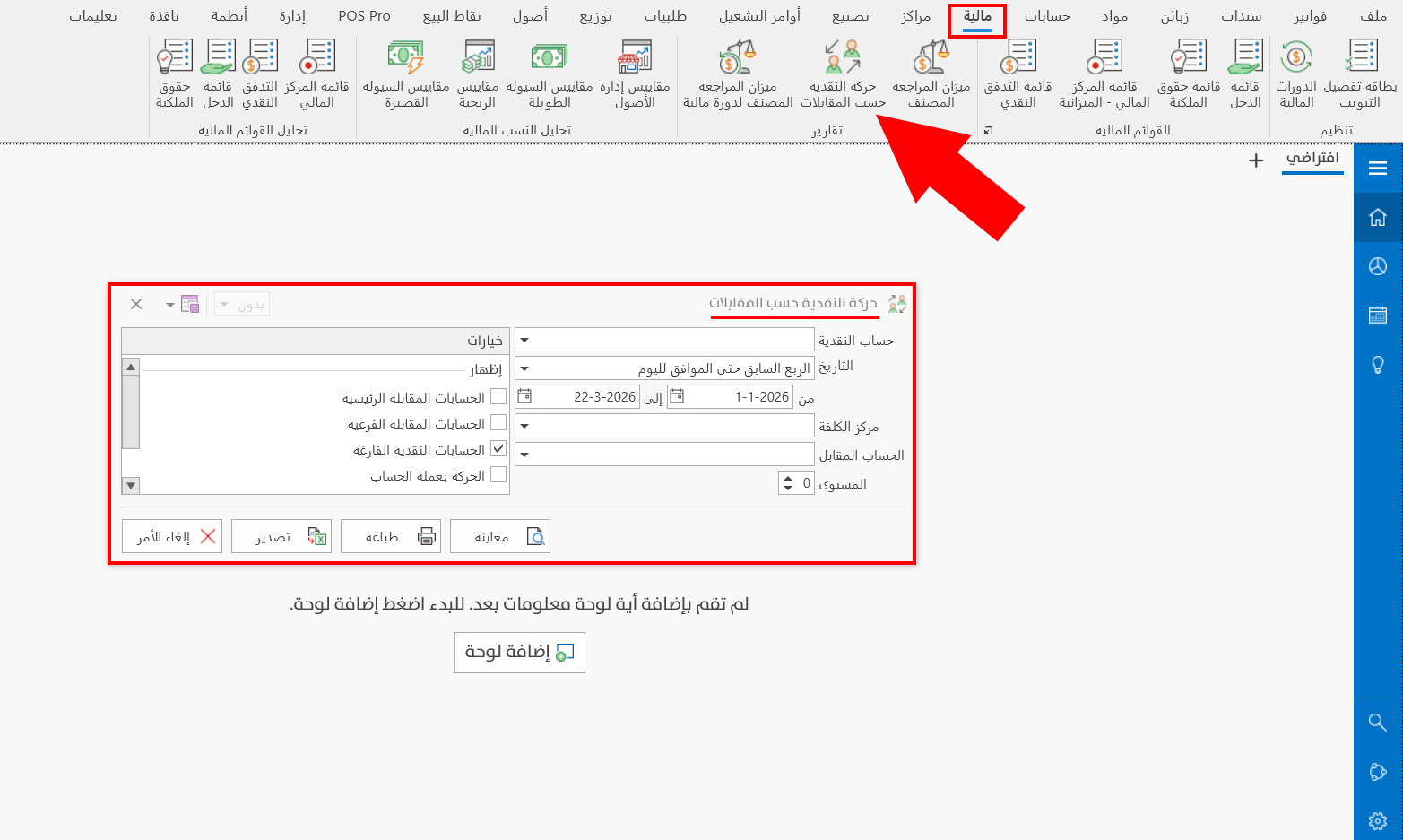
The report window contains various fields and options that help you view the details you need.
Report Window
The window lets you set the criteria and data you want the report to show. It includes several main sections, such as the filter fields, the level setting, and the various display options (Main Contra Accounts, Sub Contra Accounts, Empty Cash Accounts, Movement in Account Currency).
For more details, go to Report Window.
Report Window Operations
You can perform many operations on the report data, such as previewing and exporting.
Please see Report Window Operations.