Assets Report
alameen ERP contains a number of reports for following the operations and movement of fixed assets, including the "Assets Report".
Report Purpose
The Assets Report shows the data of a fixed asset and of the sub assets under it, from its entrance at its original value, through all the values of additions and depreciations during its years of existence, to its current value.
The data of the report is shown in detail for the asset: the main rows of the report hold the data of the fixed asset, and the detail rows hold the data of the sub assets under it. In the main row, the report shows the net asset value, the input value, the previous depreciation, the current depreciation, and the total depreciation, which give the current value of the asset; it also shows the total number of current assets. When you expand the main row, the detail rows, the data of the sub assets, drop down.
You can add more report fields (Current Additions, Current Disposal, Productive Age...) and material fields (group name, Source, Location...) with the field list in the report preview interface.
You can request the report to show the data of a group of assets, of a particular asset, or of all the assets in a warehouse or cost center. You can also use the report to find the assets you got from a particular supplier, or to show the depreciation of the assets up to a certain date.
The report window lets you set a period to find the assets you entered during it, with the "Entrance Date" fields, or set the period in which you bought assets, by setting its start and end with the "Purchase Date" fields.
Reaching the Report
You can reach the Assets Report report from the main ribbon - Assets tab - Reports group.
Once requested, the report window appears as follows:
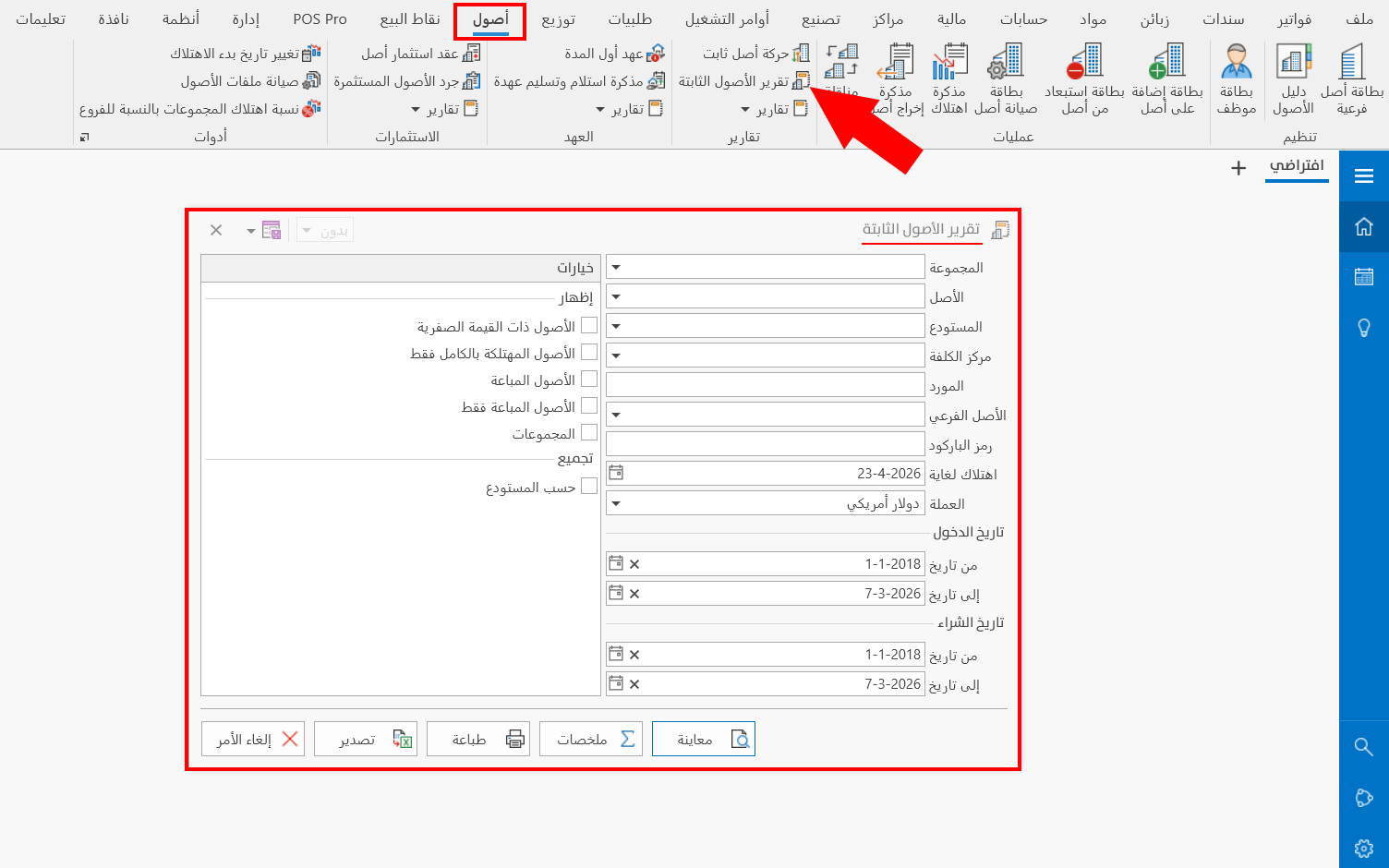
The report window contains various fields and options that help you view the details you need.
Report Window
The window lets you set the criteria and data you want the report to show. It includes several main sections, such as the filter fields, the entrance date and purchase date, and the various options.
For more details, go to Report Window.
Report Window Operations
You can perform many operations on the report data, such as previewing and exporting.
Please see Report Window Operations.