Add Currency
You can add to the file a new currency, other than the main currency, to use when setting the currencies of materials, invoices, and accounts, and in restaurants and the POS too, with the "Add Currency" window.
You can reach the "Add Currency" window from the main ribbon - Accounts tab - the drop-down list of the Currencies button - Exchange Rates.
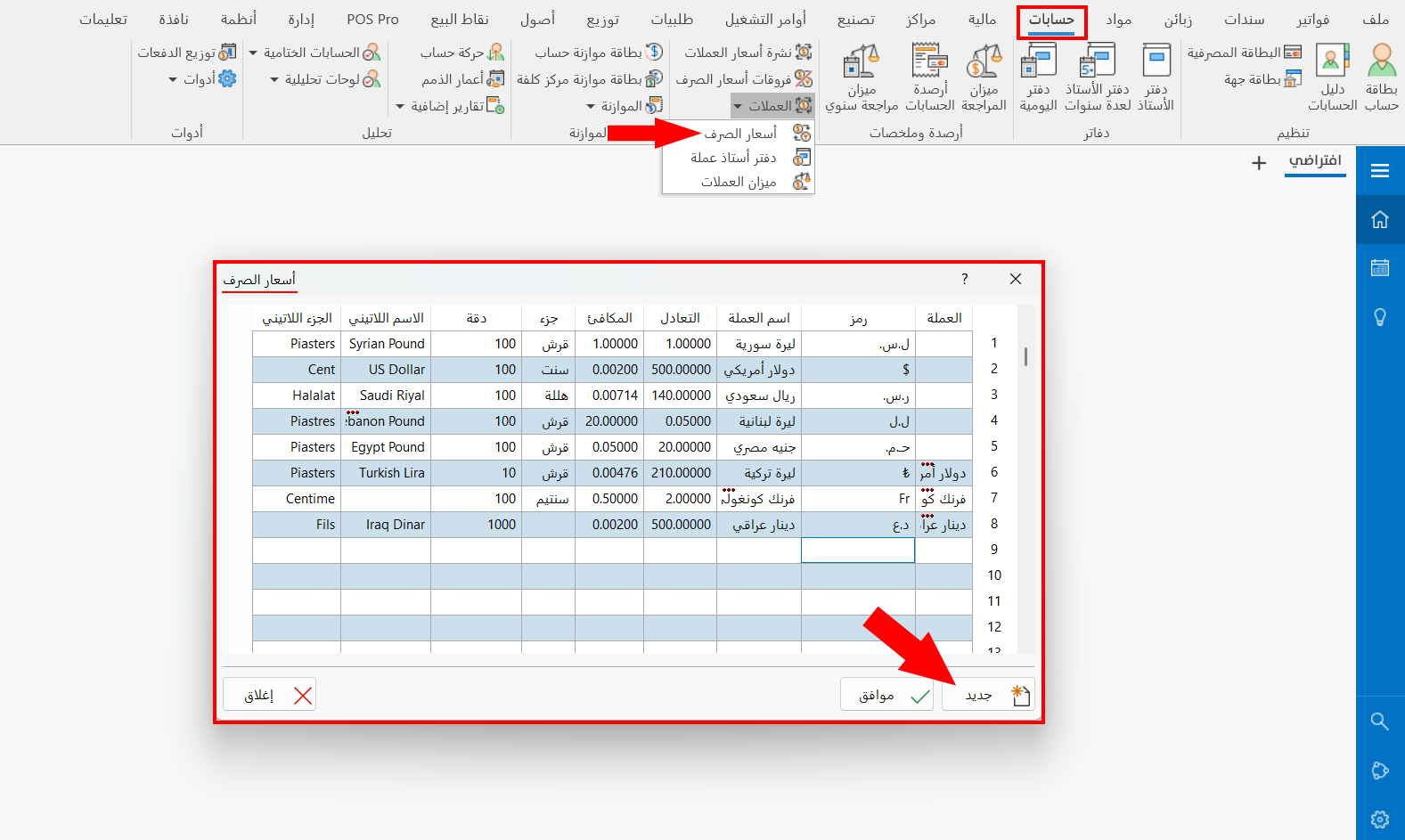
After you request the exchange rates, click the "New" button, and the "Add Currency" window opens, as follows:
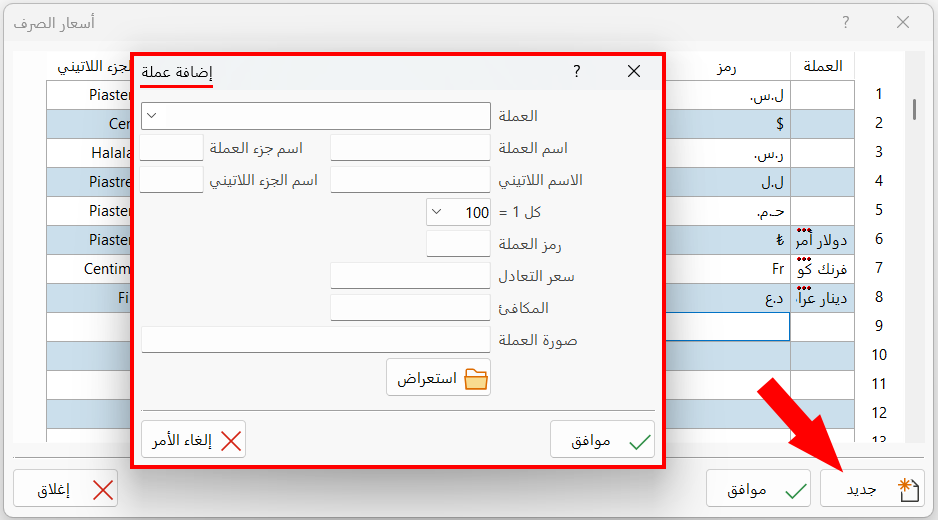
You can use the fields of the window to add the currency, as follows:
Currency
Enter the currency of the country you want to add by typing it yourself, or click the arrow in the field to choose the currency from the list of ready-made currencies that alameen provides.
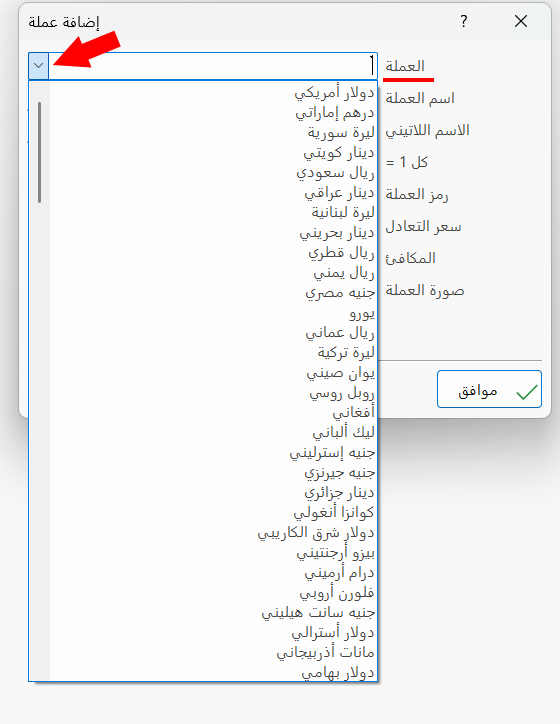
When you choose the currency from the drop-down list of currencies in the field, the data of the following fields is filled in automatically in the window:
Currency Name, Part Name, Latin Name, Latin Part Name, Each 1 =.
Currency Name
The currency name appears automatically after you choose the currency from the list of currencies; when you add it yourself, you must type the official name of the currency in the field (a mandatory field).
Part Name
The name of the currency part is filled in automatically after you choose the currency from the list of ready-made currencies; when you add it yourself, you can type the official name of the currency part in the field (an optional field).
Latin Name
The Latin name of the currency appears in the field as soon as you choose the currency from the list of ready-made currencies; when you define the currency yourself, you can add the Latin name of the currency in the field (an optional field).
Latin Part Name
The Latin name of the currency part appears in the field as soon as you choose the currency from the list of ready-made currencies; when you define the currency yourself, you can add the Latin part name of the currency in the field (an optional field).
Each 1 =
Set the value of the currency part against the currency, for example, each 1 US dollar = 100 cents. When you choose the currency from the list of ready-made currencies, the value of the field is filled in directly.
Currency Code
Enter the abbreviation that represents the currency you are adding, for example, the code of the US dollar is $. When you choose the currency from the list of ready-made currencies, the value of the field is filled in directly.
Exchange Rate
Set the parity of the currency you are adding against the main currency of the file; it is the conversion factor to the basic currency.
For example, if the main currency is the "Syrian pound", with a parity of "1", and you add the new currency "US dollar", the parity of the US dollar is the exchange rate of the pound against the dollar, say "1170".
Equivalent
The content of the Equivalent field appears automatically after you enter the value of the "Exchange Rate" in the previous field, and the equivalent = 1 / exchange rate.
Currency Picture
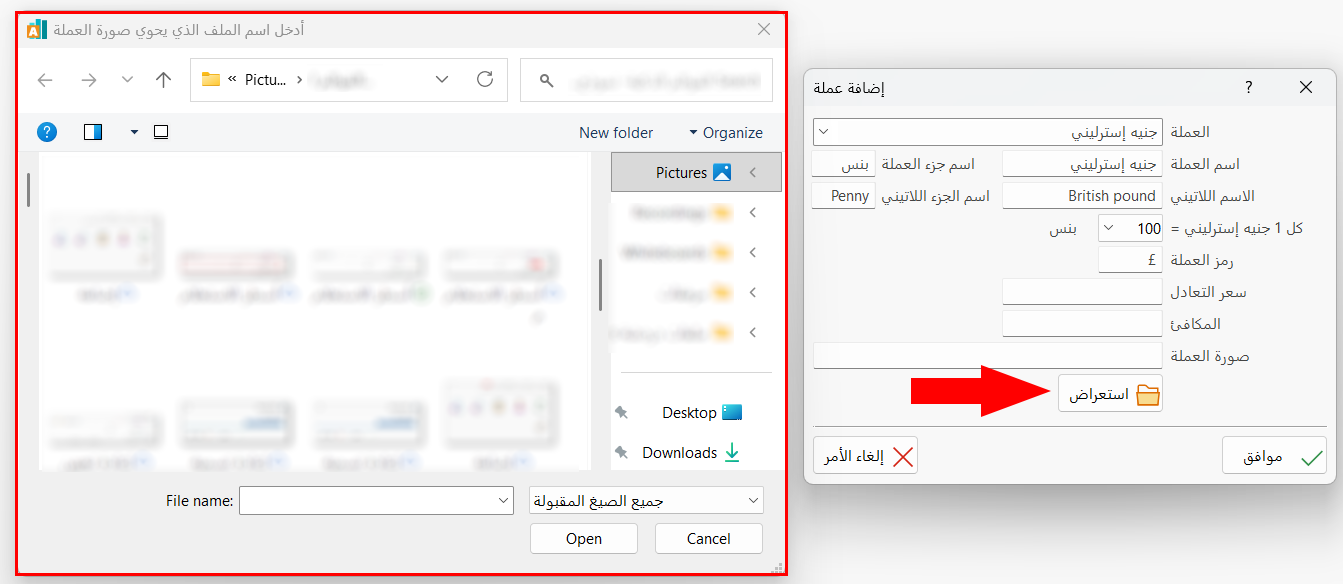
The window lets you add a picture of the currency in the field, by clicking the "Browse" button and choosing the picture from the window that opens and shows the files of the computer.
Ok
Click the "Ok" button to save the data of the new currency and add it to the currencies table in the "Exchange Rates" window, which means that the currency is now available for you to use in the operations of the program.
Cancel
Click the "Cancel" button to undo adding the currency and return to the "Exchange Rates" window.