Exchange Rates
You can deal with a large number of currencies, add a new currency to the file very easily, and change the Exchange Rates Table at any time, so a window that shows the currencies of the file and their parity and equivalent against the basic currency is needed: the "Exchange Rates" window.
You can reach the Exchange Rates report from the main ribbon - Accounts tab - Currencies group - the drop-down list of the Currencies button.
Once requested, it appears as follows:
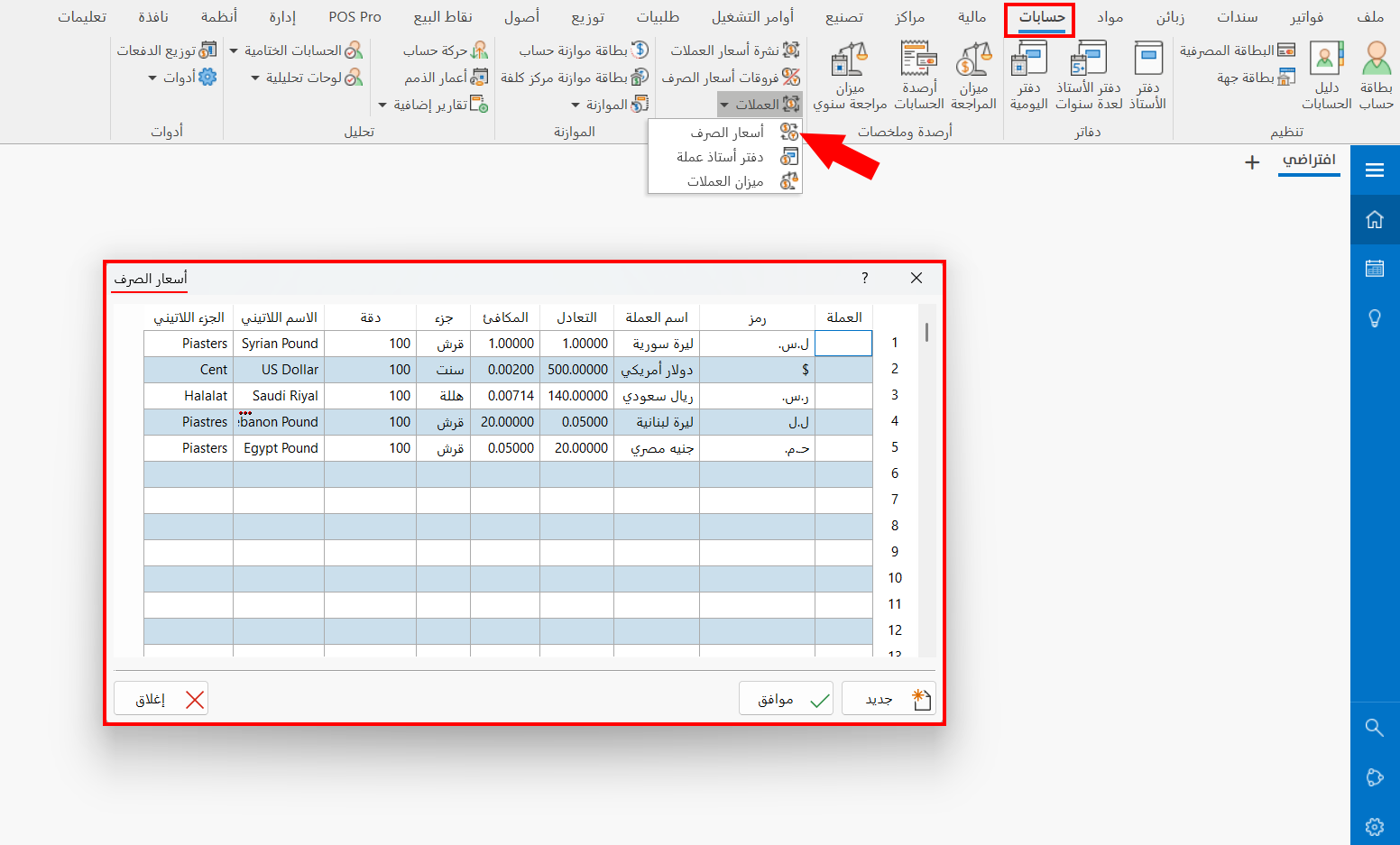
The Exchange Rates window is used to view the currencies and their data, and to add a new currency to the current file. The window contains the following:
Currencies Table
The table contains the data of the currencies added with the "New" button of the window, as well as the basic currency. It shows all the information of the currency set when it was added:
The currency code and name, its parity against the basic currency, the name of the currency part and its value in the currency (the precision), and the Latin names of the currency and its part.
You can change the parity of a currency by moving to the "Parity" cell next to the currency name cell and entering the new parity. You can also change or correct the name of a currency by typing the new name in the name cell, then clicking the Ok button to apply the changes.
New
You can add a currency to use in the current file by clicking the "New" button; the "Add Currency" window opens, as follows:
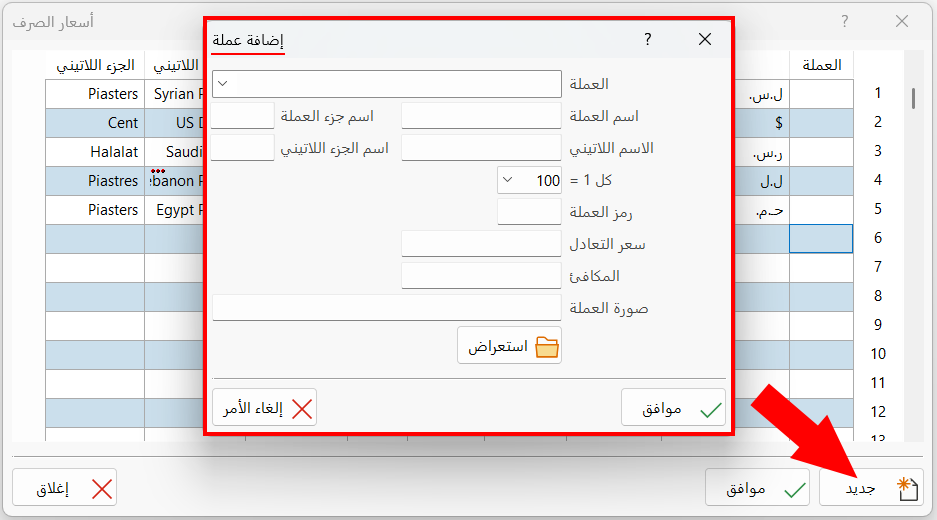
Enter the data of the new currency in the fields of the window, then click the "Ok" button.
Ok
Saves the changes you make to the currency information in the table. For example, after changing the parity of a currency, you must click the "Ok" button to save the new parity.
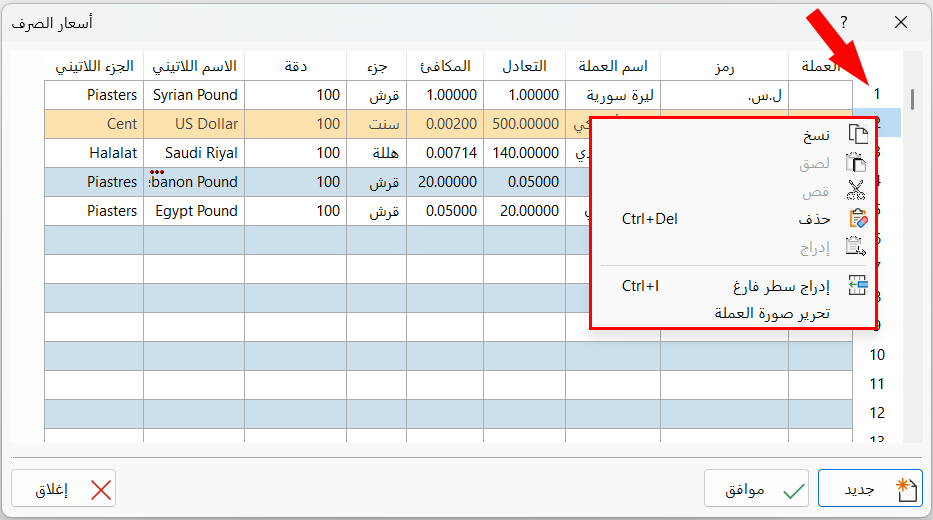
Right-click the number next to the currency row to show a list of options for changing the currency or deleting it.