Ledger
alameen ERP provides balances and books reports, and final accounts, to give a comprehensive and accurate view of your company's financial performance, including the "Ledger" report.
Report Purpose
The ledger is the basis of the company's accounting records. It consists of the entries generated by each movement of the account (payment or receipt, purchase or sale...), and these records help you follow the detailed movement history of each account.
Movements are posted from the journal to the ledger, so the ledger is used to track the movement of all the accounts, cost centers, or program users.
You can set the level of detail when you request the ledger of a main account. When you request the ledger of a main account at level (1), the report shows the total and balance of the selected account and of the accounts directly under it. At level (2), the report shows the total and balance of the account, of the accounts directly under it, and of the accounts directly under those accounts; and if the accounts directly under it are sub (detailed) accounts with no sub accounts of their own, the entries of those accounts are shown. When you request level (0), all the details of all the sub accounts and their entries are shown.
The report shows the entries generated by the movement of the requested account: the entry origin, the balance, the debit/credit value, the item notes, and the customer name. You can also add new fields to the report fields to show more details of the account movement, with the field list in the report preview interface.
Reaching the Report
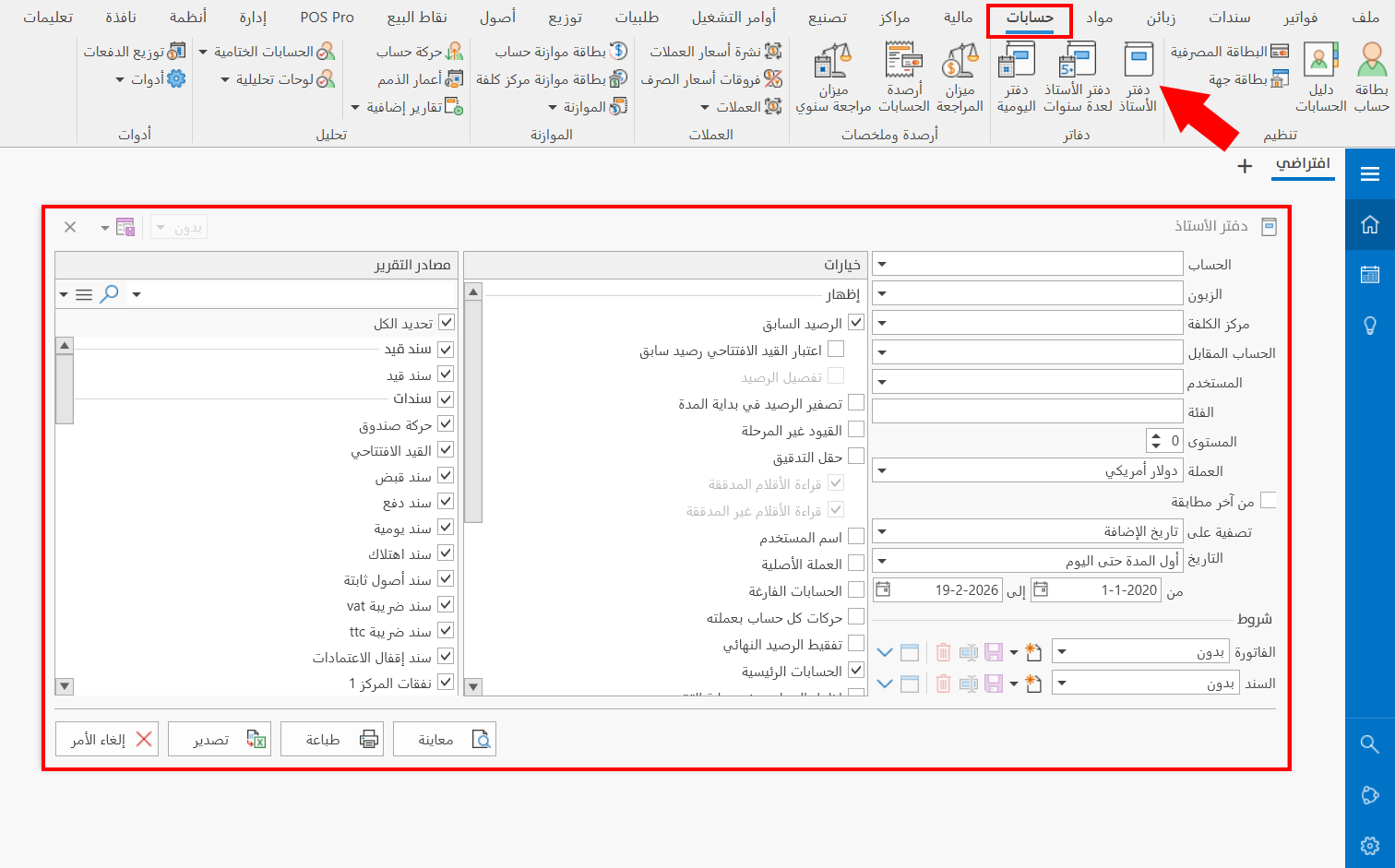
You can reach the Ledger report from the main ribbon - Accounts tab - Books group.
Once requested, the report window appears as follows:
You can request the ledger report for the POS from the POS interface - Reports and Tools.
The report window contains various fields and options that help you view the details you need.
Report Window
The window lets you set the criteria and data you want the report to show. It includes several main sections, such as the filter fields, the invoice and entry conditions, the various options, and the sources the report is drawn from.
For more details, go to Report Window.
Report Window Operations
You can perform many operations on the report data, such as previewing and exporting.
Please see Report Window Operations.