Transfers
This type of invoice handles moving goods between the warehouses or branches of the establishment: the program lets you create many transfer forms to suit how you work.
Add Transfer Forms
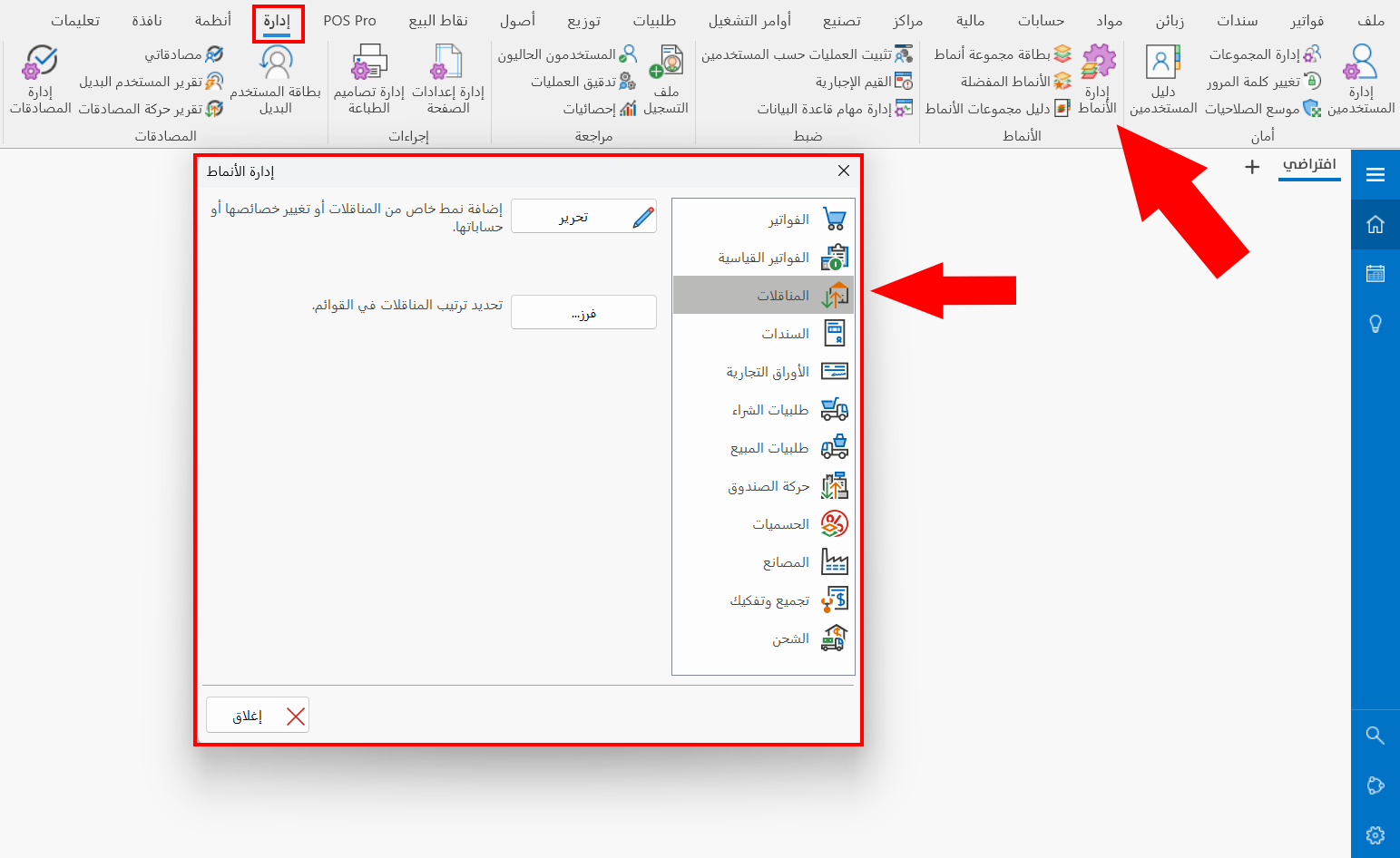
You can create transfer forms for the first time from the Management tab on the main ribbon - Forms Management button - Transfers tab.
After you create the first form, it is listed on the Invoices tab of the main ribbon: the program adds a "Transfers" group to the tab.
The group shows a dialog box launcher that you can use to add a new transfer form directly.
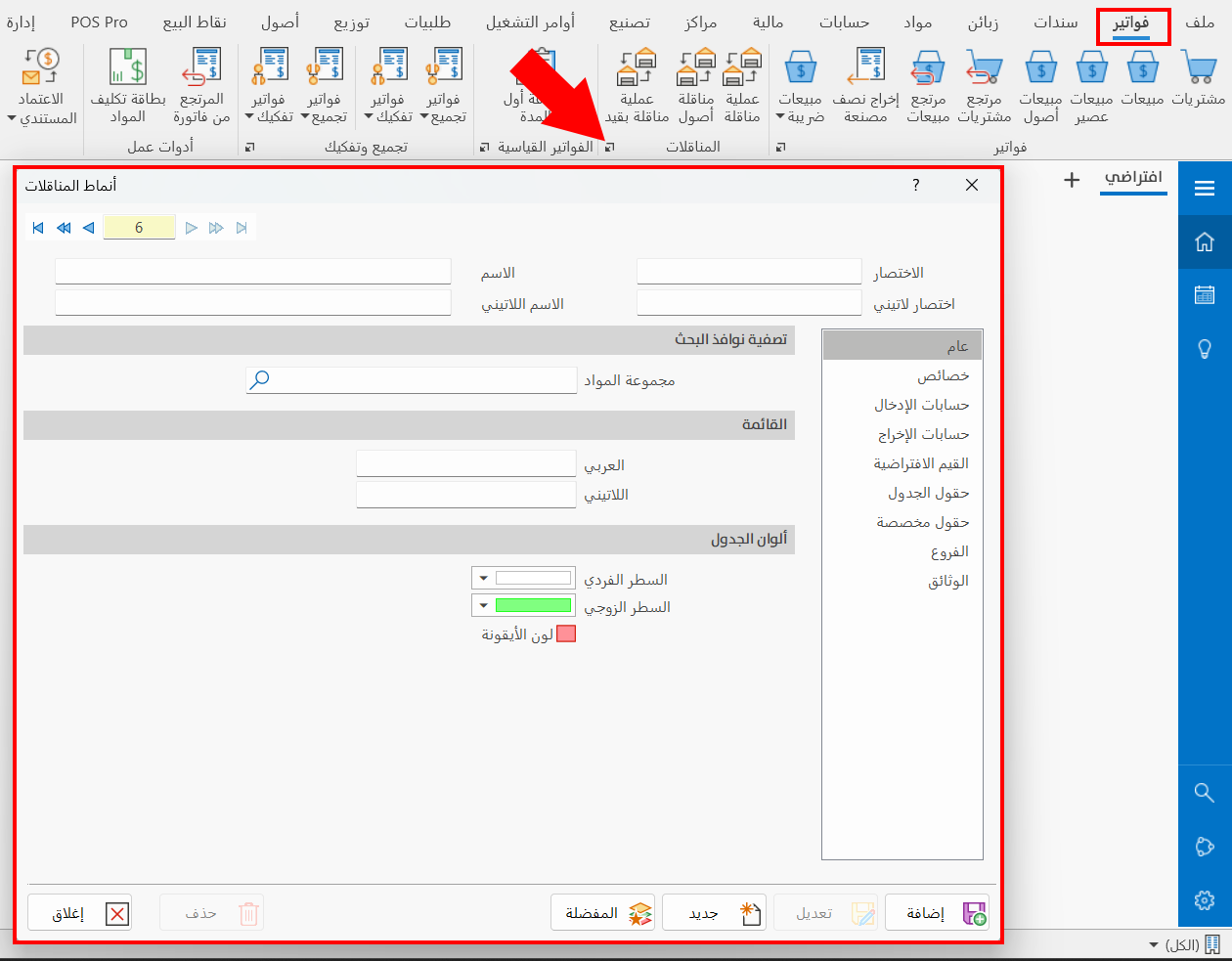
Transfer invoices have the same features as normal invoices: you can set the default accounts they are posted to, and their effect on warehouses, accounts, prices, and profit and loss, as well as set the fields of the invoice, their colors, and their order. You set all of this in the "Transpositions Forms" window.
The most common transfer forms are:
- Transfer without entry
The program does not generate any entries during the transfer: the "Do not generate an entry" option is enabled on the "Properties" tab of the form window.
- Transfer with entry
The program generates an entry during the transfer: the following options are enabled on the "Properties" tab of the form window: generate journal entry automatically, post to accounts automatically, generate contra account automatically.
Transfer without Entry
You can reach the "Transfer" operation from the Invoices tab on the program's main ribbon - Transfers group.
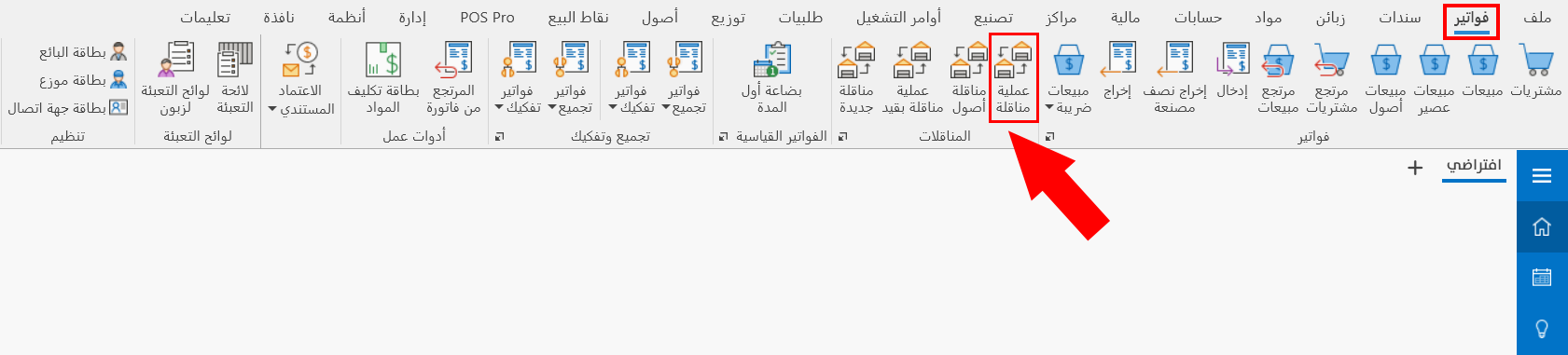
After you click the operation's button, the window appears as follows:
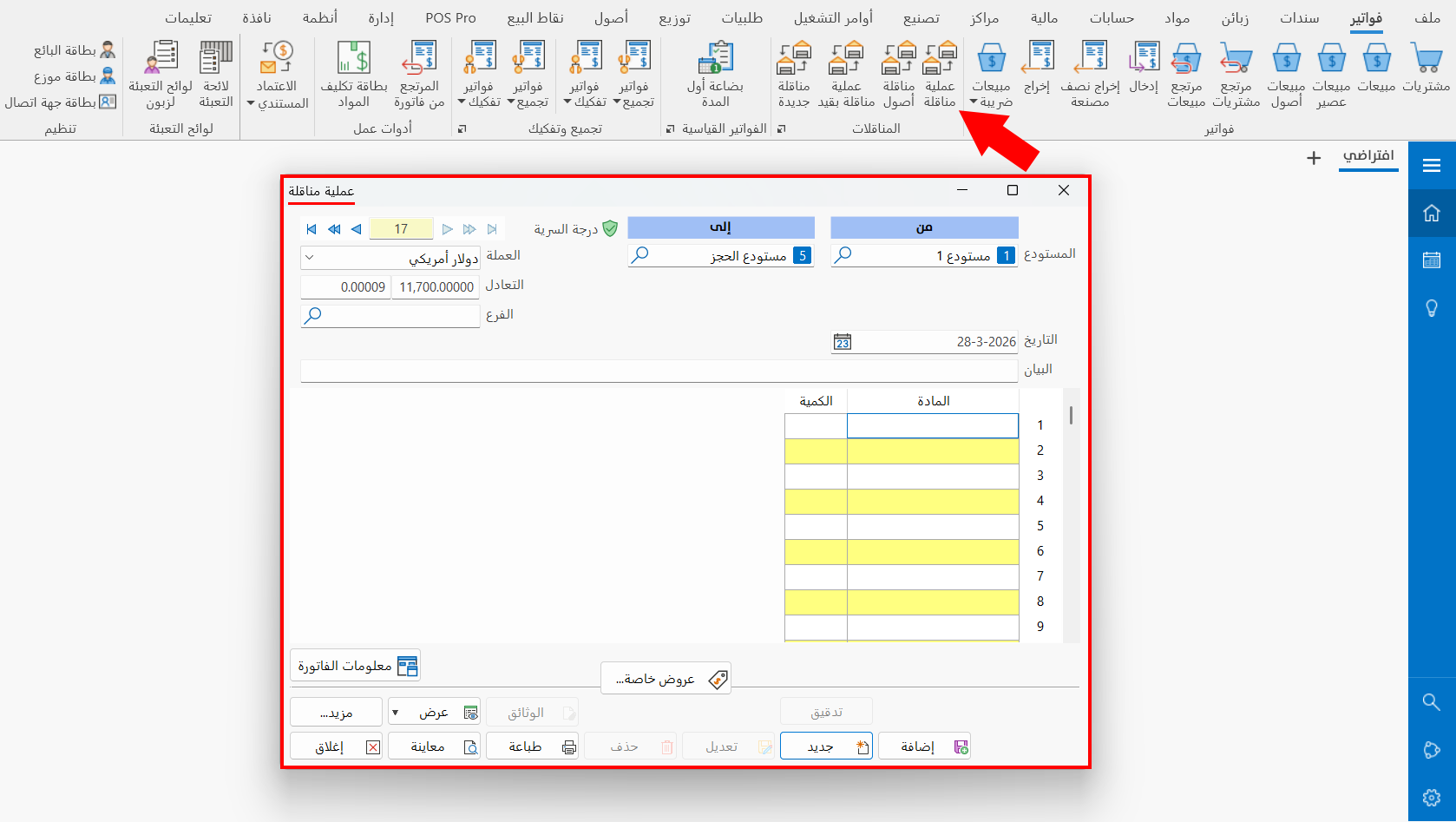
Main Fields
The transfer window contains the following fields:
Serial Number and Navigation Buttons
Please see Serial Number and Navigation Buttons.
Security Level
Please see Security Level.
From Warehouse
Enter the output warehouse from which you want to move the materials, by typing its name or code or with the search icon in the field: after you click the icon, the "Select Warehouse" window opens, showing all the warehouses defined with warehouse cards.
To Warehouse
Enter the input warehouse to which you want to move the materials, by typing its name or code or with the search icon in the field: after you click the icon, the "Select Warehouse" window opens, showing all the warehouses defined with warehouse cards.
Date
The current date appears in the field automatically. You can keep it, or change it to the actual time the invoice was issued using the calendar in the field or by typing it.
The program does not let you enter a date earlier than the opening date set in the Program Options window - "Default Values" tab. To enter the invoice, first change the opening date to suit the invoice date.
The program warns you when you enter an invoice dated before the current date. Click "Yes" in the message to continue and save the invoice.
Currency
Select the currency in which material prices are set in the invoice. By default, the field shows the main currency you set when you created the file.
To change the currency, click in the field to open a list of the currencies defined in the "Currency Exchange Rates" window.
Set the main (default) currency of the file in the Program Options window - "Default Values" tab.
To open the "Currency Exchange Rates" window, go to the "Accounts" tab on the main ribbon of the program - "Currencies" group.
Parity
The field shows the exchange rate of the currency entered in the "Currency" field (the exchange rate of the selected currency against the basic currency).
Set the parity of the currency against the main currency in the "Currency Exchange Rates" window to save it, so that it is filled in automatically in the "Parity" field whenever you select this currency in the "Currency" field.
Branch
Set the branch in which the transfer takes place, by typing its name or code or with the search icon in the field: after you click the icon, the "Select Branch" window opens, showing all the branches defined with branch cards.
Notes
Enter a description or explanation of the transfer between the two warehouses, for example (transfer from an output warehouse to an input warehouse, or transfer from a main warehouse to a distributor's vehicle, etc.).
Materials Table
Enter the materials to be moved from the warehouse in the fields of the table. You can set the fields of the table in the transpositions forms window and customize them for each form separately.
The materials table of the "Transfer" operation shows the following default fields:
Material
Enter the material you want to move in the current transfer, by typing its name or code, or the first letters of its name and pressing "Enter": the "Select Material" window opens, showing all the materials defined with material cards.
Qty
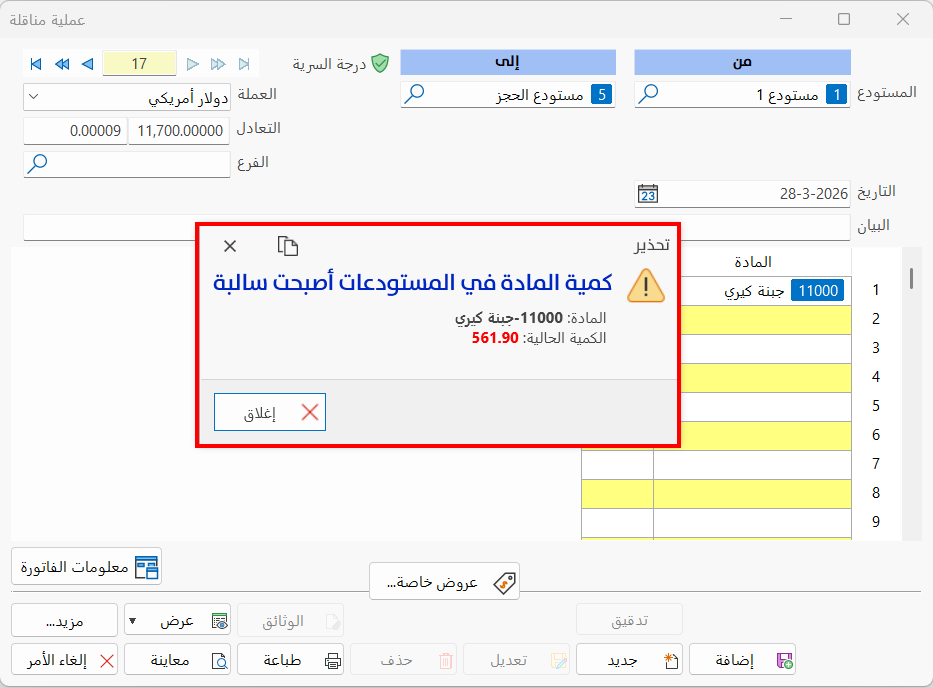
Set the quantity of the material to move in the current transfer. If the number entered in the field exceeds the actual quantity of the material in the output warehouse, a warning message says that the quantity in the warehouses has become negative.
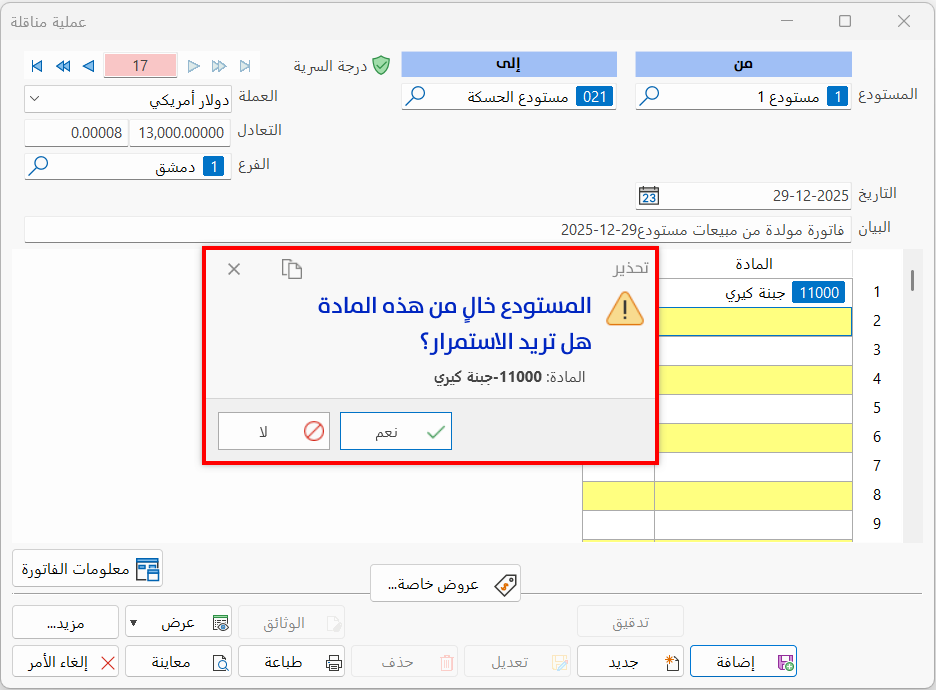
When you click Close and "Add" for the transfer, an additional warning message says that the warehouse has none of the material: to cancel the operation and prevent saving the invoice, click "No".
If you want to continue the transfer, click "Yes": a message asks you to confirm continuing the transfer.
Invoice Info
You can see additional information about the transfer by clicking the "Invoice Info" button; the following window opens:
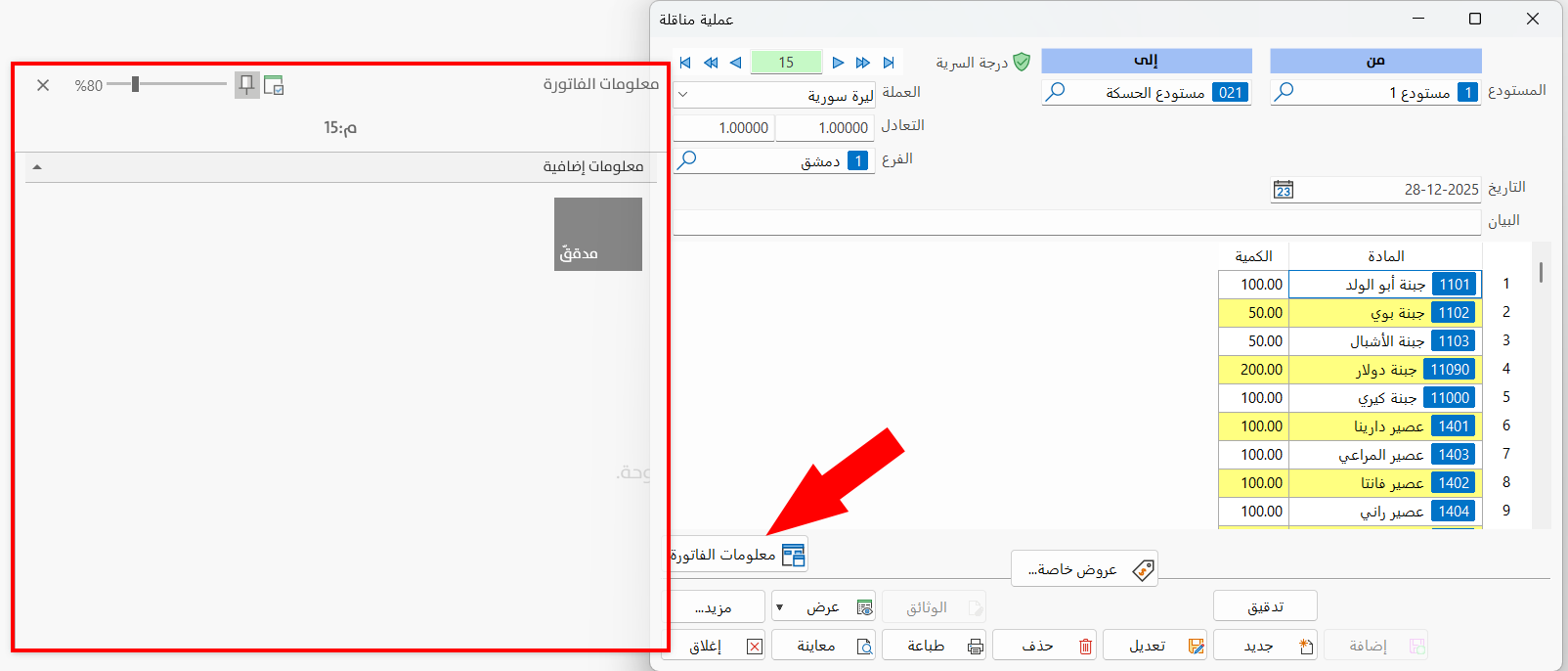
The window shows a set of read-only fields containing the invoice information, such as:
- Entry No
The number of the entry generated from the invoice (you can view the entry with the "Display" button in the invoice window).
- Invoice audit status
The "Unaudited" status appears in gray, and the "Audited" status appears in blue with the audit date (you can audit the invoice from the "Operations" button in the invoice window).
Standard Commands
Please see Standard Commands.
Transfer with Entry
You can reach the "Transfer with entry" operation from the Invoices tab on the program's main ribbon - Transfers group.
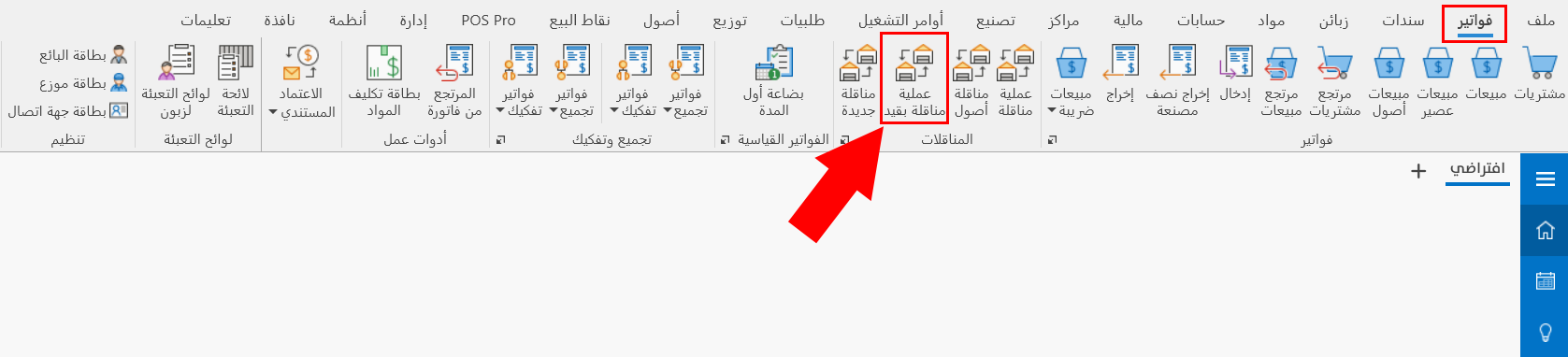
After you click the operation's button, the window appears as follows:
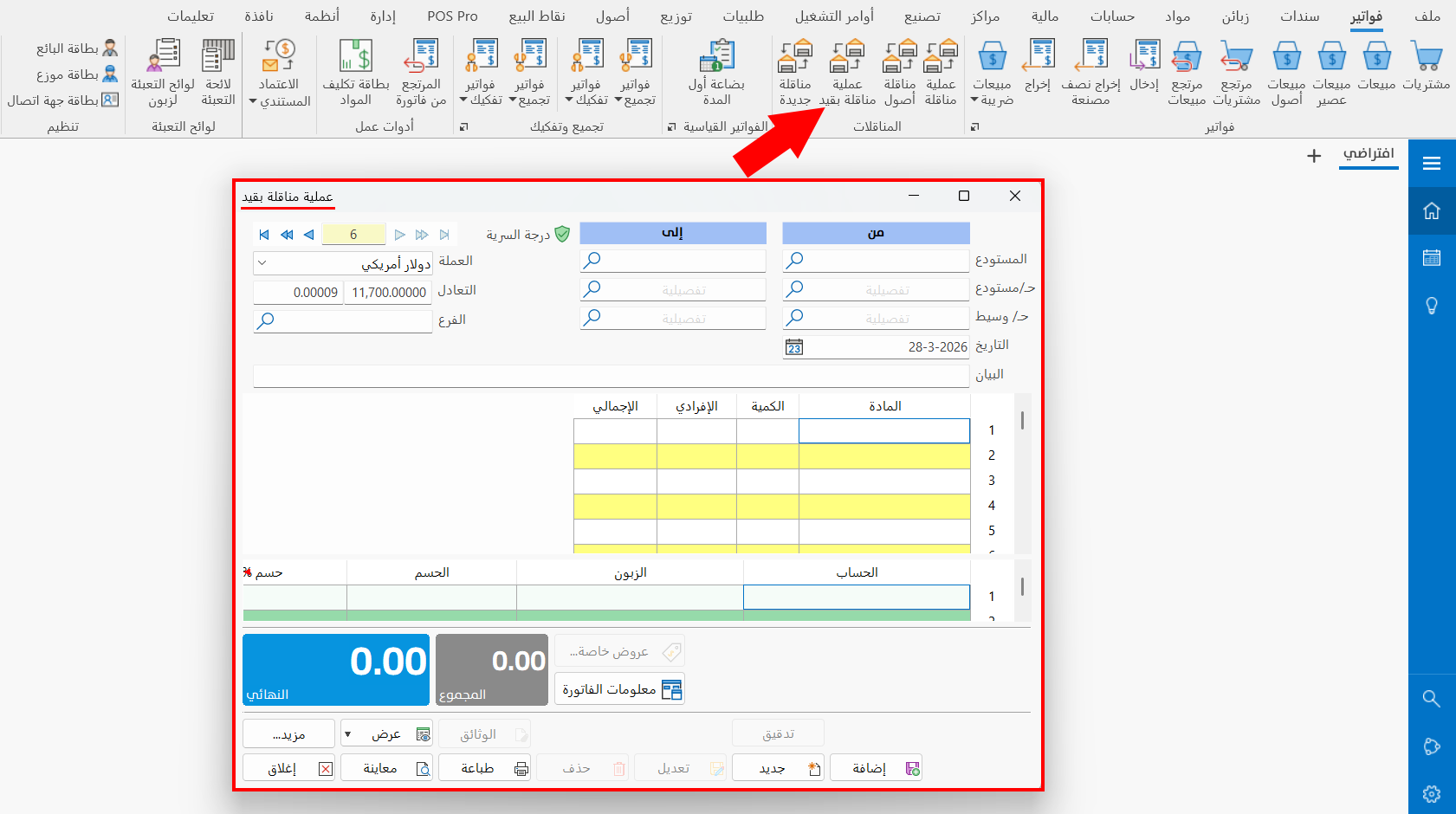
Main Fields
The transfer with entry window contains the following fields:
Serial Number and Navigation Buttons
Please see Serial Number and Navigation Buttons.
Security Level
Please see Security Level.
From Warehouse
Enter the output warehouse from which you want to move the materials, by typing its name or code or with the search icon in the field: after you click the icon, the "Select Warehouse" window opens, showing all the warehouses defined with warehouse cards.
Acc/ Warehouse
Listed directly below the "From Warehouse" field: the account of the warehouse from which the amount (the price of the materials to be moved) is taken out.
This account is the credit side of the journal entry generated by the current transfer, while the mediator account set in the mediator account field of this invoice is the debit side of the same entry.
You can view the output entry by clicking the "Display" button at the bottom of the invoice window and choosing "Display output entry".
Acc/ Mediator
Listed below the "From Warehouse" field.
Enter the account that will mediate the transfer, that is, the account in which the amount is held temporarily after it leaves the first account and before it enters the second account. The mediator account is the debit side of the first journal entry (input) and the credit side of the second journal entry (output).
To Warehouse
Enter the input warehouse to which you want to move the materials, by typing its name or code or with the search icon in the field: after you click the icon, the "Select Warehouse" window opens, showing all the warehouses defined with warehouse cards.
Acc/ Warehouse
Listed directly below the "To Warehouse" field: the account of the warehouse into which the amount (the price of the materials to be moved) is entered.
This account is the debit side of the journal entry generated by the current transfer, while the mediator account set in the mediator account field of this invoice is the credit side of the same entry.
You can view the input entry by clicking the "Display" button at the bottom of the invoice window and choosing "Display input entry".
Acc/ Mediator
Listed below the "To Warehouse" field.
Enter the account that will mediate the transfer, that is, the account in which the amount is held temporarily before it enters the second account (the to-warehouse account).
Date
The current date appears in the field automatically. You can keep it, or change it to the actual time the invoice was issued using the calendar in the field or by typing it.
The program does not let you enter a date earlier than the opening date set in the Program Options window - "Default Values" tab. To enter the invoice, first change the opening date to suit the invoice date.
The program warns you when you enter an invoice dated before the current date. Click "Yes" in the message to continue and save the invoice.
Currency
Select the currency in which material prices are set in the invoice. By default, the field shows the main currency you set when you created the file.
To change the currency, click in the field to open a list of the currencies defined in the "Currency Exchange Rates" window.
Set the main (default) currency of the file in the Program Options window - "Default Values" tab.
To open the "Currency Exchange Rates" window, go to the "Accounts" tab on the main ribbon of the program - "Currencies" group.
Parity
The field shows the exchange rate of the currency entered in the "Currency" field (the exchange rate of the selected currency against the basic currency).
Set the parity of the currency against the main currency in the "Currency Exchange Rates" window to save it, so that it is filled in automatically in the "Parity" field whenever you select this currency in the "Currency" field.
Branch
Set the branch in which the transfer takes place, by typing its name or code or with the search icon in the field: after you click the icon, the "Select Branch" window opens, showing all the branches defined with branch cards.
Notes
Enter a description or explanation of the transfer between the two warehouses, for example (transfer from an output warehouse to an input warehouse, or transfer from a main warehouse to a distributor's vehicle, etc.).
Materials Table
Enter the materials to be moved from the warehouse in the fields of the table. You can set the fields of the table in the transpositions forms window and customize them for each form separately.
The materials table of the "Transfer with entry" operation shows the following default fields:
Material
Enter the material you want to move in the current transfer, by typing its name or code, or the first letters of its name and pressing "Enter": the "Select Material" window opens, showing all the materials defined with material cards.
Qty
Set the quantity of the material to move in the current transfer. If the number entered in the field exceeds the actual quantity of the material in the output warehouse, a warning message says that the quantity in the warehouses has become negative.
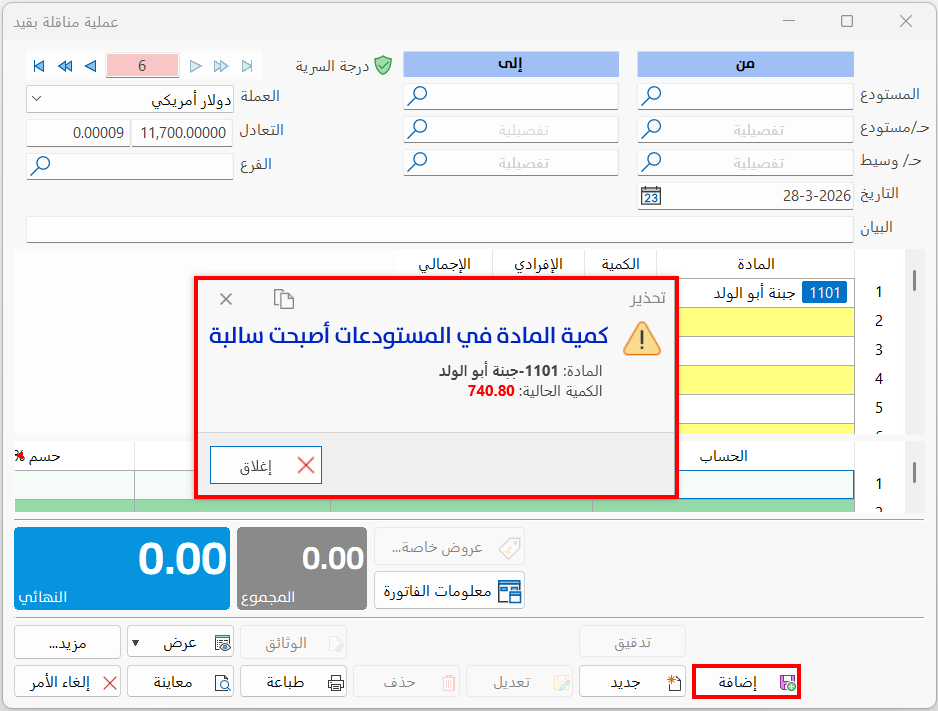
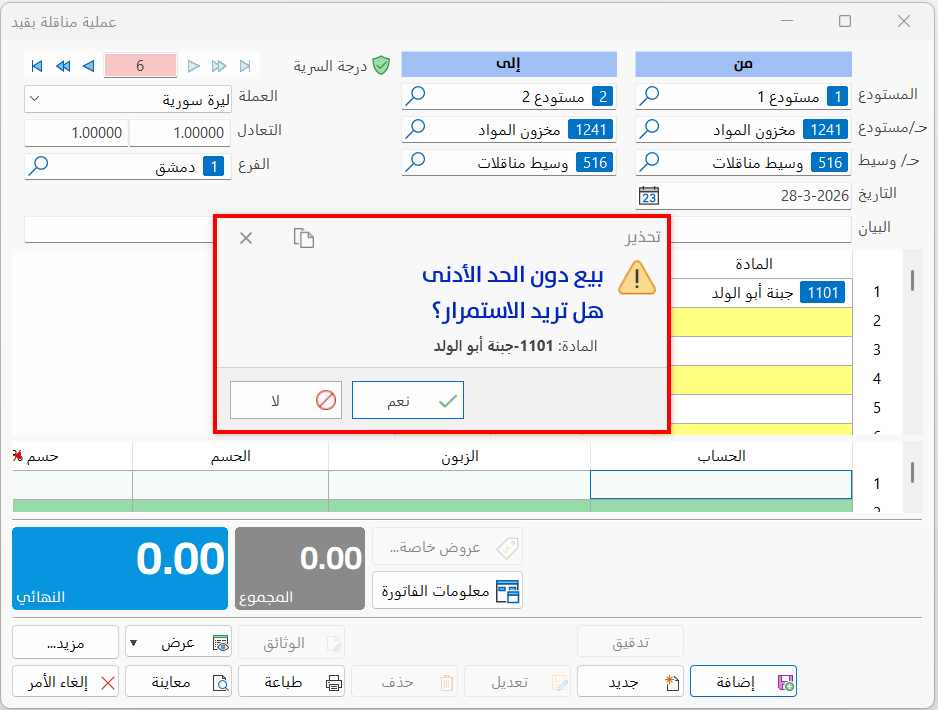
When you click Close and "Add" for the transfer, an additional warning message says that the warehouse has none of the material: to cancel the operation and prevent saving the invoice, click "No".
If you want to continue the transfer, click "Yes": a message asks you to confirm continuing the transfer.
Discounts and Additions Table
It consists of the fields in which you enter discounts or additions on the invoice. The default fields are as follows:
Account
The field is filled automatically with the accounts you added in the discounts and additions fields on the Accounts tab of the transpositions forms window for this form.
Customer
The field shows the customer account linked to the account in the "Account" field. When the account is linked to more than one customer, you can choose the customer by typing their name or code, or part of the name and pressing enter: the "Select Customer" window opens, showing all the customers linked to this account.
Discount
Enter in this field the value of the discount applied to the current transfer with entry.
Discount %
After you enter the value in the Discount field and press enter, or move to another field of the table, the field is filled automatically with the percentage of the discount applied to the transfer.
Additions
Enter in this field the value of the additions applied to the transfer.
Addition %
After you enter the value in the Additions field and press enter, or move to another field of the table, the field is filled automatically with the percentage of the addition applied to the transfer.
Notes
Enter in this field a short description of the discount or additions applied to the transfer.
Currency
Enter the currency in which the discount or additions applied to the transfer are calculated.
Parity
After you select the currency, its parity against the basic currency of the program appears automatically.
Equivalent
After you select the currency, the currency equivalent rate appears automatically.
Category
You can add information related to the current transfer, so that transfers are distinguished by this category; you can then request reports that show the transfers whose fields match the category.
Cost Center
Enter the cost center account to which you want to post the discounts or additions.
Contra Account
You can add another account to which the discount or additions value is added.
Customer of Contra Account
The field automatically shows the customer linked to the contra account.
Total
This field shows the total of the material prices in the transfer, without additions or discounts.
Final Total
This field shows the total value of the materials, including the discounts or additions.
Invoice Info
You can see additional information about the transfer by clicking the "Invoice Info" button; the following window opens:
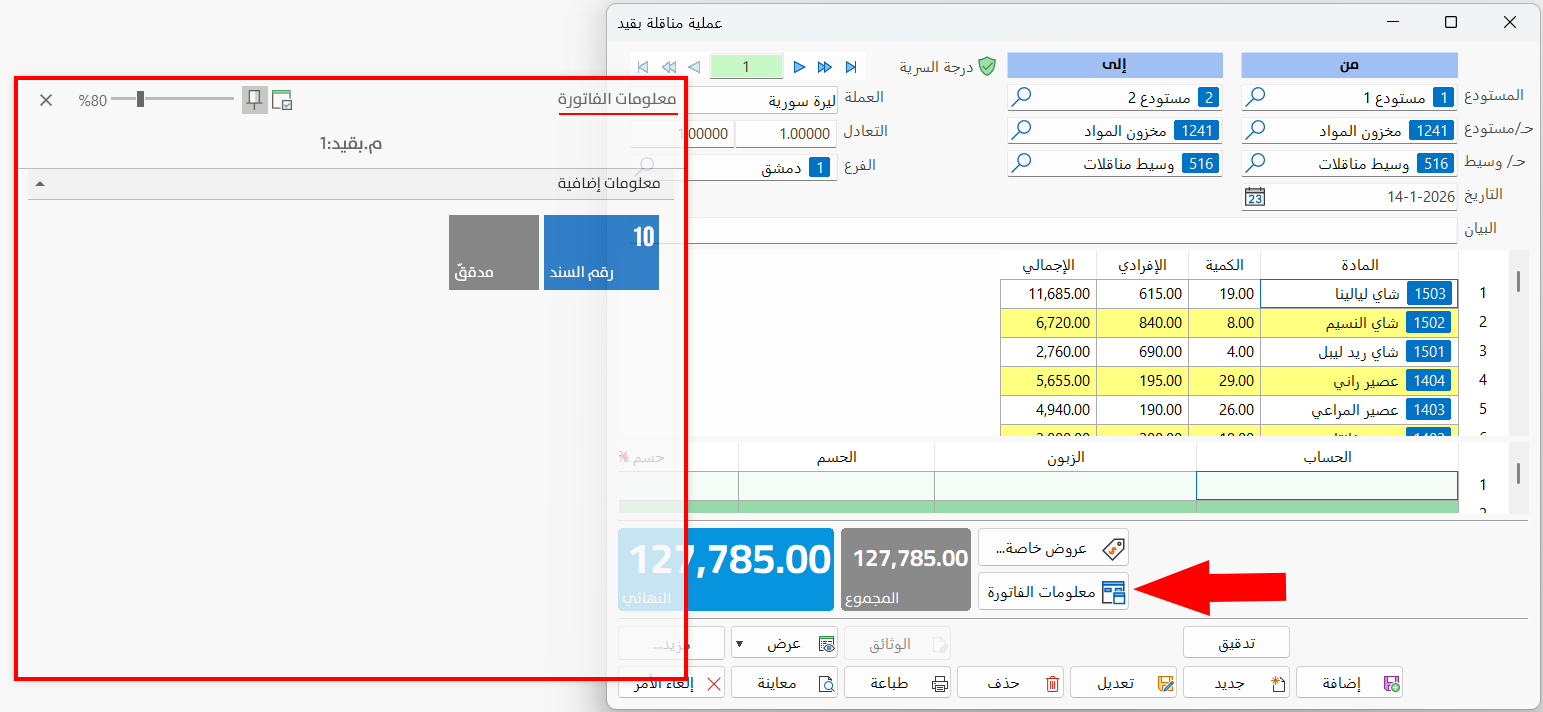
The window shows a set of read-only fields containing the invoice information, such as:
- Entry No
The number of the entry generated from the invoice (you can view the entry with the "Display" button in the invoice window).
- Invoice audit status
The "Unaudited" status appears in gray, and the "Audited" status appears in blue with the audit date (you can audit the invoice from the "Operations" button in the invoice window).
Standard Commands
Please see Standard Commands.