Sales Invoice
The sales invoice is used to enter material sale operations, with the option of several payment types. It is one of the normal, basic invoices forms of the program.
When a sales invoice is saved in the program, the quantities of the materials are taken out of the warehouse according to the items and quantities listed in the invoice, and the financial accounts related to the operation, such as the cash account and the materials inventory account, are updated.
You can reach the sales invoice from the "Invoices" tab on the program's main ribbon.
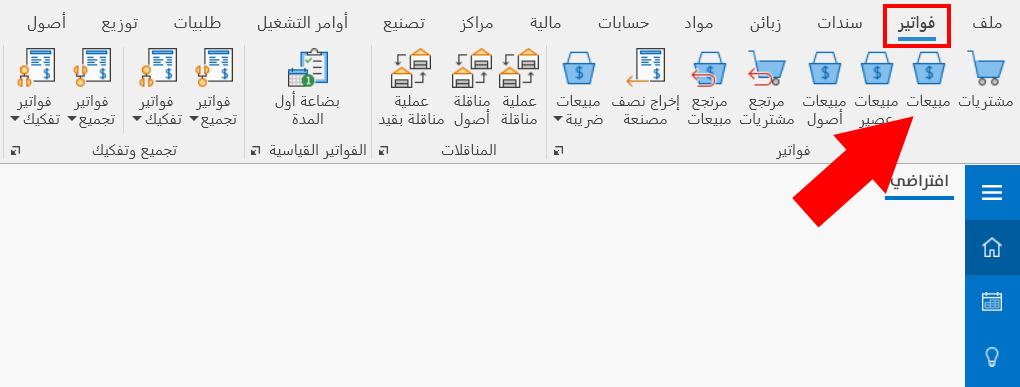
After you click the invoice button, the following window opens:
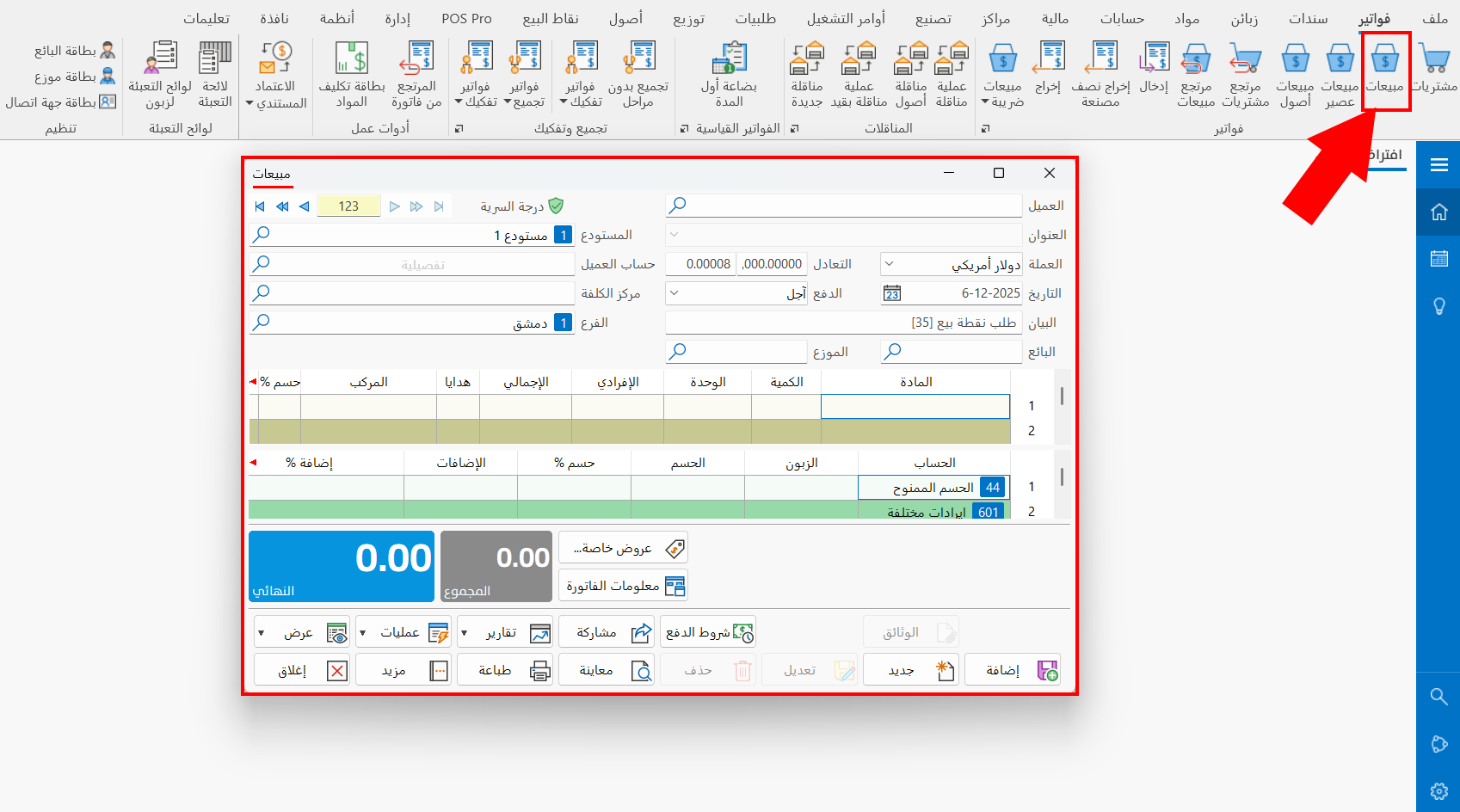
Main Fields
The sales invoice consists of the following fields:
Serial Number and Navigation Buttons
Please see Serial Number and Navigation Buttons.
Security Level
Please see Security Level.
Client
Enter the name of the customer (client) to whom you sell the goods, after defining them in the program with a customer/supplier card.
If the supplier is dealt with on credit, the amount (the invoice value) is taken from sales to the customer's account, by default the account set in the "Materials" field on the "Accounts" tab of the invoices forms window of this invoice.
If the payment is in cash, this account (the customer's account) is not needed, because the invoice value is posted to the cash account set earlier in the "Cash" field on the Accounts tab of the invoices forms window of this invoice.
You can leave the "Client" field empty if the payment type is "Cash".
Enter the client's name to link the invoice to the customer and get reports on the customer, the movement of materials, or their invoices.
Address
The address is the data added on the "Address" tab of the customer/supplier card. The field is filled automatically with the customer's address after you enter their name or code in the "Client" field of the invoice.
Currency
Select the currency in which material prices are set in the invoice. By default, the field shows the main currency you set when you created the file.
To change the currency, click in the field to open a list of the currencies defined in the "Currency Exchange Rates" window.
Set the main (default) currency of the file in the Program Options window - "Default Values" tab.
To open the "Currency Exchange Rates" window, go to the "Accounts" tab on the main ribbon of the program - "Currencies" group.
Parity
The field shows the exchange rate of the currency entered in the "Currency" field (the exchange rate of the selected currency against the basic currency).
Set the parity of the currency against the main currency in the "Currency Exchange Rates" window to save it, so that it is filled in automatically in the "Parity" field whenever you select this currency in the "Currency" field.
Date
The current date appears in the field automatically. You can keep it, or change it to the actual time the invoice was issued using the calendar in the field or by typing it.
The program does not let you enter a date earlier than the opening date set in the Program Options window - "Default Values" tab. To enter the invoice, first change the opening date to suit the invoice date.
The program warns you when you enter an invoice dated before the current date. Click "Yes" in the message to continue and save the invoice.
Payment
The field is used to select the payment type of the invoice. The drop-down list of the field shows the following options:
-
Cash
-
On Credit
-
The commercial papers defined in the Forms Management window - "Commercial Papers" tab.
Notes
Enter a short description of the invoice so you can print it later, or request reports that list the invoices whose "Notes" field contains certain information.
Warehouse
Set the warehouse from which you want to take out the materials, by typing its name or code or with the search icon in the field: after you click the icon, the "Select Warehouse" window opens, showing all the warehouses defined with warehouse cards.
Client Account
The payment type set in the invoice determines the contents of this field: if the payment type is "Cash", the cash account appears by default; if the payment type is "On Credit", the account linked to the customer set in the "Client" field appears.
You can change the default account that appears in the field, by typing its name or code, or with the search icon in the field.
Branch
The "Branch" field appears when you enable the branches system in the Program Options window - "Save" tab.
Set the branch from which you want to take out the materials, by typing its name or code or with the search icon in the field: after you click the icon, the "Select Branch" window opens, showing all the branches defined with branch cards.
You can add many fields to the invoice, such as the cost center, and the distributor and salesman fields...
This is done from the "Properties" tab of the Invoices Forms window for this form.
Materials Table
The table is used to enter the materials of the invoice. The table fields depend on the fields selected in the invoice form.
Using the invoice forms button, on the "Table Fields" tab, you can select the fields you want to show in the table.
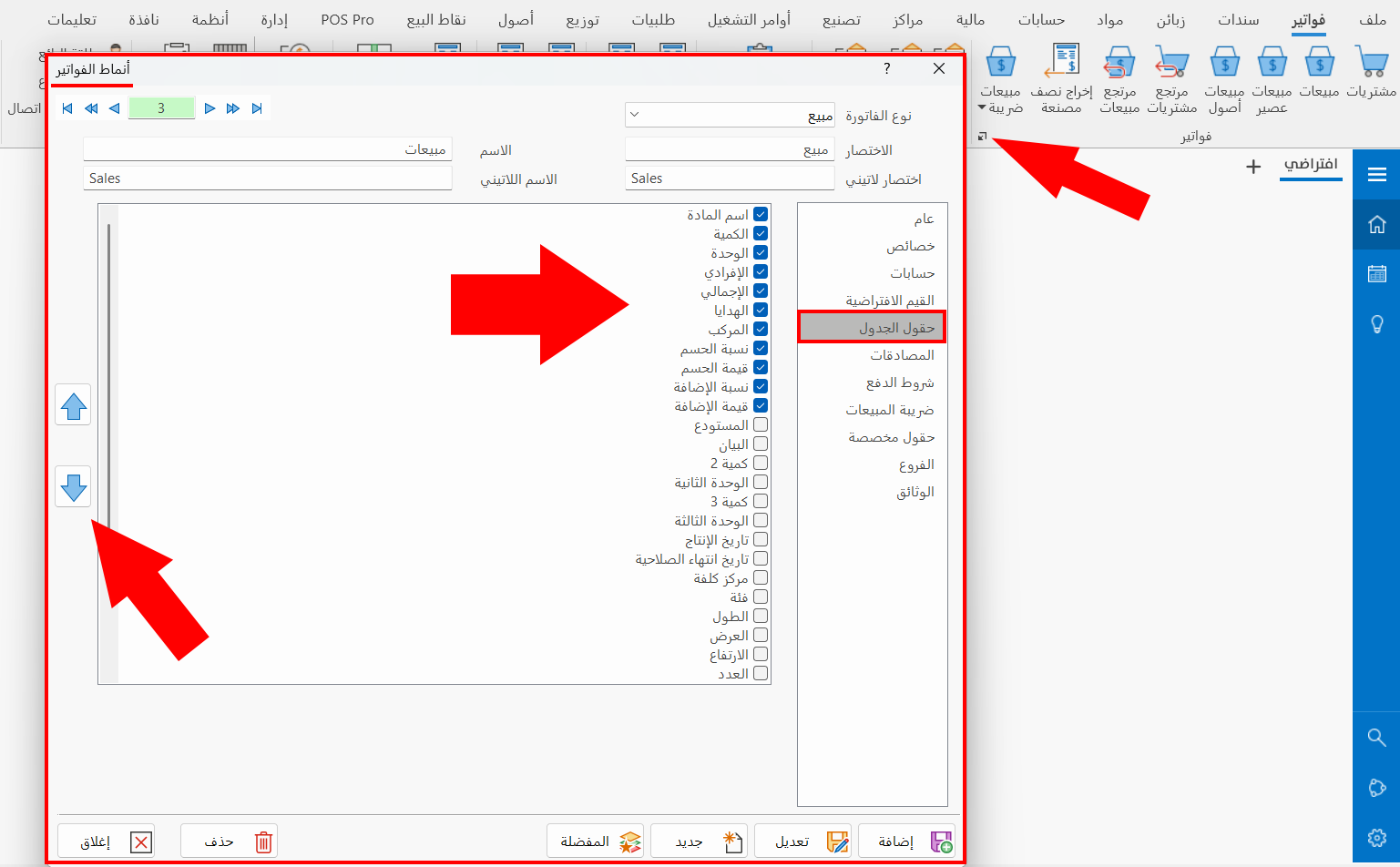
You can control the order of the fields in the table using the arrows in the previous window.
The default fields of the invoice are as follows:
Material
Enter the material you want to add to the invoice, by typing its name or code, or part of its name and then pressing Enter or F3: the "Select Material" window opens, showing all the materials defined with material cards.
Qty
Enters the quantity of the material you want to sell.
When you enter a quantity above the maximum set for this material in the "Maximum Limit" field of the material card, the program warns you that the material quantity has exceeded the limit and asks whether you want to change this limit in the material card.
If you answer "Yes", another message asks you to enter the new maximum limit for the material.
If you answer "No", the program is not affected and entering the invoice continues.
You can find the materials that exceeded the maximum limit with the "Materials Exceeded Limit" report, available among the analytical reports on the "Materials" tab of the main ribbon.
Unit
The default unit of the material appears automatically after you enter its name in the "Material" field. You can change the unit by double-clicking in the field and choosing the unit you want.
Unit Price
By default, the field shows the unit selling price set in the material card - "Prices" tab, which was selected as the default price on the "Default Values" tab of the Invoices Forms window.
You can change this price either manually or by placing the cursor in the field and right-clicking to open a list of the prices set in the material card, plus the last purchase price and the average price.
Total
When you enter the quantity and the unit price, the product of the quantity and the material unit price appears here automatically.
Discounts and Additions Table
It consists of the fields in which you enter discounts or additions on the invoice. The default fields are as follows:
Account
The field is filled automatically with the accounts you added in the discount and addition fields on the "Accounts" tab of the Invoices Forms window for this form.
Customer
The field shows the customer account linked to the account in the "Account" field. When the account is linked to more than one customer, you can choose the customer by typing their name or code, or part of the name and pressing enter: the "Select Customer" window opens, showing all the customers linked to this account.
Discount
Enter the value of the discount applied to the invoice.
Discount %
After you enter the value in the Discount field and press enter, or move to another field of the table, the field is filled automatically with the percentage of the discount applied to the invoice.
Additions
Enter the value of the additions applied to the invoice.
Addition %
After you enter the value in the Additions field and press enter, or move to another field of the table, the field is filled automatically with the percentage of the addition applied to the invoice.
Notes
Enter a short description of the discount or additions applied to the invoice.
Currency
Enter the currency in which the discount or additions applied to the invoice are calculated.
Parity
After you select the currency, its parity against the basic currency of the program appears automatically.
Equivalent
After you select the currency, the currency equivalent rate appears automatically.
Category
You can add information related to the invoice to classify invoices by this category, so you can later request reports that list the invoices whose fields match the category.
Cost Center
Enter the cost center account to which you want to post the discounts or additions.
Contra Account
You can add another account to which the discount or additions value is added.
Customer of Contra Account
The field automatically shows the customer linked to the contra account.
Invoice Info
You can see additional information about the invoice by clicking "Invoice Info", which opens the following window:
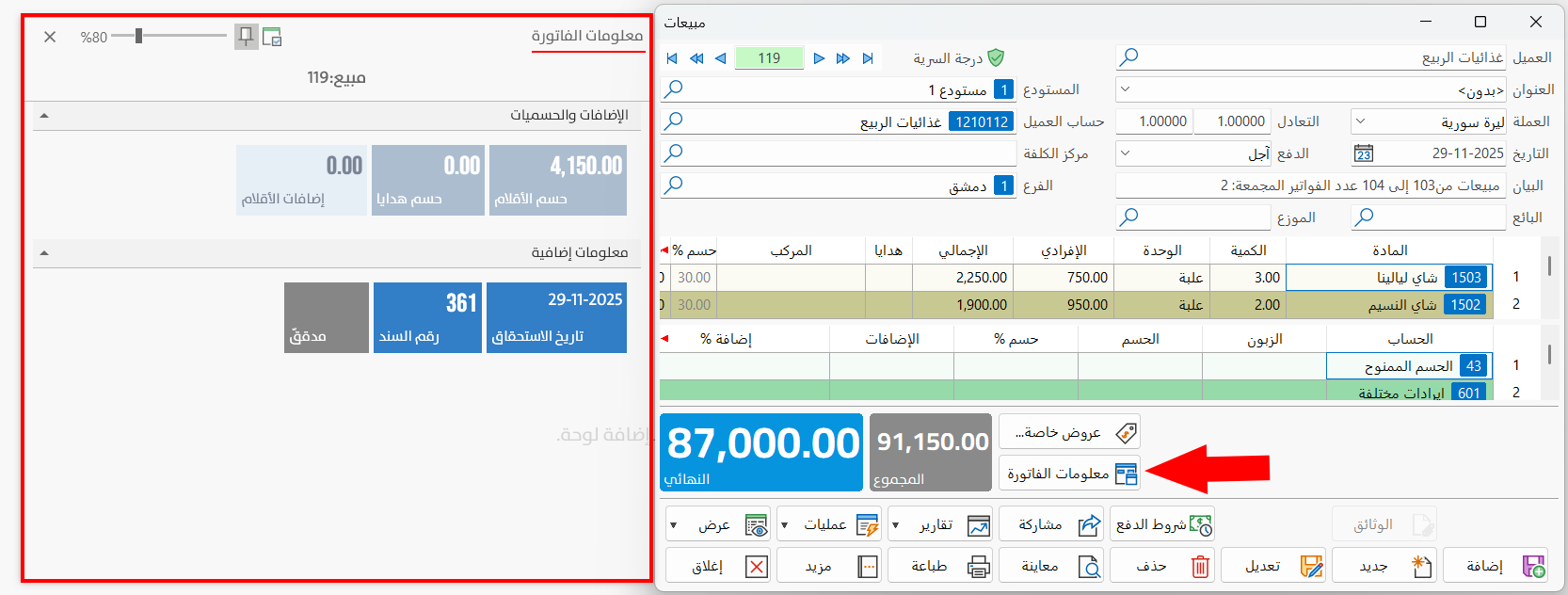
The window shows a set of read-only fields containing the invoice information, such as:
- Entry No
Shows the number of the entry generated from the invoice (you can view the entry with the "Display" button in the invoice window).
- Invoice audit status
The "Unaudited" status appears in gray, and the "Audited" status appears in blue with the audit date (you can audit the invoice from the "Operations" button in the invoice window).
- Maturity date
The maturity date appears when the payment type of the invoice is "On Credit", based on what was set in the "Payment Terms" window.
- Additions and discounts
The window shows the items discount, gifts, and items additions in the invoice.
Sums
The invoice includes some read-only fields that contain the invoice totals, as follows:
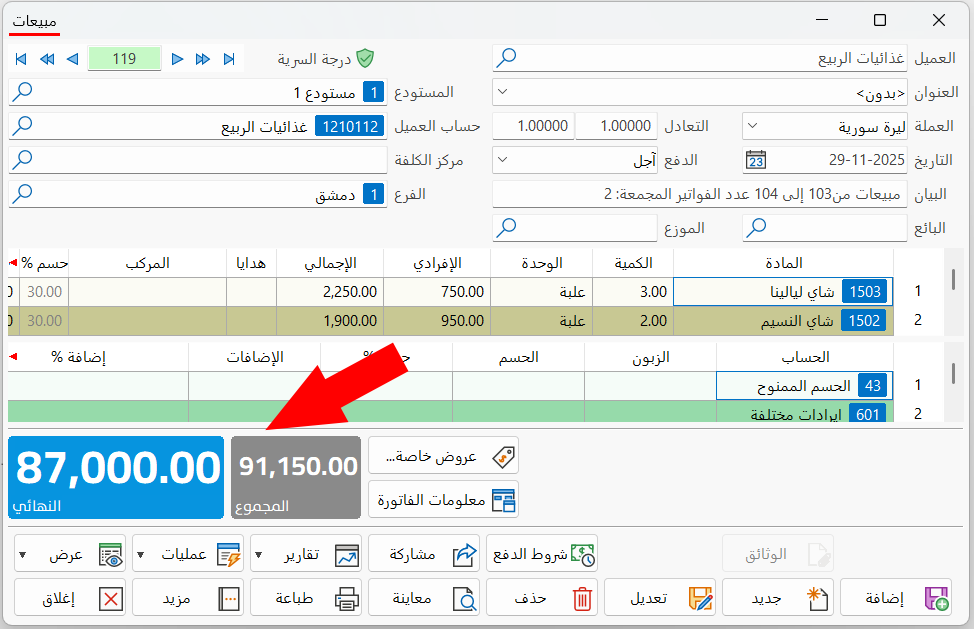
Total
This field shows the total value of the material prices in the invoice, without the additions or discounts.
Final Total
This field shows the total value of the materials, including the discounts or additions.
Which total fields appear depends on the table fields selected on the "Table Fields" tab of the Invoices Forms window. In addition to the totals above, the following may appear: "Gifts Discount", "Items Additions", and "Items Discount".
Standard Commands
Please see Standard Commands.