Packing List
Creates a list of the materials packed in parcels and the suitable packing type (truck, car...), after the parcel types and packing types are defined.
After issuing the invoice (sales, purchases, sales return...), you can start arranging the materials of the invoice in the parcel or means you want to use to pack them.
The program automatically calculates the weight and space the materials take up in the packing type.
Define the packing type in the Program Options window - Packing List tab - Packing Types.
Define the parcel in the Program Options window - Packing List tab - Parcel Types.
Set the volume and weight of the material on the Weights and Dimensions tab of the material card.
Reaching the Packing List
You can reach the "Packing List" button on the Invoices tab of the program's main ribbon - Packing Lists group.
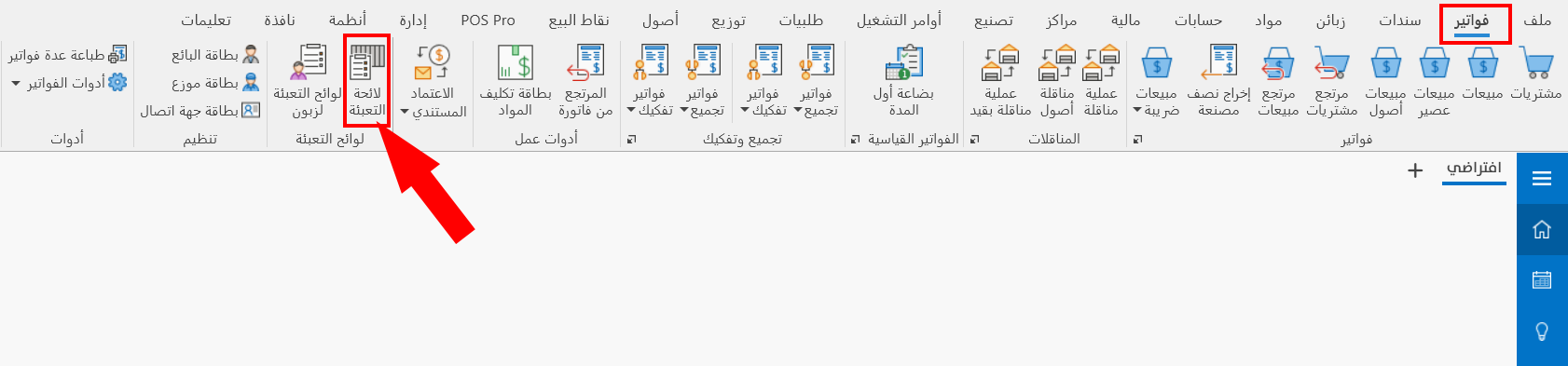
After you click the button, the "Packing List" window opens as follows:
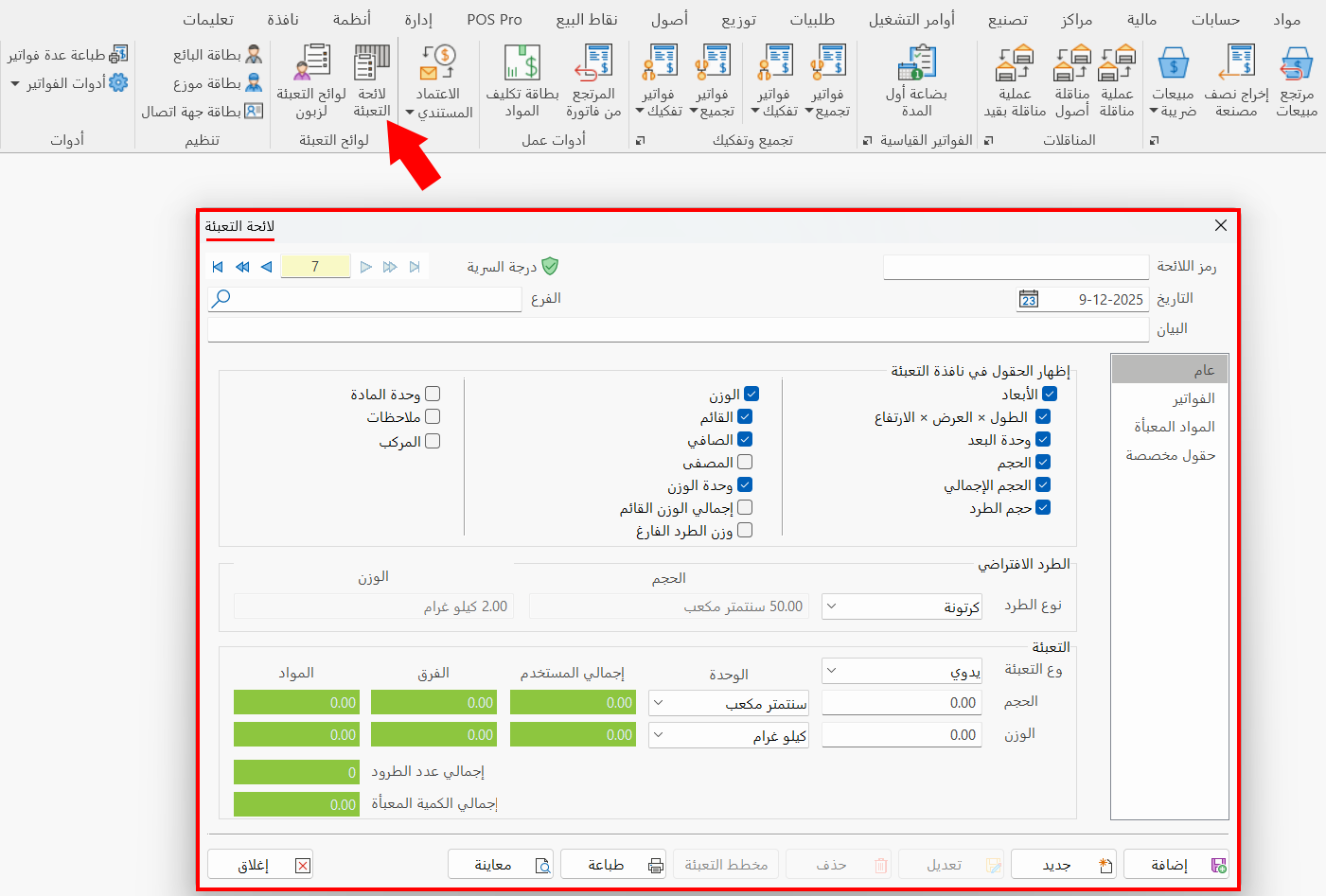
Stages of the Packing List
To create a packing list and add materials to it, follow these steps:
Add the Packing List
Define the packing list so you can pack materials in it, by clicking "New" in the "Packing List" window and then setting the options you want on the "General" tab of the window, as follows:
List Code
Set the code of the list you are adding (this field is mandatory).
Date
Today's date appears in the field by default; you can modify it and enter the actual date of the packing list.
Branch
Set the branch in which you are creating the packing list (this field is mandatory).
Notes
Enter an additional explanation related to the packing list you are adding.
Show the Fields in the Packing Window
This part of the window contains all the fields you can add to the packing window.
Some fields appear selected by default, because they are set as default fields on the Packing List tab - Program Options window.
You can select the fields you want to list in the packing window by clicking the check box next to each field.
Default Parcel
- Parcel type
The field contains a list of the parcel types defined in the parcel types window - Packing List - Program Options window.
Set the parcel type you want to use to pack the materials, by clicking the arrow in the field.
- Volume
Shows the volume of the parcel set in the "Parcel type" field (read-only field).
- Weight
Shows the weight of the parcel set in the "Parcel type" field (read-only field).
Packing
Set the packing type you use to pack the materials, as follows:
- Packing type
Choose the packing type from the drop-down list of the field, which contains the packing types defined in the packing types window - Packing List - Program Options window.
The "Manual" packing type appears by default; if you keep it, you must enter the volume and weight in the fields manually.
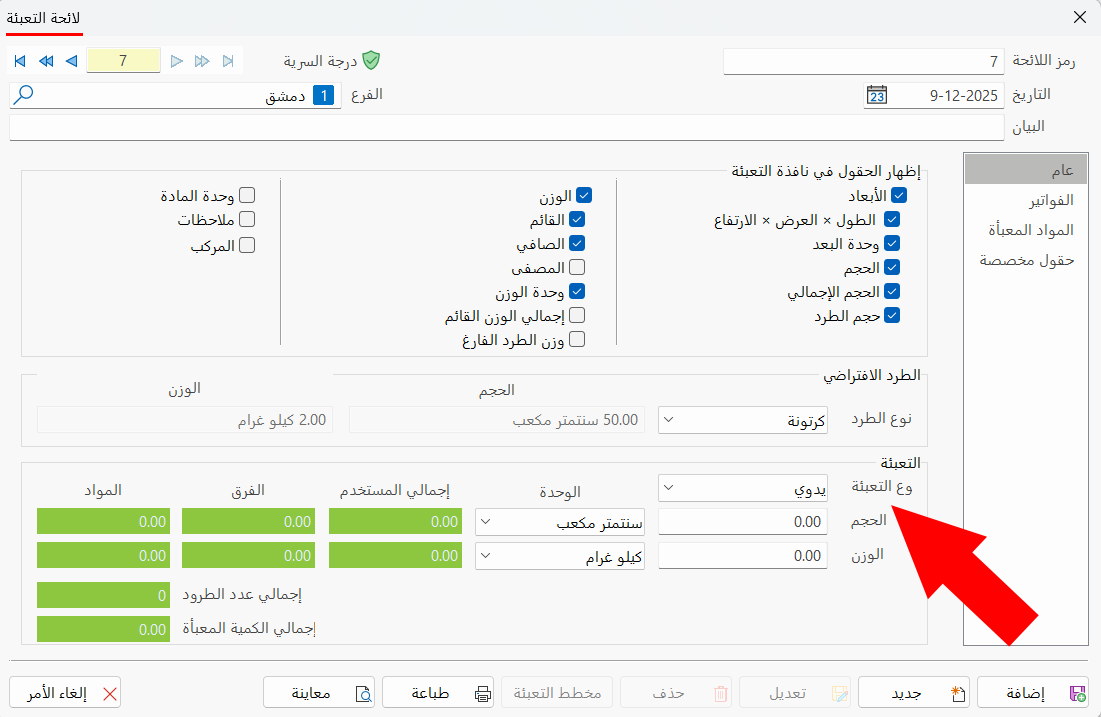
- Volume / Unit
When you choose the "Manual" packing type, the volume and unit fields are enabled so you can type the volume and set the suitable unit of measure from the drop-down list of the unit field next to the volume field.
When you choose one of the packing types defined earlier, the volume field is filled automatically with the value set when the packing type was defined, and so is the unit field next to it.
- Weight / Unit
When you choose the "Manual" packing type, the weight and unit fields are enabled so you can type the weight and set the suitable unit of measure from the drop-down list of the unit field next to the weight field.
When you choose one of the packing types defined earlier, the weight field is filled automatically with the value set when the packing type was defined, and so is the unit field next to it.
- Total used
The total used fields for volume and weight are filled after the materials are packed: they show the total used of the packing type (read-only field).
- Difference
The volume or weight remaining in the packing type after subtracting the total used from its full volume or weight (read-only field).
- Materials
The materials fields for volume and weight are filled after the materials are packed: they show the total volume and weight of the packed materials (read-only field).
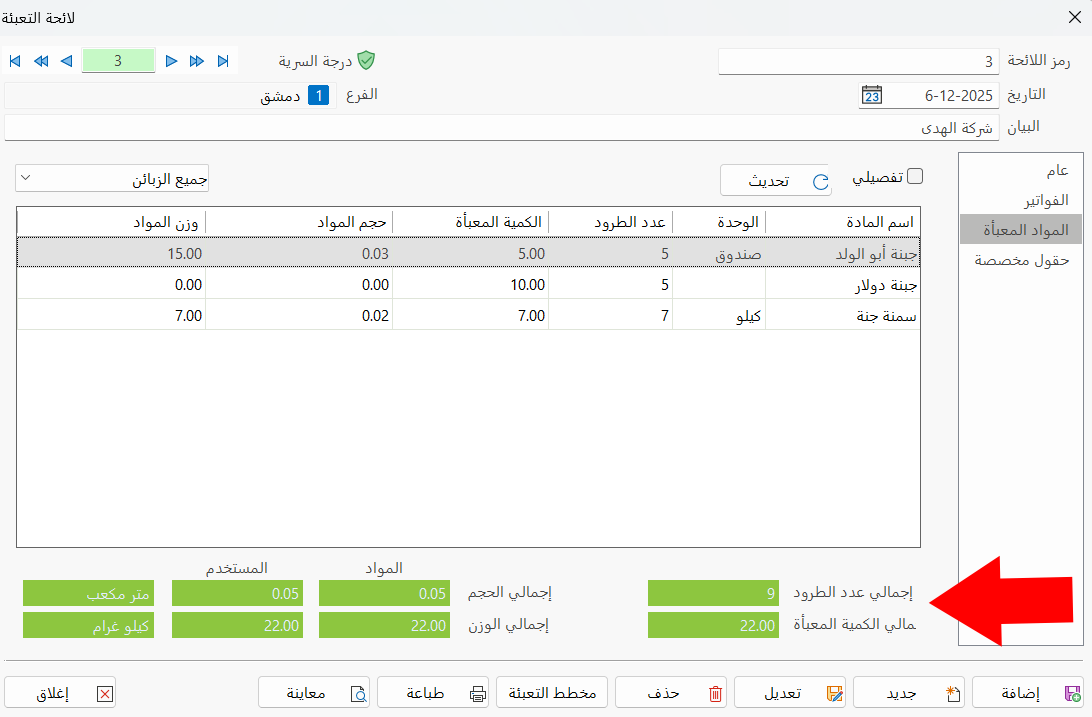
- Total number of parcels
The field lists the number of parcels used to pack the materials (read-only field).
- Total packed quantity
The field shows the total of the quantities of materials packed in the list (read-only field).
After filling in the fields and setting the options you want, click the "Add" button on the standard commands bar of the "Packing List" window.
Add a New Invoice
After adding the packing list, go to the "Invoices" tab of the "Packing List" window, then click "New Invoice".
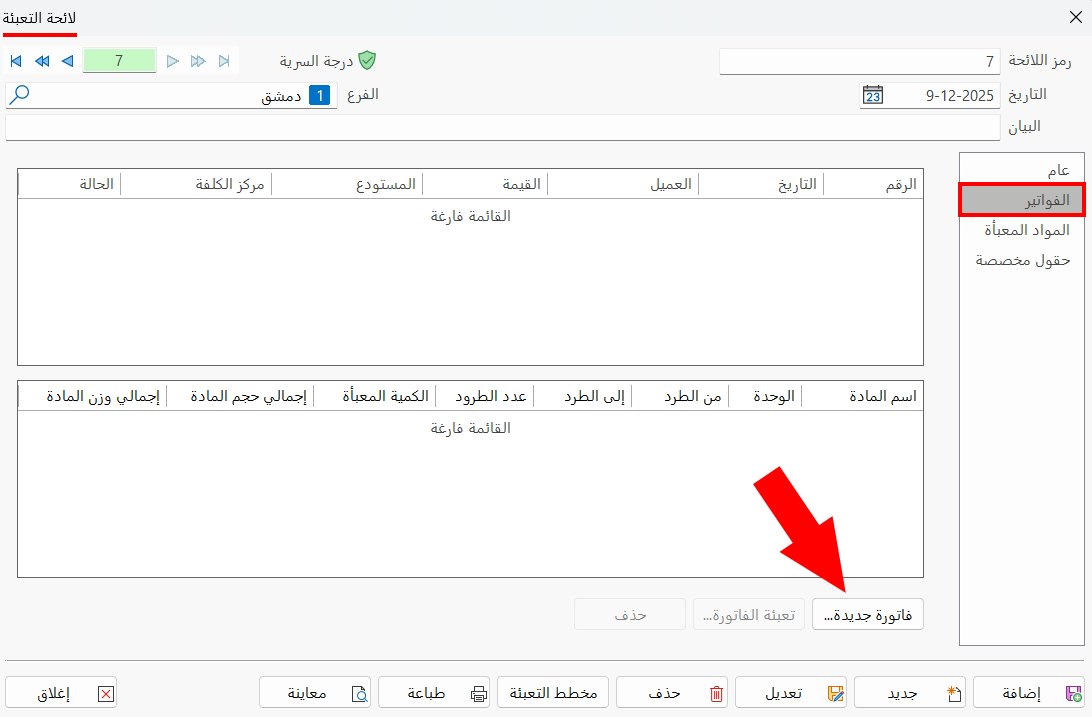
The "Find Invoice" window opens so you can choose the invoice whose materials you want to pack.
Set the search conditions you want for the invoice, then click "Refresh".
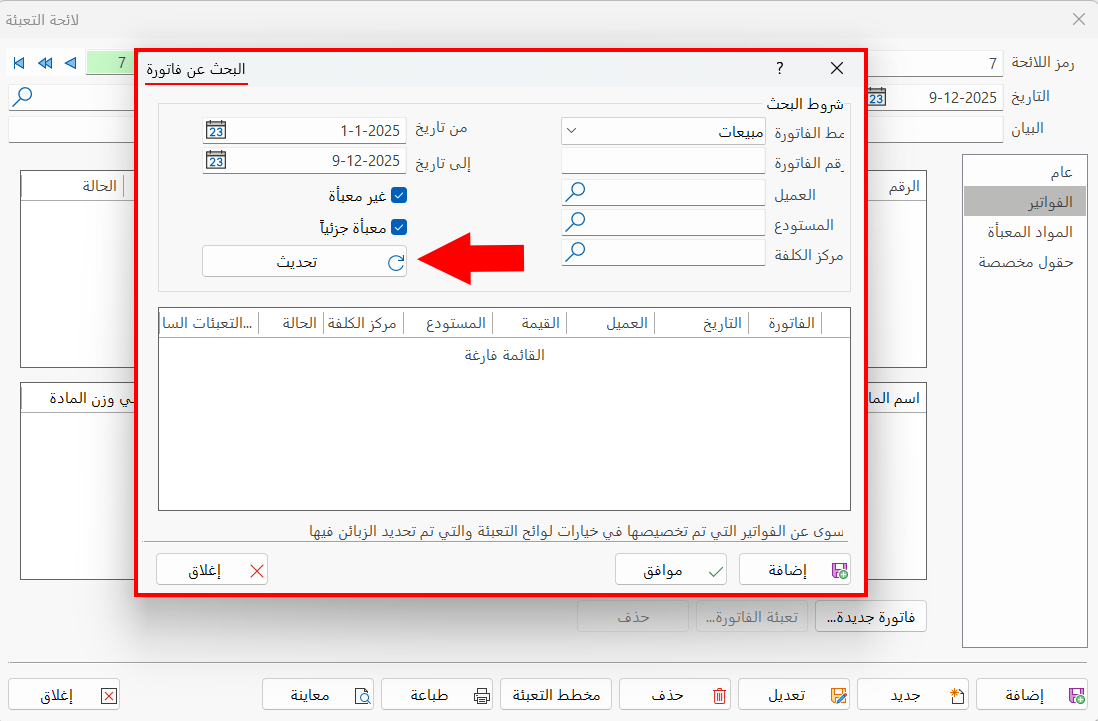
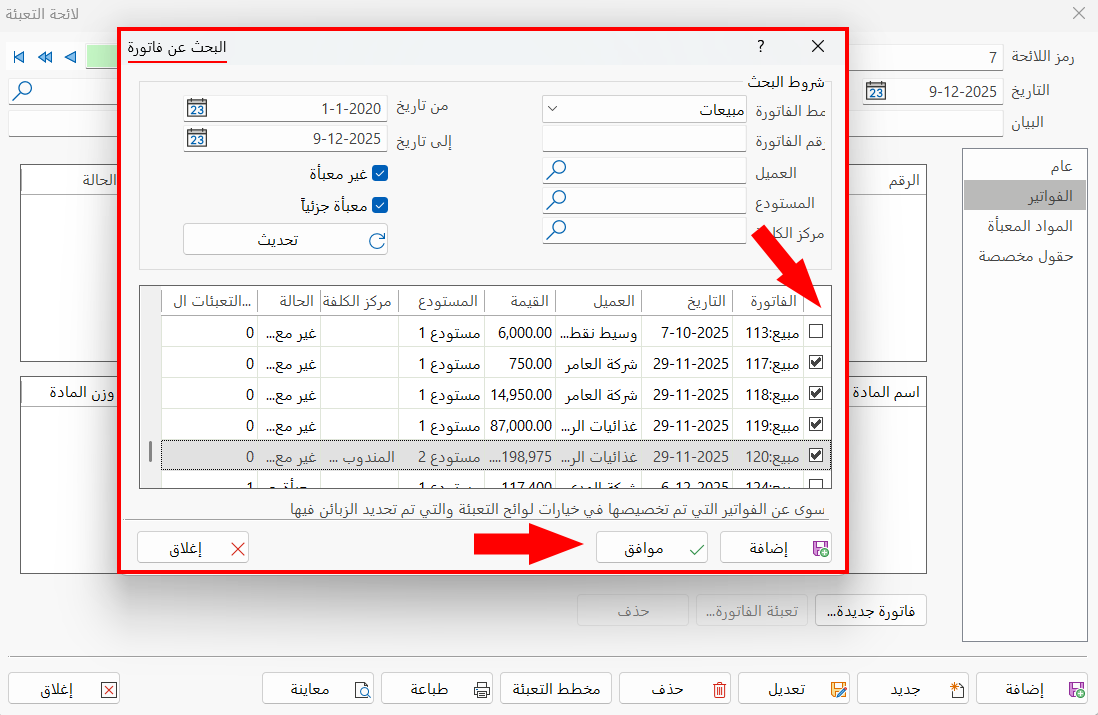
The results of the invoice search appear in the table: all the invoices that meet the search conditions you chose at the top of the window are listed.
Click the check box next to the row of the invoice you want, then click "Add" so this invoice is put in the "Packing List" window; when you have finished adding invoices, click "OK".
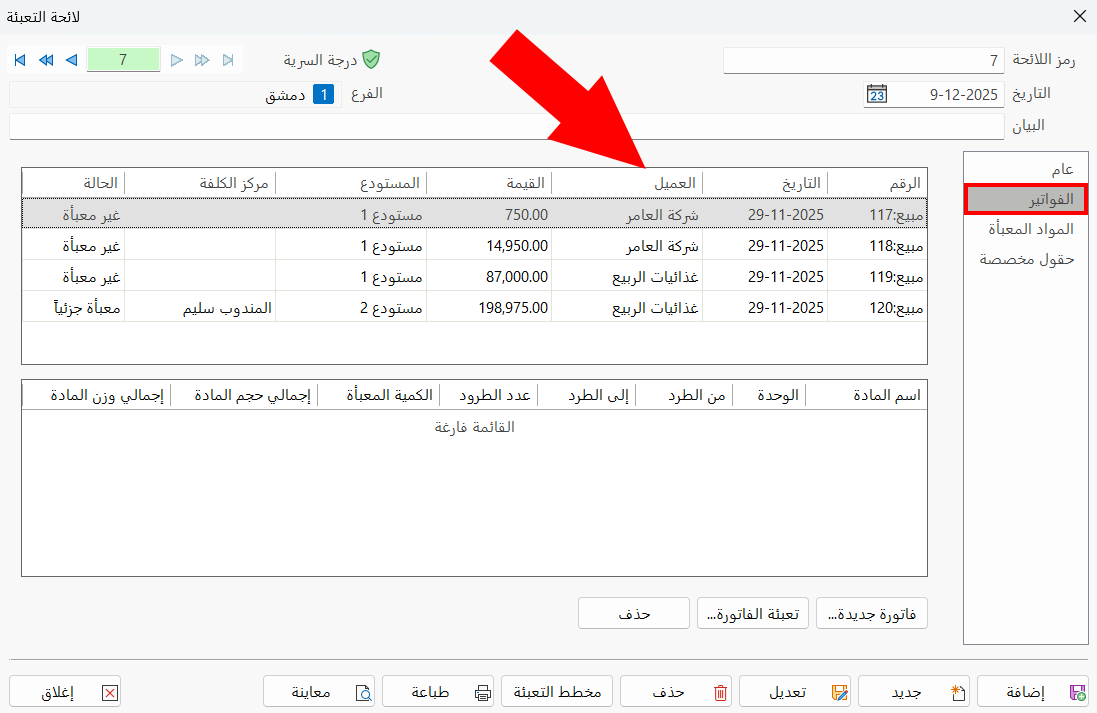
The invoices you selected in the "Find Invoice" window are listed on the Invoices tab of the "Packing List" window as follows:
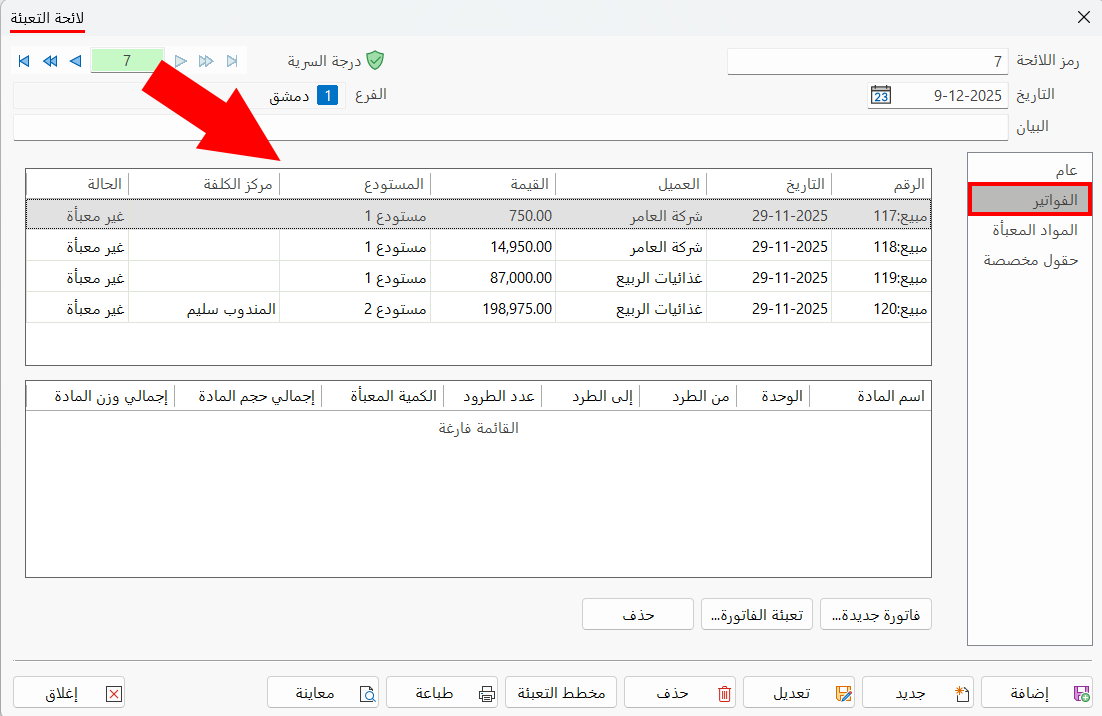
Invoices Table
Contains the details of the invoices added with the "New Invoice" button, such as the invoice number, the client, and the value, as well as the packing status of the invoice (not packed, partially packed, packed).
Invoice Packing Status Table
The table shows the packed materials of the invoice selected in the invoices table, with detailed information such as the material name, from/to parcel, and the packed quantity.
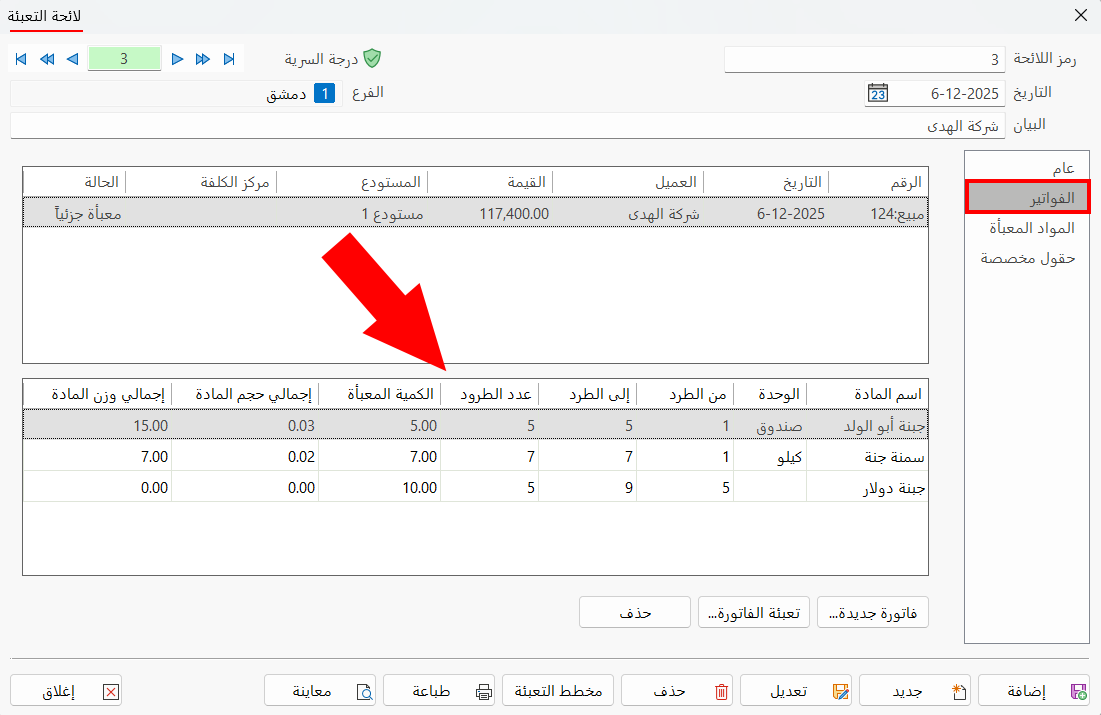
The table is empty if the status of the selected invoice is "Not packed".
Pack the Invoice
To start packing the list, click the row of the invoice you want to pack (in the invoices table).
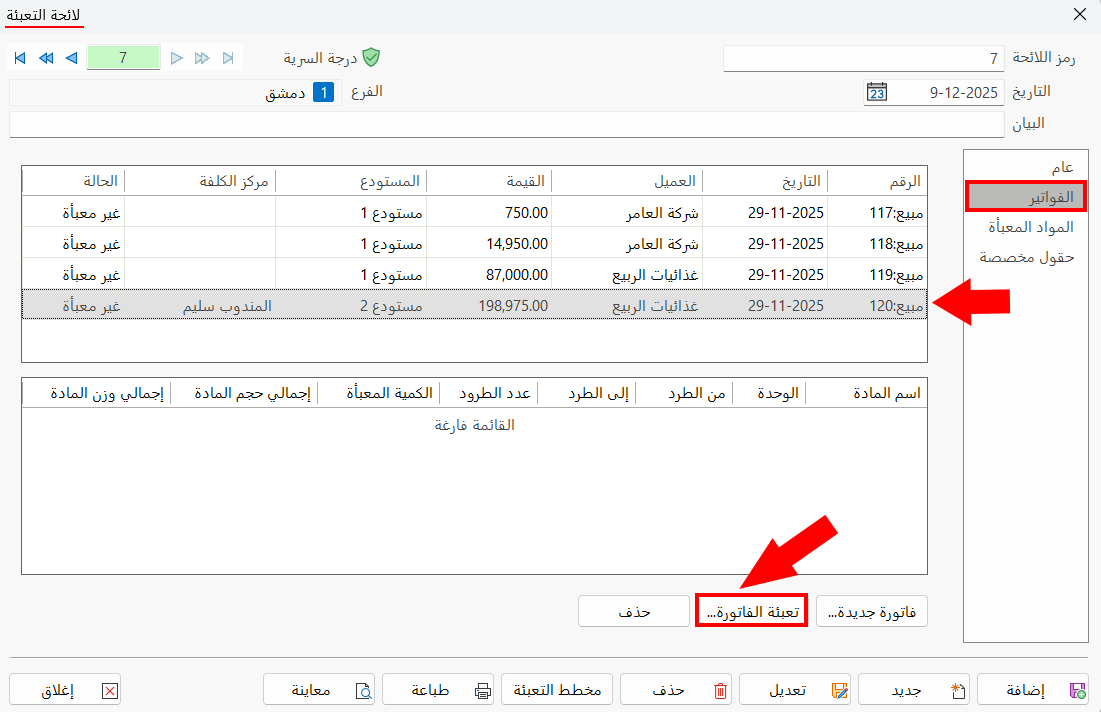
Then click "Pack Invoice"; the following window opens:
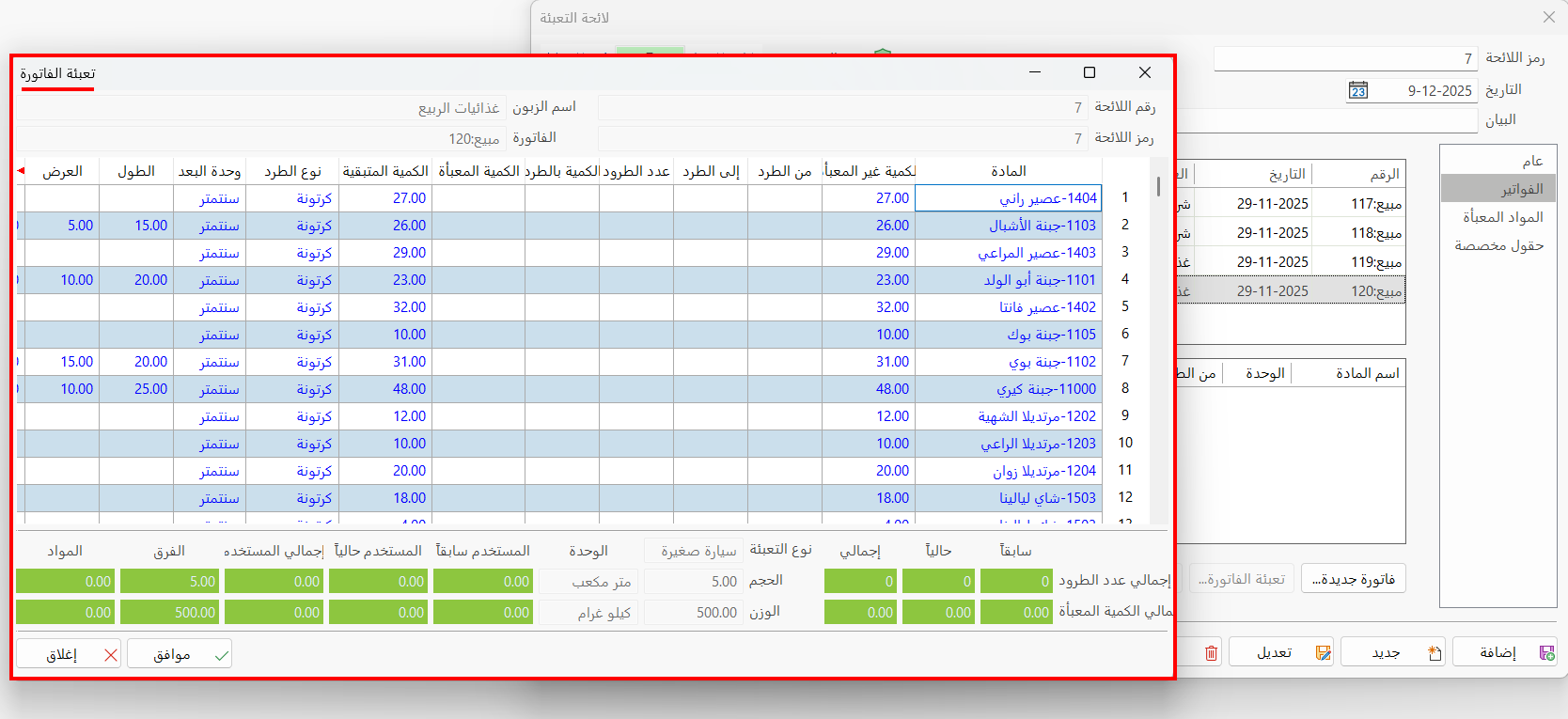
The "Pack Invoice" window contains a table of the materials of the invoice: distribute the materials over the parcels in the quantities you want, then click "OK".
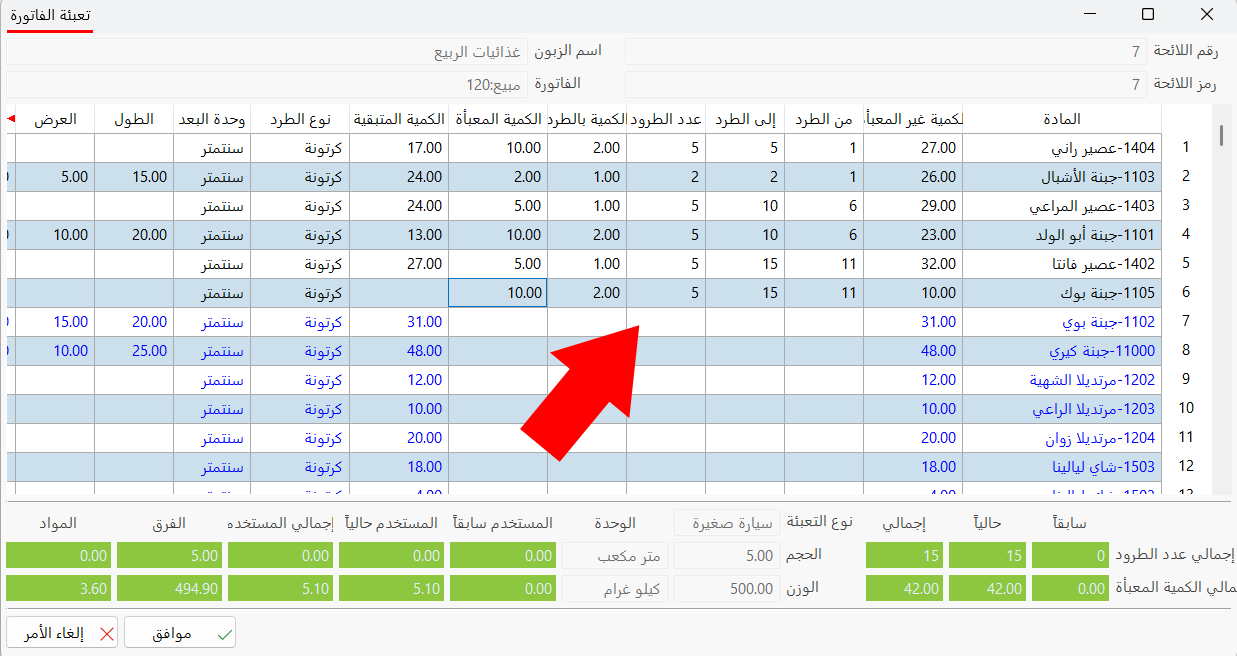
After you finish packing the list, click "Modify" on the standard commands bar of the "Packing List" window to save it.
Packed Materials
You can view the materials packed in the list by clicking the "Packed Materials" tab of the "Packing List" window, after moving to the packing list you want.
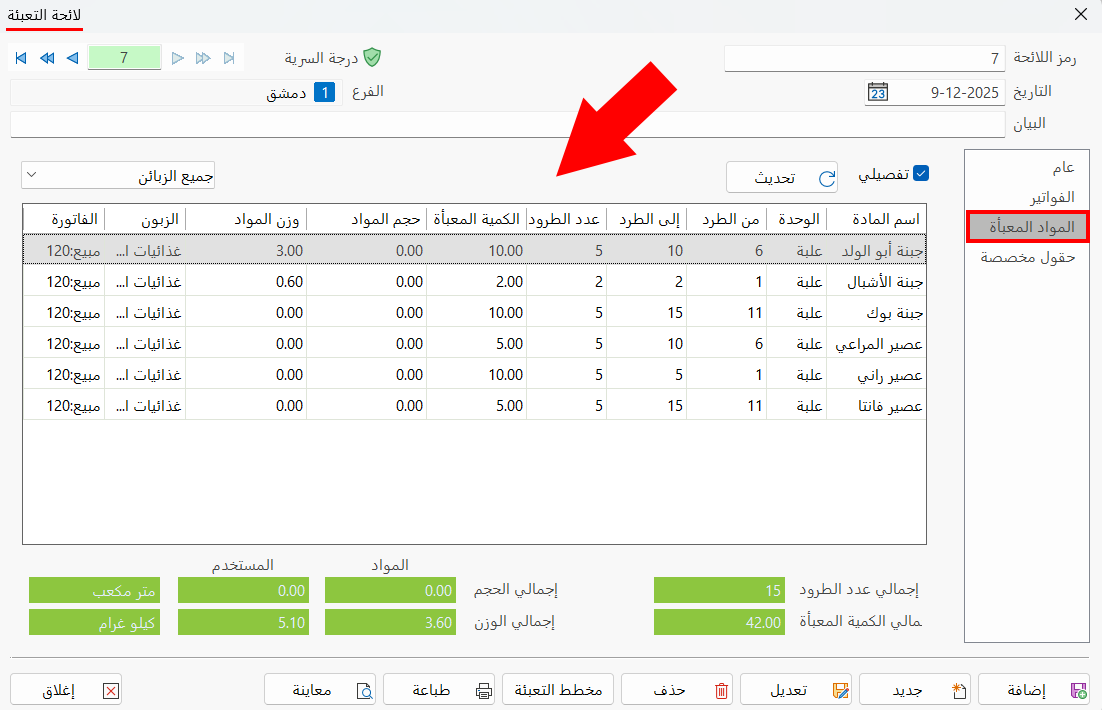
The "Packed Materials" tab consists of the following:
Detailed Option
Enabled by default: the packed materials table contains detailed information.
It includes nine fields: (material name, unit, from parcel, to parcel, number of parcels, packed quantity, materials volume, materials weight, invoice).
When you disable it, the fields of the table become: (material name, unit, number of parcels, packed quantity, materials volume, materials weight).
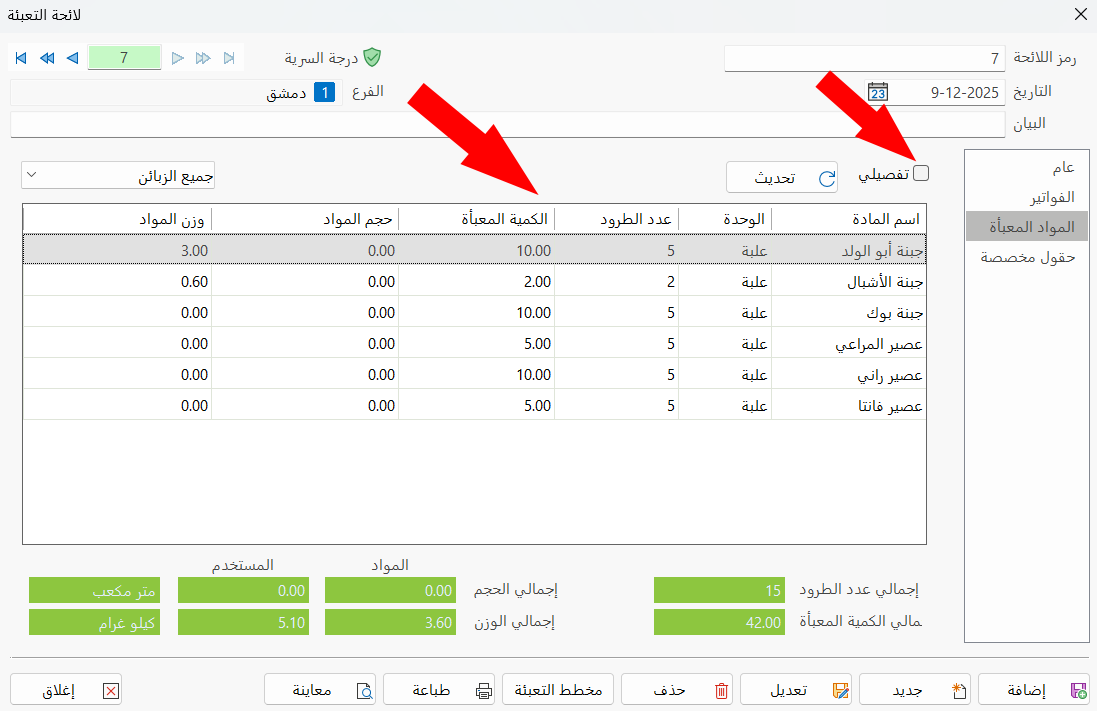
Click "Refresh" after enabling/disabling the detailed option, so the program applies the change.
Refresh Button
Refreshes the window after actions such as enabling/disabling the detailed option, choosing a customer, packing an invoice, or adding a new invoice.
Customers List
The contents of the packed materials table depend on the customer you choose from this list: the table lists the packed materials information of the chosen customer.
By default, the program shows "All customers"; you can change it by clicking the arrow in the field.
The list shows all the customers in the "Client" field of the invoices you added to the current packing list.
You can also see them by moving to the "Invoices" tab of the current packing list window, where the customers appear in the "Client" field of the invoices table.
Packed Materials Table
The table contains the information of the packed materials only; it does not show unpacked materials.
You can control the fields of the table with the detailed option in the window.
Totals
The window provides a set of totals fields related to the packed materials table:
Custom Fields
You can add new fields that are not in the window by default, and design and arrange them in the size, shape, and order you want: the new fields appear in the current packing list.
Packing Diagram
The window lets you request a report that shows the packing diagram in detail, with the "Packing Diagram" button in the window: after you click it, the program moves to the "Packing Diagram by Default Unit" report, as follows:
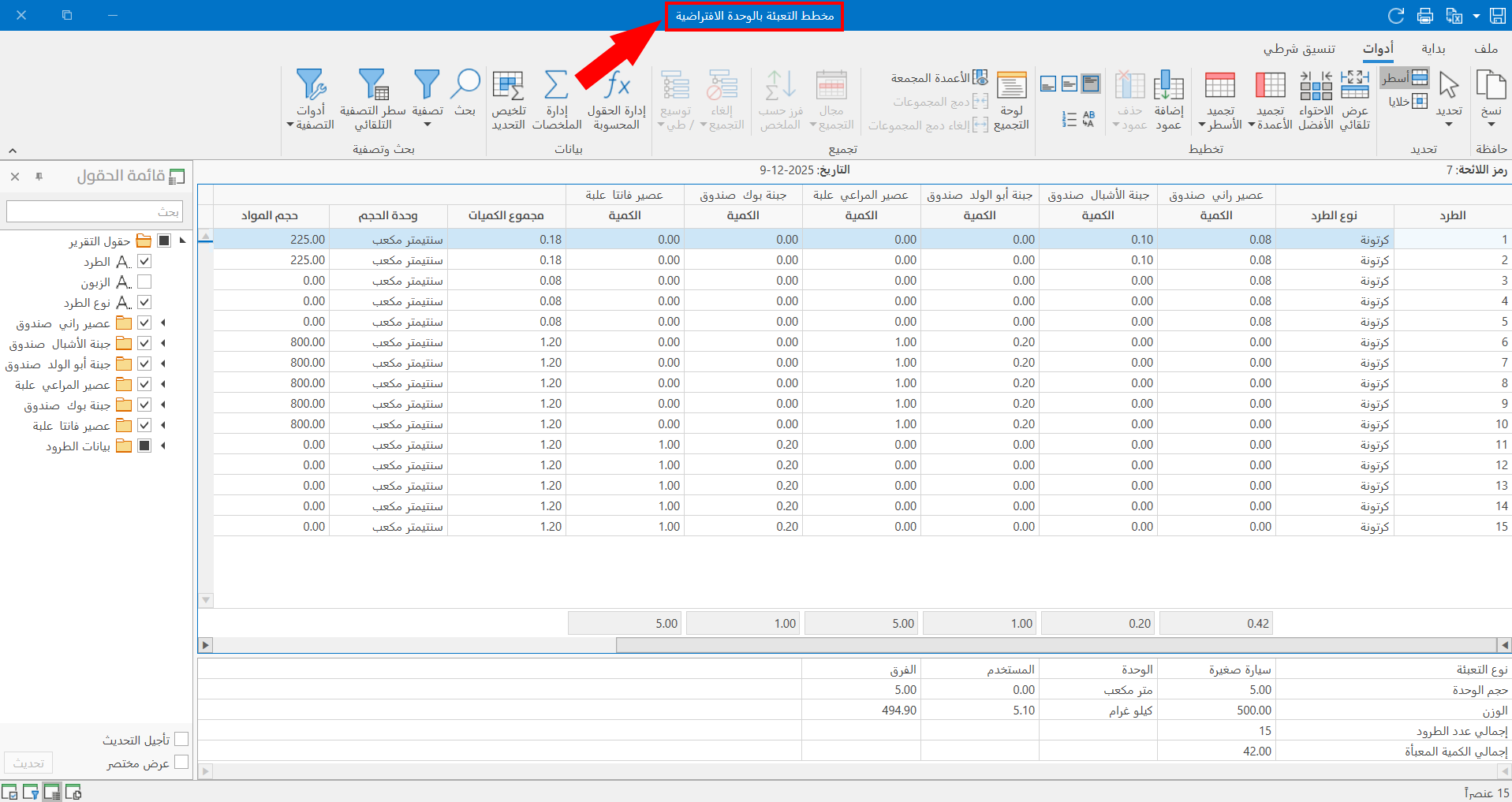
The "Packing Diagram by Default Unit" report is a cross report: it shows the packing information of each material separately, as shown in the previous image.
Standard Commands
Please see Standard Commands.