Customer Packing Lists
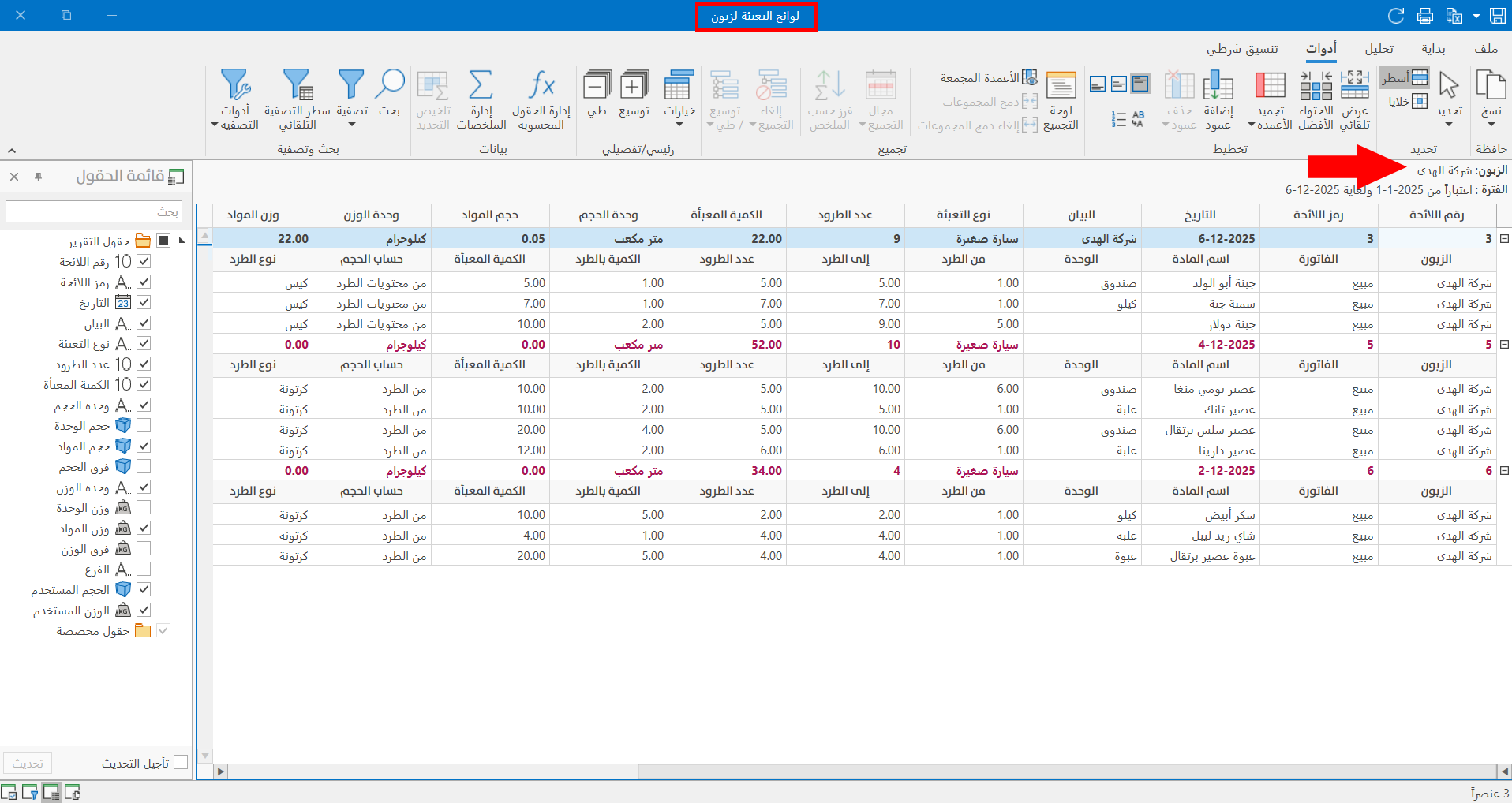
The report shows the packing lists linked to a customer you set: it shows the details of the lists, such as the packed materials, the packing type, the number of parcels, and the packed quantity, as well as the volume and weight details.
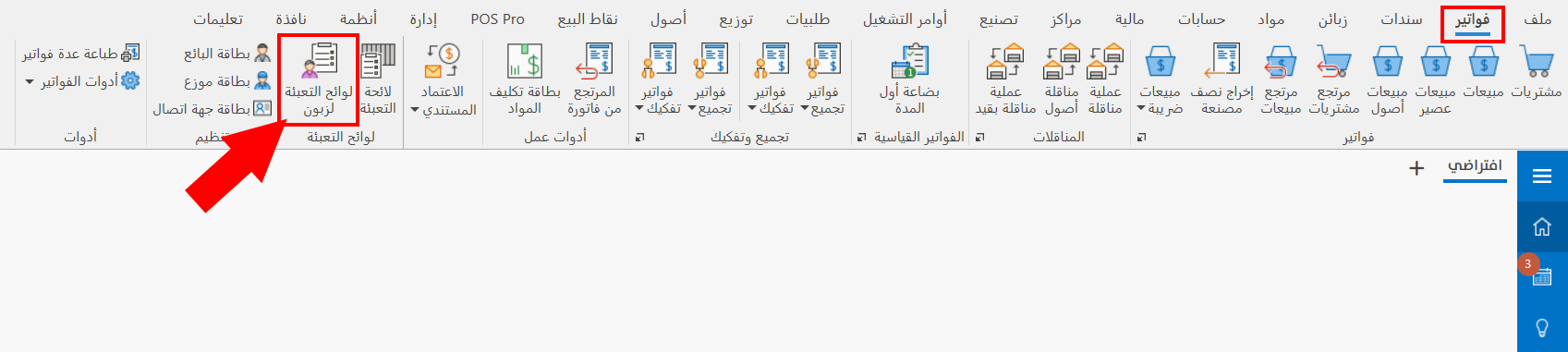
You can reach the "Customer Packing Lists" report from the Invoices tab on the main ribbon - Packing Lists group.
After you click the button, the report window opens as follows:
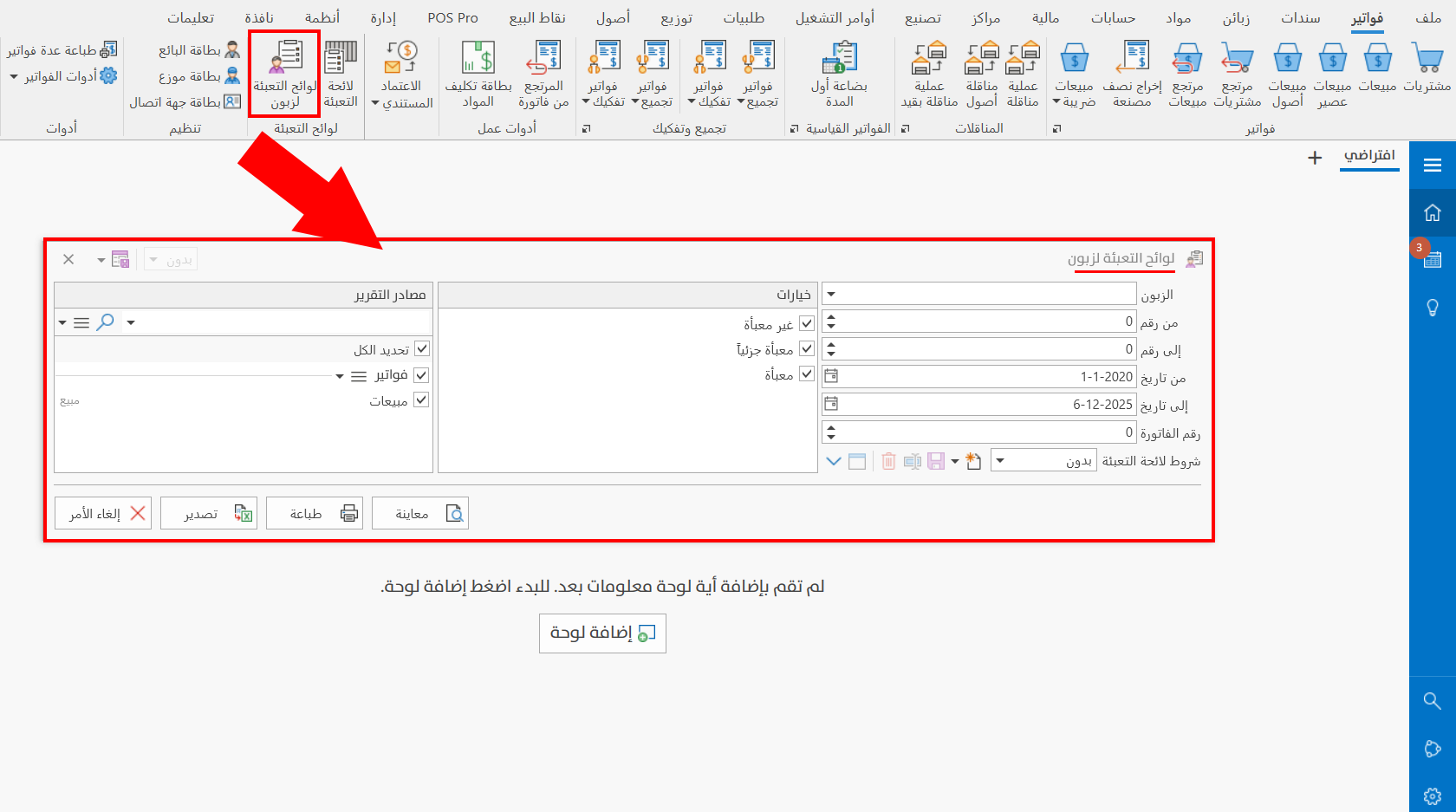
The report window consists of the following:
Customer
Enter the name of the customer whose packing lists you want to view, or click the arrow in the field and choose the customer from the list, which contains all the customers defined with customer/supplier cards.
From Number
Enter the list code at which the range of list codes you want to show in the report starts.
To Number
Enter the list code at which the range of list codes you want to show in the report ends.
From Date
Set the start of the date range of the packing lists you want to show in the report, by typing the date or with the date icon in the field.
To Date
Set the end of the date range of the packing lists you want to show in the report, by typing the date or with the date icon in the field.
Invoice Number
You can set the invoice whose materials packed in the packing lists you want to view, by typing its number or using the arrows to reach the number you want.
Packing List Conditions
You can set a condition for the packing lists you want, by choosing it from the drop-down list of conditions in the field, or by adding a new condition with the "New" icon next to the field.
Options
You can choose one or all of the available packing list statuses:
Not Packed
When you add an invoice on the "Invoices" tab of the "Packing List" window without packing the materials of the invoice, the status of the invoice is "Not packed".
Partially Packed
When you add an invoice on the "Invoices" tab of the "Packing List" window and pack part of the materials of the invoice, the status of the invoice is "Partially packed".
Packed
When you add an invoice on the "Invoices" tab of the "Packing List" window and pack all the materials of the invoice, the status of the invoice is "Packed".
Report Sources
A list of the invoices forms set on the Packing List tab - Program Options window appears.
Select the form whose invoices you want to view in the report by clicking the check box next to it.
Report Window Operations
You can perform many operations on the report data, such as previewing and exporting.
Please see Report Window Operations.