Letters of Credit
The program provides many features that help you organize accounts and expenses and follow up the financial position of your organization, including the letters of credit window.
What Is a Letter of Credit
A letter of credit is the credit to which some expenses that you may need to pay before receiving the goods are charged.
For example, when you import a large quantity of materials, you may need to pay some expenses before receiving the materials and issuing the invoice. So you can create a letter of credit to charge the costs to it, and allocate these costs to all the imported materials with allocation methods you set in the "Letter of Credit Expenses and Allocation" window.
Using the Letters of Credit Window
The letters of credit window defines and views new letters of credit, and sets the type of expenses and how they are allocated to the rows of the invoices linked to the letter of credit. The window contains tables that list the invoices and entries linked to the letter of credit.
Reaching the Letters of Credit Window
You can reach the "Letters of Credit" window from the main ribbon - Invoices tab - Letter of Credit group.
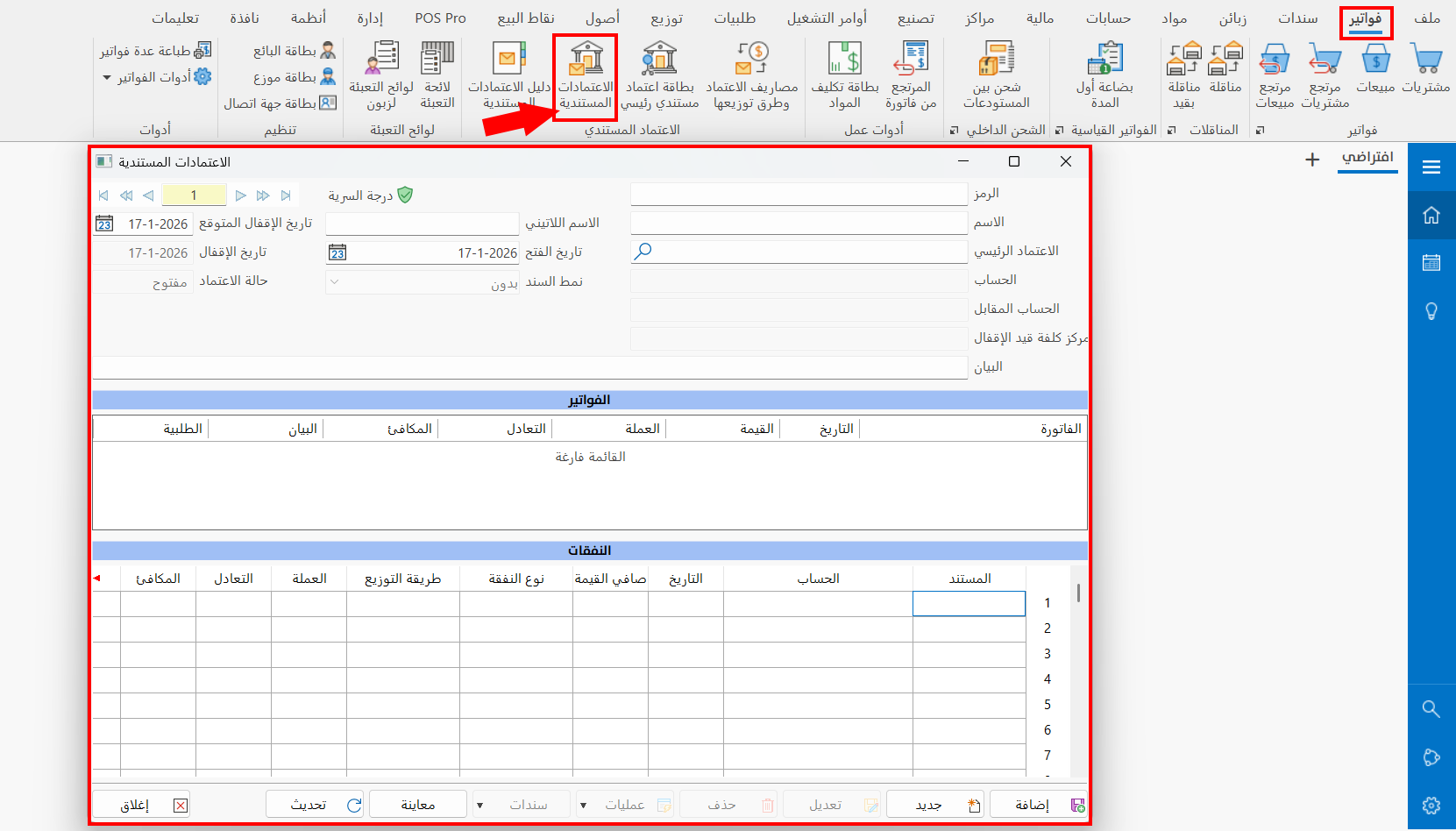
Contents of the Letters of Credit Window
The letters of credit window consists of main fields for defining the letter of credit, and the invoices and expenses tables for viewing the payment vouchers and invoices linked to the letter of credit. The fields and tables are explained below:
Main Fields
The letters of credit window consists of a set of main fields for adding a new letter of credit or modifying one added earlier:
Serial Number and Navigation Buttons
Please see Serial Number and Navigation Buttons.
Security Level
Please see Security Level.
Code
Each letter of credit has a unique code; you can type the code according to standards you choose (mandatory field).
Name
Enter the name of the letter of credit you are defining (mandatory field).
Latin Name
You can enter the name of the letter of credit in another language.
Main Letter of Credit
Enter the name/code of the main letter of credit of the current letter of credit, or press the (*) key on the keyboard or click the search icon in the field, and choose it from the "Select Main Letter of Credit" window that opens (mandatory field).
Define the main letter of credit with the main letter of credit card in the Letter of Credit group - Invoices tab.
You can define the main letter of credit directly from the "Select Main Letter of Credit" window with the "New" button on the window's toolbar.
Account
Enter the name/code of the letter of credit account you want to link to the current letter of credit, or use the search icon in the field to choose the account from the "Select Account" window that opens.
You cannot modify or delete the account after an invoice or entry has been linked to the letter of credit.
Contra Account
Enter the contra account when you use periodic inventory in the current letter of credit.
You can use periodic inventory by disabling the "Use perpetual inventory in letters of credit" option, which is enabled by default on the Save tab of the Program Options window.
You must close or delete the open letters of credit before disabling the use perpetual inventory in letters of credit option.
CC of Closing Entry
You can set the cost center in which the closing entry of the current letter of credit is generated, by entering the name/code of the cost center, or by clicking the search icon in the field or pressing the (*) key on the keyboard and choosing the cost center from the window that opens.
Opening Date
The field shows the date the letter of credit was opened (added): when you create a new letter of credit, today's date appears automatically. You can change it to the actual date of the letter of credit by typing it or with the calendar icon in the field (you can modify the date after adding it).
Entry Form
Choose the form of the entry generated by closing the letter of credit from the drop-down list of the field, which contains all the entries forms defined in the "Entries Forms" window (mandatory field).
You can create a new entries form for closing letters of credit in the entries forms window, which you can reach from the program's main ribbon - Management tab - Forms Management button - Entries tab of the window - Edit button.
Branch
Enter the branch to which you are adding the current letter of credit, by typing the name/code of the branch, or with the search icon in the field or the (*) key on the keyboard (mandatory field).
Notes
Enter in this field a short description of the current letter of credit, or additional information that distinguishes it from the other letters of credit; you can modify the notes when necessary.
Estimated Closing Date
You can add a date later than today as the expected closing date of the current letter of credit. If you add no date, the program uses today's date automatically. This date does not affect the status of the letter of credit.
Close Date
The field is read-only, so you cannot modify the date in it. Before the letter of credit is closed, that is, while its status is "Opened", it holds the date the letter of credit was first added; it changes automatically when the letter of credit is closed with the "Operations" button in the window, and then matches the actual closing date of the letter of credit.
When you reopen the letter of credit, the field keeps the previous closing date; it changes only when the letter of credit is closed again.
LC Status
The field shows the status of the letter of credit, which is one of:
- Opened
Before the letter of credit is closed, or when it is reopened with the "Operations" button.
- Closed
When the letter of credit is closed with the "Operations" button.
Invoices Table
The table shows all the invoices linked to the current letter of credit: the expenses (the amounts paid in the entries linked to the letter of credit) are allocated to the rows of the invoice according to the allocation method set for each expense.
The table contains a number of fields that show the invoice data, as shown in the image:
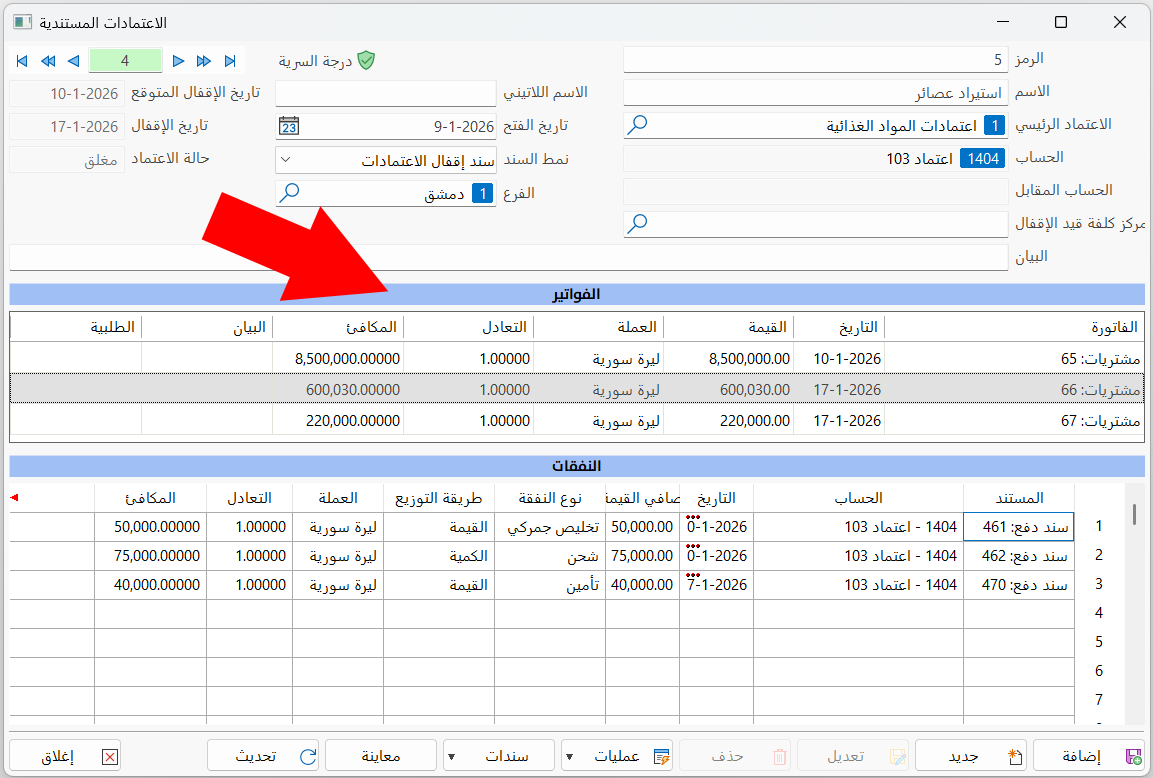
Right-click an invoice in the table to show it, or to control the grid lines between the fields of the invoices table.
Link the Invoice to the Letter of Credit
You can link the invoice to the letter of credit by clicking the "More" button in the invoice window: the "More Info" window opens. On the General tab (the default tab of the window), you can add the letter of credit to which you want to link the invoice (provided its status is "Opened") in the "Letter of Credit" field; the "Type" field is then enabled.
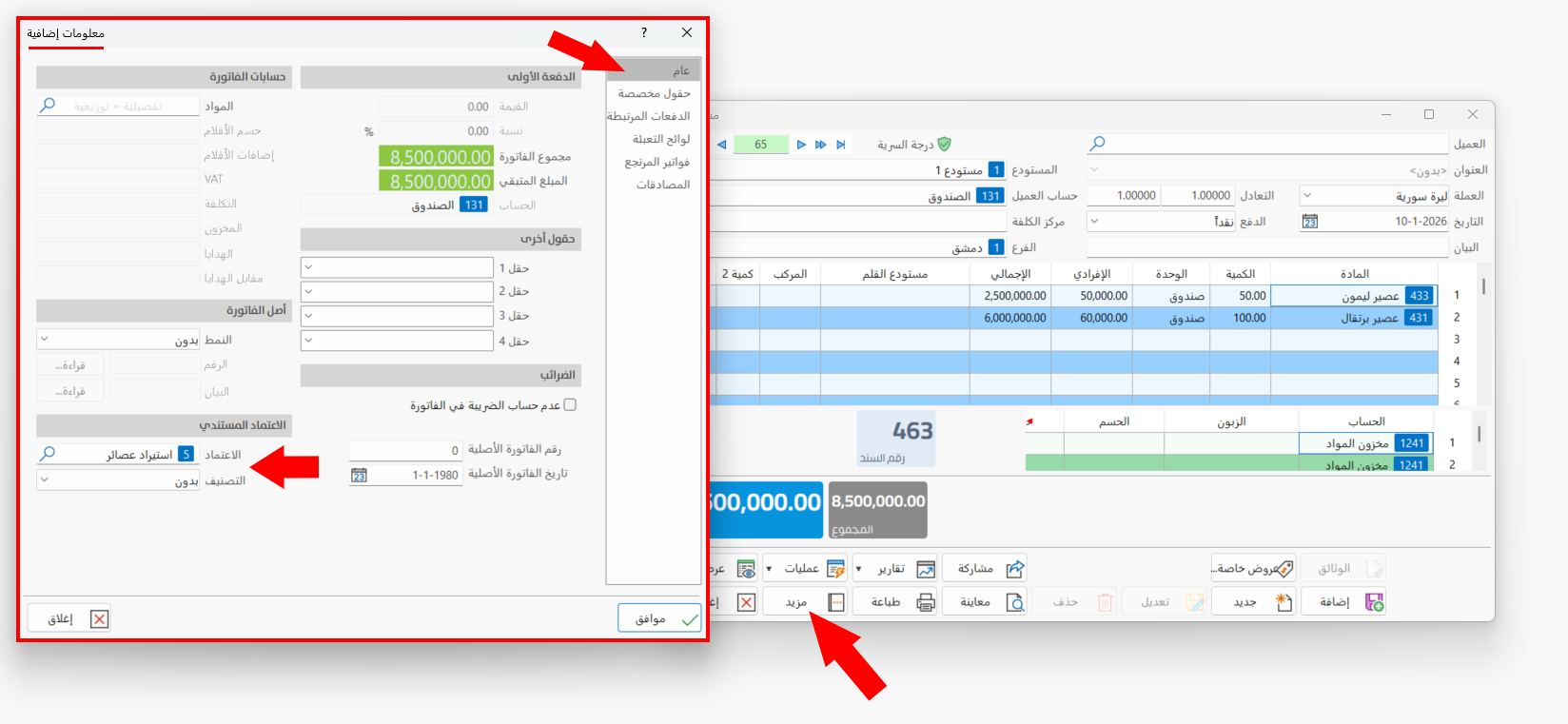
The drop-down list of the Type field contains two options:
- Invoice
The invoice is treated as an invoice, so that the expenses are allocated to its rows.
- Expense
The invoice is treated as an expense and allocated to the rows of the invoices linked to the letter of credit (provided the materials of the invoice are service materials only).
Expenses Table
The table shows all the entries linked to the current letter of credit: the program treats these entries as expenses to be allocated to the rows of the invoices linked to the letter of credit.
The table contains a number of fields that show the entry data, as shown in the image:
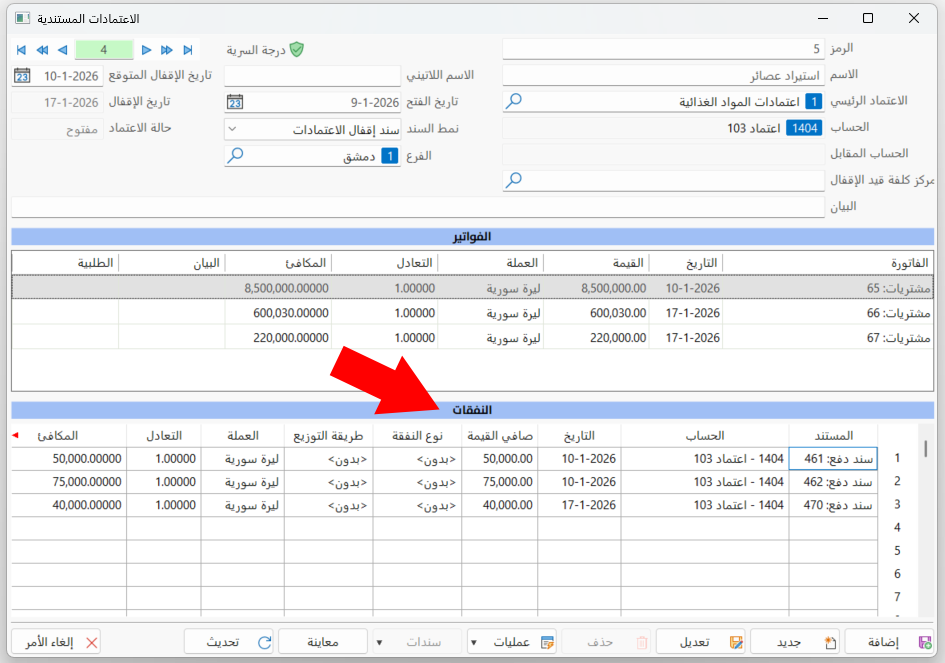
After the entry is linked to the letter of credit, it appears in the expenses table, but it is not allocated to the material rows until you set the "Expense Type" and the "Allocation Method" in the table.
The expense type is "None" by default: to set it, double-click in the field to open a list of all the expenses defined earlier in the "Letter of Credit Expenses and Allocation" window.
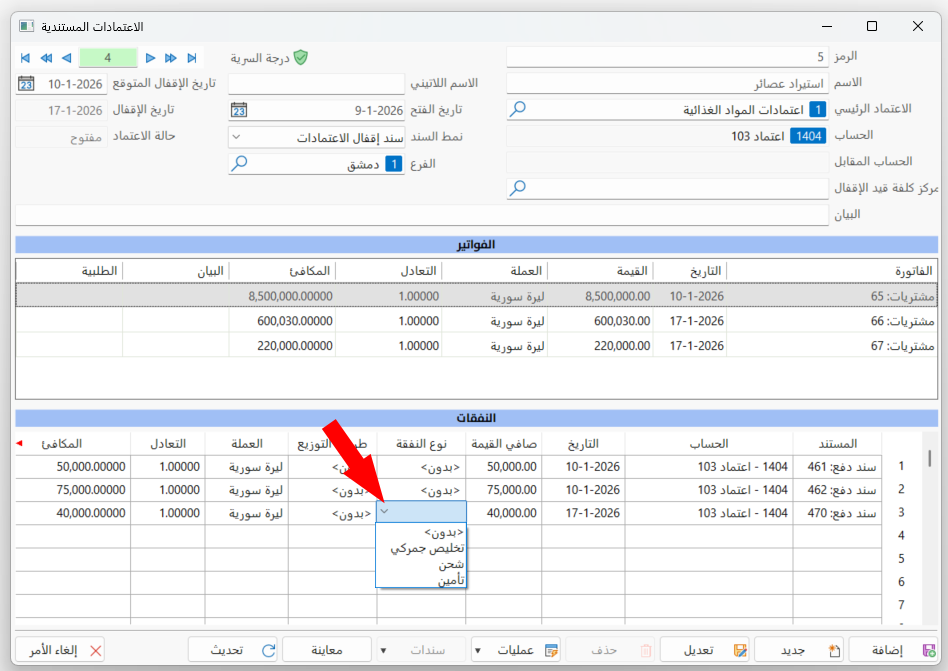
The allocation method appears as soon as you choose the expense type: it is the method you chose earlier for the expense type in the "Letter of Credit Expenses and Allocation" window.
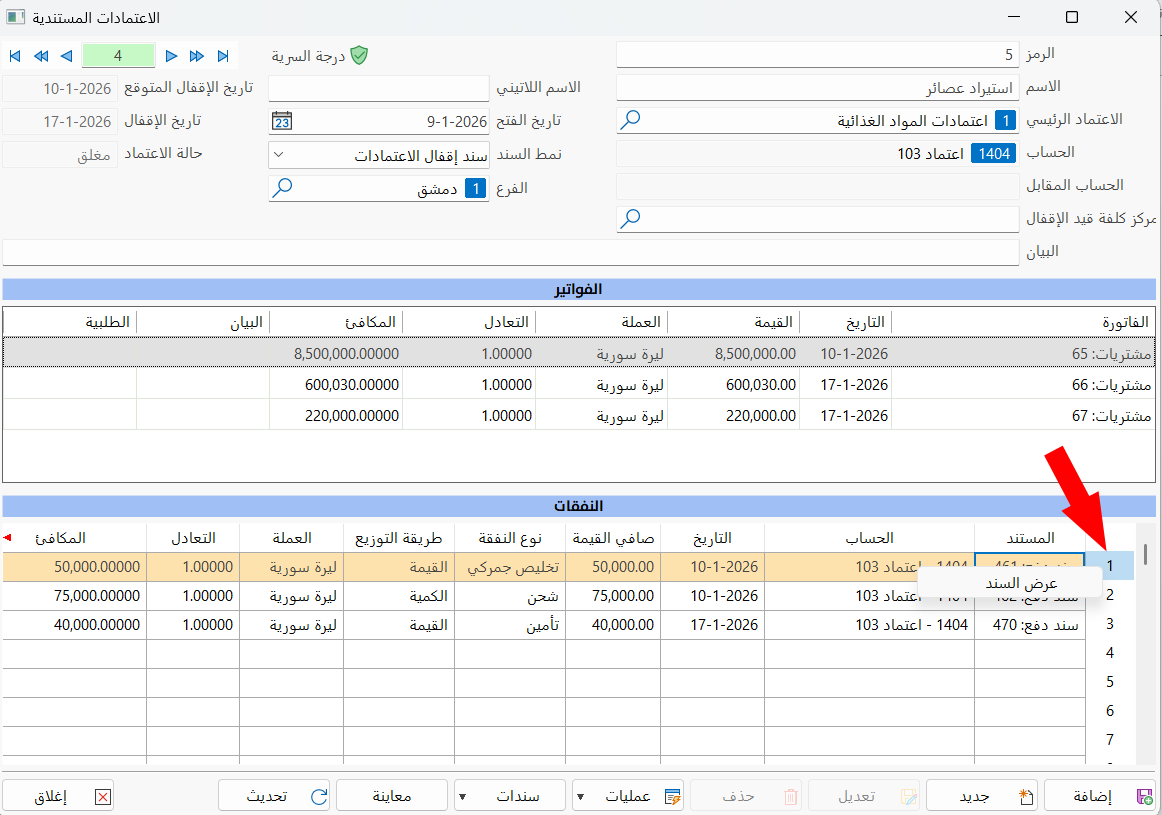
You can show the entry by right-clicking the row number of the entry in the table and choosing "Show Entry".
How to Link an Entry to the Letter of Credit
You can link an entry to the letter of credit (after defining the letter of credit) by adding the name/code of the letter of credit in the "Letter of Credit" field of the entry table.
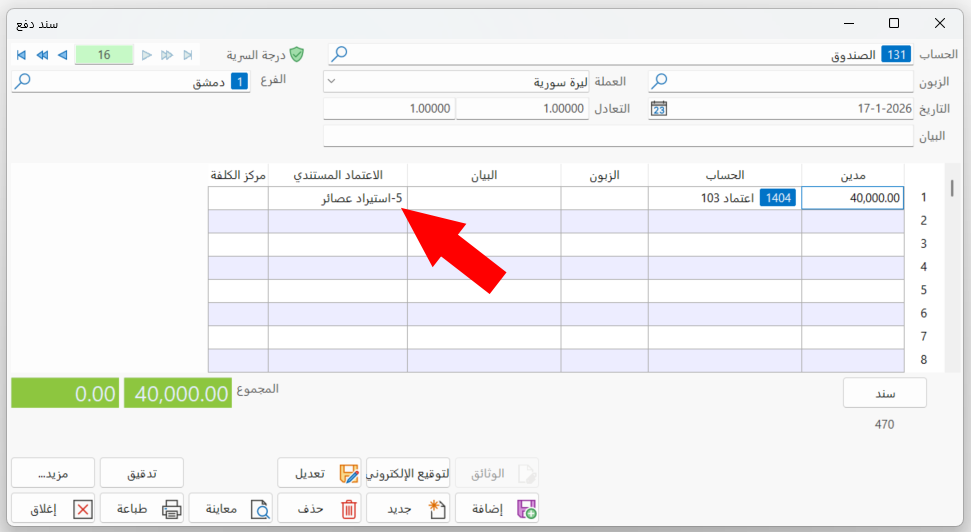
You can add the "Letter of Credit" field to the entry table from the entries forms window - Table Fields tab, for this form.
Operations
The "Operations" button closes the letter of credit after you finish linking the invoices and entries and allocating the expenses to the invoice rows, or reopens it. The operation you apply is reflected in the "LC Status" field. The "Operations" button opens a list with the following:
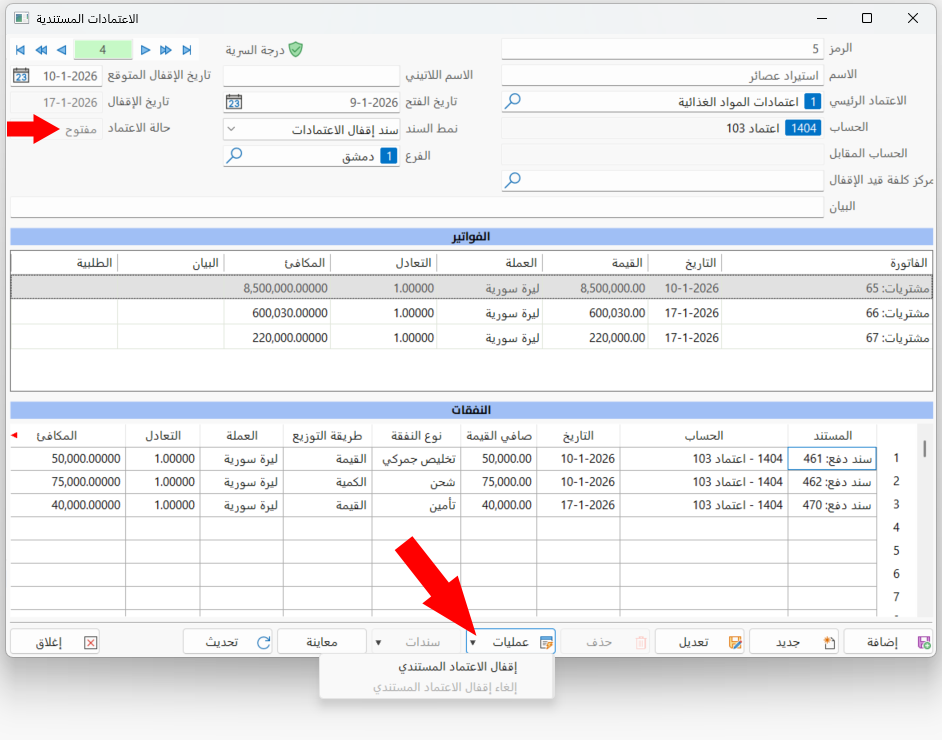
- Close the letter of credit
To close the letter of credit, it must be linked to at least one invoice and one entry (expense).
You cannot modify the letter of credit while it is closed.
After the letter of credit is closed, the following message appears:

And the LC Status field becomes "Closed".
- Reopen the letter of credit
You can reopen the letter of credit to modify it. After it is reopened, the following message appears:

And the LC Status field becomes "Opened".
Entries
Entries are generated after the letter of credit is closed, according to the entries form you set in the "Entry Form" field of the letters of credit window for this letter of credit.
You can reach the entries generated by closing the letter of credit with the "Entries" button, which is enabled after the letter of credit is closed: it opens a list of all the entries generated by closing the current letter of credit.
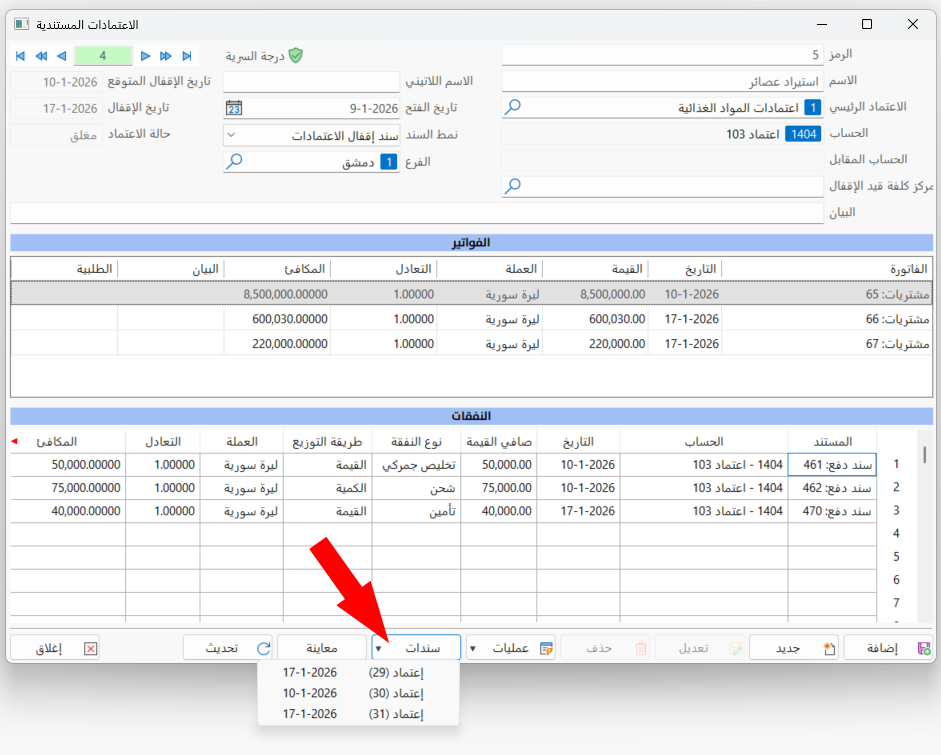
Preview
You can request a preview of the letter of credit by clicking "Preview"; the following window opens:
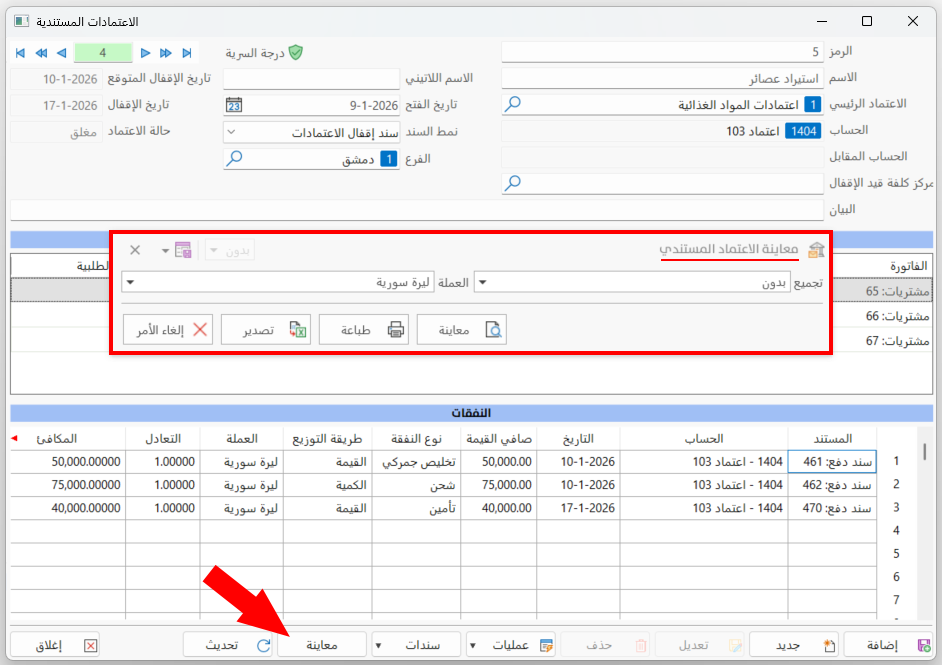
Click "Preview" in the window to continue: the program moves to the letter of credit preview screen, as follows:
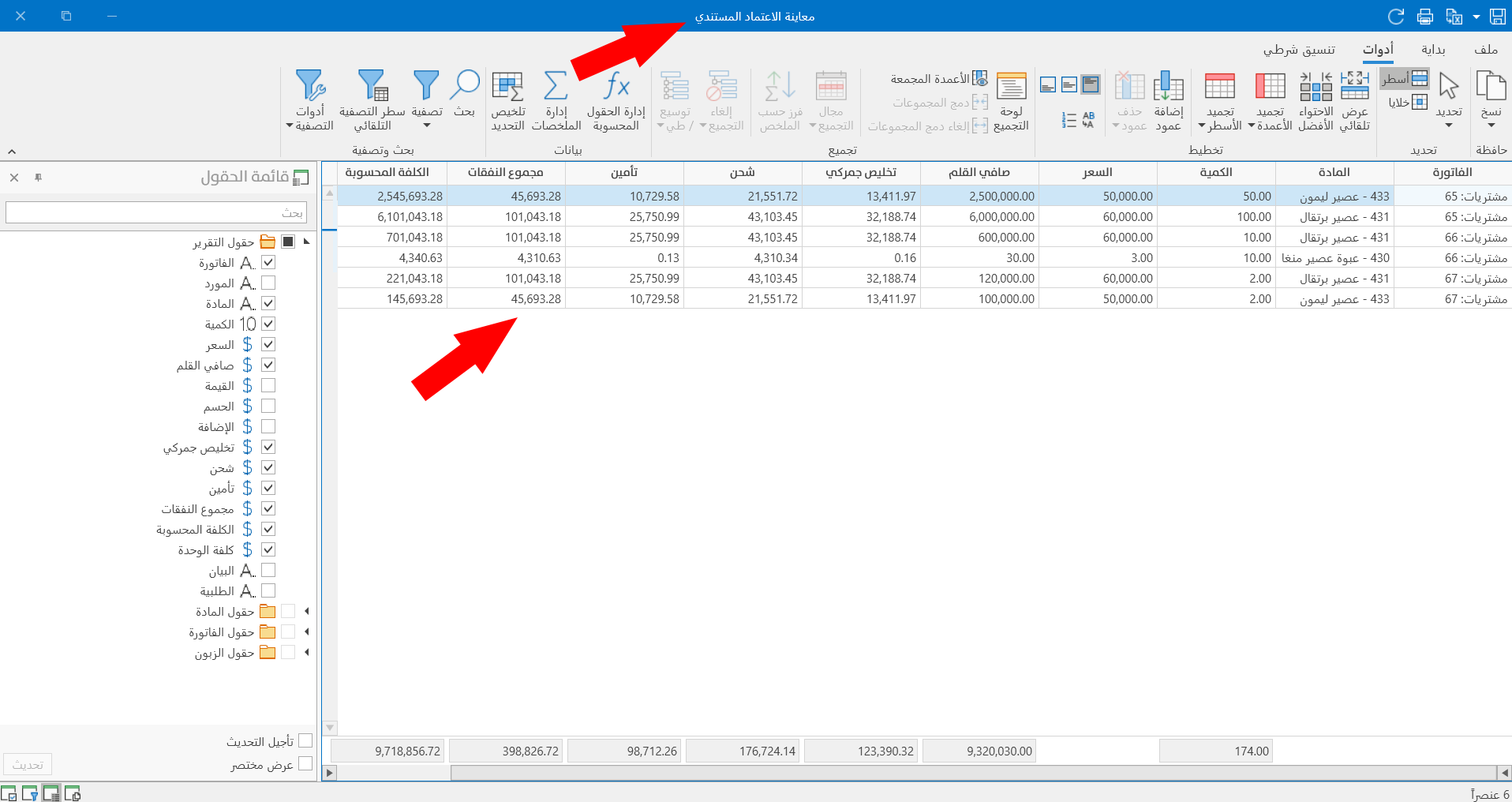
The preview screen shows all the invoice rows and their quantities, the material (unit) price, the item net, the value of the expenses allocated to the row, the total expenses, and the calculated cost of the row (item net + total expenses = calculated cost).
Refresh
Click "Refresh" after making changes, such as changing the expense type, to refresh the data of the window.
Standard Commands
Please see Standard Commands.