Serial Numbers for an Invoice
Serial numbers are numbers given to materials in an organized sequence, so that each item has a unique number that distinguishes it from others. Materials are given serial numbers in input and output invoices.
Enable the "Serial Number" option on the Options tab of the material card: the program then offers the "Force on Input" and "Force on Output" options, so you can choose one or both of them. As a result, the invoice is not saved unless you record the serial number of the material.
When only the "Serial Number" option is enabled, the invoice can be saved without entering the serial number, and the serial number entry window does not open automatically, so you must open it manually for each material whose serial numbers you want to record.
After you list the material in the invoice row and add the quantity, you can enter the serial numbers by clicking the material's row and then pressing F8.
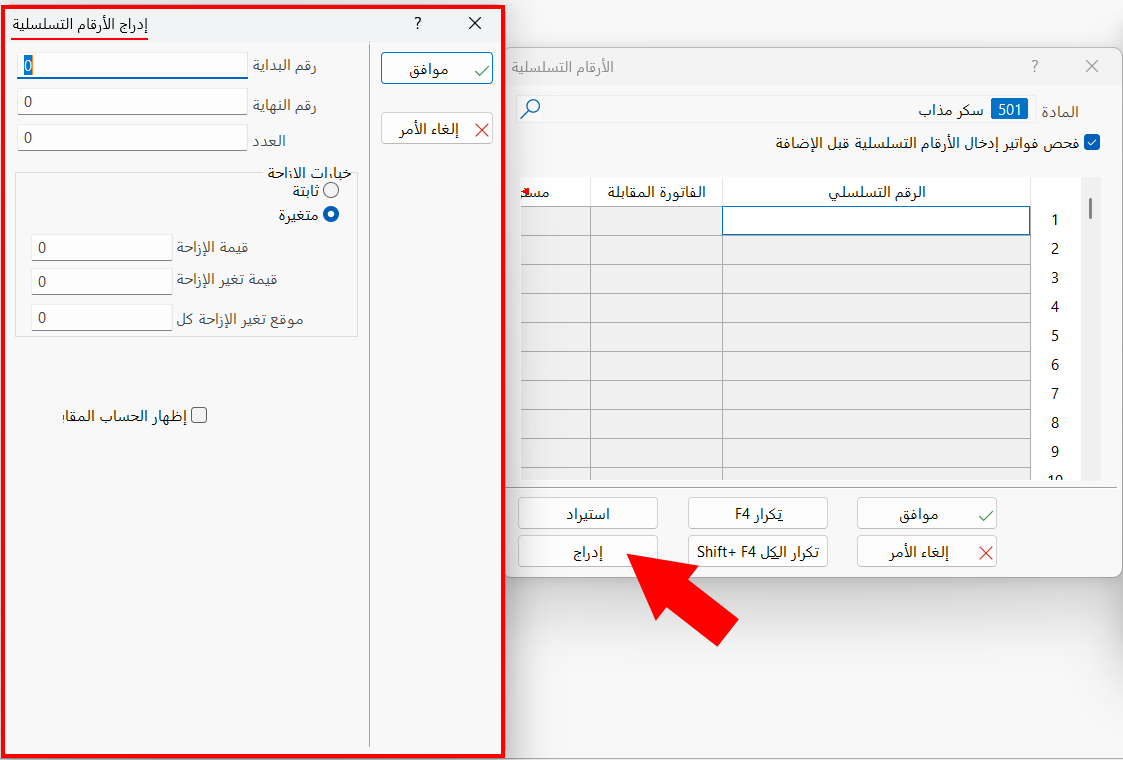
The "Serial Numbers" window opens as follows:
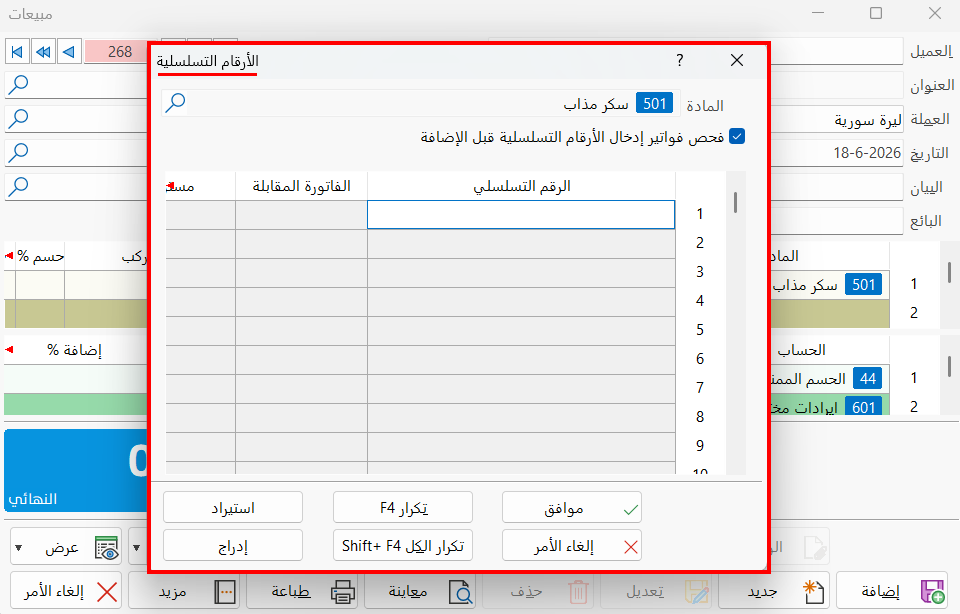
The window consists of the following:
Material
The name and code of the material appear in the field by default.
Check the Input Invoices of the Serial Numbers before Adding
This option checks that the serial numbers you want to sell (take out) exist in input or purchase invoices and have not been taken out. It is available only in the serial numbers window of sales (output) invoices.
Serial Numbers Table
The table has as many rows as the number you entered in the quantity field. Enter the serial numbers manually, or enter the first serial number and use the buttons in the window to insert the remaining numbers automatically.
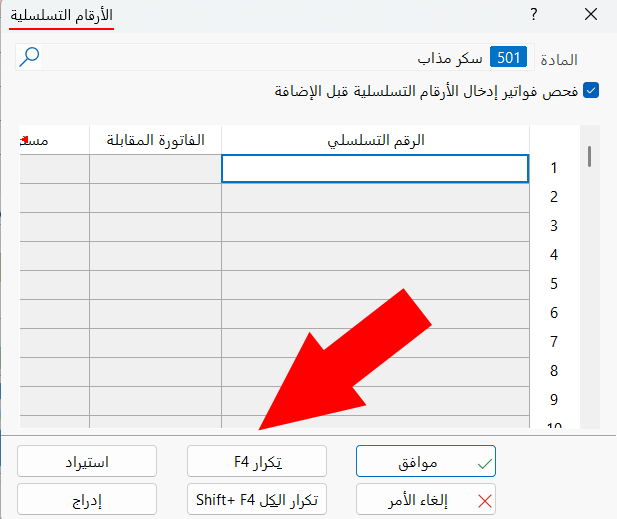
When you enable the "Search serial numbers on input" option in the Program Options window - File Options tab, the search window appears when you enter a serial number that does not exist, so the user can choose the number from the search window.
RepeatF4
Inserts the serial number of the next row, increasing the number for each row.
Import
Imports serial numbers from a file on the computer: after you click the button, a window opens in which you set the source to import from, usually a text file.
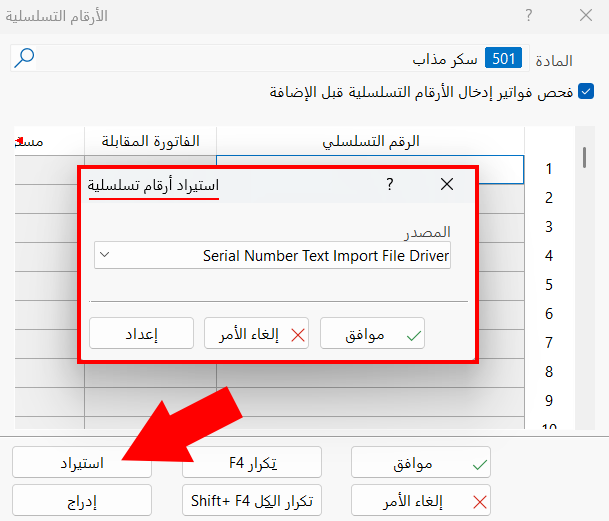
Click the arrow in the field to choose the source.
After setting the source, click "Setup": the "Import bill" window appears so you can set the path of the file from which the serial numbers are imported.
Repeat AllShift + F4
Inserts ascending serial numbers in all the rows of the table at once.
Insert
Click the button to set how the serial numbers are inserted for the material when adding a purchase or sales invoice with a large quantity, with the window that opens.