Assets Transposition
You can record the movement of assets between branches with the "Assets Transposition" operation: entries are generated for the origin branch and the destination branch, as well as an input bill with the asset into the destination warehouse and an output bill with the asset from the source warehouse.
Choose the input bill form and the output bill form for assets transpositions in the Program Options window - Assets tab.
Choose the form of the entries generated by the transposition in the "Assets Transposition" operation window.
You can reach the "Assets Transposition" operation from the program's main ribbon - Assets tab - Operations group.
When requested, the operation window opens as follows:
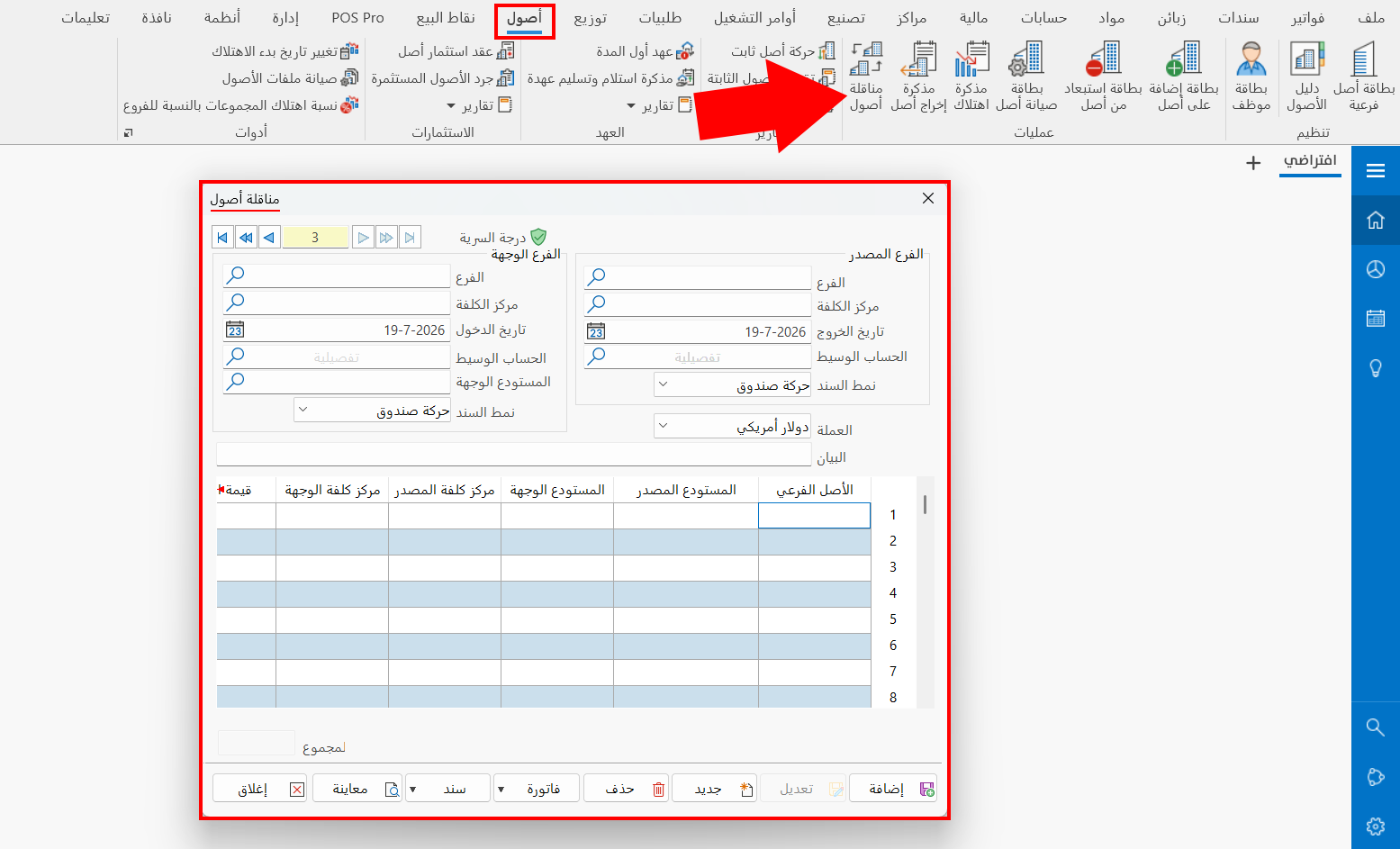
The operation window contains the fields that help you enter the details of the assets transposition. They are used as follows:
Serial Number and Navigation Buttons
Please see Serial Number and Navigation Buttons.
Security Level
Please see Security Level.
Origin Branch
Set the data of the branch from which you want to move the assets:
Branch
Enter the branch from which you want to move the assets, by typing its name or code or with the search icon in the field: after you click the icon, the "Select Branch" window opens, showing all the branches defined with branch cards.
Cost Center
Enter the code/name of the cost center in the origin branch, or click the search icon in the field and choose the cost center from the window that opens.
Output Date
Today's date appears in the field automatically. You can keep it or change it to the time the asset leaves the origin branch, with the calendar window in the field or by typing it.
Mediator Account
Define an assets transposition mediator account before adding the transposition, then enter the name/code of the mediator account in the field; you can use the search icon in the field to choose it from the window that opens.
Entry Form
Choose the form of the origin branch's entry generated by the current assets transposition: clicking the arrow in the field opens a list of the defined entries forms.
Destination Branch
Set the data of the branch to which you want to move the assets:
Branch
Enter the branch to which you want to move the assets, by typing its name or code or with the search icon in the field: after you click the icon, the "Select Branch" window opens, showing all the branches defined with branch cards.
Cost Center
Enter the code/name of the cost center in the destination branch, or click the search icon in the field and choose the cost center from the window that opens.
Entrance Date
Today's date appears in the field automatically. You can keep it or change it to the time the asset enters the destination branch, with the calendar window in the field or by typing it.
Mediator Account
Enter the name/code of the mediator account in the field; you can use the search icon in the field to choose it from the window that opens.
Destination Warehouse
Enter the input (destination) warehouse to which you want to move the materials, by typing its name or code or with the search icon in the field: after you click the icon, the "Select Warehouse" window opens, showing all the warehouses defined with warehouse cards.
Entry Form
Choose the form of the destination branch's entry generated by the current assets transposition: clicking the arrow in the field opens a list of the defined entries forms.
Currency
Choose the currency in which the material prices are set in the transposition: by default, the field shows the main currency you set when creating the file.
To change the currency, click in the field to open a list of the currencies defined in the "Currency Exchange Rates" window.
Set the main (default) currency of the file in the Program Options window - "Default Values" tab.
To open the "Currency Exchange Rates" window, go to the "Accounts" tab on the main ribbon of the program - "Currencies" group.
Notes
Enter a description or explanation of the transposition between the two branches, for example (transposition from the Damascus branch to the Latakia branch...).
Assets Transposition Table
The assets transposition table is used to enter the data of the sub assets you want to move from the origin branch to the destination branch. It contains the following columns:
Sub Asset
Enter the name or code of the sub asset you want to move from the origin branch to the destination branch, or press the "*" key and then Enter on the keyboard to choose the sub assets from the "Asset Card" window that opens.
Source Warehouse
The source warehouse appears automatically after you choose the sub asset: the warehouse in which the sub asset is currently located (the warehouse in the sub asset card) before it is moved to the destination warehouse.
Destination Warehouse
Enter the name/code of the warehouse to which the sub asset will move, or press the "*" key and then Enter and choose the warehouse from the window that opens. This field is mandatory: the transposition is not generated before the destination warehouse is set.
Source Job Cost
Enter the name/code of the source cost center (if you use cost centers).
Destination Job Cost
Enter the name/code of the destination cost center (if you use cost centers).
Asset Value
The current value of the asset appears automatically in the column after you enter the sub asset in the table. This value is read-only and you cannot change it manually.
Accumulated Depreciation
The accumulated depreciation of the asset is listed as soon as you enter the sub asset in the table. It is read-only, so you cannot change it.
Notes
You can write additional information about the current assets transposition in the Notes column.
Standard Commands
Please see Standard Commands.
You can view the entries and bills generated by the assets transposition with the buttons at the bottom of the window:
- Bill button
Click the button and choose the type of bill you want to view: you can open the input bill and the output bill.
- Entry button
Use the Entry button to choose the entry you want to view: you can open the entry of the origin branch and the entry of the destination branch.