Journal Voucher
Records the daily transactions related to a particular account in a single entry. It is one of the basic entries forms of the program.
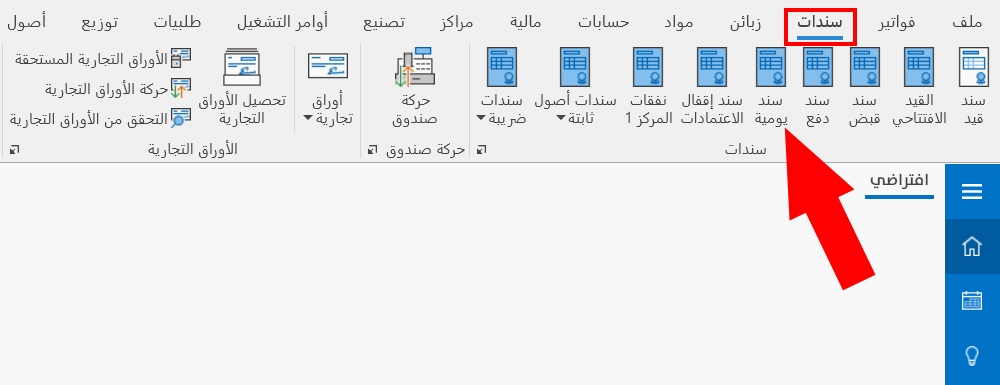
You can reach the journal voucher from the Entries tab on the program's main ribbon.
Once requested, the entry appears as follows:
Main Fields
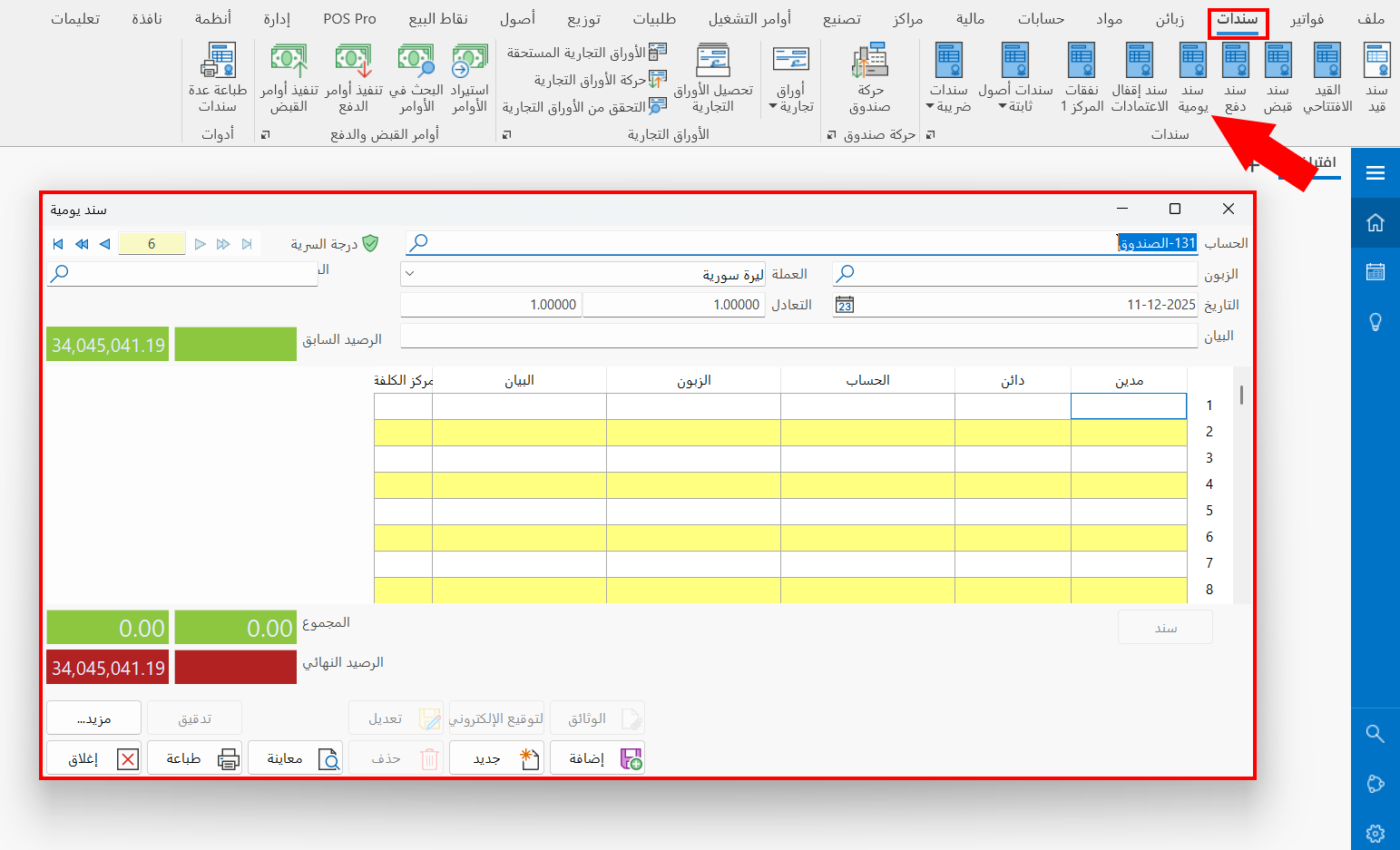
The entry window consists of the following main fields:
Serial Number and Navigation Buttons
Please see Serial Number and Navigation Buttons.
Security Level
Please see Security Level.
Account
The field shows the default entry account set in the "Entry Account" field on the "Default Values" tab of the current entry form (Journal Voucher): the account whose movement you record in the entry table.
You can reach the entry form from the Management tab on the program's main ribbon - Forms Management - Entries tab of the Forms Management window - Edit button.
You can change the account by entering the name or code of the account you want, or by searching for it with the search icon in the field, which opens the "Select Account" window listing all the accounts defined with the account card.
Customer
Enter the name of the customer linked to the account in the "Account" field, when the account is linked to more than one customer. (Leave it empty if the account is not linked to customers.)
You can select the customer by clicking the search icon in the field, which opens the "Select Customer" window listing all the customers linked to the account.
Date
The current date appears in the field automatically. You can keep it, or change it to the actual time the entry was issued using the calendar in the field or by typing it.
The program does not let you enter a date earlier than the opening date set in the Program Options window - "Default Values" tab. To enter the entry, first change the opening date to suit the entry date.
The program warns you when you enter an entry dated before the current date. Click "Yes" in the message to continue and save the entry.
Currency
Choose the currency used in the account's movement: by default, the field shows the main currency you set when creating the file.
To change the currency, click in the field to open a list of the currencies defined in the "Currency Exchange Rates" window.
Set the main (default) currency of the file in the Program Options window - "Default Values" tab.
To open the "Currency Exchange Rates" window, go to the "Accounts" tab on the main ribbon of the program - "Currencies" group.
Parity
The field shows the exchange rate of the currency entered in the "Currency" field (the exchange rate of the selected currency against the basic currency).
Set the parity of the currency against the main currency in the "Currency Exchange Rates" window to save it, so that it is filled in automatically in the "Parity" field whenever you select this currency in the "Currency" field.
Notes
Enter a short description of the entry or other important information, so you can print it later.
Branch
The "Branch" field appears when you enable the branches system in the Program Options window - "Save" tab.
Select the branch in which you generate the entry by typing its name or code, or by using the search icon in the field, which opens the "Select Branch" window listing all the branches defined with the branch card.
Previous Balance
It consists of two read-only fields that show the balance of the account in the "Account" field. If the account is a debit, the balance appears in the first field; if it is a credit, it appears in the second.
Data Table
The data table of the journal voucher consists of the following fields:
Debit
Enter the amount you paid to the account set in the "Account" field of the table.
Credit
Enter the amount you received from the account set in the "Account" field of the table.
You cannot enter amounts in both the "Debit" and "Credit" fields on the same row.
Account
Enter the account from which you received the amount set in the "Credit" field.
Or the account to which you paid the amount set in the "Debit" field.
Type the name/code of the account, or part of the name or code and press enter: the "Select Account" window opens so you can choose the account.
When the account in the data table is debited, the account in the main field of the entry (the cash, for example) is credited.
Customer
Enter the customer's name, if the account set in the "Account" field of the table is linked to more than one customer.
Notes
You can write notes or additional information about the account added to the entry.
Cost Center
Enter the cost center (if any) to which you want to charge the entry, by entering its name or code, or part of the name or code and pressing enter: the "Select Cost Center" window opens, showing all the cost centers defined with cost center cards.
You can control the table fields and add more fields from the "Entries Properties" window of this form.
Sums
The entry includes some read-only fields that contain the entry totals, as follows:
Total
Consists of two read-only fields that show the total of the values you enter in the "Debit" and "Credit" fields of the entry's data table: the total debit amounts in the first field, and the total credit amounts in the second.
Final Balance
Consists of two read-only fields; one of them shows the final balance of the account set in the Account field (in the main fields of the entry): the balance resulting from the amount in the Total field and the amount in the Previous Balance field.
If the final balance of the account is debit, it appears in the first field; if it is credit, it appears in the second.
Entry
You can reach the journal entry generated by the current receipt voucher by clicking the "Entry" button.
A journal entry is generated automatically from a receipt voucher if the "Generate an entry for each item" option is enabled in the "Entries Properties" window of this form.
Standard Commands
Please see Standard Commands.