Entries Forms
If you are a user with the permission, you can create a new entries form; it is added to the entries group on the program's main ribbon.
You can reach the "Entries Forms" window in two ways:
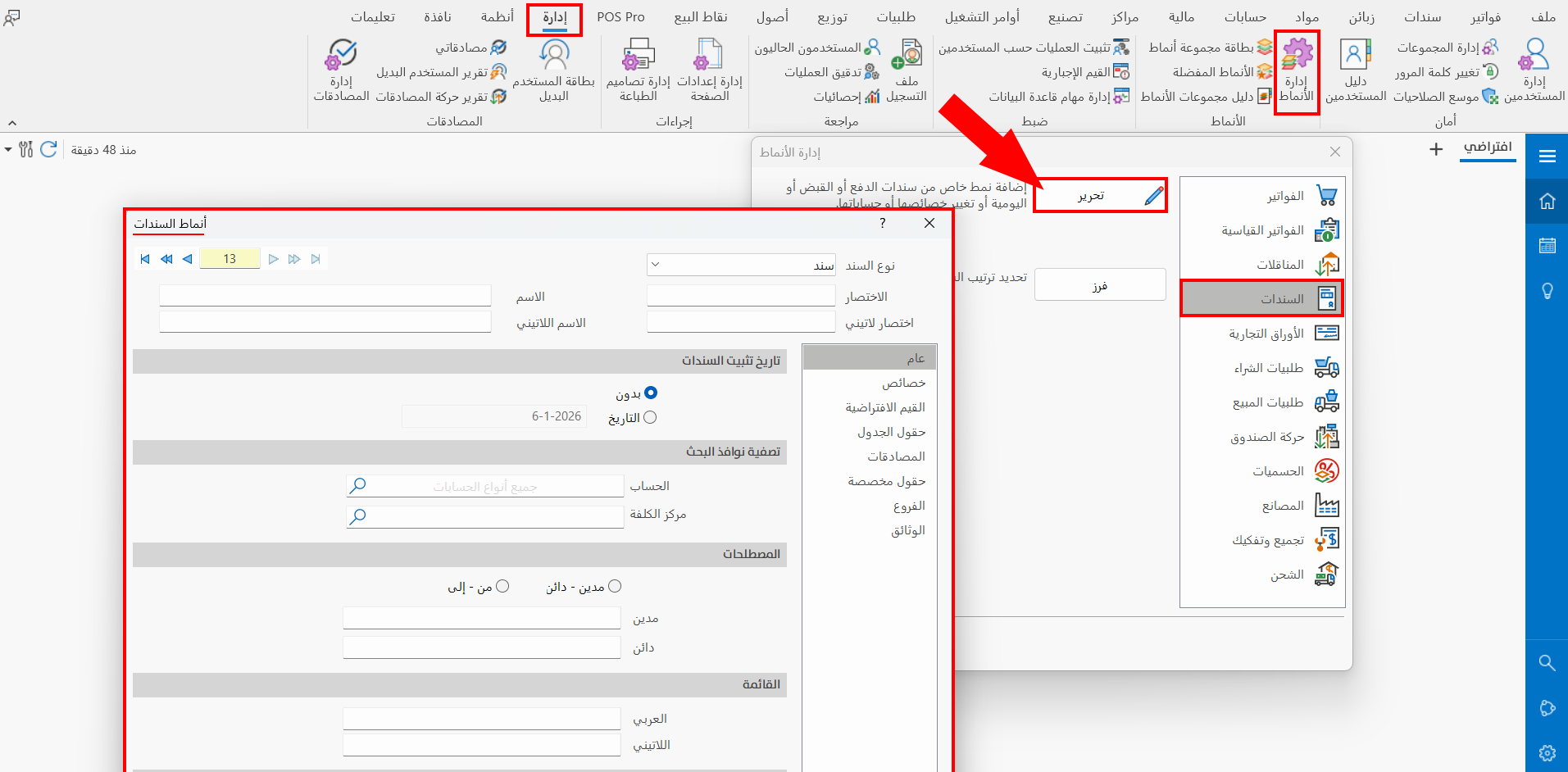
From the Management tab on the main ribbon - Forms group - Forms Management button - Entries tab - Edit button.
From the Entries tab on the main ribbon - Entries group - dialog box launcher.
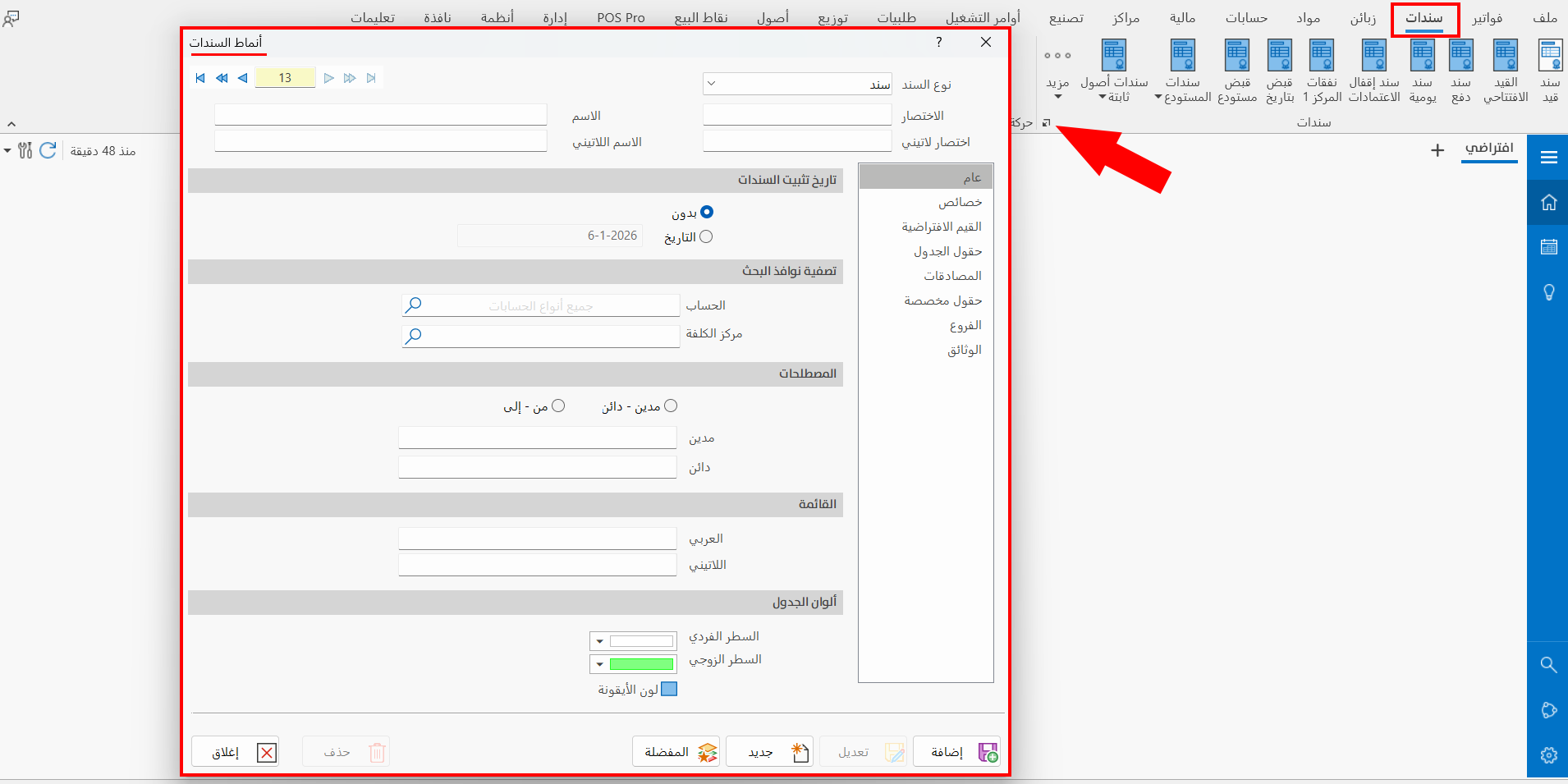
The "Entries Forms" window consists of the following fields:
Main Fields
The window contains a number of fixed main fields:
Serial Number and Navigation Buttons
Please see Serial Number and Navigation Buttons.
Entry Type
Set the type of entry you want to create a form for, by choosing it from the drop-down list after clicking the field. The list contains the following options:
-
Entry
-
Multiple- receipt methods
-
Multiple- payment methods
Name
Enter the name of the entry you want to create a new form for (mandatory field).
Latin Name
You can enter the form name in another language.
Abbreviation
Enter the short name of the entry (mandatory field).
Latin Abbr
You can enter an abbreviation of the Latin name.
Tabs
The contents of the "Entries Forms" window change with the tab you are on, as follows:
General
The entries forms window opens on this tab by default. It contains the following fields:
Entries Lock Date
Locking means that no user is allowed to carry out any action (delete, modify...) on the entries issued with this form after the date you set below.
You can set the lock date of the current form's entries by clicking the check box next to the option you want.
The available options are:
- None
Selected by default: no lock date is set for the entries.
- Date
Click the check box next to the option to enter the date from which the entries of this form are locked.
Filter Search Dialogs
You can set the accounts and cost centers that appear in the "Select Account" and "Select Cost Center" windows when they are opened from the fields of the current entry.
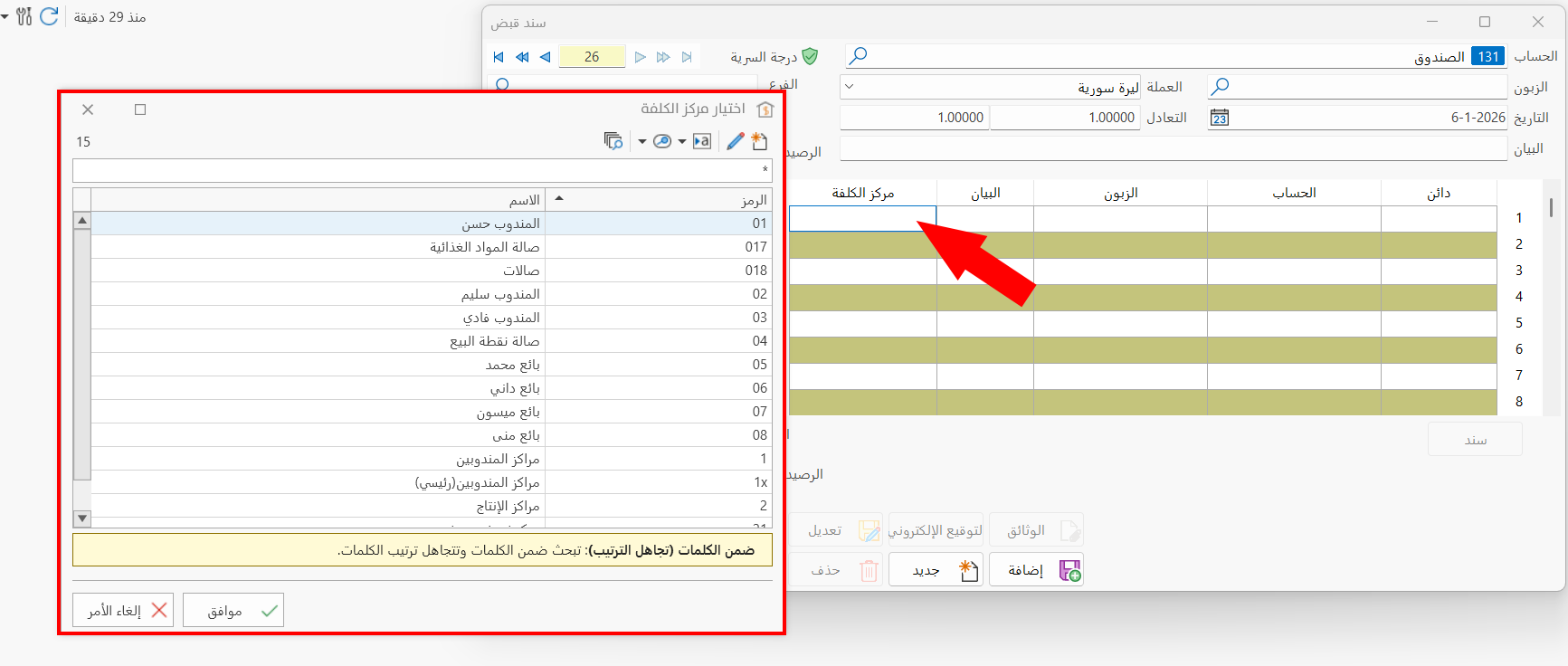
The search window opens when you type (*) in the field, or type part of the account or cost center and press Enter on the keyboard.
Terms
The window lets you choose the terms you want to use in the current entries form. The available options are:
- Debit - Credit
Select this option if you want to use the terms debit and credit, so the entry reads: debit the account, credit the account.
- From - To
Select this option if you want to use the terms from and to, so the entry reads: from the account, to the account.
You can rename Debit-Credit or From-To to the names you find suitable by entering the new names in the following fields:
- Debit
You can change the name (Debit-From) by typing a new name in the field.
- Credit
You can change the name (Credit-To) by typing a new name in the field.
Menu
You can make the form you create appear in a drop-down menu that you name yourself, instead of placing it as a separate button on the main ribbon of the program.
- Arabic
Enter the menu name in Arabic.
- Latin
Enter the menu name in another language.
For example, after creating a form named "Receipt Voucher" and entering "Warehouse Entries" in the Menu field, the new form appears in the drop-down menu of "Warehouse Entries".
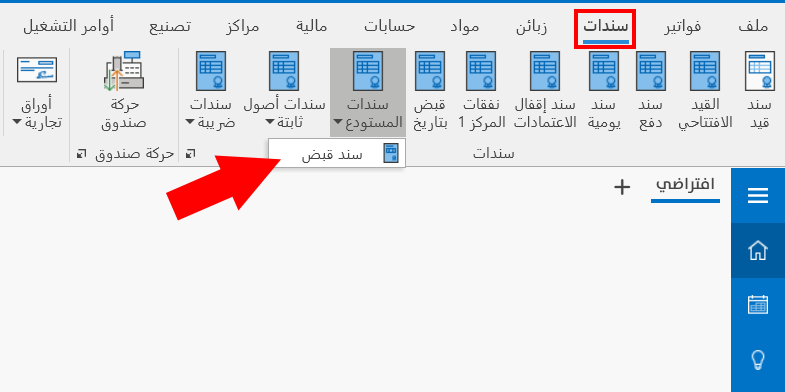
To add more than one form to the same menu, enter the menu name exactly as it is in these fields.
Table Colors
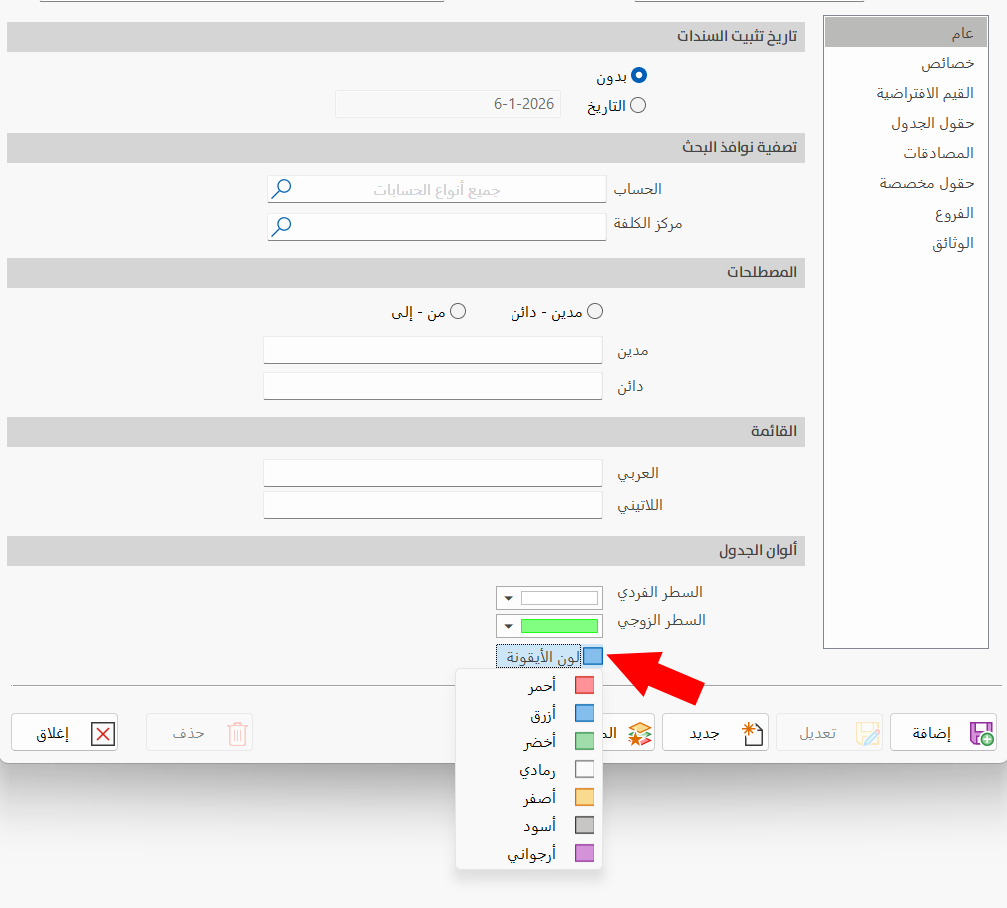
You can customize the colors of the entry table by choosing a color for each of the following:
-
Odd Row
-
Even Row
Click the arrow in the default color bar to open the color palette, then click the color you want or create a new shade.
You can also choose the icon color (the color of the button on the main ribbon of the program).
The default icon color of an entry is blue: clicking the blue color box opens a list of colors you can assign to the button of the form you are adding.
Properties
This tab contains a set of options that you set according to the purpose of the form you are creating.
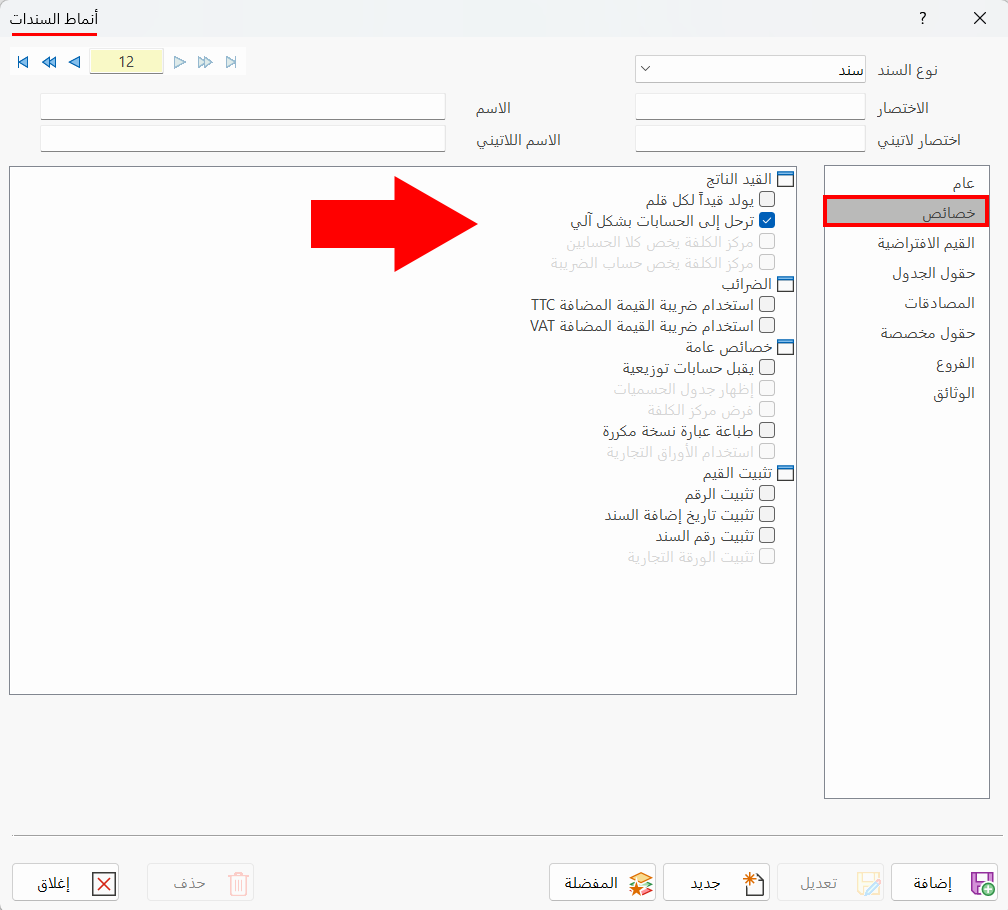
Click the check box next to the option. When the box turns blue, the option is enabled and applied to the form.
By default, the program selects the "Post to accounts automatically" option in entries forms.
Default Values
The tab contains a set of fields for setting the accounts and the default currency of the form, as follows:
-
Entry Account
-
Tax Account
-
Currency
-
Branch
-
Commercial papers form
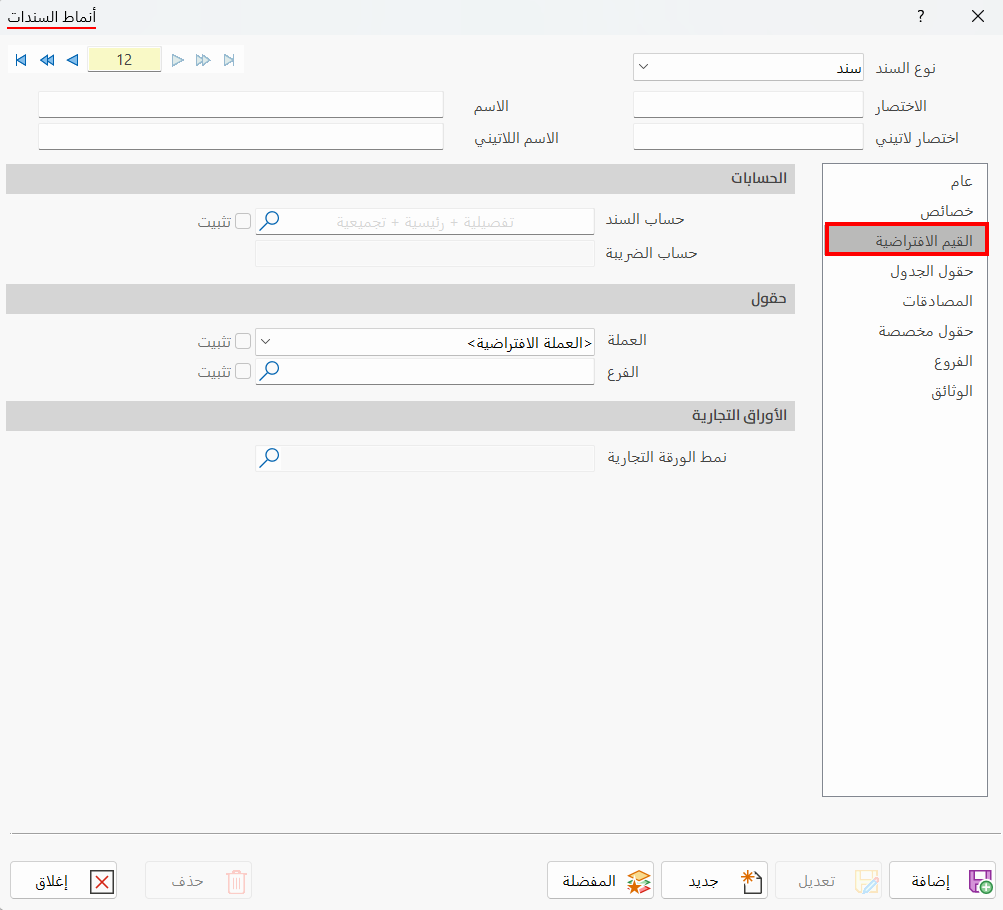
Table Fields
Set the fields you want to show in the entry table by clicking the check box next to each field: when it turns blue, the field will appear in the table.
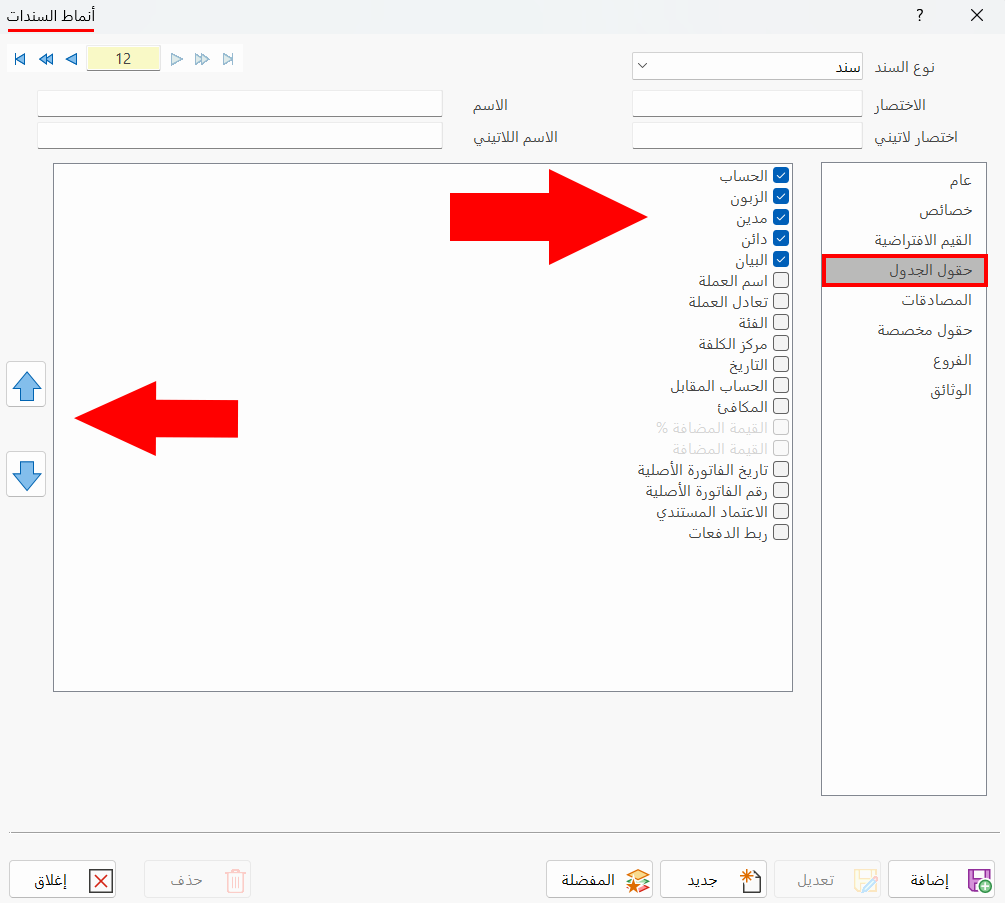
You can arrange the positions of the fields in the entry table with the arrows in this window.
There are fields you must add when you apply certain procedures or operations, such as the "Expiry Date" field, which you must add when you apply the expiry date system.
Approvals
The tab contains a table with the names of all the users defined in the program: if you are a user with the permission, you can set the users whose approval you need on the current form.
You can also set the conditions for requesting approval, the value that requires a user's approval, and force the sequence of approvals and cancellation.
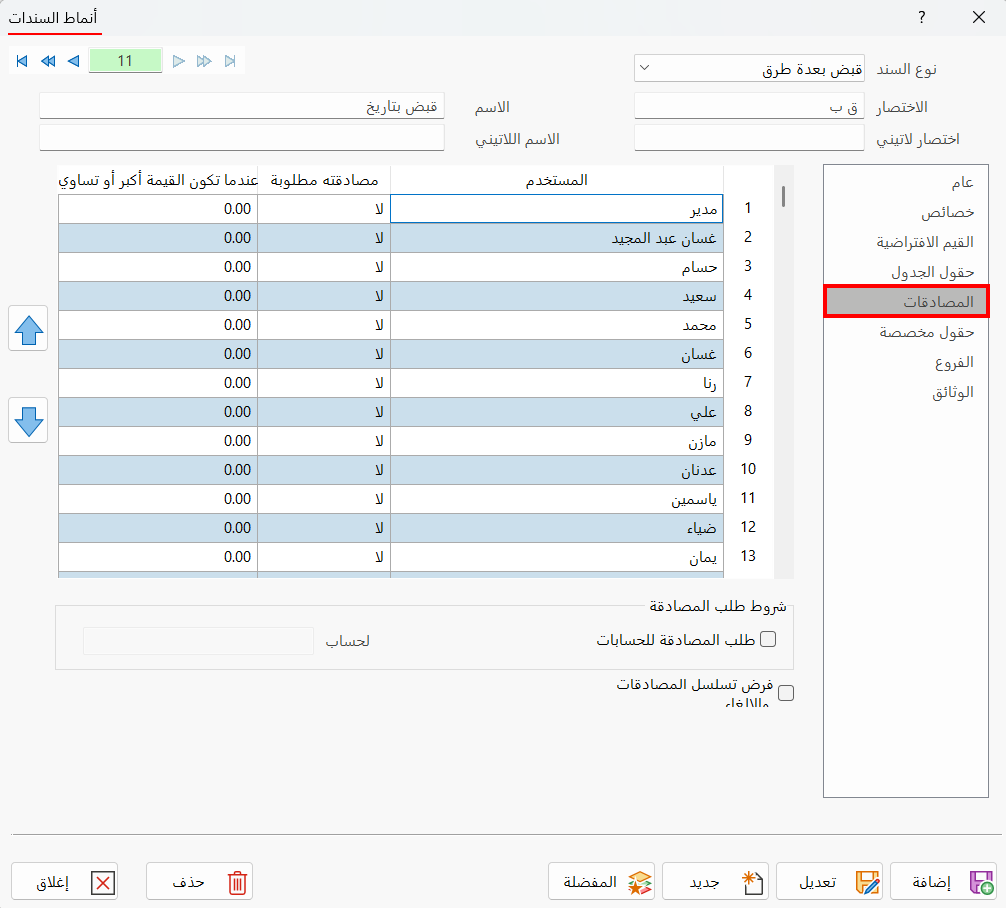
You cannot use approvals on the form if you enabled "Debit" and "Credit" on the "Table Fields" tab.
Custom Fields
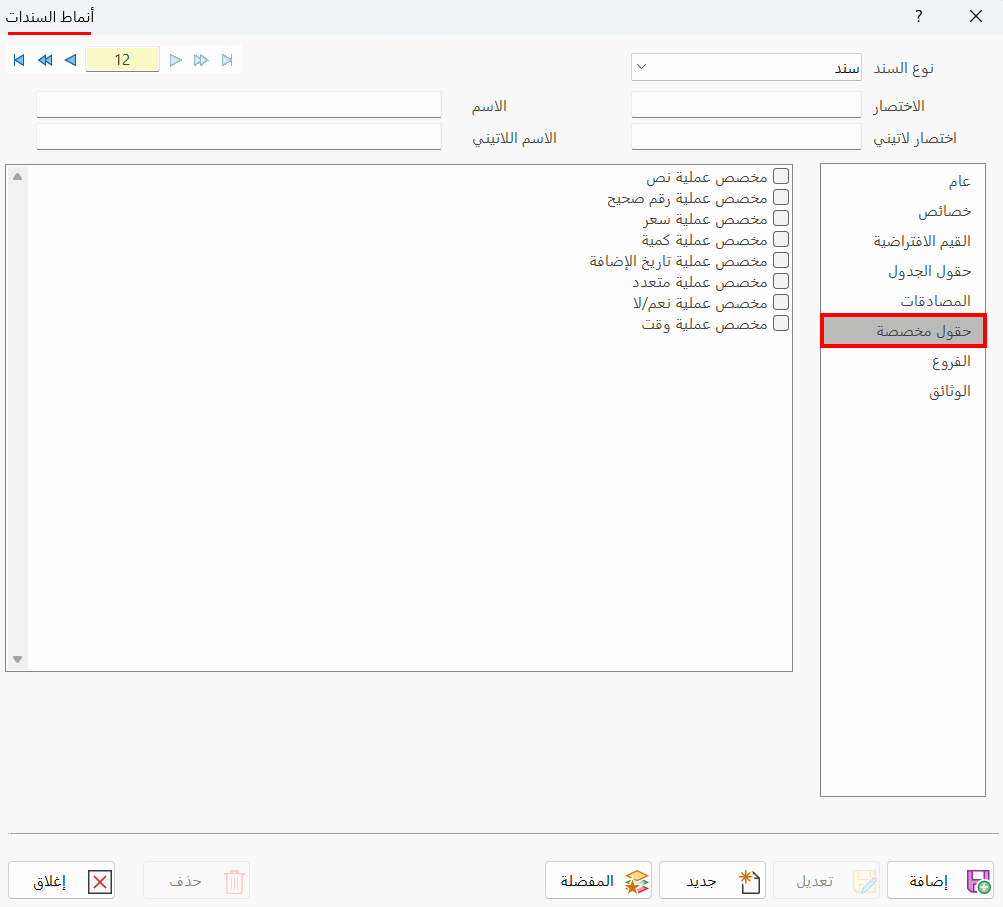
The tab shows a list of all the custom fields you defined earlier: click the check box next to each field you want to show in the window of the current form. When the check box fills with blue, the field is selected and will appear in the entries form.
Branches
This tab appears in the entries forms window after the "branches system" is enabled.
Select the branch in which this form is used. The tab lists all the branches defined with the "Branch" card.
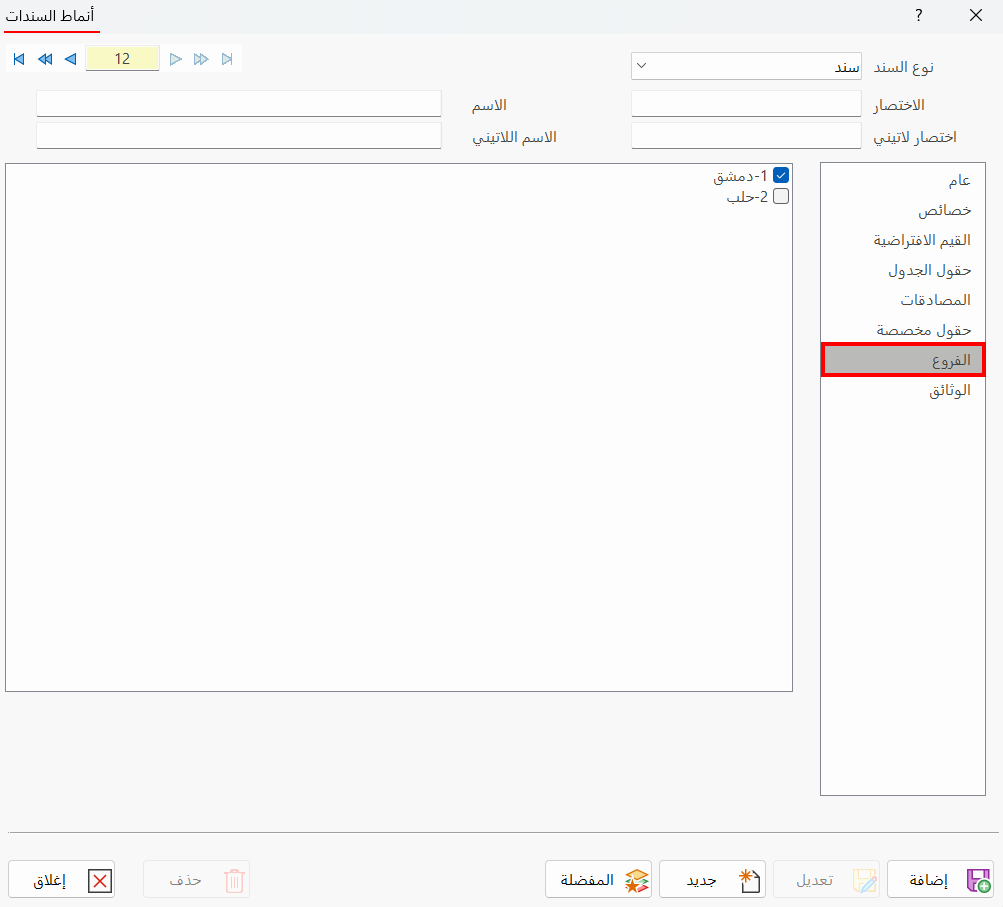
If your organization has several branches, you can enable the branches system in the Program Options window - "Save" tab - "Systems" group.
Documents
The tab shows a table with the documents defined in the program with the attached document type card, so you can enable the document you want to use in the form you are defining.
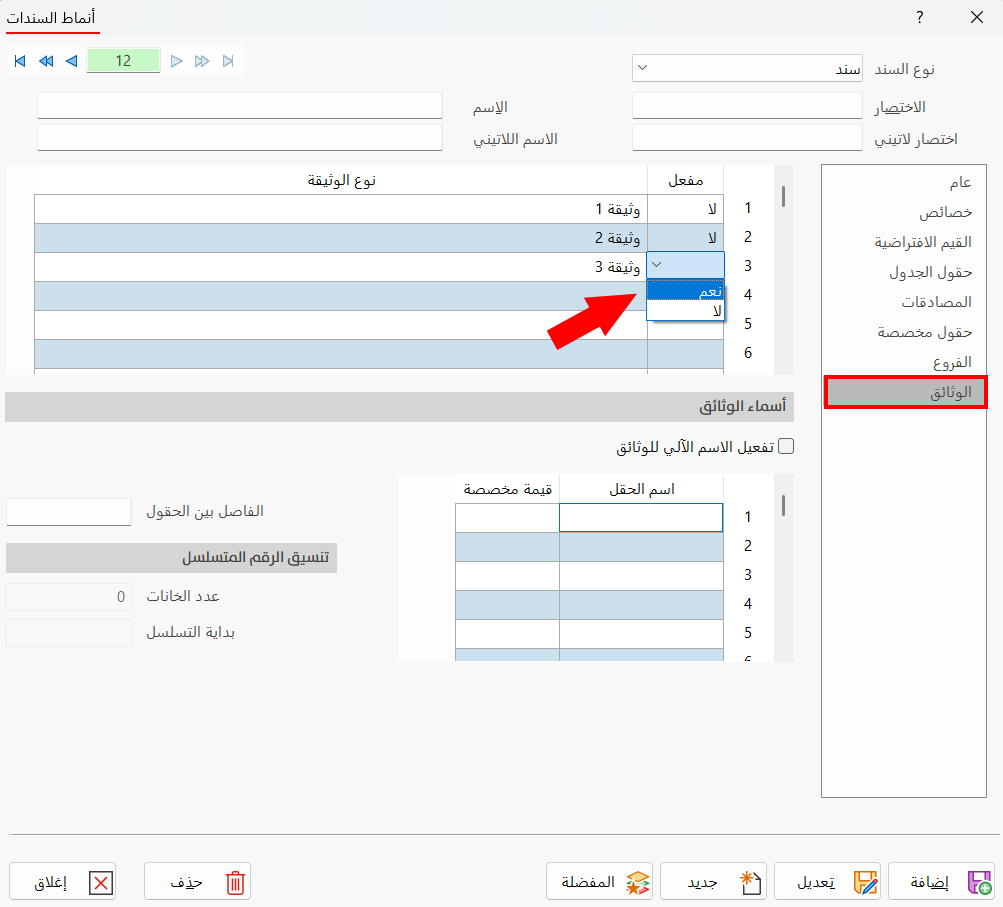
The contents of the tab appear after the form is added: define the entries form first, then move to the previous form and come back to the current (new) form; the contents of the tab then appear so you can enable the documents.
Favorite
After creating a number of forms, you can choose your favorite forms so they always appear on the program's main ribbon, and group the forms that are not favorites.
After you click "Favorite", the following window opens:
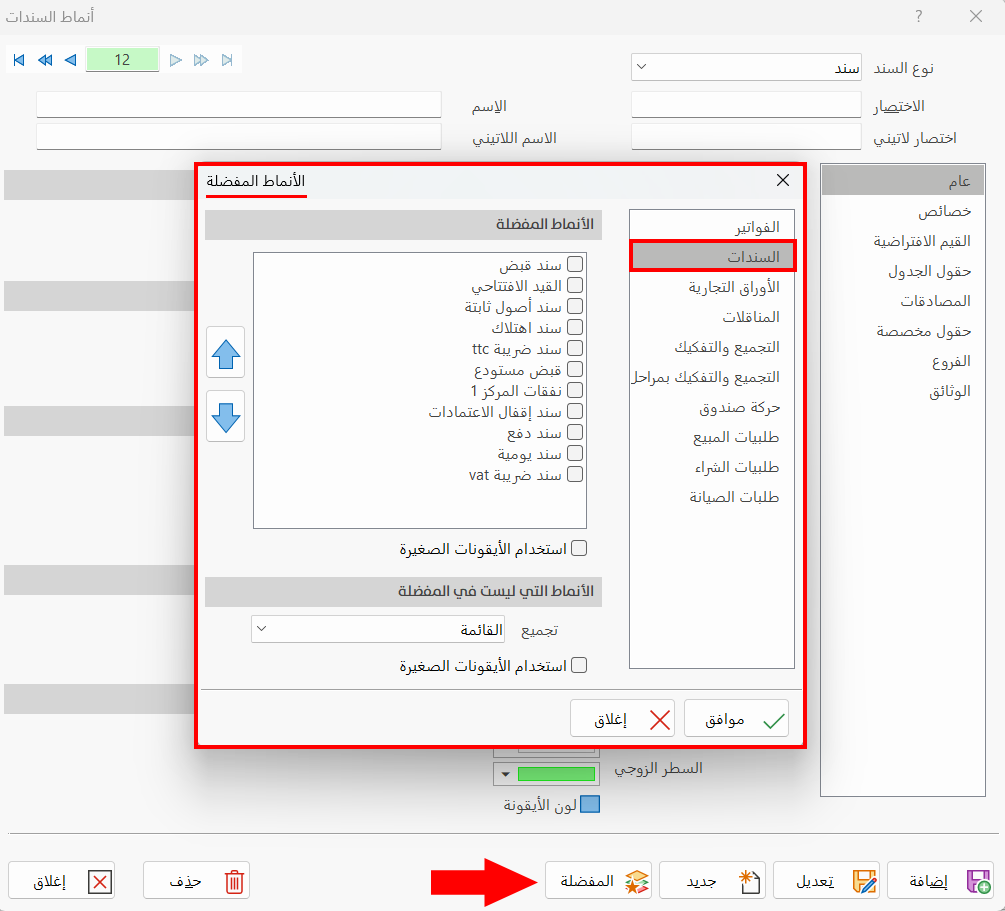
The favorite forms window contains a number of tabs, including the "Entries" tab, which shows the forms you have added directly in the window.
Standard Commands
Please see Standard Commands.