Cash Activity
The "Cash Activity" button appears on the program's main ribbon after you add it with the Forms Management window - "Cash Activity" tab. It is one of the forms you find in the file when you choose the "Default" creation template in the choose creation template stage of creating a new file.
You can reach the Forms Management window from the main ribbon - Management tab - Forms group.
The "Cash Activity" window shows, enters, or modifies the movement of the cash account, or any other account, on any date you set: the window shows all the entries added to the account on the date set in the window.
The journal entry is shown in the cash activity window by its other side only, not in full, because the first side is the account set in the Account field of the window.
Reaching Cash Activity
You can reach the "Cash Activity" button from the main ribbon - Entries tab - Cash Activity group.
Once requested, the window appears as follows:
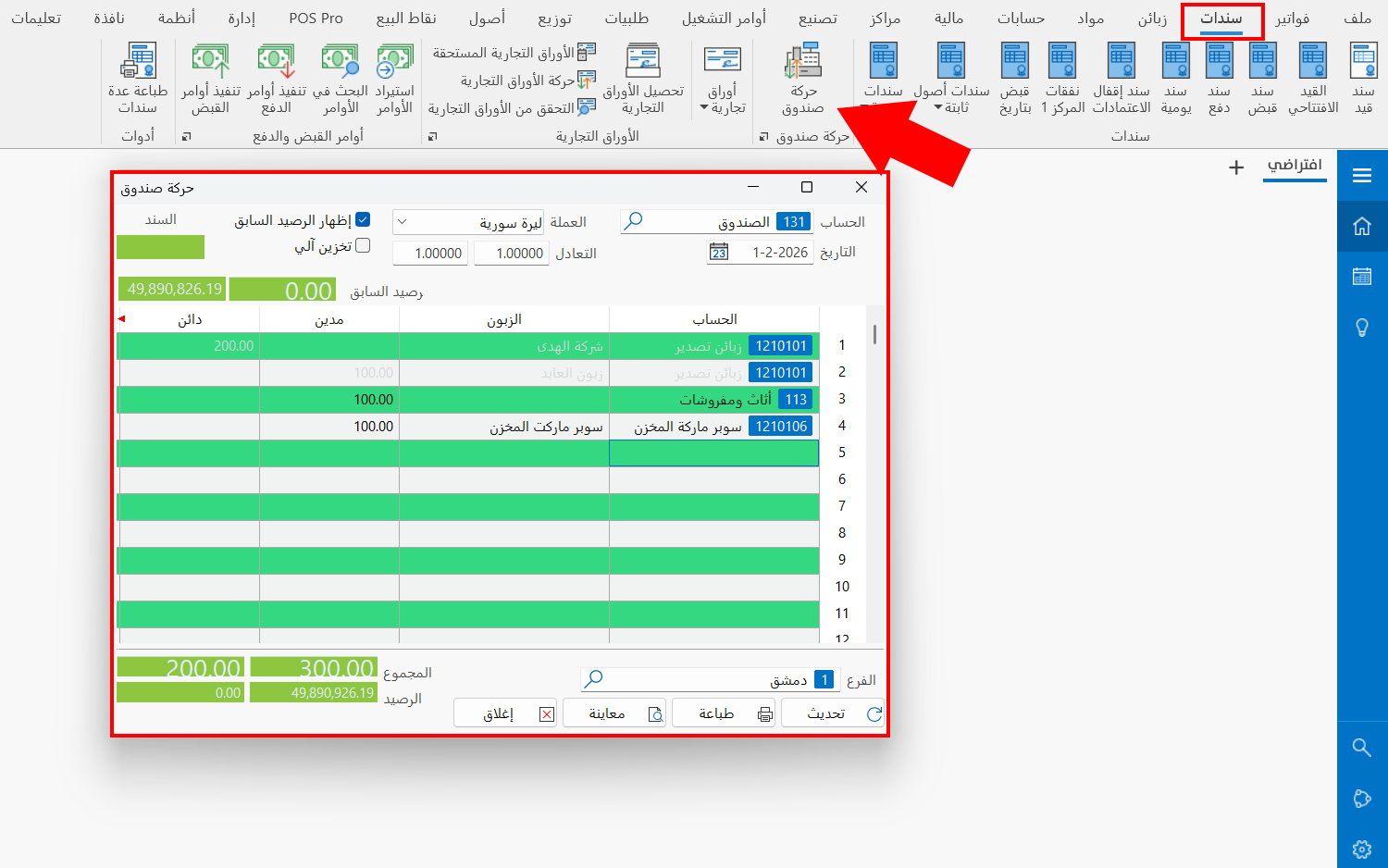
Contents of the Cash Activity Window
The cash activity window consists of the following fields:
Account
Enter the name/code of the account whose entries you want to view, modify, or add to. In the form shown here, the default account that appears in the field is the "Cash" account.
You can set the account as the default account of the window, so it appears automatically in the field, by entering it in the Account field of the Default Values tab - Forms Management window, for the current form.
Date
Today's date appears in the field by default: the date on which the account's movement is shown.
You can change the date to show the account's movement on earlier dates, by typing it or with the calendar icon in the field.
Currency
Sets the currency in which you want to show the debit, credit, and balance values in the accounts table. The program uses the account currency set in its card to show the values in the table, so this currency is selected by default in the "Currency" field.
Parity
The field shows the parity of the currency set in the previous Currency field.
Entry
The field shows the number of the current entry selected in the accounts table.
You can show the selected entry by double-clicking it with the left mouse button.
Show Previous Balance
This option is enabled by default, so the read-only "Previous Balance" field appears above the table, showing the previous balance of the account set in the "Account" field.
You can disable the option to hide the previous balance.
Auto Save
Enable the "Auto Save" option to save the data you enter in the accounts table without a confirmation message.
By default it is disabled: when you try to add new data and move between the rows of the table, the following message appears:
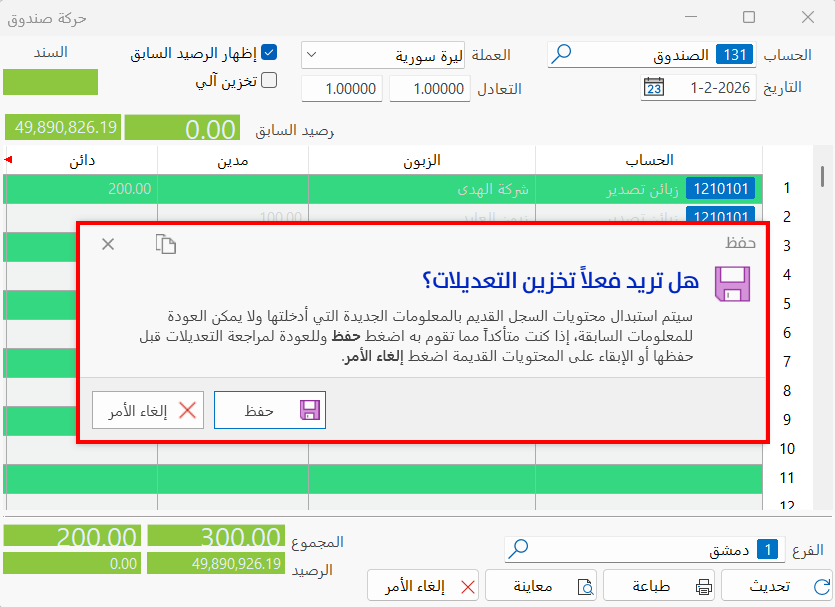
Accounts Table
This table contains the following default fields:
Account
This field shows the name of the account that is the other side of the journal entry, as the first side of the entry is the one set in the account edit box. Here you can also enter the account name of a new journal entry, or modify the account of an existing entry.
Customer
Set the customer linked to the account you entered in the "Account" field, if the account is linked to more than one customer; when it is linked to a single customer, the customer's name is listed in the field as soon as you choose the account.
Debit
The field shows the debit value of the entry. You can modify it in any entry except compound entries and entries generated by invoices or by entries other than journal entries; you can also type the value when adding a new entry in the table.
Credit
The field shows the credit value of the entry. You can modify it in any entry except compound entries and entries generated by invoices or by entries other than journal entries; you can also type the value when adding a new entry in the table.
You can rename Debit and Credit and use suitable terms from the General tab of the Forms Management window for this form.
Notes
Enter additional information related to the entry you add in the accounts table.
You can add new fields to the table from the Table Fields tab of the Forms Management window, for the current form.
You can also choose the table colors of even and odd rows from the General tab of the Forms Management window, for the current form.
Branch
This field appears in the window when you enable the branches system: it shows the branch in which the movement took place, or of the entry selected in the accounts table.
Total
Divided into two total fields: the first shows the total debit value, and the second the total credit value, taking the "Show previous balance" option into account: if it is enabled, the previous balance is included in the final balance; if it is disabled, it is not.
Balance
This field contains the final balance, which is the difference between debit and credit.
Refresh Button
Refreshes the contents of the window after you carry out actions in it, such as modifying the account, the date, or an entry.
Standard Commands
Please see Standard Commands.