Note Receivable
Documents a financial value resulting from receipt operations. It is one of the basic commercial paper forms of the program: you can use it and modify its properties (if you are the manager or a user with the permission).
You can also add new forms of commercial paper (check, MasterCard, Visa card...) with the commercial papers forms window.
You can open a note receivable from the Entries tab on the program's main ribbon - Commercial Papers group.
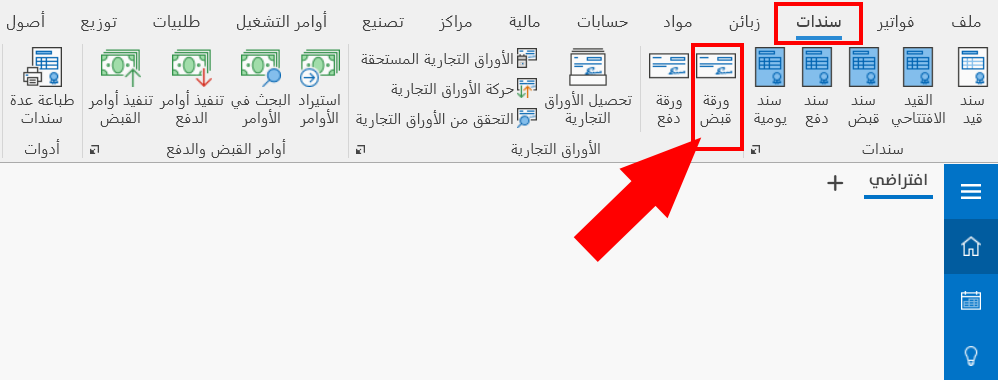
When requested, the paper opens as follows:
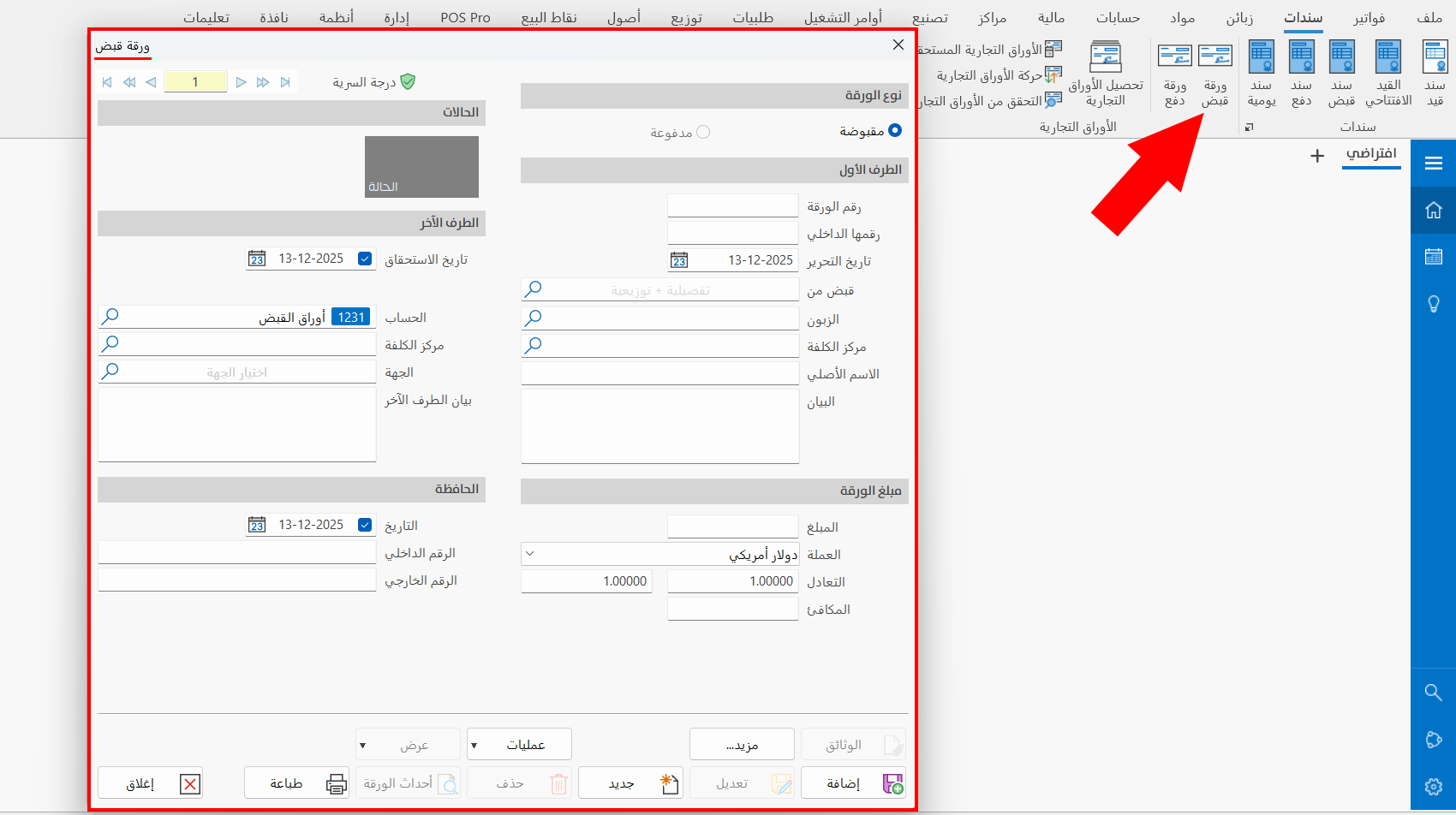
The paper window consists of the following:
Serial Number and Navigation Buttons
Please see Serial Number and Navigation Buttons.
Security Level
Please see Security Level.
Paper Type
Set the type of the current commercial paper from the following two options:
Receivable
The default option, because the current commercial paper is used for receiving.
Payable
You can choose it when the commercial paper is used for paying; you cannot select this option if the current paper is used for receiving.
Status
The field shows the status of the commercial paper, that is, its current stage. It depends on what you set with the "Operations" button on the standard commands bar at the bottom of the note receivable window.
The status of the paper changes with the operation you carry out on it. The statuses in which a commercial paper may appear are:
-
Not received
-
Endorsed
-
Under collection
-
Under discounting
-
Discounted
First Side
Enter the information of the first side, that is, the side from which the current paper is received, by filling in the following fields:
Paper No
Enter a serial number for the paper that is not used in another card: the paper can be saved only with a unique number (mandatory field).
Internal No
Enter an internal number for the paper so you can sort by it when collecting commercial papers.
Issue Date
Today's date appears in the field by default; you can type the actual issue date of the note receivable.
Received From
Set the account from which the paper is received (the credit account), by entering the name/code of the account, or by clicking the search icon in the field and choosing the account from the window that opens.
Customer
Enter the name of the customer from whom the paper is received (if the account you entered in the "Received From" field is linked to more than one customer), or look them up with the search icon in the field.
Cost Center
The cost center linked to the account appears automatically after you enter the account in the "Received From" field.
Origin Name
Type a distinctive name in the field so you can sort by it when collecting commercial papers.
Notes
The field is filled automatically after you add the data in the fields of the commercial paper: it shows information such as the account, the name of the commercial paper, the internal number...
Other Side
Enter the information of the second side, that is, the side in which the current paper is received, by filling in the following fields:
Maturity Date
Enter the date on which the paper must be received, by typing it or with the calendar window in the field.
Account
Shows the account set in the "Issue Notes Receivable" field of the commercial papers forms window for this form; it is the debit account of the journal entry generated by the paper.
Cost Center
The cost center linked to the account appears automatically after you enter the account in the "Account" field.
Destination
Set the source the commercial paper belongs to (Real Estate Bank, Commercial Bank...), by entering the name/code of the destination, or by clicking the search icon in the field: the "Select destination" window opens, showing the destinations defined with destination cards.
Other Side Notes
The field is filled automatically after you add the data in the fields of the commercial paper: it shows information such as the account, the name of the commercial paper, the internal number...
Paper Amount
You must enter the amount you will receive with the current paper when it falls due, by filling in the following fields:
Amount
Enter the total amount to be collected from the customer with the current paper.
Currency
Set the currency used to collect the amount due from the customer; by default, the field shows the program's basic currency.
To change the currency, click the arrow in the field: a list of the currencies defined in the "Currency Exchange Rates" window opens.
To open the "Currency Exchange Rates" window, go to the "Accounts" tab on the main ribbon of the program - "Currencies" group.
Parity
The field shows the exchange rate of the currency in the "Currency" field (the exchange rate of the selected currency against the basic currency).
Set the parity of the currency against the main currency in the "Currency Exchange Rates" window to save it, so that it is filled in automatically in the "Parity" field whenever you select this currency in the "Currency" field.
Equivalent
After you choose a currency other than the basic currency, the currency equivalent rate appears automatically (that is, the equivalent of the amount in the basic currency).
Portfolio
You can record some information that makes it easier to follow up commercial papers, with the following fields:
Date
You can set a special date, different from the issue and maturity dates.
Internal No
Enter an internal number for the portfolio, so you can view the commercial papers given a common internal number, or sort the papers by this number when collecting commercial papers.
External No
Enter an external number for the portfolio, so you can view the commercial papers given a common external number, or sort the papers by this number when collecting commercial papers.
Operations
The button opens all the operations available for the current paper: you must follow up the paper and change its status manually with the available operations, according to the status of the paper.
Paper Events
Click the button to go to the "Commercial Paper Events" report, which shows the operations you carried out on this paper (adding the paper, modifying the paper, returning to origin...).
Standard Commands
Please see Standard Commands.